
Back to: ASP.NET Core Web API Tutorials
How to Integrate IP Geolocation API in ASP.NET Core: Step-by-Step Guide
IP geolocation in ASP.NET Core is the process of detecting a user’s physical location, country, city, and timezone from their IP address inside a .NET Web API application using a third-party geolocation service.
ASP.NET Core has no built-in geolocation. The framework gives you the raw IP address from HttpContext.Connection.RemoteIpAddress. What you do with it is entirely up to you.
Developers usually find two solutions online. MaxMind’s GeoLite2 requires downloading and managing an offline database file. That file needs regular updates, takes up disk space, and returns stale data between update cycles. Azure Maps works, but it ties you into Azure infrastructure and adds unnecessary cost for something this simple.
There is a cleaner approach. The IP Geolocation API with .NET SDK from IPGeolocation.io is a lightweight, officially maintained NuGet package that returns country, city, timezone, currency, and optionally network, ASN, and security data in a single async call. No database files. No Azure dependency. Just an API key and a few lines of C#.
This tutorial builds a complete, working integration from scratch, including a NuGet install, service class, controller, and a live response. Every code block is copy-paste ready.
What You Will Build
Here’s what the finished project does:
- Accepts any IPv4 or IPv6 address as a route parameter
- Calls the IPGeolocation.io API using the official .NET SDK
- Returns a clean JSON response with country, city, timezone, currency, and optional network and security metadata
Why Most .NET Geolocation Tutorials Get It Wrong
Developers often reach for MaxMind GeoLite2 because it shows up first in search results. But it comes with real maintenance overhead.
| Approach | Setup Complexity | Data Freshness | Cost |
|---|---|---|---|
| MaxMind GeoLite2 | High: manage .mmdb files | Stale between updates | Free but manual |
| Azure Maps | Medium: needs an Azure account | Real-time | Paid |
| IPGeolocation.io SDK | Low: one NuGet package | Real-time | Free tier available |
In practice, the offline database approach breaks quietly. The file gets out of date, IPs start returning wrong countries, and nobody notices until a user complains. A real-time API solves that permanently.
Prerequisites
Before starting, make sure you have:
- .NET 8 SDK installed
- Visual Studio 2022 or VS Code
- A free IPGeolocation.io account sign up at ipgeolocation.io (no credit card needed)
- Basic knowledge of ASP.NET Core Web API and dependency injection
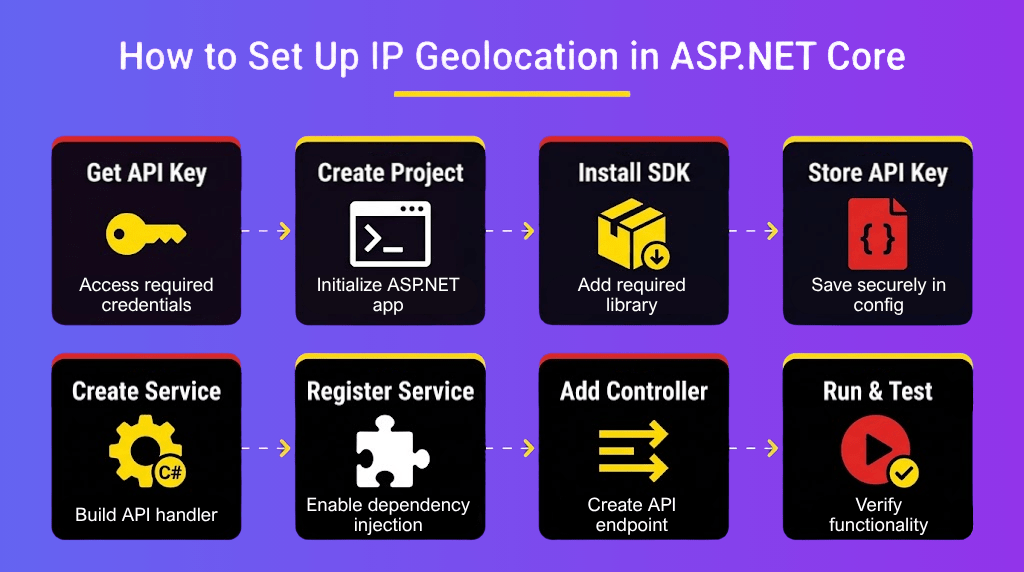
Step 1: Get Your Free API Key
Go to app.ipgeolocation.io/signup and create a free account with No credit card required. The free plan gives 1,000 API Credits per day, more than enough for development and low-traffic apps.
Once signed in, open your dashboard and copy the API key from the API Keys section.
Never paste this key directly into the source code. The right place is appsettings.json for local development and an environment variable or secrets manager for production.
Step 2: Create the ASP.NET Core Web API Project
If you already have a project, skip this step.
dotnet new webapi -n GeoApiDemo
cd GeoApiDemo
This creates a minimal ASP.NET Core Web API project targeting .NET 8.
Step 3: Install the Official .NET SDK
IPGeolocation.io publishes an official NuGet package. Install it with whichever method you prefer.
.NET CLI:
dotnet add package IPGeoLocation.IPGeolocation
Package Manager Console:
Powershell:
Install-Package IPGeoLocation.IPGeolocation
PackageReference in .csproj:
<PackageReference Include=”IPGeoLocation.IPGeolocation” Version=”3.0.0″ />
The package namespace is IPGeolocation. It targets .NET Standard 2.1, which means it works with .NET 6, 7, 8, and 9 without changes.
Step 4: Store the API Key in appsettings.json
Open appsettings.json and add a dedicated section for the key:
{
  "Logging": {
    "LogLevel": {
      "Default": "Information",
      "Microsoft.AspNetCore": "Warning"
    }
  },
  "AllowedHosts": "*",
  "IPGeolocation": {
    "ApiKey": "YOUR_API_KEY_HERE"
  }
}
For production, use an environment variable instead. ASP.NET Core reads it automatically using a double underscore as a section separator:
Bash:
export IPGeolocation__ApiKey=”your_actual_key”
This keeps the key out of version control entirely.
Step 5: Create the Geolocation Service
This is where the actual work happens. Create a new file at Services/GeoLocationService.cs.
The service reads the API key from the configuration, creates the SDK client, and exposes an async method that the controller will call.
using IPGeolocation;
using Microsoft.Extensions.Configuration;

namespace GeoApiDemo.Services
{
    public sealed class GeoLocationService : IDisposable
    {
        private readonly IpGeolocationClient _client;

        public GeoLocationService(IConfiguration configuration)
        {
            var apiKey = configuration["IPGeolocation:ApiKey"]
                ?? throw new InvalidOperationException(
                    "IPGeolocation API key is missing from configuration.");

            _client = new IpGeolocationClient(
                new IpGeolocationClientConfig(apiKey: apiKey));
        }

        public async Task<IpGeolocationResponse?> GetLocationAsync(
            string ipAddress,
            CancellationToken cancellationToken = default)
        {
            var response = await _client.LookupIpGeolocationAsync(
                new LookupIpGeolocationRequest(ip: ipAddress),
                cancellationToken);

            var data = response.Data;
            if (data == null)
                return null;


            Console.WriteLine($"Country Code: {data.Location?.CountryCode2}");
            Console.WriteLine($"City: {data.Location?.City}");
            Console.WriteLine($"State: {data.Location?.StateProv}");
            Console.WriteLine($"Timezone: {data.TimeZone?.Name}");

            return data;
        }

        public async Task<IpGeolocationResponse?> GetCallerLocationAsync(
            CancellationToken cancellationToken = default)
        {

            var response = await _client.LookupIpGeolocationAsync(
                cancellationToken: cancellationToken);

            var data = response.Data;
            if (data == null)
                return null;


            Console.WriteLine($"Country Code: {data.Location?.CountryCode2}");
            Console.WriteLine($"City: {data.Location?.City}");
            Console.WriteLine($"State: {data.Location?.StateProv}");
            Console.WriteLine($"Timezone: {data.TimeZone?.Name}");

            return data;
        }

        public void Dispose()
        {
            _client.Dispose();
        }
    }
}
A few things worth noting:
- LookupIpGeolocationRequest validates the request before it is sent. This is the SDK’s own request object, not a raw HTTP call
- The ?? throw pattern on the API key ensures the application fails fast at startup if the key is missing, not silently at runtime
- GetCallerLocationAsync passes an empty string that tells the API to auto-detect the caller’s public IP address
Step 6: Register the Service in Program.cs
Open Program.cs and register GeoLocationService as a scoped dependency:
using GeoApiDemo.Services;

var builder = WebApplication.CreateBuilder(args);

builder.Services.AddControllers();
builder.Services.AddEndpointsApiExplorer();
builder.Services.AddSwaggerGen();

// Register GeoLocationService
builder.Services.AddScoped<GeoLocationService>();

var app = builder.Build();

if (app.Environment.IsDevelopment())
{
    app.UseSwagger();
    app.UseSwaggerUI();
}

app.UseHttpsRedirection();
app.UseAuthorization();
app.MapControllers();

app.Run();
AddScoped means a new instance per HTTP request. That is the right lifetime for a service that wraps an HTTP client; it matches the request lifecycle cleanly.
Step 7: Create the Controller
Create Controllers/GeoController.cs:
using GeoApiDemo.Services;
using IPGeolocation;
using Microsoft.AspNetCore.Mvc;

namespace GeoApiDemo.Controllers
{
    [ApiController]
    [Route("api/[controller]")]
    public class GeoController : ControllerBase
    {
        private readonly GeoLocationService _geoService;

        public GeoController(GeoLocationService geoService)
        {
            _geoService = geoService;
        }

        // GET api/geo/{ip}
        [HttpGet("{ip}")]
        public async Task<IActionResult> GetGeoData(
            string ip,
            CancellationToken cancellationToken)
        {
            if (string.IsNullOrWhiteSpace(ip))
                return BadRequest(new { error = "IP address is required." });

            try
            {
                var result = await _geoService.GetLocationAsync(ip, cancellationToken);

                if (result == null)
                    return NotFound(new { error = "No geolocation data found for this IP." });

                return Ok(result);
            }
            catch (ValidationException ex)
            {
                return BadRequest(new { error = ex.Message });
            }
            catch (RequestTimeoutException ex)
            {
                return StatusCode(StatusCodes.Status504GatewayTimeout, new { error = ex.Message });
            }
            catch (ApiException ex)
            {
                return StatusCode((int)ex.StatusCode, new { error = ex.Message });
            }
        }

        // GET api/geo/me
        [HttpGet("me")]
        public async Task<IActionResult> GetMyLocation(
            CancellationToken cancellationToken)
        {
            try
            {
                var result = await _geoService.GetCallerLocationAsync(cancellationToken);

                if (result == null)
                    return NotFound(new { error = "Could not detect location." });

                return Ok(result);
            }
            catch (ValidationException ex)
            {
                return BadRequest(new { error = ex.Message });
            }
            catch (RequestTimeoutException ex)
            {
                return StatusCode(StatusCodes.Status504GatewayTimeout, new { error = ex.Message });
            }
            catch (ApiException ex)
            {
                return StatusCode((int)ex.StatusCode, new { error = ex.Message });
            }
        }
    }
}
Step 8: Run and Test
Start the project:
dotnet run
Test with any public IP. Using 91.128.103.196 (a Stockholm, Sweden IP from the official docs):
GET https://localhost:{port}/api/geo/91.128.103.196
The API returns this response, taken directly from IPGeolocation.io’s live documentation:
The API returns a structured JSON response. Depending on your plan, the level of detail varies. The free plan includes core location data, while paid plans unlock advanced fields like ASN, network, security, abuse contact, and user-agent intelligence.
Free Plan Response (Essential Geolocation Data)
{
    "ip": "91.128.103.196",
    "location": {
        "continent_code": "EU",
        "continent_name": "Europe",
        "country_code2": "SE",
        "country_code3": "SWE",
        "country_name": "Sweden",
        "country_name_official": "Kingdom of Sweden",
        "country_capital": "Stockholm",
        "state_prov": "Stockholms län",
        "state_code": "SE-AB",
        "district": "Stockholm",
        "city": "Stockholm",
        "zipcode": "164 40",
        "latitude": "59.40510",
        "longitude": "17.95510",
        "is_eu": true,
        "country_flag": "https://ipgeolocation.io/static/flags/se_64.png",
        "geoname_id": "9972319",
        "country_emoji": "🇸🇪"
    },
    "country_metadata": {
        "calling_code": "+46",
        "tld": ".se",
        "languages": [
            "sv-SE",
            "se",
            "sma",
            "fi-SE"
        ]
    },
    "currency": {
        "code": "SEK",
        "name": "Swedish Krona",
        "symbol": "kr"
    },
    "asn": {
        "as_number": "AS1257",
        "organization": "Tele2 Sverige AB",
        "country": "SE"
    },
    "time_zone": {
        "name": "Europe/Stockholm",
        "offset": 1,
        "offset_with_dst": 2,
        "current_time": "2026-04-15 13:41:41.073+0200",
        "current_time_unix": 1776253301.073,
        "current_tz_abbreviation": "CEST",
        "current_tz_full_name": "Central European Summer Time",
        "standard_tz_abbreviation": "CET",
        "standard_tz_full_name": "Central European Standard Time",
        "is_dst": true,
        "dst_savings": 1,
        "dst_exists": true,
        "dst_tz_abbreviation": "CEST",
        "dst_tz_full_name": "Central European Summer Time",
        "dst_start": {
            "utc_time": "2026-03-29 TIME 01:00",
            "duration": "+1.00H",
            "gap": true,
            "date_time_after": "2026-03-29 TIME 03:00",
            "date_time_before": "2026-03-29 TIME 02:00",
            "overlap": false
        },
        "dst_end": {
            "utc_time": "2026-10-25 TIME 01:00",
            "duration": "-1.00H",
            "gap": false,
            "date_time_after": "2026-10-25 TIME 02:00",
            "date_time_before": "2026-10-25 TIME 03:00",
            "overlap": true
        }
    }
}
This response covers the most common use cases: country detection, city-level targeting, timezone handling, and currency selection. For many applications, this is all you need to build location-aware features.
Paid Plan Response (Extended Intelligence Data)
{
    "ip": "91.128.103.196",
    "hostname": "91.128.103.196",
    "location": {
        "continent_code": "EU",
        "continent_name": "Europe",
        "country_code2": "SE",
        "country_code3": "SWE",
        "country_name": "Sweden",
        "country_name_official": "Kingdom of Sweden",
        "country_capital": "Stockholm",
        "state_prov": "Stockholms län",
        "state_code": "SE-AB",
        "district": "Stockholm",
        "city": "Stockholm",
        "locality": "Stockholm",
        "accuracy_radius": "8.386",
        "confidence": "high",
        "dma_code": "",
        "zipcode": "164 40",
        "latitude": "59.40510",
        "longitude": "17.95510",
        "is_eu": true,
        "country_flag": "https://ipgeolocation.io/static/flags/se_64.png",
        "geoname_id": "9972319",
        "country_emoji": "🇸🇪"
    },
    "country_metadata": {
        "calling_code": "+46",
        "tld": ".se",
        "languages": [
            "sv-SE",
            "se",
            "sma",
            "fi-SE"
        ]
    },
    "network": {
        "connection_type": "",
        "route": "91.128.0.0/14",
        "is_anycast": false
    },
    "currency": {
        "code": "SEK",
        "name": "Swedish Krona",
        "symbol": "kr"
    },
    "asn": {
        "as_number": "AS1257",
        "organization": "Tele2 Sverige AB",
        "country": "SE",
        "type": "ISP",
        "domain": "tele2.com",
        "date_allocated": "2002-09-19",
        "rir": "RIPE"
    },
    "company": {
        "name": "Tele2 Sverige AB",
        "type": "ISP",
        "domain": "tele2.com"
    },
    "security": {
        "threat_score": 0,
        "is_tor": false,
        "is_proxy": false,
        "proxy_provider_names": [],
        "proxy_confidence_score": 0,
        "proxy_last_seen": "",
        "is_residential_proxy": false,
        "is_vpn": false,
        "vpn_provider_names": [],
        "vpn_confidence_score": 0,
        "vpn_last_seen": "",
        "is_relay": false,
        "relay_provider_name": "",
        "is_anonymous": false,
        "is_known_attacker": false,
        "is_bot": false,
        "is_spam": false,
        "is_cloud_provider": false,
        "cloud_provider_name": ""
    },
    "abuse": {
        "route": "91.128.0.0/14",
        "country": "SE",
        "name": "Swipnet Staff",
        "organization": "ORG-NCC1-RIPE",
        "kind": "group",
        "address": "Tele2 AB/Swedish IP Network, IP Registry, Torshamnsgatan 17 164 40 Kista SWEDEN",
        "emails": [
            "abuse@tele2.com"
        ],
        "phone_numbers": [
            "+46856264210"
        ]
    },
    "time_zone": {
        "name": "Europe/Stockholm",
        "offset": 1,
        "offset_with_dst": 2,
        "current_time": "2026-04-15 13:39:54.352+0200",
        "current_time_unix": 1776253194.352,
        "current_tz_abbreviation": "CEST",
        "current_tz_full_name": "Central European Summer Time",
        "standard_tz_abbreviation": "CET",
        "standard_tz_full_name": "Central European Standard Time",
        "is_dst": true,
        "dst_savings": 1,
        "dst_exists": true,
        "dst_tz_abbreviation": "CEST",
        "dst_tz_full_name": "Central European Summer Time",
        "dst_start": {
            "utc_time": "2026-03-29 TIME 01:00",
            "duration": "+1.00H",
            "gap": true,
            "date_time_after": "2026-03-29 TIME 03:00",
            "date_time_before": "2026-03-29 TIME 02:00",
            "overlap": false
        },
        "dst_end": {
            "utc_time": "2026-10-25 TIME 01:00",
            "duration": "-1.00H",
            "gap": false,
            "date_time_after": "2026-10-25 TIME 02:00",
            "date_time_before": "2026-10-25 TIME 03:00",
            "overlap": true
        }
    },
    "user_agent": {
        "user_agent_string": "PostmanRuntime/7.37.3",
        "name": "PostmanRuntime",
        "type": "Robot",
        "version": "7.37.3",
        "version_major": "7",
        "device": {
            "name": "Postman Runtime",
            "type": "Robot",
            "brand": "Postman",
            "cpu": "Unknown"
        },
        "engine": {
            "name": "PostmanRuntime",
            "type": "Robot",
            "version": "7.37.3",
            "version_major": "7"
        },
        "operating_system": {
            "name": "Cloud",
            "type": "Cloud",
            "version": "??",
            "version_major": "??",
            "build": "??"
        }
    }
}
The paid plan expands the response significantly. In addition to location data, it includes network details, ASN (ISP information), security signals (VPN, proxy, Tor detection), abuse contact data, and parsed user-agent metadata. This is especially useful for fraud detection, analytics, and security-focused applications.
The SDK returns different levels of detail based on your plan. While the free tier focuses on core geolocation fields, higher tiers include advanced datasets such as ASN, network routing, security intelligence, abuse contacts, and user-agent parsing. All available through the same response object.
What Can You Build With This?

Once the integration is working, extending it is straightforward.
| Use Case | Implementation |
|---|---|
| Redirect users by country | Read country_code2, apply routing logic in middleware |
| Auto-select billing currency | Use currency_code to pre-select on checkout |
| Block restricted regions | Compare country_code2 against a blocklist in a filter |
| Show local time | Use current_time from the time_zone object |
| Fraud detection | Flag requests from unexpected geographies before processing |
| Detect VPN or proxy users | Use security.is_vpn or is_proxy flags to prevent abuse or enforce restrictions |
| Analyze ISP / ASN data | Use ASN and company fields for traffic insights and enterprise analytics |
Developers working on multi-tenant SaaS apps, e-commerce platforms, and security tools reach for geolocation early. It is one of those integrations that unlocks five different features at once.
Handling the Reverse Proxy Problem
One issue consistently arises in deployed environments. When your ASP.NET Core app runs behind a reverse proxy IIS, Nginx, or a load balancer HttpContext.Connection.RemoteIpAddress returns the proxy’s IP, not the client’s.
The fix is UseForwardedHeaders middleware in Program.cs:
using Microsoft.AspNetCore.HttpOverrides;

app.UseForwardedHeaders(new ForwardedHeadersOptions
{
    ForwardedHeaders = ForwardedHeaders.XForwardedFor | ForwardedHeaders.XForwardedProto
});
Add this before UseAuthentication and UseAuthorization. Once in place, RemoteIpAddress will correctly reflect the real client IP from the X-Forwarded-For header.
This is the most common reason why geolocation works in development but returns wrong results in production.
Going Further with APIFreaks
IPGeolocation.io handles the geolocation layer cleanly. But applications often need more WHOIS lookups, domain intelligence, email validation, currency conversion, and DNS records. Integrating each of these separately means multiple accounts, multiple API keys, and multiple authentication flows to manage.
A multi-API integration platform for developers like APIFreaks brings these together under one account. It covers IP geolocation, WHOIS, DNS, email validation, currency exchange rates, and commodity prices, all accessible from a single API key. For .NET developers building data-rich applications, this reduces integration overhead significantly without sacrificing flexibility.
Frequently Asked Questions
How do I get a user’s / client’s IP address in ASP.N ET Core?
Use HttpContext.Connection.RemoteIpAddress?.ToString() in a controller or middleware. But in production behind a reverse proxy, this returns the proxy’s IP not the client’s. Add UseForwardedHeaders middleware and configure it to read the X-Forwarded-For header. That gives you the real client IP to pass to the geolocation API.
Is IPGeolocation.io free for ASP.NET Core projects?
Yes, for development and testing. The free plan allows 1,000 requests per day with no credit card required. It covers country, city, timezone, and currency data. But the free plan is for non-commercial use only, if you are building a production app or using it commercially, you need a paid plan. Paid plans start at $19/month and unlock higher request limits, security data, bulk lookups, and commercial use rights.
Can I use IP geolocation in ASP.NET Core middleware instead of a controller?
Yes, and for some use cases, that is the better approach. Add GeoLocationService as a singleton (not scoped) when using it in middleware, since middleware lives outside the request scope. Then access HttpContext.Connection.RemoteIpAddress directly in the middleware InvokeAsync method, call the geolocation service, and store the result in HttpContext.Items so that downstream controllers and services can read it without making a second API call.
Conclusion
.NET Core does not detect location from IP addresses out of the box. MaxMind’s offline database is the most common workaround, but it comes with ongoing maintenance; the database file needs updating, the data goes stale, and errors are silent.
The IPGeolocation.io .NET SDK removes all of that. One NuGet package, one API key in appsettings.json, one service class, and you have real-time country, city, timezone, and currency data available anywhere in your application. The pattern used here, service class injected into a controller via ASP.NET Core’s built-in DI, is the same pattern this course uses throughout its Web API tutorials.
And if your application grows to need WHOIS, DNS, or financial data alongside geolocation, APIFreaks gives you a single platform to expand from without starting over.
About the Author: Pranaya Rout
Pranaya Rout has published more than 3,000 articles in his 11-year career. Pranaya Rout has very good experience with Microsoft Technologies, Including C#, VB, ASP.NET MVC, ASP.NET Web API, EF, EF Core, ADO.NET, LINQ, SQL Server, MYSQL, Oracle, ASP.NET Core, Cloud Computing, Microservices, Design Patterns and still learning new technologies.