
Back to: ASP.NET Core Web API Tutorials
Global Configurations in EF Core using Fluent API
In Entity Framework Core, Global Configurations (also called Model-Wide Configurations) are settings that apply universally to all entities and properties within a particular DbContext. Instead of repeating the same configuration for every entity, EF Core allows defining these configurations once at the model level, ensuring:
- Consistency in how entities map to the database
- Reduction of repetitive code
- Centralized management of common rules
All global configurations are applied inside the OnModelCreating Method using the ModelBuilder parameter. These settings apply automatically to every entity, unless you explicitly override them for a specific entity or property.
Let us proceed and understand how and when to apply global configurations using Fluent API. With EF Core Global Configurations, we can configure the following settings globally:
- Setting the Default Schema for All Tables
- Setting Default Decimal Precision Globally
- Setting a Default Max Length for All String Properties
- Converting Enum Properties to Strings Globally
- Configuring Cascade Delete Behaviour Globally
- Configuring All String Properties to Be Non-Unicode (varchar)
- Adding Global Shadow Properties
- Automatically Setting Timestamp Columns (CreatedAt and UpdatedAt)
Setting a Default Schema
By default, EF Core creates tables under the database’s default schema (e.g., dbo in SQL Server). In many real applications, we organize tables into schemas such as sales, inventory, finance, and hr. A Default Schema global configuration tells EF Core: Unless otherwise specified, put all tables under this schema. This avoids having to repeat schema configuration per entity.
Syntax

Syntax Explanation
- OnModelCreating(ModelBuilder modelBuilder): This method is called by EF Core when the model is being built. All global configurations for the DbContext are defined here.
- modelBuilder.HasDefaultSchema(“sales”): Defines “sales” as the default schema for all database tables. Any entity without an explicitly set schema will automatically be created under this schema.
- Effect: All tables are created inside the sales schema unless overridden for a specific entity.
Note: The HasDefaultSchema method is primarily applicable to database providers that support schemas, such as SQL Server.
Setting a Default Decimal Precision
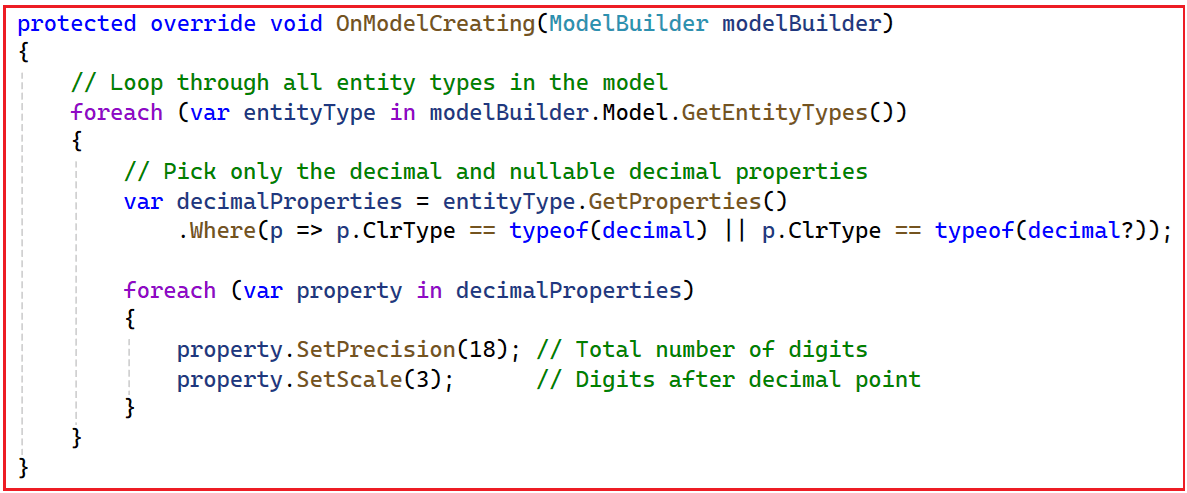
In many domains (primarily financial, billing, and pricing), Decimal Precision must be consistent across the database. Instead of configuring precision for every decimal property individually, we can set a global rule to ensure all decimal properties use the same precision and scale (e.g., decimal(18,2)).
Syntax
Syntax Explanation
- modelBuilder.Model.GetEntityTypes(): Retrieves all entity types registered in the EF Core model.
- entityType.GetProperties(): Gets every property defined in each entity type.
- p.ClrType == typeof(decimal) || p.ClrType == typeof(decimal?): Filters properties to only decimal or nullable-decimal fields.
- property.SetPrecision(18): Sets the total number of digits allowed for every decimal property.
- property.SetScale(2): Defines the number of digits allowed after the decimal point.
- Effect: All decimal properties use decimal(18,2) by default unless explicitly overridden at the property level.
Note: Individual properties can still override these global settings if specific precision and scale are required.
Setting a Default Maximum Length for String Properties
String columns often share a common maximum length across an application (e.g., nvarchar(200) for names, titles, etc.). Instead of configuring length per property, we can define a global default max length for all strings and override it only where needed.
Syntax

Syntax Explanation
- p.ClrType == typeof(string): Finds all string properties across all entities.
- property.GetMaxLength() == null: Ensures we only set max length for properties that do not have a manually configured size.
- property.SetMaxLength(200): Sets nvarchar(200) as the default length for all string properties without a custom length.
- Effect: Enforces consistent string column sizing while still allowing per-property overrides.
Note: Individual string properties can specify their own maximum lengths as needed, overriding the global default.
Converting Enum Properties to Strings Globally
By default, .NET enums are stored as integers when saved to the database. While this is efficient, it reduces readability and can be confusing when troubleshooting, debugging, or running SQL queries. By applying a global Enum-to-String conversion using Fluent API, we ensure that:
- All Enum values are stored as human-readable strings
- No per-property or per-entity configuration is required
- The conversion works for both normal and nullable Enum properties
- The entire DbContext benefits from consistent and predictable behaviour
This global configuration makes your schema cleaner and easier to maintain, especially in enterprise applications.
Syntax
Syntax Explanation
- modelBuilder.Model.GetEntityTypes(): Retrieves all entity types defined in the current DbContext so EF Core can examine every entity globally.
- entityType.GetProperties(): Gets all the properties of each entity type so that enum properties can be identified.
- p.ClrType.IsEnum || Nullable.GetUnderlyingType(p.ClrType)?.IsEnum: Filters only those properties whose CLR type is an enum or a nullable enum. This ensures the conversion applies to all enum-based properties.
- Nullable.GetUnderlyingType(property.ClrType) ?? property.ClrType: Extracts the underlying enum type. Works for both regular enums (e.g., Status) and nullable enums (e.g., Status?)..
- typeof(EnumToStringConverter<>).MakeGenericType(enumType): Uses reflection to generate the correct converter type dynamically, such as EnumToStringConverter<OrderStatus>..
- Activator.CreateInstance(converterType): Creates an instance of the value converter so EF Core can use it for database mapping.
- property.SetValueConverter(converter): Applies the converter to the property so that EF Core stores the enum as a string instead of an integer.
- Effect: All enum properties across the entire model are automatically converted into readable string values in the database without needing per-entity or per-property configuration.
Note: If you want some enums to be stored as integers and not strings, then you can add an explicit configuration at the entity or property level to override the global rule.
Configuring Cascade Delete Behaviour Globally
By default, EF Core may configure cascade delete on certain relationships. In larger systems, uncontrolled cascade deletes can be dangerous. A global configuration lets you decide a default delete behavior for all foreign keys (for example, Restrict or ClientSetNull), and then override it where needed.
Syntax
Syntax Explanation
- GetEntityTypes().SelectMany(e => e.GetForeignKeys()): Finds all foreign-key relationships across every entity in the model.
- foreignKey.DeleteBehavior = DeleteBehavior.Restrict: Defines Restrict as the default delete behavior. Parent rows cannot be deleted while child rows exist.
- Effect: Prevents accidental cascade deletions and enforces safer relational integrity.
Alternative Options:
- DeleteBehavior.Cascade: Automatically deletes related child entities (default for required relationships).
- DeleteBehavior.SetNull: Sets foreign key properties to NULL when the related parent is deleted.
- DeleteBehavior.NoAction: No action is taken on related entities (requires manual handling).
Note: Choose the delete behaviour that best aligns with your application’s data integrity requirements.
Configuring All String Properties to Be Unicode
By default, EF Core maps string properties to nvarchar, i.e., Unicode in SQL Server, which supports a wide range of international characters. However, if your application does not require Unicode support (e.g., it’s limited to English characters), configuring all string properties to be non-Unicode (varchar) can save storage space and improve performance.
Syntax:
Syntax Explanation:
- entityType.GetProperties(): Fetches all properties defined for the entity.
- Where(p => p.ClrType == typeof(string)): Filters only those properties whose CLR type is string.
- property.IsUnicode() != false: Checks whether the Unicode configuration has not already been explicitly set.
-
- If it is already set to false, we skip it.
- If it is null (default) or true, we override it.
-
- property.SetIsUnicode(false); Configures the property to be stored as varchar instead of nvarchar.
- Effect: Reduces storage size for string columns while still allowing individual overrides.
Note: Individual string properties can still be configured to use Unicode if needed, overriding the global setting.
Adding Global Shadow Properties
Shadow Properties are properties that exist only in the EF Core model, not in the C# entity classes. Global shadow properties are useful for cross-cutting concerns like:
- CreatedBy, UpdatedBy
- CreatedAt, UpdatedAt
By adding them globally, we avoid having to modify every domain class.
Syntax
Syntax Explanation
- modelBuilder.Entity(entityType.ClrType): Targets the current entity so we can configure properties for it.
- .Property<DateTime>(“CreatedAt”): Adds a “CreatedAt” shadow property of type DateTime to the entity.
- .Property<DateTime>(“UpdatedAt”): Adds a shadow property for tracking “UpdatedAt”.
- Effect: All entities gain audit fields without modifying our C# domain classes.
Automatically Setting Timestamp Columns (CreatedAt, UpdatedAt)
Audit fields such as CreatedAt and UpdatedAt should be automatically maintained. With global configuration + SaveChanges override, we can ensure that:
- CreatedAt is set when an entity is first inserted.
- UpdatedAt is updated on every modification.
This guarantees consistent timestamps without having to set them manually in business logic.
Syntax
Syntax Explanation
- ChangeTracker.Entries(): Returns all entities currently being tracked by EF Core.
- e.State == EntityState.Added / Modified: Filters only entries that are new (Added) or updated (Modified).
- entry.Properties.Any(p => p.Metadata.Name == “CreatedAt”): Checks whether the current entity has a CreatedAt property (real or shadow).
- entry.Property(“CreatedAt”).CurrentValue = DateTime.UtcNow: Automatically sets CreatedAt when a new entity is inserted.
- entry.Properties.Any(p => p.Metadata.Name == “UpdatedAt”): Checks whether the entity has an UpdatedAt property.
- entry.Property(“UpdatedAt”).CurrentValue = DateTime.UtcNow: Updates UpdatedAt every time the entity is modified.
- Effect: Provides consistent automatic auditing across the entire DbContext.
Complete Example Using All Global Configurations in EF Core
This example demonstrates how Global Configurations work together inside a real-world e-commerce domain with the following:
Enums:
- OrderStatus
- PaymentStatus
Entities:
- Product
- Customer
- Order
- OrderItem
Data:
- ECommerceDBContext
Creating a new Web API Project and Installing EF Core Packages
Create a new ASP.NET Core Web API project and name it ECommerceApp. Run the following commands in Visual Studio Package Manager Console to install EF Core Packages:
- Install-Package Microsoft.EntityFrameworkCore
- Install-Package Microsoft.EntityFrameworkCore.SqlServer
- Install-Package Microsoft.EntityFrameworkCore.Tools
Domain Enums:
First, create a folder named Enums at the project root, where we will store all our Enums.
OrderStatus Enum
The OrderStatus enum defines the stages an order can go through, including Pending, Confirmed, Shipped, Delivered, and Cancelled. It ensures that every order follows a controlled and consistent workflow, making it easier to manage order processing and track its progress from creation to completion. Create a class file named OrderStatus.cs within the Enums folder, and copy-paste the following code.
namespace ECommerceApp.Enums
{
    public enum OrderStatus
    {
        Pending = 1,
        Confirmed = 2,
        Shipped = 3,
        Delivered = 4,
        Cancelled = 5
    }
}
PaymentStatus Enum
The PaymentStatus enum describes the payment status for an order, including Pending, Paid, Failed, and Refunded. It helps the system determine whether the customer has completed payment successfully, whether the order can be processed or shipped, and whether any follow-up actions, such as refunds, are needed. Create a class file named PaymentStatus.cs within the Enums folder, and copy-paste the following code.
namespace ECommerceApp.Enums
{
    public enum PaymentStatus
    {
        Pending = 1,
        Paid = 2,
        Failed = 3,
        Refunded = 4
    }
}
Domain Entities:
First, create a folder named Entities at the project root, where we will store all our Entities.
Product
The Product class represents an item that the business sells. Each product contains information such as its name, price, and deletion status. This entity is essential because it forms the foundation of the catalog from which customers select items to purchase. Products appear in orders through OrderItems, and their pricing is used directly to calculate order totals. Create a class file named Product.cs within the Entities folder, and copy-paste the following code.
namespace ECommerceApp.Entities
{
    public class Product
    {
        public int Id { get; set; }
        public string Name { get; set; } = null!;
        public decimal Price { get; set; }
        public int Quantity { get; set; }
        public bool IsDeleted { get; set; }
    }
}
Customer
The Customer class represents a person who buys products from the system. It stores the customer’s details, such as full name and email address, and maintains a relationship with the orders placed by the customer. This entity is vital for identifying who made a purchase, generating order history, sending notifications, and personalizing the shopping experience. Create a class file named Customer.cs within the Entities folder, and copy-paste the following code.
namespace ECommerceApp.Entities
{
    public class Customer
    {
        public int Id { get; set; }
        public string FullName { get; set; } = null!;
        public string Email { get; set; } = null!;
        public bool IsDeleted { get; set; }

        public ICollection<Order> Orders { get; set; } = new List<Order>();
    }
}
Order
The Order class represents a complete purchase transaction made by a customer. It records the order’s status, payment status, total amount, and the customer who placed the order. Each order contains a collection of OrderItems that describe which products were purchased. This entity is crucial for tracking sales, processing deliveries, managing payments, and maintaining an audit trail of customer activities. Create a class file named Order.cs within the Entities folder, and copy-paste the following code.
using ECommerceApp.Enums;
namespace ECommerceApp.Entities
{
    public class Order
    {
        public int Id { get; set; }
        public OrderStatus OrderStatus { get; set; }
        public PaymentStatus PaymentStatus { get; set; }
        public decimal TotalAmount { get; set; }
        public bool IsDeleted { get; set; }

        public int CustomerId { get; set; }
        public Customer Customer { get; set; } = null!;

        public ICollection<OrderItem> OrderItems { get; set; } = new List<OrderItem>();
    }
}
OrderItem
The OrderItem class represents an individual product line within an order. It stores the product reference, quantity, and the line total for that specific product. Multiple OrderItem records together form the detailed breakdown of an order. This class is essential for calculating order totals and understanding exactly what items a customer has purchased. Create a class file named OrderItem.cs within the Entities folder, and copy-paste the following code.
namespace ECommerceApp.Entities
{
    public class OrderItem
    {
        public int Id { get; set; }
        public int Quantity { get; set; }
        public decimal LineTotal { get; set; }
        public bool IsDeleted { get; set; }

        public int OrderId { get; set; }
        public Order Order { get; set; } = null!;

        public int ProductId { get; set; }
        public Product Product { get; set; } = null!;
    }
}
DbContext With EF Core Global Configurations
In this example, the DbContext applies all global configurations, such as default schema, default precision, enum conversion, soft delete filters, shadow properties, and automatic timestamps, ensuring that every entity in the model follows consistent behaviour. It essentially defines how the entire entity model is shaped and how it interacts with the database.
First, create a folder named Data at the project root directory. Then create a class file named ECommerceDBContext in the Data folder and paste the following code.
using ECommerceApp.Entities;
using Microsoft.EntityFrameworkCore;
using Microsoft.EntityFrameworkCore.ChangeTracking;
using Microsoft.EntityFrameworkCore.Storage.ValueConversion;

namespace ECommerceApp.Data
{
    public class ECommerceDBContext : DbContext
    {
        // DbSet properties represent tables in the database
        public DbSet<Customer> Customers { get; set; } = null!;
        public DbSet<Product> Products { get; set; } = null!;
        public DbSet<Order> Orders { get; set; } = null!;
        public DbSet<OrderItem> OrderItems { get; set; } = null!;

        public ECommerceDBContext(DbContextOptions<ECommerceDBContext> options)
            : base(options)
        {
        }

        // This method is called by EF Core to build the model
        protected override void OnModelCreating(ModelBuilder modelBuilder)
        {
            // 1. Set default schema for all tables in this DbContext
            modelBuilder.HasDefaultSchema("sales");   // Tables will be created under schema: sales.<TableName>

            // 2. Configure global decimal precision for all decimal properties
            foreach (var entityType in modelBuilder.Model.GetEntityTypes())
            {
                // Get all decimal and nullable decimal properties for this entity type
                var decimalProperties = entityType.GetProperties()
                    .Where(p => p.ClrType == typeof(decimal) || p.ClrType == typeof(decimal?));

                foreach (var property in decimalProperties)
                {
                    property.SetPrecision(18);   // Total digits = 18
                    property.SetScale(2);        // Digits after decimal = 2 (e.g., 1234567890123.45)
                }
            }

            // 3. Configure global max length for all string properties
            foreach (var entityType in modelBuilder.Model.GetEntityTypes())
            {
                // Get all string properties for this entity type
                var stringProperties = entityType.GetProperties()
                    .Where(p => p.ClrType == typeof(string));

                foreach (var property in stringProperties)
                {
                    // Only apply default length if not already configured
                    if (property.GetMaxLength() == null)
                    {
                        property.SetMaxLength(200);   // Default to varchar(200)
                    }
                }
            }

            // 4. Configure global Enum-to-String conversion for all enum properties
            foreach (var entityType in modelBuilder.Model.GetEntityTypes())
            {
                // Get all enum and nullable enum properties
                var enumProperties = entityType.GetProperties()
                    .Where(p => p.ClrType.IsEnum ||
                                (Nullable.GetUnderlyingType(p.ClrType)?.IsEnum ?? false));

                foreach (var property in enumProperties)
                {
                    // Get the actual enum type (handles both enum and nullable enum)
                    var enumType = Nullable.GetUnderlyingType(property.ClrType) ?? property.ClrType;

                    // Build EnumToStringConverter<EnumType> dynamically using reflection
                    var converterType = typeof(EnumToStringConverter<>)
                        .MakeGenericType(enumType);

                    // Create an instance of the value converter
                    var converter = (ValueConverter)Activator.CreateInstance(converterType)!;

                    // Apply the converter so enum values are stored as strings in the database
                    property.SetValueConverter(converter);
                }
            }

            // 5. Configure global cascade delete behavior for all relationships
            var foreignKeys = modelBuilder.Model.GetEntityTypes()
                .SelectMany(entityType => entityType.GetForeignKeys());

            foreach (var foreignKey in foreignKeys)
            {
                // Restrict delete by default: parent cannot be deleted if children exist
                foreignKey.DeleteBehavior = DeleteBehavior.Restrict;
            }

            // 6. Configure all string properties to be non-Unicode (varchar instead of nvarchar)
            foreach (var entityType in modelBuilder.Model.GetEntityTypes())
            {
                var stringProperties = entityType.GetProperties()
                    .Where(p => p.ClrType == typeof(string));

                foreach (var property in stringProperties)
                {
                    // Only set when Unicode is not explicitly set to false
                    if (property.IsUnicode() != false)
                    {
                        property.SetIsUnicode(false);   // Store strings as varchar in the database
                    }
                }
            }

            // 7. Add global shadow properties for CreatedAt and UpdatedAt
            foreach (var entityType in modelBuilder.Model.GetEntityTypes())
            {
                // Skip owned types (value objects, complex types)
                if (entityType.IsOwned())
                    continue;

                // Get CLR properties defined on the entity class
                var clrProperties = entityType.ClrType.GetProperties();

                bool hasCreatedAt = clrProperties.Any(p => p.Name == "CreatedAt");
                bool hasUpdatedAt = clrProperties.Any(p => p.Name == "UpdatedAt");

                // Add CreatedAt as a shadow property only if it does not exist in the entity
                if (!hasCreatedAt)
                {
                    modelBuilder.Entity(entityType.ClrType)
                        .Property<DateTime?>("CreatedAt");
                }

                // Add UpdatedAt as a shadow property only if it does not exist in the entity
                if (!hasUpdatedAt)
                {
                    modelBuilder.Entity(entityType.ClrType)
                        .Property<DateTime?>("UpdatedAt");
                }
            }

            // 8. Seed initial dummy data for Customers and Products using HasData
            //    This data will be inserted when migrations are applied.
            modelBuilder.Entity<Customer>().HasData(
                new { Id = 1, FullName = "Pranaya Kumar Rout", Email = "pranaya@example.com", IsDeleted = false, CreatedAt = new DateTime(2025, 01, 01), UpdatedAt = new DateTime(2025, 01, 01) },
                new { Id = 2, FullName = "John Doe", Email = "john.doe@example.com", IsDeleted = false, CreatedAt = new DateTime(2025, 01, 01), UpdatedAt = new DateTime(2025, 01, 01) }
            );

            modelBuilder.Entity<Product>().HasData(
                new { Id = 1, Name = "Dell Laptop", Price = 55000.00m, Quantity = 10, IsDeleted = false, CreatedAt = new DateTime(2025, 01, 01), UpdatedAt = new DateTime(2025, 01, 01) },
                new { Id = 2, Name = "Wireless Mouse", Price = 1200.00m, Quantity = 50, IsDeleted = false, CreatedAt = new DateTime(2025, 01, 01), UpdatedAt = new DateTime(2025, 01, 01) },
                new { Id = 3, Name = "Mechanical Keyboard", Price = 3500.00m, Quantity = 25, IsDeleted = false, CreatedAt = new DateTime(2025, 01, 01), UpdatedAt = new DateTime(2025, 01, 01) }
            );
        }

        // 9. Override SaveChanges to automatically set CreatedAt and UpdatedAt values
        public override int SaveChanges()
        {
            // Get all tracked entities that are either newly added or modified
            var changedEntries = ChangeTracker.Entries()
                .Where(e => e.State == EntityState.Added ||
                            e.State == EntityState.Modified);

            foreach (var entry in changedEntries)
            {
                // Set CreatedAt only when entity is added and has this property
                if (entry.State == EntityState.Added &&
                    entry.Properties.Any(p => p.Metadata.Name == "CreatedAt"))
                {
                    entry.Property("CreatedAt").CurrentValue = DateTime.UtcNow;
                }

                // Set UpdatedAt whenever entity is added or modified and has this property
                if (entry.Properties.Any(p => p.Metadata.Name == "UpdatedAt"))
                {
                    entry.Property("UpdatedAt").CurrentValue = DateTime.UtcNow;
                }
            }

            // Delegate the actual saving of changes to the base DbContext implementation
            return base.SaveChanges();
        }

        public override async Task<int> SaveChangesAsync(CancellationToken cancellationToken = default)
        {
            // Get all tracked entities that are either newly added or modified
            var changedEntries = ChangeTracker.Entries()
                .Where(e => e.State == EntityState.Added ||
                            e.State == EntityState.Modified);

            foreach (var entry in changedEntries)
            {
                // Set CreatedAt only when entity is added and has this property
                if (entry.State == EntityState.Added &&
                    entry.Properties.Any(p => p.Metadata.Name == "CreatedAt"))
                {
                    entry.Property("CreatedAt").CurrentValue = DateTime.UtcNow;
                }

                // Set UpdatedAt whenever entity is added or modified and has this property
                if (entry.Properties.Any(p => p.Metadata.Name == "UpdatedAt"))
                {
                    entry.Property("UpdatedAt").CurrentValue = DateTime.UtcNow;
                }
            }

            // Delegate the actual saving of changes to the base DbContext implementation (async)
            return await base.SaveChangesAsync(cancellationToken);
        }
    }
}
Configure Database Connection String
Please add the database connection string in the appsettings.json file as follows:
{
  "Logging": {
    "LogLevel": {
      "Default": "Information",
      "Microsoft.AspNetCore": "Warning"
    }
  },
  "AllowedHosts": "*",
  "ConnectionStrings": {
    "DefaultConnection": "Server=LAPTOP-6P5NK25R\\SQLSERVER2022DEV;Database=ECommerceDB;Trusted_Connection=True;TrustServerCertificate=True;"
  }
}
Configure DbContext in Program.cs Class
Please modify the Program class as follows.
using ECommerceApp.Data;
using Microsoft.EntityFrameworkCore;

namespace ECommerceApp
{
    public class Program
    {
        public static void Main(string[] args)
        {
            var builder = WebApplication.CreateBuilder(args);

            // Add services to the container.
            builder.Services.AddControllers()
            .AddJsonOptions(options =>
            {
                // Keep JSON property names exactly as defined in the C# models (no camelCase conversion).
                options.JsonSerializerOptions.PropertyNamingPolicy = null;
            });

            builder.Services.AddEndpointsApiExplorer();
            builder.Services.AddSwaggerGen();

            // Register ECommerceDBContext with the dependency injection container
            // and configure it to use SQL Server with the "DefaultConnection" connection string.
            builder.Services.AddDbContext<ECommerceDBContext>(options =>
                options.UseSqlServer(builder.Configuration.GetConnectionString("DefaultConnection")));

            var app = builder.Build();

            // Configure the HTTP request pipeline.
            if (app.Environment.IsDevelopment())
            {
                app.UseSwagger();
                app.UseSwaggerUI();
            }

            app.UseHttpsRedirection();

            app.UseAuthorization();

            app.MapControllers();

            app.Run();
        }
    }
}
Generate and Apply the Migration:
Please execute the following command in the Package Manager Console to generate the Migration and apply the Migration to sync our codebase with the database.
- Add-Migration Mig1
- Update-Database
Order Placement API:
Now, we will see how to create a new order. Let us first create the Request DTOs.
Creating DTOs:
First, create a folder named DTOs at the Project root directory. Then, side the DTOs folder, please create the following 2 DTOs.
OrderItemRequestDTO
The OrderItemRequestDTO represents a single item that the customer wants to buy. It contains the basic information needed to build an order line, such as the product ID and the requested quantity. This DTO ensures the client sends only the necessary, validated data, keeping the API input clean and safe before processing each item in the order. Create a class file named OrderItemRequestDTO.cs within the DTOs folder, and copy-paste the following code.
using System.ComponentModel.DataAnnotations;
namespace ECommerceApp.DTOs
{
    public class OrderItemRequestDTO
    {
        [Required(ErrorMessage = "ProductId is required.")]
        [Range(1, int.MaxValue, ErrorMessage = "ProductId must be greater than zero.")]
        public int ProductId { get; set; }

        [Required(ErrorMessage = "Quantity is required.")]
        [Range(1, int.MaxValue, ErrorMessage = "Quantity must be at least 1.")]
        public int Quantity { get; set; }
    }
}
OrderRequestDTO
The OrderRequestDTO represents the entire order request coming from the client. It contains the customer’s ID and a list of items they want to purchase. This DTO serves as the primary input model for placing an order and ensures that all required order-level data is sent together in a structured, validated manner. Create a class file named OrderRequestDTO.cs within the DTOs folder, and copy-paste the following code.
using System.ComponentModel.DataAnnotations;
namespace ECommerceApp.DTOs
{
    public class OrderRequestDTO
    {
        [Required(ErrorMessage = "CustomerId is required.")]
        [Range(1, int.MaxValue, ErrorMessage = "CustomerId must be greater than zero.")]
        public int CustomerId { get; set; }

        [Required(ErrorMessage = "Items collection cannot be empty.")]
        [MinLength(1, ErrorMessage = "At least one order item is required.")]
        public List<OrderItemRequestDTO> Items { get; set; } = new();
    }
}
Order API Controller
The OrdersController handles all API requests related to placing and managing orders. It receives validated data from the DTOs, checks customer and product availability, calculates totals, updates stock, creates the order with its items, and saves everything to the database. This controller acts as the bridge between client requests and internal business logic, ensuring that every order is processed safely, consistently, and correctly. Create an API Empty Controller named Orders Controller within the Controllers folder, then copy and paste the following code.
using ECommerceApp.Data;
using ECommerceApp.DTOs;
using ECommerceApp.Entities;
using ECommerceApp.Enums;
using Microsoft.AspNetCore.Mvc;
using Microsoft.EntityFrameworkCore;

namespace ECommerceApp.Controllers
{
    [ApiController]
    [Route("api/[controller]")]
    public class OrdersController : ControllerBase
    {
        private readonly ECommerceDBContext _context;

        public OrdersController(ECommerceDBContext context)
        {
            _context = context;
        }

        // POST: api/orders/place
        [HttpPost("place")]
        public async Task<IActionResult> PlaceOrder([FromBody] OrderRequestDTO request)
        {
            // Model Validation (DTO-Level) - Optional
            if (!ModelState.IsValid)
                return BadRequest(ModelState);

            // Validate Customer existence
            var customer = await _context.Customers
                .FirstOrDefaultAsync(c => c.Id == request.CustomerId && !c.IsDeleted);

            if (customer == null)
                return BadRequest("Customer does not exist or is inactive.");

            // Validate Items list
            if (request.Items == null || !request.Items.Any())
                return BadRequest("Order must contain at least one item.");

            // Process items
            decimal totalAmount = 0;
            var orderItems = new List<OrderItem>();

            foreach (var item in request.Items)
            {
                // Validate product
                var product = await _context.Products
                    .FirstOrDefaultAsync(p => p.Id == item.ProductId && !p.IsDeleted);

                if (product == null)
                    return BadRequest($"ProductId {item.ProductId} does not exist.");

                // Validate quantity from DTO
                if (item.Quantity <= 0)
                    return BadRequest($"Invalid quantity for ProductId {item.ProductId}. Quantity must be at least 1.");

                // Validate stock
                if (product.Quantity < item.Quantity)
                    return BadRequest($"Insufficient stock for product: {product.Name}. Available: {product.Quantity}");

                // Deduct stock
                product.Quantity -= item.Quantity;

                // Calculate totals
                var lineTotal = product.Price * item.Quantity;
                totalAmount += lineTotal;

                orderItems.Add(new OrderItem
                {
                    ProductId = product.Id,
                    Quantity = item.Quantity,
                    LineTotal = lineTotal
                });
            }

            // Create Order entity
            var order = new Order
            {
                CustomerId = request.CustomerId,
                TotalAmount = totalAmount,
                OrderStatus = OrderStatus.Pending,
                PaymentStatus = PaymentStatus.Pending,
                IsDeleted = false,
                OrderItems = orderItems
            };

            // Save to database
            _context.Orders.Add(order);
            await _context.SaveChangesAsync();

            // Return success response
            return Ok(new
            {
                Message = "Order placed successfully.",
                OrderId = order.Id,
                TotalAmount = order.TotalAmount,
                Items = orderItems.Count
            });
        }
    }
}
Testing the Order Place Endpoint:
Request Body:
{
  "CustomerId": 1,
  "Items": [
    {
      "ProductId": 1,
      "Quantity": 2
    },
    {
      "ProductId": 3,
      "Quantity": 1
    }
  ]
}
Benefits of Model-Wide Configurations in Entity Framework Core
- Consistency: Ensures that similar configurations are applied consistently across all relevant entities and properties.
- Maintainability: Centralized configurations make it easier to manage and update settings without modifying individual entity configurations.
- DRY Principle: Reduces code repetition by avoiding the need to configure the same settings for multiple entities or properties.
Global Configurations in EF Core help us define common rules and behaviours that apply to all entities across the application in one central place. Instead of repeating the same settings for every model, we can set defaults for schema, precision, string length, enum conversion, delete behaviour, and audit timestamps directly in the DbContext. This makes the code cleaner, reduces duplication, and ensures the entire database model follows consistent standards automatically.