
Back to: ASP.NET Core Web API Tutorials
Logging in ASP.NET Core Web API
In this article, I will discuss Logging in ASP.NET Core Web API Applications with Examples using Built-in Logging Providers. Please read our previous article discussing HTTP Methods in ASP.NET Core Web API with Examples.
Logging means recording what your application is doing while it is running. Think of it like CCTV for your application. Just as CCTV helps security investigate what happened in a mall, logs help developers find what happened in their application, especially when something goes wrong.
Why do we need logging?
- To find errors quickly
- To understand the application’s behaviour
- To debug issues in development
- To monitor performance in production
A log entry can include:
- Error messages
- Warnings
- Debugging information
- Important events (e.g., user logged in)
- Performance details
Logging is one of the most important diagnostic tools in any real-world application.
What is Logging in ASP.NET Core Web API?
Logging in ASP.NET Core Web API refers to the mechanism that records useful information about what is happening inside your application while it is running. Whenever your API receives a request, processes data, throws an error, or completes an operation, you can record these events as log messages. Later, you or another developer can read these messages to understand:
- What happened in the application?
- When did it happen?
- Where in the code did it happen?
- How serious or important was it?
ASP.NET Core provides a Built-in Logging Framework out of the box; you don’t need to install anything extra to get started. The framework already gives you:
- A Standard API (ILogger<T>) to write log messages.
- A Pipeline that decides where those messages will go (console, debug window, files, etc.).
- Support for Different Log Levels (Trace, Debug, Information, Warning, Error, Critical) so you can control how detailed the logs are.
Another important point is that ASP.NET Core’s logging system is extensible:
- You can plug in Multiple Logging Providers at the same time.
- You can Adjust Log Levels to show or hide very detailed logs depending on the environment (e.g., show Debug in Development but only Information and above in Production).
- You can send logs to different outputs:
-
- Console
- Debug Window
- Files
- Databases
-
So, in simple words: Logging in ASP.NET Core = Built-in, flexible system to record what your app is doing, how it behaves, and where it fails, so that you can understand, debug, and maintain it easily.
What Are the Logging Providers Supported in ASP.NET Core?
ASP.NET Core’s logging system is Provider-Based, meaning each provider decides where and how log messages are sent. You can think of a provider as a destination or channel for your log messages. For example:
- If you want to view logs while coding, use the Console or Debug provider.
- If you want permanent storage, use a File or Database provider.
ASP.NET Core supports a combination of:
- Built-in Providers (available out of the box)
- Third-Party Providers (external libraries you can add as needed)
Each provider handles the same log messages but sends them to a different place.
Built-in Providers
These are already included with ASP.NET Core and can be configured through appsettings.json or code.
Console Provider
- Sends logs to the Console Window.
- When you run your application using Visual Studio, you will see the log messages printed in the terminal or command prompt.
- Very useful for:
-
- Local development
- Viewing real-time logs as you hit APIs
-
- Example:
-
- You call /api/orders, and in the console, you see:
- info: OrderController[0] Order 123 created successfully
-
Debug Provider
- Sends logs to the Debug Output Window in Visual Studio.
- This is visible when you are debugging the application.
- Useful for:
-
- Developers who want to see logs while stepping through code.
- Perfect for debugging inside an IDE.
-
EventLog Provider (Windows only)
- Writes logs to the Windows Event Log.
- Mostly used in on-premises Windows Server environments.
- System administrators can view these logs using the Event Viewer.
- Useful for:
-
- Production apps are hosted on Windows servers.
- Centralized monitoring of many applications at the OS level.
-
Third-Party Providers (External Libraries)
Built-in providers are good for basic scenarios, but real-world applications often need more:
- Custom formatting
- Structured data (JSON)
- File or database persistence
That’s where third-party frameworks come in. ASP.NET Core’s logging system is designed to work very well with popular third-party frameworks.
Common third-party providers include:
Serilog
- The most popular structured logging framework for .NET.
- Let’s you send logs to multiple outputs (called sinks) like files, databases, Elasticsearch, or even email.
- Provides rich formatting (e.g., JSON) and filtering options.
NLog
- Another powerful and mature logging framework.
- Known for:
-
- Flexible configuration via XML or JSON.
- Ability to log to files, databases, email, network, etc.
-
- Commonly used in both legacy and modern .NET projects.
Log4Net
- One of the oldest and most widely used logging frameworks in the .NET world.
- Very configurable.
- Often seen in older enterprise applications, but still works well with ASP.NET Core through adapters.
In short, Logging providers are the “destinations” for log messages. ASP.NET Core provides basic ones (Console, Debug, EventLog) and lets you plug in advanced ones (Serilog, NLog, Log4Net, etc.) to store and analyze logs however you need.
What are the Different Log Levels in ASP.NET Core?
In ASP.NET Core, Log Levels define how important a log message is. They help you:
- Control how much detail you want to see.
- Quickly focus on errors and critical issues.
- Filter logs when viewing or analyzing them.
The log levels are defined in the LogLevel enum in the Microsoft.Extensions.Logging namespace. They are ordered from most detailed (lowest level) to most severe (highest level).
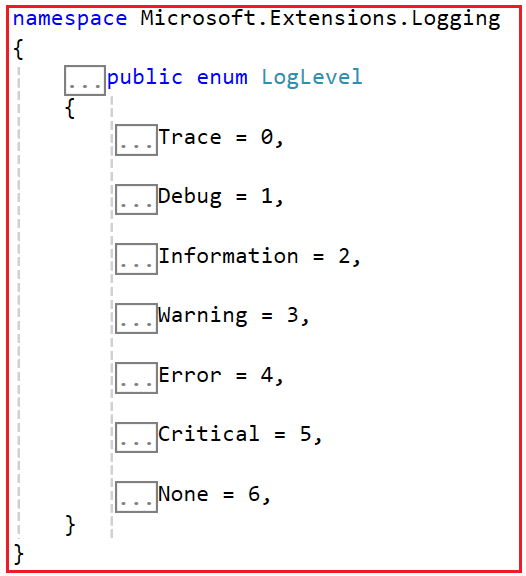
Let us understand the Standard Log Levels
Trace
- The most detailed and lowest level of logging.
- Used for very low-level, step-by-step details.
- Mostly for deep debugging during development.
- Not recommended for production due to high volume.
- Example:
-
- “Trace: Entering ProcessOrder method with OrderId=123 at step 1”
-
Debug
- Less detailed than Trace, but still for internal diagnostic purposes.
- Used to log intermediate values, decisions, and states.
- Helpful when debugging issues during development or testing.
- Example:
-
- “Debug: Calculated discount = 10% for customer GoldTier”
-
Information
- Used to record normal, high-level activities in the application.
- These messages describe the flow of the application.
- Ideal for tracking business flow: startup, shutdown, request success, etc
- Usually enabled in both development and production.
- Examples:
-
- “Information: User 101 registered successfully”
- “Information: Order 567 created at 2025-12-09T10:15:00Z”
-
Warning
- Indicates that something unexpected happened, but the app is still working.
- It’s not a failure yet, but it might become a problem if ignored.
- Think of it as a yellow signal, not urgent, but should be checked.
- Examples:
-
- “Warning: Disk space is below 10%”
- “Warning: External API took 5 seconds to respond (expected < 1 second)”
-
Error
- Used when a failure occurs during execution.
- The application can still continue running, but something went wrong that needs fixing.
- Often used inside catch blocks when exceptions are handled.
- Examples:
-
- “Error: Failed to save order 789 due to SQL timeout”
- “Error: NullReferenceException while processing payment”
-
Critical
- The highest severity level.
- Indicates a very serious failure, such as:
-
- Application crash
- Data loss
- Security breach
-
- Requires immediate attention.
- Examples:
-
- “Critical: Database is unavailable. All requests are failing.”
- “Critical: Unhandled exception in application startup”
-
None
- Special level.
- Used to turn off logging.
- You don’t log at level None, but you might configure a category’s minimum level as None to completely silence its logs.
Why Do We Need Different Log Levels?
When an application runs, hundreds or even thousands of things happen every second: database queries, API calls, user requests, errors, warnings, and background jobs. If you tried to record everything with the same importance, your logs would quickly become a giant, unreadable mess.
That’s where log levels come in; they act like filters or “priority labels” for your logs. They help you decide how much information to collect and how detailed it should be, based on the environment or purpose.
Real-World Analogy – The Airport Control Tower
Imagine you are in charge of monitoring a busy international airport:
- Every plane taking off or landing is like a normal application event.
- A plane delayed or taking a longer route is like a warning, not critical, but worth noting.
- An engine failure or runway issue is like a critical error; it needs immediate attention.
Now, if you record everything, including radio chatter, weather updates, and coffee breaks, the data would be massive, and you’d drown in noise. But if you record only accidents, you’d miss valuable insights like recurring delays or near misses that could help prevent disasters.
So, to balance this, we categorize events:
- Trace / Debug: Every tiny action, used when testing or analyzing behavior deeply.
- Information: Key operations like takeoff and landing, normal but important to track.
- Warning: Minor issues, worth monitoring before they become serious.
- Error / Critical: Urgent problems demand immediate response.
In the same way, Log Levels in ASP.NET Core help us control how much detail we record from our application.
Real-time Example: Order Management Web API
Imagine you are developing an Order Management System for an e-commerce platform. The API allows users to:
- Create a new order
- Fetch all order details
- Fetch order details by ID
In production, many users and transactions happen every minute. To monitor the health of your system and diagnose issues (like failed orders or database errors), logging becomes your best friend. Now, think where logging helps:
- When a client sends a request, log that a new order request came.
- When validation fails: log why it failed.
- When saving to DB fails: log the error details.
- When something unexpected happens: log it for debugging.
We will implement logging using the built-in providers Console and Debug.
Step 1: Create a New ASP.NET Core Web API Project
The first step is to create a new ASP.NET Core Web API project. Please follow the steps below:
- Open Visual Studio 2022 (latest).
- Click Create a new project.
- Choose ASP.NET Core Web API and click Next.
- Name it, e.g., OrderManagementAPI.
- Choose:
-
- Framework: .NET 8.0
- Authentication: None
- Check Use controllers.
-
- Click Create.
This should create the project.
Step 2: Install EF Core and SQL Server Packages
We will use EF Core Code First with SQL Server. So, open Package Manager Console and execute the following commands one by one:
- Install-Package Microsoft.EntityFrameworkCore -Version 8.0.0
- Install-Package Microsoft.EntityFrameworkCore.SqlServer -Version 8.0.0
- Install-Package Microsoft.EntityFrameworkCore.Tools -Version 8.0.0
These enable:
- Code-First modeling
- SQL Server provider (UseSqlServer in DbContext)
- Migration tools (Add-Migration, Update-Database).
Step 3: Create Entities (EF Core Models)
First, create a folder named Entities at the project root. Then, add the following classes to it.
Product
Create a class file named Product.cs within the Entities folder, and copy-paste the following code. The Product class represents an item that can be sold, such as a laptop or chair. It stores details like name, price, category, stock quantity, and whether the product is active.
using System.ComponentModel.DataAnnotations;
using System.ComponentModel.DataAnnotations.Schema;

namespace OrderManagementAPI.Entities
{
    public class Product
    {
        public int Id { get; set; }

        [Required, MaxLength(200)]
        public string Name { get; set; } = string.Empty;

        [Column(TypeName = "decimal(18,2)")]
        public decimal Price { get; set; }
        public bool IsActive { get; set; } = true;
        public int StockQuantity { get; set; } = 0;

        [Required, StringLength(50)]
        public string Category { get; set; } = string.Empty;
    }
}
Customer
Create a class file named Customer.cs within the Entities folder, and copy-paste the following code. The Customer class represents a user who places orders in the system. It stores basic information such as name, email, phone number, and a collection of related orders.
using System.ComponentModel.DataAnnotations;
namespace OrderManagementAPI.Entities
{
    public class Customer
    {
        public int Id { get; set; }

        [Required, MaxLength(100)]
        public string FullName { get; set; } = string.Empty;

        [Required, MaxLength(200)]
        public string Email { get; set; } = string.Empty;

        [MaxLength(20)]
        public string? Phone { get; set; }

        public ICollection<Order> Orders { get; set; } = new List<Order>();
    }
}
Order
Create a class file named Order.cs within the Entities folder, and copy-paste the following code. The Order class represents a single purchase made by a customer. It stores the order date, customer reference, total amount, status (e.g., Pending), and a list of order items.
using System.ComponentModel.DataAnnotations;
using System.ComponentModel.DataAnnotations.Schema;
namespace OrderManagementAPI.Entities
{
    public class Order
    {
        public int Id { get; set; }

        public DateTime OrderDate { get; set; } = DateTime.UtcNow;

        public int CustomerId { get; set; }
        public Customer? Customer { get; set; }

        [Column(TypeName = "decimal(18,2)")]
        public decimal TotalAmount { get; set; }

        [Required, StringLength(20)]
        public string Status { get; set; } = "Pending";
        public ICollection<OrderItem> Items { get; set; } = new List<OrderItem>();
    }
}
OrderItem
Create a class file named OrderItem.cs within the Entities folder, and copy-paste the following code. The OrderItem class represents one line item inside an order. It links to a specific product, stores quantity, unit price, and the calculated line total for that item.
using System.ComponentModel.DataAnnotations;
using System.ComponentModel.DataAnnotations.Schema;
namespace OrderManagementAPI.Entities
{
    public class OrderItem
    {
        public int Id { get; set; }

        [Required]
        public int OrderId { get; set; }

        [Required]
        public int ProductId { get; set; }

        [Required, Range(1, 1000)]
        public int Quantity { get; set; }

        [Column(TypeName = "decimal(18,2)")]
        public decimal UnitPrice { get; set; }

        [Column(TypeName = "decimal(18,2)")]
        public decimal LineTotal { get; set; }   // Quantity * UnitPrice

        [ForeignKey(nameof(OrderId))]
        public Order? Order { get; set; }

        [ForeignKey(nameof(ProductId))]
        public Product? Product { get; set; }
    }
}
Step 4: Create DTOs (Data Transfer Objects)
Create a folder named DTOs at the project root. Then, add the following classes to it.
CreateOrderItemDTO
Create a class file named CreateOrderItemDTO.cs within the DTOs folder, and copy-paste the following code. The CreateOrderItemDTO is used as input when creating a new order. It just carries the ProductId and Quantity sent from the client, with validation to ensure valid values.
using System.ComponentModel.DataAnnotations;
namespace OrderManagementAPI.DTOs
{
    public class CreateOrderItemDTO
    {
        [Required(ErrorMessage = "ProductId is required.")]
        [Range(1, int.MaxValue, ErrorMessage = "ProductId must be a positive number.")]
        public int ProductId { get; set; }

        [Range(1, int.MaxValue, ErrorMessage = "Quantity must be at least 1.")]
        public int Quantity { get; set; }
    }
}
CreateOrderDTO
Create a class file named CreateOrderDTO.cs within the DTOs folder, and copy-paste the following code. The CreateOrderDTO represents the full request body for creating an order. It contains the CustomerId and a list of order items, and ensures at least one item is provided.
using System.ComponentModel.DataAnnotations;
namespace OrderManagementAPI.DTOs
{
    public class CreateOrderDTO
    {
        [Required]
        [Range(1, int.MaxValue, ErrorMessage = "CustomerId must be a positive number.")]
        public int CustomerId { get; set; }

        [Required(ErrorMessage = "At least one item is required.")]
        public List<CreateOrderItemDTO> Items { get; set; } = new();
    }
}
OrderItemDTO
Create a class file named OrderItemDTO.cs within the DTOs folder, and copy-paste the following code. The OrderItemDTO is used to send order item details back to the client. It includes the item ID, product details, quantity, unit price, and line total.
namespace OrderManagementAPI.DTOs
{
    public class OrderItemDTO
    {
        public int Id { get; set; }

        public int ProductId { get; set; }
        public string ProductName { get; set; } = string.Empty;

        public int Quantity { get; set; }
        public decimal UnitPrice { get; set; }
        public decimal LineTotal { get; set; }
    }
}
OrderDTO
Create a class file named OrderDTO.cs within the DTOs folder, and copy-paste the following code. The OrderDTO is the response model for an order returned by the API. It combines order data (id, date, total, status) with customer name and a list of item DTOs.
namespace OrderManagementAPI.DTOs
{
    public class OrderDTO
    {
        public int Id { get; set; }

        public int CustomerId { get; set; }
        public string CustomerName { get; set; } = string.Empty;

        public DateTime OrderDate { get; set; }
        public decimal TotalAmount { get; set; }
        public string Status { get; set; } = string.Empty;
        public List<OrderItemDTO> Items { get; set; } = new();
    }
}
Step 5: Configure Connection String and Logging
ASP.NET Core automatically supports Environment-Based Configuration Files. When you create a project, you’ll notice multiple appsettings files:
- appsettings.json
- appsettings.Development.json
- appsettings.Production.json
All of these files work together, but the environment-specific file (like appsettings.Development.json) overrides values from the main appsettings.json.
So:
- appsettings.json → acts as the base configuration for all environments.
- appsettings.Development.json → overrides it when environment = Development.
- appsettings.Production.json → overrides it when environment = Production.
appsettings.json (Production-style / Default)
Here we keep safer, quieter logs, suitable for Production. Please modify the appsettings.json file as follows:
{
  "ConnectionStrings": {
    "DefaultConnection": "Server=LAPTOP-6P5NK25R\\SQLSERVER2022DEV;Database=OrderManagementDB;Trusted_Connection=True;TrustServerCertificate=True;"
  },
  "Logging": {
    "LogLevel": {
      "Default": "Information",
      "Microsoft": "Warning",
      "Microsoft.EntityFrameworkCore": "Warning",
      "Microsoft.AspNetCore": "Warning",
      "System": "Error"
    }
  },
  "AllowedHosts": "*"
}
Meaning in Prod-like behavior:
- Your code: Information and above.
- EF Core: Warning and above → fewer SQL logs.
- ASP.NET Core: Warning and above → less pipeline noise.
- System: Error only.
This keeps logs focused on important events and problems.
appsettings.Development.json (Very Detailed Logging)
Please modify the appsettings.Development.json file as follows:
{
  "Logging": {
    "LogLevel": {
      "Default": "Information",
      "Microsoft": "Warning",
      "Microsoft.EntityFrameworkCore": "Information",
      "Microsoft.AspNetCore": "Trace",
      "System": "Error"
    }
  }
}
Understanding the Logging Configuration in ASP.NET Core
Logging in ASP.NET Core is highly configurable and flexible. The Logging section inside appsettings.json defines how logs are captured, what level of detail is recorded, and which parts of the framework or application produce logs.
Logging
The Logging section controls how your application and its dependencies write log messages. It defines:
- How detailed should the logs be?
- Decide which components (like your own app code, ASP.NET Core internals, or Entity Framework) should log more or less information.
- Minimum severity levels for different categories.
- Fine-tune logging for different environments (for example, more detail in Development, less in Production).
By changing this section, you are telling ASP.NET Core: “From this part of the application, I want more detail; from that part, I only want serious problems.”
LogLevel
Inside the Logging section, LogLevel defines the Minimum Severity that will be logged for each logging category (namespace). The standard log levels from lowest to highest severity are:
- Trace
- Debug
- Information
- Warning
- Error
- Critical
- None (turns logging off for that category)
For each category, messages at or above the specified level are written, and messages below that level are ignored. For example: If you set Information as the level for a category:
- Information, Warning, Error, Critical → logged
- Debug, Trace → ignored
Default: Information
The Default setting defines the fallback log level for all components that don’t have a specific rule. When set to Information, it tells ASP.NET Core to:
- Record all messages of type Information, Warning, Error, and Critical.
- Ignore lower-level details like Debug and Trace.
This level strikes a good balance between detail and readability, which is why it’s commonly used in production. It logs all key application events (such as successful requests, user actions, or order creation) without flooding your console with low-level framework messages.
Microsoft: Warning
This setting applies to all log messages generated by components within the Microsoft namespace, including the .NET Framework, middleware, routing, hosting, and other internal systems. Setting this to Warning means:
- Only Warning, Error, and Critical logs are recorded for framework components.
- Lower-level informational or debugging messages from the framework are suppressed.
This helps you reduce noise from ASP.NET Core internals and focus on the parts of the application you actually control.
Microsoft.AspNetCore: Trace
This setting specifically targets the ASP.NET Core web framework portion inside the broader Microsoft namespace. By setting it to Trace, we enable maximum logging detail for HTTP pipeline events like:
- Middleware execution
- Routing decisions
- Controller action invocation
- Model binding and validation
This is very useful when debugging issues such as “Why isn’t my controller being called?” or “Which middleware is blocking my request?”
Microsoft.EntityFrameworkCore: Information
This setting controls the logs coming from Entity Framework Core (EF Core), the ORM that interacts with your SQL Server database. By setting it to Information, you can see:
- The SQL queries EF Core generates and executes
- Database connection events
- Transaction commits and rollbacks
This is incredibly helpful for understanding how EF Core translates your LINQ queries into SQL statements.
System: Error
This setting controls the logs produced by components in the System namespace, which includes core .NET runtime and base class libraries. By setting it to Error, you instruct ASP.NET Core to record only:
- Actual runtime errors, or
- Critical issues (like unhandled exceptions or failed background tasks).
All routine informational and warning messages from the .NET runtime are filtered out.
Step 6: Create DbContext
Create a folder named Data at the project root. Then, add a class file named OrderManagementDBContext.cs within the Data folder, and copy-paste the following code. The OrderManagementDbContext class is the EF Core DbContext that manages database access. It exposes DbSet properties for Products, Customers, Orders, and OrderItems, and seeds initial data for products and customers.
using Microsoft.EntityFrameworkCore;
using OrderManagementAPI.Entities;
namespace OrderManagementAPI.Data
{
    public class OrderManagementDbContext : DbContext
    {
        public OrderManagementDbContext(DbContextOptions<OrderManagementDbContext> options)
            : base(options)
        {
        }

        public DbSet<Product> Products { get; set; }
        public DbSet<Customer> Customers { get; set; }
        public DbSet<Order> Orders { get; set; }
        public DbSet<OrderItem> OrderItems { get; set; }

        protected override void OnModelCreating(ModelBuilder modelBuilder)
        {
            base.OnModelCreating(modelBuilder);

            // Seed Products
            modelBuilder.Entity<Product>().HasData(
                new Product { Id = 1, Name = "Laptop", Category = "Electronics", Price = 60000, IsActive = true, StockQuantity = 100 },
                new Product { Id = 2, Name = "Smartphone", Category = "Electronics", Price = 25000, IsActive = true, StockQuantity = 100 },
                new Product { Id = 3, Name = "Office Chair", Category = "Furniture", Price = 8000, IsActive = true, StockQuantity = 100 },
                new Product { Id = 4, Name = "Wireless Mouse", Category = "Accessories", Price = 1500, IsActive = true, StockQuantity = 100 }
            );

            // Seed Customers
            modelBuilder.Entity<Customer>().HasData(
                new Customer { Id = 1, FullName = "Ravi Kumar", Email = "ravi@example.com", Phone = "9876543210" },
                new Customer { Id = 2, FullName = "Sneha Rani", Email = "sneha@example.com", Phone = "9898989898" }
            );
        }
    }
}
What is ILogger<T> and why is it used in ASP.NET Core Web API?
In ASP.NET Core, ILogger<T> is a generic logging interface provided by Microsoft.Extensions.Logging namespace. It is the standard way to implement logging in your ASP.NET Core applications.
The generic type parameter T represents the class in which the logger is being used. By specifying the class name, ASP.NET Core automatically includes that class name in every log entry, making it easy to identify where each log message originated. This improves traceability and helps developers quickly pinpoint issues during debugging or analysis.
Key Features of ILogger<T>
- Supports Multiple Log Levels: ILogger<T> can record messages at different severity levels such as Trace, Debug, Information, Warning, Error, and Critical. This helps categorize log messages based on their importance or urgency.
- Automatically Includes the Class Name: The type parameter T automatically tags each log entry with the class name where it was generated. For example, if we inject ILogger<OrderService>, each log entry will include OrderService as the category name. This makes it much easier to trace the origin of log messages in large applications.
- Integrates with Multiple Logging Providers: The ASP.NET Core logging system supports many built-in and third-party log providers. You can easily route logs to the Console, Debug output window, files, databases, or external tools like Serilog, NLog, or Log4Net, all using the same ILogger<T> interface.
Step 1: Create Middleware to Generate and Propagate Correlation ID
A Correlation ID is a unique identifier (usually a GUID) assigned to each incoming HTTP request. It lets you tie together all logs produced by:
- The Controller
- The Service layer
- Any Downstream calls
Create a folder named Middlewares at the project root. Then, add a class file named CorrelationIdMiddleware.cs within the Middlewares folder, and copy-paste the following code.
namespace OrderManagementAPI.Middlewares
{
    // Middleware that ensures every incoming request has a unique Correlation ID.
    // This ID is used to trace a request end-to-end across multiple layer
    public class CorrelationIdMiddleware
    {
        // The next middleware in the request pipeline.
        private readonly RequestDelegate _next;

        // The HTTP header name used to carry the correlation ID.
        private const string CorrelationIdHeader = "X-Correlation-ID";

        // Constructor injects the next delegate in the pipeline.
        public CorrelationIdMiddleware(RequestDelegate next)
        {
            _next = next;
        }

        // Invoked once per HTTP request.
        // Responsible for generating a Correlation ID and injecting it into:
        // 1. The request header (for downstream services)
        // 2. The response header (for clients)
        public async Task InvokeAsync(HttpContext context, ILogger<CorrelationIdMiddleware> logger)
        {
            // Generate a new correlation ID for each request
            var correlationId = Guid.NewGuid().ToString().ToUpper();

            // Store in HttpContext for downstream code
            context.Items[CorrelationIdHeader] = correlationId;

            // Ensure the same correlation ID is returned to the client
            // in the response header
            context.Response.Headers[CorrelationIdHeader] = correlationId;

            // Invoke the next middleware component
            await _next(context);
        }
    }

    // Extension method for registering the CorrelationIdMiddleware
    // in a fluent and readable way inside Program.cs (app.UseCorrelationId()).
    public static class CorrelationIdMiddlewareExtensions
    {
        // Adds the CorrelationIdMiddleware to the ASP.NET Core request pipeline.
        public static IApplicationBuilder UseCorrelationId(this IApplicationBuilder builder)
        {
            return builder.UseMiddleware<CorrelationIdMiddleware>();
        }
    }
}
Step 7: Create Service Layer for Business Logic + Logging
Create a folder named Services at the project root, where we will create our service interfaces and their implementation classes.
CorrelationId Interface
Create an interface named ICorrelationIdAccessor.cs within the Services folder, and copy-paste the following code.
namespace OrderManagementAPI.Services
{
    // Helper service to consistently read the CorrelationId for the current HTTP request.
    // This keeps CorrelationId logic in one place and can be reused by any logger or service.
    public interface ICorrelationIdAccessor
    {
        // Returns the current CorrelationId if available, or null if there is no active HttpContext.
        // Falls back to HttpContext.TraceIdentifier when a custom CorrelationId is not present.
        string? GetCorrelationId();
    }
}
CorrelationId Implementation
Create an interface named CorrelationIdAccessor.cs within the Services folder, and copy-paste the following code.
namespace OrderManagementAPI.Services
{
    public class CorrelationIdAccessor : ICorrelationIdAccessor
    {
        private readonly IHttpContextAccessor _httpContextAccessor;

        // Key used by the CorrelationId middleware to store the value in HttpContext.Items.
        private const string CorrelationIdItemKey = "X-Correlation-ID";

        public CorrelationIdAccessor(IHttpContextAccessor httpContextAccessor)
        {
            _httpContextAccessor = httpContextAccessor;
        }

        public string? GetCorrelationId()
        {
            var httpContext = _httpContextAccessor.HttpContext;
            if (httpContext == null)
                return null;

            // Try to read the CorrelationId set by middleware.
            if (httpContext.Items.TryGetValue(CorrelationIdItemKey, out var value) &&
                value is string cidFromItems)
            {
                return cidFromItems;
            }

            // Fallback: use the ASP.NET Core generated TraceIdentifier.
            return httpContext.TraceIdentifier;
        }
    }
}
Order Service Interface
Create an interface named IOrderService.cs within the Services folder, and copy-paste the following code. The IOrderService interface defines the contract for order-related operations. It declares methods for creating an order, retrieving an order by ID, and retrieving all orders for a customer.
using OrderManagementAPI.DTOs;
namespace OrderManagementAPI.Services
{
    public interface IOrderService
    {
        Task<OrderDTO> CreateOrderAsync(CreateOrderDTO dto);
        Task<OrderDTO?> GetOrderByIdAsync(int id);
        Task<IEnumerable<OrderDTO>> GetOrdersForCustomerAsync(int customerId);
    }
}
Order Service Implementation
Create a class file named OrderService.cs within the Services folder, and copy-paste the following code. The OrderService class implements IOrderService and contains the business logic for handling orders. It uses OrderManagementDbContext to talk to the database and ILogger<OrderService> to log important steps, warnings, and errors.
using Microsoft.EntityFrameworkCore;
using OrderManagementAPI.Data;
using OrderManagementAPI.DTOs;
using OrderManagementAPI.Entities;

namespace OrderManagementAPI.Services
{
    public class OrderService : IOrderService
    {
        private readonly OrderManagementDbContext _dbContext;
        private readonly ILogger<OrderService> _logger;
        private readonly ICorrelationIdAccessor _correlationIdAccessor;

        public OrderService(
            OrderManagementDbContext dbContext,
            ILogger<OrderService> logger,
            ICorrelationIdAccessor correlationIdAccessor)
        {
            _dbContext = dbContext;
            _logger = logger;
            _correlationIdAccessor = correlationIdAccessor;
        }

        public async Task<OrderDTO> CreateOrderAsync(CreateOrderDTO dto)
        {
            // Retrieve the current CorrelationId(if any) using the shared helper.
            var correlationId = _correlationIdAccessor.GetCorrelationId();

            _logger.LogInformation(
                $"[{correlationId}] Creating order for CustomerId {dto.CustomerId} with {dto.Items?.Count ?? 0} items.");

            // 1. Validate Customer (logs use string interpolation with CorrelationId)
            var customer = await _dbContext.Customers.FindAsync(dto.CustomerId);
            if (customer == null)
            {
                _logger.LogWarning(
                    $"[{correlationId}] Cannot create order: CustomerId {dto.CustomerId} not found.");
                throw new ArgumentException($"Customer with id {dto.CustomerId} not found.");
            }

            // Extra safety: ensure we actually have items
            if (dto.Items == null || dto.Items.Count == 0)
            {
                _logger.LogWarning(
                    $"[{correlationId}] Cannot create order: no items provided for CustomerId {dto.CustomerId}.");
                throw new ArgumentException("Order must contain at least one item.");
            }

            // 2. Get all product IDs from DTO and fetch from DB in one shot
            var productIds = dto.Items.Select(i => i.ProductId).Distinct().ToList();

            var products = await _dbContext.Products
                .Where(p => productIds.Contains(p.Id) && p.IsActive)
                .ToListAsync();

            if (products.Count != productIds.Count)
            {
                var missingIds = productIds.Except(products.Select(p => p.Id)).ToList();
                var missingIdsString = string.Join(", ", missingIds);

                _logger.LogWarning(
                    $"[{correlationId}] Cannot create order: some products not found or inactive. Missing IDs: {missingIdsString}.");

                throw new ArgumentException("One or more products are invalid or not active.");
            }

            // 3. Create Order and OrderItems
            var order = new Order
            {
                CustomerId = dto.CustomerId,
                OrderDate = DateTime.UtcNow
            };

            decimal total = 0;

            foreach (var itemDto in dto.Items)
            {
                var product = products.Single(p => p.Id == itemDto.ProductId);

                var unitPrice = product.Price;
                var lineTotal = unitPrice * itemDto.Quantity;

                var orderItem = new OrderItem
                {
                    ProductId = product.Id,
                    Quantity = itemDto.Quantity,
                    UnitPrice = unitPrice,
                    LineTotal = lineTotal
                };

                order.Items.Add(orderItem);
                total += lineTotal;

                _logger.LogDebug(
                    $"[{correlationId}] Added item: ProductId={product.Id}, Quantity={itemDto.Quantity}, UnitPrice={unitPrice}, LineTotal={lineTotal}.");
            }

            order.TotalAmount = total;

            _logger.LogDebug(
                $"[{correlationId}] Total amount for CustomerId {dto.CustomerId} calculated as {order.TotalAmount}.");

            // 4. Save to DB with error logging
            try
            {
                _dbContext.Orders.Add(order);
                await _dbContext.SaveChangesAsync();

                _logger.LogInformation(
                    $"[{correlationId}] Order {order.Id} created successfully for CustomerId {dto.CustomerId}.");

                // Load navigation properties for mapping (Customer + Items + Product)
                await _dbContext.Entry(order).Reference(o => o.Customer).LoadAsync();
                await _dbContext.Entry(order).Collection(o => o.Items).LoadAsync();
                foreach (var item in order.Items)
                {
                    await _dbContext.Entry(item).Reference(i => i.Product).LoadAsync();
                }

                return MapToOrderDto(order);
            }
            catch (Exception ex)
            {
                _logger.LogError(
                    ex,
                    $"[{correlationId}] Error occurred while saving order for CustomerId {dto.CustomerId}.");
                throw; // let controller decide response
            }
        }

        public async Task<OrderDTO?> GetOrderByIdAsync(int id)
        {
            var correlationId = _correlationIdAccessor.GetCorrelationId();

            _logger.LogInformation(
                $"[{correlationId}] Fetching order with OrderId {id}.");

            var order = await _dbContext.Orders
                .Include(o => o.Customer)
                .Include(o => o.Items)
                    .ThenInclude(i => i.Product)
                .AsNoTracking()
                .SingleOrDefaultAsync(o => o.Id == id);

            if (order == null)
            {
                _logger.LogWarning(
                    $"[{correlationId}] Order with OrderId {id} not found.");
                return null;
            }

            _logger.LogDebug(
                $"[{correlationId}] Order {order.Id} found for CustomerId {order.CustomerId}.");

            return MapToOrderDto(order);
        }

        public async Task<IEnumerable<OrderDTO>> GetOrdersForCustomerAsync(int customerId)
        {
            var correlationId = _correlationIdAccessor.GetCorrelationId();

            _logger.LogInformation(
                $"[{correlationId}] Fetching orders for CustomerId {customerId}.");

            var orders = await _dbContext.Orders
                .Include(o => o.Customer)
                .Include(o => o.Items)
                    .ThenInclude(i => i.Product)
                .AsNoTracking()
                .Where(o => o.CustomerId == customerId)
                .ToListAsync();

            _logger.LogInformation(
                $"[{correlationId}] Found {orders.Count} orders for CustomerId {customerId}.");

            return orders.Select(MapToOrderDto);
        }

        // Helper: Entity -> DTO mapping
        private static OrderDTO MapToOrderDto(Order order)
        {
            return new OrderDTO
            {
                Id = order.Id,
                CustomerId = order.CustomerId,
                CustomerName = order.Customer?.FullName ?? string.Empty,
                OrderDate = order.OrderDate,
                TotalAmount = order.TotalAmount,
                Status = order.Status,
                Items = order.Items.Select(i => new OrderItemDTO
                {
                    Id = i.Id,
                    ProductId = i.ProductId,
                    ProductName = i.Product?.Name ?? string.Empty,
                    Quantity = i.Quantity,
                    UnitPrice = i.UnitPrice,
                    LineTotal = i.LineTotal
                }).ToList()
            };
        }
    }
}
Step 8: Create Controller and Inject Service + Logger
Create an empty API Controller named OrdersController within the Controllers folder, and copy-paste the following code. The OrdersController class is the Web API controller that exposes endpoints for working with orders. It receives HTTP requests, calls the IOrderService, performs validation, and logs API-level events.
using Microsoft.AspNetCore.Mvc;
using OrderManagementAPI.DTOs;
using OrderManagementAPI.Services;
using System.Diagnostics;
using System.Text.Json;

namespace OrderManagementAPI.Controllers
{
    [ApiController]
    [Route("api/[controller]")]
    public class OrdersController : ControllerBase
    {
        private readonly ILogger<OrdersController> _logger;
        private readonly IOrderService _orderService;
        private readonly ICorrelationIdAccessor _correlationIdAccessor;
        public OrdersController(ILogger<OrdersController> logger,
                    IOrderService orderService,
                    ICorrelationIdAccessor correlationIdAccessor)
        {
            _logger = logger;
            _orderService = orderService;
            _correlationIdAccessor = correlationIdAccessor;
            _logger.LogInformation("OrdersController instantiated.");
        }

        // POST: api/orders
        [HttpPost]
        public async Task<IActionResult> CreateOrder([FromBody] CreateOrderDTO dto)
        {
            var stopwatch = Stopwatch.StartNew();
            // Retrieve the current CorrelationId (if any) using the shared helper.
            var correlationId = _correlationIdAccessor.GetCorrelationId();

            // Safely serialize the incoming DTO for logging
            var requestJson = dto is null
                ? "null"
                : JsonSerializer.Serialize(dto, new JsonSerializerOptions
                {
                    WriteIndented = true
                });

            _logger.LogInformation($"[{correlationId}] HTTP POST /api/orders called. Payload: {requestJson}");


            if (!ModelState.IsValid)
            {
                _logger.LogWarning($"[{correlationId}] Model validation failed for CreateOrder request.");
                return BadRequest(ModelState);
            }

            try
            {
                var created = await _orderService.CreateOrderAsync(dto!);
                stopwatch.Stop();

                // Optionally also log the created order result
                var responseJson = JsonSerializer.Serialize(created, new JsonSerializerOptions
                {
                    WriteIndented = true
                });

                _logger.LogInformation(
                    $"[{correlationId}] Order {created.Id} created successfully via API in {stopwatch.ElapsedMilliseconds} ms. Response: {responseJson}");

                return CreatedAtAction(nameof(GetOrderById), new { id = created.Id }, created);
            }
            catch (ArgumentException ex)
            {
                stopwatch.Stop();
                _logger.LogWarning($"[{correlationId}] Validation error while creating order: {ex.Message}. Time taken: {stopwatch.ElapsedMilliseconds} ms.");
                return BadRequest(new { message = ex.Message });
            }
            catch (Exception ex)
            {
                stopwatch.Stop();
                _logger.LogError($"[{correlationId}] Unexpected error while creating order: {ex.Message}. Time taken: {stopwatch.ElapsedMilliseconds} ms.");
                return StatusCode(500, new { message = "An unexpected error occurred." });
            }
        }

        // GET: api/orders/{id}
        [HttpGet("{id:int}")]
        public async Task<IActionResult> GetOrderById(int id)
        {
            var stopwatch = Stopwatch.StartNew();
            var correlationId = _correlationIdAccessor.GetCorrelationId();

            _logger.LogInformation($"[{correlationId}] HTTP GET /api/orders/{id} called.");

            var order = await _orderService.GetOrderByIdAsync(id);
            stopwatch.Stop();

            if (order == null)
            {
                _logger.LogWarning($"[{correlationId}] Order with ID {id} not found. Execution time: {stopwatch.ElapsedMilliseconds} ms.");
                return NotFound(new { message = $"Order with id {id} not found." });
            }

            // Optionally also log the created order result
            var responseJson = JsonSerializer.Serialize(order, new JsonSerializerOptions
            {
                WriteIndented = true
            });
            _logger.LogInformation($"[{correlationId}] Order {id} fetched successfully. Execution time: {stopwatch.ElapsedMilliseconds} ms. Response: {responseJson}");
            return Ok(order);
        }

        // GET: api/orders/customer/{customerId}
        [HttpGet("customer/{customerId:int}")]
        public async Task<IActionResult> GetOrdersForCustomer(int customerId)
        {
            var stopwatch = Stopwatch.StartNew();
            var correlationId = _correlationIdAccessor.GetCorrelationId();

            _logger.LogInformation($"[{correlationId}] HTTP GET /api/orders/customer/{customerId} called.");

            var orders = await _orderService.GetOrdersForCustomerAsync(customerId);
            stopwatch.Stop();

            _logger.LogInformation($"[{correlationId}] {orders.Count()} orders returned for CustomerId {customerId} in {stopwatch.ElapsedMilliseconds} ms.");
            return Ok(orders);
        }
    }
}
Step 9: Register DbContext and Logging in Program.cs
Please modify the Program class as follows. By default, .NET 8 enables Console + Debug logging through the host builder. The Program class bootstraps the ASP.NET Core application. It configures services like DbContext, logging providers, Swagger, and the IOrderService, then builds and runs the web application.
using Microsoft.EntityFrameworkCore;
using OrderManagementAPI.Data;
using OrderManagementAPI.Middlewares;
using OrderManagementAPI.Services;
namespace OrderManagementAPI
{
    public class Program
    {
        public static void Main(string[] args)
        {
            var builder = WebApplication.CreateBuilder(args);

            // Add controller support and configure JSON serialization
            builder.Services.AddControllers()
            .AddJsonOptions(options =>
            {
                options.JsonSerializerOptions.PropertyNamingPolicy = null;
            });

            // Enable Swagger for API documentation
            builder.Services.AddEndpointsApiExplorer();
            builder.Services.AddSwaggerGen();

            // Register DbContext using SQL Server provider
            builder.Services.AddDbContext<OrderManagementDbContext>(options =>
                options.UseSqlServer(builder.Configuration.GetConnectionString("DefaultConnection")));

            // Allow services to access HttpContext (used for CorrelationId, etc.)
            builder.Services.AddHttpContextAccessor();

            // Register application services
            builder.Services.AddScoped<IOrderService, OrderService>();
            builder.Services.AddSingleton<ICorrelationIdAccessor, CorrelationIdAccessor>();

            // Logging Configuration
            // Remove default logging providers
            builder.Logging.ClearProviders();

            // Log output to terminal or command prompt
            builder.Logging.AddConsole();

            // Log output to Visual Studio Debug window
            builder.Logging.AddDebug();

            // Build the Application
            var app = builder.Build();

            // Middleware Pipeline Configuration

            // Enable Swagger UI (only in Development environment)
            if (app.Environment.IsDevelopment())
            {
                app.UseSwagger();
                app.UseSwaggerUI();
            }

            // Enforce HTTPS for all requests
            app.UseHttpsRedirection();

            // Attach a Correlation ID to each request for tracing
            app.UseCorrelationId();

            // Handle Authorization if enabled
            app.UseAuthorization();

            // Map controller endpoints to routes
            app.MapControllers();

            // Start the application
            app.Run();
        }
    }
}
Step 10: Create Database via Migration
In Package Manager Console:
- Add-Migration Mig1
- Update-Database
EF Core creates the CustomerOrderDB database with the required tables, as shown in the image below.
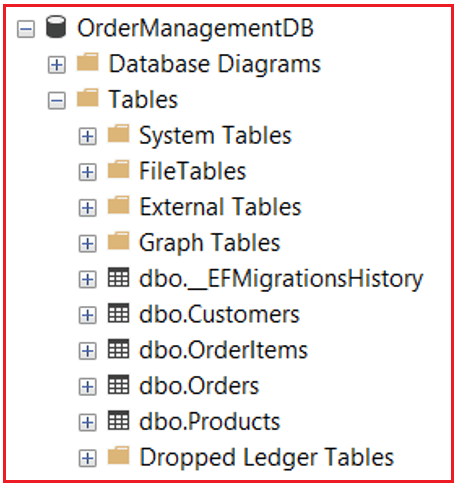
Test the “Create Order” Endpoint
Using Swagger UI
In Swagger, expand the POST /api/orders endpoint. Click Try it out. Enter the request body similar to the example below:
{
  "CustomerId": 1,
  "Items": [
    {
      "ProductId": 1,
      "Quantity": 2
    },
    {
      "ProductId": 2,
      "Quantity": 1
    }
  ]
}
Click Execute. You should receive a 201 Created response, with the order details in the response body.
How to Verify the Logs
ASP.NET Core logs messages using the providers configured in your Program.cs and appsettings.json. By default, we have Console and Debug providers enabled. Let’s see how to check both.
Option 1: View Logs in the Visual Studio Output Window
- Run the project in Debug Mode (F5).
- Go to View → Output in Visual Studio.
- From the Show output from dropdown, select Debug.
- You will see logs generated by your controllers and services.
Option 2: View Logs in the Console Window
When you run the app (Project profile), a console window shows all console logs. After sending the POST request, look at that window; you should see.

Performance Implications of Logging in ASP.NET Core
Logging is a vital part of any production application, but it also comes with some performance overhead. Although the built-in logging system in ASP.NET Core is optimized and lightweight, improper or excessive use can still slow down your application, increase CPU load, and consume significant storage or network resources.
Why Logging Affects Performance
Every time you write a log:
- The message string must be formatted.
- The message is sent to one or more logging providers (e.g., Console, Debug, or external systems).
- If the provider writes to a file or network target, it triggers I/O operations, which are slower than in-memory operations.
In small applications, this is negligible, but in high-traffic systems or APIs processing thousands of requests per second, inefficient logging can quickly degrade performance.
Best Practices to Improve Logging Performance
Use Appropriate Log Levels per Environment
Avoid overly detailed logs in production.
- Use Trace and Debug only in development or troubleshooting scenarios.
- In production, prefer Information, Warning, and Error levels.
- This reduces log volume, CPU overhead, and disk usage.
Avoid Logging Inside Tight Loops or High-Frequency Code
Logging within tight loops (e.g., per record, per transaction, or per iteration) can cause significant slowdowns, especially if the logging provider performs disk or network I/O.
Example (Avoid):
foreach (var item in bigList)
{
    _logger.LogInformation("Processing item {ItemId}", item.Id);
}
Use Asynchronous Logging
Synchronous logging blocks the current thread until the log message is written. To prevent this from delaying request processing, consider Asynchronous Logging, especially when writing logs to files, databases, or remote systems.
Third-party frameworks like Serilog or NLog support asynchronous logging, allowing your application to continue processing while logs are written in the background.
Manage File Log Rotation and Retention
If you store logs in files:
- Plan How Often logs are rotated (daily, hourly, or size-based).
- Limit How Long old log files are retained.
Without proper rotation, log files can grow indefinitely, consuming significant disk space and eventually impacting performance or causing storage errors.
Can We Store Logs to a File or Database Using Default Logging Providers?
By default, ASP.NET Core provides several built-in logging providers, such as:
- Console Provider → writes logs to the console window.
- Debug Provider → writes logs to the Visual Studio Debug Output window.
- EventSource / EventLog Providers → for system-level logging (mainly on Windows).
However, none of the built-in providers directly support writing logs to files or databases. They are designed primarily for real-time diagnostics, not for long-term storage.
How to Persist Logs (File or Database Options)
Using Third-Party Logging Frameworks
To store logs in files or databases, we typically integrate a third-party logging library such as:
- Serilog
- NLog
- Log4Net
These frameworks provide powerful configuration options and “sinks” or “targets” that let you write logs to:
- Text files (with rolling intervals)
- SQL Server or PostgreSQL databases
- Elasticsearch, Azure Blob, or Seq
Creating a Custom Logging Provider
If you prefer not to use third-party frameworks, you can create a custom provider that implements:
- ILoggerProvider manages logger instances.
- ILogger handles the actual writing logic.
This lets you define custom behavior, such as writing logs to:
- A text file
- A database table
- A remote API endpoint
Logging in ASP.NET Core is a powerful tool that, when used effectively, can greatly improve your application’s maintainability, performance monitoring, and troubleshooting capabilities. By using built-in logging providers, we can build a robust logging infrastructure. While the default providers do not support file or database logging directly, third-party integrations such as Serilog and NLog offer extensive options to meet your needs.
In the next article, I will discuss how to implement a Custom Logging Provider in ASP.NET Core Web API with an Example. In this article, I explain how to log in to the ASP.NET Core Web API Application with examples. I hope you enjoy this article, Logging in ASP.NET Core Web API.
About the Author: Pranaya Rout
Pranaya Rout has published more than 3,000 articles in his 11-year career. Pranaya Rout has very good experience with Microsoft Technologies, Including C#, VB, ASP.NET MVC, ASP.NET Web API, EF, EF Core, ADO.NET, LINQ, SQL Server, MYSQL, Oracle, ASP.NET Core, Cloud Computing, Microservices, Design Patterns and still learning new technologies.
how to ennable the nlog