
Back to: Microsoft Azure Tutorials
Microsoft Azure Resource Group
An Azure Resource Group is one of the most important concepts in Microsoft Azure. It is a logical container that groups related Azure resources.
In simple words, a Resource Group is like a folder in Azure where you store resources that belong to the same project or solution. For example, if one application needs an App Service, SQL Database, Storage Account, and Virtual Network, you can keep all of them in a single Resource Group. This makes the project easier to organize, manage, monitor, and maintain.
Why Is an Azure Resource Group Important?
A Resource Group is important because it helps you keep related resources together in one place. Instead of managing each resource separately, Azure allows you to organize them as a group. A Resource Group helps you:
- Organize related resources.
- Manage them more easily.
- Apply permissions at the group level.
- Add tags for identification.
- And delete related resources together when they are no longer needed.
In simple words, a Resource Group helps keep your Azure work clean and organized.
Azure Subscription vs Azure Resource Group
Many beginners get confused about the difference between a subscription and a resource group. The easiest way to understand the difference is this:
- Azure Subscription is the main account-level container for using Azure
- Azure Resource Group is a smaller container inside the subscription where related Azure resources are organized together
- Azure Resources like Virtual Machines, Storage Accounts, and App Services are created inside a resource group
So, in simple words:
- Microsoft Account helps you sign in to Azure.
- Azure Subscription allows you to use Azure services.
- Azure Resource Group helps you organize related resources.
- Azure Resources are the actual services you create in Azure
So, a Resource Group exists within a Subscription, and resources are created within the Resource Group.
Can We Have More Than One Resource Group?
Yes, absolutely. You can create many Resource Groups inside the same Azure Subscription. This is very common in real projects. For example, you may create:
- One Resource Group for learning.
- One for testing.
- One for production.
- One for one application.
- Another for a different application.
So, one Subscription can contain multiple Resource Groups.
Example to Understand Resource Group
Suppose you are deploying an ASP.NET Core Web API application in Azure. For that application, you may need:
- One App Service.
- One Azure SQL Database.
- One Storage Account.
- One Virtual Network.
All these resources belong to the same application. So instead of keeping them separate, you can place them in a single Resource Group, such as MyWebApp-RG. This makes the whole solution easier to manage. In simple terms, a Resource Group is the place where all related Azure resources for a project are kept together.
What Is the Use of an Azure Resource Group?
A Resource Group serves several important purposes.
- Organizing Resources: It keeps related resources together in one place. This makes it easier to understand which resources belong to which project.
- Easier Management: When all related resources are in a single Resource Group, managing them is easier.
- Access Control: You can grant permissions at the Resource Group level, which means a user can access all resources within that group without access to the entire subscription.
- Deleting Related Resources Together: If a project is no longer needed, deleting the Resource Group usually removes the resources inside it as well.
In simple words, a Resource Group is used to manage related Azure resources in an organized way.
How to Create an Azure Resource Group
Creating a Resource Group is one of the first practical tasks we usually perform in Azure. The steps are simple.
Step 1: Sign In to the Azure Portal
First, sign in to the Azure Portal (https://portal.azure.com/auth/login/) using your Microsoft account. After signing in, you will reach the Azure dashboard, where you can search for services and manage Azure resources.
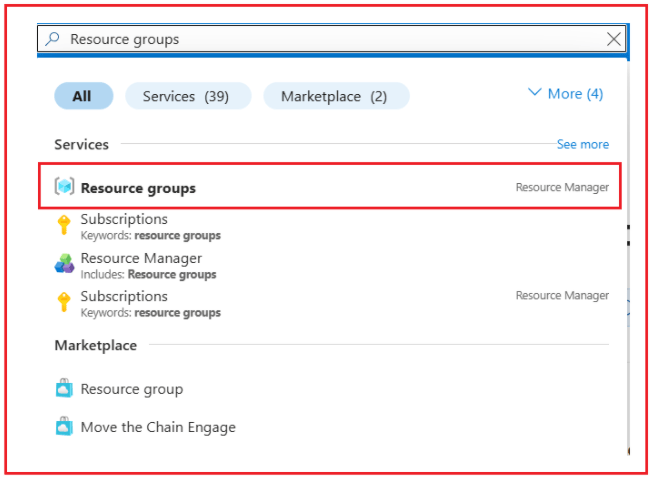
Step 2: Search for Resource Groups
At the top of the Azure Portal, type Resource groups in the search box. Azure Search works like a global search, so you may see multiple matching results. The correct option to open is Resource groups under the Services section.
Step 3: Open the Resource Groups Page
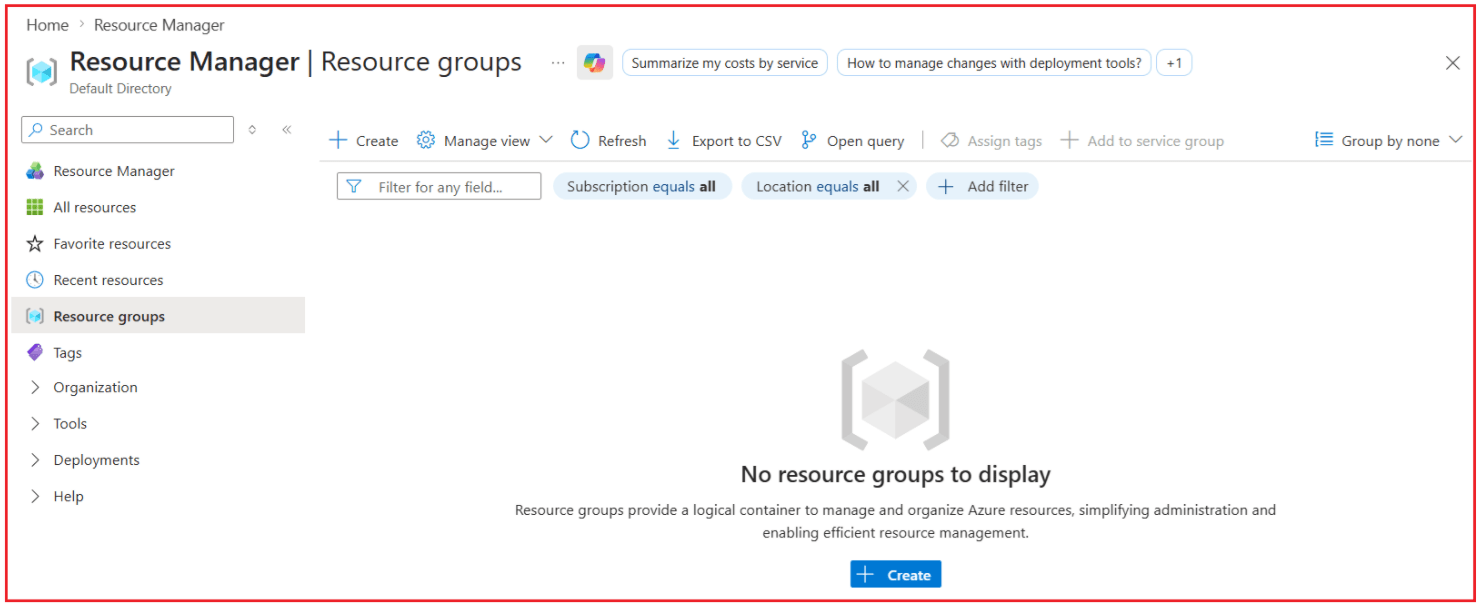
After selecting Resource groups, Azure opens the Resource Groups page. If you are a new user, this page may show that no Resource Groups are available. That is completely normal.
Step 4: Click Create
On the Resource Groups page, click Create. This opens the page where Azure asks for the details needed to create the new Resource Group.
Step 5: Select the Subscription
Choose the Azure Subscription under which the new Resource Group should be created. If you have only one subscription, it may already be selected automatically.
Step 6: Enter the Resource Group Name
Now enter a meaningful name for the Resource Group.
Examples:
- MyFirstRG
- AzureLearningRG
- DotNetDemo-RG
- WebApp-Dev-RG
Choose a name that clearly tells you the purpose of the group. In our example, we are using the name: MyFirstRG
Step 7: Choose the Region
Now select the Region for the Resource Group. If you are in India, you may choose:
- Central India
- South India
- West India
For beginners, choosing a nearby region is usually a good idea. The above steps are shown in the image below.

Step 8: Add Tags (Optional)
Tags are optional labels used for better organization.
For example:
- Environment = Development
- Project = ProductManagement
- Owner = Pranaya
If you do not want to add tags now, you can skip this step.
Step 9: Click Review + Create
After entering all required information, click Review + create. Azure validates the values and shows a summary.
Step 10: Click Create
If everything is correct, click Create. Azure will create the Resource Group in a few seconds.
How to Check and Open an Existing Resource Group
After creating a Resource Group, you may want to open it again later. To do so, go to the Resource groups page in the Azure Portal. Azure will show the list of available Resource Groups. From this page, the main things beginners should look at are:
- Resource Group Name
- Subscription
- Location
This helps you quickly understand:
- Which Resource Groups exist?
- Under which subscription do they belong?
- And in which region were they created?
Understanding the Resource Group Details Page
To open a Resource Group, simply click its name.
The Resource Group Details page is the main page of that resource group. This page helps you understand:
- Which subscription does the resource group belong to
- What its location is
- Which tags are applied
- Whether any deployments were done
- Which resources are inside the group
In simple terms, this page functions like the main dashboard for the resource group. The most important things beginners should check here are:
- Subscription: This shows which Azure Subscription the Resource Group belongs to.
- Location: This shows the selected region of the Resource Group.
- Tags: This shows the labels applied to the Resource Group.
- Deployments: This shows whether anything has been deployed through Azure deployment methods. If it says “No deployments,” it usually means no deployment activity has occurred yet.
- Resources: This is one of the most important sections. The Resources tab shows the actual Azure resources currently inside the Resource Group. If no resources have been created yet, this section will be empty.
So, in simple terms, the Resources tab shows what is currently in the Resource Group.
What Is a Region?
A Region in Azure is the geographical area where Microsoft has data centers. When you select a Region, you specify where the service or metadata should be located.
Examples of Azure regions in India include:
- Central India
- South India
- West India
In simple words, a Region is the location where Azure stores or runs your cloud resources.
Why is the region important?
The selected region can affect:
- performance,
- latency,
- service availability,
- data location,
- and sometimes cost.
For beginners, the easiest rule is to choose a region that is close to you or to the users of your application.
Resource Group Region vs Resource Region
This is an important point. When you create a Resource Group, Azure asks you to specify a region. That region is mainly for the Resource Group itself.
But when you create actual Azure resources, such as:
- Virtual Machines,
- App Services,
- Storage Accounts,
- SQL Databases,
Those resources may also ask for their own region.
So, in simple words:
- Resource Group region = the location of the Resource Group metadata
- Resource region = the location where the actual Azure service runs
For beginners, it is usually easier to keep both in the same region whenever possible.
What Is Resource Group Metadata?
Metadata means information about something. So, Resource Group metadata means the information about the Resource Group itself, not the actual resources inside it. For example, Resource Group metadata includes:
- Resource Group name,
- Subscription,
- Region,
- Tags,
- Permissions,
- Locks,
- Deployment history.
If the Resource Group is like a folder, then:
- The folder name and details are metadata,
- The files inside the folder are the actual resources.
Summary
An Azure Resource Group is a logical container for related Azure resources. It helps you organize resources, manage access, apply tags, and work with related resources more cleanly. You can remember it like this:
- Account helps you sign in
- Subscription helps you use Azure
- Resource Group helps you organize related resources
- Resources are the actual Azure services you create
In simple terms, a Resource Group is an organized container within a Subscription where related Azure resources are created and managed.
About the Author: Pranaya Rout
Pranaya Rout has published more than 3,000 articles in his 11-year career. Pranaya Rout has very good experience with Microsoft Technologies, Including C#, VB, ASP.NET MVC, ASP.NET Web API, EF, EF Core, ADO.NET, LINQ, SQL Server, MYSQL, Oracle, ASP.NET Core, Cloud Computing, Microservices, Design Patterns and still learning new technologies.
Want to understand Microsoft Azure Basic Concepts in a simple and practical way? This video explains Azure Account, Subscription, and Resource Group clearly for beginners.
Watch the complete video here: https://youtu.be/2buaMU4DS9k