
Back to: Microsoft Azure Tutorials
Containerizing the ASP.NET Core Web API Using Docker
In the previous chapter, we learned the basic Docker commands and understood how containers are created, started, stopped, and removed. Now, in this chapter, we are ready to take the next real-world step. We will containerize an ASP.NET Core Web API application and run it inside Docker.
Until now, we were mostly working with ready-made images like hello-world and nginx. But in real projects, we do not just run somebody else’s image. We create our own Docker image for our own application. That is exactly what we are going to do now.
Why Containerizing an ASP.NET Core Web API Is Important
Suppose we build an ASP.NET Core Web API project on our laptop. Everything works properly:
- The API runs
- Swagger opens
- Controllers respond correctly
- Database connection works
- All required packages are installed
Now we move the same project to another machine or server. Suddenly, problems start appearing:
- .NET runtime may not be installed
- Required libraries may be missing
- Port configuration may be different
- Environment settings may not match
- The server may not be prepared exactly like our machine
This is where containerization becomes very useful.
When we containerize an ASP.NET Core Web API, we package the application together with everything it needs to run. This helps the application behave more consistently on different systems.
What Does Containerizing an ASP.NET Core Web API Mean?
Containerizing an ASP.NET Core Web API means:
- Taking the source code of the Web API
- Defining instructions for building it
- Packaging it into a Docker image
- Creating a container from that image
- Running the API inside that container
So, the flow becomes: Source Code → Dockerfile → Docker Image → Docker Container → Running Web API
What Is a Dockerfile?
A Dockerfile is a file (without a .txt extension) that contains instructions for Docker. These instructions tell Docker how to build an image for our application.
In simple words, a Dockerfile is the recipe for creating the Docker image. It tells Docker things like:
- Which base image to use
- Where to place the files
- How to build the application
- How to publish the application
- What command should run when the container starts
Real-Life Analogy
Think of a Dockerfile like the construction plan for setting up a shop. Suppose someone wants to open a tea shop in another city. Instead of going there and explaining everything again and again, they prepare a written setup plan.
That setup plan may say:
- Take a shop room
- Put the tea counter near the entrance
- Install the gas stove
- Arrange cups, jars, tea powder, sugar, and milk
- Keep the cash counter ready
- When everything is ready, start serving tea
Now, if any worker follows this setup plan properly, the tea shop can be arranged in the same way anywhere.
A Dockerfile works in a very similar way.
It tells Docker:
- Start with a base image
- Create the working folder
- Copy the project files
- Restore the required packages
- Publish the application
- Start the application
So, just like the shop setup plan helps create the same tea shop anywhere, the Dockerfile helps create the same application environment anywhere.
So:
- Dockerfile = Shop setup plan
- Docker Image = Fully prepared tea shop setup
- Container = The tea shop that is now open and serving customers
Why Do We Need a Dockerfile?
Without a Dockerfile, Docker does not know how to build our ASP.NET Core Web API image. Our Web API project has many parts:
- Source code
- Project file
- NuGet package references
- appsettings files
- Compiled DLL files
- Runtime requirements
Docker needs instructions on how to handle all of these. That is why the Dockerfile is required. It acts like a guide for Docker. It tells Docker:
- Where the code is
- How to compile it
- How to publish it
- How to run it
Without a Dockerfile, Docker cannot automatically build an image from our ASP.NET Core Web API project.
Structure of a Dockerfile
A Dockerfile is written line by line. Each line usually represents one instruction. The most common instructions used in an ASP.NET Core Dockerfile are:
- FROM
- WORKDIR
- COPY
- RUN
- EXPOSE
- ENV
- ENTRYPOINT
Let us understand each one in the simplest possible way.
FROM
The FROM instruction tells Docker which base image to start with. For ASP.NET Core, we usually use official .NET images. For example:
- FROM mcr.microsoft.com/dotnet/aspnet:8.0
This means:
- Start with the ASP.NET Core runtime image
- Use it as the foundation of our application image
Why Is It Needed?
Our application needs a .NET runtime to run. Instead of manually installing the runtime, we use an image that already contains it. Think of FROM like choosing the type of house foundation before building the house. If the foundation is correct, the rest of the structure can stand properly.
WORKDIR
The WORKDIR instruction sets the working directory inside the container. For Example:
- WORKDIR /app
This means all the next commands will work inside the /app folder.
Why Is It Needed?
Inside the container, Docker needs to know where to place and run the application files. Think of this like telling a worker: From now on, do all the work inside this room.
COPY
The COPY instruction copies files from your local machine into the Docker image. For Example:
- COPY . .
This means, copy everything from the current local folder into the current working directory inside the image
Why Is It Needed?
Because Docker needs your application files in order to build and run the application. Think of COPY like moving books, notebooks, and tools from your table into your school bag before leaving home.
RUN
The RUN instruction executes a command during image build. These commands help download dependencies and prepare the final deployable output. For Examples:
- RUN dotnet restore
- RUN dotnet publish
Why Is It Needed?
These commands help:
- Download dependencies
- Create publish-ready output
EXPOSE
The EXPOSE instruction tells Docker which port the container is expected to use internally. It does not make the application listen on that port by itself. It only documents the intended container port. For Example:
- EXPOSE 8081
ENV
The ENV instruction sets environment variables inside the container. For example:
- ENV ASPNETCORE_URLS=http://+:8081
This is useful when you want to control how the application behaves inside Docker, such as which port it should listen on.
ENTRYPOINT
The ENTRYPOINT instruction tells Docker what to execute when the container starts. For Example:
- ENTRYPOINT [“dotnet”, “ProductManagementApi.dll”]
This means:
- When the container starts
- Run the application using the dotnet command
Why Is It Needed?
Because Docker needs to know what the main application inside the container is. Think of ENTRYPOINT as the main switch that starts the machine.
Understanding a Dockerfile for ASP.NET Core Web API
Now, let us see a practical Dockerfile for our ASP.NET Core Web API project. Suppose our project name is ProductManagementApi. Then the Dockerfile may look like this:
# Build Stage
FROM mcr.microsoft.com/dotnet/sdk:8.0 AS build
WORKDIR /src
COPY ["ProductManagementApi.csproj", "./"]
RUN dotnet restore "ProductManagementApi.csproj"
COPY . .
RUN dotnet publish "ProductManagementApi.csproj" -c Release -o /app/publish /p:UseAppHost=false

# Final or Runtime Stage
FROM mcr.microsoft.com/dotnet/aspnet:8.0 AS final
WORKDIR /app
EXPOSE 8081
ENV ASPNETCORE_URLS=http://+:8081
COPY --from=build /app/publish .
ENTRYPOINT ["dotnet", "ProductManagementApi.dll"]
Understanding the Dockerfile for ASP.NET Core Web API
This Dockerfile has 2 stages:
- Build Stage → Restore and publish the application
- Final/Runtime Stage → Run the application inside a lightweight container
This is called a multi-stage build. Docker allows us to use one stage for building and publishing and another stage for running, which helps keep the final image smaller and cleaner. Let us understand each statement in the Dockerfile.
Stage 1: Build Stage
This stage is used to prepare the application for deployment. We need this stage because before running an ASP.NET Core Web API, Docker must:
- Read the project
- Restore required NuGet packages
- Publish the application
For these tasks, we need the .NET SDK image.
Line 1
FROM mcr.microsoft.com/dotnet/sdk:8.0 AS build
This line tells Docker: Use the .NET 8 SDK official image as the starting image for this stage and name this stage as build.
Why SDK image?
We need the SDK because the SDK contains everything needed for:
- Restoring packages
- Compiling code
- Publishing the project
Line 2
WORKDIR /src
This sets /src as the working folder inside the container. After this line, the next commands will run inside the /src folder. Docker needs one folder where it will do all build-related work. If the folder does not exist, Docker creates it automatically.
Line 3
COPY [“ProductManagementApi.csproj”, “./”]
This copies the ProductManagementApi.csproj file from our local machine into the current working folder inside the container. Since the working folder is /src, the project file will be copied into /src.
Why do we copy only the .csproj file first?
Because the .csproj file contains project information such as:
- Target framework
- Package references
- Project settings
Docker copies it first so that package restore can happen early and efficiently.
Line 4
RUN dotnet restore “ProductManagementApi.csproj”
This restores all NuGet packages needed by the project. If your project uses packages like:
- Entity Framework Core
- Swashbuckle
- Serilog
This command downloads those required packages.
Line 5
COPY . .
This copies all remaining files from your local project folder into the current working folder inside the container.
This usually includes:
- Controllers
- Models
- Program.cs
- appsettings.json
- all source code files
Here:
- the first . means current folder on your machine
- the second . means current folder inside the container (/src)
Line 6
RUN dotnet publish “ProductManagementApi.csproj” -c Release -o /app/publish /p:UseAppHost=false
This publishes the application in Release mode and stores the published files in /app/publish.
What does publish mean?
Publish means:
- Prepare the application for deployment
- Collect all required runnable files in one place
- Generate the final deployable output
So, it creates the files needed for deployment, including:
- The main DLL
- Dependency files
- Runtime configuration files
- Other files needed to run the app
Let us understand the parts:
- dotnet publish = publish the application
- -c Release = Use Release configuration
- -o /app/publish = Save output in /app/publish
- /p:UseAppHost=false = Do not create platform-specific executable host file
What is a Platform-Specific Executable Host File?
A platform-specific executable host file is a small launcher file created for a particular operating system. Let us understand this very simply. When you publish a .NET application, the main application is usually your:
- ProductManagementApi.dll
This DLL contains your application code. But sometimes .NET can also create an extra executable file that acts like a launcher for that DLL.
For example:
- On Windows, it may create something like ProductManagementApi.exe
- On Linux, the format is different
- On macOS, the format is different again
That extra launcher is called the app host or executable host file. It is a small OS-specific startup file that launches your .NET application. So instead of starting the app like this:
- dotnet ProductManagementApi.dll
You may also be able to start it directly through an executable file created for that operating system.
Why Do We Use /p:UseAppHost=false in Docker?
In Docker, especially in this case, we are starting the application like this:
- ENTRYPOINT [“dotnet”, “ProductManagementApi.dll”]
So, Docker is already using:
- dotnet ProductManagementApi.dll
That means we do not need an extra executable launcher file. So, when we write:
- /p:UseAppHost=false
We are telling .NET: Do not create that extra platform-specific launcher file. Just give me the published DLL-based output.
Stage 2: Final or Runtime Stage
This stage is used to run the application. This stage does not need the full SDK. It only needs the ASP.NET Core runtime image, which is smaller and lighter.
Line 7
FROM mcr.microsoft.com/dotnet/aspnet:8.0 AS final
This starts the final stage using the lightweight ASP.NET Core runtime image and names this stage as final.
Why do we use the runtime image here?
Because we no longer want SDK tools. We only want what is needed to run the application. This keeps the final image:
- Smaller
- Cleaner
- More efficient
Line 8
WORKDIR /app
This sets /app as the working folder inside the final container. This is where the published application files will be placed.
Line 9
EXPOSE 8081
This tells Docker that the application is expected to listen on port 8081 inside the container. This does not automatically make the port accessible from your browser. It only tells Docker which internal port the app is expected to use.
Line 10
ENV ASPNETCORE_URLS=http://+:8081
This tells ASP.NET Core to listen on port 8081 inside the container.
Why is this needed?
Because launchSettings.json is not used by Docker containers. So even if your project runs on a different port in Visual Studio, the container will follow ASPNETCORE_URLS rather than launchSettings.json. When running inside Docker, it is better to explicitly specify which port the application should listen on.
Line 11
COPY –from=build /app/publish .
This copies the published output from the build stage into the current working folder of the final stage. Let us understand this carefully:
- –from=build = copy from the build stage
- /app/publish = source folder in build stage
- . = current folder in the final stage, which is /app
So, Docker copies the published files from /app/publish into /app.
Why is this important?
Because we only want the final published files in the runtime image. We do not want:
- Source Code
- SDK
- Unnecessary Build Files
Line 12
ENTRYPOINT [“dotnet”, “ProductManagementApi.dll”]
This tells Docker what command to run when the container starts. When the container starts, Docker will run:
- dotnet ProductManagementApi.dll
This starts your ASP.NET Core Web API application.
Why Are We Using Multiple Stages?
This Dockerfile uses a multi-stage build. Building an ASP.NET Core application and running an ASP.NET Core application are not exactly the same thing.
To build the project, we need:
- .NET SDK
- Restore capability
- Publish tools
But to run the application, we usually need only:
- ASP.NET Core runtime
If we keep everything in a single stage, the final image becomes larger because it contains unnecessary SDK tools. That is why Docker provides multi-stage builds.
What Is a Multi-Stage Build?
A multi-stage build uses multiple stages in a single Dockerfile, with each stage performing a specific job. For example:
- One stage for building and publishing
- One stage for final runtime
This helps us create a cleaner and smaller final image.
Real-Life Analogy
Think of a factory making packaged biscuits.
There may be:
- One room for mixing ingredients
- One room for baking and packing
- One final delivery box for customers
Customers only receive the final packed box. They do not receive the full factory.
In the same way, with multi-stage Docker builds:
- Build tools are used internally
- Only the final published application goes into the final runtime image
That is why the final image becomes smaller and cleaner.
Why Is a Smaller Image Better?
A smaller image is better because:
- It downloads faster
- It uploads faster
- It consumes less storage
- It starts faster
- It is cleaner for deployment
This is especially important in cloud platforms like Azure, where efficient images are very useful.
What Is .dockerignore and Why Is It Needed?
Now, let us understand another important file: .dockerignore. A .dockerignore file tells Docker which files and folders should not be copied into the Docker build context. In simple words, it helps us exclude unnecessary files. For example, in an ASP.NET Core project, we usually do not want to send things like:
- bin/
- obj/
- .vs/
- .git/
Why Is It Needed?
Without .dockerignore:
- Unnecessary files may be sent to Docker
- The build context becomes larger
- Build becomes slower
- Image handling becomes less clean
Real-Life Analogy
Think of this like packing for travel. You are going on an important trip. You carry:
- Clothes
- Documents
- Chargers
- Medicines
But you do not carry:
- Broken boxes
- Waste paper
- Unused tools
- Old newspapers
Similarly, .dockerignore helps us avoid sending unnecessary items to Docker.
Containerizing an ASP.NET Core Web API – Step by Step
Our project folder is the one that contains:
- ProductManagementApi.csproj
- Program.cs
- appsettings.json
- appsettings.Development.json
- Properties
This is the folder where we will create the Dockerfile and run Docker commands.
Step 1: Open the Correct Project Folder
Open PowerShell or Command Prompt in the folder where your .csproj file exists. My project location is:
D:\MyProjects\ProductManagementApi\ProductManagementApi
Run the following command in Command Prompt:
cd /d “D:\MyProjects\ProductManagementApi\ProductManagementApi”

Here, /d = change drive + directory together. This is the folder where we will create:
- Dockerfile
- .dockerignore
Run the following command in Windows PowerShell:
cd “D:\MyProjects\ProductManagementApi\ProductManagementApi”
Step 2: Create the Dockerfile
Now we need to create a file named Dockerfile. It should not have an extension like .txt.
In Visual Studio
Inside your project:
- Right-click the project
- Click Add → New Item
- Choose Text File
- In the name box, type exactly:
-
- Dockerfile
-
- Click Add
If Visual Studio automatically adds .txt, rename the file and remove .txt. Now paste the following content into the Dockerfile:
# Build Stage
FROM mcr.microsoft.com/dotnet/sdk:8.0 AS build
WORKDIR /src
COPY ["ProductManagementApi.csproj", "./"]
RUN dotnet restore "ProductManagementApi.csproj"
COPY . .
RUN dotnet publish "ProductManagementApi.csproj" -c Release -o /app/publish /p:UseAppHost=false

# Final or Runtime Stage
FROM mcr.microsoft.com/dotnet/aspnet:8.0 AS final
WORKDIR /app
EXPOSE 8081
ENV ASPNETCORE_URLS=http://+:8081
COPY --from=build /app/publish .
ENTRYPOINT ["dotnet", "ProductManagementApi.dll"]
Important Note: In this chapter, we set ASPNETCORE_URLS in the Dockerfile, but we pass ASPNETCORE_ENVIRONMENT=Development at runtime using the docker run -e option. This is useful because the same Docker image can later be used in different environments without changing the Dockerfile.
Step 3: Create the .dockerignore File
Now create another file named exactly: .dockerignore. It should not have any extension. Add the following content:
bin/
obj/
.vs/
.git/
.gitignore
docker-compose*
README.md
Using PowerShell to Create the Files Without Extension
You can also create the files using PowerShell. Open PowerShell in your project folder and run:
- New-Item Dockerfile -ItemType File
- New-Item .dockerignore -ItemType File
This will create both files without extensions.
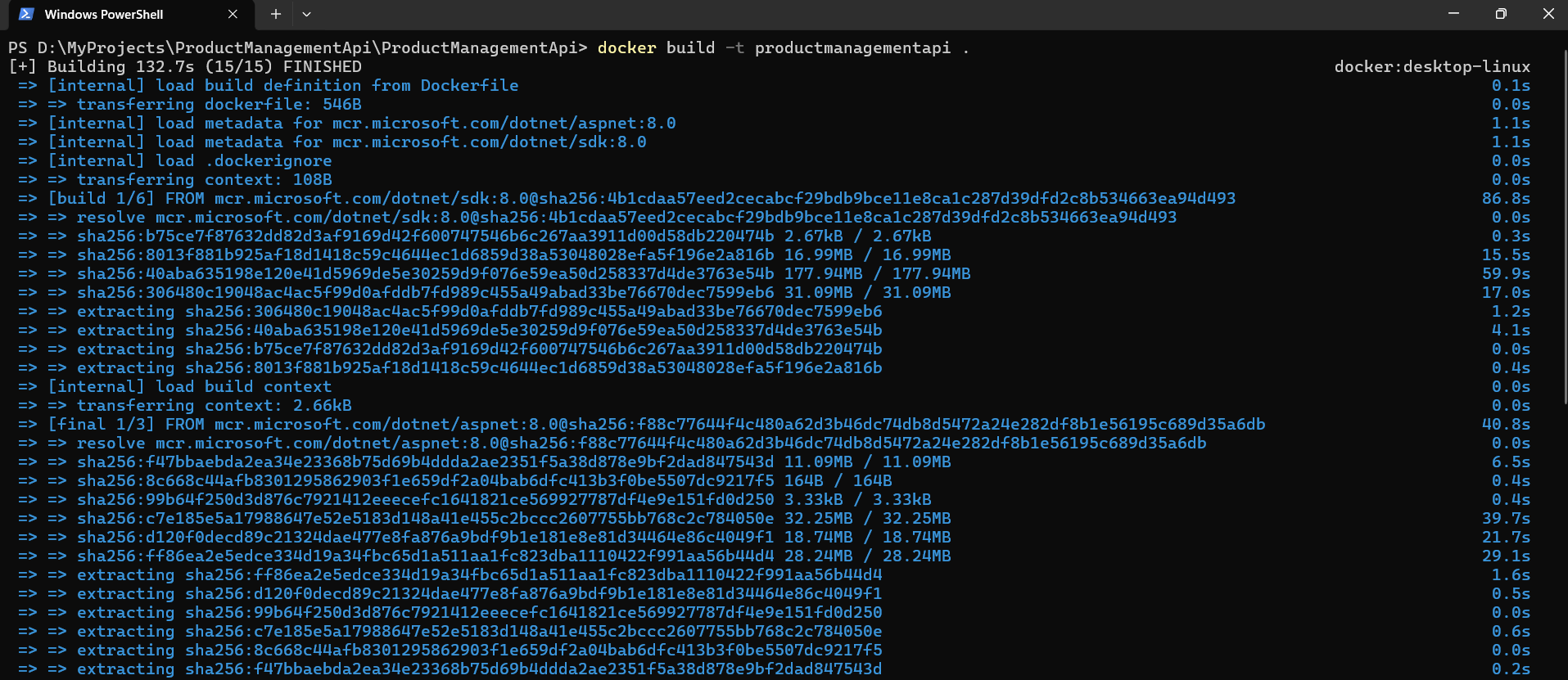
Step 4: Build the Docker Image
Now run this command from the same folder:
docker build -t productmanagementapi .
What this command means
- docker build = Build a Docker image
- -t productmanagementapi = Give the image a name
- . = Current folder is the build context. The build context is the folder whose files Docker can see and use when building the image.
If everything goes well, Docker will:
- Read the Dockerfile
- Restore packages
- Publish the application
- Create the final image
So, this means: Build a Docker image from the Dockerfile in this folder and name it productmanagementapi.
Step 5: Verify the Image
After the build completes, run:
- docker images
You should see something like productmanagementapi:latest. This confirms your image was created successfully.

Step 6: Run the Container
Now run the container by setting the environment to Development:
docker run -d –name productmanagementapi-container -p 8085:8081 -e ASPNETCORE_ENVIRONMENT=Development productmanagementapi
What this command means
- docker run = Create and start a container
- -d = Run in background
- –name productmanagementapi-container = Give the container a friendly name
- -p 8085:8081 = Map host port 8085 to container port 8081
- -e ASPNETCORE_ENVIRONMENT=Development = Run the app in Development mode
- productmanagementapi = Image name from which the container will be created.
So, this means: Run my ProductManagementApi container in the background, make it accessible on port 8085 on my machine, and map that traffic to port 8081 inside the container where the application is listening.
Understanding Port Mapping for ASP.NET Core Web API
Port mapping format is:
- hostPort:containerPort
When we run:
- -p 8085:8081
It means:
- 8085 = Port on your machine
- 8081 = Port inside the container
So:
- A browser request comes to your machine on port 8085
- Docker forwards it to the container on port 8081
Step 7: How to Access Swagger from the Running Container
Since our app uses Swagger only in Development, and we are passing:
- -e ASPNETCORE_ENVIRONMENT=Development
We should be able to open Swagger using: http://localhost:8085/swagger
Step 8: Checking Running Containers
To see currently running containers, use:
- docker ps
This shows only active containers.
You should see something like:
- container name: productmanagementapi-container
- image: productmanagementapi
- ports: 0.0.0.0:8085->8081/tcp
If you want to see all containers, including stopped ones, use:
- docker ps -a
Step 9: Viewing Container Logs
First, access the health endpoint and then to view logs from the running container, use: docker logs productmanagementapi-container
Why are logs useful?
Logs help us understand:
- Whether the application started correctly
- Whether the container is running
- Whether any startup error occurred
- Whether the application is receiving requests
If Swagger is not opening or the API is failing, logs are one of the first things we should check.
Step 10: Stopping the Container
To stop the running container, use: docker stop productmanagementapi-container
This stops the application container. After this:
- It will not appear in docker ps
- But it will still appear in docker ps -a
Step 11: Starting the Same Container Again
If you want to start the same stopped container again, use: docker start productmanagementapi-container
This starts the same container again.
Important Note:
- docker run = Create + Start a new container
- docker start = Start an already existing stopped container
Step 12: Removing the Container
If you no longer need the container, remove it using: docker rm productmanagementapi-container
If it is still running, stop it first:
- docker stop productmanagementapi-container
- docker rm productmanagementapi-container
Step 13: Removing the Image
If you want to remove the image, use: docker rmi productmanagementapi
Important Note: Docker may not allow image deletion if a container based on that image still exists. So first remove the container, then remove the image.
Step 14: Rebuilding the Image After Code Changes
Suppose you change something in your project:
- Add a new controller
- Update service logic
- Change swagger settings
- Comment out UseHttpsRedirection()
- Modify Dockerfile
Then the old image does not automatically update. You need to rebuild.
Use this flow:
- docker stop productmanagementapi-container
- docker rm productmanagementapi-container
- docker build -t productmanagementapi .
- docker run -d –name productmanagementapi-container -p 8085:8081 -e ASPNETCORE_ENVIRONMENT=Development productmanagementapi
That will:
- Stop the old container
- Remove the old container
- Rebuild the image with the latest code
- Run a new container
Important Note About Database Connectivity
Our application may start successfully inside Docker, and Swagger may open, but database-related API calls can still fail if the connection string is not Docker-friendly.
For example, if the project uses:
- local SQL Server instance name
- Windows Authentication
- Trusted_Connection=True
Then the same connection string may not work from inside a Linux Docker container.
So, if the API starts but database calls fail, do not assume Docker is broken. In many cases, the application runs correctly, but the database connection string needs to be updated for container access. We will discuss configuration and environment variables in more detail in the next chapter.
Conclusion
In this chapter, we learned how to containerize an ASP.NET Core Web API with Docker in a practical, beginner-friendly way. We created the Dockerfile and .dockerignore file, built the Docker image, ran the container, understood port mapping, accessed Swagger, checked running containers, viewed logs, stopped and restarted containers, removed Docker resources, and rebuilt the image after code changes.
About the Author: Pranaya Rout
Pranaya Rout has published more than 3,000 articles in his 11-year career. Pranaya Rout has very good experience with Microsoft Technologies, Including C#, VB, ASP.NET MVC, ASP.NET Web API, EF, EF Core, ADO.NET, LINQ, SQL Server, MYSQL, Oracle, ASP.NET Core, Cloud Computing, Microservices, Design Patterns and still learning new technologies.
Want to learn how to containerize an ASP.NET Core Web API using Docker in a simple, step-by-step way?
We’ve created a complete video tutorial covering everything from Docker basics to building and running your Web API inside a container. This will help you understand real-world deployment and make your applications more consistent across environments.
👉 Watch the full video here: https://youtu.be/wd3TO_HV2sI
If you have any questions, feel free to ask in the video comments—we’ll be happy to help 👍