
Back to: Microsoft Azure Tutorials
Migrating the Existing SQL Server Database to Azure SQL Database
In the previous chapters, we covered the Azure services required for manual deployment and deployed our ASP.NET Core Web API to Azure App Service. In that deployment chapter, we intentionally skipped database integration so that we could first understand how to host the Web API properly. Now, in this chapter, we will focus on the database aspect and migrate our locally created SQL Server database to Azure SQL Database.
Our goal in this chapter is not to build a new database from scratch. Instead, we already have a database on our local SQL Server, and we now want to migrate its structure and data to Azure so our cloud-hosted Web API can use it in the next chapter.
Why Do We Need to Migrate the Database to Azure?
When we run the application locally, both the Web API and SQL Server database may exist on the same machine. This is fine for development and testing. But once we deploy the API to Azure App Service, the application is no longer running on our local machine. It is running in Azure.
Now think about this carefully. If the API is on Azure but the database is still only on your personal computer, the deployed API will not be able to access it. That is why we moved the database to Azure SQL Database. Once both the API and the database are in Azure, the application becomes much more realistic, stable, and cloud-ready.
In simple words:
- Azure App Service hosts the Web API
- Azure SQL Database stores the application data
What Is Azure SQL Database?
Azure SQL Database is the cloud-based database service provided by Microsoft Azure. This is the database that our deployed ASP.NET Core Web API will connect to when it needs to perform create, read, update, or delete operations. It is used to store application data such as:
- Users
- Products
- Categories
- Orders
- Employees
- Transactions
- Any other business data
It is similar to SQL Server in that it supports tables, rows, columns, relationships, views, stored procedures, and other database objects. But the main difference is that Azure manages the cloud platform for us. So, in simple words: Azure SQL Database = the cloud database where our application data will be stored.
What Is Azure SQL Logical Server?
Before creating an Azure SQL Database, Azure requires us to create a Logical Server. Many beginners get confused here because they think this is the same as installing SQL Server on a machine. It is not the same. Azure SQL Logical Server is a parent database server in Azure that helps manage:
- Server name
- Admin username
- Password
- Firewall rules
- Access settings
The actual tables and data will stay inside the Azure SQL Database, but that database must exist under a logical server.
You can think of it like this:
- Azure SQL Logical Server = The apartment building.
- Azure SQL Database = One flat inside that building.
Without the building, the flat cannot exist.
So, in simple words:
- Azure SQL Logical Server = The parent database server that manages access and security.
- Azure SQL Database = The actual database that stores tables and data.
Step 1: Open Azure Portal
Open the Azure Portal in your browser and sign in with your Azure account. After signing in, you will see the Azure home page. From there, you can create and manage the Azure resources required for database migration.
At this stage, we already assume that:
- Your Azure account is working.
- Your subscription is available.
- Your Resource Group may already exist from previous chapters.
- Your Web API is already deployed or almost ready for cloud integration.
Step 2: Search for SQL Databases in the Azure Portal
At the top of the Azure Portal, you will find the search box. In that search box, type: SQL databases. Azure may show multiple options, such as:
- Oracle AI Database@Azure
- Azure SQL Database
- Azure SQL Database Hyperscale
- SQL Server databases
Here, you need to select Azure SQL Database, as shown in the image below.
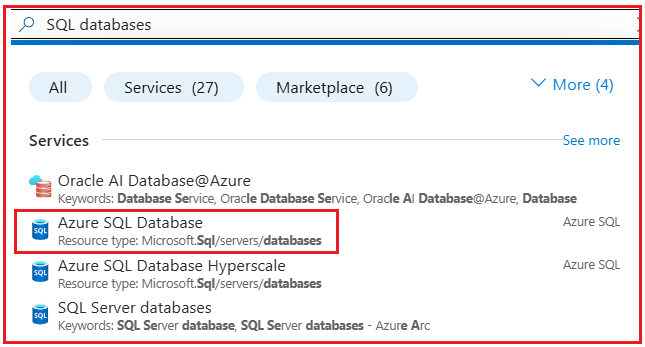
This is the correct option for our scenario because we want to migrate our local Microsoft SQL Server database to the standard Azure SQL Database service.
Step 3: Click Create
After selecting Azure SQL Database, click the Create button as shown in the image below. This opens the SQL Database creation page, where we will provide the database details and also create the logical server.
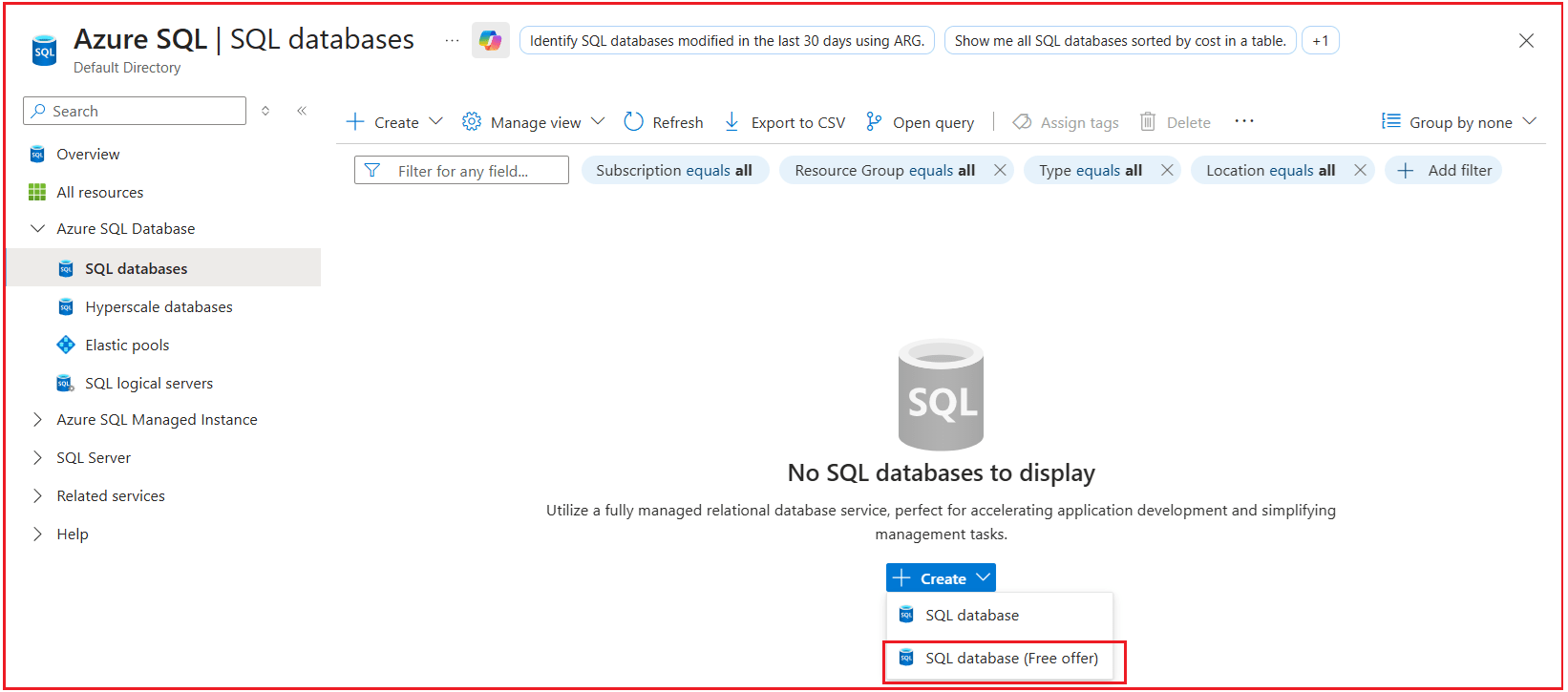
Here:
- SQL database = Normal paid database, more flexible, safer for long-term project use.
- SQL database (Free offer) = Best for learning, practice, demos, proof of concept, and small workloads that fit inside the free monthly limits.
Step 4: Select Subscription and Resource Group
On the Create SQL Database page, under Project details, the first two important fields are:
- Subscription
- Resource Group
Subscription
Select the Azure subscription under which you want to create the SQL resources. In most cases, Azure selects the subscription automatically. If you have only one subscription, you can normally keep it as it is.
Resource Group
Next, select the Resource Group in which you want to place the SQL resources. For example, if you already created a resource group for your project, such as RG-ProductManagementAPI, then select the same one.

Why Use the Same Resource Group?
Using the same resource group is helpful because it keeps all related Azure resources together in one place, such as:
- App Service Plan
- Web App
- Azure SQL Logical Server
- Azure SQL Database
This keeps the project organized and makes management easier.
Step 5: Enter the Azure SQL Database Name
Now move to the Database details section. Here, you will see the Database name field. Azure may automatically generate a database name such as: free-sql-db-6647845. You can keep this name if you want, but it is better to use a meaningful name that matches your project. For example:
- ProductManagementDB
- EmployeeManagementDB
- StudentManagementDB
We are going with ProductManagementDB.
Important Note
Do not confuse the Database Name with the Server Name.
- Database name = The actual database that will store tables and data.
- Server name = The Azure SQL Logical Server under which the database will be created.
At this stage, we are only entering the database name. The logical server still needs to be created or selected in the next step.
Step 6: Create the Azure SQL Logical Server
Now look at the Server field. The Server field is empty, and Azure is showing this message:
- No servers found in the selected resource group
This means that no Azure SQL Logical Server currently exists inside the selected resource group. Because of that, Azure cannot continue until we create one. So, under the Server field, click: Create new
A form will open asking for the logical server details. Fill in the Following Carefully
Server name
Enter a globally unique server name. Example: productmanagement-sqlserver-pranaya. If Azure says the name is already taken, slightly modify it and try again.
Location
Choose the Azure region. It is a good practice to keep the SQL resources in the same region as your Web App whenever possible. For example, if your Web App is in Central India, select the same region here.
Authentication:
Enter the admin username and password. This username and password will be used later while connecting from SQL Server Management Studio.
- Authentication Method: SQL Authentication
- Server admin login: sqladminuser
- Password: Enter a strong password such as DotNetAzure@2026
- Confirm password: Re-enter the same password.
- Click OK
Now the logical server will be created and linked to the SQL Database creation page. Once you return to the page, the Server field will be filled automatically.
Note: Azure is also showing a Free offer applied message. This means Azure is applying the free Azure SQL Database option available for your subscription.
Step 7: Check Compute and Storage
On the right side of the screen, Azure is showing the Cost summary. There you can see things such as:
- Compute
- Storage
- Estimated total
Since the free offer is currently applied, Azure is showing the estimated total as free for this setup.
Step 8: Review and Create the Database
After filling in all the required details:
- Make sure the Subscription is selected
- Make sure the Resource Group is selected
- Enter a meaningful Database name
- Click Create new under the Server field
- Create the Azure SQL Logical Server
- Return to the SQL Database page and confirm that the Server field is now filled
Once everything is properly filled in, click Review + create Azure, and it will validate the details. If everything is correct, click: Create
Deployment Complete Page
Azure will then start creating:
- The Azure SQL Logical Server
- The Azure SQL Database
Wait for the deployment to complete. After successful deployment, you will see the following:
In Deployment details, Azure is showing 3 things:
- Microsoft.Sql/servers → Your SQL Logical Server is created
- Microsoft.Sql/servers/databases → Your Azure SQL Database is created
- Microsoft.Sql/servers/firewallrules → A firewall rule is created
What the status means
- Created = Resource created successfully
- OK = That step completed successfully
So, our setup is fine.
Step 11: Verify Firewall Access
After the Azure SQL Database is created successfully, the next important step is to ensure that our local machine can connect to it. This is required because we will connect to the database from SQL Server Management Studio (SSMS) in the next step. The firewall settings are managed at the SQL Server level, not directly from the database overview page.
Open the SQL Database Overview Page
First, open the Azure SQL Database you created. For example, in our case, the database is: ProductManagementDB. This page shows details such as:
- Resource Group
- Server name
- Status
- Pricing tier
- Connection strings
At the top of this page, you will see the button: Set server firewall
Click Set server firewall
Now, click the Set server firewall button from the top menu. This will open the Networking page of the parent SQL Server. This is the correct page for verifying firewall access. After clicking Set server firewall, Azure opens the Networking page of the SQL Server.
On this page, under Public access, you will usually see options like:
- Disable
- Selected networks
For our setup, Selected networks is the correct and safer option because it allows only the machines whose IP addresses are added in the firewall rules. So, if Selected networks is already selected, that is fine.
What to Do on This Page
Now scroll to the Firewall rules section.
This is the most important part. Here, you need to check whether your current machine’s IP address is already added or not.
- If Your IP Is Already Added: If your local machine’s public IP address is already present in the firewall rules, then firewall access is already configured correctly. In that case, you do not need to add anything else. Just make sure the settings are saved.
- If Your IP Is Not Added: If your IP address is not present, then add your current public IP address in the firewall rules section. After adding the IP, click: Save
Adding Your Public IP Address:
- Go to the SQL Server Networking page
- Under Firewall rules, click Add your client IPv4 address (49.37.112.188)
Now,
- Azure will add the IP automatically
- Click Save
This step tells Azure: Allow my local machine to connect to this SQL Server.
How to check the public IP address of your machine?
Please visit this site (https://www.whatismyip.com/) on your machine; it will show your public IP address.
Why This Step Is Important
This step is required because even if:
- The SQL Server is created
- The SQL Database is created
- The admin login is correct
- The password is correct
SSMS still cannot connect unless Azure allows your machine through the firewall settings. So, this step is simply about giving your machine permission to connect.
Step 12: Use SQL Authentication
When we created the logical server, we selected “Use SQL authentication.” At the same time, we entered:
- Server admin login
- Password
These are the login details we must use while connecting from SQL Server Management Studio.
When connecting to Azure SQL Database from SSMS, we should use:
- Server name = Azure SQL logical server name
- Authentication = SQL Server Authentication
- Login = The server admin login you created
- Password = The password you entered during server creation
Do not use:
- Windows Authentication
- Microsoft Entra authentication
Step 13: Connect to Azure SQL Database Using SQL Server Management Studio
Now open SQL Server Management Studio on your machine. In the Connect to Server window, enter the details as follows.
- Server Type: Select Database Engine
- Server Name: Use the Azure SQL logical server name. It normally looks like this: your-server-name.database.windows.net. For example: productmanagement-sqlserver-pranaya.database.windows.net
- Authentication: Select SQL Server Authentication
- Login: Enter the server admin login you created earlier. For example: sqladminuser
- Password: Enter the same password you used when creating the SQL logical server. For example, DotNetAzure@2026
Then click: Connect
What Happens After a Successful Connection
If everything is correct, SSMS will connect to the Azure SQL Server, and you will be able to see your Azure SQL Database in Object Explorer.
That means:
- The server is reachable
- The login is correct
- The firewall access is working
- You are ready for migration
If Connection Fails
Check these things one by one:
- Is the firewall access available for your machine?
- Are you using the correct server name?
- Does the server name end with .database.windows.net?
- Are you using SQL Server Authentication?
- Is the login name correct?
- Is the password correct?
This step is only a connection test. If SSMS connects successfully, it means your Azure SQL environment is ready for the next step.
Step 14: Decide the Migration Approach
Now the actual migration work starts. At this stage, our goal is to move the existing local SQL Server database to Azure SQL Database. The easiest and clearest approach is to do the migration in two parts:
- First, move the database structure
- Then move the data
This is the best approach, as it clearly explains what is being moved at each stage. So, in this chapter, we will use the following method:
- Step 1: Move the schema using Generate Scripts in SQL Server Management Studio
- Step 2: Move the data using the Generate Scripts wizard or insert scripts
Step 15: Migrate the Database Schema
Now we will move the schema from the local SQL Server database to Azure SQL Database. Schema means the database structure, such as:
- Tables
- Columns
- Keys
- Constraints
- Views
- Stored procedures
At this stage, we are not moving the data yet. We are only creating the structure in Azure first.
Steps to Migrate the Schema
We will use Generate Scripts in SSMS to create the schema script from the local database, then run it against the Azure SQL Database.
Step 1: Open SSMS and Connect to the local SQL Server
Open SQL Server Management Studio and connect to your local SQL Server instance, where your existing database is available.
Step 2: Right-Click the Local Database
In Object Explorer, locate your local database. For example: ProductManagementDB. Right-click the database.
Step 3: Open the Generate Scripts Wizard
Click: Tasks > Generate Scripts
This opens the script generation wizard.
Step 4: Choose the Objects
Click Next.
Now, SSMS will ask whether you want to script the entire database or specific objects.
- Script the entire database and all database objects. Use this option when you need the database itself, along with its objects.
- Select specific database objects. Use this option when you need the database objects, not the database.
I am going with Select specific database objects. Select the database tables and click Next as shown in the image below.
Step 5: Set the Script Type
In the wizard, go to Set Scripting Options and choose where to save the script.
You can save it:
- To a new query window
- To a file
For beginners, saving it to a new query window is easier.
Step 6: Choose Schema Only
Now click Advanced. Set:
- Types of data to script = Schema only
- Script USE DATABASE = False
This is very important. Because in this step we want only:
- Tables
- Keys
- Constraints
- Views
- Stored procedures
We do not want data yet. Then click OK.
Step 7: Generate the Script
Click Next, review the summary, and click Finish. Now SSMS will generate the schema script.
Step 8: Connect to Azure SQL Database in SSMS
Now, in SSMS, connect to your Azure SQL Server using:
- Server name = Azure logical server name
- Authentication = SQL Server Authentication
- Login = your admin login
- Password = your admin password
Then expand the Azure connection and open your Azure database.
Step 9: Run the Schema Script in Azure SQL Database
Open the generated script in a query window. Make sure the selected database is your Azure SQL Database. Then click Execute. This will create the required schema objects in Azure.
What to Verify After Schema Migration
After the script runs successfully, check whether the following are created in Azure SQL Database:
- Tables
- Primary keys
- Foreign keys
- Constraints
- Views
- Stored procedures if applicable
Step 16: Migrate the Existing Data
After the schema is successfully created in Azure SQL Database, the next step is to migrate the data from the local SQL Server database to Azure SQL Database. This data may include:
- Master data
- Lookup data
- Users
- Products
- Categories
- Orders
- Sample records
At this stage, the tables already exist in Azure. So now we only need to copy the records into those tables.
Step-1: Open SQL Server Management Studio
Open SQL Server Management Studio (SSMS) on your machine.
Step-2: Connect to the Local SQL Server
Connect to your local SQL Server instance, where your original database is available. For example, your local database may be: ProductManagementDB
Step-3: Right-Click the Local Database
In Object Explorer, find your local database. Right-click the database name. Then click: Tasks > Generate Scripts. This opens the Generate Scripts Wizard. Click Next.
Step 4: Select the Required Tables
Now choose: Select specific database objects. Then select only the tables whose data you want to move. For example:
- Products
- __EFMigrationsHistory
Then click Next.
Step 5: Configure the Script for Data Only
In the Set Scripting Options screen, choose to save the script to a new query window or to a file. Then click Advanced. Now change this setting:
- Types of data to script = Data only
- Then click OK.
After that, click Next, then click Finish. Now SSMS will generate the insert statements for the selected tables.
Step 6: Connect to Azure SQL Database
Now, open a new query window in SSMS and connect to your Azure SQL Database.
Use:
- Server name = your Azure SQL Server name. Example: productmanagement-sqlserver-pranaya.database.windows.net
- Authentication = SQL Server Authentication
- Username = Your Azure SQL admin login. Example: sqladminuser
- Password = Your Azure SQL password. Example: DotNetAzure@2026
- Database = ProductManagementDB
Step-7: Execute the Data Script in Azure SQL Database
After reviewing the insert statements, execute the script against the Azure SQL Database. This will insert the required data into the Azure tables.
INSERT [dbo].[__EFMigrationsHistory] ([MigrationId], [ProductVersion]) VALUES (N'20260411064526_InitialCreate', N'8.0.0')
GO
SET IDENTITY_INSERT [dbo].[Products] ON
GO
INSERT [dbo].[Products] ([Id], [Name], [Description], [Price], [StockQuantity], [Category], [IsActive], [CreatedOn]) VALUES (1, N'Wireless Mouse Updated', N'Updated description', CAST(899.00 AS Decimal(18, 2)), 30, N'Electronics', 1, CAST(N'2026-01-01T00:00:00.0000000' AS DateTime2))
GO
INSERT [dbo].[Products] ([Id], [Name], [Description], [Price], [StockQuantity], [Category], [IsActive], [CreatedOn]) VALUES (2, N'Notebook', N'200-page ruled notebook', CAST(120.00 AS Decimal(18, 2)), 100, N'Stationery', 1, CAST(N'2026-01-02T00:00:00.0000000' AS DateTime2))
GO
SET IDENTITY_INSERT [dbo].[Products] OFF
GO
Step-8: Wait for the Script to Complete
Wait until the execution completes successfully. If there are no errors, then the data has been inserted into Azure SQL Database.
Step-9: Check for Any Errors
If any insert fails, check the error message carefully. Common reasons may include:
- Identity column issue
- Foreign key dependency issue
- Datatype mismatch
- Table not created in Azure
- Connection issue
- Inserting data in the wrong order
If everything runs successfully, then the data migration is complete.
Step-10: Verify the Tables and Data
After migration is complete, verification is extremely important. Do not assume everything worked correctly just because no major error appeared.
Check the Following in Azure SQL Database
- Are all required tables created?
- Are important records available?
- Are primary keys and relationships okay?
- Are lookup tables populated?
- Are sample application records visible?
Example Verification Queries
You can run queries like:
SELECT * FROM Products;
Compare the data with your local database to ensure the migration is correct.
Conclusion
In this chapter, we migrated the existing SQL Server database from the local environment to Azure SQL Database using a practical, step-by-step approach. We understood why Azure SQL Database is required, what Azure SQL Logical Server does, how to create the required database resources in Azure, how to configure access and firewall settings, how to connect using SQL Server Management Studio, and how to migrate and verify the database schema and data.
At this stage, our application architecture becomes much more complete. In the previous chapter, the Web API was already running in Azure App Service. Now, after completing this chapter, the database is also ready in Azure. That means we are now very close to achieving a fully cloud-based setup in which both the application and the database are hosted in Azure. In the next chapter, we will connect the deployed ASP.NET Core Web API with the Azure SQL Database and test the complete end-to-end flow.
About the Author: Pranaya Rout
Pranaya Rout has published more than 3,000 articles in his 11-year career. Pranaya Rout has very good experience with Microsoft Technologies, Including C#, VB, ASP.NET MVC, ASP.NET Web API, EF, EF Core, ADO.NET, LINQ, SQL Server, MYSQL, Oracle, ASP.NET Core, Cloud Computing, Microservices, Design Patterns and still learning new technologies.
👉 Want to see this concept in action?
If you prefer learning through a complete step-by-step practical demonstration, I’ve created a detailed video where I show how to deploy an ASP.NET Core Web API and SQL Server Database to Microsoft Azure from scratch.
In this video, you will clearly understand:
How to deploy your Web API to Azure App Service
How to migrate your SQL Server database to Azure SQL Database
How to connect both and test your application end-to-end
🎥 Watch the full video here:
https://youtu.be/hX89L52iC94
This will help you move from theory to real-world implementation quickly and confidently.