
Back to: Microsoft Azure Tutorials
Docker Fundamentals for Beginners
Before learning Docker, let us first understand one very common problem in software development. Suppose a developer builds an application on their laptop. On that laptop, everything works perfectly. The application starts properly, the database connection works, all required software is installed, and there are no errors. Now the same application is moved to another computer, a testing server, or a production server. Suddenly, it stops working.
Why?
Because the new machine may not have the same setup. It may be missing required software. It may have a different operating system. It may have a different version of .NET, different environment variables, or different configuration settings. This is the exact problem Docker helps us solve.
Why Do We Need Docker?
Let us understand this with a very simple real-life analogy. Imagine you prepare tea in your kitchen. In your kitchen, everything is available:
- Tea powder
- Sugar
- Milk
- Gas stove
- Spoon
So, making tea is easy.
Now imagine you go to another house and want to make the same tea there. But that kitchen may be missing sugar, or the stove may be different, or the milk may not be there. So even though you know how to make tea, the result becomes different because the environment is different. Software works in a very similar way.
A developer’s machine is like their own kitchen. Everything is already set up:
- .NET SDK
- SQL Server
- Visual Studio
- Required libraries
- Correct environment settings
- Correct ports
- Correct configuration
That is why the application works.
But when we move the same application to another system, that system may not have all these things. So, the application may fail. Docker helps by packing the application together with what it needs to run, so it behaves more consistently everywhere.
What Is Docker?
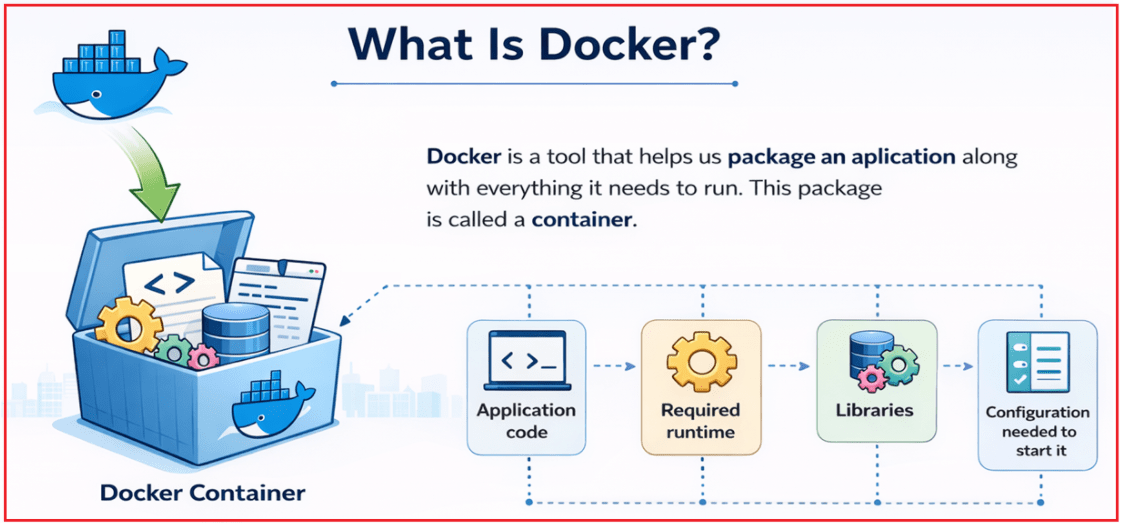
Docker is a tool that helps us package an application along with everything it needs to run. This package is called a container. In simple words, Docker helps us say: Do not just move my code. Move the code together with the environment it needs.
This includes:
- Application code
- Required runtime
- Libraries
- Dependencies
- Configuration needed to start it
So instead of moving only the application code, Docker helps us move the complete running environment. For a better understanding, please have a look at the following image:
Real-Life Analogy
Think of Docker like a packed lunch box. If you only carry cooked rice without curry, spoon, and box, it may not be useful. But if you pack the full meal properly in a lunch box, you can carry it anywhere and eat it without depending on the place.
Docker does the same thing for software. It packs the application and its required items together so it can run properly anywhere Docker is available.
Why Docker Is So Popular
Docker is popular because modern applications run in many places:
- Developer laptops
- Testing environments
- Staging servers
- Production servers
- Cloud platforms like Azure
- Kubernetes clusters
Managing all these environments manually is difficult. Docker makes this easier because it gives us:
- Consistency
- Portability
- Easier deployment
- Simpler Dependency Management
Without Docker:
- Each machine may need manual setup
- Installation steps may differ
- Errors may happen because of environment mismatch
With Docker:
- The same application can run in the same way on different machines (Your Laptop, Server, or Cloud)
- Setup becomes easier
- Sharing the application becomes easier
- Testing becomes more reliable
- Deployment becomes faster
In simple words, Docker helps us avoid the problem of: It works on my machine, but not on yours.
What Is a Container?
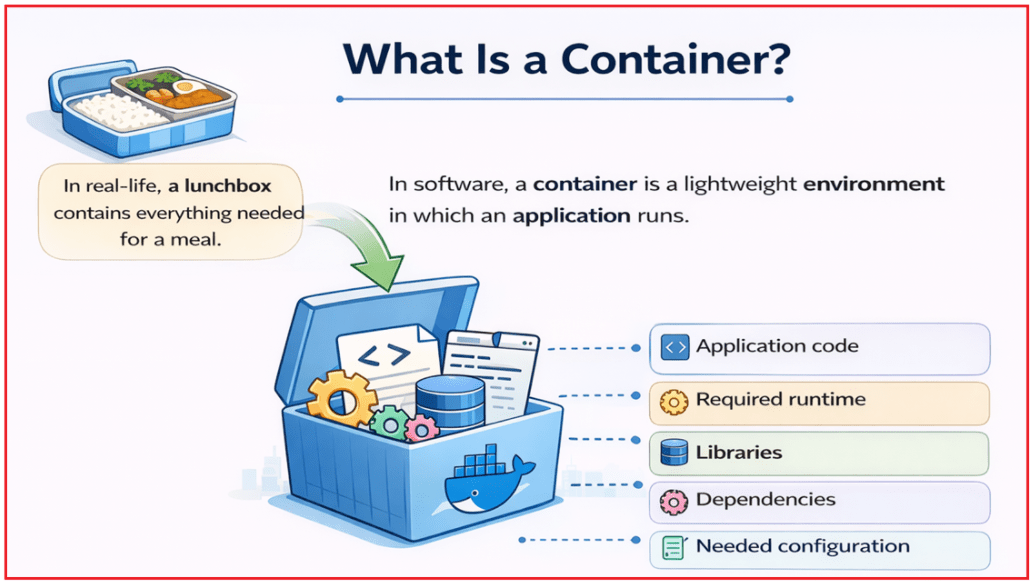
A container is a lightweight environment in which an application runs. It includes:
- The application code
- Required runtime
- Libraries
- Dependencies
- Startup instructions
- Needed configuration
Once the container starts, the application runs inside it. For a better understanding, please have a look at the following image.
Real-Life Analogy
A container is like a lunchbox or food container. A lunchbox contains everything needed for a meal:
- Rice
- Curry
- Spoon
- Side dish
If you move the lunchbox from one place to another, the meal stays the same. Similarly, if you move a container from one machine to another, the application remains more consistent.
Can We Put Multiple Applications Inside One Container?
Technically, yes, it is possible to put multiple applications inside one container. But in most real-world Docker usage, the recommended and common approach is that one container should mainly run one main application or one main service.
Real-Life Analogy
Think of a container like a school bag for one student. That bag may contain many supporting things:
- Books
- Pens
- Water bottle
- Lunch box
- ID card
But the bag still belongs to one student and serves one main purpose. Similarly, a Docker container may contain:
- Application code
- Runtime
- Libraries
- Dependencies
- Configuration
But it is usually meant to run one main application/service.
What Is a Docker Image?
A Docker image is the blueprint or template used to create a container. It is just the prepared package from which containers are created. It contains:
- Application files
- Runtime
- Dependencies
- Startup instructions
For a better understanding, please have a look at the following image:

Real-Life Analogy
Think of an image like a Cake Recipe. The recipe tells you:
- What ingredients are needed
- How to prepare the cake
- How it should be baked
But the recipe itself is not the actual cake. When you use that recipe and bake the cake, that cake is like the container.
So:
- Image = Recipe
- Container = Prepared Cake
Another Real-Life Analogy
Think of a Docker image like a house blueprint. A blueprint contains all the instructions needed to build a house, such as room layout, door placement, plumbing, and electrical planning. But the blueprint itself is not the actual house. When builders use that blueprint to construct a real house, that real house is like the container.
So:
- Image = House Blueprint
- Container = Built House
So, this helps you understand that an image is only a prepared design or template, while the container is the actual running result created from it.
Difference Between Image and Container
This is one of the most important Docker concepts for beginners because many freshers get confused between these two terms. A simple way to remember it is:
- The image is the template or blueprint.
- A container is the running result created from that template.
Image
An image is:
- A template or blueprint: An image is a ready-made design that tells Docker how to create and run a container.
- Read-only or Static: An image does not keep changing while it is being used; it stays fixed like a saved template.
- Used to create containers: Docker uses an image as the starting point to make one or more containers.
- Not running: An image by itself does not execute anything; it only becomes useful when Docker creates a container from it.
Container
A container is:
- A running instance of an image: A container is the actual running form created from an image.
- Active: A container is something that is currently working or ready to work, unlike an image, which is just a saved template.
- Executable: A container can run an application because it contains everything needed to start it.
- Startable and stoppable: A container can be started, stopped, restarted, and removed whenever needed.
Real-Life Analogy
Suppose you have a blueprint for building a house.
- The blueprint is like the image
- The actual house built from that blueprint is like the container
You can build many houses using the same blueprint. Similarly, you can create many containers using the same image.
What Is Docker Engine?
Docker Engine is the main software that actually does Docker’s work. For a better understanding, please have a look at the following image.
It is responsible for:
- Building images
- Creating containers
- Starting containers
- Stopping containers
- Managing Docker resources
When you type commands like:
- docker build
- docker run
Docker Engine handles them behind the scenes.
Real-Life Analogy 1:
Docker Engine is like a car’s engine. You may sit in the car and use the steering wheel, pedals, and dashboard, but the engine does the real work of moving the car. Similarly, Docker Engine is the part that actually runs Docker operations.
Real-Life Analogy 2:
Think of Docker Engine like the kitchen staff in a restaurant. You place the order at the counter, but the kitchen staff actually prepares the food.
Similarly:
- You type the command
- Docker Engine performs the work
What Is Docker Desktop?
Docker Desktop is the user-friendly application that we need to install on Windows or macOS to use Docker easily.
It provides:
- Docker Engine: The core component that builds, runs, and manages containers on your system.
- Docker Command-Line Support: Docker Command-Line Support lets us use Docker commands in the terminal to interact with containers and images.
- Graphical Interface: The Graphical Interface provides an easy visual way to manage containers, images, volumes, and networks.
- Settings and Controls for local Docker usage: These settings and Controls help us configure and manage Docker locally to meet our development needs.
For beginners, Docker Desktop is the easiest way to start learning Docker because it combines all the essential tools in one place. For a better understanding, please have a look at the following image.
Real-Life Analogy
If Docker Engine is the engine of the car, then Docker Desktop is like the full car dashboard, steering, buttons, and controls that make the engine easier to use. In the same way, Docker Desktop makes Docker easier to use for beginners.
So, remember:
- Docker Engine = The actual worker doing the job.
- Docker Desktop = The easy-to-use interface for the user.
Instead of manually managing everything in a complicated way, Docker Desktop gives you a clean
Installing Docker Desktop on Windows:
Now, we will install Docker Desktop on a Windows machine in a simple step-by-step way. Do not worry if you are completely new to Docker. Just follow each step one by one. Think of Docker Desktop like installing a normal software application on your computer, such as Chrome or Visual Studio Code. Before we install Docker Desktop, we need to make sure the system is ready.
Step 1: Check Your Windows Version
Before installing Docker Desktop, first check which Windows version you are using.
How to check
- Press Windows + R
- Type winver
- Press Enter
A small window named About Windows will open.
What you need to check
You should look for:
- Your Windows edition
- Your Windows version
- Your OS build
This step helps us confirm that your computer is running a Windows version compatible with Docker Desktop.
Supported Windows versions include:
- Windows 10 64-bit Enterprise, Pro, or Education version 22H2
- Windows 11 64-bit Enterprise, Pro, or Education version 23H2 or higher
On my machine, it is showing
- Windows 11
- Version 25H2
- OS Build 26200.8037
So, this part is fine.
Step 2: Check Whether Virtualization Is Enabled
Docker needs Virtualization to run properly. Virtualization means your computer can create a small, separate, and isolated environment inside itself. Docker uses this feature to run containers smoothly.
Real-Life Analogy
Imagine your house has one large room, but with movable partitions, you can create smaller rooms inside it. Virtualization works in a similar way. It allows a single physical computer to create separate, isolated environments where different things can run safely without disturbing one another.
How to check whether Virtualization is enabled
- Press Ctrl + Shift + Esc
- This will open Task Manager
- Click the Performance tab
- Click CPU
- Look for the line named Virtualization
As you can see, it shows “Virtualization: Enabled.” That means your system is ready. If it shows as Disabled, you need to enable it in the BIOS/UEFI settings.
How to enable Virtualization from BIOS/UEFI if Disabled?
The exact steps may vary depending on your laptop or motherboard brand, but the general process is:
- Restart your computer
- While restarting, repeatedly press one of these keys:
-
- F2
- Delete
- Esc
- F10
- F12
-
- This opens BIOS/UEFI
- Look for options like:
-
- Intel Virtualization Technology
- VT-x
- SVM Mode for AMD
-
- Change it to Enabled
- Save the settings
- Exit BIOS/UEFI
- Restart Windows
Note: If it is already enabled, then you do not need to do this step on your machine.
Step 3: Check Whether WSL Is Installed
Docker Desktop on Windows commonly uses WSL. WSL stands for Windows Subsystem for Linux. It allows Windows to support a Linux-based environment inside Windows. Docker uses this because Docker works very well with Linux-style containers.
Real-Life Analogy
Think of WSL like a translator inside Windows. Windows understands its own language, Linux understands its own language, and WSL helps both work together.
How to check whether WSL is already installed
Open PowerShell and run:
- wsl –version
What can happen here?
Case 1: WSL is not installed
You may see a message saying WSL is not installed, as shown in the image below. That means WSL is missing.
Case 2: WSL is already installed
If WSL is installed, PowerShell will show details such as:
- WSL version
- kernel version
- Windows version
Step 4: Install WSL If It Is Missing
If wsl –version shows that WSL is not installed, then install it.
How to install WSL
- Open PowerShell as Administrator
- Run this command: wsl –install
What happens after running this command
Windows will start downloading and enabling the required WSL components. You will see the following messages:
- Downloading Windows Subsystem for Linux
- Installing Windows Subsystem for Linux
- Installing Windows optional component: VirtualMachinePlatform
- The operation completed successfully
- Changes will not be effective until the system is rebooted
After this, restart your computer.
If WSL is already installed but outdated
You can update it using: wsl –update
Step 5: Verify WSL After Restart
After installation or restart, open PowerShell again and run: wsl –version
You should now see the WSL version details.
- WSL version: 2.6.3.0
- Kernel version
- WSLg version
- Windows version
That means WSL is installed correctly. At this point, your system is ready for Docker Desktop.
Step 6: Download Docker Desktop
We are now ready to download Docker Desktop.
What to do
- Open the official Docker Desktop page (https://www.docker.com/products/docker-desktop/).
- Click Download Docker Desktop
- Select Download for Windows – AMD64
For most normal Windows laptops and desktops, AMD64 is the correct option. Do not get confused by the name. It is commonly used for standard 64-bit Intel and AMD systems.
Step 7: Wait for the Installer to Download
After clicking the download button:
- Wait for the file to finish downloading
- Open your Downloads folder
You should see a file similar to:
- Docker Desktop Installer.exe
This is the setup file we will use to install Docker Desktop.
Step 8: Run the Docker Installer
Now double-click the installer file:
- Docker Desktop Installer.exe
This starts the Docker Desktop installation process.
Windows may show a permission pop-up asking: Do you want to allow this app to make changes to your device?
Click:
- Yes
This is normal because the installer needs permission to make system changes.
Step 9: Configuration Screen
After the installer starts, you may see a small configuration window. The installer shows:
- Add shortcut to the desktop
- OK button
What to do here
- If you want a Docker Desktop shortcut icon on your desktop, keep the checkbox checked
- Then click OK
That is all.
Step 10: Wait for Docker Desktop to Install
After clicking OK, Docker Desktop will begin installing. Just wait. Installation may take a little time. You should see the Installation succeeded message.
That means Docker Desktop has been installed successfully.
What to do next
- If Windows asks for a restart, restart your computer
- Otherwise, close the installer window using the X button
Step 11: Open Docker Desktop
Now open Docker Desktop manually:
- Click Start
- Type Docker Desktop
- Click Docker Desktop
This opens the Docker Desktop application.
Step 12: Accept Docker Terms
When Docker Desktop opens for the first time, it may show the Docker Subscription Service Agreement screen.
- View Full Terms
- Accept
- Close
What to do
Click:
- Accept
This is required to continue.
Step 13: Skip Sign In
After accepting the terms, Docker Desktop may show a welcome screen asking you to sign in. It shows:
- Work
- Personal
- Email input box
- Skip button
What to do
Click:
- Skip
Why are we skipping this?
We do not need to sign in right now to use Docker locally on your machine.
Step 14: Docker Desktop Main Screen Opens
After clicking Skip, Docker Desktop opens fully. It shows the main Docker Desktop dashboard with menus like:
- Containers
- Images
- Volumes
- Kubernetes
- Builds
This means Docker Desktop is open and ready.
How to confirm it is working?
Look at the bottom-left area of Docker Desktop. If Docker Engine is running, then Docker is ready to use. At this point, installation is complete.
Verifying Docker Installation
After installing Docker Desktop, the next step is to check whether Docker is working properly on your computer. In simple words, this step is just like checking whether a newly installed application opens and runs correctly.
Think of this like buying a new bike. After bringing it home, you do not directly start a long journey. First, you check whether it starts properly, whether the engine works, and whether everything is ready. Similarly, after installing Docker Desktop, we should verify that Docker is installed correctly and ready to use.
Step 1: Open a Terminal Window
To verify Docker, we need to open a terminal window. A terminal is a place where we type commands and ask the computer to perform tasks.
On Windows, you can use any one of these:
- Command Prompt
- PowerShell
- Windows Terminal
How to open PowerShell or Command Prompt
- Press the Windows key
- Type PowerShell or Command Prompt
- Click to open it
A terminal window will open. This is where we will type Docker commands.
Step 2: Check the Docker Version
Now type the following command and press Enter:
- docker –version
This command checks whether Docker is installed and whether the Docker command is available in your system. If Docker is installed correctly, Docker will display version information.
If you see the Docker version, it means:
- Docker is installed
- The Docker command is working
- Your system can recognize Docker
Real-Life Analogy
It is like asking a person, “What is your name?” If they respond correctly, it means they are present and listening. In the same way, when you type docker –version, Docker responds with its version, which means Docker is present and recognized by your system.
Step 3: Check Detailed Docker Information
After confirming that Docker is installed, the next step is to verify that it is running properly. Now type the following command and press Enter:
- docker info
This command gives detailed information about Docker. It shows details such as:
- Docker client information
- Docker server information
- Number of images
- Number of containers
- Storage details
- Runtime details
If Docker is running correctly, this command will show a lot of Docker-related information on the screen.
Do not worry if you do not understand every line right now. At this stage, the main goal is only to confirm that Docker is working.
What does this mean?
If Docker info shows Docker details successfully, it means:
- Docker Desktop is installed properly
- Docker Engine is running
- Docker is ready to create and run containers
Real-Life Analogy
Think of docker –version like checking whether a car exists in your garage. Think of docker info like starting the car and checking whether the engine is actually running properly.
Step 4: What if Docker info shows an Error?
Sometimes you run: docker info and get an error. In most cases, this happens because Docker Desktop has not fully started yet.
What to do in that case
- Open Docker Desktop
- Wait for it to finish loading completely
- Make sure Docker Engine is running
- Then run the command again: docker info
Important Note: The Docker command may already be installed on your machine, but Docker Engine must also be running properly in the background.
Real-Life Analogy
It is like having a TV remote in your hand, but the TV is still switched off. The remote exists, but the system is not ready yet. Similarly, Docker may be installed, but Docker Desktop may still be starting.
Creating and Running Your First Docker Example on Windows
Now that Docker Desktop is installed and Docker Engine is running, the next step is to run our first Docker example. For beginners, the best first example is:
- docker run hello-world
This is the most common beginner Docker command because it is very small, simple, and specially designed to test whether Docker is working correctly on your computer. When this example runs successfully, it confirms that:
- Docker Desktop is installed properly
- Docker Engine is running
- Docker can download images from Docker Hub
- Docker can create containers
- Docker can run containers successfully
Even though this is a very small example, it is an important first step in learning Docker.
Step 1: Understand What We Are Going to Run
Our first Docker command is:
- docker run hello-world
Let us understand each part very simply.
- docker: This means we are using the Docker command-line tool.
- run: This tells Docker to create and start a new container.
- hello-world: This is the name of the image we want to use.
So, this command is basically telling Docker: Find the hello-world image, create a container from it, run it, and show me the output.
Real-Life Analogy
Think of this like ordering instant noodles.
- hello-world = Noodle Packet
- run = Cook and Serve It
- Docker = The kitchen system that prepares it
So, when we type docker run hello-world, we are basically asking Docker to take the ready-made packet, prepare it, and show us the result.
Is hello-world a fixed name?
Yes. hello-world is the name of an existing Docker image that is already available on Docker Hub.
Can I give any name?
Not directly. You can write any image name in this position only if:
- That image already exists locally on your machine, or
- That image exists in Docker Hub or another Docker registry, or
- You have created your own image with that name
So, Docker does not allow just any random word unless an image with that name actually exists.
For example, these are valid image names because they exist:
- docker run nginx
- docker run redis
- docker run ubuntu
Here:
- nginx is an existing image
- redis is an existing image
- ubuntu is an existing image
But if we write something random like:
- docker run Pranaya-demo
Docker will try to find an image called pranaya-demo. If that image does not exist locally or online, Docker will show an error.
When Can You Give Your Own Name?
You can use your own custom name only when you create your own image. For example, if later you build your own Docker image for your ASP.NET Core Web API and name it: productapi, then you can run it like this:
- docker run productapi
So, the rule is you can use any name, but only if an image with that name actually exists.
Step 2: Open PowerShell
Now we need to run the command.
How to open PowerShell
- Press the Windows key
- Type PowerShell
- Click Windows PowerShell
A terminal window will open. This is where we will type Docker commands.
Step 3: Run the First Docker Command
Inside PowerShell, type the following command and press Enter:
- docker run hello-world
This starts your first Docker example.
Step 4: What Happens Internally When You Run the Command
When we run:
- docker run hello-world
Docker performs several steps automatically in the background. Let us understand them one by one.
Step 4.1: Docker Checks Whether the Image Exists on Your Local Machine
The first thing Docker does is check whether the hello-world image is already available on our local computer.
- If the image is already available, Docker uses it directly
- If the image is not available, Docker downloads it automatically
Since this is our first example, Docker usually does not find the image on our machine. It means Docker searched for the image on our computer but could not find it. That is why the output shows:
- Unable to find image ‘hello-world:latest’ locally
Real-Life Analogy
Imagine you want to read a book. First, you check your bookshelf at home. If the book is not there, you go to the library and get it. Docker does the same thing.
Step 4.2: Docker Downloads the Image from Docker Hub
If the image is not found locally, Docker downloads it from Docker Hub. You will see lines like these:
- latest: Pulling from library/hello-world
- Pull complete
- Download complete
- Status: Downloaded newer image for hello-world:latest
What Is Docker Hub?
Before proceeding further, let us first understand what Docker Hub is. Docker Hub is an online place where Docker images are stored and shared.
It can store:
- Official Images provided by Docker or trusted publishers.
- Public Custom Images created by developers.
- Private Custom Images created by individuals or companies
So, Docker Hub is not only for Docker’s own sample images like hello-world. We can also create our own custom image and push it to Docker Hub.
Real-Life Analogy
Think of Docker Hub like YouTube. On YouTube, you can find:
- Official videos from big companies
- Videos uploaded by normal users
- Private/unlisted videos
- Public videos
Similarly, Docker Hub contains:
- Official Docker images
- Custom images uploaded by developers
- Public repositories
- Private repositories
So, Docker Hub is not only for built-in images. It is a platform where anyone can store and share Docker images.
Step 4.3: Understand the Download Messages
Let us understand the important output lines.
latest: Pulling from library/hello-world
This means Docker is downloading the hello-world image.
- hello-world = image name
- latest = default tag or version
- library/hello-world = official image location on Docker Hub
Pull complete / Download complete
This means the image was downloaded successfully.
Status: Downloaded newer image for hello-world:latest
This confirms that the image is now available on your local machine.
Step 4.4: Docker Creates a Container from the Image
Once the image is downloaded, Docker creates a container from it. This is one of the most important concepts in Docker.
- Image: An image is like a template, blueprint, or ready-made design.
- Container: A container is the running instance created from that image.
So here, Docker uses the hello-world image like a blueprint and creates one container from it. Then it immediately starts that container.
Real-Life Analogy
- Think of an image like a cake recipe.
- Think of a container like the actual cake made from that recipe.
- You do not eat the recipe. You use the recipe to prepare the cake.
In the same way, Docker does not “run the image” directly in the human sense. It creates a container from the image and runs that container.
Step 4.5: Docker Runs the Container
After creating the container, Docker starts it. The hello-world container has only one job:
- Display a success message
- Then stop
That is why it runs only for a few seconds. It is not a long-running container, such as a web server or a database.
Step 4.6: Docker Displays the Output
After the container runs successfully, Docker shows the output in the terminal. The most important line is:
- Hello from Docker!
This is the success message. Below that, Docker also explains what happened internally.
What does this message confirm?
It confirms that:
- Docker client contacted Docker Daemon (which is also called as Docker Engine)
- Docker Daemon (Docker Engine) pulled the image from Docker Hub
- Docker Daemon (Docker Engine) created the container
- Docker Daemon (Docker Engine) ran the container
- Docker sent the output to your terminal
So, when you see “Hello from Docker!”, it means Docker is working correctly on your machine.
Step 5: Why Does the Container Stop Immediately?
This is a very common doubt among beginners. After running:
- docker run hello-world
Many people think:
- Why did the container stop?
- Why is it not running continuously?
- Did something go wrong?
Nothing went wrong. The hello-world container is designed only to:
- Print a message
- Complete its task
- Exit immediately
So, it does not stay running because its work is already finished.
Real-Life Analogy
Imagine switching on a torch just to test whether it works. You turn it on, see the light, and switch it off. The purpose was only to test it. The hello-world container is just a Docker test.
Step 6: Check Whether the Container Was Created
Even though the container has stopped, Docker still keeps a record of it. To see all containers, run:
- docker ps -a
It will show the following.
Step 6.1: What Does docker ps -a Mean?
Let us break this command into simple parts.
- docker ps: This shows running containers.
- -a: This means show all containers, including stopped ones.
So, this command shows:
- Running containers
- Stopped containers
- Exited containers
Why are we using it here?
Because the hello-world container finishes very quickly and stops. So, if you check only running containers, you may not see it.
Step 6.2: Understanding the Output of docker ps -a
When you run this command, Docker shows a row for the hello-world container. Important columns include:
- CONTAINER ID = This is the unique identification number assigned to each container, which helps Docker distinguish one container from another.
- IMAGE = This shows the name of the Docker image from which the container was created.
- COMMAND = This shows the command or program that Docker executed when the container started. Here, /hello is the small executable file inside the container. It is the program that prints Hello from Docker!.
- CREATED = This tells you how long ago the container was created.
- STATUS = This shows the current condition of the container, such as running, exited, or stopped.
- PORTS = This shows whether any ports inside the container are exposed or mapped to the host machine, so the application inside the container can be accessed from outside.
- NAMES = This shows the name given to the container by Docker, which helps us identify it more easily.
Step 6.3: What Does Exited (0) Mean?
This is actually a good sign.
It means:
- The container finished successfully
- No error occurred
- Exit code 0 means success
So, if you see Exited (0), it means the container ran correctly and ended normally.
Step 7: Check Whether the Image Was Downloaded
Now run:
- docker images
This command shows all Docker images stored on your local machine.
When you run docker images, Docker shows a row for each image stored on your machine. Each column gives useful information about that image.
- IMAGE = This shows the name of the Docker image along with its tag, so we can identify exactly which image is stored on the system. Here, hello-world:latest means the image name is hello-world, and its tag is latest.
- ID = This is the unique identification number of the image, which Docker uses internally to distinguish it from other images.
- DISK USAGE = This shows how much storage space the image is currently using on your local machine. Here, 25.9kB means this image is using 25.9 kilobytes of storage on your machine.
- CONTENT SIZE = This shows the actual size of the image content itself, without considering some additional local storage details. Here, 9.49kB means the actual image content is 9.49 kilobytes.
- EXTRA = This provides additional status-related information about the image, such as whether the image is currently in use. Here, U means the image is currently marked as in use.
Important point
If you run the same command again later:
- docker run hello-world
Docker usually does not need to download the image again, because it is already present locally.
Real-Life Analogy
If you buy a book once and keep it at home, the next time you want to read it, you do not need to go back to the library again.
Understanding Docker Basic Architecture
When people hear the word architecture, they often think it is something very difficult. But here, Docker architecture simply means: Who does what in Docker, and how Docker works step by step. You do not need to think about anything complicated. Just remember that Docker mainly works with three important parts:
- Docker Client
- Docker Host / Docker Daemon / Docker Engine
- Docker Registry / Docker Hub
For a better understanding, please have a look at the following image:
Let us understand each one in the easiest possible way.
Docker Client
The Docker Client is the component the user works with directly. Whenever you type a Docker command such as:
- docker run hello-world
You are using the Docker Client. So, the Docker Client is the part through which we give instructions to Docker. In simple words, it is the place where we type commands.
Real-Life Analogy
Think of the Docker Client like a remote control for a TV.
- You press a button on the remote
- The remote sends the request
- The TV does the actual work
Similarly:
- You type a Docker command
- Docker Client sends the request
- Docker Engine does the actual work
So, the Docker Client is not doing the heavy work itself. It is just taking your command and passing it forward.
Docker Host / Docker Daemon / Docker Engine
The Docker Host, or Docker Daemon, also called the Docker Engine, is the background service that performs the actual work. This is the most important working part of Docker. When the Docker Client sends a command, Docker Engine receives it and performs the requested action.
Docker Engine can:
- Pull images
- Build images
- Create containers
- Start containers
- Stop containers
In simple words, Docker Engine is the worker behind Docker.
Real-Life Analogy
Think of a restaurant.
- You tell the waiter what food you want
- The waiter passes the order to the kitchen
- The kitchen prepares the food
Here:
- You = User
- Docker Client = Waiter
- Docker Engine = Kitchen
So, the kitchen is the place where the real cooking happens. Similarly, Docker Engine is where the real Docker work happens.
Docker Registry / Docker Hub
A Docker Registry is the place where Docker images are stored. Whenever Docker needs an image, it can download it from a registry. The most common public registry is:
- Docker Hub
Later, when working with Azure, we will use:
- Azure Container Registry (ACR)
In simple words, A Docker Registry is like an online storage place for Docker images. If Docker Engine needs an image that is not available on your machine, it can download it from the registry.
Real-Life Analogy
Again, using the restaurant example. Imagine the kitchen needs ingredients. If the ingredients are not already in the kitchen, they must be brought from a store.
Here:
- Docker Registry = Store
- Docker Image = Ingredient Packet
So, if Docker Engine does not find the image locally, it pulls it from Docker Hub.
FAQs:
What Exactly Is a Docker Image?
A Docker image is not just a normal text file. It is a read-only package/template that contains everything needed to create and run a containerized application, including the application files, required runtime, libraries, dependencies, and metadata or instructions for execution. In simple words, an image is the blueprint from which Docker creates containers.
Can We See All Docker Images Downloaded to Our Local Machine?
Yes, we can see all images that have been downloaded and are available locally. The easiest practical way is to run this command:
- docker images
This command lists the images stored on your local machine. You can also see them in Docker Desktop → Images, where Docker shows the images available on your local disk. So, we can see all downloaded local images in both the Docker CLI and Docker Desktop.
On Windows with Docker Desktop using WSL 2, Docker stores the WSL 2 engine data by default at: C:\Users\[USERNAME]\AppData\Local\Docker\wsl
Can We See All Available Images on Docker Hub?
Yes, Docker Hub is Docker’s public registry service where users can store, share, and manage container images. It hosts Official Docker Images, Verified Publisher Images, and community Images. The following are official Docker Hub pages.
- The main Docker Hub URL is: https://hub.docker.com/
- The search page is: https://hub.docker.com/search
- Docker Official Images can be browsed here: https://hub.docker.com/u/library
How to verify an image exists
- Open Docker Hub
- Search for the image name, such as nginx, redis, or mysql
What Is the Real Use of Docker Desktop?
Docker Desktop is a user-friendly desktop application that makes it easier to work with Docker on Windows, macOS, and Linux. It provides a GUI that lets you manage containers, applications, and images directly from your machine.
Its real use is not to replace Docker completely, but to make Docker easier to use by providing:
- A graphical interface
- Settings management
- Easier visibility into images and containers
- Logs
- Lifecycle actions
- Local Docker environment management.
So, Docker Desktop is the easy-to-use control panel/dashboard for Docker, while Docker Engine does the actual container work in the background.
Can We Perform the Same Docker CLI Operations in Docker Desktop?
For many common operations, yes. Docker Desktop lets you manage images and containers without using the CLI. The following are commonly possible operations that we can perform from Docker Desktop:
- Viewing images
- Pulling images
- Viewing containers
- Starting containers
- Stopping containers
- Deleting containers
- Checking logs
- And inspecting container details.
However, automation, scripting, CI/CD, and advanced real-world work, the Docker CLI is still extremely important. So, Docker Desktop can handle many common Docker tasks through the GUI, but the Docker CLI remains more powerful and more widely used in professional workflows.
Conclusion
Docker is one of the most important tools in modern application deployment. It solves the common problems of traditional deployment by packaging the application, its runtime, and dependencies in a consistent and portable way. This helps reduce environment mismatch, improves reliability, simplifies deployment, and supports scaling and automation.
About the Author: Pranaya Rout
Pranaya Rout has published more than 3,000 articles in his 11-year career. Pranaya Rout has very good experience with Microsoft Technologies, Including C#, VB, ASP.NET MVC, ASP.NET Web API, EF, EF Core, ADO.NET, LINQ, SQL Server, MYSQL, Oracle, ASP.NET Core, Cloud Computing, Microservices, Design Patterns and still learning new technologies.
Want to Understand Docker in the Simplest Way?
If you’re finding Docker concepts confusing, don’t worry — we’ve created a complete beginner-friendly video that explains everything step by step using real-life examples.
In this video, you’ll learn:
• What is Docker and why do we need it
• Containers, Images, and Docker Engine explained clearly
• Step-by-step Docker Desktop installation
• Your first Docker command (hello-world)
• Real-world analogies to simplify concepts
This is perfect for beginners, .NET developers, and anyone starting with DevOps.
▶️ Watch the full video here:
https://youtu.be/1j-VvmwLYkQ