
Back to: Microsoft Azure Tutorials
Basic Kubernetes Architecture
Kubernetes is a platform for running and managing containerized applications. Before learning Kubernetes architecture, we should understand a few basic terms. These terms explain how an application is packaged, how it runs, and how Kubernetes manages it inside a cluster.
1. Docker Image
A Docker Image is a ready-made package of an application. It contains the application code, required runtime, libraries, dependencies, and startup instructions for running the application. For example, an ASP.NET Core Web API Docker image may contain:
- Published Web API files
- .NET runtime
- Required NuGet-based dependencies
- Instructions to start the API
2. Container
A Container is the running form or instance of a Docker Image. If the Docker Image is like a packaged application, the Container is that application actively running and serving requests. For example, when we run our ASP.NET Core Web API image, it starts as a Web API container that listens for incoming HTTP requests.
3. Pod
A Pod is the smallest Kubernetes unit that runs containers. It usually contains one main application container, though it can contain multiple containers when they need to work very closely together.
For example, Kubernetes does not directly manage our ASP.NET Core Web API container; it usually runs it inside a Pod. The Pod provides the surrounding environment needed for Networking, Storage Access, and Lifecycle Management.
4. Node / Worker Node
A Node is a machine where Kubernetes runs Pods. It can be a physical server, a virtual machine, or a cloud-based virtual machine. For example, in AKS, nodes are typically Azure virtual machines, and Kubernetes places our Web API Pods on them.
5. Control Plane
The Control Plane is the brain of Kubernetes. It decides where Pods should run, tracks the cluster, and ensures the actual system matches the desired state. For example, if we request three running copies of our Web API, the Control Plane makes sure that three Pods are scheduled and kept running.
6. Cluster
A Cluster is the complete Kubernetes environment. It includes the Control Plane, which manages everything, and the Worker Nodes, which actually run the application Pods. In simple words, the cluster is the full system where Kubernetes deploys, manages, scales, and monitors our containerized applications.
Simple Flow to Remember
- Docker Image → Packaged application
- Container → Running instance of that image
- Pod → Smallest Kubernetes unit that runs containers
- Node / Worker Nodes → Machine where Pods run
- Control Plane → Brain that manages the cluster
- Cluster → Complete Kubernetes system made of Control Plane and Nodes
A Docker Image is run as a Container. Kubernetes places the container inside a Pod. Pods run on Nodes. Nodes are managed by the Control Plane. Together, they form a Kubernetes Cluster. These components work together to deploy, run, expose, configure, and manage applications.
Three Logical Layers of Kubernetes Architecture
Kubernetes follows a cluster-based architecture where multiple components work together to run containerized applications efficiently. For easier understanding, we can group Kubernetes components into three logical layers:
1. Infrastructure-Level Components
These components provide the foundation on which applications run and on which Kubernetes makes cluster-level decisions.
- Cluster
- Control Plane
- Worker Nodes
2. Application Running-Level Components
These components are responsible for running application containers, keeping the required number of application copies alive, and safely updating the application.
- Pods
- Deployments
- Replicas and ReplicaSets
3. Application Access and Configuration-Level Components
These components help users access the application and enable it to receive configuration values without hardcoding them in the Docker image.
- Services
- Ingress
- ConfigMaps
- Secrets
In simple words, first we need machines. Then we need application containers running on those machines. After that, we need a stable way to access those applications and provide configuration values. Kubernetes connects all these parts together and continuously tries to keep the application running in the desired state.
Real-Life Analogy
Think of Kubernetes architecture like a company. A company has management, departments, employees, rules, resources, and communication systems. Everyone has a role. The company works smoothly only when all these parts work together.
Similarly, Kubernetes has different components. Each component has a specific responsibility. The control plane makes decisions; worker nodes provide computing resources; Pods run containers; Services expose applications; and configuration objects provide settings. Together, they help run containerized applications properly.
What is a Kubernetes Cluster?
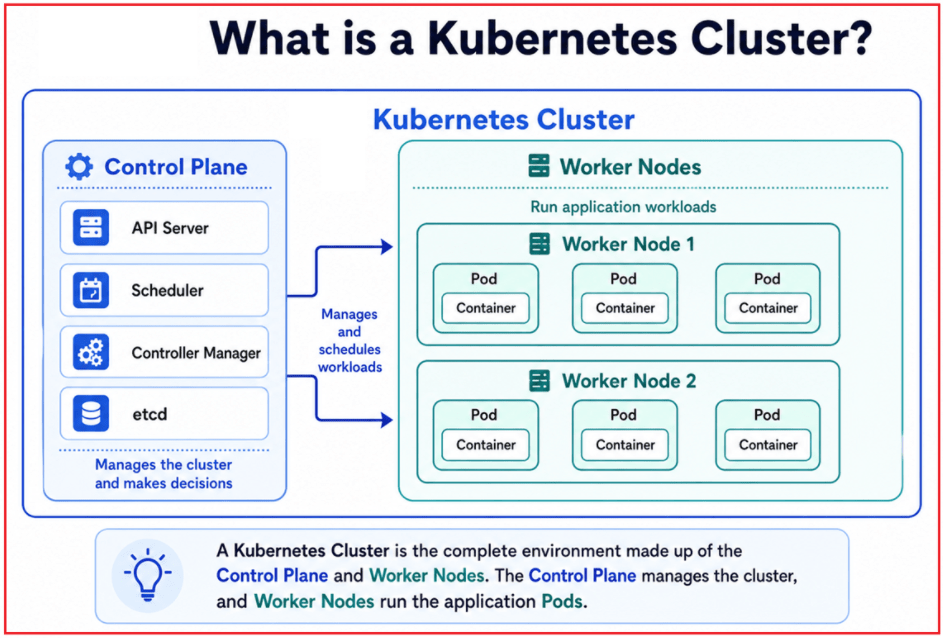
A Kubernetes Cluster is the complete setup that Kubernetes uses to run and manage containerized applications. A Kubernetes Cluster mainly has two parts:
- Control Plane: The management part of Kubernetes that makes decisions and controls how the cluster should work.
- Worker Nodes: The machines that actually run the application workloads, such as Pods containing our ASP.NET Core Web API containers.
For a better understanding, please have a look at the following image:
Why Do We Need a Cluster?
For a small application, one server may be enough. But real-world applications often need:
- Better availability
- More processing power to handle users
- Scaling during high traffic
- Recovery when a server or container fails
A Kubernetes Cluster uses multiple machines as a single coordinated environment. For example, in an e-commerce system:
- Product API
- Order API
- Payment API
- Notification API
It can run these services as Pods on different worker nodes inside the same cluster. If one worker node becomes unavailable, Kubernetes can try to run the affected Pods on another healthy node, provided there is enough capacity and the configuration allows it.
How a Cluster Works
When we tell Kubernetes to deploy an application, the Control Plane first reads our request. For example, when we ask Kubernetes to:
- Run three copies of my ASP.NET Core Web API.
The Control Plane then:
- Checks available worker nodes
- Decides where the Pods should run
- Schedules those Pods on suitable nodes
After that, the Worker Nodes run the Pods, keeping the application running. Kubernetes continuously monitors the cluster. If the current running state becomes different from what we requested, Kubernetes tries to fix it.
For example:
- We requested 3 Pods
- One Pod fails
- Kubernetes creates another Pod to bring the count back to 3
In Simple Words
- The Cluster is the full Kubernetes environment.
- The Control Plane manages and coordinates everything.
- The Worker Nodes run the actual application workloads.
- Pods are placed on worker nodes and contain the application containers.
- Kubernetes continuously checks whether the cluster is running as requested.
Real-Life Analogy: A Hospital System
Think of a Kubernetes Cluster like a large hospital. A hospital has:
- Administration office
- Emergency department
- Surgery department
- Pharmacy
- Laboratory
- Patient rooms
The hospital administration decides how the hospital should operate, allocates resources, and responds when something needs attention. The departments perform the actual work, such as treating patients, running tests, and providing medicines.
Similarly:
- The Control Plane is like the hospital administration because it manages and coordinates the cluster.
- The Worker Nodes are like hospital departments because they perform the actual work by running application Pods.
- Pods and applications are the actual services being handled inside those departments
- The Cluster is the entire hospital system where all parts work together.
What is a Worker Node in Kubernetes?
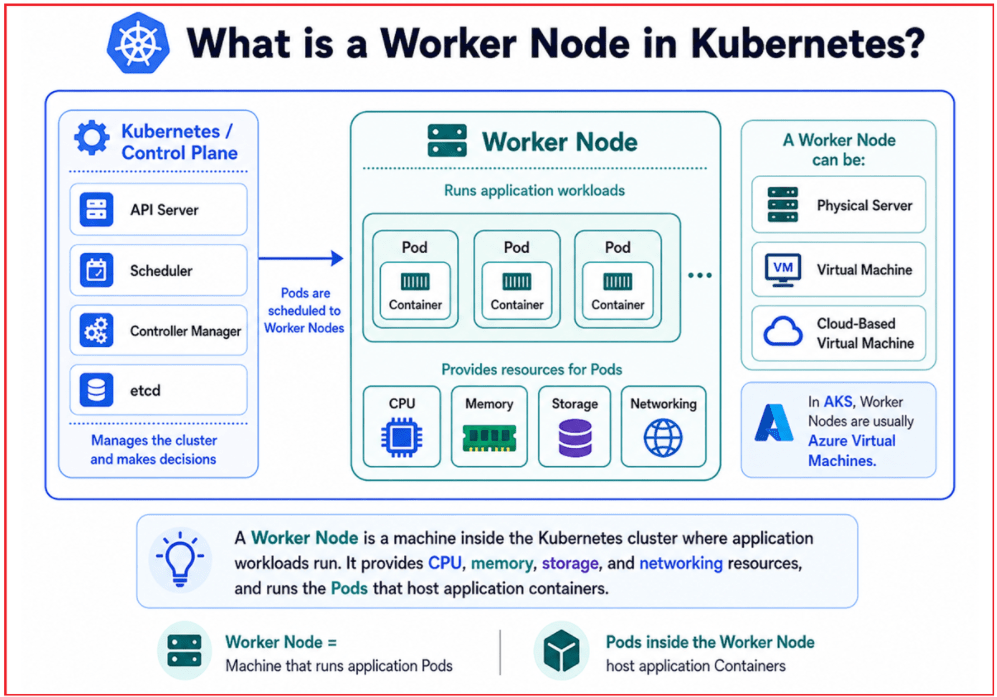
A Worker Node is a machine in a Kubernetes cluster where the actual application workloads run. In simple terms, if Kubernetes is managing an application, the Worker Nodes are the machines that provide the actual computing power to run it. Kubernetes places Pods on Worker Nodes, and those Pods contain the containers that run our ASP.NET Core Web API, background services, or microservices.
Types of Machines That Can Act as Worker Nodes
A Worker Node can be a physical server, a virtual machine, or a cloud-based virtual machine.
- Physical Server: A Physical Server is a real hardware computer in a data center that directly provides CPU, memory, storage, and networking resources for running Kubernetes Pods.
- Virtual Machine: A Virtual Machine is a software-created computer that runs on top of physical hardware and behaves like an independent server where Kubernetes can run Pods.
- Cloud-Based Virtual Machine: A Cloud-Based Virtual Machine is a VM provided by cloud platforms such as Azure, AWS, or Google Cloud; in AKS, Worker Nodes are generally Azure VMs managed as part of the Kubernetes cluster.
In Azure Kubernetes Service (AKS), Worker Nodes are typically Azure Virtual Machines that form the compute layer of the cluster.
How Worker Nodes Are Used in AKS
Suppose our Azure Kubernetes Service (AKS) cluster has three worker nodes. Kubernetes can distribute different application Pods across these nodes. For example:
- Product API Pod may run on Node 1
- Order API Pod may run on Node 2
- Payment API Pod may run on Node 3
If one node becomes unhealthy, Kubernetes can try to recreate or reschedule the affected Pods on another healthy node, depending on available capacity and cluster configuration. For a better understanding, please have a look at the following image:
Why Do We Need Worker Nodes?
Applications cannot run only through management instructions; they need actual computing power. Worker nodes provide that power.
- CPU: Provides the processing power to execute application logic and handle requests.
- Memory: Stores temporary runtime data while the application is running.
- Storage: Used to store application files, logs, and persistent data as needed.
- Networking: Networking allows the application to communicate with users, databases, external services, and other application components.
The Worker Nodes are the machines that provide the actual environment where our ASP.NET Core Web API, background workers, and other containers execute.
Simple ASP.NET Core Web API Example
Imagine we deploy an ASP.NET Core Web API to AKS.
The flow is:
- We create a Docker image of the Web API.
- Kubernetes creates Pods from that image.
- Those Pods are scheduled onto available Worker Nodes.
- The Worker Nodes provide CPU, memory, networking, and storage so the API can actually run.
So, without Worker Nodes, Kubernetes would have nowhere to execute our application.
Real-Life Analogy: Workers in a Factory
Think of a Kubernetes Cluster like a factory and Worker Nodes like the workers inside that factory. A factory may have many workers, and each worker has a limited capacity. If more work arrives, the factory may need more workers. If one worker is unavailable, another worker may take over some of the work.
Similarly:
- The cluster is the complete factory.
- Each worker node is like one worker with a certain amount of capacity.
- Pods are the actual tasks or jobs assigned to those workers.
- More nodes allow the cluster to run more workloads and handle larger applications.
So, a Worker Node is the machine that provides the actual compute power needed to run Pods and application containers in a Kubernetes cluster.
What Is a Pod in Kubernetes?
A Pod is the smallest unit that Kubernetes creates and manages to run an application. In Docker, we usually talk about containers, but in Kubernetes, we usually talk about Pods because Kubernetes places containers inside Pods and manages the Pods as the basic working unit.
A Container provides the environment required to run the application, such as:
- Application Compiled files
- .NET Runtime
- Libraries
- Dependencies
- Startup command
A Pod provides the Kubernetes-managed environment around that container, such as:
- Networking
- Storage access
- Configuration and secrets
- Health checks
- Lifecycle management
Simple Relationship
- Application code is packaged into a Docker image
- Kubernetes runs that image as a container
- The container runs inside a Pod
- The Pod runs on a Worker Node
For example, our ASP.NET Core Web API is packaged as a Docker image, started as a container, and that container usually runs inside a single Pod. For a better understanding, please have a look at the following image:

Does a Pod Contain One or Many Containers?
Most of the time, a Pod contains a single main application container. For example:
- One ASP.NET Core Web API container usually runs inside one Pod.
However, a Pod can also contain multiple closely related containers when they must work together very tightly and share the same network and storage.
Why Do We Need Pods?
Kubernetes does not treat a standalone container as its main deployment unit. Instead, it manages Pods, and the containers live inside those Pods.
- Networking Context: Each Pod gets its own internal IP address inside the Kubernetes cluster. Containers within the same Pod share the same network identity, making communication between them simple.
- Storage Access: Pods can provide shared storage volumes that containers inside the Pod can use to read or write data.
- Lifecycle Management: Kubernetes can manage Pods by:
- Creating them
- Starting them
- Monitoring them
- Restarting or replacing them when needed
- Removing them when they are no longer required
How Pods Work
When we create a Deployment, Kubernetes creates the required number of Pods based on the desired configuration. For example, if we tell Kubernetes:
- Run three copies of my ASP.NET Core Web API.
Kubernetes creates three Pods, each running one copy of the Web API container. Each Pod gets its own internal IP address. If a Pod fails, is deleted, or becomes unhealthy, Kubernetes can create a new Pod to replace it.
Important Note: Pods Are Temporary
Pods are not permanent. Kubernetes may:
- Delete them
- Recreate them
- Replace them
- Move them to another Worker Node
When a new Pod is created, it may receive a new IP address. Because of this, applications should not depend directly on Pod IP addresses. Instead, we use a Kubernetes Service, which provides a stable way to access Pods even when Pods are recreated.
Real-Life Analogy
Think of a Pod as a small office cabin, and the container as the employee working inside that cabin. The employee performs the actual work, just as the container runs the application. But the cabin provides the surrounding support needed for the employee to work properly, such as space, electricity, internet access, and basic facilities.
Similarly:
- The container runs the application
- The Pod provides the managed environment around that container
- Kubernetes manages the Pod, not just the container alone
So, a Pod is the smallest Kubernetes-managed unit that runs one or more containers and provides the networking, storage, and lifecycle context needed to manage them.
What is the Control Plane in Kubernetes?
The Control Plane is the management and decision-making part of Kubernetes. It does not usually run our business application containers directly; instead, it manages the cluster and ensures everything works as requested. We can think of the Control Plane as the brain of the Kubernetes cluster. It receives instructions, decides where workloads should run, watches the cluster continuously, and takes corrective action when something goes wrong.
Main Responsibilities of the Control Plane
The Control Plane is responsible for:
- Managing the overall cluster state and tracking what should be running.
- Accepting requests from users, tools, and deployment files.
- Deciding where new Pods should run based on available worker node resources.
- Responding to failures when Pods or nodes become unavailable.
- Coordinating scaling and deployment updates.
- Maintaining the desired state of the cluster at all times.
Why Do We Need the Control Plane?
A Kubernetes cluster may contain many applications, Pods, and Worker Nodes. Someone must coordinate and manage all of them.
The Control Plane is needed because:
- Someone must decide where applications should run
- Someone must check whether Pods and Nodes are healthy
- Someone must take action when containers fail
- Someone must handle scaling and application updates
- Someone must ensure the cluster matches what we requested
Without the Control Plane, Kubernetes would not know:
- What should run
- Where it should run
- How many copies should run
- What to do if something fails
Simple Example
Suppose we deploy an ASP.NET Core Web API and tell Kubernetes: Keep three Pods of this Web API running.
The Control Plane will:
- Record that three Pods are required
- Decide which worker nodes should host them
- Instruct the cluster to create those Pods
- Keep checking whether all three Pods are still available
- Trigger recovery if one Pod fails or disappears
So, the Control Plane continuously compares:
- Desired State: What we asked Kubernetes to maintain
- Actual State: What is currently running in the cluster
If neither matches, Kubernetes tries to correct the difference. This is how Kubernetes automatically maintains reliability.
Important Control Plane Components
As a beginner, you do not need to master all internal details immediately. But knowing the role of the main components makes Kubernetes easier to understand.
- API Server: The API Server is the main communication point of Kubernetes. It receives requests from users.
- Scheduler: The Scheduler decides which Worker Node is the best place to run a newly created Pod based on resources and scheduling rules.
- Controller Manager: The Controller Manager continuously checks whether the cluster is running as requested and takes corrective action when there is a difference.
- etcd: etcd is the internal data store of Kubernetes. It keeps important cluster information such as configuration, desired state, and metadata.
Control Plane in AKS
In Azure Kubernetes Service (AKS), Microsoft Azure manages much of the Control Plane for us. This reduces the amount of infrastructure work we need to handle manually. That means we can focus more on:
- Deploying our applications
- Managing workloads
- Configuring scaling
- Exposing services
- Monitoring application behavior
While Azure handles many underlying Control Plane responsibilities. For a better understanding, please have a look at the following image:
Real-Life Analogy: School Principal
Think of the Control Plane as the principal of a school. The principal does not personally teach every class, but the principal:
- Decides how the school should operate
- Assigns responsibilities
- Ensures teachers and classes are arranged properly
- Responds when problems occur
- Make sure the school follows the plan
Similarly:
- The Control Plane manages and coordinates the Kubernetes cluster
- The Worker Nodes perform the actual execution work
- The Pods and containers run the applications
So, the Control Plane is the brain of Kubernetes, managing the cluster, making decisions, monitoring health, and ensuring the system always matches the desired state.
What are the Desired State and Actual State in Kubernetes?
One of the most important concepts in Kubernetes is that it does not just start applications once and leave them alone. Instead, Kubernetes continuously checks whether the cluster is running as we asked it to.
To understand this, we use two terms:
- Desired State: The condition or result we want Kubernetes to maintain.
- Actual State: The condition that is currently present in the cluster.
For example, suppose we tell Kubernetes:
- Run 3 Pods of the Product API
- Use a specific Docker image
These instructions describe the desired state. Kubernetes then checks the actual state inside the cluster. If only 2 Pods are running instead of 3, Kubernetes creates one more Pod. If one Pod crashes, Kubernetes replaces it. If we update the image version, Kubernetes updates the running Pods based on the deployment strategy.
Why is the Desired State Important?
The desired state is the foundation of Kubernetes automation. Instead of manually telling Kubernetes every individual action to perform, we simply describe the final result we want.
For example, we do not usually say:
- Create Pod 1
- Create Pod 2
- Create Pod 3
- Restart Pod 2 if it fails
Instead, we simply say:
- Keep 3 Pods of this application running
Kubernetes takes responsibility for performing the required actions and maintaining that result over time. This is very different from traditional server management, where an administrator may manually:
- Log in to a server
- Start or restart an application
- Copy updated files
- Investigate failures
- Bring services back online
Kubernetes works in a declarative way. We declare what we want, and Kubernetes continuously works to achieve and preserve it.
How Desired State Helps Kubernetes
The desired state helps Kubernetes understand:
- What should be running
- How many instances should exist
- Which image version should be used
- What to do if the current condition changes
It supports key Kubernetes capabilities such as:
- Self-Healing: Kubernetes can restart, recreate, or replace Pods when failures occur.
- Automatic Scaling: Kubernetes can increase or decrease Pod count based on replica settings or configured autoscaling rules.
- Continuous Monitoring: Kubernetes continuously checks whether the running system still matches the requested state.
Real-Life Analogy: Billing Counters in a Restaurant
Think of a busy restaurant during lunchtime. The manager gives an instruction:
- Keep 5 billing counters open during lunch hours.
That instruction is the desired state.
Now suppose:
- Only 4 counters are open → The supervisor arranges one more counter.
- 6 counters are open without need → One counter may be closed.
- One counter stops working → Another counter is arranged so that 5 counters remain available.
The currently open counters represent the actual state. The supervisor keeps checking and adjusting things so that the restaurant matches the manager’s instructions. Similarly, Kubernetes continuously checks whether the cluster’s actual condition matches the desired condition we defined.
So, the desired state is what we ask Kubernetes to maintain, the actual state is what is currently running, and Kubernetes continuously works to make both match.
What is a Deployment in Kubernetes?
A Deployment is a Kubernetes object used to run and manage application Pods in a controlled and reliable way. Instead of creating Pods manually, we define a Deployment and tell Kubernetes how our application should run.
In simple words, a Deployment is a plan or instruction for Kubernetes that says:
- Which container image should be used
- How many copies of the application should run
- Which port does the container application listen on
- How new versions should be updated
- How Kubernetes should maintain the required number of Pods
A Deployment does not directly create Pods one by one. Instead:
- The Deployment manages a ReplicaSet
- The ReplicaSet ensures the required number of Pods are running
- The Pods run the actual application containers
Simple ASP.NET Core Web API Example
Suppose we have an ASP.NET Core Web API Docker image and we want:
- 3 Running Copies of the API
- Kubernetes to replace a failed Pod
- Kubernetes to update Pods gradually when a new image version is released
Instead of manually creating three Pods, we create a Deployment and define:
- Use this Web API Container Image
- Run 3 Replicas
- Keep 3 Pods Available
- Replace failed Pods automatically
- Perform safe rolling updates during application upgrades
This makes application management much easier in production.
Why Do We Need a Deployment?
Without a Deployment:
- We may need to create and manage Pods manually
- Maintaining multiple copies of an application becomes difficult
- Failed Pods are harder to manage properly
- Application updates are less controlled
- Rolling updates and rollbacks become more difficult
- Production-grade workload management becomes harder
With a Deployment, Kubernetes handles much of this automatically.
How a Deployment Works
The flow is:
- We create a Deployment
- The Deployment creates a ReplicaSet
- The ReplicaSet creates the required number of Pods
- The Pods run the application containers
For example:
- Deployment says: Run 3 copies of Product API.
- ReplicaSet ensures: Exactly 3 Pods should exist.
- Pods actually run: The Product API containers.
For a better understanding, please have a look at the following image:
Real-Life Analogy: Factory Supervisor
Think of a Deployment like an instruction given by a factory owner to a supervisor. The owner says:
- Produce 3 identical machines
- Keep all 3 machines running
- If one machine stops, arrange a replacement
- If a new upgraded model is introduced, replace the old machines gradually
The supervisor follows these instructions and ensures the factory always works according to the owner’s plan.
Similarly, a Kubernetes Deployment tells Kubernetes:
- Which application image to use
- How many Pods to keep running
- How to recover from failures
- How to update the application safely
So, a Deployment is a Kubernetes object that defines how an application should run, how many Pods are needed, and how updates and failures should be handled automatically.
What are Replica and ReplicaSet in Kubernetes?
In Kubernetes, Replica and ReplicaSet are closely related concepts. A Replica means a running copy of an application Pod, while a ReplicaSet ensures the required number of replicas are always running.
For example, if we say “run 3 replicas of Product API,“ Kubernetes understands that it should keep 3 separate Product API Pods running. All three Pods use the same application image, but each Pod is an independent running instance. For a better understanding, please have a look at the following image:
What is a Replica?
A Replica is simply one running copy of a Pod. Suppose our ASP.NET Core Web API is called Product API, and we want three copies of it running:
- Replica 1: Product API Pod
- Replica 2: Product API Pod
- Replica 3: Product API Pod
All three Pods run the same Product API application, but they are separate instances that can handle requests independently.
Simple Understanding
If one Pod means one running application instance, then:
- 1 replica = 1 Pod
- 3 replicas = 3 Pods
- 5 replicas = 5 Pods
Why Do We Need Replicas?
Running only one Pod in production is risky. If that Pod crashes, the application may become unavailable. Also, one Pod may not be enough to serve a large number of users.
Replicas help us by:
- Handling more user requests
- Improving availability
- Reducing downtime
- Distributing traffic across multiple Pods
- Keeping the application usable even when one Pod fails
Example
Suppose only one Product API Pod is running. If it crashes, users cannot access the Product API until it is recreated. But suppose three Product API Pods are running:
- Pod 1
- Pod 2
- Pod 3
If Pod 2 fails, Pod 1 and Pod 3 can still serve user requests. Kubernetes can then create a new Pod to restore the total back to three.
What is a ReplicaSet?
A ReplicaSet is a Kubernetes object that maintains the required number of identical Pods. For example, if we configure: Keep 3 Product API Pods running, the ReplicaSet continuously checks whether 3 matching Pods exist.
- If only 2 Pods are running, it creates 1 more Pod
- If 4 Pods are running, it removes 1 Pod
- If a Pod fails, it creates a replacement
So, a ReplicaSet acts like a Pod-count controller.
In Simple Words
- Replica = One running copy of a Pod
- ReplicaSet = The manager that keeps the required number of Pod copies running
How Replica and ReplicaSet Work Together
Let us take a simple example. Suppose we create a Deployment and specify “Run 3 replicas of Product API.” Kubernetes creates a ReplicaSet, and that ReplicaSet creates:
- Product API Pod 1
- Product API Pod 2
- Product API Pod 3
Now, suppose Pod 2 crashes. At that moment:
- Desired state = 3 Pods
- Actual state = 2 Pods
The ReplicaSet detects the mismatch and creates a new Pod as a replacement. After recovery, the running Pods may be:
- Product API Pod 1
- Product API Pod 3
- Product API Pod 4
Notice that Kubernetes may create a new Pod with a new name and new IP address instead of bringing back the exact old Pod. This is why Pods are considered temporary and replaceable.
Relationship Between Deployment, ReplicaSet, Replica, Pod, and Container
In real applications, we usually create a Deployment rather than a ReplicaSet directly. Kubernetes automatically creates and manages the ReplicaSet for us.
The relationship is:
- Deployment manages the ReplicaSet
- ReplicaSet maintains the required number of replicas
- Each replica is one running Pod
- Each Pod runs one or more containers
- The container runs our actual application
Complete Flow: Deployment → ReplicaSet → Replicas / Pods → Containers → Application
Example
- Deployment says: Run 3 copies of Product API.
- ReplicaSet ensures: Exactly 3 Product API Pods should be running.
- Pods run: Product API containers.
- Containers execute: The actual ASP.NET Core Web API application.
What is Self-Healing in Kubernetes?
Self-healing means Kubernetes automatically detects certain failures and attempts to restore the application to its expected running state without waiting for manual intervention. This is one of the most important production features of Kubernetes because applications can fail for many reasons, such as container crashes, unhealthy Pods, or unavailable worker nodes.
For example, suppose our Product API Deployment is configured to keep 3 Pods running:
- Product API Pod 1
- Product API Pod 2
- Product API Pod 3
Now imagine Pod 2 crashes.
- Without Kubernetes, an administrator may need to manually identify the issue and restart the application.
- With Kubernetes, the cluster detects that the desired state is 3 Pods, but the actual state is only 2 running Pods.
Kubernetes then automatically creates a replacement Pod. After recovery, we may have:
- Product API Pod 1
- Product API Pod 3
- Product API Pod 4
The new Pod may have a different name and IP address, but users can still access the application through a Kubernetes Service. This automatic recovery behavior is called self-healing.
Why Do We Need Self-Healing?
In real production systems, failures are normal. A container may crash, a Pod may become unhealthy, or an entire Worker Node may stop responding. If every issue requires manual action, applications become difficult to maintain, and downtime increases.
Self-healing helps because Kubernetes can:
- Detect failures quickly
- Restart or replace unhealthy workloads
- Maintain the required number of running Pods
- Reduce manual operational effort
- Improve application availability and reliability
For a better understanding, please have a look at the following image:
How Self-Healing Works
Kubernetes continuously compares:
- Desired State: What we asked Kubernetes to maintain
- Actual State: What is currently running in the cluster
If neither matches, Kubernetes tries to correct the problem.
For example:
- If a container crashes, Kubernetes may restart it within the Pod.
- If a Pod fails completely, Kubernetes may create a replacement Pod.
- If the required replica count is not met, Kubernetes creates new Pods to restore the desired number.
- If a Worker Node becomes unavailable, Kubernetes can reschedule affected Pods onto healthy nodes, depending on capacity and configuration.
Simple Example
Suppose we configure Kubernetes like this: Always keep 3 Product API Pods running.
If one Pod fails:
- Desired state = 3 Pods
- Actual state = 2 Pods
Kubernetes detects the gap and automatically creates another Pod to restore the system to its expected state.
Real-Life Analogy: Automatic Backup Generator in a Hospital
Think of a hospital with an automatic backup generator. If the main electricity supply fails:
- The hospital does not wait for someone to manually switch on backup power.
- The generator starts automatically.
- Critical systems continue running.
Similarly, in Kubernetes:
- If a Pod fails, Kubernetes does not wait for manual intervention.
- It automatically tries to restart or replace the workload.
- The application continues running as reliably as possible.
So, self-healing in Kubernetes means automatically restarting, replacing, or rescheduling failed workloads so the application stays available and closer to its desired state.
What Is a Service in Kubernetes?
A Service in Kubernetes provides a stable way to access one or more Pods. Pods are temporary: they can be created, deleted, restarted, or replaced at any time. When this happens, their IP addresses may also change. A Service solves this problem by giving us a stable access point in front of those changing Pods.
In simple words:
- Pods may change
- Pod IPs may change
- But the Service name remains stable
So, instead of connecting directly to a Pod, users and other applications connect to the Service. The Service then sends the request to one of the matching available Pods.
Simple Example
Suppose we have three Pods running the same Product API:
- Product API Pod 1
- Product API Pod 2
- Product API Pod 3
Now imagine:
- Pod 1 has a specific IP address
- Pod 1 crashes
- Kubernetes creates a replacement Pod
- The new Pod gets a different IP address
If another application directly calls the old Pod’s IP, that connection would fail. But if it calls the Product Service instead, it continues to work because the Service automatically forwards traffic to the currently available Product API Pods.
Why Do We Need a Service?
We need a Service because Pods are not permanent, but applications require a reliable and stable way to communicate.
A Service helps by:
- Providing a stable endpoint for Pods
- Hiding changing Pod IP addresses
- Forwarding requests to healthy matching Pods
- Making communication between microservices easier
- Supporting traffic distribution across multiple Pods
Microservices Example
Suppose we have:
- Order API
- Product API
The Order API may need product details from the Product API.
Without a Service:
- The Order API would need to know the IP address of a specific Product API Pod
- If that Pod is recreated, the IP may change
- Communication can break
With a Service:
- Order API simply calls the Product Service
- Kubernetes forwards the request to one of the available Product API Pods
This makes communication stable and reliable. Kubernetes DNS also allows Services to be reached using consistent names rather than changing Pod IPs. For a better understanding, please have a look at the following image:
Real-Life Analogy: Reception Desk in an Office
Think of a large office with many employees doing the same kind of support work. Customers do not directly call:
- Employee 1’s desk phone
- Employee 2’s desk phone
- Employee 3’s desk phone
Instead, they call the main reception number. The receptionist then forwards the call to an available employee.
Similarly:
- Pods are like employees
- Pod IP addresses are like direct desk numbers that may change
- Service is like the stable reception number
- Kubernetes forwards the request to an available Pod
Even if one employee leaves and another joins, the customer still calls the same reception number. In the same way, even if Pods are recreated, applications continue to access them through the same Service.
So, a Kubernetes Service provides a stable access point for temporary Pods and forwards traffic to the correct available Pods behind the scenes.
What Is Ingress in Kubernetes?
A Service gives us a stable way to access Pods, but when we want users outside the Kubernetes cluster to access applications using a Proper Domain Name, URL Path, or HTTPS, we usually need something more. That is where Ingress is used.
Ingress is a Kubernetes object that defines rules for routing external HTTP and HTTPS traffic to applications inside the cluster. However, Ingress rules do not work on their own. They are handled by an Ingress Controller, which receives incoming web requests and forwards them to the appropriate Kubernetes Service.
In simple words:
- Ingress defines the routing rules
- Ingress Controller applies those rules and handles incoming web traffic
Simple Example
Suppose we have multiple ASP.NET Core Web API services running inside Kubernetes:
- Product API
- Order API
- Payment API
- Notification API
Without Ingress, we may expose each API separately using different external load balancers or ports. That can become harder to manage.
With Ingress, we can expose them through one clean entry point, such as:
- https://myapp.com/products → Product Service
- https://myapp.com/orders → Order Service
- https://myapp.com/payments → Payment Service
This gives users a professional, organized way to access various APIs. For a better understanding, please have a look at the following image:
Why Do We Need Ingress?
In real applications, we do not want users to remember separate IP addresses and port numbers for every service.
We want them to access APIs like this:
- https://api.mycompany.com/products
- https://api.mycompany.com/orders
- https://api.mycompany.com/payments
Not like this:
- http://20.10.30.40:30001
- http://20.10.30.41:30002
- http://20.10.30.42:30003
Ingress helps make external access:
- Cleaner
- Easier to manage
- More secure
- More suitable for production applications
What Ingress Helps Us Do
Ingress can help us with:
- Routing external traffic to internal Services
- Using domain names instead of raw IP addresses
- Path-based routing, such as /products and /orders
- Host-based routing, such as products.myapp.com and orders.myapp.com
- Providing a single, organized entry point for multiple microservices
How Ingress Works
A common request flow looks like this:
- A user sends a request such as https://myapp.com/products
- The request reaches the Ingress Controller
- The Ingress Controller checks the configured routing rules
- It forwards the request to the matching Kubernetes Service
- The Service sends the request to one of the available Pods
So, the flow is: User → Ingress → Service → Pod
Real-Life Analogy: Reception Desk in an Office Building
Think of Ingress as the main reception desk of a large office building. The office has different departments:
- Sales
- HR
- Accounts
- IT Support
- Management
Visitors do not directly walk into any department. They first come to the reception desk. The receptionist checks the reason for the visit and guides them to the correct department.
Similarly:
- External users send requests to the Ingress entry point
- The Ingress Controller checks the routing rules
- The request is forwarded to the correct Service
- The Service sends it to the correct Pod
For example:
- Product request → Product Service
- Order request → Order Service
- Payment request → Payment Service
So, Ingress is the smart external entry point that routes web traffic to the correct Kubernetes Services using clean URLs, domains, and HTTPS rules.
What is a ConfigMap in Kubernetes?
A ConfigMap is a Kubernetes object used to store non-sensitive application configuration values. These are settings that an application needs to run correctly, but they are not secret or confidential.
In an ASP.NET Core Web API, we often keep such values in appsettings.json or environment variables. In Kubernetes, a ConfigMap allows us to provide these settings to Pods without changing or rebuilding the Docker image.
Examples of Values Stored in ConfigMap
A ConfigMap can store normal configuration values, such as:
- Application environment name
- Feature flags
- API base URLs
- Allowed origin URLs
- Logging levels
- General application settings
For an ASP.NET Core Web API, examples may include:
- ASPNETCORE_ENVIRONMENT=Production
- Logging__LogLevel__Default=Information
- FeatureManagement__EnableNewDashboard=true
These values can be passed into the container as environment variables or mounted as configuration files.
Why Do We Need ConfigMap?
The main purpose of a ConfigMap is to separate application configuration from the application image. Suppose we build a single Docker image for our ASP.NET Core Web API. That same image can be used in different environments:
- Development with development settings
- Staging with staging settings
- Production with production settings
We should not build a new Docker image just because:
- The environment name changes
- The logging level changes
- The API base URL changes
- A feature flag is turned on or off
Instead, we keep the application image unchanged and change only the ConfigMap values based on the environment.
Simple ASP.NET Core Example
Imagine our Web API has a setting that controls whether a new dashboard feature is enabled.
- In Development: FeatureManagement__EnableNewDashboard=true
- In Production: FeatureManagement__EnableNewDashboard=false
The Docker image remains exactly the same. Only the ConfigMap changes based on the environment.
This makes deployment more flexible and easier to manage.
What Should Not Go into ConfigMap?
A ConfigMap should not store sensitive information such as:
- Passwords
- Database connection strings containing credentials
- API keys
- JWT signing secrets
- Client secrets
- Access tokens
For such values, we should use:
- Kubernetes Secrets
- Or a stronger production-grade solution, such as Azure Key Vault, when working with AKS
Real-Life Analogy: Classroom Notice Board
Think of a ConfigMap like a notice board in a classroom. The notice board may contain:
- Class timings
- Exam dates
- Teacher names
- Subject schedules
- Classroom rules
This information is useful and may change from time to time, but it is not confidential.
Similarly, a ConfigMap stores normal application settings such as:
- Environment name
- Logging level
- Feature flags
- API URLs
It gives the application the information it needs without putting that information directly inside the application image.
What Is Secret in Kubernetes?
A Secret in Kubernetes is used to store sensitive application values separately from the application code and container image. These are confidential values that should not be written directly inside source code, Dockerfiles, Docker images, or normal configuration files.
For an ASP.NET Core Web API, a Secret may store values such as:
- Database password
- SQL Server connection string
- API key
- JWT signing secret
- Email service password or access token
Why Do We Need Secrets?
Real-world applications often require sensitive values to connect to databases, external APIs, authentication systems, and messaging services. If these values are hardcoded inside the application or committed to GitHub, they can be exposed accidentally and create serious security risks.
A Kubernetes Secret allows us to:
- Store sensitive values separately
- Provide them to Pods only when needed
- Pass them as environment variables or mounted files
- Use the same Docker image across Development, Staging, and Production while supplying different secret values for each environment
Simple ASP.NET Core Web API Example
Suppose our Web API needs a SQL Server connection string. Instead of writing it directly inside appsettings.json, we can store it in a Kubernetes Secret and provide it to the container at runtime.
For example:
- The Docker image contains the application
- The Secret contains the database connection string
- The Pod receives that secret value when the application starts
This keeps the image reusable and reduces the risk of exposing confidential values.
Real-Life Analogy: Bank Locker
Think of a Secret like a bank locker. Normal information, such as classroom timings or office notices, can be placed on a notice board. But valuable and confidential items, such as cash, documents, keys, or passwords, should be kept in a secure locker.
Similarly:
- ConfigMap stores normal, non-sensitive settings
- Secret stores sensitive values such as passwords, connection strings, tokens, and API keys
FAQs
Question 1: What is a Docker Image?
A Docker Image is a ready-made package of an application. It contains everything needed to run the application, such as application files, runtime, libraries, dependencies, and startup instructions.
For example, an ASP.NET Core Web API Docker Image may contain:
- Compiled Web API files
- .NET Runtime
- Required libraries and dependencies
- Instructions to start the application
In simple words:
- A Docker Image is the packaged application.
- It contains everything required to run the application.
- The image itself does not run.
- When we start the image, it becomes a Container.
Example:
- Docker Image: Packaged Product API application
- Container: Running Product API application
Question 2: What is a Container?
A Container is the running instance of a Docker Image. When we start a Docker Image, Docker creates a Container, and the actual application begins running inside it.
For example, if we have a Docker Image of an ASP.NET Core Product API, running that image creates a Container where the Product API executes.
In simple words:
- Docker Image = Packaged application
- Container = Running application
Example:
- Docker Image: Product API image
- Container: Product API is actively running
Question 3: Does the Container run the application?
Yes. The Container runs the actual application process. For example, when an ASP.NET Core Web API is containerized, it runs inside the Container. The Container provides the runtime environment needed to execute that application.
It contains or uses:
- Application files
- .NET Runtime
- Required libraries
- Dependencies
- Startup command
In simple words:
- The application runs inside the Container.
- The Container is the active runtime unit.
- Without running the image as a Container, the packaged application does not execute.
Question 4: If the Container runs the application, then why do we need a Pod?
We need a Pod because Kubernetes does not manage standalone containers directly; it uses them as its basic deployment unit. Kubernetes manages Pods, and Containers run inside Pods.
A Pod acts like a Kubernetes wrapper around the Container. The Container runs the application, but the Pod gives Kubernetes a standard unit to:
- Schedule
- Monitor
- Restart
- Delete
- Recreate
- Manage
In simple words:
- Container runs the application.
- Pod provides Kubernetes with a way to manage containers properly.
Question 5: What is a Pod?
A Pod is the smallest deployable unit in Kubernetes. It is the Kubernetes object that contains one or more Containers. In most application scenarios, a Pod contains a single main application Container.
For example:
- One Product API Pod
- Contains one Product API Container
Relationship:
- Application is packaged as a Docker Image
- Docker Image runs as a Container
- Container runs inside a Pod
- Pod runs on a Worker Node
Question 6: What is a Node or Worker Node?
A Node is a machine inside a Kubernetes Cluster where Pods run. A Node can be:
- A physical server
- A virtual machine
- A cloud-based virtual machine
In Azure Kubernetes Service (AKS), a Node is usually an Azure Virtual Machine.
Nodes provide the resources required to run Pods, such as:
- CPU
- Memory
- Storage
- Networking
In simple words:
- Node = Machine in the Kubernetes Cluster
- Pods run on Nodes
- Containers run inside Pods
- Applications run inside Containers
Example:
- Worker Node: Azure Virtual Machine
- Pod: Product API Pod running on that Worker Node
Question 7: Can one Pod contain multiple Containers?
Yes. A Pod can contain multiple Containers, but this is used only when those Containers are closely related and need to work together very tightly.
Most of the time:
- One Pod contains one main application Container.
Example of multiple Containers in one Pod:
- Main Container: ASP.NET Core Web API
- Related Container: Logging agent or monitoring helper
These Containers can share:
- The same network context
- The same Pod IP
- Shared storage volumes
Question 8: Can a Cluster have multiple Worker Nodes?
Yes. A Kubernetes Cluster can have multiple Worker Nodes. In production environments, having multiple Worker Nodes helps Kubernetes:
- Distribute workloads
- Handle more traffic
- Improve availability
- Reduce the impact of node failures
Question 9: Can a Worker Node run multiple Pods?
Yes. A Worker Node can run multiple Pods, depending on its available resources. If a Node has enough:
- CPU
- Memory
- Storage
- Networking capacity
Kubernetes can schedule many Pods on that same Node.
Example:
One Worker Node may run:
- Product API Pod
- Order API Pod
- Payment API Pod
- Notification API Pod
As long as the Node has sufficient capacity, it can host multiple Pods.
Question 10: Who decides on which Node a Pod should run?
The Kubernetes Scheduler decides which Worker Node should run a Pod. The Scheduler is part of the Control Plane. Before placing a Pod, it checks conditions such as:
- Available CPU
- Available memory
- Node health
- Scheduling rules
- Resource requirements
Then it selects a suitable Worker Node for the Pod.
Conclusion:
Kubernetes Architecture becomes easy to understand when we learn it step by step. A Cluster provides the complete Kubernetes environment, Worker Nodes run Pods, Pods run Containers, and the Control Plane manages everything. Services and Ingress help users access the application, while ConfigMaps and Secrets provide configuration values. Together, these components help Kubernetes run applications in a scalable, stable, and production-ready manner.
About the Author: Pranaya Rout
Pranaya Rout has published more than 3,000 articles in his 11-year career. Pranaya Rout has very good experience with Microsoft Technologies, Including C#, VB, ASP.NET MVC, ASP.NET Web API, EF, EF Core, ADO.NET, LINQ, SQL Server, MYSQL, Oracle, ASP.NET Core, Cloud Computing, Microservices, Design Patterns and still learning new technologies.
Want to Understand Kubernetes Architecture in a Simple and Practical Way?
In this video, you will learn how Kubernetes Cluster, Control Plane, Worker Nodes, Pods, Deployments, Services, Ingress, ConfigMaps, and Secrets work together in real production environments.
This tutorial is explained step by step with real-world examples, simple analogies, and beginner-friendly explanations — perfect for ASP.NET Core Developers, DevOps Engineers, Docker Learners, and Microservices Developers.
🎥 Watch the Full Video Here: https://youtu.be/hdOIj35SW2A
💬 Don’t forget to Like, Share, Comment, and Subscribe for more real-time .NET, Azure, Kubernetes, and DevOps tutorials.