
Back to: Microsoft Azure Tutorials
Managing Application Configuration in Docker
In the previous chapter, we successfully containerized our ASP.NET Core Web API and ran it inside Docker. The container started properly, and the API became accessible from the browser and Swagger.
But in real projects, just starting the container is not enough. After containerizing an ASP.NET Core Web API, beginners usually face two practical issues first:
- The API starts, but database operations fail
- The API starts, but log files are not created where expected
In our project, these are the two most important configuration areas:
- Connection String
- Logging File Location
That is why, in this chapter, we will focus only on these two topics in a practical step-by-step way. By the end of this chapter, you will clearly understand:
- Why the local connection string fails inside Docker
- How to make SQL Server accessible from Docker
- How to write a Docker-friendly connection string
- How to test it properly
- Why Windows file paths may not work inside Docker
- How to handle Serilog logging location properly inside containers
- How to verify logs step by step
Part 1: Managing the Connection String in Docker
Let us start with the connection string, because this is usually the first major problem after containerizing the application. The following appsettings.Development.json file contains the connection string currently used by the project.
{
  "ConnectionStrings": {
    "DefaultConnection": "Server=LAPTOP-6P5NK25R\\SQLSERVER2022DEV;Database=ProductManagementDB;Trusted_Connection=True;TrustServerCertificate=True;MultipleActiveResultSets=true"
  },
  "Serilog": {
    "MinimumLevel": {
      "Default": "Debug",
      "Override": {
        "Microsoft": "Warning",
        "Microsoft.AspNetCore": "Warning"
      }
    }
  }
}
This connection string is usually fine when the ASP.NET Core Web API runs directly on your Windows machine.
Why?
Because:
- The application is running on the same machine where SQL Server is installed
- Windows Authentication is available
- The SQL Server instance name is directly accessible
- The machine can resolve LAPTOP-6P5NK25R\SQLSERVER2022DEV
But when the same application runs inside Docker, it is no longer running directly on your Windows machine. It runs inside a separate, isolated container. That is why this connection string becomes problematic.
Why This Connection String Fails Inside Docker
Our current connection string uses:
- Server=LAPTOP-6P5NK25R\SQLSERVER2022DEV;
- Trusted_Connection=True;
These are the main problems:
Problem 1: It uses a SQL Server named instance
Named instances are harder for Docker to handle because they often rely on instance resolution and dynamic ports.
Problem 2: It uses Windows Authentication
Trusted_Connection=True means Windows Authentication. A Linux-based Docker container usually cannot use your Windows user context as our local application does.
Step 1: Verify That SQL Server Is Working on Your Machine
Before fixing Docker connectivity, first confirm that SQL Server itself is working properly on your machine.
What to do
Open SQL Server Management Studio (SSMS).
Now try connecting to your SQL Server instance using the same Server Name you are currently using:
- LAPTOP-6P5NK25R\SQLSERVER2022DEV
- Use your current authentication method.
What to verify
Make sure:
- SQL Server instance is running
- You can connect successfully
- ProductManagementDB exists
- Your Products table and other application tables exist
Why is this step important
If SQL Server is not working normally on your host machine, Docker connectivity cannot work either. So always verify the host SQL Server first.
Step 2: Check Whether SQL Server Authentication Is Enabled
Since Trusted_Connection=True (i.e., Windows Authentication) is not the best choice for Docker connectivity, we need to use SQL Server Authentication. That means we need a SQL username and password.
How to check this step by step
Open SQL Server Management Studio
Connect to: LAPTOP-6P5NK25R\SQLSERVER2022DEV
- Right-click the server in Object Explorer
- Click: Properties
- Go to the Security page
- Now look for: Server authentication
You will usually see one of these:
- Windows Authentication mode
- SQL Server and Windows Authentication mode
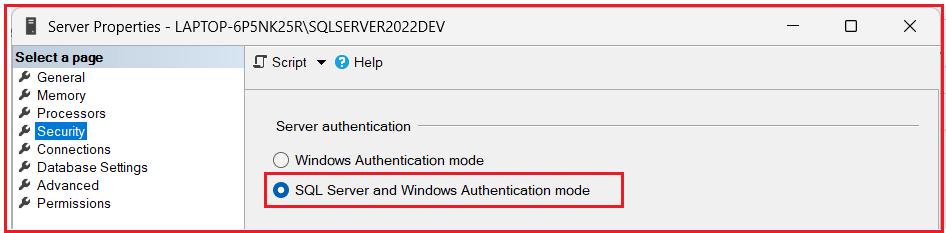
What should be selected?
You should select: SQL Server and Windows Authentication mode. This is called Mixed Mode Authentication. If it is not selected
- Change it to: SQL Server and Windows Authentication mode
- Then click: OK
Important Note: After changing this setting, you usually need to restart the SQL Server service.
Step 3: Restart SQL Server Service
If you enabled mixed authentication just now, restart the SQL Server service.
How to do it
- Press Windows + R
- Type services.msc
- Press Enter
Find the SQL Server service for your instance and restart it.
Step 4: Create a SQL Login for Docker Access
Now create a SQL login that Docker can use.
Why is this needed
Because instead of:
- Trusted_Connection=True
We want something like:
- User Id=dockeruser;Password=YourPassword;
How to do it step by step
In SSMS
- Expand: Security
- Then right-click: Logins
- Click: New Login…
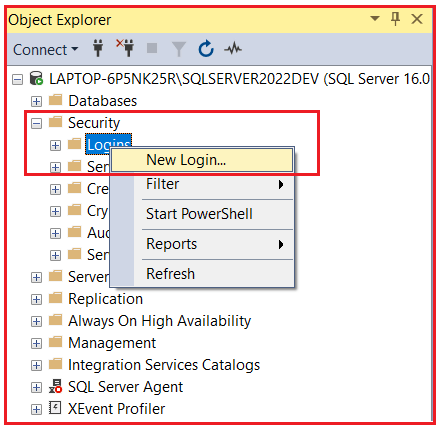
In the Login Name box
- Enter a SQL login name, for example: dockeruser
Select SQL Server authentication
- Now choose: SQL Server authentication
Enter password
- Enter a strong password, for example: Dockeruser@123
Uncheck the password policy only if needed
- Usually, keep password policies enabled unless you have a specific reason.

Give Server Role:
- Now go to: Server Roles tab
- Select the role as sysadmin
Then,
- Click: OK
Step 5: Test the SQL Login from SSMS
Now test this newly created login.
What to do
Disconnect from SSMS and reconnect again.
This time:
- Server name = LAPTOP-6P5NK25R\SQLSERVER2022DEV
- Authentication = SQL Server Authentication
- Login = dockeruser
- Password = The password you created (Dockeruser@123)
What to verify
Make sure:
- Connection opens successfully
- ProductManagementDB is visible
- You can query the required tables
For example, run:
SELECT TOP 10 * FROM Products;
If this works, then SQL authentication is working successfully. This is a very important checkpoint. If this does not work, Docker will also fail.
Step 6: Enable TCP/IP for SQL Server
Now we must make sure SQL Server accepts TCP/IP connections. This is extremely important because Docker containers connect to SQL Server via network protocols rather than Windows-style local shortcuts.
Open SQL Server Configuration Manager
Step-by-step:
- Press Windows + R
- Type one of the following commands (based on your SQL Server version):
-
- For SQL Server 2022: SQLServerManager16.msc
- For SQL Server 2019: SQLServerManager15.msc
- For SQL Server 2017: SQLServerManager14.msc
-
- Press Enter
SQL Server Configuration Manager will open.
Expand:
- SQL Server Network Configuration
- Click: Protocols for SQLSERVER2022DEV
You will see protocols like:
- Shared Memory
- Named Pipes
- TCP/IP
Check TCP/IP
Make sure: TCP/IP = Enabled
If it is disabled:
- Right-Click TCP/IP
- Click Enable
Step 7: Set a Fixed TCP Port for SQL Server
This is one of the most important steps. Named instances often use dynamic ports, but Docker connectivity becomes much easier if SQL Server listens on a fixed port, such as 1433.
Step-by-step
In SQL Server Configuration Manager
- Open: Protocols for SQLSERVER2022DEV
- Right-click: TCP/IP
- Click: Properties
Open the IP Addresses tab
Scroll down carefully. You will see many sections:
- IP1
- IP2
- IP3
- …
- IPAll
Go to the bottom section:
- IPAll
What to change
- Clear Dynamic Ports: If TCP Dynamic Ports have any value, remove them so they become blank.
- Set TCP Port: In TCP Port, enter: 1433
- Click OK
Step 8: Restart SQL Server Again
After changing TCP/IP port settings, restart SQL Server again. Use SQL Server Configuration Manager or Windows Services. This is required so the port changes take effect.
Step 9: Allow SQL Server Port in Windows Firewall
Now make sure Windows Firewall is not blocking SQL Server port 1433. Open Windows Defender Firewall with Advanced Security
- Press Windows + R
- Type: wf.msc
- Press Enter
This will open Windows Defender Firewall with Advanced Security.
Click Inbound Rules
- Then click: New Rule…
- Select Port
- Click: Next
Choose TCP
- Select: TCP
- In Specific local ports, enter: 1433
- Click: Next
Select Allow the connection
- Click: Next
Apply to all profiles if needed
Keep:
- Domain
- Private
- Public
As needed for your system.
- Click: Next
Give a rule name
- Example: SQL Server Port 1433
- Click: Finish
Now the firewall should allow SQL Server access on port 1433.
Step 10: Test TCP/IP Connection from SSMS
Now test the SQL connection again, but this time using TCP/IP style.
- Instead of: LAPTOP-6P5NK25R\SQLSERVER2022DEV
- Try using: LAPTOP-6P5NK25R,1433
- or: 127.0.0.1,1433
Use:
- SQL Server Authentication
- Login = dockeruser
- Password = your chosen password (Dockeruser@123)
What to verify
If this works, then SQL Server is now reachable through TCP/IP, which is exactly what Docker needs.
Step 11: Use a Docker-Friendly Connection String
Now we can finally create a Docker-friendly connection string. Instead of this:
Server=LAPTOP-6P5NK25R\SQLSERVER2022DEV;Database=ProductManagementDB;Trusted_Connection=True;TrustServerCertificate=True;MultipleActiveResultSets=true
Use this:
Server=host.docker.internal,1433;Database=ProductManagementDB;User Id=dockeruser;Password=Dockeruser@123;TrustServerCertificate=True;MultipleActiveResultSets=true
Why is this better?
- host.docker.internal: This allows the container to reach your host Windows machine.
- 1433: This uses an explicit fixed SQL Server port.
- User ID and Password: This uses SQL authentication, which works much better from containers.
- TrustServerCertificate=True: Useful for development and local testing.
Important Note: host.docker.internal works when Docker Desktop is running on Windows or macOS. If you are using Linux, you may need to use the host machine IP address instead.
Step 12: Pass the Connection String to the Docker Container
Now run the container and pass the connection string using Docker environment variables. This is the most practical approach because we do not need to hardcode Docker-specific database settings inside the project files.
Go to the Correct Project Folder
Before rebuilding and running the container, open the project folder that contains the Dockerfile. Open PowerShell or Command Prompt in the folder where your .csproj file exists. My project location is: D:\MyProjects\ProductManagementApi\ProductManagementApi
In Command Prompt:
Run the following command in Command Prompt:
cd /d “D:\MyProjects\ProductManagementApi\ProductManagementApi”
In Windows PowerShell:
Run the following command in Windows PowerShell:
cd “D:\MyProjects\ProductManagementApi\ProductManagementApi”
Rebuild the image.
- docker build -t productmanagementapi .
Then stop and remove the old container:
- docker stop productmanagementapi-container
- docker rm productmanagementapi-container
Run the new container again:
docker run -d –name productmanagementapi-container -p 8085:8081 -e ASPNETCORE_ENVIRONMENT=Development -e ConnectionStrings__DefaultConnection=”Server=host.docker.internal,1433;Database=ProductManagementDB;User Id=dockeruser;Password=Dockeruser@123;TrustServerCertificate=True;MultipleActiveResultSets=true” productmanagementapi
What this command does
- Starts the container
- Maps host port 8085 to container port 8081
- Overrides the DefaultConnection value
- Gives the application the Docker-friendly database connection string
Step 13: Test the API
Now open your API in the browser or Swagger. If Swagger is enabled in your app, open: http://localhost:8085/swagger
Now test actual database endpoints like:
- Get all products
- Get product by ID
- Add product
- Update product
- Delete product
Expected result
If everything is configured correctly:
- The API should start
- Database endpoints should work
- The app should connect successfully to SQL Server on your machine
Step 14: If Database Calls Fail, Check Docker Logs
If endpoints fail, immediately check logs. Run: docker logs productmanagementapi-container
Look for errors like:
- Login failed
- Cannot open the database
- Certificate error
- Connection timeout
- SQL network-related error
These messages usually tell you exactly what went wrong.
Part 2: Managing Logging File Location in Docker
Now, let us move to the second important topic: Logging File Location. Sometimes the API runs successfully, but you cannot find your log file. Or the application may fail to write logs because the log file path is invalid within the container.
The Main Problem with File Logging in Docker
Many developers use a Windows path like this: D:\home\LogFiles\Application\MyAppLog-.txt. This may work in some Windows-hosted scenarios, but it is not a good default choice inside a Linux-based Docker container.
Why?
Because a Linux container does not use normal Windows drive paths like:
- C:\
- D:\
So, if the Serilog file sink points to a Windows path, the container may:
- Failed to create that folder
- Failed to write the file
- Silently not create logs where you expect
Step 15: Use a Container-Friendly Log File Path
Instead of using a Windows drive path, use a path that works inside the container. A practical choice is:
- /app/logs/MyAppLog-.txt
or
- /logs/MyAppLog-.txt
For example, modify the appsettings.json file like this:
{
  "Serilog": {
    "MinimumLevel": {
      "Default": "Information",
      "Override": {
        "Microsoft": "Warning",
        "Microsoft.AspNetCore": "Warning",
        "System": "Warning"
      }
    },
    "WriteTo": [
      {
        // Wrap sinks with the Async sink to enable asynchronous logging.
        "Name": "Async",
        "Args": {
          "configure": [
            {
              // Asynchronously log to a file with rolling, retention, and file size limit settings.
              "Name": "File",
              "Args": {
                // File sink configuration
                "path": "/app/logs/MyAppLog-.txt",
                "rollingInterval": "Day",
                "retainedFileCountLimit": 30,
                "fileSizeLimitBytes": 10485760, // 10 MB per file (10 * 1024 * 1024 bytes)
                "rollOnFileSizeLimit": true,
                "outputTemplate": "{Timestamp:yyyy-MM-dd HH:mm:ss} [{Level:u3}] [{Application}] {Message:lj}{NewLine}{Exception}"
              }
            },
            {
              // Console sink configuration
              "Name": "Console",
              "Args": {
                "outputTemplate": "{Timestamp:yyyy-MM-dd HH:mm:ss} [{Level:u3}] [{Application}] {Message:lj}{NewLine}{Exception}"
              }
            }
          ]
        }
      }
    ],
    "Properties": {
      // Global properties to add additional information to each log event.
      "Application": "ProductManagementApi"
    }
  },

  "AllowedHosts": "*"
}
Step 16: Why Console Logging Should Also Be Kept
Even if you use file logging, always keep console logging too. This is because Docker can directly show console logs using:
- docker logs productmanagementapi-container
This is the easiest way to troubleshoot startup errors and runtime errors. So, for Docker, the best practical approach is:
- Keep Console sink
- Optionally add a file sink with a Linux/container-friendly path
Step 17: Rebuild the Docker Image After Logging Changes
Whenever you change:
- Dockerfile
- Logging Path
- Serilog settings
Rebuild the image.
- docker build -t productmanagementapi .
Then stop and remove the old container:
- docker stop productmanagementapi-container
- docker rm productmanagementapi-container
Run the new container again:
docker run -d –name productmanagementapi-container -p 8085:8081 -e ASPNETCORE_ENVIRONMENT=Development -e ConnectionStrings__DefaultConnection=”Server=host.docker.internal,1433;Database=ProductManagementDB;User Id=dockeruser;Password=Dockeruser@123;TrustServerCertificate=True;MultipleActiveResultSets=true” productmanagementapi
Step 18: Verify Log File Inside the Container
Step 18-1: Open PowerShell
Open normal Windows PowerShell. For this step, any location is fine because docker exec works with the running container name, not with the folder that contains the Dockerfile.
Step 18-2: Run this command in PowerShell
docker exec -it productmanagementapi-container sh
After you press Enter, PowerShell will connect you inside the container. So now you are no longer working in your normal Windows folder. You are now inside the container shell. Your prompt may change and look something different, for example:
- #
That means you are inside the container.
Step 18-3: Move to the Logs Folder
Now type: cd /app/logs
Then press Enter. This moves you to the logs folder inside the container.
Step 18-4: See the Files
Now type: ls
Then press Enter. This will list the files in/app/logs. If logging is working, you may see something like: MyAppLog-2026xxxx.txt
Step 18-5: Open the Log File Content
Now type cat <actual-log-file-name>. For example: cat MyAppLog-20260422.txt
Then press Enter. This will display the contents of that log file directly in PowerShell. Even though the file is inside the Docker container, you are still reading it via PowerShell because PowerShell is currently connected to the container’s shell.
Step 19: Persist Logs Even If the Container Is Removed
There is one more very important point. If logs are stored only inside the container, they are lost when the container is deleted. So, if you want to keep the log files permanently on your machine, mount a volume.
First, stop and remove the old container:
- docker stop productmanagementapi-container
- docker rm productmanagementapi-container
Run the container like this:
docker run -d –name productmanagementapi-container -p 8085:8081 -e ASPNETCORE_ENVIRONMENT=Development -v D:\DockerLogs\ProductManagementApi:/app/logs -e ConnectionStrings__DefaultConnection=”Server=host.docker.internal,1433;Database=ProductManagementDB;User Id=dockeruser;Password=Dockeruser@123;TrustServerCertificate=True;MultipleActiveResultSets=true” productmanagementapi
What this does
- Left side = Folder on your Windows machine
- Right side = Folder inside the container
So: D:\DockerLogs\ProductManagementApi on our machine becomes: /app/logs inside the container.
Now, when Serilog writes to: /app/logs/MyAppLog-.txt, the actual log files will appear on your Windows machine in: D:\DockerLogs\ProductManagementApi
Step 20: Verify Logs on the Host Machine
Now open this folder on your Windows machine: D:\DockerLogs\ProductManagementApi. You should see the log files there. This is much better because now:
- Logs are easy to access
- Logs remain available even if the container is deleted
- Log investigation becomes simpler
Conclusion
In this chapter, we addressed the two most important practical issues that often arise after containerizing an ASP.NET Core Web API: database connectivity and log file handling. We first replaced the local Windows-based connection string with a Docker-friendly SQL Server connection string, then verified that SQL Server could be reached from the container.
After that, we fixed the logging path by using a container-friendly log location and finally made the logs available on the host machine through volume mapping. At this point, the application is not only running inside Docker but also configured in a cleaner, more practical way for day-to-day development and testing.
What Is Next: Managing Docker Images with Azure Container Registry
In the next chapter, we will move from local Docker usage to cloud-ready image management. We will learn how to push our Docker image to Azure Container Registry (ACR), tag images properly, and use ACR to securely store and manage private Docker images in Azure. This will prepare us for the upcoming chapters where we deploy our Dockerized ASP.NET Core Web API to Azure services.
About the Author: Pranaya Rout
Pranaya Rout has published more than 3,000 articles in his 11-year career. Pranaya Rout has very good experience with Microsoft Technologies, Including C#, VB, ASP.NET MVC, ASP.NET Web API, EF, EF Core, ADO.NET, LINQ, SQL Server, MYSQL, Oracle, ASP.NET Core, Cloud Computing, Microservices, Design Patterns and still learning new technologies.
Want to see how Docker images actually move from your local system to Azure in a real-world scenario?
🎥 Watch this complete step-by-step video on **Managing Docker Images with Azure Container Registry (ACR)** and learn how to tag, push, pull, and manage versions of your Docker images for real deployment.
This video will give you practical clarity on how Azure services like App Service and AKS use Docker images from ACR—something every ASP.NET Core and DevOps learner must understand.
👉 Watch now: https://youtu.be/1NhqrsBbJw4