
Back to: Microsoft Azure Tutorials
Deploying Dockerized ASP.NET Core Web API on Azure App Service
In the previous chapters, we created an ASP.NET Core Web API, added Docker support, built a Docker image, and pushed that image to Azure Container Registry. Now, the next step is to run that Docker image in the cloud using Azure App Service.
In simple terms, Azure Container Registry stores Docker images, but it does not run applications. To run the application, we need a hosting service. In this chapter, we will use Azure App Service for Containers because it is beginner-friendly and does not require knowledge of Kubernetes.
Why Do We Need Azure App Service?
In the previous chapter, we pushed our Docker image to Azure Container Registry. But Azure Container Registry is only a storage location for Docker images. It is not responsible for running the application. To run a Dockerized application in Azure, we need a hosting service.
Some common Azure hosting options are:
- Azure App Service
- Azure Kubernetes Service
- Azure Container Apps
- Virtual Machine with Docker
In this chapter, we are using Azure App Service because it is easier for beginners. We do not need to understand Kubernetes, container orchestration, nodes, pods, or clusters at this stage.
Real-Time Analogy
Think of the Docker image as a fully packed food parcel. When you order food online, the restaurant does not send rice, curry, a spoon, a plate, and salt separately. Everything comes packed together.
In the same way, a Docker image contains:
- Application code
- .NET runtime
- Required dependencies
- Application startup command
- Configuration support
Now think of Azure Container Registry as the warehouse where this packed application is stored. Azure App Service is where this packaged application is hosted and served to users.
So, in simple words:
- Local Machine = Place where Docker image is prepared
- Azure Container Registry = Place where Docker image is stored
- Azure App Service = A place where a Docker image is pulled and run
Code-Based Deployment vs Container-Based Deployment
Before starting the practical implementation, we need to understand the difference between code-based deployment and container-based deployment.
- In Code-Based Deployment, we publish the ASP.NET Core Web API directly to Azure App Service. Azure App Service provides the required runtime, such as .NET 8, and runs the application.
- In Container-Based Deployment, we do not publish the source code directly. Instead, we build a Docker image. That Docker image already contains the application, runtime, dependencies, and startup command. Azure App Service only needs to pull and run that image.
So, in simple words:
- Code-based deployment means Azure runs our published application code.
- Container-based deployment means Azure runs our Docker image.
In this chapter, we are using container-based deployment.
Required Azure Resources
For this practical implementation, we will use the following Azure resource names. Use the same names if you are following the chapter exactly. However, the Azure Web App name must be globally unique. If the Web App name is already taken, use a different name.
- Resource Group Name: rg-productmanagement-docker
- Azure Region: centralindia
- Azure Container Registry Name: productmanagementacr2026
- ACR Login Server: productmanagementacr2026.azurecr.io
- Repository Name: productmanagementapi
- Image Tag: v1
- Full Docker Image Name: productmanagementacr2026.azurecr.io/productmanagementapi:v1
- App Service Plan Name: asp-productmanagement-container
- Azure Web App Name: productmanagementapi-container-app
- Container Internal Port: 8081
- Public URL: https://productmanagementapi-container-app.azurewebsites.net
Important Note:
The Azure Web App name becomes part of the public URL. So, it must be globally unique across Azure. For example:
- https://productmanagementapi-container-app.azurewebsites.net
If this name is already used by another Azure user, Azure will ask you to choose a different name.
Step 1: Open PowerShell or Windows Terminal and Verify Azure CLI
Open PowerShell or Windows Terminal. For Azure CLI commands, you can open PowerShell from any folder. But later, when we rebuild the Docker image, we must open PowerShell in the project folder where the Dockerfile is located.
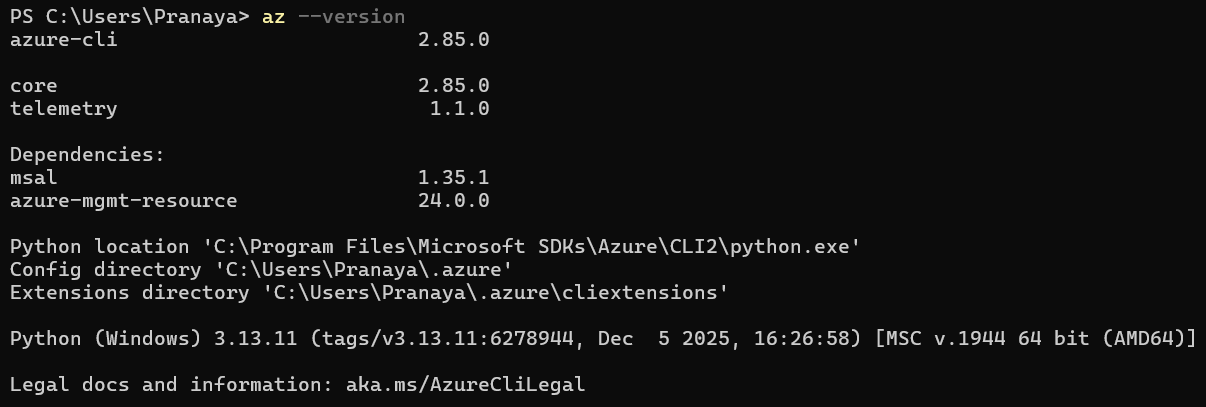
Before creating Azure resources using PowerShell, we must ensure that the Azure CLI is installed. The following command is only used to verify the Azure CLI installation.
- az –version
Command Explanation:
- az represents the Azure CLI command-line tool.
- –version displays the installed Azure CLI version.
- This command helps us confirm whether Azure CLI is installed properly on the machine.
- If version details are displayed, it means Azure CLI is ready to use.
- If the command is not recognized, Azure CLI is not installed or not added to the system path.
Step 2: Log in to Azure
Now, log in to your Azure account. Azure must know who we are and which subscription we want to use before it can create resources. So, please run the following command. The following command authenticates us with Azure. Without a login, Azure CLI cannot create, update, or manage Azure resources.
- az login –use-device-code
Command Explanation:
- az login starts the Azure login process.
- –use-device-code allows us to log in using a device code instead of opening the browser automatically.
- Azure CLI displays a code in PowerShell.
- We need to open the provided URL, enter the code, and complete the login with our Microsoft account.
- After a successful login, Azure CLI connects to our Azure account.
This command logs you into your Azure account.

After running this command:
- PowerShell will show a device login code.
- Open the browser URL shown in PowerShell.
- Enter the code.
- Complete the login using your Microsoft account.
- Come back to PowerShell.
- Select the correct Azure subscription if prompted.

Step 3: Verify the Active Subscription
After login, verify the active Azure subscription. Run the following command. If we have multiple Azure subscriptions, this command helps us verify that we are working with the correct subscription.
- az account show –output table
Command Explanation:
- az account show displays details of the currently active Azure subscription.
- –output table shows the result in a clean table format.
- This command helps us confirm which subscription is currently selected.
- It displays details such as subscription name, subscription ID, tenant ID, and active status.
If you have multiple subscriptions, select the correct one using:
- az account set –subscription “YOUR-SUBSCRIPTION-NAME-OR-ID”
Command Explanation:
- az account set changes the active Azure subscription.
- –subscription specifies the subscription name or subscription ID that we want to use.
- “YOUR-SUBSCRIPTION-NAME-OR-ID” should be replaced with the actual subscription name or subscription ID.
- After running this command, all future Azure CLI commands will run against the selected subscription.
Note: This command is useful when we have multiple Azure subscriptions and want to ensure resources are created in the correct subscription.
Step 4: Verify the Resource Group
Before creating App Service resources, we verify that the Resource Group already exists. In the previous chapter, we created a resource group named:
- rg-productmanagement-docker
Now verify whether this resource group exists. Run the following command:
- az group show –name rg-productmanagement-docker –output table
Command Explanation:
- az group show displays details of an existing Azure Resource Group.
- –name rg-productmanagement-docker specifies the name of the Resource Group we want to verify.
- –output table displays the output in a readable table format.
If the resource group exists, Azure CLI will show its details. If details are displayed, it means the resource group is available.
If the Resource Group does not exist, the command will show an error. In that case, create it using the following command:
- az group create –name rg-productmanagement-docker –location centralindia
Command Explanation:
- az group create creates a new Azure Resource Group.
- –name rg-productmanagement-docker specifies the Resource Group name.
- –location centralindia specifies the Azure region where the Resource Group metadata will be stored.
- centralindia means the Central India Azure region.
Why do we need a Resource Group?
A Resource Group is like a folder in Azure. It helps us keep related resources together. In this chapter, the following resources can stay inside the same Resource Group:
- Azure Container Registry
- App Service Plan
- Azure Web App
- Other related resources
So, managing and deleting resources becomes easier.
Step 5: Verify Azure Container Registry
Now, verify whether the Azure Container Registry exists. Run the following command. This command verifies whether the Azure Container Registry exists. Azure App Service will later pull the Docker image from this registry.
- az acr show –name productmanagementacr2026 –resource-group rg-productmanagement-docker –output table
Command Explanation:
- az acr show displays details of an Azure Container Registry.
- –name productmanagementacr2026 specifies the Azure Container Registry name.
- –resource-group rg-productmanagement-docker tells Azure CLI in which resource group the registry exists.
- –output table displays the result in table format.
- This command shows information such as registry name, location, SKU, and login server.
Expected result:
Note: If this command fails, it means the ACR name is wrong, the resource group name is wrong, or the ACR was not created.
Now get only the ACR login server. The login server is important because it is used in the full Docker image name. Run the following command:
- az acr show –name productmanagementacr2026 –resource-group rg-productmanagement-docker –query loginServer –output tsv
Command Explanation:
- az acr show gets details of the Azure Container Registry.
- –name productmanagementacr2026 specifies the registry name.
- –resource-group rg-productmanagement-docker specifies the Resource Group name.
- –query loginServer extracts only the login server value from the full registry details.
- –output tsv displays the result as plain text without table formatting.
Expected output: This command returns the ACR login server, such as productmanagementacr2026.azurecr.io. This login server is used in the full Docker image name.
Step 6: Verify the Image Repository in ACR
Now check whether the image repository exists inside Azure Container Registry. Run the following command. The following command confirms whether the Docker image repository exists in ACR.
- az acr repository list –name productmanagementacr2026 –output table
Command Explanation:
- az acr repository list lists all repositories available inside the Azure Container Registry.
- –name productmanagementacr2026 specifies the Azure Container Registry name.
- –output table displays the repositories in a clean table format.
Expected result: productmanagementapi. This confirms that the repository exists inside Azure Container Registry.
Step 7: Verify the Image Tag in ACR
Now, verify the available image tags. Run the following command. This command verifies whether the required Docker image tag exists.
- az acr repository show-tags –name productmanagementacr2026 –repository productmanagementapi –output table
Command Explanation:
- az acr repository show-tags lists all image tags available inside a specific repository.
- –name productmanagementacr2026 specifies the Azure Container Registry name.
- –repository productmanagementapi specifies the repository name inside ACR.
- –output table displays the available tags in table format.
Expected result:
Why is this important?
Azure App Service needs the full image name, including the tag. The full image name is formed like this:
- ACR Login Server / Repository Name : Image Tag
So, our full image name is:
- productmanagementacr2026.azurecr.io/productmanagementapi:v1
Here:
- productmanagementacr2026.azurecr.io is the ACR login server.
- productmanagementapi is the repository name.
- v1 is the image tag.
If the image tag is wrong, Azure App Service will not be able to pull the image.
Step 8: Understand the Container Port
Before creating the Azure Web App, we must clearly understand the container port. In our Docker container, the ASP.NET Core Web API is configured to listen on port 8081.
Example Dockerfile settings:
- EXPOSE 8081
- ENV ASPNETCORE_URLS=http://+:8081
This means the application inside the container listens on port 8081. When we tested the container locally, we have used a command like this:
- docker run -d –name productmanagementapi-container -p 8085:8081 productmanagementapi
Here:
- 8085 is the port on our local computer.
- 8081 is the port inside the Docker container.
So, when we open the API locally, we use:
- http://localhost:8085/swagger
But inside the container, the application is actually running on:
- 8081
Now, in Azure App Service, we do not manually use docker run -p. Instead, we tell Azure App Service which port the container is listening on. For our application, we must configure:
- WEBSITES_PORT=8081
Why is this required?
Azure App Service receives the public request from the browser. Then it forwards the request to the container. But Azure App Service must know which internal container port should receive that request. In our case, that internal container port is 8081.
Step 9: Register Microsoft.Web Provider
Azure App Service belongs to Microsoft.Web resource provider. If this provider is not registered, Azure may not allow us to create App Service resources. Run the following command. This command ensures that the subscription is allowed to create App Service-related resources.
- az provider register –namespace Microsoft.Web
Command Explanation:
- az provider register registers an Azure resource provider.
- –namespace Microsoft.Web specifies the provider used for Azure App Service and Web App resources.
Now verify the registration status:
- az provider show –namespace Microsoft.Web –query “registrationState” –output table
Command Explanation:
- az provider show displays details of a specific Azure resource provider.
- –namespace Microsoft.Web specifies the provider we want to check.
- –query “registrationState” extracts only the registration status.
- –output table displays the result in table format.
Expected result:
- Registered
If it shows Registering, wait for some time and run the verification command again.
Step 10: Create the App Service Plan
Before creating the Web App, we need an App Service Plan. The App Service Plan provides the server capacity required to run the Web App. Since our Docker image is Linux-based, we create a Linux App Service Plan. In simple words:
- Web App is the actual application.
- App Service Plan is the server capacity behind the application.
Now, create a Linux App Service Plan. Run the following command:
- az appservice plan create –name asp-productmanagement-container –resource-group rg-productmanagement-docker –location CanadaCentral –is-linux –sku B1
Explanation:
- az appservice plan create creates a new App Service Plan.
- –name asp-productmanagement-container gives a name to the plan.
- –resource-group rg-productmanagement-docker creates it inside our resource group.
- –location CanadaCentral creates it in the Central Canada region.
- –is-linux creates a Linux-based App Service Plan.
- –sku B1 uses the Basic B1 pricing tier.
Why Linux?
Our Docker image is based on Linux .NET runtime images. Therefore, we are using a Linux App Service Plan.
Expected result:
The App Service Plan should be created successfully.
Verify the App Service Plan
Now verify whether the App Service Plan was created successfully. Run the following command. This command verifies whether the App Service Plan was created successfully.
- az appservice plan show –name asp-productmanagement-container –resource-group rg-productmanagement-docker –output table
Command Explanation:
- az appservice plan show displays details of an existing App Service Plan.
- –name asp-productmanagement-container specifies the App Service Plan name.
- –resource-group rg-productmanagement-docker specifies where the plan exists.
- –output table displays the result in table format.
If the command displays plan details, the App Service Plan is created successfully.
Step 11: Create the Azure Web App for Container
Now we will create the Azure Web App that will run our Docker container. Please run the following command.
- az webapp create –resource-group rg-productmanagement-docker –plan asp-productmanagement-container –name productmanagementapi-container-app –container-image-name productmanagementacr2026.azurecr.io/productmanagementapi:v1
Explanation:
- az webapp create creates a new Azure Web App.
- –resource-group rg-productmanagement-docker creates it inside our resource group.
- –plan asp-productmanagement-container connects the Web App with the App Service Plan.
- –name productmanagementapi-container-app gives the Web App a public name.
- –container-image-name productmanagementacr2026.azurecr.io/productmanagementapi:v1 tells Azure which Docker image to use.
After successful creation, the public URL will be:
- https://productmanagementapi-container-app.azurewebsites.net
Important Note:
At this point, the Web App is created, but it will not run successfully because:
- ACR is private.
- App Service needs permission to pull the image.
- The container port must be configured.
- Environment variables must be configured.
- The database connection string must be configured.
So, after creating the Web App, we must complete the next configuration steps.
Step 12: Enable ACR Admin Access
Azure Container Registry is private by default. So, Azure App Service needs credentials to pull the Docker image from ACR. The following command allows Azure Container Registry to provide a username and password. Azure App Service can use these credentials to pull the private Docker image.
- az acr update –name productmanagementacr2026 –admin-enabled true
Command Explanation:
- az acr update updates the configuration of an existing Azure Container Registry.
- –name productmanagementacr2026 specifies the Azure Container Registry name.
- –admin-enabled true enables admin user access for the registry.
Important Note: For learning and beginner-level deployment, this approach is easy to understand. In real production systems, Managed Identity is usually preferred because it avoids using registry passwords directly.
Step 13: Get ACR Username and Password
Now get the ACR username and password. Azure App Service needs these credentials to pull the Docker image from the private Azure Container Registry. Run the following command:
- az acr credential show –name productmanagementacr2026
Command Explanation:
- az acr credential show displays the login credentials of Azure Container Registry.
- –name productmanagementacr2026 specifies the registry name.
- The command returns the ACR username and passwords.
- We can use either password or password2 while configuring the Web App container settings.
You will see output containing:
- Username
- Password 1
- Password 2
Copy the username and one of the passwords.
Step 14: Configure Web App to Pull Image from ACR
Now configure the Azure Web App with the ACR image and registry credentials. Run the following command. This command tells Azure App Service which Docker image to run and how to authenticate with Azure Container Registry to pull that image.
- az webapp config container set –name productmanagementapi-container-app –resource-group rg-productmanagement-docker –container-image-name productmanagementacr2026.azurecr.io/productmanagementapi:v1 –container-registry-url https://productmanagementacr2026.azurecr.io –container-registry-user productmanagementacr2026 –container-registry-password “PASTE-YOUR-ACR-PASSWORD-HERE”
Command Explanation:
- az webapp config container set configures or updates the Docker container settings of an Azure Web App.
- –name productmanagementapi-container-app specifies the Web App name.
- –resource-group rg-productmanagement-docker specifies the Resource Group where the Web App exists.
- –container-image-name productmanagementacr2026.azurecr.io/productmanagementapi:v1 specifies the full Docker image name.
- –container-registry-url https://productmanagementacr2026.azurecr.io specifies the Azure Container Registry URL.
- –container-registry-user productmanagementacr2026 specifies the ACR username.
- –container-registry-password “PASTE-YOUR-ACR-PASSWORD-HERE” specifies the ACR password.
Note: Please replace PASTE-YOUR-ACR-PASSWORD-HERE with the actual ACR password copied from the previous command.
Expected result:
Step 15: Configure the Container Port
Our ASP.NET Core application inside the Docker container listens on port 8081. We must tell Azure App Service to send incoming traffic to port 8081. So, we need to add the following App Service setting:
- WEBSITES_PORT=8081
Run the following command. This command tells Azure App Service that the application inside the Docker container is listening on port 8081.
- az webapp config appsettings set –resource-group rg-productmanagement-docker –name productmanagementapi-container-app –settings WEBSITES_PORT=8081
Command Explanation:
- az webapp config appsettings set adds or updates application settings for an Azure Web App.
- –resource-group rg-productmanagement-docker specifies the Resource Group name.
- –name productmanagementapi-container-app specifies the Web App name.
- –settings WEBSITES_PORT=8081 adds an application setting named WEBSITES_PORT with value 8081.
Expected result:
Azure CLI will show the updated app settings.
Why is this step required?
Azure App Service receives public HTTP/HTTPS traffic. But it must know which internal container port to receive that traffic on.
In our case:
- Container internal port = 8081
So, we set:
- WEBSITES_PORT=8081
Key Points to Remember:
Without this setting, the container may start, but the application may not be reachable from the browser.
- This is one of the most important settings for container deployment.
- If the port is wrong, the application may not open.
- This value must match the port used inside the Docker container.
Step 16: Configure ASPNETCORE_URLS
In the Dockerfile, we already configured:
- ENV ASPNETCORE_URLS=http://+:8081
Still, we can also configure the same value in Azure App Service to make the deployment clearer. Run the following command. This command tells the ASP.NET Core application to listen on port 8081 inside the container.
- az webapp config appsettings set –resource-group rg-productmanagement-docker –name productmanagementapi-container-app –settings ASPNETCORE_URLS=http://+:8081
Command Explanation:
- az webapp config appsettings set adds or updates application settings for the Web App.
- –resource-group rg-productmanagement-docker specifies the Resource Group name.
- –name productmanagementapi-container-app specifies the Web App name.
- –settings ASPNETCORE_URLS=http://+:8081 sets the ASP.NET Core listening URL.
Expected result:
Now we have two important port-related settings:
- ASPNETCORE_URLS=http://+:8081
- WEBSITES_PORT=8081
Simple understanding:
- ASPNETCORE_URLS tells the ASP.NET Core application which port to listen on inside the container.
- WEBSITES_PORT tells Azure App Service which container port to forward traffic to.
Both should match the container port.
- In our case, both are using 8081.
Step 17: Configure ASPNETCORE_ENVIRONMENT
In many ASP.NET Core Web API projects, Swagger is enabled only in the Development environment. For example, in the program.cs, we usually have code like this:
if (app.Environment.IsDevelopment())
{
    app.UseSwagger();
    app.UseSwaggerUI();
}
This means Swagger will open only in the Development environment. By default, Azure App Service may run the application in Production. So, for learning and testing, we can set:
- ASPNETCORE_ENVIRONMENT=Development
Run the following command. This command runs the ASP.NET Core application in Development mode. This is useful for testing because Swagger is often enabled only in the Development environment.
- az webapp config appsettings set –resource-group rg-productmanagement-docker –name productmanagementapi-container-app –settings ASPNETCORE_ENVIRONMENT=Development
Command Explanation:
- az webapp config appsettings set adds or updates application settings for the Web App.
- –resource-group rg-productmanagement-docker specifies the Resource Group name.
- –name productmanagementapi-container-app specifies the Web App name.
- –settings ASPNETCORE_ENVIRONMENT=Development sets the ASP.NET Core environment to Development.
Expected Output:
Why are we doing this?
This helps test the deployed API using Swagger. After setting this value, Swagger should be available at:
- https://productmanagementapi-container-app.azurewebsites.net/swagger
Important Note: For production applications, we usually do not expose Swagger publicly without proper security. But for learning and testing, this is fine.
Step 18: Configure the Database Connection String
The application is now running in Azure. So, it should connect to Azure SQL Database. We should not hardcode production database credentials inside the Docker image. Instead, we should pass the connection string from the Azure App Service configuration. In ASP.NET Core, if appsettings.json has a connection string like this:
{
    "ConnectionStrings": {
        "DefaultConnection": "your-local-connection-string"
     }
}
Then, in Azure App Service, we can override it using:
- ConnectionStrings__DefaultConnection
The double underscore __ represents a nested configuration.
So:
- ConnectionStrings__DefaultConnection
Maps to:
- ConnectionStrings:DefaultConnection
We have already deployed our database, and the connection string is shown below:
- Server=tcp:productmanagement-sqlserver-pranaya.database.windows.net,1433;Initial Catalog=ProductManagementDB;Persist Security Info=False;User ID=sqladminuser;Password={your_password};MultipleActiveResultSets=False;Encrypt=True;TrustServerCertificate=False;Connection Timeout=30;
Run the following command. This command provides the Azure SQL Database connection string to the deployed application without hardcoding it inside the Docker image.
- az webapp config appsettings set –resource-group rg-productmanagement-docker –name productmanagementapi-container-app –settings ConnectionStrings__DefaultConnection=”Server=tcp:productmanagement-sqlserver-pranaya.database.windows.net,1433;Initial Catalog=ProductManagementDB;Persist Security Info=False;User ID=sqladminuser;Password=DotNetAzure@2026;MultipleActiveResultSets=False;Encrypt=True;TrustServerCertificate=False;Connection Timeout=30;”
Command Explanation:
- az webapp config appsettings set adds or updates application settings for the Web App.
- –resource-group rg-productmanagement-docker specifies the Resource Group name.
- –name productmanagementapi-container-app specifies the Web App name.
- –settings ConnectionStrings__DefaultConnection=”…” adds the database connection string as an environment variable.
- ConnectionStrings__DefaultConnection maps to ConnectionStrings:DefaultConnection in ASP.NET Core configuration.
- The double underscore __ is used to represent nested configuration values in environment variables.
Step 19: Verify All App Settings
Now, verify whether all required settings are available. Run the following command. This command verifies whether required settings such as WEBSITES_PORT, ASPNETCORE_URLS, ASPNETCORE_ENVIRONMENT, and ConnectionStrings__DefaultConnection are configured correctly.
- az webapp config appsettings list –resource-group rg-productmanagement-docker –name productmanagementapi-container-app –output table
Command Explanation:
- az webapp config appsettings list displays all application settings configured for the Web App.
- –resource-group rg-productmanagement-docker specifies the Resource Group name.
- –name productmanagementapi-container-app specifies the Web App name.
- –output table displays the settings in table format.
Expected output:
Why are we verifying this?
If any required setting is missing, the application may not start correctly or may not connect to the database. So, before restarting the application, we should confirm that all required settings are properly configured.
Step 20: Restart the Azure Web App
After changing container settings or application settings, we need to restart the Web App so that the Docker container can reload the latest configuration values. Run the following command:
- az webapp restart –resource-group rg-productmanagement-docker –name productmanagementapi-container-app
Command Explanation:
- az webapp restart restarts an Azure Web App.
- –resource-group rg-productmanagement-docker specifies the Resource Group name.
- –name productmanagementapi-container-app specifies the Web App name.
Why is a restart required?
The Docker container must restart so that Azure App Service can apply the latest configuration values.
After restart:
- Azure App Service pulls the image from ACR.
- The container starts.
- ASP.NET Core reads environment variables.
- The application listens on port 8081.
- Azure App Service routes traffic to the container.
Step 21: Test the Deployed Web API
Now open the browser and visit:
- https://productmanagementapi-container-app.azurewebsites.net/swagger
Expected result:
Swagger should open successfully.
If Swagger opens, it means:
- Azure App Service successfully pulled the image from Azure Container Registry.
- The Docker container started successfully.
- ASP.NET Core is listening on the correct port.
- Azure App Service is routing traffic to the container.
- The API is accessible from the browser.
Now test your API endpoints from Swagger.
For example:
- Get all products
- Get product by ID
- Create product
- Update product
- Delete product
Step 22: Verify Container Configuration from Azure Portal
Now, let us verify the configuration visually from the Azure Portal. Open the Azure Portal and follow these steps:
- Search for App Services.
- Open your Web App.
- Go to the Deployment Center.
- Check the container image configuration.
- Verify the registry name.
- Verify the image name.
- Verify the tag.
You should see values similar to:
- Registry: productmanagementacr2026.azurecr.io
- Image: productmanagementapi
- Tag: v1
This confirms that Azure App Service is using the Docker image from Azure Container Registry.
Step 23: Understand What Happens Internally
At this point, the complete deployment flow works like this:
- First, the user opens the public Web App URL in the browser.
- Then Azure App Service receives the request.
- Azure App Service forwards the request to the Docker container.
- The Docker container runs the ASP.NET Core Web API.
- The ASP.NET Core Web API connects to Azure SQL Database using the connection string from App Service settings.
- Finally, the API returns the response to the browser.
Step 24: Update the Application and Redeploy
Now, suppose you changed your ASP.NET Core Web API code. For example:
- Added a new endpoint
- Changed controller logic
- Updated response message
- Fixed a bug
- Added validation
- Updated logging
Will Azure App Service automatically get the updated code?
No.
Why?
Because Azure App Service is running a Docker image from Azure Container Registry. If you change the source code locally, Azure App Service does not know about that change.
To deploy the updated code, we need to:
- Rebuild the Docker image.
- Tag the image with a new version.
- Push the new image to Azure Container Registry.
- Update Azure App Service to use the new image tag.
- Restart and test the Web App.
Step 25: Redeployment Flow
The redeployment flow is:
Change Code
↓
Build New Docker Image
↓
Tag Image as v2
↓
Push v2 Image to ACR
↓
Update Azure Web App to Use v2
↓
Restart and Test
Step 26: Open the Project Folder
Open PowerShell in the project folder where the Dockerfile is located. For example:
- cd “D:\MyProjects\ProductManagementApi\ProductManagementApi”
Make sure this folder contains the Dockerfile.
Why are we doing this?
The docker build command needs access to the Dockerfile. So we must run the command from the folder that contains the Dockerfile.
Step 27: Build the Updated Docker Image
Now build the updated Docker image locally. Run the following command:
- docker build -t productmanagementapi .
This command builds the Docker image using the Dockerfile available in the current folder.
Here:
- docker build builds a Docker image.
- -t productmanagementapi gives a local name to the image.
- . means Dockerfile is available in the current folder.
Why are we doing this?
After code changes, we need a new Docker image. Otherwise, Azure App Service will continue running the old image.
Step 28: Tag the Image as v2
Now tag the image with a new version. Run the following command. This command prepares the local Docker image for pushing to Azure Container Registry with the version tag v2.
- docker tag productmanagementapi productmanagementacr2026.azurecr.io/productmanagementapi:v2
Command Explanation:
- docker tag creates another tag for an existing Docker image.
- productmanagementapi is the local image name.
- productmanagementacr2026.azurecr.io/productmanagementapi:v2 is the new full image name for Azure Container Registry.
- productmanagementacr2026.azurecr.io is the ACR login server.
- productmanagementapi is the repository name.
- v2 is the new image version tag.
Why are we using v2?
Using version tags is a good practice.
For example:
- v1 = First deployment
- v2 = Second deployment
- v3 = Third deployment
If something goes wrong in v2, we can easily switch back to v1.
Step 29: Log in to Azure Container Registry
Before pushing a Docker image to ACR, Docker must be authenticated with ACR. Please run the following command.
- az acr login –name productmanagementacr2026
Command Explanation:
- az acr login logs Docker into Azure Container Registry.
- –name productmanagementacr2026 specifies the Azure Container Registry name.
- After login, Docker can push images to this registry.
Step 30: Push the v2 Image to ACR
Now push the new image version to Azure Container Registry. Run the following command. This command uploads the newly built v2 Docker image to Azure Container Registry so that Azure App Service can use it.
- docker push productmanagementacr2026.azurecr.io/productmanagementapi:v2
Command Explanation:
- docker push uploads a Docker image to a container registry.
- productmanagementacr2026.azurecr.io is the Azure Container Registry login server.
- productmanagementapi is the repository name.
- v2 is the image tag being pushed.
Step 31: Verify the v2 Tag in ACR
Now, verify whether the new tag is available in ACR. Run the following command. This command confirms whether the v2 image was successfully pushed to Azure Container Registry.
- az acr repository show-tags –name productmanagementacr2026 –repository productmanagementapi –output table
Command Explanation:
- az acr repository show-tags lists the image tags available in a repository.
- –name productmanagementacr2026 specifies the Azure Container Registry name.
- –repository productmanagementapi specifies the image repository name.
- –output table displays the tags in table format.
Expected result:
- v1
- v2
This confirms that ACR now contains both image versions.
Step 32: Update Azure Web App to Use v2
Now, we need to tell Azure App Service to use the new Docker image tag. Run the following command. The following command tells Azure App Service to stop using the old v1 image and start using the new v2 image after a restart.
- az webapp config container set –name productmanagementapi-container-app –resource-group rg-productmanagement-docker –container-image-name productmanagementacr2026.azurecr.io/productmanagementapi:v2 –container-registry-url https://productmanagementacr2026.azurecr.io –container-registry-user productmanagementacr2026 –container-registry-password “PASTE-YOUR-ACR-PASSWORD-HERE”
Command Explanation:
- az webapp config container set updates the Web App’s container configuration.
- –name productmanagementapi-container-app specifies the Web App name.
- –resource-group rg-productmanagement-docker specifies the Resource Group name.
- –container-image-name productmanagementacr2026.azurecr.io/productmanagementapi:v2 changes the Docker image from v1 to v2.
- –container-registry-url https://productmanagementacr2026.azurecr.io specifies the ACR URL.
- –container-registry-user productmanagementacr2026 specifies the ACR username.
- –container-registry-password “PASTE-YOUR-ACR-PASSWORD-HERE” specifies the ACR password.
This command updates the Web App container image from v1 to v2.
Step 33: Restart the Web App
After updating the Docker image tag to v2, we need to restart the Web App so that Azure App Service pulls and runs the new image.. Run the following command:
- az webapp restart –resource-group rg-productmanagement-docker –name productmanagementapi-container-app
Command Explanation:
- az webapp restart restarts the Azure Web App.
- –resource-group rg-productmanagement-docker specifies the Resource Group name.
- –name productmanagementapi-container-app specifies the Web App name.
Step 34: Test the Updated API
Open the Swagger URL again:
- https://productmanagementapi-container-app.azurewebsites.net/swagger
Test the updated API. If your latest code changes are visible, redeployment is successful.
Step 35: Rollback to the Previous Version
Now, suppose the v2 image has a bug. In that case, we can rollback to the previous working version, v1. Run the following command. This command rolls back the Web App from the v2 image to the previous stable v1 image.
- az webapp config container set –name productmanagementapi-container-app –resource-group rg-productmanagement-docker –container-image-name productmanagementacr2026.azurecr.io/productmanagementapi:v1 –container-registry-url https://productmanagementacr2026.azurecr.io –container-registry-user productmanagementacr2026 –container-registry-password “PASTE-YOUR-ACR-PASSWORD-HERE”
Command Explanation:
- az webapp config container set updates the Web App container configuration.
- –name productmanagementapi-container-app specifies the Web App name.
- –resource-group rg-productmanagement-docker specifies the Resource Group name.
- –container-image-name productmanagementacr2026.azurecr.io/productmanagementapi:v1 changes the Web App back to the previous Docker image version.
- –container-registry-url https://productmanagementacr2026.azurecr.io specifies the ACR URL.
- –container-registry-user productmanagementacr2026 specifies the ACR username.
- –container-registry-password “PASTE-YOUR-ACR-PASSWORD-HERE” specifies the ACR password.
After changing the image back to v1, we restart the Web App so that Azure App Service pulls and runs the previous stable image. Run the following command:
- az webapp restart –resource-group rg-productmanagement-docker –name productmanagementapi-container-app
Command Explanation:
- az webapp restart restarts the Azure Web App.
- –resource-group rg-productmanagement-docker specifies the Resource Group name.
- –name productmanagementapi-container-app specifies the Web App name.
Azure App Service will now run the v1 image again. This is one big advantage of Docker image tagging.
Portal-Based Deployment
Now, we will learn how to deploy a Dockerized ASP.NET Core Web API using the Azure Portal instead of the Azure CLI. Before proceeding with the portal-based deployment, we will first delete the existing App Service resources so beginners can clearly follow the full creation process from the beginning.
But we will not delete the Azure Subscription or the Resource Group. We will keep the existing Resource Group because it already contains related resources such as Azure Container Registry. We will delete only the App Service-related resources and recreate them in the Azure Portal.
The existing Resource Group is:
- rg-productmanagement-docker
The existing Azure Container Registry is:
- productmanagementacr2026
The Docker image already available in ACR is:
- productmanagementacr2026.azurecr.io/productmanagementapi:v1
Why Are We Deleting Existing Resources First?
Previously, we created the Azure Web App and App Service Plan using Azure CLI. That deployment is already working. Now, we want to learn the same deployment using Azure Portal.
If we directly create another Web App without cleaning up the existing resources, you may get confused because there will be multiple App Services and App Service Plans. For clarity, we will delete the existing App Service resources first.
We will delete:
- Azure Web App
- App Service Plan
We will not delete:
- Azure Subscription
- Resource Group
- Azure Container Registry
- Azure SQL Database
- Docker Images stored in ACR
Step 1: Open Azure Portal
Open your browser and go to Azure Portal (https://portal.azure.com). Log in with the same Microsoft account that you used earlier for Azure CLI deployment. After logging in, you will see the Azure Portal dashboard.
Step 2: Open the Existing Resource Group
In Azure Portal, search for: Resource groups
- Click Resource groups.
Now open the following Resource Group:
- rg-productmanagement-docker
Inside this Resource Group, you will see all related resources created for this example. You may see resources such as:
- productmanagementacr2026
- productmanagementapi-container-app
- asp-productmanagement-container
- Azure SQL Server
- Azure SQL Database
The exact list may differ based on what you created in previous chapters. Here, you will not see Azure SQL Server and SQL Database because we are using the existing resources we created earlier.
Step 3: Delete the Existing Azure Web App
Inside the Resource Group, search for the existing Web App. The existing Web App name is:
- productmanagementapi-container-app
Click on the Web App.
- Now click Delete.
- Azure will ask for confirmation.
- Enter the required confirmation text if Azure asks for it.
- Then click Delete.
Wait until the Web App is deleted successfully.
Why are we deleting the Web App?
The Web App is the actual application hosting resource. Since we want to learn portal-based deployment from the beginning, we are deleting the existing Web App and recreating it from the Azure Portal.
Note: When deleting the Web APP, the Service Plan can also be deleted automatically if selected. If not deleted, then please follow Step 4, else skip step 4.
Step 4: Delete the Existing App Service Plan
Now go back to the Resource Group:
- rg-productmanagement-docker
Find the existing App Service Plan. The App Service Plan name is:
- asp-productmanagement-container
Click on the App Service Plan.
- Now click Delete.
- Enter the required confirmation text if Azure asks for it.
- Confirm the deletion.
Wait until the App Service Plan is deleted successfully.
Why are we deleting the App Service Plan?
The App Service Plan defines the server capacity used by the Web App. Since we are recreating the Web App from the Azure Portal, we will also create/select a new App Service Plan during the portal-based deployment.
Step 5: Start Creating a New Web App
Now search for: App Services
- Click App Services.
- Now click Create.
- Then select: Web App
This will open the Web App creation page.
Step 6: Fill Basic Web App Details
In the Basics tab, enter the required details.
- Select your Azure Subscription.
- For Resource Group, select the existing Resource Group: rg-productmanagement-docker
- For Name, enter a globally unique Web App name. For example: productmanagementapi-docker2026
- Uncheck the Try a secure unique default hostname checkbox
Important Note:
The Web App name must be globally unique across Azure. If this name is already taken, use another name. For example:
- productmanagementapi-docker2026-pranaya
- productmanagementapi-docker-app2026
- productmanagementapi-container-demo2026
Now select:
- Publish: Container
- Operating System: Linux
- Region: Central India
Why Publish as a Container?
We are not publishing source code directly to Azure App Service. We already have a Docker image in Azure Container Registry. So, we select:
- Publish = Container.
This tells Azure App Service to run the application using a Docker image.
Why Linux?
Our Docker image was created using Linux-based .NET runtime images. So, the Azure Web App should also run on Linux.
Step 7: Create or Select App Service Plan
In the same Basics tab, you will see the App Service Plan section. Since we deleted the previous App Service Plan, we need to create a new one.
- Click Create new.
Now,
- Enter the App Service Plan name: asp-productmanagement-docker
- Select pricing plan: Basic B1
You can also choose a lower-cost option for learning if available in your Azure account.
What is an App Service Plan?
The Web App is your application. The App Service Plan is the server capacity where your application runs. In simple words:
- Web App = Your ASP.NET Core Web API container
- App Service Plan = Server/computing power used to run the container
Step 8: Configure Container Image
Now go to the Container tab. Here, we will tell Azure App Service which Docker image to use.
Select:
- Image Source: Azure Container Registry
- Name: main. This is just the container name inside App Service. It is not your Docker image name. You can keep it as the main.
- Now select the registry: productmanagementacr2026
- Authentication Option: Select Admin credentials
- Select the image: productmanagementapi
- Select the tag: v1
- Port: 8081
- Startup Command: Leave this empty.
So, Azure App Service will use the following Docker image: productmanagementacr2026.azurecr.io/productmanagementapi:v1
Why are we selecting this image?
This is the Docker image we pushed to Azure Container Registry in the previous chapter.
The image contains:
- ASP.NET Core Web API application
- .NET runtime
- Application dependencies
- Startup command
- Docker configuration
So Azure App Service will pull this image and run it as a container.
Step 9: Review and Create the Web App
Now click:
- Review + create
Azure will validate your configuration. If everything is correct:
- Click: Create
Now wait until deployment is completed. Once deployment is completed, click: Go to resource. This will open your newly created Azure Web App.
Step 10: Open Configuration Settings
After opening the Web App, go to the left-side menu.
Click:
- Settings → Environment variables
Then go to:
- App settings tab
Here, we will add the required settings for our Dockerized ASP.NET Core Web API.
Step 11: Add WEBSITES_PORT
Click Add. Add the following setting:
- Name: WEBSITES_PORT
- Value: 8081
Click Apply or OK, depending on the portal screen.
Step 12: Add ASPNETCORE_URLS
Again, click Add. Add the following setting:
- Name: ASPNETCORE_URLS
- Value: http://+:8081
Step 13: Add ASPNETCORE_ENVIRONMENT
Again, click Add. Add the following setting:
- Name: ASPNETCORE_ENVIRONMENT
- Value: Development
Step 14: Add Database Connection String
Now add the database connection string.
Click Add. Add the following setting:
- Name: ConnectionStrings__DefaultConnection
- Value: Your Azure SQL Database connection string
Example value of the Connection String:
- Server=tcp:productmanagement-sqlserver-pranaya.database.windows.net,1433;Initial Catalog=ProductManagementDB;Persist Security Info=False;User ID=sqladminuser;Password= DotNetAzure@2026;MultipleActiveResultSets=False;Encrypt=True;TrustServerCertificate=False;Connection Timeout=30;
Step 15: Restart the Web App Manually
Even though Azure may restart automatically after saving the configuration, it is better to restart manually once.
Go to the Web App overview page.
- Click: Restart
- Confirm the restart.
Why restart the Web App?
Restarting ensures the Docker container restarts with the latest configuration values. After a restart, Azure App Service will:
- Pull the Docker image from Azure Container Registry
- Start the Docker container
- Apply application settings
- Route browser requests to container port 8081
Step 16: Test the Deployed API
Now open the browser and visit:
https://productmanagementapi-docker2026.azurewebsites.net/swagger
If you used a different Web App name, replace productmanagementapi-docker2026 with your actual Web App name. If everything is configured correctly, Swagger should open.
Step 17: Test API Endpoints from Swagger
Once Swagger opens, test your API endpoints.
For example:
- Get all products
- Get product by ID
- Create product
- Update product
- Delete product
If the API can read and write data successfully, it means:
- Azure App Service is running the Docker container.
- The Docker image was pulled from Azure Container Registry.
- The container port is configured correctly.
- ASP.NET Core environment is configured correctly.
- The API is connected to Azure SQL Database.
Conclusion
In this chapter, we deployed our Dockerized ASP.NET Core Web API to Azure App Service using a Docker image stored in Azure Container Registry. We first verified the image in ACR, then created an App Service Plan and Azure Web App. After that, we configured the Web App to pull the Docker image from ACR, configured the container port, added ASP.NET Core environment settings, added the Azure SQL Database connection string, restarted the Web App, and tested the API using Swagger.
What Is Next?
In the next chapter, we will understand Kubernetes and Azure Kubernetes Service fundamentals. Azure App Service is simple and useful for running containerized APIs, but when applications become large and require advanced scaling, self-healing, multiple services, and orchestration, Kubernetes becomes important.
About the Author: Pranaya Rout
Pranaya Rout has published more than 3,000 articles in his 11-year career. Pranaya Rout has very good experience with Microsoft Technologies, Including C#, VB, ASP.NET MVC, ASP.NET Web API, EF, EF Core, ADO.NET, LINQ, SQL Server, MYSQL, Oracle, ASP.NET Core, Cloud Computing, Microservices, Design Patterns and still learning new technologies.
Great explanation! 👍
If you want a complete practical demonstration of this implementation, including Docker image creation, Azure Container Registry (ACR), Azure App Service deployment, environment configuration, container port setup, Azure SQL Database connection, redeployment, rollback, and Swagger testing, then watch the complete step-by-step video tutorial here:
🎥 Watch the Complete Video Tutorial: https://youtu.be/u70Z8CeHMx0
This video will help you understand the entire deployment flow visually with real-time implementation using ASP.NET Core Web API, Docker, and Microsoft Azure.