
Back to: Microsoft Azure Tutorials
How to Manage Docker Images with Azure Container Registry
In the previous chapters, we learned how Docker solves the common problem of “it works on my machine but not on another machine.” We also learned how to create a Docker image for our ASP.NET Core Web API and run that image as a container on our local system. At this point, our application is packaged properly, and Docker can run it successfully on our machine.
But there is still one important question: Where should we keep this Docker image so that Azure services can use it?
Until now, the Docker image has existed only inside our local Docker Desktop. That is fine for learning and local testing. But in real deployment, Azure App Service, Azure Kubernetes Service, Azure Container Apps, or CI/CD pipelines cannot directly access an image that is sitting only on our laptop. So, we need a secure cloud-based place where Docker images can be stored and later pulled by deployment services.
That cloud-based place is called a Container Registry. In Azure, the container registry service is called Azure Container Registry (ACR).
Why This Chapter Is Important
Many beginners think that once they build a Docker image locally, the application is ready for deployment to Azure. But that is only half true.
When we run this command:
- docker build -t productmanagementapi .
Docker creates the image on our local machine. We can see it using:
- docker images
We can also run it locally using:
- docker run -d –name productmanagementapi-container -p 8085:8081 productmanagementapi
But this local image is not automatically available in Azure. Azure App Service cannot say, “Let me go to Pranaya’s laptop and pick the image from Docker Desktop.” Cloud services need the image to be available in a cloud-accessible registry.
So, in this chapter, we will see how to move from:
- Local Docker Image
to:
- Cloud-Ready Docker Image stored in Azure Container Registry
This is a very important step in real-world Docker-based deployment.
What Is a Container Registry?
A container registry is a storage system for container images. In simple terms, it is an online repository where Docker images are uploaded, stored, versioned, and downloaded as needed. A container registry allows us to:
- Store Docker images
- Push images from a development machine
- Pull images into servers or cloud services
- Maintain different versions of the same image
- Share images securely with deployment environments
- Use the same image in multiple places
For example, when we previously used images such as hello-world or nginx, Docker downloaded them from Docker Hub. Docker Hub is also a Container Registry. Similarly, Azure Container Registry is a container registry provided by Microsoft Azure.
Real-Life Analogy: Container Registry as a Warehouse
Think of a Docker image as a finished product prepared in a factory. Your local machine is the factory. You build the application, create the Docker image, and test it. Now the product is ready. But if the product stays only inside the factory, delivery teams, shops, and customers cannot easily access it.
So, the factory sends the product to a warehouse. From the warehouse:
- Delivery teams can collect the product
- Shops can receive the product
- Customers can get the product
- Different versions of the product can be stored separately
- Old versions can be kept for backup or rollback
Azure Container Registry works like a warehouse for Docker images. So, remember:
- Your local machine = Factory
- Docker image = Packed product
- Azure Container Registry = Secure warehouse
- Azure App Service / AKS = Destination where the product is used
What Is Azure Container Registry?
Azure Container Registry (ACR) is a managed private container registry service provided by Microsoft Azure. It is used to store and manage Docker images in Azure. Azure Container Registry (ACR) allows us to:
- Store our ASP.NET Core Web API Docker image securely
- Push local Docker images to Azure
- Pull Docker images from Azure
- Maintain multiple versions of the same image using tags
- Use images with Azure App Service
- Use images with Azure Kubernetes Service
- Use images with Azure Container Apps
- Use images in CI/CD pipelines
- Control who can push and pull images
In simple terms, Azure Container Registry is a private, secure online repository for your Docker images in Azure.
What Problem Does ACR Solve?
Azure Container Registry solves the image availability problem.
Without ACR:
- Docker image is available only on the developer machine
- Azure App Service cannot directly access the local image
- AKS cannot pull images from your local Docker Desktop
- Other developers cannot easily use the same image
- CI/CD pipelines do not have a central image location
- Image version management becomes difficult
- Production rollback becomes difficult
- Deployment becomes machine-dependent
With ACR:
- Docker image is stored in Azure
- Azure App Service can pull the image from ACR
- AKS can pull the image from ACR
- CI/CD pipelines can push new image versions to ACR
- Different image versions can be managed using tags
- Team members can use the same image source
- Deployment becomes more professional and repeatable
So, ACR helps us move from local Docker testing to cloud-ready Docker deployment.
Docker Hub vs Azure Container Registry
Now, you might have one question: If Docker Hub already exists, why do we need Azure Container Registry?
This is a very good question. Docker Hub and Azure Container Registry are both container registries. Both can store Docker images. But they are commonly used for different purposes.
Docker Hub
Docker Hub is a popular public container registry. It is commonly used to store and share public Docker images.
For example, when we run:
- docker pull nginx
Docker downloads the nginx image from Docker Hub. Docker Hub is commonly used for:
- Public images
- Official images
- Community images
- Open-source software images
- Learning Docker basics
- Downloading common base images
Examples of commonly used Docker Hub images:
- hello-world
- nginx
- redis
- mysql
- ubuntu
- postgres
Azure Container Registry
Azure Container Registry is typically used for private application images for an individual, project, team, or organization.
- ACR is commonly used for:
- Private ASP.NET Core Web API images
- Azure App Service container deployment
- Azure Kubernetes Service deployment
- Enterprise projects
- CI/CD pipelines
- Secure image storage
- Role-based access control
- Azure-native container workflows
Why Not Use Docker Hub for Everything?
For public images and learning, Docker Hub is perfectly fine. But for real application deployment, especially company or client projects, we usually do not want to push private application images to a public registry. Even if we do not store passwords or secrets inside the image, the image may still contain:
- Application structure
- Folder structure
- Runtime details
- Internal API names
- Application DLLs
- Project-specific dependencies
- Deployment behavior
- Organization-specific code
That is why private registries are preferred for real projects.
Azure Container Registry is a better choice when:
- The application will be deployed to Azure
- The Docker image should remain private
- The image should be used by Azure App Service or AKS
- The deployment should be automated using CI/CD
- Access should be controlled using Azure identity and permissions
So, Docker Hub is like a public marketplace, while ACR is like a private company warehouse inside Azure.
Understanding Registry, Repository, Image, and Tag
Many students get confused about the differences between registry, repository, image name, and tag. Let us understand them step by step.
Registry
A Registry is the primary storage location for Docker images. In Azure, Azure Container Registry is the registry service. For example, productmanagementacr2026.azurecr.io is a registry. Think of a registry like a big warehouse where different application images are stored securely.
Repository
A Repository is a logical collection within a registry that stores images for a single application or service. For example, inside the registry productmanagementacr2026.azurecr.io, we may have a repository named productmanagementapi. Think of a repository as a shelf in a warehouse where all versions of an application image are stored.
Image
An Image is a ready-made package of an application. It contains the application code, runtime, dependencies, configuration files, and startup instructions needed to run the application. For example, the Docker image of our ASP.NET Core Web API contains the published API files and .NET runtime support. An image itself does not run; Docker creates a container from the image.
Tag
A Tag is a version label given to an image. For example, in productmanagementapi:v1, v1 is the tag. Tags help us identify different versions of the same image, such as v1, v2, v3, or latest. Think of a tag like a book’s edition number: the book is the same, but each edition may contain updates.
Prerequisites
Before starting the practical implementation, make sure the following things are ready on your machine.
Prerequisite 1: Docker Desktop Should Be Installed and Running
Since we are working with Docker images, Docker Desktop must be installed, and Docker Engine must be running. Open PowerShell and run:
- docker –version
This command checks whether Docker is installed and whether the Docker command is available from the terminal. You should see the Docker version. Now run:
- docker info
This command gives detailed information about Docker Engine. If this command works, it means Docker Desktop is running properly. If Docker info shows an error, open Docker Desktop manually and wait until Docker Engine starts. Then run the command again.
Prerequisite 2: Azure CLI Should Be Installed
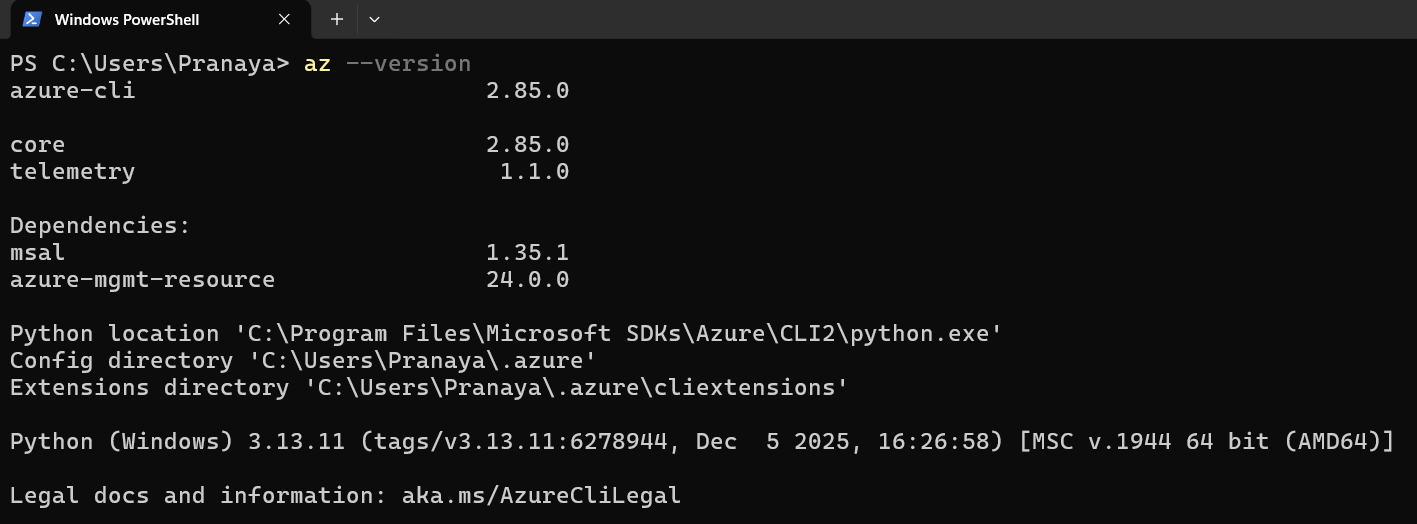
Azure CLI is a command-line tool that allows us to create and manage Azure resources from PowerShell, Command Prompt, or Windows Terminal. To check whether Azure CLI is installed, run:
- az –version
If Azure CLI is installed, you will see version details.
If Azure CLI is not installed, install it using WinGet. Open PowerShell as Administrator and run: winget install –exact –id Microsoft.AzureCLI
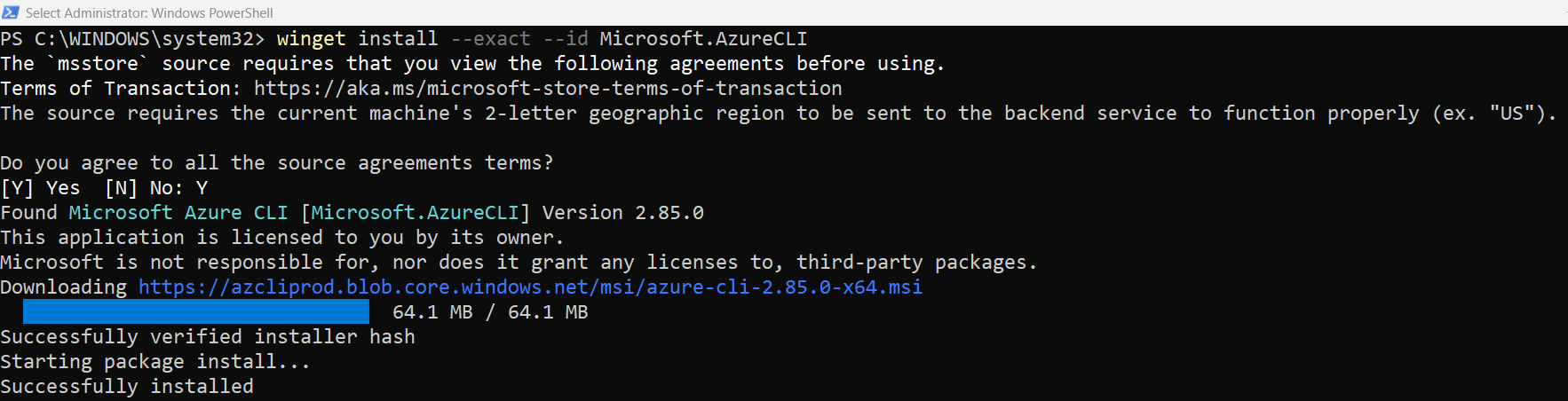
After installation, close PowerShell and reopen it. Then verify:
- az –version
This step is important because we will use Azure CLI commands to create the Resource Group, create an Azure Container Registry (ACR), log in to ACR, and verify repositories and tags.
Prerequisite 3: Azure Account Should Be Available
To create an Azure Container Registry, you need:
- Azure account
- Active Azure subscription
- Permission to create Azure resources
- Azure CLI login access
Naming Convention
For this practical demonstration, we will use the following names:
- Resource Group Name: rg-productmanagement-docker
- Azure Region: Central India
- Azure Container Registry Name: productmanagementacr2026
- Local Docker Image Name: productmanagementapi
- Repository Name in ACR: productmanagementapi
- First Image Tag: v1
- Second Image Tag: v2
- Container Name: productmanagementapi-acr-container
- Container Internal Port: 8081
- Host Port: 8086
Step 1: Open the Project Folder
First, open PowerShell or Command Prompt in the folder that contains your ASP.NET Core Web API project and Dockerfile. Run the following command in PowerShell:
- cd “D:\MyProjects\ProductManagementApi\ProductManagementApi”
This should be the folder that contains the following files:
- ProductManagementApi.csproj
- Program.cs
- appsettings.json
- Dockerfile
- .dockerignore
This step is important because Docker builds the image by reading the Dockerfile from the current folder. If you run the docker build command from the wrong folder, Docker may not find the Dockerfile and the build will fail.
Key Points to Remember:
- Always run Docker build commands from the folder that contains the Dockerfile.
- The Dockerfile contains the instructions required to build the image.
- The .dockerignore file helps Docker ignore unnecessary files during image build.
Expected Result:
You should now be inside the correct project folder in PowerShell.
Step 2: Verify the Existing Docker Image Locally
Before pushing anything to Azure Container Registry, first check whether the Docker image already exists on your local machine. Run the following command:
- docker images
This command lists all Docker images available in your local Docker environment. If the image already exists, you should see something like this:

Here:
- productmanagementapi is the local image name.
- latest is the image tag.
- IMAGE ID uniquely identifies the image.
- SIZE shows the image size.
If you can see productmanagementapi:latest, it means the image is already available locally.
If you do not see it, build the image again:
- docker build -t productmanagementapi .
This command builds the Docker image using the Dockerfile available in the current folder.
Here:
- docker build tells Docker to build an image.
- -t productmanagementapi gives the image a name.
- . tells Docker to use the current folder as the build context.
You should see the following:
After the build is completed, run the following command again:
- docker images
Now you should see: productmanagementapi latest. This confirms that the Docker image is available locally.
Step 3: Test the Image Locally Before Pushing to ACR
Before uploading the image to Azure Container Registry, always test it locally. This is a very important practice. Because if the image does not work locally, it will not magically work after pushing to Azure. Testing locally helps us catch issues early, such as:
- Application startup error
- Port mapping issue
- Missing environment variable
- Database connection issue
- Swagger not opening
- Runtime exception
Run the following command:
docker run -d –name productmanagementapi-local-container -p 8085:8081 -e ASPNETCORE_ENVIRONMENT=Development -e ConnectionStrings__DefaultConnection=”Server=host.docker.internal,1433;Database=ProductManagementDB;User Id=dockeruser;Password=Dockeruser@123;TrustServerCertificate=True;MultipleActiveResultSets=true” productmanagementapi
Let us understand this command:
- docker run creates and starts a new container.
- -d runs the container in detached mode, meaning it runs in the background.
- –name productmanagementapi-local-container gives a meaningful name to the container.
- -p 8085:8081 maps host port 8085 to container port 8081.
- -e ASPNETCORE_ENVIRONMENT=Development runs the application in the Development environment.
- -e ConnectionStrings__DefaultConnection=… passes the database connection string to the container.
- productmanagementapi is the image name used to create the container.
Now open the following URL in the browser:
- http://localhost:8085/swagger
Expected Result:
Swagger should open successfully. If Swagger opens, it means the Docker image is working properly on your local machine.
If the container already exists, Docker may show an error because the same container name cannot be reused. In that case, stop and remove the existing container:
- docker stop productmanagementapi-local-container
- docker rm productmanagementapi-local-container
Then run the docker run command again.
Key Points to Remember:
- Always test the image locally before pushing it to ACR.
- If Swagger opens locally, the image is in a good state.
- If Swagger does not open, check the logs using: docker logs productmanagementapi-local-container
Step 4: Log in to Azure from PowerShell
Before creating Azure resources, you must log in to your Azure account from PowerShell. Run the following command:
- az login –use-device-code
This command starts the Azure CLI login process using device code authentication. After running this command, PowerShell will show a message similar to this:
Now follow these steps:
Open browser → go to the given URL (https://login.microsoft.com/device) and enter the code (SM9F6GZPB) and click on the Next button as shown in the image below.
Next, log in using your Microsoft account. Once you provide the Login Credentials, it will ask Are you trying to sign in to Microsoft Azure CLI? Click on the Continue button as shown in the image below:
If everything is fine you will get the following message. This message confirms that you have signed in to the Microsoft Azure Cross-platform Command Line Interface application on your device. Now, you can close this window.
Verify the Login in Windows PowerShell:
Now, go to the Windows PowerShell, and you should see the following:
Login Is Successful
Your Azure login is successful now. Azure CLI found your subscription:
- Azure subscription 1
Now PowerShell is asking: Select a subscription and tenant (Type a number or Enter for no changes).
Simply type 1 and press the Enter button. The * means it is already the selected default subscription, and if you don’t type anything and press the enter button, it will also work.
Why Is Azure Login Required?
Azure Container Registry is an Azure resource. So, before creating ACR, Azure must confirm:
- Who you are
- Which Azure subscription are you using
- Whether you have permission to create resources
- Which tenant/directory are you using
Key Points to Remember:
- az login logs you into Azure.
- –use-device-code is useful when normal browser login has MFA or account selection issues.
- You do not need to manually enter the subscription ID if Azure CLI shows and selects your subscription.
Real-Life Analogy: Think of Azure login like entering an office building. Before you can access rooms and resources, security must verify your identity. Similarly, Azure CLI must verify your account before creating ACR.
Step 5: Verify the Selected Azure Subscription
After login, verify which subscription is currently selected. Please run the following command:
- az account show –output table
This command shows the currently active Azure subscription.
If you have multiple subscriptions, list them using:
- az account list –output table
Then select the correct subscription using:
- az account set –subscription “9f45160b-859f-4cf5-b830-1b1af806047c”
This step is important because all Azure resources will be created inside the selected subscription. If the wrong subscription is selected, your Resource Group and ACR may be created in the wrong account.
Step 6: Create a Resource Group
A resource group is a logical container in Azure where related resources are kept together. For this demonstration, we will create a resource group named: rg-productmanagement-docker
Run the following command:
- az group create –name rg-productmanagement-docker –location centralindia
Let us understand this command:
- az group create creates a new Azure Resource Group.
- –name rg-productmanagement-docker specifies the resource group name.
- –location centralindia specifies the Azure region where the resource group metadata will be stored.
For this chapter, we are using:
- Resource Group Name: rg-productmanagement-docker
- Azure Region: centralindia
You can also use another Azure region, such as:
- Eastus
- Westus
- Southeastasia
- Centralindia
- southindia
Expected Result:
Azure CLI will return JSON output showing the details of the created resource group.
The Resource Group helps us organize all related Azure resources in one place. Later, we can place Azure Container Registry, App Service, App Service Plan, and other resources inside this Resource Group.
Verify the Resource Group
To verify the Resource Group, run the following command:
- az group list –output table
You should see:
If you see rg-productmanagement-docker, this confirms that the resource group was created successfully.
Why This Step Is Required:
Before creating Azure Container Registry (ACR), we need a resource group where ACR will be placed. This helps us organize Azure resources project-wise.
Key Points to Remember:
- A resource group is like a folder for Azure resources.
- Keeping project-related resources in one resource group makes management easier.
- Later, if this is only for practice, deleting the resource group can remove all resources inside it.
Step 7: Register the Azure Container Registry Resource Provider
In Azure, every service is managed by a Resource Provider. For Azure Container Registry, the provider name is:
- Microsoft.ContainerRegistry
Sometimes, this provider is already registered. But in some subscriptions, especially new or trial subscriptions, it may not be registered yet. To register it, run:
- az provider register –namespace Microsoft.ContainerRegistry
This command enables the Azure Container Registry service for your subscription.
Now check the registration status:
- az provider show –namespace Microsoft.ContainerRegistry –query “registrationState” –output table
Wait until the output shows:
- Registered
If the output shows:
- Registering
Wait 1–2 minutes, then run the status command again.
Key Points to Remember:
- This step is usually required only once per subscription.
- If the provider is already registered, there is no problem.
- If you get a registration error while creating ACR, this step fixes it.
Step 8: Create Azure Container Registry
Now we will create an Azure Container Registry. Run the following command:
- az acr create –resource-group rg-productmanagement-docker –name productmanagementacr2026 –sku Basic –admin-enabled true
Let us understand this command:
- az acr create creates a new Azure Container Registry
- –resource-group rg-productmanagement-docker creates the registry inside our Resource Group
- –name productmanagementacr2026 sets the ACR name
- –sku Basic selects the Basic pricing tier
- –admin-enabled true enables the admin user for the registry
Expected Result:
Azure CLI should create the registry and return its details.
The Azure Container Registry name must be globally unique across Azure. It should contain only lowercase letters and numbers. If productmanagementacr2026 is already taken, use another unique name such as:
- productmanagementacrpranaya2026
- dotnettutorialsacr2026
Why This Step Is Required:
ACR is the cloud-based private registry where we will store our Docker image. Without ACR, Azure App Service, or AKS cannot easily pull our private Docker image.
Key Points to Remember:
- For learning and development, the Basic SKU is enough. It is suitable for small projects, practice, and beginner-level demonstrations.
- For production, Standard or Premium may be used depending on requirements.
- –admin-enabled true is acceptable for learning, but production systems should prefer identity-based access such as managed identity, service principal, or role-based access control.
Step 9: Verify Azure Container Registry
After creating ACR, verify whether it was created successfully. Run the following command:
- az acr list –resource-group rg-productmanagement-docker –output table
This command lists all Azure Container Registries inside the given Resource Group. You should see your registry name: productmanagementacr2026
To get detailed information about the registry, run:
- az acr show –name productmanagementacr2026 –resource-group rg-productmanagement-docker –output table
This command shows details such as:
- Registry name
- Login server
- Location
- SKU
- Resource Group
Why This Step Is Required:
This verification step is important because before tagging and pushing images, we must confirm that ACR is properly set up in Azure. This avoids confusion later when tagging or pushing the image.
Key Points to Remember:
- az acr list shows registries inside the resource group.
- az acr show shows detailed information about a specific registry.
- If the registry is not shown, check whether you used the correct resource group name.
Step 10: Get the ACR Login Server Name
Every Azure Container Registry has a login server name. This is the full address of the registry. After creating the Azure Container Registry, we need to know its login server name. So, please run the following command:
- az acr show –name productmanagementacr2026 –query loginServer –output table
Expected output:
This value is very important. The login server name is used while tagging, pushing, pulling, and running images from ACR. For our example, productmanagementacr2026.azurecr.io is the registry address. You can think of this as the warehouse address where our Docker image will be stored.
Why This Step Is Required:
Docker needs the registry address to know where to push the image. Without the ACR login server name, Docker will not know which registry to target.
- ACR name: productmanagementacr2026
- ACR login server: productmanagementacr2026.azurecr.io
- Use the login server while tagging, pushing, pulling, and running the image.
Step 11: Understand the Full Docker Image Name for ACR
Before tagging the local image, we must understand the full image naming format required by ACR.
- The format is: <acr-login-server>/<repository-name>:<tag>
- For our example: productmanagementacr2026.azurecr.io/productmanagementapi:v1
Let us break this down:
- productmanagementacr2026.azurecr.io is the ACR login server
- productmanagementapi is the repository name inside ACR
- v1 is the image version tag
So, the full image name means: Store version v1 of the productmanagementapi image inside the productmanagementacr2026.azurecr.io registry. This full name is required because Docker needs to know exactly where the image should be pushed.
Step 12: Log in to Azure Container Registry
Before pushing or pulling images, Docker must be authenticated with Azure Container Registry. Run the following command:
- az acr login –name productmanagementacr2026
Expected output: Login Succeeded
Important Note: While using az acr login, provide only the registry name, not the full login server.
- Correct: az acr login –name productmanagementacr2026
- Wrong: az acr login –name productmanagementacr2026.azurecr.io
Why This Step Is Required:
Azure Container Registry is private by default. Docker cannot push or pull images unless it is logged in. If you skip this step, you may get errors such as:
- unauthorized: authentication required
- denied: requested access to the resource is denied
So, always log in before pushing or pulling images.
Step 13: Tag the Local Docker Image for ACR
Currently, our local image name is:
- productmanagementapi:latest
This name is valid only locally. But to push it to Azure Container Registry, the image must include the ACR login server name. So, please run the following command:
docker tag productmanagementapi:latest productmanagementacr2026.azurecr.io/productmanagementapi:v1
Let us understand this command:
- docker tag creates another name for an existing image
- productmanagementapi:latest is the source image
- productmanagementacr2026.azurecr.io/productmanagementapi:v1 is the new ACR-ready image name
Important: docker tag does not create a new image from scratch. It only gives another name to the same image.
After tagging, please run the following command to verify the tagged image:
- docker images
Now you should see two image names:
Notice that both entries have the same Image ID. That means both names point to the same image content. This means the image is now ready to be pushed to Azure Container Registry.
Why This Step Is Required:
Docker needs the full ACR image name before it can push the image to ACR. Tagging acts like attaching a destination address to the image.
Real-Life Example:
Suppose you have a product box named Product API. This name is enough inside your shop. But if you want to send it to a warehouse, you need to attach the full warehouse address. The docker tag command attaches that address.
Key Points to Remember:
- Tagging does not upload the image.
- Tagging does not rebuild the image.
- Tagging only prepares the image name for pushing to ACR.
Step 14: Push the Docker Image to Azure Container Registry
Now that the image has the correct ACR tag, we can push it to Azure Container Registry. Please run the following command:
- docker push productmanagementacr2026.azurecr.io/productmanagementapi:v1
This command uploads the image from your local Docker environment to Azure Container Registry.
What happens internally?
- Docker connects to Azure Container Registry
- Docker checks authentication
- Docker reads the image layers
- Docker uploads the required layers
- ACR creates the repository if it does not already exist
- ACR stores the image with the tag v1
Docker will start uploading image layers. Once the push completes successfully, your Docker image is stored in ACR. You may see output like:
Why Does Docker Push Layers?
Docker images are made of layers. If some layers already exist in the registry, Docker does not upload them again. This makes the push process faster and more efficient. Each Dockerfile instruction can create a layer. For example:
- Base image layer
- Runtime layer
- Application files layer
- Published output layer
Step 15: Verify the Repository in ACR Using Azure CLI
After pushing the image, we should verify whether the repository exists inside ACR. Please run the following command:
- az acr repository list –name productmanagementacr2026 –output table
Expected output:
This confirms that ACR has created a repository named productmanagementapi.
Note: A repository is created automatically when we push the first image with that repository name. So, we did not manually create the repository. Docker push created it inside ACR.
Step 16: Verify the Image Tag in ACR
Now, check which tags are available inside the productmanagementapi repository. Please run the following command
- az acr repository show-tags –name productmanagementacr2026 –repository productmanagementapi –output table
Expected output:
This confirms that:
- The image was pushed successfully
- The repository exists
- The tag v1 exists
- ACR now contains version v1 of our ASP.NET Core Web API image
This is an important checkpoint. Before moving ahead, always verify the repository and tag.
Step 17: Verify the Docker Image in Azure Portal
You can also verify it from the Azure Portal. The following are the steps: Open the Azure Portal and search for Container registries. You will see the following.
Open your registry: productmanagementacr2026
- In the left-side menu, go to Services.
- Click Repositories.
- Click the repository named productmanagementapi.
- You should see the tag: v1
You should see your repository and tag inside the Azure Portal.
This confirms that your Docker image is now stored inside Azure Container Registry. This is useful for beginners because the portal gives a visual confirmation that the image is stored in ACR.
Step 18: Remove the ACR-Tagged Image from Local Machine
Now, let us test whether we can pull the image from ACR. To prove this properly, first remove the ACR-tagged image from the local Docker environment. Run the following command:
- docker rmi productmanagementacr2026.azurecr.io/productmanagementapi:v1
This command removes only the local copy of the ACR-tagged image. It does not delete the image from Azure Container Registry.
To verify the image was removed locally, run:
- docker images
You should not see the ACR-tagged image locally.
If the image already exists locally, Docker may use it. By removing it first and pulling it again, we clearly prove that the image is coming from ACR. So, this step helps us verify that the next pull operation will download the image from ACR.
Step 19: Pull the Image from Azure Container Registry (ACR)
Now, we will pull the image back from Azure Container Registry. Run the following command:
- docker pull productmanagementacr2026.azurecr.io/productmanagementapi:v1
This command downloads the image from Azure Container Registry to your local Docker environment. If the pull is successful, verify the image:
- docker images
You should see: productmanagementacr2026.azurecr.io/productmanagementapi v1
Why This Step Is Required:
Pushing proves that we uploaded the image. Pulling proves that the image can be downloaded and used from ACR. This is important because Azure App Service, AKS, and CI/CD pipelines will also pull the image from ACR. If pulling fails locally, cloud deployment may also fail.
If authentication is required, run:
- az login –use-device-code
- az acr login –name productmanagementacr2026
- docker pull productmanagementacr2026.azurecr.io/productmanagementapi:v1
Step 20: Run the Pulled Image Locally
Now we will run the image that we pulled from Azure Container Registry. Please run the following command:
docker run -d –name productmanagementapi-acr-container -p 8086:8081 -e ASPNETCORE_ENVIRONMENT=Development -e ConnectionStrings__DefaultConnection=”Server=host.docker.internal,1433;Database=ProductManagementDB;User Id=dockeruser;Password=Dockeruser@123;TrustServerCertificate=True;MultipleActiveResultSets=true” productmanagementacr2026.azurecr.io/productmanagementapi:v1
Let us understand this command:
- docker run creates and starts a container
- -d runs the container in the background
- –name productmanagementapi-acr-container gives a meaningful name to the container
- -p 8086:8081 maps host port 8086 to container port 8081
- -e ASPNETCORE_ENVIRONMENT=Development sets the environment to Development
- -e ConnectionStrings__DefaultConnection=… passes the database connection string
- productmanagementacr2026.azurecr.io/productmanagementapi:v1 is the image pulled from ACR
Now open:
- http://localhost:8086/swagger
Expected Result:
Swagger should open successfully. This confirms that the image pulled from Azure Container Registry is working properly. This confirms that our ACR image is ready for future cloud deployment. At this point, we have completed the full flow: Local Docker Image → Tag for ACR → Push to ACR → Pull from ACR → Run Container
Key Points to Remember:
- This step proves the pushed image is usable.
- We are now running the image using its ACR name.
- Later, Azure App Service will also use this same image name.
Step 21: Check the Running Container and Logs
To check whether the container is running, use:
- docker ps
You should see: productmanagementapi-acr-container
This confirms that the container is active. If Swagger does not open, check the container logs:
- docker logs productmanagementapi-acr-container
Logs are very useful for troubleshooting. When working with containers, logs are the first place to check when something goes wrong. Containers may run in the background, so logs help us understand what happened inside the container. They can help identify issues such as:
- Application startup failure
- Wrong port mapping
- Missing environment variable
- Invalid database connection string
- SQL Server connectivity issue
- Runtime exception inside the application
For Docker-based troubleshooting, always check logs first.
Step 22: Stop and Remove the Test Container
After testing, stop the container:
- docker stop productmanagementapi-acr-container
This stops the running container. Then, remove it:
- docker rm productmanagementapi-acr-container
This removes the container, but it does not remove the Docker image. If you also want to remove the pulled image locally, run:
- docker rmi productmanagementacr2026.azurecr.io/productmanagementapi:v1
Important Note: This removes only the local image. It does not delete the image from Azure Container Registry.
Why This Step Is Required:
Cleaning up test containers keeps your local Docker environment clean. Otherwise, you may end up with many stopped containers, which can create confusion.
Key Points to Remember:
- docker stop stops a running container.
- docker rm removes a stopped container.
- docker rmi removes a local image.
- None of these commands deletes the image from ACR.
Step 23: Push an Updated Image Version to ACR
Now, suppose you make some changes in your ASP.NET Core Web API project. For example:
- Add a new endpoint
- Modify a controller
- Update business logic
- Fix a bug
- Change logging configuration
- Improve response format
After changing the code, the existing image in ACR does not update automatically. You must create a new image version. The process is:
- Rebuild the local image
- Tag it with a new version
- Push the new version to ACR
- Verify the new tag
Step 23.1: Rebuild the Local Image
Docker images are snapshots of the application at build time. If you change your code, you must rebuild the image to include those changes.
- Go to the project folder: cd “D:\MyProjects\ProductManagementApi\ProductManagementApi”
- Now rebuild the image: docker build -t productmanagementapi .
This creates a new local image using the updated application code.
Step 23.2: Tag the New Image Version
This time, tag the image as v2:
- docker tag productmanagementapi:latest productmanagementacr2026.azurecr.io/productmanagementapi:v2
We should not overwrite every image with the same tag. By using v2, we can keep both versions:
- v1 = First version
- v2 = Updated version
This makes rollback and comparison easier.
Step 23.3: Push the New Version to ACR
Push the new version:
- docker push productmanagementacr2026.azurecr.io/productmanagementapi:v2
This uploads the updated image to ACR with tag v2.
Step 23.4: Verify Available Tags
Finally, verify the tags:
- az acr repository show-tags –name productmanagementacr2026 –repository productmanagementapi –output table
Expected output:
This means ACR now contains two versions of the same application image. This is how image versioning works in real projects.
Key Points to Remember:
- Code changes require an image rebuild.
- New image versions should use new tags.
- ACR can store multiple versions of the same application image.
Step 24: Pull and Run a Specific Image Version
One of the biggest advantages of tagging is that we can choose exactly which version to run. If you want to pull version v1, run:
- docker pull productmanagementacr2026.azurecr.io/productmanagementapi:v1
Then run it:
- docker run -d –name productmanagementapi-v1-container -p 8087:8081 productmanagementacr2026.azurecr.io/productmanagementapi:v1
If you want to pull version v2, run:
- docker pull productmanagementacr2026.azurecr.io/productmanagementapi:v2
Then run it:
- docker run -d –name productmanagementapi-v2-container -p 8088:8081 productmanagementacr2026.azurecr.io/productmanagementapi:v2
Here:
- Version v1 runs on host port 8087
- Version v2 runs on host port 8088
Why This Step Is Useful:
This allows you to test two different versions of the same application side by side. It also helps in rollback scenarios. If version v2 has a problem, we can still run version v1.
Key Points to Remember:
- Tags allow version-specific deployment.
- Different versions can run on different host ports.
- This is very useful in real projects when comparing old and new releases.
Step 25: Tag One Image with Multiple Tags
Sometimes, we may want to give multiple tags to the same image. For example, suppose your latest working image is version v3. You may want to tag it as both:
- v3
- latest
First, tag the image as v3:
- docker tag productmanagementapi:latest productmanagementacr2026.azurecr.io/productmanagementapi:v3
Now tag the same image as latest:
- docker tag productmanagementapi:latest productmanagementacr2026.azurecr.io/productmanagementapi:latest
Now push both tags:
- docker push productmanagementacr2026.azurecr.io/productmanagementapi:v3
- docker push productmanagementacr2026.azurecr.io/productmanagementapi:latest
Verify the Tags:
- az acr repository show-tags –name productmanagementacr2026 –repository productmanagementapi –output table
Now ACR will show:
- latest
- v1
- v2
- v3
This means the same repository contains multiple image tags.
Important Note: The latest tag is convenient for learning and quick testing. But for production deployment, do not depend only on latest. Always use a clear version tag such as v1, v2, 1.0.0, or a build number.
Step 26: View Repository and Tag Details
To view all repositories inside ACR, run:
- az acr repository list –name productmanagementacr2026 –output table
This command shows all repositories inside the registry.
To view all tags inside one repository, run:
- az acr repository show-tags –name productmanagementacr2026 –repository productmanagementapi –output table
This command shows all available tags for the productmanagementapi repository.
To view detailed tag information, run:
- az acr repository show-tags –name productmanagementacr2026 –repository productmanagementapi –detail –output table
This command provides more information about each tag, including update time and digest details.
This helps you understand:
- Which repositories exist
- Which tags are available
- Which image versions are stored
- Which tag was updated recently
Why This Step Is Useful:
In real projects, many images and versions may exist in ACR. These commands help us inspect and manage them properly.
Key Points to Remember:
- repository list shows image repositories.
- show-tags shows available versions.
- –detail gives more information about each tag.
Step 27: Delete a Specific Image Tag from ACR
If you want to delete a specific image tag from Azure Container Registry, use:
- az acr repository delete –name productmanagementacr2026 –image productmanagementapi:v1
Azure CLI will ask for confirmation.
- az acr repository delete –name productmanagementacr2026 –image productmanagementapi:v1 –yes
Why This Step Is Required:
Over time, old image versions may no longer be needed. Deleting unused tags helps reduce clutter and manage storage.
Important Warning: Be careful while deleting image tags from ACR. If Azure App Service, AKS, or any deployment is using that tag, deleting it may break future deployments or container restarts.
Step 28: Delete the Whole Repository from ACR
If you want to delete the complete repository and all its tags, run:
- az acr repository delete –name productmanagementacr2026 –repository productmanagementapi
This deletes the entire productmanagementapi repository from ACR.
That means all tags under this repository will be removed, such as:
- v1
- v2
- v3
- latest
This is different from deleting one tag. Deleting the entire repository removes all image versions associated with that repository.
Why This Step Is Required:
Sometimes you may want to completely remove an application image repository from ACR. This is useful for cleanup when the application is no longer needed.
Step 29: Clean Up the Azure Resources
If you created these resources only for practice and you do not want to keep them, you can delete the entire Resource Group:
- az group delete –name rg-productmanagement-docker
Azure CLI will ask for confirmation. This command deletes the Resource Group and all resources inside it, including:
- Azure Container Registry
- All repositories inside ACR
- All image tags inside ACR
- Any other Azure resources created in that Resource Group
Note: Do not delete the Resource Group or ACR. In the next chapter, we will use the image stored in ACR to deploy our Dockerized ASP.NET Core Web API on Azure App Service.
Conclusion
In this chapter, we learned how to move from local Docker image management to cloud-ready image management using Azure Container Registry. First, we understood why a private registry is needed and how ACR helps us store Docker images securely in Azure. Then we created an Azure Container Registry, logged in to it, tagged our local ASP.NET Core Web API image with the ACR login server name, pushed the image to ACR, verified the repository and tags, pulled the image back, and ran it locally again.
We also learned the importance of repository names, image tags, versioning, and best practices. At this point, our Dockerized ASP.NET Core Web API image is no longer limited to our local machine. It is now available in Azure Container Registry and ready to be used by Azure App Service, Azure Kubernetes Service, and CI/CD pipelines.
What Is Next?
In the next chapter, we will use this image from Azure Container Registry and deploy the Dockerized ASP.NET Core Web API to Azure App Service. That means Azure App Service will pull the image from ACR and run our application as a container in the cloud.
About the Author: Pranaya Rout
Pranaya Rout has published more than 3,000 articles in his 11-year career. Pranaya Rout has very good experience with Microsoft Technologies, Including C#, VB, ASP.NET MVC, ASP.NET Web API, EF, EF Core, ADO.NET, LINQ, SQL Server, MYSQL, Oracle, ASP.NET Core, Cloud Computing, Microservices, Design Patterns and still learning new technologies.
Watch the complete video tutorial:
We have also created a step-by-step video tutorial on Managing Docker Images with Azure Container Registry, where you will practically learn how to tag Docker images, push them to Azure Container Registry, verify repositories and tags, pull images from ACR, and manage image versions for real-world Azure deployment.
For better understanding, watch the full video here:
https://youtu.be/1NhqrsBbJw4