
Back to: Microsoft Azure Tutorials
Connecting the Deployed Web API with Azure SQL Database
In the previous chapter, we migrated our existing local SQL Server database to Azure SQL Database, and before that, we deployed our ASP.NET Core Web API to Azure App Service. Now both important parts of our application are available on Azure, but they still need to be properly connected. In this chapter, we will connect the already deployed ASP.NET Core Web API to Azure SQL Database so the cloud-hosted API can perform real database operations such as Create, Read, Update, and Delete.
Why Do We Need to Connect the Deployed API to Azure SQL Database?
At this stage, our Web API is already running in Azure App Service, and our database is already available in Azure SQL Database. But simply having both resources in Azure does not mean they automatically communicate with each other.
The deployed Web API needs to know:
- Which database server it should connect to
- Which database name it should use
- Which username and password it should use
- Whether encryption and certificate settings are required
- Where this connection string should be stored securely
If this configuration is missing or incorrect, then the application may still open in the browser, Swagger may load, and even some endpoints may work, but the moment the API tries to access the database, it will fail.
So, in simple words:
- Azure App Service hosts the Web API
- Azure SQL Database stores the data
- The connection string acts like a bridge between them
Without that bridge, the application is incomplete.
Step 1: Understand Where the Connection String Comes From
The first thing we need is the Azure SQL Database connection string. This connection string tells our ASP.NET Core Web API how to reach the Azure SQL Database. A typical Azure SQL connection string contains:
- Server name
- Database name
- User ID
- Password
- Encryption settings
- Certificate trust settings
In ASP.NET Core applications, this connection string is usually used in Program.cs when we configure Entity Framework Core or SqlConnection. For example, many applications use something like this:
builder.Services.AddDbContext<ApplicationDbContext>(options =>
    options.UseSqlServer(
        builder.Configuration.GetConnectionString("DefaultConnection")));
This means the application expects a connection string named DefaultConnection. Before changing anything in Azure, first confirm which connection string name your project is using. In most projects, it is often one of these:
- DefaultConnection
- SQLConnection
- DbConnection
- ProductManagementDBConnection
Whatever name is used in your code must match what you configure in Azure.
Step 2: Open the Azure SQL Database Overview Page
Now sign in to the Azure Portal. Then follow these steps:
- In the top search box, type SQL databases
- Click Azure SQL databases
- Select your database, for example ProductManagementDB
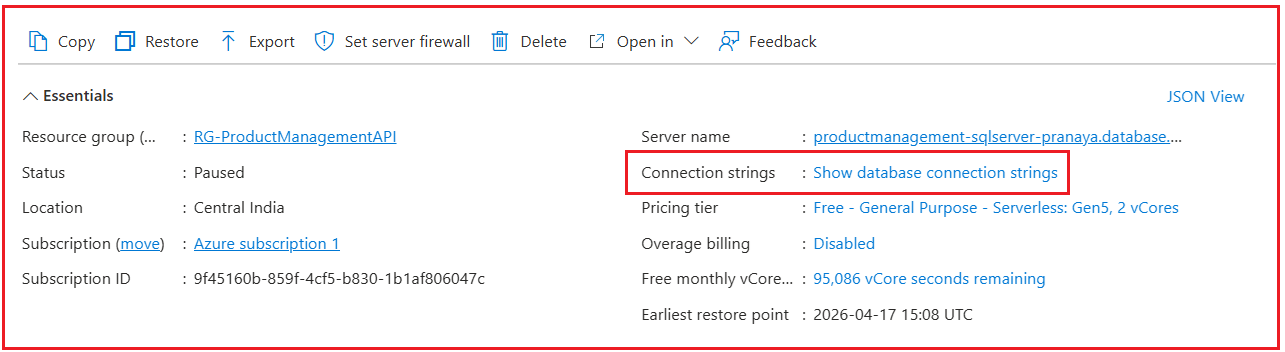
Once the database overview page opens, you will see details such as:
- Database name
- Server name
- Resource Group
- Status
- Connection strings
- Firewall settings
- Pricing tier
This page is important because it provides the connection string needed by the Web API.
Step 3: Get the Azure SQL Database Connection String
On the Azure SQL Database page, look for the left-side menu or top section that includes the option called:
- Connection strings
- Click that option.
Azure will usually show connection strings for multiple technologies, such as:
- ADO.NET
- JDBC
- ODBC
- PHP
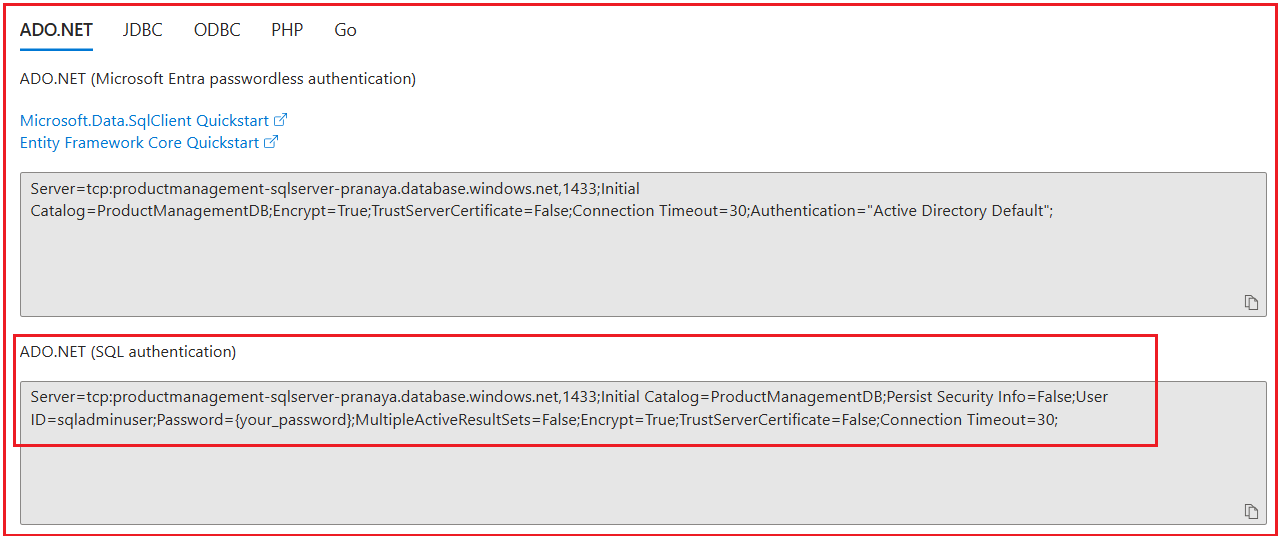
Two ways to authenticate:
- Microsoft Entra passwordless authentication: This method uses Microsoft Entra ID to connect to Azure SQL without storing a SQL username and password in the connection string. It is more secure, but it needs additional identity setup.
- SQL authentication: This method uses the SQL login name and password created when you set up the Azure SQL logical server.
In this chapter, we are using the ADO.NET (SQL authentication) connection string because it is simpler to understand and easier to configure during manual deployment.
For ASP.NET Core Web API, the ADO.NET connection string is usually the most familiar starting point. You will typically see something similar to this:
Server=tcp:productmanagement-sqlserver-pranaya.database.windows.net,1433;Initial Catalog=ProductManagementDB;Persist Security Info=False;User ID=sqladminuser;Password={your_password};MultipleActiveResultSets=False;Encrypt=True;TrustServerCertificate=False;Connection Timeout=30;
Now, let us understand the important parts:
- Server=tcp:…database.windows.net,1433: This is the Azure SQL Logical Server address. Our Web API uses this address to know which Azure SQL Server it should connect to.
- Initial Catalog=ProductManagementDB: This is the actual database name inside that server. In our case, the database name is ProductManagementDB.
- User ID=sqladminuser: This is the SQL login name that we created while setting up the Azure SQL Logical Server.
- Password={your_password}: This is the password of that SQL login. We must replace the placeholder with the real password before using the connection string.
- Encrypt=True: This means the data sent between your Web API and Azure SQL Database is protected while traveling over the internet, so others cannot easily read it.
- TrustServerCertificate=False: The application checks whether the database server’s security certificate is valid before trusting it.
- Connection Timeout=30: This means the application will wait up to 30 seconds while trying to establish the database connection before giving up.
Step 4: Understand How ASP.NET Core Reads Connection Strings from Azure
Before adding the value, let us understand one important point. Suppose our local appsettings.json contains this:
{
  "ConnectionStrings": {
    "DefaultConnection": "Server=LOCALHOST;Database=ProductManagementDB;Trusted_Connection=True;TrustServerCertificate=True;"
  }
}
This works on our local machine, but once the app is deployed to Azure, this local SQL Server connection string will no longer work. So, we override it in Azure.
ASP.NET Core supports hierarchical configuration using double underscores (__) in environment variables. That means:
- ConnectionStrings__DefaultConnection
maps to:
- ConnectionStrings:DefaultConnection
So, if your code is using GetConnectionString(“DefaultConnection”), then in Azure App Service, you should create an environment variable with this exact name:
- ConnectionStrings__DefaultConnection
If your application uses some other connection string name, then use that same name after ConnectionStrings__.
For example:
- ConnectionStrings__SQLConnection
- ConnectionStrings__AppDbConnection
The name must match the code exactly.
Step 5: Open the Azure Web App Configuration
Now we need to update the deployed Web API configuration with the connection string.
Follow these steps:
- In the Azure Portal, search for App Services
- Click App Services
- Select your deployed Web App, for example, productmanagementapi-pranaya
- In the left-side menu, go to: Settings > Environment Variables
This is the section where we store environment-specific values for the deployed application. In the previous deployment chapter, we already used this section for values like
- ASPNETCORE_ENVIRONMENT=Production.
Now we will use the same section to store the database connection string.
Step 6: Add the Azure SQL Connection String in App Service
We can store the database connection string in Azure App Service in two ways:
- Using App settings
- Using Connection strings
Both approaches can work, but for a database connection, the Connection strings tab is easier to understand and is the better choice for most beginners.

Option 1: Add the Connection String Using App Settings:
If you want to store the database connection string in the App settings tab, then Azure will treat it like a normal environment variable.
Steps:
- Open the App settings tab.
- Click Add
- In the Name field, enter: ConnectionStrings__DefaultConnection
- In the Value field, enter the full Azure SQL connection string, for example: Server=tcp:productmanagement-sqlserver-pranaya.database.windows.net,1433;Initial Catalog=ProductManagementDB;Persist Security Info=False;User ID=sqladminuser;Password=DotNetAzure@2026;MultipleActiveResultSets=False;Encrypt=True;TrustServerCertificate=False;Connection Timeout=30;
- Click Apply
- Click Confirm
Important Notes
- Replace DefaultConnection with your actual connection string name if your code uses a different name.
- Replace the sample password with your real Azure SQL password.
- Be very careful while typing the server name, database name, username, and password.
Even a very small mistake can cause the deployed API to fail while connecting to the database.
Option 2: Add the Connection String Using Connection Strings:
This is the cleaner and more recommended option for database connections.
- Click the Connection strings tab next to App settings
- Click Add
- Enter the following:
- Name: DefaultConnection
- Value: Server=tcp:productmanagement-sqlserver-pranaya.database.windows.net,1433;Initial Catalog=ProductManagementDB;Persist Security Info=False;User ID=sqladminuser;Password=DotNetAzure@2026;MultipleActiveResultSets=False;Encrypt=True;TrustServerCertificate=False;Connection Timeout=30;
- Type: SQLAzure
- Click Apply
- Click Confirm
- Then, Restart the Web App
Why this is better:
- Connection Strings tab is meant specifically for database connections
- Azure handles it in the proper connection-string format
- In ASP.NET Core, builder.Configuration.GetConnectionString(“DefaultConnection”) can read it correctly
When are App settings used?
Use App settings for normal values like:
- ASPNETCORE_ENVIRONMENT
- JWT keys
- Custom URLs
- Feature flags
- Other non-database settings
What If We Add the Connection String in Both Places?
It is better not to store the same connection string in both places. The reason is that both App settings and Connection strings are supplied to the application through environment-based configuration. So, if you keep the same connection string in both places, it can be confusing during troubleshooting because it is no longer clear which value the application is ultimately using.
So, for clarity and easier debugging:
- Keep the database connection string in only one place
- For this chapter, use the Connection strings tab
- Use App settings only for normal non-database values
That makes the configuration cleaner, easier to explain, and much easier to troubleshoot later.
Step 7: Save the Configuration and Restart the App Service
After adding or updating the connection string, do not forget this step.
Restart the Web App.
Steps:
- Open the Web App Overview page
- Click Restart
- Confirm the restart
Why is a restart required?
Because the application needs to reload its configuration values. If the app was already running before the connection string was added or changed, it may still use the old settings until a restart occurs.
So, in simple words:
- Change configuration
- Restart the Web App
- Then test the API
Step 8: Confirm That the Database Firewall Allows Azure Services
Even if the connection string is perfect, the API may still fail to connect if the Azure SQL Server firewall blocks access from Azure App Service. In the previous chapter, we added firewall rules mainly to allow our local machine to connect through SQL Server Management Studio.
Now, for the deployed API, Azure App Service itself must also be allowed to reach Azure SQL Database.
To verify this:
- Open your Azure SQL Database
- Click Set server firewall
- Go to the SQL Server networking page
- Check whether Azure services are allowed to access the server
Depending on the Azure portal layout, you may see an option similar to:
- Allow Azure services and resources to access this server
If your Web API is hosted in Azure App Service and your database is hosted in Azure SQL Database, this setting is often required for manual deployment scenarios. If this setting is disabled, then your deployed API may show errors such as:
- Cannot open the server requested by the login
- Login failed
- The client IP address is not allowed
- A network-related or instance-specific error occurred
So, this verification is very important.
Step 9: Test the Deployed API from Swagger
Now test each endpoint.
Test GET All Products
GET /api/products
You should see the seeded products.
Test GET Product By Id
GET /api/products/1
You should get one product.
Test POST Create Product
POST /api/products
Request body:
{
  "Name": "Office Chair",
  "Description": "Ergonomic office chair",
  "Price": 5500,
  "StockQuantity": 15,
  "Category": "Furniture"
}
You should get:
- 201 Created
- The newly created product
- A Location header pointing to the product URL
Test PUT Update Product
PUT /api/products/1
Request body:
{
  "Id": 1,
  "Name": "Wireless Mouse Updated",
  "Description": "Updated description",
  "Price": 899,
  "StockQuantity": 30,
  "Category": "Electronics",
  "IsActive": true
}
You should get:
- 204 No Content
Test DELETE Product
DELETE /api/products/2
You should get:
- 204 No Content
Then call:
GET /api/products
to confirm deletion.
Step 10: Verify the Data Directly in Azure SQL Database
It is also a good practice to verify the changes directly in the database. You can do this using SQL Server Management Studio:
- Open SSMS
- Connect to Azure SQL Database
- Run queries such as: SELECT * FROM Products;
If you inserted a record through the cloud-hosted API and can now see that record in Azure SQL Database, your end-to-end connection is fully verified.
This gives strong confirmation that:
- The deployed Web API is not just running
- It is actually using the Azure SQL Database correctly
Conclusion
In this chapter, we connected the deployed ASP.NET Core Web API running in Azure App Service with the Azure SQL Database created in the previous chapter. We learned how to obtain the Azure SQL connection string, how to store it securely in Azure App Service configuration, why environment-based configuration is better than hardcoding secrets, how to restart the Web App after configuration changes, and how to verify that CRUD operations are complete from the cloud-hosted API.
At this stage, our application is now fully connected in the cloud. The Web API is hosted in Azure App Service, and the database is hosted in Azure SQL Database; both communicate securely through proper configuration. From here, we are in a strong position to move toward the next level of deployment topics, such as Docker, containerization, and more advanced Azure hosting approaches.
About the Author: Pranaya Rout
Pranaya Rout has published more than 3,000 articles in his 11-year career. Pranaya Rout has very good experience with Microsoft Technologies, Including C#, VB, ASP.NET MVC, ASP.NET Web API, EF, EF Core, ADO.NET, LINQ, SQL Server, MYSQL, Oracle, ASP.NET Core, Cloud Computing, Microservices, Design Patterns and still learning new technologies.
👉 Want to see this concept in action?
If you prefer learning through a complete step-by-step practical demonstration, I’ve created a detailed video where I show how to deploy an ASP.NET Core Web API and SQL Server Database to Microsoft Azure from scratch.
In this video, you will clearly understand:
How to deploy your Web API to Azure App Service
How to migrate your SQL Server database to Azure SQL Database
How to connect both and test your application end-to-end
🎥 Watch the full video here:
https://youtu.be/hX89L52iC94
This will help you move from theory to real-world implementation quickly and confidently.