
Back to: Microsoft Azure Tutorials
Deploying ASP.NET Core Web API on Azure App Service
In the previous chapters, we discussed what deployment means, how Azure helps us host applications in the cloud, how to prepare our ASP.NET Core Web API project for deployment, and which Azure resources are required. In this chapter, we will deploy our ASP.NET Core Web API to Azure App Service.
Our focus in this chapter is on manual deployment. We will create the required Azure resources, configure the Web App, publish the application from Visual Studio, verify the deployment, check logs, view deployed files, and also understand how to perform Manual ZIP Deployment as an alternative approach.
Step 1: Open Azure Portal
Open the Azure Portal (https://portal.azure.com/auth/login/) in your browser and sign in with your Azure account. After signing in, you will see the Azure home page. From there, you can create and manage all Azure resources required for deployment.
Step 2: Create or Select the Resource Group
A Resource Group is a logical container that stores related Azure resources for the same project. For example, your project’s Resource Group can contain:
- App Service Plan
- Azure Web App
- Azure SQL Database
- Storage Account
- Monitoring resources
Steps in Azure Portal
- In the Azure Portal search box, search for Resource groups
- Click Resource groups
- Click Create
- Select your Subscription
- Enter the Resource group name. Example: RG-ProductManagementAPI
- Select the Region
- Click Review + create
- Click Create
Step 3: Create the App Service Plan
The App Service Plan provides the hosting infrastructure for your Web App. It defines:
- Operating system
- Region
- Pricing tier
- CPU, memory, and scaling capacity
Note: The App Service Plan is not your application. It is the hosting environment where your application runs.
Steps in Azure Portal
- In the Azure Portal search box, search for App Service Plans
- Click App Service Plans
- Click Create
- Select your Subscription
- Select your Resource Group
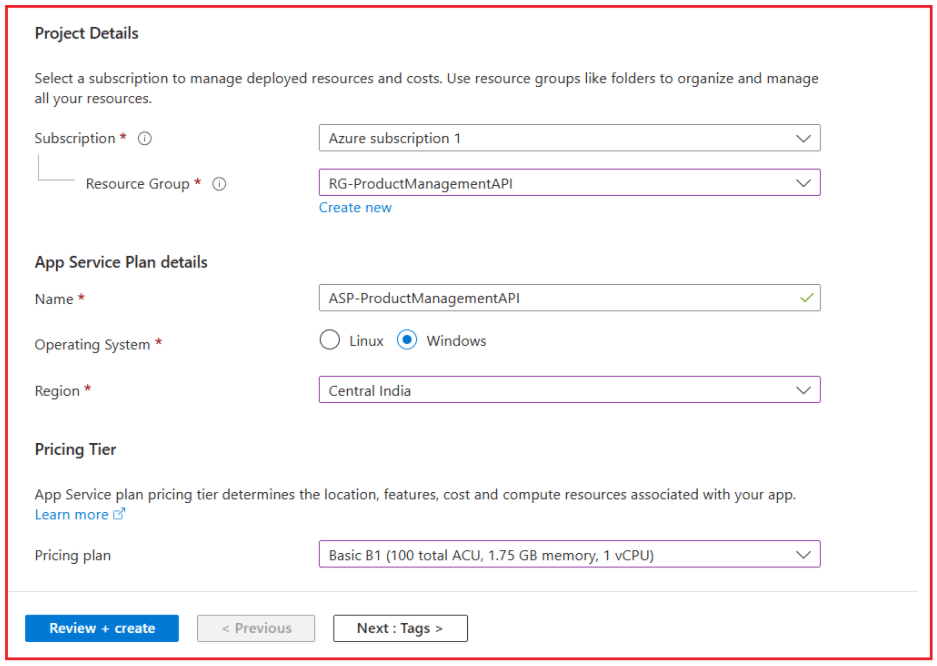
- Enter the App Service Plan name. Example: ASP-ProductManagementAPI
- Choose the Operating System. For beginner-friendly ASP.NET Core deployment in Visual Studio, Windows is usually the simpler option to start with.
- Choose the Region. It is a good practice to use the same region as your Resource Group.
- Select the Pricing tier. For learning purposes, you may choose a lower-cost plan. Many learners prefer Basic B1 to Free or Shared because it offers a more stable hosting experience.
- Click Review + create
- Click Create
For a better understanding, please have a look at the image below:
Step 4: Create the Azure Web App
Now we will create the actual Azure Web App where the ASP.NET Core Web API will be deployed.
Steps in Azure Portal
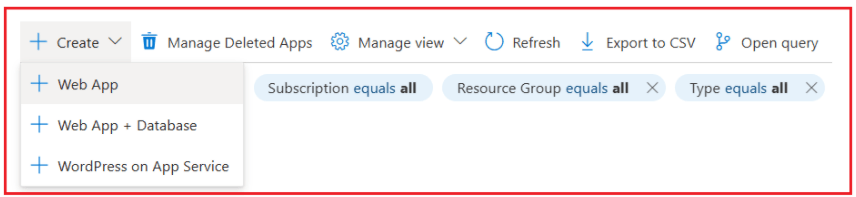
- In the Azure Portal search box, search for App Services
- Click App Services
- Click Create
- Select Web App
Fill the Basics Tab Carefully
- Subscription: Select your subscription
- Resource Group: Select your Resource Group
- Name: Enter a globally unique Web App name. Example: productmanagementapi-pranaya. Azure uses this name to create the public URL, such as: https://productmanagementapi-pranaya.azurewebsites.net
- Publish: Select Code
- Runtime stack: Choose the same .NET version used by your project, such as .NET 8 (LTS) if your API targets .NET 8
- Operating System: Select the same OS as your App Service Plan
- Region: Choose the same region
- Windows Plan / Linux Plan: Select the App Service Plan you created earlier
Database Tab
For this chapter, we skip database integration as our focus is only on Web API deployment. Database configuration can be handled separately in our next chapter.
Finish Web App Creation
- Click Review + create
- Click Create
Step 5: Open Your Web App Overview Page
In Azure Portal:
- Sign in to Azure Portal
- In the top search bar, type App Services
- Click App Services
- You will see the list of web apps under your subscription
- Click the name of your app, for example, productmanagementapi-pranaya
Once the Web App is created, Azure opens the Overview page. This is the main page from where you can manage your deployed API. Here you will see details such as:
- Web App name
- Resource Group
- Default domain
- Status
- Restart button
- Browse URL
- Activity and deployment information
Step 6: Configure Application Settings and Environment Variables
Before or after publishing, you should configure the required application settings in Azure. App Service lets you define app settings outside your code, and these values override the corresponding values in appsettings.json. This is useful for production deployment because secrets and environment-specific values remain outside your source code.
How to Add Environment Variables in Azure Portal
- Open your Web App
- In the left menu, go to Settings > Environment variables
- Click Add
- Add the following:
-
- Name: ASPNETCORE_ENVIRONMENT
- Value: Production
-
- Click Apply
- Click Confirm
This ensures your deployed application runs in the Production environment.

Note: That last checkbox, Deployment slot setting, is used only when your App Service uses deployment slots such as Production, Staging, or Testing.
Other Common Settings You May Add Later
- Connection strings
- External API URLs
- JWT settings
- Feature flags
- Custom application settings
Important Note: If you define a setting in both Azure App Service and appsettings.json, the App Service value takes precedence.
Step 7: Enable Always On
If your pricing tier supports it, enable Always On.
Steps in Azure Portal
- Open your Web App
- Go to Settings > Configuration or Settings > General settings, depending on the portal layout
- Find Always On
- Set it to On
- Click Save
Why This Is Useful
If Always On is disabled, the application may become idle after inactivity on some plans. For APIs, enabling it helps improve responsiveness and avoids delays caused by cold starts.
Step 8: Publish the ASP.NET Core Web API from Visual Studio
Now Azure is ready, so let us publish the API. Microsoft states that ASP.NET Core apps are deployed to Azure App Service as compiled binaries, and that Visual Studio builds and deploys those binaries directly.
Steps in Visual Studio
- Open your existing ASP.NET Core Web API project
- In Solution Explorer, right-click the Web API project
- Click Publish
- Choose Azure
- Choose Azure App Service (Windows) if you created a Windows Web App
- Click Next
- Sign in to Azure if required
- Select your Subscription
- Select the existing Web App you created
- Click Next
Skip API Management and click Finish:
This screen is for Azure API Management, which is a separate Azure service. For a simple manual deployment of your ASP.NET Core Web API to Azure App Service, this is not required.
Visual Studio will now create a publish profile.
- Make sure Configuration is set to Release
- Click Publish
Visual Studio will build the project and deploy it to Azure App Service.
What Happens During Publish
When you click Publish:
- Visual Studio builds the project in Release mode.
- Publish output is generated.
- The compiled files are deployed to Azure App Service.
- Azure starts the application.
Step 9: Understand the Publish Profile
After the first successful publish, Visual Studio saves a publish profile. This is very useful because for future deployments:
- You do not need to configure everything again.
- You can reuse the same publish profile.
- You can publish updated versions more quickly.
This makes later updates much easier and faster.
Step 10: Test the Deployed Application
After publishing completes:
- Go back to the Azure Portal
- Open your Web App
- On the Overview page, click the site URL or Browse
If Swagger is enabled in production, try: https://yourappname.azurewebsites.net/swagger. You can also test your endpoints using Postman or the browser.
Verify These Things
- The application URL opens successfully
- Swagger loads properly
- API endpoints return expected responses
- No startup error page appears
- The application is reachable over the internet
If the application starts but database-related endpoints fail, that may simply mean your Azure database configuration is not yet completed.
Step 11: Enable Application Logs in Azure
If the deployed application is not working properly, logs are the first place you should check. Microsoft states that when an ASP.NET Core app runs on Azure App Service, log streaming depends on enabling Application Logging (Filesystem) in the App Service logs area.
Steps in Azure Portal
- Open your Web App.
- In the left menu, go to Monitoring > App Service logs.
- Turn on:
-
- Application Logging (Filesystem)
- Detailed Error Messages
- Failed Request Tracing
-
- Select an appropriate Log Level, such as Information.
- Click Save.
Why This Is Helpful
These logs are very useful when:
- The app is not starting
- You get HTTP 500 errors
- Swagger is not loading
- Configuration values are missing
- Deployment succeeded, but the runtime failed
Step 12: View Live Logs in Azure
After enabling logs, you can view them in real time.
Steps in Azure Portal
- Open your Web App.
- Go to the Log stream.
Step 13: How to View the Deployed Files in Azure
One of the most common beginner questions is: Where are my deployed files in Azure App Service? For App Service, the deployed application files are typically located in:
- D:\home\site\wwwroot for Windows
- /home/site/wwwroot for Linux
View Files Using Kudu in Azure Portal
- Open your Web App in the Azure Portal
- Go to Development Tools > Advanced Tools
- Click Go
This opens the Kudu/SCM site for your application. Kudu will open in a new tab as shown in the image below:
Open DebugConsole:
For Windows App Service, the deployed files are stored in D:\home\site\wwwroot. Select DebugConsole and CMD.
Then open CMD and navigate to: site > wwwroot as shown in the image below. Here, you can view the deployed DLL files, web.config, appsettings files, static files, and other deployment artifacts.
Why Kudu Is Important
Kudu is very helpful for:
- Viewing deployed files
- Verifying whether the latest publish actually reached Azure
- Browsing logs and folders
Step 14: How to View Serilog Log Files in Azure
In our project, Serilog is configured to use the File Sink only. The log files are written to: D:\home\LogFiles\Application\MyAppLog-.txt
Steps to View Serilog Log Files in Azure
- Open Azure Portal
- Go to App Services
- Click your Web App
- Go to Development Tools > Advanced Tools
- Click Go
This opens the Kudu/SCM site, which Azure App Service uses for advanced deployment and management tasks.
Choose DebugConsole:
Select DebugConsole and CMD as shown in the image below.
Then, navigate to: LogFiles > Application and inside this folder, you will find the Serilog log files, for example:
- MyAppLog-2026-04-17.txt
- MyAppLog-2026-04-18.txt
Step 15: How to Perform Manual ZIP Deployment in Azure
Manual ZIP deployment is useful when:
- You do not want to publish from Visual Studio
- You already have a publish output folder
- You want to deploy the same package repeatedly
- You want more control over what gets deployed
Part 1: Create the Publish Output Locally
First, generate the publish files locally.
Using Visual Studio
- Right-click the project.
- Click Publish.
- Choose Folder as the publish target.
- Publish the project.
This creates the deployment-ready files.
Part 2: Create the ZIP File
Open the publish output folder and select the published files. Create a ZIP file from the contents of the publish folder, not from the parent folder itself. This is important. The ZIP should directly contain files like:
- .dll
- web.config
- appsettings.json
It should not contain one extra top-level folder unless you intentionally want that structure.
Part 3: Upload the ZIP File from Azure Portal
- Open your Web App.
- Go to Development Tools > Advanced Tools.
- Click Go.
- In Kudu, select Tools > Zip Push Deploy as shown in the image below.
Drag and drop the ZIP file onto the page.
- Open File Explorer on your computer
- Locate your .zip file
- Keep both windows visible:
-
- Browser with this Kudu page
- File Explorer with the ZIP file
-
- Click and hold the ZIP file
- Drag it into the large file-list area under /wwwroot
- Release the mouse there
Kudu should start uploading the ZIP.
Deployment successful:
Once the deployment is done, you will get the following message.
The key lines are:
- Created via a push deployment
- Triggering recycle
- Deployment successful
So, your files have been deployed, and the app has been restarted.
Step 16: Verify the ZIP Deployment
After ZIP deployment completes:
- Go back to the Overview page of the Web App.
- Click Browse.
- Test the API URL.
- Open Swagger, if enabled.
- Optionally, check Kudu > Debug Console > CMD > D:\home\site\wwwroot to confirm that the new files were deployed.
Step 17: Restart the Web App
Sometimes you may need to restart the application after changing settings or after a deployment.
Steps
- Open your Web App
- On the Overview page, click Restart
- Confirm the restart
When Restart Helps
Restart is useful when:
- You changed environment variables
- You modified configuration settings
- A deployment was completed, but the app did not reload properly
- You want to ensure a clean restart of the application
Step 18: Re-Publish the Application When You Make Changes
When you update your API locally, you can deploy the new version using the same publish profile.
Steps in Visual Studio
- Make the required code changes
- Build and test locally
- Open the Publish window in Visual Studio
- Select the existing publish profile
- Click Publish
This updates the Azure Web App with the latest version.
Conclusion
In this chapter, we manually deployed our ASP.NET Core Web API to Azure App Service using a practical step-by-step approach. We created the required Azure resources, configured the Web App, published the application from Visual Studio, tested the deployed API, enabled logs, viewed deployed files using Kudu, understood how to view Serilog logs, and learned how to perform Manual ZIP Deployment as an alternative deployment method.
At this stage, your Web API is no longer limited to your local system. It is hosted in Azure, accessible over the internet, monitored via Azure tools, and updated as needed.
About the Author: Pranaya Rout
Pranaya Rout has published more than 3,000 articles in his 11-year career. Pranaya Rout has very good experience with Microsoft Technologies, Including C#, VB, ASP.NET MVC, ASP.NET Web API, EF, EF Core, ADO.NET, LINQ, SQL Server, MYSQL, Oracle, ASP.NET Core, Cloud Computing, Microservices, Design Patterns and still learning new technologies.
👉 Want to see this concept in action?
If you prefer learning through a complete step-by-step practical demonstration, I’ve created a detailed video where I show how to deploy an ASP.NET Core Web API and SQL Server Database to Microsoft Azure from scratch.
In this video, you will clearly understand:
How to deploy your Web API to Azure App Service
How to migrate your SQL Server database to Azure SQL Database
How to connect both and test your application end-to-end
🎥 Watch the full video here:
https://youtu.be/hX89L52iC94
This will help you move from theory to real-world implementation quickly and confidently.