
Back to: Microsoft Azure Tutorials
Subscription in Microsoft Azure
An Azure subscription is one of the most important concepts in Microsoft Azure. It is the place where your Azure resources are created, your usage is tracked, your billing is handled, and access is controlled.
What Is an Azure Subscription?
An Azure subscription is the main container in Microsoft Azure under which your resources are created and managed. Whenever you create resources such as a Virtual Machine, Storage Account, SQL Database, or App Service, they are created within a subscription.
In simple words, an Azure subscription is like your workspace in Azure. It is the place where your cloud resources are created, managed, and tracked. Without a subscription, you normally cannot create or use Azure services.
So, remember this simple difference:
- Your Microsoft Account helps you sign in to Azure.
- Your Azure Subscription is the place where you actually create and manage Azure resources.
Why Is an Azure Subscription Important?
An Azure subscription is important because it helps Azure organize your services. It helps Azure identify which resources belong to you, how much you use, how much they may cost, and who is allowed to manage them.
In practical terms, an Azure subscription is important for four main reasons:
- Resource Management – All Azure resources are created under a subscription.
- Billing – Azure tracks usage and cost through the subscription.
- Access Control – Azure controls who can access and manage resources inside the subscription.
- Organization – The subscription helps keep resources within a single working area.
In simple words, the subscription is the main working area that Azure uses to manage your cloud environment.
Example to Understand Azure Subscription
Suppose you create the following resources in Azure:
- One Virtual Machine
- One Storage Account
- One SQL Database
- One App Service
All these resources need a place where they belong. That place is your Azure subscription. So, in simple words, the subscription is the container where your Azure resources are created, managed, and tracked.
So:
- Azure Account = used to sign in to Azure
- Azure Subscription = used to create and manage Azure resources
Types of Azure Subscriptions
Azure provides different types of subscriptions based on the user and the purpose of use.
- Free Account Subscription: This subscription comes with the Azure Free Account. It is mainly useful for learning, practicing, and exploring Azure as a beginner.
- Student Subscription: This subscription is used with Azure for Students. It is meant for eligible students who want to learn Azure and work on academic projects.
- Pay-As-You-Go Subscription: This subscription is used for real projects and paid usage. In this model, you pay only for the Azure services that you actually use.
How to Check Your Azure Subscription
After creating your Azure account, the next important step is to check your Azure subscription. Your Microsoft account helps you sign in, but your subscription is what allows you to actually use Azure services. You can check your subscription from the Azure portal. There, you can view important details such as:
- Subscription Name
- Subscription Id
- Status
- Your Role
- Cost Information
Step 1: Sign In to the Azure Portal
First, sign in to the Azure portal (https://portal.azure.com/auth/login/) using your Microsoft account. Once you sign in, Azure opens the main dashboard where you can manage your cloud services. This is the starting point for almost everything you do in Azure.
Step 2: Search for Subscriptions
At the top of the Azure Portal, you will see a search box. Type Subscriptions in that search box.
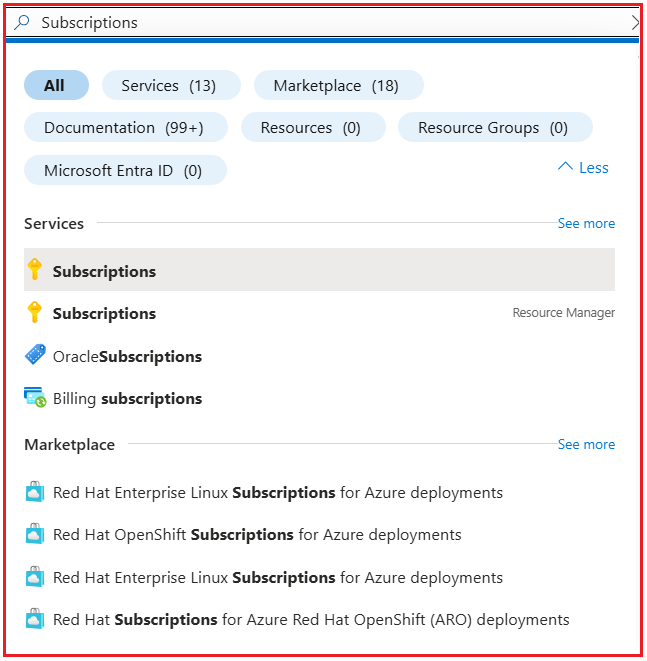
One important thing beginners should understand is that the Azure search box is a global search. That means it searches across many parts of Azure, not only the actual subscription list. So, when you search for Subscriptions, you may see results from:
- Services
- Documentation
- Marketplace
- Resources
- Billing-related areas
This is normal.
Step 3: Open the Correct Subscriptions Page
From the search results, open the Subscriptions option under the Services section. That is the page where Azure displays your actual subscription list. This is the page you should use to view your subscription details.
Step 4: View Your Subscription
Once you open the Subscriptions page, Azure will show the subscriptions available to your account in the current directory.
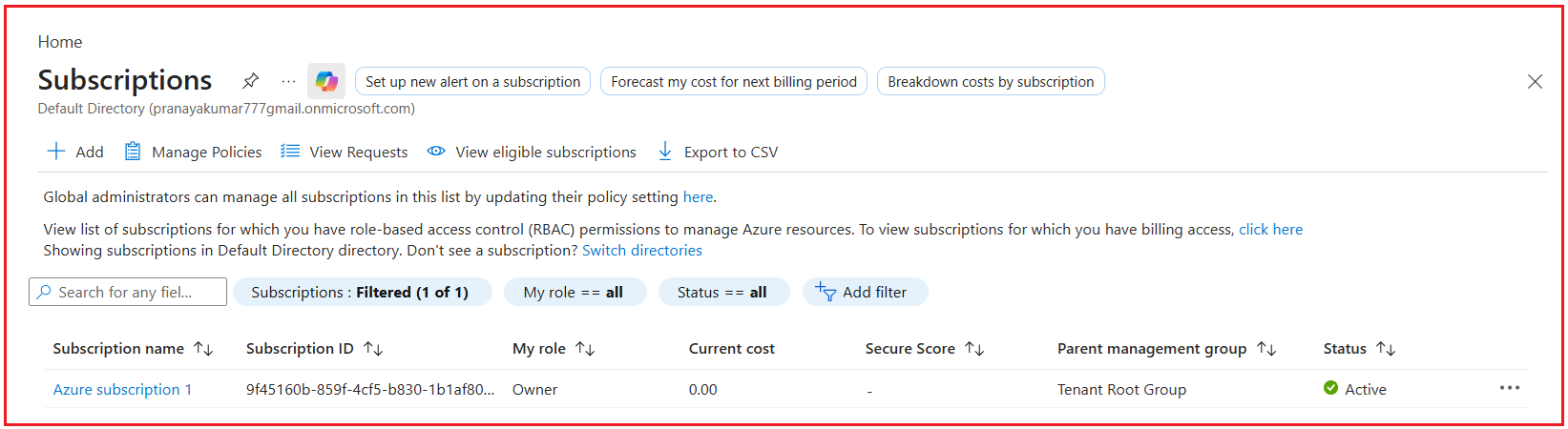
This page is important because it confirms that:
- Your subscription exists
- Your subscription is available in the current directory
- Your subscription status can be checked from here
If you see your subscription listed here, that means your Azure subscription is available and ready to be used.
Understanding the Subscriptions Page
When the Subscriptions page opens, you will see one or more subscription rows. This page contains important information about your subscription. Let us understand the main parts in a simple way.
Subscription Name
This is the name of your subscription. You can think of it as the name of your Azure workspace. Any resource you create will belong to this subscription.
Subscription ID
This is a unique technical identifier for the subscription. In simple words:
- The subscription name is easy for humans to read.
- The subscription ID is the system identity used by Azure.
You usually do not need to memorize it, but it is useful in scripts, tools, billing, and support cases.
My Role
This shows what level of access you have to the subscription. For example, if your role is Owner, it means you have full control over the subscription. You can:
- Create resources,
- Delete resources,
- Manage settings,
- Manage access for others.
For beginners, having the Owner role usually means you can freely practice and explore Azure.
Current Cost
This shows the current cost generated by that subscription. If it shows 0.00, it usually means:
- No billable resources have been created yet.
- You are still within free usage.
- Or no chargeable activity has happened.
This is completely normal for a new subscription.
Status
This is one of the most important fields. If the status is Active, it means:
- Your subscription is working properly.
- You can create Azure resources.
- Your Azure account is connected correctly.
This is exactly what you want to see.
Open the Subscription Details Page
When you click the subscription name, Azure opens the detailed page for that specific subscription. This page gives more information about the subscription, such as:
- Its current status,
- Your access role,
- Billing-related details,
- Usage information,
- And other settings.
In simple words, this is the main information page of your subscription.

Can We Have More Than One Subscription?
Yes, it is possible to have more than one Azure subscription. A person or company may use multiple subscriptions for different purposes, such as:
- One subscription for learning,
- One for testing,
- One for production,
- One for a separate project or department.
This helps keep work organized and separate.
For example, a company may not want testing resources and production resources in the same subscription. So, they use different subscriptions. But if you are a beginner, usually one subscription is enough to start learning Azure.
What Can You Do with an Azure Subscription?
Once you have an active Azure subscription, you can start using Azure services. With an Azure subscription, you can:
- Create resources such as Virtual Machines, App Services, Storage Accounts, and SQL Databases
- Manage resources from the Azure Portal
- Track usage and cost
- Control access for users
- Create budgets to manage spending
- Organize cloud resources properly
So, in simple terms, the subscription is where your actual Azure work happens.
Important Note
As a beginner, you do not need to worry too much about every small option shown on the Subscriptions page, such as filters, export options, management groups, or advanced policy settings. At this stage, the most important things to understand are:
- Your subscription exists,
- Its status is active,
- Your role is correct,
- And this is the place where Azure resources will be created.
Once this is clear, you are ready to move forward and start creating Azure resources.
Summary:
An Azure subscription is one of the most important parts of working in Microsoft Azure. It is the place where your resources are created, your usage is tracked, your billing is managed, and your access is controlled.
In simple words:
- Your Microsoft account helps you sign in
- Your Azure subscription helps you use Azure services
So, before creating any resource in Azure, first make sure you understand your subscription properly.
About the Author: Pranaya Rout
Pranaya Rout has published more than 3,000 articles in his 11-year career. Pranaya Rout has very good experience with Microsoft Technologies, Including C#, VB, ASP.NET MVC, ASP.NET Web API, EF, EF Core, ADO.NET, LINQ, SQL Server, MYSQL, Oracle, ASP.NET Core, Cloud Computing, Microservices, Design Patterns and still learning new technologies.
New to Microsoft Azure? This video explains Azure Account, Subscription, and Resource Group in a simple step-by-step manner, making it perfect for beginners. Watch the complete video here and build your Azure foundation properly: https://youtu.be/2buaMU4DS9k