
Back to: Microsoft Azure Tutorials
How to Create a Microsoft Azure Account
Creating an Azure account is the first step to using Microsoft Azure for learning, development, testing, hosting, storage, databases, AI services, and many other cloud-based solutions. Once your account is active, you can sign in to the Azure portal, create resources, and start using Azure services from one place.
In this chapter, you will learn:
- What Microsoft Azure is
- Why you need an Azure account
- Which type of Azure account is right for you
- How to create a Microsoft account
- How to create a regular Azure Free Account
- How to create an Azure for Students account
What Is Microsoft Azure?
Microsoft Azure is Microsoft’s cloud computing platform. It provides a large collection of cloud services that help individuals, students, developers, startups, and enterprises build, deploy, manage, and scale applications through Microsoft-managed datacenters.
Using Azure, you can:
- Host websites and web applications
- Create and manage virtual machines
- Store files, databases, and backups
- Deploy APIs and mobile backends
- Work with containers and Kubernetes
- Automate build and deployment using DevOps tools
- Use AI, analytics, and machine learning services
In simple words, Azure gives you the cloud infrastructure, platform services, and tools needed to build, run, and manage software without maintaining everything on your own local machine.
What Is an Azure Service?
An Azure service is a cloud-based feature or resource provided by Microsoft through Azure. Instead of buying and managing your own physical server, database server, storage system, or networking devices, you use these services over the internet.
Each service is designed for a specific purpose. Some help you host applications, some store data, some manage databases, and some help with networking, security, or automation.
For example:
- If you want to host a web application, you can use Azure App Service
- If you want a cloud server, you can use Azure Virtual Machines
- If you want cloud storage, you can use Azure Blob Storage
- If you want a managed relational database, you can use Azure SQL Database
- If you want to run containers, you can use Azure Container Apps or AKS
So, Azure services are the building blocks you use to create and run applications in the cloud.
Why Do We Need an Azure Account?
To use Azure services, you must first create an Azure account. That account gives you access to the Azure portal, where you can create subscriptions, manage resources, monitor usage, review billing, and control security settings.
An Azure account is useful for:
- Learning cloud computing
- Practicing Azure services
- Building and testing applications
- Hosting websites and APIs
- Working on personal or college projects
- Exploring AI, data, and DevOps tools
In simple words, your Azure account is your entry point to the Azure platform.
Types of Azure Accounts
Before creating an Azure account, it is important to understand that Microsoft provides different account options for different users. The right choice depends on whether you are a beginner, a student, or someone who wants to use Azure for real projects.
1. Azure Free Account
The Azure Free Account is the best option for most beginners. It is designed for new users who want to learn Azure, explore services, and practice with small projects.
This option is suitable for:
- Beginners
- New Azure users
- Developers who want to learn Azure
- Users who want to practice with demo projects
Important points:
- Includes free credit for a limited time
- Includes some free services
- Usually requires phone verification
- Usually requires card verification
- Good for learning and practice
- URL to create this account type: https://azure.microsoft.com/en-us/free/
2. Azure for Students
Azure for Students is designed for eligible students. It is a very good option for students who want to learn Azure, build academic projects, and practice cloud services.
This option is suitable for:
- College or university students
- Students working on academic projects
- Students learning cloud computing
- Students preparing for Azure certifications
Important points:
- Designed for eligible students
- Usually does not require a credit card
- Includes free credit
- Good for learning and student projects
- URL to create this account type: https://azure.microsoft.com/en-us/free/students/
3. Pay-As-You-Go Account
The Pay-As-You-Go account is meant for users who want to use Azure more seriously for real applications, client work, business solutions, or production environments.
This option is suitable for:
- Developers hosting real applications
- Startups and businesses
- Professionals working on production projects
- Users who want full Azure flexibility
Important points:
- You pay only for what you use
- Suitable for real-world workloads
- Gives broad access to Azure services
- Good for long-term or professional use
- URL to create this account type: https://azure.microsoft.com/en-us/pricing/purchase-options/azure-account/
Which Azure Account Should You Choose?
The best Azure account depends on your purpose.
- If you are just starting and want to learn Azure, the Azure Free Account is usually the best choice.
- If you are a student, the Azure for Students option is usually better because it is designed for learning and often does not require a credit card.
- If you want to host real applications or use Azure professionally, then Pay-As-You-Go is the most practical option.
In simple words:
- Choose the Azure Free Account for learning and practice.
- Choose Azure for Students if you are an eligible student.
- Choose Pay-As-You-Go for real-world and professional usage.
What Is a Microsoft Account?
A Microsoft account is your login account for Microsoft services. It is used to sign in to services such as Outlook, OneDrive, Microsoft 365, and Azure. When you create an Azure account, Microsoft first asks you to sign in with a Microsoft account. So, before you can use Azure, you must have a Microsoft account.
In simple words, just like you use a Google account for Gmail and YouTube, you use a Microsoft account for Azure and other Microsoft services. If you already use Outlook, Hotmail, or another Microsoft-registered email account, you may already have a Microsoft account.
Why Do You Need a Microsoft Account for Azure?
You need a Microsoft account because Azure uses it for:
- Sign-in
- Verification
- Account setup
- Subscription access
So, whether you want to create an Azure Free Account or an Azure for Students account, the first step is usually to sign in with your Microsoft account. So, before creating an Azure account, make sure you already have a Microsoft account. If not, create one first.
How to Create a Microsoft Account
If you do not already have a Microsoft account, you can create one easily.
Step 1: Open the Microsoft Sign-Up Page
Go to the Microsoft sign-up page (account.microsoft.com or https://signup.live.com/) and start the registration process.
Step 2: Enter Your Email Address
You can either:
- Use your existing email address, or
- Create a new Outlook email address
This means you do not always need a new email just to create a Microsoft account.
Step 3: Create a Strong Password
Choose a strong password that is easy for you to remember but difficult for others to guess.
A good password should include:
- Uppercase letters
- Lowercase letters
- Numbers
- Special characters
Avoid weak passwords such as your name, date of birth, or mobile number.
Step 4: Enter Your Basic Details
Microsoft may ask for:
- First name
- Last name
- Country or region
- Date of birth
Enter these details correctly.
Step 5: Complete Verification
Microsoft may ask you to complete a verification step, such as:
- Entering a code sent to your email, or
- Solving a captcha
After completing this step, your Microsoft account is created.
Step 6: Sign In
Now you can use this Microsoft account to sign in to Azure.
Prerequisites for Creating a Regular Azure Free Account
Before creating a regular Azure Free Account, keep these things ready:
- A Microsoft account
- A mobile number for verification
- A valid debit or credit card for identity verification
- Correct personal and billing details
Keeping these ready will make the signup process easier and help avoid verification problems.
How to Create a Regular Azure Free Account
Creating a regular Azure Free Account is straightforward if you follow the steps carefully.
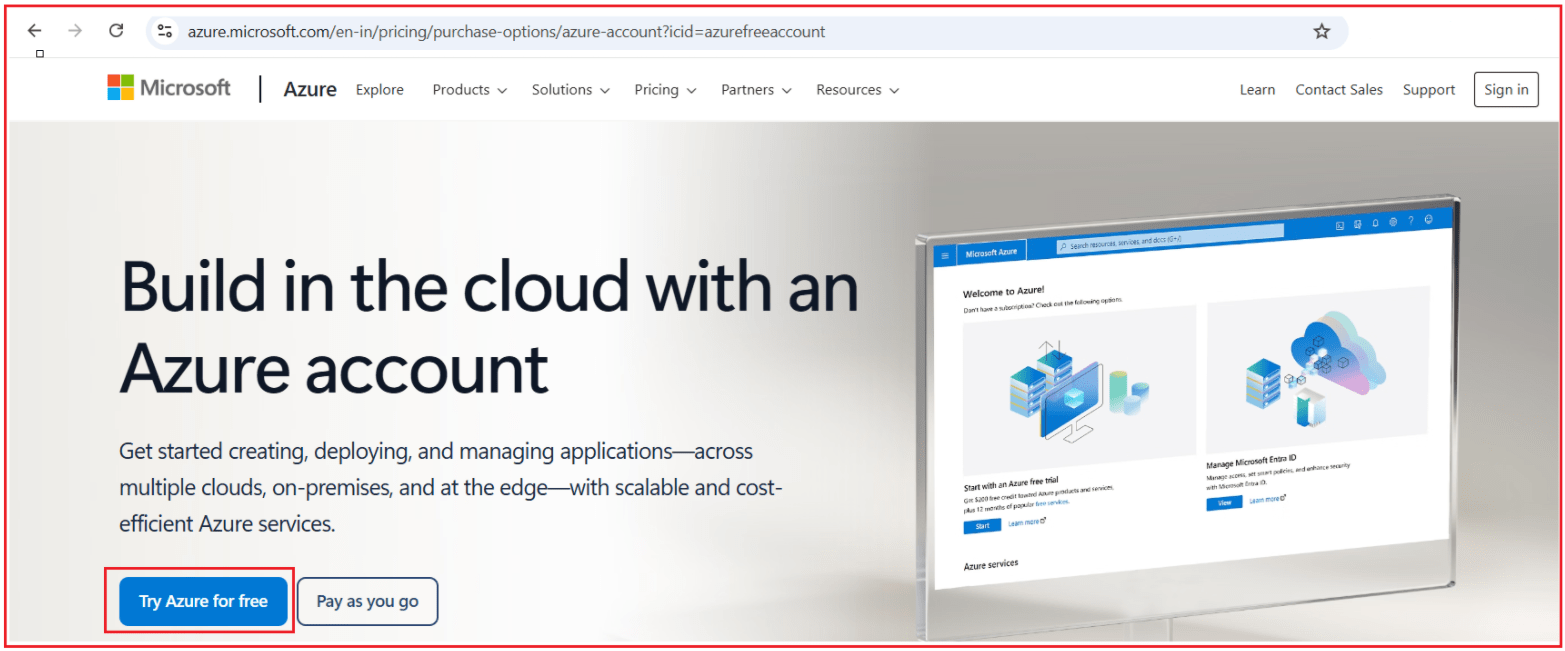
Step 1: Open the Azure Free Account Page
Open the official Azure Free Account page (https://azure.microsoft.com/en-in/free/) and choose the free account option.
Step 2: Sign In with Your Microsoft Account
Sign in using your Microsoft account. If you do not have one, create it first and then continue.
Step 3: Start the Registration Process
Once you sign in, Azure starts the registration process. Usually, this includes:
- Profile details
- Address details
- Phone verification
- Card verification
- Agreement acceptance
Step 4: Enter Profile and Address Information
Azure may ask for:
- Country or region
- First name
- Last name
- Email address
- Phone number
- Address details
Always enter correct and real information.
Step 5: Verify Your Mobile Number
Azure may send a verification code to your mobile number. Enter the code correctly to continue.
Step 6: Complete Card Verification
For a regular Azure Free Account, Microsoft may ask for card verification. Usually, you need to enter:
- Cardholder name
- Card number
- Expiry date
- CVV
- Billing address
This is generally used for identity verification and billing setup.
Step 7: Accept the Agreement
Read the terms and accept the agreement to continue.
Step 8: Wait for Account Setup
After submission, Azure takes a short time to complete the account setup. Once the process finishes successfully, your Azure account becomes active.
Step 9: Sign In to the Azure Portal
After your account is ready, sign in to the Azure Portal (https://portal.azure.com/auth/login/) using the same Microsoft account.
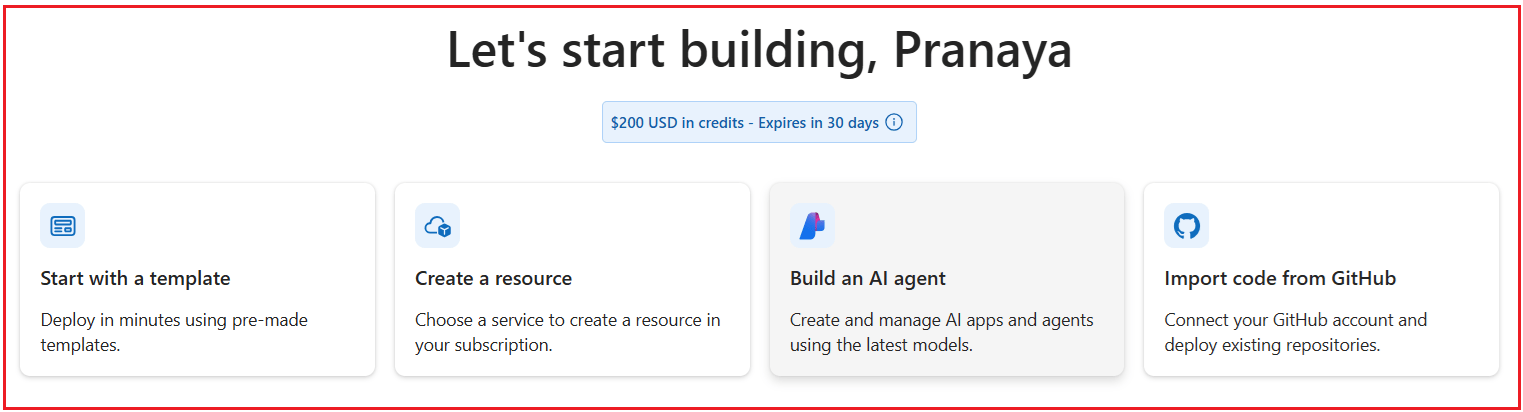
The Azure Portal is the place where you will:
- Create resources
- Manage services
- Monitor usage
- Review billing
- Configure settings
In simple words, the Azure portal is where you will do your actual work after the account is created.
How to Create an Azure for Students Account
If you are a student, Azure for Students is usually the best option to start with. It is designed for eligible students who want to learn Azure, practice cloud concepts, and build academic projects. One of its biggest advantages is that students can usually start without using a credit card.
Step 1: Open the Azure for Students Page
Go to the official Azure for Students page (https://azure.microsoft.com/en-us/free/students/) and choose the option to start free.

Step 2: Sign In with Your Microsoft Account
Sign in using your Microsoft account. If you do not already have one, create it first.
Step 3: Use Your School Email
During signup, you may need to provide your school or college email address. This helps Microsoft verify that you are a student.
Step 4: Complete the Verification Process
Follow the on-screen instructions carefully. Microsoft may verify your student eligibility using your academic email or student-related details.
Step 5: Finish the Signup
Once verification is completed successfully, your Azure for Students account is created. After that, you can sign in to the Azure portal and start using Azure for learning and academic projects.
Important Note for Beginners
While creating an Azure account, always remember these points:
- Use your real name and correct details
- Use an active mobile number and email address
- Do not create multiple unnecessary accounts
- Understand whether you are choosing Free, Student, or Pay-As-You-Go
- Read the verification and agreement steps carefully
This helps avoid confusion and account issues later.
Summary
Creating an Azure account is the first practical step toward learning and using Microsoft Azure. Before starting, make sure you understand the available account options and choose the one that matches your situation.
First, create a Microsoft account if you do not already have one. Then choose the Azure account type that best fits your needs, such as Azure Free Account, Azure for Students, or Pay-As-You-Go. After your account is created, you can sign in to the Azure Portal and start exploring Azure services. In simple words, once your Azure account is ready, you are ready to begin your cloud journey.
About the Author: Pranaya Rout
Pranaya Rout has published more than 3,000 articles in his 11-year career. Pranaya Rout has very good experience with Microsoft Technologies, Including C#, VB, ASP.NET MVC, ASP.NET Web API, EF, EF Core, ADO.NET, LINQ, SQL Server, MYSQL, Oracle, ASP.NET Core, Cloud Computing, Microservices, Design Patterns and still learning new technologies.
If you are starting your Azure journey, this video will help you clearly understand the most important basic concepts, such as Azure Account, Subscription, and Resource Group, in a simple, beginner-friendly way.
Watch the full video here: https://youtu.be/2buaMU4DS9k