
Back to: Microsoft Azure Tutorials
Working with Basic Docker Commands and Container Lifecycle
In the previous chapter, we built a strong foundation by understanding what Docker is, why it is needed, and how containers and images work. Now, in this chapter, we will take a step forward and start working hands-on with Docker commands so that you become comfortable using Docker in real-world scenarios.
Why Understanding Basic Docker Commands Is Important
Many beginners make one common mistake. They jump straight to writing a Dockerfile and try to containerize their application without first understanding the basics of Docker commands. As a result, when something goes wrong, they do not know whether the issue is with the image, the container, the port mapping, or the application itself.
That is why Understanding Basic Docker commands is important. It helps us build confidence with Docker step by step. Once you understand the commands in this chapter, working with ASP.NET Core containers in the next chapter will become much easier.
Think of it like learning to drive a car. Before going on a long highway trip, you first learn:
- How to start the car
- How to stop the car
- How to move forward
- How to park properly
- How to check the dashboard
In the same way, before deploying real applications with Docker, we must first learn:
- How to pull images
- How to run containers
- How to check running containers
- How to stop and restart containers
- How to view logs
- How to remove unused resources
What Is Docker Hub?
Before working with Docker commands, we must clearly understand Docker Hub. Docker Hub is an online repository (registry) where Docker images are stored and shared. When Docker needs an image that is not available on your local machine, it can download that image from Docker Hub.
Docker Hub can contain:
- Official images (Maintained by Docker)
- Public images (Shared by developers)
- Private images (For organizations)
We already saw the hello-world image in the previous chapter. That image came from Docker Hub. So, Docker Hub is like an online store or library for Docker images.
Real-Life Analogy
Think of Docker Hub like a book library.
- Your local machine = Your home bookshelf
- Docker Hub = Public library
- Docker image = Book
If a book is already in your home, you use it directly. If it is not there, you go to the library and get it. Docker works in the same way. It first checks your local machine. If the image is missing, it downloads it from Docker Hub.
Can We See All Available Images on Docker Hub?
Yes, Docker Hub is Docker’s public registry service where users can store, share, and manage container images. It hosts Official Docker Images, Verified Publisher Images, and community Images. The following are official Docker Hub pages.
- The main Docker Hub URL is: https://hub.docker.com/
- The search page is: https://hub.docker.com/search
- Docker Official Images can be browsed here: https://hub.docker.com/u/library
How to verify an image exists
- Open Docker Hub
- Search for the image name, such as nginx, redis, or mysql
Opening the Terminal
To work with Docker commands, we need to use a terminal. On Windows, we can use any of the following:
- PowerShell
- Command Prompt
- Windows Terminal
How to open PowerShell:
- Press the Windows key
- Type PowerShell
- Click Windows PowerShell
Once the terminal opens, we can start running Docker commands.
Understanding the docker –version Command
The first command you should know is:
- docker –version
This command checks whether Docker is installed and whether the Docker command-line tool is available on your machine. If Docker is installed correctly, it will display the installed version.
Why Is It Useful?
This command is useful when:
- You want to verify Docker installation
- You want to confirm the Docker command is available in the terminal
- You want to check the installed version
This means Docker is installed correctly, and your terminal can recognize Docker.
Pulling an Image from Docker Hub
The docker pull command downloads an image from Docker Hub to your local machine. This command does not create or start a container. It only downloads the image:
- Syntax: docker pull <image-name>
- Example: docker pull nginx
This command tells Docker: Download the nginx image from Docker Hub and store it on my local machine. After the image is downloaded, it becomes available locally. Then you can create containers from it whenever you want.
Why Is It Useful?
Sometimes you want to download an image first and run it later. In such cases, docker pull is useful because it separates downloading from running.
For example:
- First, download the image
- Then, verify it exists locally
- Then, run a container from it later
This gives you better clarity, especially when learning Docker.
Real-Life Analogy
Think of docker pull like downloading a movie from the internet onto your laptop. Once downloaded, the movie is stored locally. Later, you can play it whenever you want.
So:
- docker pull = Download the image
- docker run = Create and start a container using that image
Checking Images on Local Machine
Once you start pulling images, you need a way to see which images are available on your machine. For that, Docker provides:
- docker images
This command shows all Docker images currently stored on your machine.
What Does It Mean?
It tells us which images are available on our machine and ready to use to create containers. This command helps us answer questions like:
- Which images are already downloaded?
- What versions or tags are available?
- Which image ID belongs to which image?
Real-Life Analogy
Think of docker images like opening your kitchen shelf and checking which ingredients are available at home. If the ingredients are already present, you can start cooking immediately.
Running the First Real Docker Container
Now, let us learn one of the most important Docker commands. The most common command for creating and starting a container is:
- docker run <image-name>
For example:
- docker run hello-world
This command tells Docker to take the specified image, create a container from it, and start it.
What happens internally when we run this command?
- Docker checks whether the image exists locally
- If not, Docker downloads it from Docker Hub
- Docker creates a container from the image
- Docker starts the container
- Docker shows the output in the terminal
Real-Life Analogy
Think of an image as a cake recipe, and a container as the actual cake made from that recipe.
- Image = Recipe
- Container = Prepared Cake
You do not eat the recipe. You use it to create the actual cake. Similarly, Docker uses an image to create a running container.
Running a Container in Detached Mode
Sometimes you do not want the terminal to remain busy with container output. In such cases, you can run the container in detached mode using -d.
- Example: docker run -d hello-world
Here:
- -d means detached mode
- Docker starts the container in the background
After running this, your terminal prompt comes back immediately, and the container continues to run in the background.
Why Is Detached Mode Useful?
Detached mode is helpful for:
- Web servers
- Databases
- APIs
- Background services
These containers are meant to keep running while you continue working in the terminal.
Running a Long-Running Container
The hello-world container exists immediately because its only job is to display a message and stop. Now, let us run something that stays active:
- docker run nginx
The nginx image runs a web server, so its container usually keeps running until we stop it manually. If you want to run it in detached mode, you can use:
- docker run -d nginx
Here:
- -d means detached mode
- Detached mode runs the container in the background
This is useful for web servers, APIs, and databases that need to keep running continuously.
Difference Between docker pull and docker run
docker pull
- docker pull only downloads the image. It does not create or start a container.
- Example: docker pull nginx
- Meaning: Download only the nginx image.
docker run
This command can do more:
- If the image is not present, it downloads it
- Then it creates a container
- Then it starts the container
Example: docker run nginx
Meaning: Get the image if needed, create a container, and start it.
So:
- docker pull = only bring the package
- docker run = use the package to create and start a working container
Understanding Running and Stopped Containers
After creating containers, the next important step is to see which containers are running. Docker provides:
- docker ps
This command shows only containers that are currently running. Typical columns may include:
- CONTAINER ID
- IMAGE
- COMMAND
- CREATED
- STATUS
- PORTS
- NAMES
This command is useful when you want to check whether your container is active.
What If the Container Has Stopped?
Then it will not appear in docker ps. To see all containers, including stopped ones, use:
- docker ps -a
This command is very important for beginners because many times they run a container, it exits, and then they think it disappeared. Actually, the container still exists; it is just not currently running.
Real-Life Analogy
Think of:
- docker ps = Think of a classroom attendance sheet for students who are present right now. docker ps shows only currently active containers.
- docker ps -a = Imagine a student finishes an exam and leaves the room peacefully. The student is no longer inside the classroom, but the school still has the record. Similarly, a stopped container is no longer running, but Docker still keeps its record/
Port Mapping Basics
Now, let us understand a very important beginner concept: port mapping. When we run web-based containers like nginx, we often need to access them from the browser. For that, we use port mapping.
Example: docker run -d -p 8081:80 nginx
Let us understand this carefully:
- -d runs the container in the background
- -p is used for port mapping
- 8081:80 means:
-
- 8081 is the port on your local machine
- 80 is the port inside the container
-
So, if the containerized application listens on port 80, we can access it from our machine using port 8081. Now, if you open the browser and visit:
- http://localhost:8081
You should see the default Nginx page.
Real-Life Analogy:
Suppose a person lives inside apartment number 80 in a building, but visitors are told to enter through gate number 8081. The gate number is like the host port, and the apartment number is like the container port. Docker uses port mapping to connect the outside world to the service running inside the container.
Note: We will discuss Port Mapping in detail in our coming chapters when we use Docker with our ASP.NET Core Web API application.
Naming a Container
When Docker creates a container, it automatically gives it a random name if you do not specify one.
For example:
- happy_einstein
- admiring_tesla
These auto-generated names are fine, but for learning and management, it is better to assign a clear name.
Example: docker run -d –name mynginx -p 8082:8083 nginx
Here:
- –name mynginx gives the container a custom name
Now you can refer to the container as mynginx instead of using a long container ID.
Stopping a Running Container
If a container is running and you want to stop it, use:
- docker stop <container-id-or-name>
For example: docker stop mynginx
It tells Docker to stop a running container properly.
Real-Life Analogy:
Think of this like switching off a computer properly, using the shutdown option instead of directly pulling out the power cable. The computer exists, but its movement stops.
Starting a Stopped Container Again
After stopping a container, you do not always need to create a new one. You can restart the same stopped container using:
- docker start <container-id-or-name>
Example: docker start mynginx
This command restarts an existing stopped container. It does not create a new one.
Real-Life Analogy:
Suppose your computer is shut down. You do not buy a new computer every time. You simply turn on the same one again. That is what docker start does for stopped containers.
Important Point
docker start does not create a new container. It only starts an already-stopped container.
That is why:
- docker run = create + start
- docker start = start existing stopped container only
Restarting a Container
If you want to stop and start a container in one step, Docker provides:
- docker restart <container-id-or-name>
Example: docker restart mynginx
This is useful when:
- Configuration changed
- The application became unresponsive
- You simply want a quick restart
Viewing Container Logs
When a container is running, you often want to know:
- Did it start correctly?
- Did the application throw any errors?
- What output is it producing?
For that, Docker provides:
- docker logs <container-id-or-name>
Example: docker logs mynginx
This shows the log output produced by the container.
Why is it useful?
Logs are very useful for troubleshooting. For example:
- If an ASP.NET Core app fails to start
- If the application crashes
- If a web server reports configuration issues
In all such cases, logs help us understand what happened inside the container.
Removing a Container
After a container is no longer needed, you can remove it using:
- docker rm <container-id-or-name>
Example: docker rm mynginx
Important Rule
A running container usually cannot be removed directly. You must stop it first. So, the usual flow is:
- Stop the container
- Remove the container
Example:
- docker stop mynginx
- docker rm mynginx
Why Remove Containers?
Removing unused containers helps:
- Keep Docker clean
- Avoid confusion
- Free up local resources
Removing an Image
After working with images, you may also want to remove images you no longer need. For that, use:
- docker rmi <image-name-or-id>
Example: docker rmi nginx
This removes the image from your local machine.
Important Note: If a container is still using that image, Docker may not allow the image to be removed until the related container is removed.
Removing All Unused Containers and Images
Docker also provides cleanup commands. The following commands are useful for keeping your Docker environment clean by removing all stopped containers and unused images.
- docker container prune
- docker image prune
Here,
- docker container prune removes all stopped containers.
- docker image prune removes all unused images.
Understanding the Docker Container Lifecycle
Now, let us understand one of the most important Docker concepts for beginners: the container lifecycle. A Docker container does not remain in a single state forever. From the moment it is created until it is deleted, it passes through different stages. This complete journey of a container is called the Docker Container Lifecycle.
In simple words, the container lifecycle explains:
- How a container comes into existence
- How does it start running
- How it stops
- How can it be started again
- And how it is finally removed
In simple terms, a container is created, starts working, may stop, may restart, and can finally be removed when it is no longer needed.
The common lifecycle stages are:
- Image Available
- Container Created
- Container Running
- Container Stopped / Exited
- Container Started Again (if needed)
- Container Removed
Let us understand each stage one by one in a simple way.
1. Image Available
Before a container can be created, we must first have a Docker image. A container is always created from an image. If the image is already present on our local machine, Docker uses it directly. If it is not present, Docker can download it from Docker Hub.
For example:
- docker pull nginx
This command downloads the nginx image from Docker Hub to our local machine. So, the image is the starting point of the container lifecycle.
2. Container Created
Once the image is available, Docker can create a container from it. A container is simply a running or ready-to-run instance of an image. When we run a command like:
- docker run nginx
Docker performs multiple actions:
- It checks whether the image is available locally
- If needed, it downloads the image
- It creates a new container from that image
- It starts the container
So, the container lifecycle begins when Docker creates the container from the image.
3. Container Running
After creation, the container enters the running state if its main application or process is active. For example, if we run an Nginx container, the Nginx web server starts inside the container, and as long as that process is running, the container remains in the running state. We can see running containers using:
- docker ps
This command shows only the containers that are currently active.
4. Container Stopped / Exited
A container does not always keep running forever. It moves to the stopped or exited state when:
- Its main application finishes its work, or
- We stop it manually using Docker
For example:
- docker stop <container-id>
Once a container is stopped, it no longer runs, but Docker still keeps its record in the system. We can see both running and stopped containers using:
- docker ps -a
This is useful because even though the container is not active, it still exists and can be restarted later.
5. Container Started Again
If a container is stopped, we do not always need to create a new one. We can restart the stopped container. For example:
- docker start <container-id>
This moves the container from the stopped state back to the running state. This is important because:
- docker run creates a new container
- docker start starts an existing stopped container
So, restarting or starting again is also an important part of the container lifecycle.
6. Container Removed
When a container is no longer needed, we can remove it completely from the system. For example:
- docker rm <container-id>
After removal:
- The container no longer exists
- It will not appear in docker ps -a
- If we need it again, we must create a new container from the image
So, removal is the final stage of the container lifecycle.
Simple Way to Understand the Lifecycle
We can represent the Docker container lifecycle like this:
- Image Available → Container Created → Container Running → Container Stopped → Container Started Again or Removed
Practical Example of Full Container Lifecycle
Let us walk through a simple Nginx example from start to finish. First, open Docker Desktop and ensure the Docker engine is running.
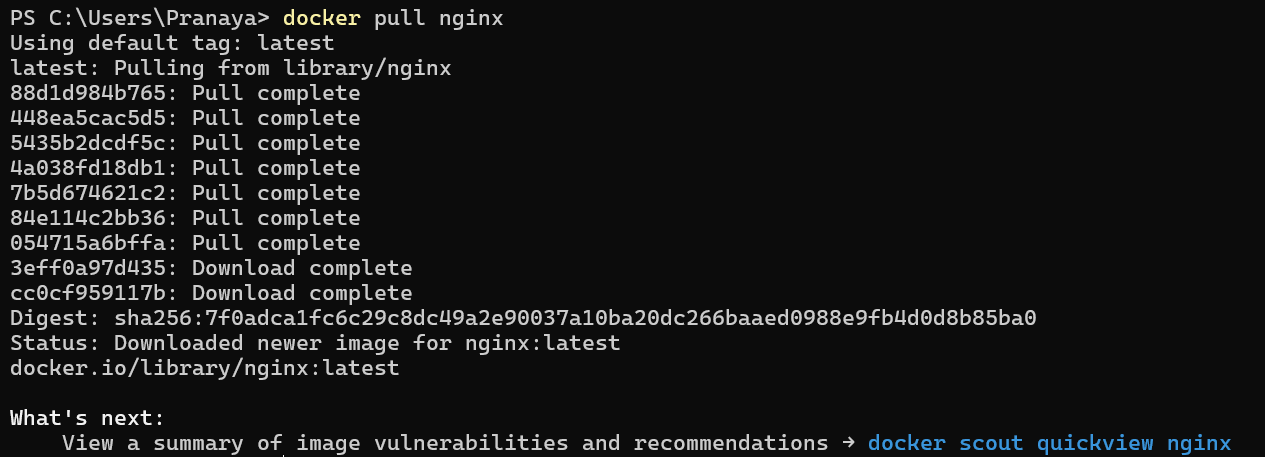
Step 1: Pull the Image
docker pull nginx
This downloads the Nginx image.
Step 2: Check the Image
docker images
Now you should see nginx in the list.

Step 3: Run the Container
docker run -d –name mynginx -p 8081:80 nginx
This creates and starts a container named mynginx. If the Port number is already in use, use a different port number.

Step 4: Check Running Containers
docker ps
You should see mynginx running.
Step 5: Open in Browser
Open:
http://localhost:8081
If everything is working, you should see the Nginx welcome page.
Step 6: Check Logs
docker logs mynginx
This displays output from the container.
Step 7: Stop the Container
docker stop mynginx
Now the container stops.
Step 8: Check All Containers
docker ps -a
You should see mynginx with status stopped or exited.
Step 9: Start It Again
docker start mynginx
Now the same container starts again.
Step 10: Remove the Container
- docker stop mynginx
- docker rm mynginx
Now the container is deleted.
Step 11: Optionally Remove the Image
docker rmi nginx
Now the image is also removed if no container depends on it.
Conclusion
In this chapter, we learned how to work with Docker practically using basic commands and understood how containers behave during their lifecycle. This knowledge is essential before moving to real-world containerization of ASP.NET Core applications.
By now, you should feel comfortable:
- Running containers
- Managing images
- Handling lifecycle
- Using essential Docker commands
This understanding will help you in the next chapter, where we will containerize an ASP.NET Core Web API step by step.
About the Author: Pranaya Rout
Pranaya Rout has published more than 3,000 articles in his 11-year career. Pranaya Rout has very good experience with Microsoft Technologies, Including C#, VB, ASP.NET MVC, ASP.NET Web API, EF, EF Core, ADO.NET, LINQ, SQL Server, MYSQL, Oracle, ASP.NET Core, Cloud Computing, Microservices, Design Patterns and still learning new technologies.
Want to learn how to containerize an ASP.NET Core Web API using Docker in a simple, step-by-step way?
We’ve created a complete video tutorial covering everything from Docker basics to building and running your Web API inside a container. This will help you understand real-world deployment and make your applications more consistent across environments.
👉 Watch the full video here: https://youtu.be/wd3TO_HV2sI
If you have any questions, feel free to ask in the video comments—we’ll be happy to help 👍