
Back to: Angular Tutorials For Beginners and Professionals
Route Guards in Angular with Real-time Examples
Route Guards in Angular help you control navigation between pages. They decide whether a user can enter or leave a route, access child routes, or even match a route based on rules such as login status, roles, and unsaved changes.
Why Do We Need Route Guards in Angular?
In real-world Angular applications, routing is not just about navigation; it is also about control, safety, and user experience. If routing were blindly allowed, every user would be able to access every route, making applications insecure, confusing, and unreliable.
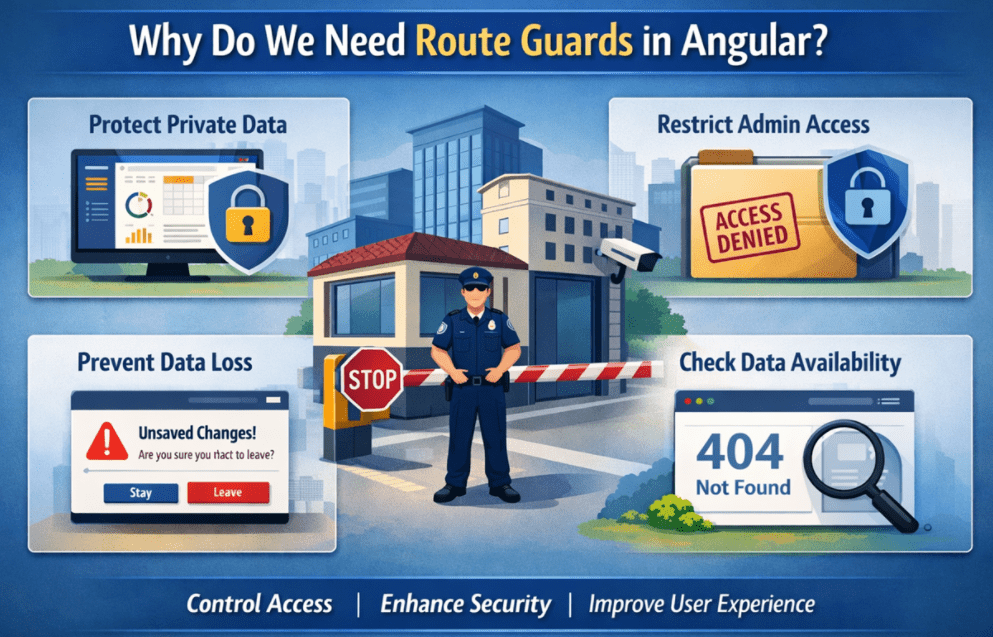
Think of an Angular application as a building with multiple rooms. Routing tells Angular which room to open. But route guards decide whether the person is allowed to enter that room at all. In Real-time application scenarios:
- A dashboard usually contains Private Data, so it should not be visible unless the user is authenticated.
- Administrative pages often expose Critical Controls, which should be accessible only to users with the right roles or permissions.
- Forms that allow editing of important information should Protect Users from Accidental Data Loss by warning them before they navigate away.
- Some pages depend on Data Availability. If a product or record does not exist, opening the page makes no sense.
Without route guards:
- Unauthorized users may briefly see protected pages.
- Applications may load unnecessary modules or data.
- Navigation rules get scattered across multiple components, making the app hard to maintain.
Route Guards centralize navigation rules. Route Guards act like security checkpoints for navigation. They decide whether Angular should allow, block, or redirect navigation.
What Is a Route Guard in Angular?
A Route Guard is a decision-making mechanism in Angular’s Routing System. It runs before navigation is completed, giving Angular a chance to evaluate whether the requested route should be activated, delayed, redirected, or cancelled.
Conceptually, a Route Guard answers a simple question: Should this navigation be allowed to continue? However, the logic behind this question can be as simple or as complex as the application requires.
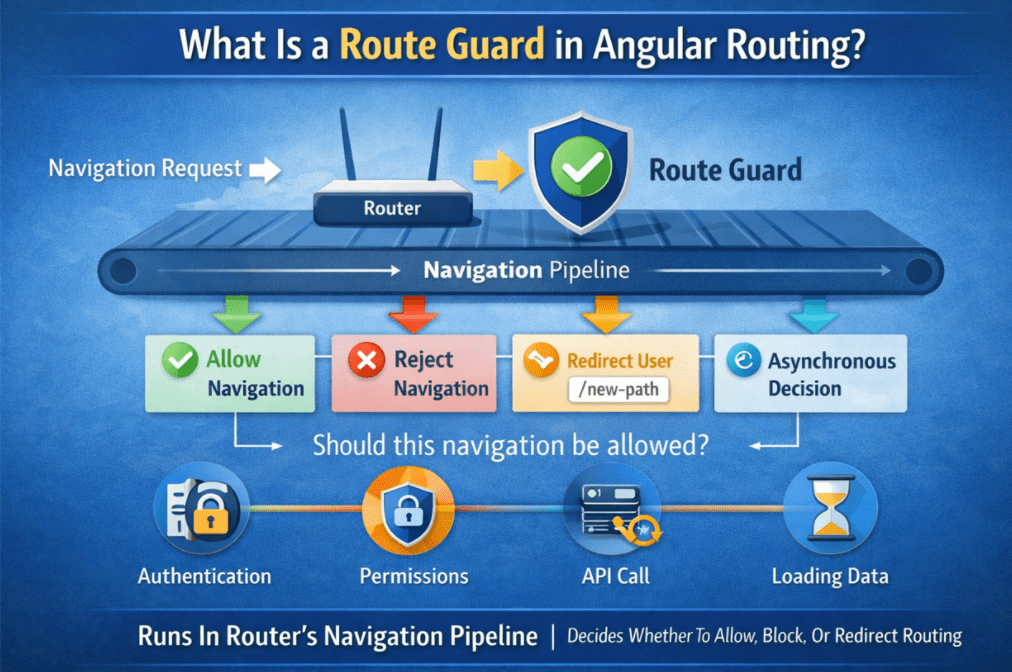
A guard can return:
- true to explicitly allow navigation.
- false to block navigation completely.
- A UrlTree to redirect the user to another route.
- An Observable or Promise when the decision depends on Asynchronous Operations, such as API calls or Permission Checks.
This flexibility allows guards to work with real-world scenarios where decisions cannot always be made instantly. For example, checking authentication status, validating server permissions, or loading required data may take time.
So, Guards are not UI Elements. They are Router-Level Decision Gates. They run as part of the router’s navigation pipeline, and the router waits for them to finish (including async ones) before finalizing navigation.
Types of Route Guards in Angular
Angular provides three different types of Route Guards, each designed to solve a specific navigation-related problem. Together, they give developers complete control over the routing lifecycle.
CanActivate
CanActivate determines whether a route can be opened at all. It is the most commonly used guard and is typically applied to individual routes. This guard is ideal when page access depends on Authentication, Authorization, or Business Rules. For example, a user must be logged in to access a dashboard, or a subscription must be active to view premium content.
Typical Scenarios Include:
- Ensuring the user is logged in
- Verifying user roles (Admin, Manager, User)
- Checking subscription or account status
- Blocking access during maintenance or system downtime
Conceptually, CanActivate serves as the First Gate before a route is entered. If the condition fails, the route is never activated.
CanDeactivate
CanDeactivate determines whether the user can leave a route. Unlike other guards, it focuses on exiting a page rather than entering it. This guard is especially valuable for protecting unsaved work. If a user has made changes that are not yet saved, CanDeactivate can pause navigation and request confirmation before allowing the route change.
Typical Scenarios Include:
- Warning users about unsaved form data
- Confirming navigation away from draft editors
- Preventing accidental loss of work
Conceptually, it acts as a safety net, ensuring that navigation does not accidentally cause data loss or interrupt critical user actions. So, this guard plays a major role in user experience and data protection.
CanActivateChild
CanActivateChild works similarly to CanActivate, but it controls access to child routes under a parent route. It is useful when multiple related routes under a parent route share the same access rules. For example, all pages under an /admin section may require admin privileges. Instead of repeating the same logic for every child route, CanActivateChild allows us to define the rule once and enforce it consistently across all the child routes.
Typical Scenarios Include:
- Securing all /admin/* routes with one rule
- Applying consistent permission checks across multiple child pages
- Avoiding repetitive guard configuration
Conceptually, this guard promotes cleaner routing configurations and centralized access control. This also improves both maintainability and consistency.
Real-time Example to Understand Angular Guards
Now, we will develop an application to understand two Angular Guards. They are as follows:
- CanActivate: If the user is Not Logged In, they cannot open the Profile page (even by typing the URL in the address bar).
- CanDeactivate: After login, the user can edit profile data, but if they have unsaved changes, Angular should warn/block navigation to prevent accidental data loss.
Let us develop the application step by step.
Step 1: Create a new Angular App
- ng new GuardDemo
- cd GuardDemo
- ng serve
Step 2: Decide the App Pages
We will create the following pages:
- / → Home Page
- /login → Login Page
- /profile → Profile Page (Protected by CanActivate)
- /profile/edit → Edit Profile Page (Protected by CanActivate + CanDeactivate)
Step 3: Create Folders
Create folders:
- src/app/models
- src/app/services
- src/app/guards
Step 4: Create Components
Create four components:
- ng generate component pages/home
- ng generate component pages/login
- ng generate component pages/profile
- ng generate component pages/edit-profile
Step 5: Add Bootstrap CDN
Open, src/index.html and copy-paste the following code. This is the main host page that loads our Angular app in the browser. Here, we also need to add the Bootstrap CDN links, so all pages/components can use Bootstrap styling without installing anything locally.
<!doctype html>
<html lang="en">
<head>
  <meta charset="utf-8">
  <title>GuardDemo</title>
  <base href="/">
  <meta name="viewport" content="width=device-width, initial-scale=1">
  <link rel="icon" type="image/x-icon" href="favicon.ico">
  <!-- Bootstrap CSS (CDN) -->
  <link href="https://cdn.jsdelivr.net/npm/bootstrap@5.3.3/dist/css/bootstrap.min.css" rel="stylesheet" />
</head>
<body>
  <app-root></app-root>

   <!-- Bootstrap JS Bundle (CDN) -->
  <script src="https://cdn.jsdelivr.net/npm/bootstrap@5.3.3/dist/js/bootstrap.bundle.min.js"></script>
</body>
</html>
Step 6: Create Models
Create a TypeScript file named app.models.ts within the src/app/models folder, and copy-paste the following code. This file defines the TypeScript types/models used throughout the application, such as login request/response shapes and user/profile structures. It keeps your app consistent and strongly typed by ensuring that components and services all follow the same data contracts.
// Roles supported by the demo app
// Used for authorization checks (later) and UI display
export type UserRole = 'admin' | 'user';

// Login request coming from Login UI (email + password)
export type LoginRequest = {
  email: string;
  password: string;
};

// Minimal authenticated identity stored after login
// - used by guards and navbar
// - does NOT include password or profile fields
export type AuthUser = {
  id: number;
  fullName: string;
  email: string;
  role: UserRole;
};

// Response returned after attempting login
// - UI shows message
// - user is returned only on success
export type LoginResponse = {
  isSuccess: boolean;
  message: string;
  user?: AuthUser;
};

// Profile data used by Profile & Edit Profile pages
// Kept separate from AuthUser to show good separation:
// AuthUser = login identity, UserProfile = editable user info
export type UserProfile = {
  userId: number;
  fullName: string;
  phone: string;
  city: string;
  bio: string;
};

// This simulates a single Users table that stores both:
// - login fields (email/password/role)
// - profile fields (fullName/phone/city/bio)
//
// NOTE: Password is stored only for demo login validation.
// Real apps never store or handle plain passwords on frontend.
export type UserRecord = {
  id: number;
  email: string;
  password: string;
  role: UserRole;

  // Profile fields
  fullName: string;
  phone: string;
  city: string;
  bio: string;
};
Step 7: Create Mock Data Service (Dummy Data)
Create a TypeScript file named mock-db.service.ts within the src/app/services folder, and copy-paste the following code. This file defines the TypeScript types/models used throughout the application, such as login request/response shapes and user/profile structures. It keeps your app consistent and strongly typed by ensuring that components and services all follow the same data contracts.
import { Injectable } from '@angular/core';
import { UserRecord } from '../models/app.models';

@Injectable({
  // Singleton service (one shared instance across the whole app).
  // Any service/component can inject this and read/update the same in-memory data.
  providedIn: 'root'
})
export class MockDbService {

  // Single in-memory data source for the application.
  // Think of this as a single "Users" table in a database that stores:
  // - Login/Auth fields: email, password, role
  // - Profile fields: fullName, phone, city, bio
  private readonly users: UserRecord[] = [
    {
      id: 1,
      email: 'amit@example.com',
      password: 'Amit@123',
      role: 'user',
      fullName: 'Amit Kumar',
      phone: '9876543210',
      city: 'Bhubaneswar',
      bio: 'Learning Angular step-by-step and building real projects.'
    },
    {
      id: 2,
      email: 'priya@example.com',
      password: 'Priya@123',
      role: 'admin',
      fullName: 'Priya Sharma',
      phone: '9123456780',
      city: 'Cuttack',
      bio: 'Admin user. Interested in dashboards and analytics.'
    }
  ];

  // Find a user record by email.
  // Used mainly by AuthService during login:
  // - user enters email + password
  // - AuthService calls this method to locate the user record
  // - then compares the password (demo)
  //
  // Returns:
  // - UserRecord if found
  // - null if not found
  getUserByEmail(email: string): UserRecord | null {
    // Make the email comparison case-insensitive for better UX
    return this.users.find(u => u.email.toLowerCase() === email.toLowerCase()) ?? null;
  }

  // Find a user record by id.
  // Used mainly by ProfileService:
  // - Profile page needs to load profile using logged-in user id
  // - Edit page needs to fetch/update profile for that user id
  //
  // Returns:
  // - UserRecord if found
  // - null if not found
  getUserById(id: number): UserRecord | null {
    return this.users.find(u => u.id === id) ?? null;
  }

  // Update an existing user record.
  // Used mainly by ProfileService when user clicks "Save" on Edit Profile page.
  //
  // Why we return boolean:
  // - true  => update succeeded
  // - false => user record not found (nothing updated)
  updateUser(updated: UserRecord): boolean {
    // Find the index of the existing record
    const index = this.users.findIndex(u => u.id === updated.id);

    // If no record exists for the id, update cannot happen
    if (index === -1) return false;

    // Replace the old record with the updated one (store a copy)
    this.users[index] = { ...updated };

    return true;
  }
}
Step 8: Create AuthService
Create a TypeScript file named auth.service.ts within the src/app/services folder, and copy-paste the following code. This service manages the app’s login state (who is logged in) and provides methods like login() and logout(). Route guards and the UI (navbar/pages) depend on it to determine whether navigation should be allowed and what user information to display.
import { Injectable } from '@angular/core';
import { AuthUser, LoginRequest, LoginResponse } from '../models/app.models';
import { MockDbService } from './mock-db.service';

@Injectable({
  // Makes AuthService a singleton service available across the app.
  // All components/guards will use the same login state.
  providedIn: 'root'
})
export class AuthService {
  // Inject our single in-memory data source (acts like a database for demo).
  // AuthService reads user records from here to validate login credentials.
  constructor(private db: MockDbService) {}

  // Holds the currently logged-in user *in memory*.
  // Important note for learners:
  // - If the browser is refreshed, this value resets to null (user becomes logged out).
  private _currentUser: AuthUser | null = null;

  // Returns the currently logged-in user's basic identity information.
  // Used by UI:
  // - Navbar: display "Welcome, <name>"
  // - Profile page: use user.id to load profile data
  // Used by guards/logic:
  // - check role for authorization later (admin vs user)
  currentUser(): AuthUser | null {
    return this._currentUser;
  }

  // Returns true if a user is logged in, otherwise false.
  // Used mainly by CanActivate guard:
  // - If false → block access to protected routes like /profile
  // - If true  → allow access
  isLoggedIn(): boolean {
    return this._currentUser !== null;
  }

  // Performs a demo login using LoginRequest (email + password).
  // Real-time comparison:
  // - In real apps, we call an API (POST /login) and receive a token + user info.
  // - Here, we validate against the in-memory "Users table" in MockDbService.
  login(request: LoginRequest): LoginResponse {
    // Find the user record using the email entered by the user.
    // (Email comparison is handled in MockDbService in a case-insensitive manner.)
    const record = this.db.getUserByEmail(request.email);

    // If:
    // - no record found for this email, OR
    // - password does not match (demo only),
    // then login fails.
    if (!record || record.password !== request.password) {
      return { isSuccess: false, message: 'Invalid email or password.' };
    }

    // Create AuthUser WITHOUT password.
    // After login, the app should keep only safe identity fields:
    // id, name, email, role (never password).
    const user: AuthUser = {
      id: record.id,
      fullName: record.fullName,
      email: record.email,
      role: record.role
    };

    // Save user in memory so the app becomes "authenticated".
    // After this:
    // - CanActivate will allow protected routes
    // - UI can show user info and logout button
    this._currentUser = user;

    // Return success response for the Login UI.
    // The UI can:
    // - show a success message
    // - redirect to returnUrl (/profile etc.)
    return { isSuccess: true, message: 'Login successful.', user };
  }

  // Logs out the user by clearing the in-memory auth state.
  // After logout:
  // - isLoggedIn() becomes false
  // - CanActivate will block protected routes again
  logout(): void {
    this._currentUser = null;
  }
}
Step 9: Create ProfileService
Create a TypeScript file named profile.service.ts within the src/app/services folder, and copy-paste the following code. This service handles loading and updating the logged-in user’s profile data. It reads from and writes to the mock database service, keeping profile logic centralized rather than scattering it across components.
import { Injectable } from '@angular/core';
import { UserProfile } from '../models/app.models';
import { MockDbService } from './mock-db.service';

@Injectable({
  // Makes ProfileService a singleton (one shared instance across the app).
  // Any component can inject it (Profile page, Edit Profile page, etc.).
  providedIn: 'root'
})
export class ProfileService {

  // Constructor Injection
  // Angular creates MockDbService once and injects the same instance here.
  // This ensures ProfileService reads/updates the SAME shared user data source.
  constructor(private db: MockDbService) {}

  /**
   * Fetch Profile Data for a specific user.
   *
   * Who calls this?
   * - Profile Component: to display the logged-in user's profile information
   * - EditProfile Component: to load current values into the edit form
   *
   * Why userId?
   * - userId comes from AuthUser.id (logged-in identity)
   * - We use it to pick the correct user record from our single data source
   *
   * Returns:
   * - UserProfile object (if found)
   * - null (if user record does not exist)
   */
  getProfileByUserId(userId: number): UserProfile | null {
    // Read the user record from our single "Users table" (MockDbService)
    const record = this.db.getUserById(userId);

    // If the user record doesn't exist, profile cannot be loaded
    if (!record) return null;

    // Convert (map) the full UserRecord into UserProfile.
    // We return ONLY profile-related fields here, not auth fields like password/role.
    return {
      userId: record.id,          // links back to AuthUser.id
      fullName: record.fullName,  // shown on Profile page and editable in Edit page
      phone: record.phone,        // shown on Profile page and editable in Edit page
      city: record.city,          // shown on Profile page and editable in Edit page
      bio: record.bio             // about section shown/edited by user
    };
  }

  /**
   * Update Profile Data for a specific user.
   *
   * Who calls this?
   * - EditProfileComponent when the user clicks "Save"
   *
   * What does it do?
   * - Finds the existing user record in MockDbService
   * - Updates ONLY the profile fields (fullName, phone, city, bio)
   * - Keeps auth fields (email, password, role) unchanged
   *
   * Returns:
   * - { isSuccess: true } when update succeeded
   * - { isSuccess: false } when record was not found or update failed
   */
  updateProfile(updated: UserProfile): { isSuccess: boolean; message: string } {
    // Fetch the existing record first (we must update the correct user)
    const record = this.db.getUserById(updated.userId);

    // If user record does not exist, we cannot update profile
    if (!record) {
      return { isSuccess: false, message: 'Profile not found.' };
    }

    // Create a new updated record by copying existing data
    // and overwriting ONLY profile-related fields.
    //
    // This protects auth fields from accidental overwrite.
    const updatedRecord = {
      ...record,                  // keeps email, password, role, etc.
      fullName: updated.fullName, // update profile field
      phone: updated.phone,       // update profile field
      city: updated.city,         // update profile field
      bio: updated.bio            // update profile field
    };

    // Save updated record back into our single data source
    const ok = this.db.updateUser(updatedRecord);

    // If updateUser returned false, something went wrong
    // (usually record not found — but we already checked, so it's a safe guard)
    if (!ok) {
      return { isSuccess: false, message: 'Update failed.' };
    }

    // Return success so the UI can show a green message
    return { isSuccess: true, message: 'Profile updated successfully.' };
  }
}
Step 10: Create Guards (CanActivate + CanDeactivate)
Create a TypeScript file named route-guards.ts within the src/app/guards folder, and copy-paste the following code. This file contains the actual guard logic: a CanActivate guard that blocks protected routes when not logged in, and a CanDeactivate guard that prevents leaving a page with unsaved changes. It also defines the CanLeavePage interface, allowing the router to reliably call canLeave() on protected components.
import { inject } from '@angular/core';
import { CanActivateFn, CanDeactivateFn, Router } from '@angular/router';
import { AuthService } from '../services/auth.service';

/**
 * CanActivate Guard
 *
 * Purpose:
 * - Protects routes that should be accessible ONLY after login.
 *
 * Example:
 * - User tries to open /profile directly in the browser.
 * - If not logged in, we redirect to /login.
 * - After successful login, we can navigate back using returnUrl.
 */

// route: contains metadata about the route being opened (path, params, data, etc.)
// state: contains info about the navigation attempt, especially the target URL (state.url)
export const requireLoginGuard: CanActivateFn = (route, state) => {
  // Get AuthService instance using Angular DI
  // We use it to check whether the user is logged in or not.
  const auth = inject(AuthService);

  // Get Router instance to perform redirection.
  // We return a UrlTree to tell Angular Router: "redirect to this route".
  const router = inject(Router);

  //  show what "route" and "state" contain
  console.log('CanActivate route path:', route.routeConfig?.path);
  console.log('CanActivate route params:', route.params);           // e.g. { id: '10' } for /product/10
  console.log('CanActivate route queryParams:', route.queryParams); // e.g. ?tab=orders
  console.log('CanActivate route data:', route.data);               // custom static data in route config
  console.log('Navigation target URL (state.url):', state.url);     // full URL user is trying to open

  // If the user is logged in, allow navigation to the requested route.
  if (auth.isLoggedIn())
    return true;

  // If the user is NOT logged in:
  // Instead of opening the protected page, redirect to /login.
  //
  // We also preserve the requested URL (state.url) as returnUrl.
  // This helps provide a real-time experience:
  // - After login, we can navigate the user back to the original page.
  return router.createUrlTree(['/login'], {
    queryParams: { returnUrl: state.url }
  });
};

/**
 * Contract (interface) for pages that want CanDeactivate protection.
 * Any component protected by CanDeactivate must implement this interface.
 *
 * Meaning:
 * - The router will call canLeave() before leaving the route.
 * - If it returns true  → allow navigation away
 * - If it returns false → block navigation (stay on the page)
 */
export interface CanLeavePage {
  canLeave: () => boolean;
}

/**
 * CanDeactivate Guard
 * Purpose:
 * - Prevents accidental data loss when leaving a page (like Edit Profile).
 *
 * How it works:
 * - Router calls this guard when the user tries to navigate away.
 * - We delegate the decision to the current component by calling component.canLeave().
 */
export const preventUnsavedChangesGuard: CanDeactivateFn<CanLeavePage> = (component) => {
  // Component decides whether navigation can continue.
  // Typically, the component checks if there are unsaved changes.
  return component.canLeave();
};
Here:
- requireLoginGuard → function (functional CanActivate guard).
- preventUnsavedChangesGuard → function (functional CanDeactivate guard).
- CanActivateFn → type for CanActivate guard function.
- CanDeactivateFn<T> → type for CanDeactivate guard function, where T is the component type.
- CanLeavePage → interface that the component must implement to support CanDeactivate
How CanDeactivate Guard Work Internally?
When the user is on a route that has canDeactivate: [preventUnsavedChangesGuard], and they try to navigate away (by clicking a link, pressing the back button, or changing the URL), Angular Router calls your preventUnsavedChangesGuard.
- The guard receives the current component instance (the one being left).
- Inside the guard, we call the component.canLeave().
- Whatever canLeave() returns decides the result:
- true → navigation continues
- false → navigation is cancelled, and the user stays on the same page
Step 11: Configure Routes (Basic Routing + Guards)
Open src/app/app.routes.ts file, and copy-paste the following code. This is our route configuration where we map URLs to components and attach guards. It shows that/profile is protected by CanActivate, and that/profile/edit is protected by both CanActivate and CanDeactivate.
import { Routes } from '@angular/router';

// Route Guards:
// - requireLoginGuard: Blocks protected routes if user is not logged in
// - preventUnsavedChangesGuard: Prevents leaving Edit page when there are unsaved changes
import { requireLoginGuard, preventUnsavedChangesGuard } from './guards/route-guards';

// Standalone Component references
import { Home } from './pages/home/home';
import { Login } from './pages/login/login';
import { Profile } from './pages/profile/profile';
import { EditProfile } from './pages/edit-profile/edit-profile';

export const routes: Routes = [
  {
    // Default route (Home)
    // This is the landing page when user opens: http://localhost:4200/
    path: '',
    component: Home
  },
  {
    // Public route: Login
    // Anyone can access /login because no guard is applied here.
    // After successful login, the user can be redirected to returnUrl or Home Page or Dashboard.
    path: 'login',
    component: Login
  },
  {
    // Protected route: Profile
    // canActivate runs BEFORE opening this page.
    // If user is logged in → allow navigation
    // If not logged in → redirect to /login (inside requireLoginGuard)
    path: 'profile',
    component: Profile,
    canActivate: [requireLoginGuard]
  },
  {
    // Protected + Safe route: Edit Profile
    //
    // 1) canActivate: user must be logged in to enter /profile/edit
    // 2) canDeactivate: before leaving this page, router checks for unsaved changes
    //    by calling preventUnsavedChangesGuard → which calls component.canLeave()
    //
    // This gives a real-time form safety behavior (prevents accidental data loss).
    path: 'profile/edit',
    component: EditProfile,
    canActivate: [requireLoginGuard],
    canDeactivate: [preventUnsavedChangesGuard]
  },
  {
    // Wildcard / fallback route
    // If the user enters an unknown URL (ex: /abcd), redirect to Home.
    path: '**',
    redirectTo: ''
  }
];
Step 12: App Layout (Navbar + RouterOutlet) with Bootstrap
App Component
Open src/app/app.ts file, and copy-paste the following code. This is the root (standalone) component for the application. It wires up the layout by importing router directives and exposing AuthService to the template so the navbar can show login/logout and user details.
import { Component } from '@angular/core';
import { RouterLink, RouterOutlet, Router } from '@angular/router';
import { AuthService } from './services/auth.service';
@Component({
  selector: 'app-root',
  standalone: true,

  // Since this is a standalone component, we must import the directives/components
  // that we use inside app.html.
  imports: [
    RouterOutlet, // Placeholder where routed pages will render (Home/Login/Profile/etc.)
    RouterLink    // Enables router-based navigation using [routerLink] in the template instead of anchor tag
  ],

  templateUrl: './app.html'
})
export class App {

  // Inject AuthService using constructor injection.
  // Marked as 'readonly' so it can be safely accessed in the template:
  // - @if (auth.isLoggedIn()) { ... }
  // - auth.currentUser()?.fullName
  //
  // Also, since it's injected, Angular provides the singleton instance created by DI.
  constructor(readonly auth: AuthService, private readonly router: Router) {}

  // Called when the user clicks Logout (usually from navbar button).
  // After logout:
  // - in-memory login state becomes null
  // - CanActivate guard will block protected routes again (like /profile)
  // - UI can switch back to "Login" option
  logout() {
    this.auth.logout();
     // Navigate user to the original requested page (or /profile)
    this.router.navigateByUrl("/login");
  }
}
App Template
Open src/app/app.html file, and copy-paste the following code. This is the root layout template, which contains the Bootstrap navbar and the <router-outlet> placeholder. The navbar links provide navigation, and it conditionally shows Login or Welcome/Logout based on the authentication state.
<!-- Bootstrap Navbar: stays visible across all pages (root layout) -->
<nav class="navbar navbar-expand-lg navbar-dark bg-dark">
  <div class="container">

    <!-- Brand / Logo: navigates to Home route -->
    <a class="navbar-brand" routerLink="/">Guard Demo</a>
    <div class="d-flex gap-2 align-items-center">

      <!-- Public navigation link -->
      <a class="btn btn-outline-light btn-sm" routerLink="/">Home</a>

      <!-- Protected link (Profile route is guarded by CanActivate)
           If not logged in and user clicks it, requireLoginGuard will redirect to /login -->
      <a class="btn btn-outline-light btn-sm" routerLink="/profile">Profile</a>

      <!-- Angular control flow syntax (@if / @else)
           We show Login button if user is NOT logged in, otherwise show Welcome + Logout -->
      @if (!auth.isLoggedIn()) {
        <!-- Show Login button only when user is logged out -->
        <a class="btn btn-warning btn-sm" routerLink="/login">Login</a>
      } @else {
        <!-- Show current user's name when logged in -->
        <span class="text-white small me-2">
          Welcome, <strong>{{ auth.currentUser()?.fullName }}</strong>
        </span>

        <!-- Logout button: calls logout() method in App component
             After logout, CanActivate blocks /profile and UI switches back to Login -->
        <button class="btn btn-danger btn-sm" (click)="logout()">Logout</button>
      }
    </div>
  </div>
</nav>

<!-- Main page container:
     router-outlet renders the currently matched route component here
     (Home / Login / Profile / Edit Profile) -->
<div class="container my-4">
  <router-outlet></router-outlet>
</div>
Step 13: Home Page (Professional UI)
Open src/app/pages/home/home.html file, and copy-paste the following code. This is a simple landing page UI that explains what the demo covers (CanActivate and CanDeactivate). It guides the learner on what to try (open profile without login, edit, and attempt to leave without saving).
<div class="card shadow-sm">
  <div class="card-body">
    <h3 class="card-title">Home</h3>
    <p class="text-muted mb-3">
      This app demonstrates <strong>CanActivate</strong> (route protection) and <strong>CanDeactivate</strong> (unsaved changes protection).
    </p>

    <div class="alert alert-info mb-0">
      Try opening <strong>/profile</strong> without login → you will be redirected to Login.
      Then edit profile and try navigating away without saving → you will get a warning.
    </div>
  </div>
</div>
Step 14: Login Page
Login Component
Open src/app/pages/login/login.ts file, and copy-paste the following code. This component handles the login form behavior: it collects the email/password, calls AuthService.login(), shows success/failure messages, and navigates to the original protected URL using the returnUrl parameter when present.
import { Component } from '@angular/core';
import { ActivatedRoute, Router } from '@angular/router';
import { FormsModule } from '@angular/forms';
import { AuthService } from '../../services/auth.service';
import { LoginRequest } from '../../models/app.models';

@Component({
  standalone: true,
  selector: 'app-login',

  // We are using template-driven forms with ngModel,
  // so FormsModule is required in standalone component imports.
  imports: [FormsModule],

  templateUrl: './login.html'
})
export class Login {

  // Holds the login form input values (two-way bound using ngModel in the template).
  // This matches the LoginRequest type: { email, password }
  model: LoginRequest = {
    email: '',
    password: ''
  };

  // Used to show an error alert when login fails.
  // Example: "Invalid email or password."
  errorMessage = '';

  // Informational message shown on the login page for demo guidance.
  infoMessage = 'Use dummy login credentials shown below.';

  /**
   * Constructor Injection
   * Angular creates these dependencies and provides them to this component:
   * - AuthService: to validate login credentials and set login state
   * - Router: to navigate programmatically after successful login
   * - ActivatedRoute: to read query parameters like returnUrl
   */
  constructor(
    private readonly auth: AuthService,
    private readonly router: Router,
    private readonly route: ActivatedRoute
  ) {}

  /**
   * Called when the user clicks the Login button.
   * Flow:
   * 1) Call AuthService.login() with the entered credentials
   * 2) If login fails → show error message
   * 3) If login succeeds → navigate to returnUrl (or default to /profile)
   */
  login() {
    // Clear previous error before attempting login again
    this.errorMessage = '';

    // Validate credentials against the demo data source
    const result = this.auth.login(this.model);

    // If login fails, show message and stop navigation
    if (!result.isSuccess) {
      this.errorMessage = result.message;
      return;
    }

    // Support returnUrl:
    // If user was redirected to /login from a protected page,
    // the guard passes the original URL as: /login?returnUrl=/profile/edit
    //
    // If returnUrl is not present, we redirect to /profile by default.
    const returnUrl = this.route.snapshot.queryParamMap.get('returnUrl') ?? '/profile';

    // Navigate user to the original requested page (or /profile)
    this.router.navigateByUrl(returnUrl);
  }
}
Login Template
Open the src/app/pages/login/login.html file, and copy-paste the following code. This template renders the login UI using Bootstrap and template-driven forms (ngModel). It displays info/error alerts, captures credentials, and shows dummy user credentials for testing the route guard flow.
<div class="row justify-content-center">
  <div class="col-md-6 col-lg-5">
    <div class="card shadow-sm">
      <div class="card-body">
        <h3 class="mb-3">Login</h3>

        @if (infoMessage) {
          <div class="alert alert-secondary">{{ infoMessage }}</div>
        }

        @if (errorMessage) {
          <div class="alert alert-danger">{{ errorMessage }}</div>
        }

        <div class="mb-3">
          <label class="form-label">Email</label>
          <input class="form-control" [(ngModel)]="model.email" placeholder="amit@example.com" />
        </div>

        <div class="mb-3">
          <label class="form-label">Password</label>
          <input class="form-control" type="password" [(ngModel)]="model.password" placeholder="Amit@123" />
        </div>

        <button class="btn btn-primary w-100" (click)="login()">Login</button>

        <hr />

        <div class="small text-muted">
          <strong>Dummy Users:</strong>
          <ul class="mb-0">
            <li>amit@example.com / Amit@123 (user)</li>
            <li>priya@example.com / Priya@123 (admin)</li>
          </ul>
        </div>
      </div>
    </div>
  </div>
</div>
Step 15: Profile Page
Profile Component
Open src/app/pages/profile/profile.ts file, and copy-paste the following code. This component loads the current user’s profile after the page is created. It uses AuthService to identify the logged-in user and ProfileService to fetch the profile details to display in the template.
import { Component } from '@angular/core';
import { RouterLink } from '@angular/router';
import { AuthService } from '../../services/auth.service';
import { ProfileService } from '../../services/profile.service';
import { UserProfile } from '../../models/app.models';

@Component({
  standalone: true,
  selector: 'app-profile',

  // RouterLink is required because profile.html contains routerLink
  // Example: Edit Profile button/link
  imports: [RouterLink],

  templateUrl: './profile.html'
})
export class Profile {

  // Holds the profile data that will be displayed in profile.html
  // - null means profile is not loaded or user is not logged in
  profile: UserProfile | null = null;

  /**
   * Constructor Injection
   * Angular provides these services:
   * - AuthService: to know who the logged-in user is
   * - ProfileService: to load the profile data from the single data source
   */
  constructor(
    private readonly auth: AuthService,
    private readonly profileService: ProfileService
  ) {}

  /**
   * ngOnInit() runs AFTER Angular creates the component instance.
   * Why do we load data here instead of constructor?
   * 1) Constructor should mainly initialize the class and receive dependencies.
   * 2) ngOnInit is the correct lifecycle hook for "startup logic" like:
   *    - fetching data
   *    - preparing screen values
   *    - calling services to load data
   *
   * This is the recommended Angular practice and keeps the constructor clean.
   */
  ngOnInit() {
    // Get the currently logged-in user from AuthService
    const user = this.auth.currentUser();

    // Safety check:
    // If user is null, it means not logged in.
    // (Normally CanActivate prevents opening this page without login,
    // but this check avoids unexpected runtime errors.)
    if (!user) return;

    // Load profile details for the logged-in user using user.id
    this.profile = this.profileService.getProfileByUserId(user.id);
  }
}
Profile Template
Open the src/app/pages/profile/profile.html file, and copy-paste the following code. This template displays the profile card UI (name, city, phone, bio) and includes a link to the Edit Profile page. It also highlights that reaching this page indicates that CanActivate allowed navigation.
@if (profile) {
  <div class="card shadow-sm">
    <div class="card-body">
      <div class="d-flex justify-content-between align-items-start">
        <div>
          <h3 class="mb-1">{{ profile.fullName }}</h3>
          <p class="text-muted mb-0">City: {{ profile.city }}</p>
        </div>

            <!-- Navigate to Edit Profile page
             Note: /profile/edit route is protected by CanActivate AND uses CanDeactivate -->
        <a class="btn btn-outline-primary btn-sm" routerLink="/profile/edit">Edit Profile</a>
      </div>

      <hr />

      <p class="mb-1"><strong>Phone:</strong> {{ profile.phone }}</p>
      <p class="mb-0"><strong>Bio:</strong> {{ profile.bio }}</p>

      <div class="alert alert-success mt-3 mb-0">
        You reached this page because <strong>CanActivate</strong> allowed navigation (you are logged in).
      </div>
    </div>
  </div>
} @else {
  <div class="alert alert-warning">
    Profile not found.
  </div>
}
Step 16: Edit Profile Page
Edit Profile Component
Open src/app/pages/edit-profile/edit-profile.ts file, and copy-paste the following code. This component implements the CanLeavePage contract, so CanDeactivate can ask if navigation should be allowed. It creates an “original vs editable model” to detect unsaved changes, prompts the user when they leave, and updates the profile safely on save.
import { Component, inject } from '@angular/core';
import { FormsModule } from '@angular/forms';
import { RouterLink } from '@angular/router';
import { AuthService } from '../../services/auth.service';
import { ProfileService } from '../../services/profile.service';
import { CanLeavePage } from '../../guards/route-guards';
import { UserProfile } from '../../models/app.models';

@Component({
  standalone: true,
  selector: 'app-edit-profile',

  // FormsModule is required because we use template-driven forms with ngModel.
  // RouterLink is required because the template uses routerLink for navigation.
  imports: [FormsModule, RouterLink],

  templateUrl: './edit-profile.html'
})
export class EditProfile implements CanLeavePage {
  /**
   * Why implement CanLeavePage?
   * Because this component is protected by a CanDeactivate guard:
   *   canDeactivate: [preventUnsavedChangesGuard]
   * That guard calls: component.canLeave()
   * So, by implementing CanLeavePage interface, we guarantee this component
   * provides a canLeave() method (TypeScript safety + clear contract).
   */

  // Inject services using inject() (modern Angular DI style).
  // You can also use constructor injection if you prefer (both are valid).
  private readonly auth = inject(AuthService);              // used to get logged-in user id
  private readonly profileService = inject(ProfileService); // used to load/update profile data

  // original: snapshot of profile when the page first loads (or after save)
  // Used to detect unsaved changes.
  original: UserProfile | null = null;

  // model: editable copy bound to the form inputs.
  // User edits this object through the UI using ngModel.
  model: UserProfile | null = null;

  // UI message shown after Save (success/error feedback)
  message = '';
  messageType: 'success' | 'danger' | '' = '';

  ngOnInit() {
    // Get current logged-in user from AuthService
    const user = this.auth.currentUser();

    // Safety check (normally CanActivate already prevents this page without login)
    if (!user) return;

    // Load profile details using the logged-in user's id
    const profile = this.profileService.getProfileByUserId(user.id);
    if (!profile) return;

    // Create a snapshot copy to detect unsaved changes.
    // We keep "original" unchanged so we can compare later.
    this.original = { ...profile };

    // Create a separate editable copy for the form.
    // The form updates this object, not the original snapshot.
    this.model = { ...profile };
  }

  /**
   * Used by CanDeactivate Guard
   * When the user tries to leave this page (back button, link click, etc.),
   * the router calls preventUnsavedChangesGuard → which calls this method.
   *
   * Return rules:
   * - true  => allow navigation away
   * - false => block navigation
   */
  canLeave(): boolean {
    // If model not loaded, allow leaving (nothing to protect)
    if (!this.model || !this.original) return true;

    // Dirty-check: compare current editable fields vs original snapshot
    const hasUnsavedChanges =
      this.model.fullName !== this.original.fullName ||
      this.model.phone !== this.original.phone ||
      this.model.city !== this.original.city ||
      this.model.bio !== this.original.bio;

    // If nothing changed, allow leaving silently
    if (!hasUnsavedChanges) return true;

    // If changes exist, ask user for confirmation.
    // If user clicks OK → true (allow leaving)
    // If user clicks Cancel → false (stay on this page)
    return confirm('You have unsaved changes. Do you really want to leave this page?');
  }

  /**
   * Save button handler
   * Flow:
   * 1) Call ProfileService.updateProfile() with the edited model
   * 2) Show success/error message on the UI
   * 3) If saved successfully, update original snapshot
   *    so further navigation won't treat it as "unsaved"
   */
  save() {
    // Safety: if form model isn't ready, do nothing
    if (!this.model) return;

    // Attempt update in the shared data source (MockDbService)
    const result = this.profileService.updateProfile(this.model);

    // If update failed, show error message and stop
    if (!result.isSuccess) {
      this.messageType = 'danger';
      this.message = result.message;
      return;
    }

    // After successful save:
    // Update the original snapshot to match the saved data.
    // This resets the dirty-check state.
    this.original = { ...this.model };

    // Show success message
    this.messageType = 'success';
    this.message = result.message;
  }
}
Edit Profile Template
Open the src/app/pages/edit-profile/edit-profile.html file, and copy-paste the following code. This template provides the edit form UI using ngModel fields and Bootstrap layout. It shows success/error feedback after saving and reminds the user that leaving without saving will trigger CanDeactivate protection.
@if (model) {
  <div class="card shadow-sm">
    <div class="card-body">
      <div class="d-flex justify-content-between align-items-start">
        <div>
          <h3 class="mb-1">Edit Profile</h3>
          <p class="text-muted mb-0">Update your profile details safely.</p>
        </div>

        <!-- Navigate back to Profile page (protected route) -->
        <a class="btn btn-outline-secondary btn-sm" routerLink="/profile">Back</a>
      </div>

      <hr />

       <!-- Show feedback message after Save:
           - Success message (green)
           - Error message (red) -->
      @if (message) {
        <div class="alert" [class.alert-success]="messageType==='success'" [class.alert-danger]="messageType==='danger'">
          {{ message }}
        </div>
      }

      <div class="row">
        <div class="col-md-6 mb-3">
          <label class="form-label">Full Name</label>
          <input class="form-control" [(ngModel)]="model.fullName" />
        </div>

        <div class="col-md-6 mb-3">
          <label class="form-label">Phone</label>
          <input class="form-control" [(ngModel)]="model.phone" />
        </div>

        <div class="col-md-6 mb-3">
          <label class="form-label">City</label>
          <input class="form-control" [(ngModel)]="model.city" />
        </div>

        <div class="col-12 mb-3">
          <label class="form-label">Bio</label>
          <textarea class="form-control" rows="3" [(ngModel)]="model.bio"></textarea>
        </div>
      </div>

      <div class="d-flex gap-2">
        <button class="btn btn-primary" (click)="save()">Save Changes</button>
        <a class="btn btn-outline-dark" routerLink="/">Go Home</a>
      </div>

      <div class="alert alert-warning mt-3 mb-0">
        If you edit values and try to navigate away without saving,
        <strong>CanDeactivate</strong> will warn you and prevent accidental data loss.
      </div>
    </div>
  </div>
} @else {
  <div class="alert alert-warning">Unable to load profile for editing.</div>
}
Conclusion: Why Angular Guards Matter?
Route Guards are a core part of the Angular Routing System, not an optional add-on. They allow you to:
- Secure routes
- Control navigation flow
- Protect user data
- Improve performance
- Deliver a predictable and professional user experience
By moving navigation rules out of components and into guards, Angular applications become cleaner, safer, and far easier to scale. In short: Routing decides where to go. Route Guards decide whether you’re allowed to go there.
Registration Open – Mastering Design Patterns, Principles, and Architectures using .NET
Session Time: 6:30 AM – 08:00 AM IST
Advance your career with our expert-led, hands-on live training program. Get complete course details, the syllabus, and Zoom credentials for demo sessions via the links below.
- View Course Details & Get Demo Credentials
- Registration Form
- Join Telegram Group
- Join WhatsApp Group
Greate tutorial
Sir please Video tutorial in angular