
Back to: Angular Tutorials For Beginners and Professionals
Real-Time Mini E-Commerce Application using Angular
Now, we will develop a Mini E-Commerce Application to understand how a modern shopping application works from end to end. This application also brings together concepts such as Angular Routing, Guards, Resolvers, Services, and Local Storage.
In this application, users can browse products freely, view detailed product information, manage a shopping cart, and complete a checkout process using a simple authentication mechanism. The design intentionally mirrors real-world platforms like Amazon or Flipkart, where browsing is public but sensitive actions such as checkout are protected. Let us have a look at the pages we will develop for this application.
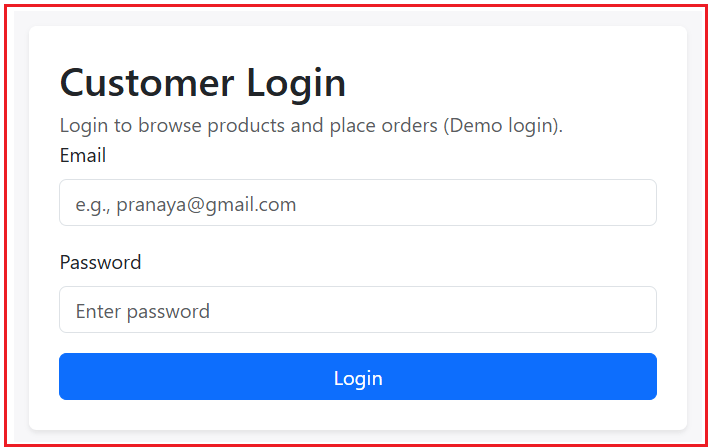
Login Page:
The Login page provides a simple authentication experience for the user. This page is required only when the user attempts to access protected actions, such as checkout. If the user was redirected here from another page, the application automatically sends them back to the original page after successful login, ensuring a smooth user experience.
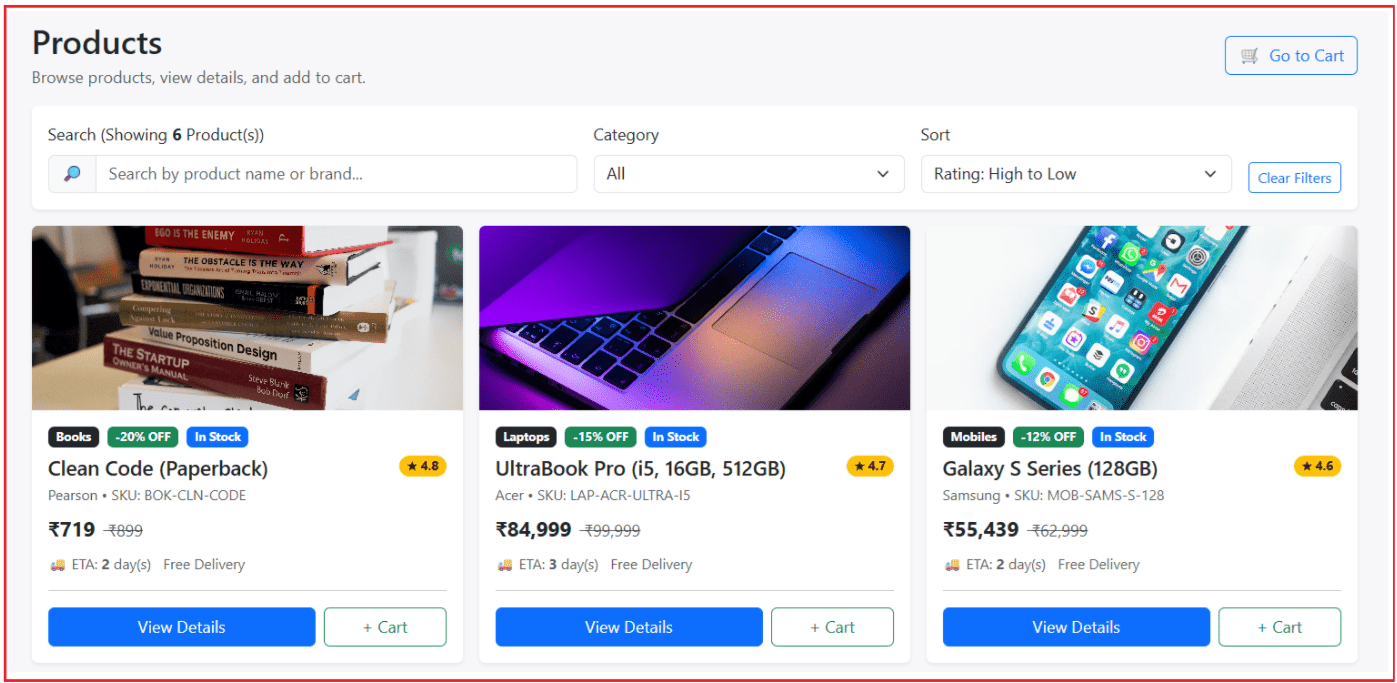
Products Listing Page:
The Products Listing page is the main entry point of the application. It displays all available products in a clean card-based layout and allows users to search by product name or brand, filter by category, and sort by rating or price. These filters are reflected in the URL using query parameters, making the page state shareable and bookmark-friendly. Users can view product details or add items directly to the cart without logging in.
Product Details Page:
The Product Details page shows complete information about a selected product, including pricing, discounts, delivery details, stock availability, highlights, and warranty. Product data is loaded using a route resolver, ensuring the page opens only after valid data is available. Users can choose the quantity, add the product to the cart, or use the “Buy Now” option, which directly takes them to checkout.

Cart Page:
The Cart page allows users to review all selected products before placing an order. Users can increase or decrease quantities, remove items, clear the cart, and view a detailed price summary including discounts and shipping charges. The cart data is stored in local storage, ensuring persistence even if the page is refreshed. This page is intentionally kept public so users can build their cart before deciding to log in.
Checkout Page:
The Checkout page is a protected page accessible only to logged-in users. It collects delivery address details, performs basic validation, and displays a final order summary on the side. For simplicity, the application supports Cash on Delivery (COD) as the payment method. Once the user confirms the order, the cart is cleared, and the user is redirected to the order success page.
Order Placed Successful Page:
The Order Success page confirms that the order has been placed successfully. It is accessible only through the checkout flow and prevents direct access via URL or page refresh. The page reassures the user with a clear success message and provides options to continue shopping or return to the cart, completing the shopping journey gracefully.
Let us proceed and implement the above application step by step.
Step-1: Project Initialization and Environment Setup
Create a new Angular application named MiniStore, run it locally, and confirm the development server is working. This step ensures your base project is ready before you add folders, routing, UI, or business logic.
- ng new MiniStore
- cd MiniStore
- ng serve
Step-2: Designing a Scalable Folder Structure
A well-structured folder layout is essential for maintaining large applications. Here, the project is divided into Core, Models, Services, And Pages, each serving a specific purpose. This separation makes the application easier to understand, scale, and maintain as new features are added. So, create the following folders:
- src/app/core: Guards and Resolvers.
- src/app/models: Models required by our applications, such as, Customer, Product, cart Item, Login Request, and Login Result models.
- src/app/services: Required services, such as the authentication service, cart service, and product service.
- src/app/pages: Required components, such as Login, Product, Product Details, Cart, Checkout, Order success page.
Step-3: Integrating Bootstrap for Professional UI
Bootstrap is loaded via CDN to quickly deliver a clean, responsive user interface. This allows us to focus on application logic rather than spending time writing custom CSS for layouts, navigation bars, cards, and forms.
src/index.html
This file adds Bootstrap CSS, Bootstrap Icons, and Bootstrap JS via CDN so the entire app can use responsive layouts, navbars, cards, icons, and modal behaviours without extra setup. So, open src/index.html file and copy-paste the following code.
<!doctype html>
<html lang="en">
<head>
  <meta charset="utf-8">
  <title>Mini Store</title>
  <base href="/">
  <meta name="viewport" content="width=device-width, initial-scale=1">
  <link rel="icon" type="image/x-icon" href="favicon.ico">
  <link href="https://cdn.jsdelivr.net/npm/bootstrap@5.3.3/dist/css/bootstrap.min.css" rel="stylesheet">
  <link rel="stylesheet" href="https://cdn.jsdelivr.net/npm/bootstrap-icons@1.11.3/font/bootstrap-icons.min.css">
</head>
<body>
  <app-root></app-root>
  <script src="https://cdn.jsdelivr.net/npm/bootstrap@5.3.3/dist/js/bootstrap.bundle.min.js"></script>
</body>
</html>
Step-4: Adding Custom Style
Add a few global CSS rules to improve the overall look (light background, cleaner cards, consistent product image height). This keeps the UI polished while still relying mostly on Bootstrap. So, open src/style.css, and copy-paste the following code.
body { background: #f7f7f9; }
.card { border: 0; }

.product-img{
  height: 360px;
}
Step-5: Generating Application Pages
In this step, Angular components are generated for all major pages, including Login, Products, Product Details, Cart, Checkout, Order Success, and Not Found. Each page represents a real screen in an e-commerce application and is implemented as a standalone component for better modularity.
- ng g c pages/login
- ng g c pages/products
- ng g c pages/product-details
- ng g c pages/cart
- ng g c pages/checkout
- ng g c pages/order-success
- ng g c pages/not-found
Step-6: Defining Shared Data Models
Models define the shape of data used across the application. The Product and CartItem models ensure consistency when handling product information and cart data. This approach improves readability and reduces bugs caused by mismatched data structures.
Product Model
Create a TypeScript class named product.ts within the src/app/models folder, and then copy-paste the following code. Defines the Product interface and the ProductCategory type, ensuring every product displayed across listing and details pages follows one consistent structure.
export type ProductCategory = 'Mobiles' | 'Laptops' | 'Shoes' | 'Books';

export interface Product {
  id: number;
  name: string;
  category: ProductCategory;

  brand: string;
  sku: string;

  mrp: number;
  discountPercent: number;
  price: number;

  rating: number;
  inStock: boolean;
  stockQty: number;

  freeDelivery: boolean;
  deliveryDays: number;
  warrantyMonths: number;
  sellerName: string;

  imageUrl: string;
  description: string;
  highlights: string[];
}
CartItem Model
Create a TypeScript class named cart-item.ts within the src/app/models folder, and then copy-paste the following code. Defines the CartItem interface that represents a product in the cart, including pricing details, quantity, and the date it was added—making cart calculations more predictable and easier.
export interface CartItem {
  productId: number;
  name: string;
  imageUrl: string;
  brand: string;
  sku: string;

  mrp: number;
  unitPrice: number;
  discountPercent: number;

  qty: number;
  addedAt: string;
}
Customer Model
Create a TypeScript class named customer.ts within the src/app/models folder, and then copy-paste the following code. This model will store the customer details.
export interface Customer {
  id: number;
  name: string;
  email: string;
  password: string;
  mobile: string;
  isActive: boolean;
}
Login Request Model
Create a TypeScript class named login-request.ts within the src/app/models folder, and then copy-paste the following code.
export interface LoginRequest {
  email: string;
  password: string;
}
Login Result Model
Create a TypeScript class named login-result.ts within the src/app/models folder, and then copy-paste the following code.
export interface LoginResult {
  isSuccess: boolean;
  errorMessage?: string;
  customer?: { id: number; name: string; email: string; mobile:string };
}
Step-7: Build Core Services (Auth, Products, Cart)
Services encapsulate business logic and shared state.
- The AuthService manages login status and customer information.
- The ProductService provides product data to the application.
- The CartService handles cart operations like add, remove, update, and price calculation.
Using services keeps components lightweight and focused only on UI responsibilities.
Auth Service
Create a TypeScript class named auth.service.ts within the src/app/services folder, and then copy-paste the following code. Manages demo authentication using localStorage—login, logout, logged-in checks, and customer retrieval.
import { Injectable } from '@angular/core';
import { Customer } from '../models/customer';
import { LoginRequest } from '../models/login-request';
import { LoginResult } from '../models/login-result';

@Injectable({ providedIn: 'root' })
export class AuthService {
  // Key used to store logged-in customer info in Local Storage
  private readonly key = 'ministore_customer';

  // Dummy customers (demo users) - in real apps, this comes from API/database
  private readonly customers: Customer[] = [
    { id: 1, name: 'Pranaya Rout', email: 'pranaya@example.com', password: 'Pranaya@123', mobile: '9876543210', isActive: true },
    { id: 2, name: 'Amit Kumar', email: 'amit@example.com', password: 'Amit@123', mobile: '9123456780', isActive: true },
    { id: 3, name: 'Riya Sharma', email: 'riya@example.com', password: 'Riya@123', mobile: '9000011111', isActive: false } // inactive user demo
  ];

  // Login method called from Login page
  login(request: LoginRequest): LoginResult {
    // Trim spaces and convert email to lowercase for safe matching
    const email = (request.email ?? '').trim().toLowerCase();

    // Trim password spaces
    const password = (request.password ?? '').trim();

    // Required field validation
    if (!email || !password) {
      return { isSuccess: false, errorMessage: 'Email and Password are required.' };
    }

    // Basic email format validation
    const emailRegex = /^[^\s@]+@[^\s@]+\.[^\s@]+$/;
    if (!emailRegex.test(email)) {
      return { isSuccess: false, errorMessage: 'Please enter a valid Email address.' };
    }

    // Find customer from dummy customer list by email
    const customer = this.customers.find(c => c.email.toLowerCase() === email);

    // If email not found, return invalid credentials (generic message for security)
    if (!customer) {
      return { isSuccess: false, errorMessage: 'Invalid Email or Password.' };
    }

    // Check whether customer account is active
    if (!customer.isActive) {
      return { isSuccess: false, errorMessage: 'Your account is inactive. Please contact support.' };
    }

    // Password validation (match with dummy stored password)
    if (customer.password !== password) {
      return { isSuccess: false, errorMessage: 'Invalid Email or Password.' };
    }

    // Create a "safe" customer object (do not store password)
    const safeCustomer = {
      id: customer.id,
      name: customer.name,
      email: customer.email,
      mobile: customer.mobile
    };

    // Store safe customer data in Local Storage to keep user logged in
    localStorage.setItem(this.key, JSON.stringify(safeCustomer));

    // Return success response
    return { isSuccess: true, customer: safeCustomer };
  }

  // Logout: remove logged-in customer info (and optionally cart)
  logout(): void {
    localStorage.removeItem(this.key);          // remove customer session
  }

  // Returns true if customer data exists in local storage
  isLoggedIn(): boolean {
    return !!localStorage.getItem(this.key);
  }

  // Get logged-in customer details from local storage
  getCustomer(): { id: number; name: string; email: string; mobile: string } | null {
    const raw = localStorage.getItem(this.key); // read from local storage
    return raw
      ? (JSON.parse(raw) as { id: number; name: string; email: string; mobile: string }) // parse JSON to object
      : null; // if nothing stored, user is not logged in
  }
}
Product Service
Create a TypeScript class named product.service.ts within the src/app/services folder, and then copy-paste the following code. Provides product data (in-memory array) and helper methods like getAll() and getById(), letting you focus on UI + routing behavior without building a backend.
import { Injectable } from '@angular/core';
import { Product } from '../models/product';

@Injectable({ providedIn: 'root' })
export class ProductService {

  // In-memory product list (acts like a mini database for this demo app)
  // In real applications, products would come from an API + database.
  private readonly products: Product[] = [
    { id: 101, name: 'Galaxy S Series (128GB)', category: 'Mobiles', brand: 'Samsung', sku: 'MOB-SAMS-S-128', mrp: 62999, discountPercent: 12, price: 55439, rating: 4.6, inStock: true, stockQty: 18, freeDelivery: true, deliveryDays: 2, warrantyMonths: 12, sellerName: 'MiniCart Retail', imageUrl: 'https://images.unsplash.com/photo-1511707171634-5f897ff02aa9?auto=format&fit=crop&w=900&q=80', description: 'Smooth performance, great camera, long battery life.', highlights: ['AMOLED display', 'Fast charging', 'Great low-light camera', '5G ready'] },
    { id: 102, name: 'UltraBook Pro (i5, 16GB, 512GB)', category: 'Laptops', brand: 'Acer', sku: 'LAP-ACR-ULTRA-I5', mrp: 99999, discountPercent: 15, price: 84999, rating: 4.7, inStock: true, stockQty: 9, freeDelivery: true, deliveryDays: 3, warrantyMonths: 12, sellerName: 'MiniCart Retail', imageUrl: 'https://images.unsplash.com/photo-1517336714731-489689fd1ca8', description: 'Lightweight, premium build, fast SSD and great battery.', highlights: ['16GB RAM', '512GB SSD', 'FHD IPS display', 'Backlit keyboard'] },
    { id: 103, name: 'Running Shoes X (Men)', category: 'Shoes', brand: 'Nike', sku: 'SHO-NIKE-RUN-X', mrp: 5999, discountPercent: 35, price: 3899, rating: 4.3, inStock: true, stockQty: 26, freeDelivery: false, deliveryDays: 4, warrantyMonths: 0, sellerName: 'Sports Hub', imageUrl: 'https://images.unsplash.com/photo-1542291026-7eec264c27ff', description: 'Comfort fit, durable outsole, stylish everyday runner.', highlights: ['Breathable mesh', 'Cushioned sole', 'Durable outsole', 'Lightweight'] },
    { id: 104, name: 'Clean Code (Paperback)', category: 'Books', brand: 'Pearson', sku: 'BOK-CLN-CODE', mrp: 899, discountPercent: 20, price: 719, rating: 4.8, inStock: true, stockQty: 60, freeDelivery: true, deliveryDays: 2, warrantyMonths: 0, sellerName: 'BookTown', imageUrl: 'https://images.unsplash.com/photo-1512820790803-83ca734da794', description: 'Classic book on writing maintainable, readable code.', highlights: ['Best practices', 'Refactoring mindset', 'Real examples', 'Team-friendly code'] },
    { id: 105, name: 'Noise-Cancel Headphones', category: 'Mobiles', brand: 'Sony', sku: 'AUD-SONY-NC-01', mrp: 19999, discountPercent: 25, price: 14999, rating: 4.4, inStock: false, stockQty: 0, freeDelivery: true, deliveryDays: 5, warrantyMonths: 12, sellerName: 'AudioMart', imageUrl: 'https://images.unsplash.com/photo-1505740420928-5e560c06d30e', description: 'Immersive sound with strong noise cancellation.', highlights: ['Noise cancellation', '20+ hours battery', 'Comfort fit', 'Fast pairing'] },
    { id: 106, name: 'Everyday Backpack (25L)', category: 'Books', brand: 'Wildcraft', sku: 'BAG-WILD-25L', mrp: 1799, discountPercent: 28, price: 1299, rating: 4.1, inStock: true, stockQty: 40, freeDelivery: false, deliveryDays: 4, warrantyMonths: 6, sellerName: 'Outdoor Store', imageUrl: 'https://images.unsplash.com/photo-1553062407-98eeb64c6a62', description: 'Rugged backpack for office, travel, and daily use.', highlights: ['Laptop sleeve', 'Water resistant', 'Strong zippers', 'Lightweight'] }
  ];

  // Returns a COPY of the product list so external code cannot modify the original array
  getAll(): Product[] {
    return [...this.products];
  }

  // Finds a product by ID
  // Returns the product if found, otherwise returns null
  getById(id: number): Product | null {
    return this.products.find(p => p.id === id) ?? null;
  }
}
Cart Service
Create a TypeScript class named cart.service.ts within the src/app/services folder, and then copy-paste the following code. Implements all cart operations (add/increase/decrease/remove/clear) and computes totals (discount, shipping, grand total). It also persists the cart into localStorage so the cart survives page refresh.
import { Injectable } from '@angular/core';
import { CartItem } from '../models/cart-item';
import { Product } from '../models/product';

// Summary values shown in Cart / Checkout pages
export interface CartSummary {
  totalItems: number;        // total quantity of items (sum of qty)
  subtotalMrp: number;       // total MRP (mrp * qty)
  subtotalPayable: number;   // total selling price (unitPrice * qty)
  discount: number;          // subtotalMrp - subtotalPayable
  shipping: number;          // shipping charges (0/49 based on rule)
  grandTotal: number;        // subtotalPayable + shipping
}

@Injectable({ providedIn: 'root' })
export class CartService {
  // LocalStorage key to store cart data
  private key = 'ministore_cart';

  // Keep cart items in memory (loaded once from LocalStorage)
  private items: CartItem[] = this.read();

  // Read cart items from LocalStorage (when service is created)
  private read(): CartItem[] {
    const raw = localStorage.getItem(this.key);        // get JSON string
    return raw ? (JSON.parse(raw) as CartItem[]) : []; // parse to array or return empty
  }

  // Save current cart items to LocalStorage (after every cart update)
  private save(): void {
    localStorage.setItem(this.key, JSON.stringify(this.items));
  }

  // Return cart items to UI
  // We return a copy so components cannot directly modify service data accidentally
  getCart(): CartItem[] {
    return this.items.map(i => ({ ...i }));
  }

  // Add product to cart (default qty = 1)
  add(product: Product, qty: number = 1): void {
    // Check if product already exists in cart
    const existing = this.items.find(x => x.productId === product.id);

    // If exists, just increase quantity and save
    if (existing) {
      existing.qty += qty;
      this.save();
      return;
    }

    // If not exists, create a new CartItem and add at the beginning
    this.items.unshift({
      productId: product.id,           // link with product
      name: product.name,
      imageUrl: product.imageUrl,
      brand: product.brand,
      sku: product.sku,
      mrp: product.mrp,                // original price
      unitPrice: product.price,        // selling price
      discountPercent: product.discountPercent,
      qty,                             // quantity added
      addedAt: new Date().toISOString()// for tracking / sorting (optional)
    });

    // Save updated cart
    this.save();
  }

  // Increase quantity of a cart item by 1
  increase(productId: number): void {
    const i = this.items.find(x => x.productId === productId);
    if (i) {
      i.qty += 1;
      this.save();
    }
  }

  // Decrease quantity of a cart item by 1
  // If qty becomes 0, remove the item from cart
  decrease(productId: number): void {
    const i = this.items.find(x => x.productId === productId);
    if (!i) return;

    i.qty -= 1;

    // Remove if quantity is 0 or less
    if (i.qty <= 0) this.remove(productId);
    else this.save();
  }

  // Remove an item completely from cart
  remove(productId: number): void {
    this.items = this.items.filter(i => i.productId !== productId);
    this.save();
  }

  // Clear the entire cart (used after order success / logout)
  clear(): void {
    this.items = [];
    this.save();
  }

  // Calculate totals used in Cart/Checkout summary sections
  summary(): CartSummary {
    // Total MRP: sum of (mrp * qty)
    const subtotalMrp = this.items.reduce((s, i) => s + i.mrp * i.qty, 0);

    // Total payable: sum of (unitPrice * qty)
    const subtotalPayable = this.items.reduce((s, i) => s + i.unitPrice * i.qty, 0);

    // Discount is the difference between MRP and Payable
    const discount = subtotalMrp - subtotalPayable;

    // Shipping rule:
    // - If cart empty: 0
    // - If subtotalPayable >= 999: Free shipping
    // - Otherwise: 49
    const shipping = this.items.length === 0 ? 0 : (subtotalPayable >= 999 ? 0 : 49);

    // Total number of items = sum of qty values
    const totalItems = this.items.reduce((s, i) => s + i.qty, 0);

    // Grand total = payable subtotal + shipping
    const grandTotal = subtotalPayable + shipping;

    // Return summary object
    return { totalItems, subtotalMrp, subtotalPayable, discount, shipping, grandTotal };
  }
}
Step-8: Add Guards + Resolver for Real Routing Behaviour
In this step, we introduce Angular guards and resolvers.
- Route guards are used to restrict access to sensitive pages such as Checkout and Order Success. If a user is not logged in, they are redirected to the login page.
- Resolvers ensure that product data is fetched before navigating to the product details page, resulting in a smoother user experience.
This improves both security and user experience.
Auth Guard (Protect Products/Cart/Checkout)
Create a TypeScript class named auth.guard.ts within the src/app/core folder, and then copy-paste the following code. Protects secured routes by checking the login state; if the user isn’t logged in, it redirects to the login page and preserves the original URL via returnUrl so the flow continues after login.
// CanActivateFn: Type for functional route guards (decides if navigation is allowed)
// Router: Used to navigate/redirect to other routes (ex: /login)
import { CanActivateFn, Router } from '@angular/router';

// inject: Allows getting service instances inside a function (no constructor here)
import { inject } from '@angular/core';

// AuthService: Our app service that tells whether user is logged in or not
import { AuthService } from '../services/auth.service';

// Route Guard: Runs before route loads, and returns true/false to allow/deny navigation
export const authGuard: CanActivateFn = (
  route, // "route" contains info about the route being accessed (path, params, data, etc.)
  state  // "state" contains navigation info (mainly state.url = the requested URL)
) => {
  // Get AuthService instance using Angular's inject() (since this is a function guard)
  const auth = inject(AuthService);

  // Get Router instance to redirect user if not logged in
  const router = inject(Router);

  // If user is logged in, allow access to the route
  if (auth.isLoggedIn()) return true;

  // If not logged in, redirect to Login page
  // returnUrl helps bring the user back to the same page after successful login
  router.navigate(['/login'], { queryParams: { returnUrl: state.url } });

  // Block route access
  return false;
};
Product Resolver
Create a TypeScript class named product.resolver.ts within the src/app/core folder, and then copy-paste the following code. Loads the product using the route param id before the product details page opens, so the details screen renders with data already available and can safely redirect if not found.
// ResolveFn: Type for a functional resolver (fetches data BEFORE route loads)
// ActivatedRouteSnapshot: Gives details of the current route (params, data, url, etc.)
import { ResolveFn, ActivatedRouteSnapshot } from '@angular/router';

// inject: Used to get service instances inside a function (no constructor here)
import { inject } from '@angular/core';

// ProductService: Our service that provides product data (getAll, getById, etc.)
import { ProductService } from '../services/product.service';

// Product: Model/interface representing a product object
import { Product } from '../models/product';

// Resolver: Runs before opening Product Details page and provides "product" in route data
// Return type: Product | null (null if product not found)
export const productResolver: ResolveFn<Product | null> = (
  route: ActivatedRouteSnapshot // Contains route info, including parameters like /products/:id
) => {
  // Get ProductService instance using inject()
  const productService = inject(ProductService);

  // Read "id" route parameter (string), convert it to number
  const id = Number(route.paramMap.get('id'));

  // Fetch product by id and return it
  // The resolved value will be available in component via this.route.data
  return productService.getById(id);
};
Step-9: Configuring Application Routing
Routing defines how users move between pages. Public routes such as Products, Product Details, and Cart are accessible without login, while protected routes require authentication. We should lazy-load non-landing / heavier / less-frequently opened pages. In your app, the best candidates are:
Good to Lazy-Load
- ProductDetails (/products/:id) → opened only when user clicks a product
- Checkout (/checkout) → protected + not visited by everyone
- OrderSuccess (/order-success) → only after checkout
- NotFound (/**) → rarely used
Keep Eager-Loaded
- Products (/products) → your landing page
- Cart (/cart) → used frequently
- Login (/login) → small page, often needed for redirect
So, open src/app/app.routes.ts, and then copy-paste the following code.
// Routes: Angular type used to define the routing table (path -> component/lazy component)
import { Routes } from '@angular/router';

// EAGER components (loaded upfront - good for landing / frequently used pages)
import { Login } from './pages/login/login';
import { Products } from './pages/products/products';
import { Cart } from './pages/cart/cart';

// Guards & resolvers
import { authGuard } from './core/auth.guard';
import { productResolver } from './core/product.resolver';

export const routes: Routes = [
  // Default route: when user opens '/', redirect to '/products'
  { path: '', redirectTo: 'products', pathMatch: 'full' },

  // Public routes (eager-loaded)
  { path: 'login', component: Login },        // login page
  { path: 'products', component: Products },  // landing page
  { path: 'cart', component: Cart },          // commonly used cart page

  // Product details (lazy-loaded) + resolver
  {
    // Example: /products/101
    path: 'products/:id',

    // Lazy-load the standalone ProductDetails component only when needed
    loadComponent: () =>
      import('./pages/product-details/product-details').then(m => m.ProductDetails),

    // Resolver runs before the component loads, and provides route.data.product
    resolve: { product: productResolver }
  },

  // Checkout (lazy-loaded) + guard
  {
    path: 'checkout',

    // Guard: allow only logged-in users
    canActivate: [authGuard],

    // Lazy-load the Checkout component only when user goes to checkout
    loadComponent: () =>
      import('./pages/checkout/checkout').then(m => m.Checkout)
  },

  // Order success (lazy-loaded) + guard
  {
    path: 'order-success',

    // Guard: allow only logged-in users
    canActivate: [authGuard],

    // Lazy-load OrderSuccess page
    loadComponent: () =>
      import('./pages/order-success/order-success').then(m => m.OrderSuccess)
  },

  // Not Found (lazy-loaded) - rarely needed
  {
    path: '**',

    // Lazy-load NotFound page only for invalid URLs
    loadComponent: () =>
      import('./pages/not-found/not-found').then(m => m.NotFound)
  }
];
Step-10: Building the Root Component and Layout
The root component defines the global layout, including the navigation bar. The navbar dynamically changes based on login state — showing Login for guests and Logout with the user’s name for authenticated users.
Root Component
Open src/app/app.ts, and then copy-paste the following code. This is the root component class that powers the top navbar. It reads the login state and customer name from AuthService, the cart count from CartService, and exposes helper methods such as isLoggedIn(), customerName(), cartCount(), and logout() so the UI can react instantly.
// Component: used to create an Angular component with metadata (selector, template, imports, etc.)
import { Component } from '@angular/core';

// RouterOutlet: where routed pages will render (<router-outlet></router-outlet>)
// RouterLink: used for navigation links (routerLink="/products")
// RouterLinkActive: adds CSS class to active link (routerLinkActive="active")
// Router: used for programmatic navigation (this.router.navigate(...))
import { RouterOutlet, RouterLink, RouterLinkActive, Router } from '@angular/router';

// CommonModule: provides common directives and pipes
import { CommonModule } from '@angular/common';

// AuthService: handles login/logout, reads customer from localStorage
import { AuthService } from './services/auth.service';

// CartService: handles cart items and summary (used to show cart count in navbar)
import { CartService } from './services/cart.service';

@Component({
  selector: 'app-root', // Root component tag: <app-root></app-root>
  standalone: true,     // Standalone component (no NgModule required)
  imports: [CommonModule, RouterOutlet, RouterLink, RouterLinkActive], // Dependencies used in app.html
  templateUrl: './app.html' // External HTML template for this component
})
export class App {
  // Injecting required services using constructor dependency injection
  constructor(
    private auth: AuthService,   // used to check login and get customer name
    private cart: CartService,   // used to show cart item count
    private router: Router       // used to redirect after logout
  ) {}

  // Current year for footer display (e.g., © 2026)
  currentYear = new Date().getFullYear();

  // Returns logged-in customer's name (empty string if not logged in)
  customerName(): string {
    return this.auth.getCustomer()?.name ?? '';
  }

  // Returns true/false to show Login/Logout UI sections
  isLoggedIn(): boolean {
    return this.auth.isLoggedIn();
  }

  // Returns total number of items in the cart (sum of quantities)
  cartCount(): number {
    return this.cart.summary().totalItems;
  }

  // Logs out the user and redirects to Products page
  logout(): void {
    this.auth.logout();                  // clears customer (and optionally cart) from localStorage
    this.router.navigate(['/products']); // navigate to products after logout
  }
}
Root Template
Open src/app/app.html, and then copy-paste the following code. This is the main layout template that appears on every page. It contains the Bootstrap navbar and a <router-outlet> where page components load, and it uses Angular control flow (@if/@else) to show Login or Hi, Name + Logout.
<div class="min-vh-100 d-flex flex-column">
  <!-- Navbar -->
  <nav class="navbar navbar-expand-lg bg-dark navbar-dark sticky-top shadow-sm">
    <div class="container">
      <a class="navbar-brand fw-semibold" routerLink="/products">MiniStore</a>

      <button
        class="navbar-toggler"
        type="button"
        data-bs-toggle="collapse"
        data-bs-target="#nav"
        aria-controls="nav"
        aria-expanded="false"
        aria-label="Toggle navigation">
        <span class="navbar-toggler-icon"></span>
      </button>

      <div id="nav" class="collapse navbar-collapse">
        <!-- Always visible: Products + Cart -->
        <ul class="navbar-nav me-auto">
          <li class="nav-item">
            <a class="nav-link" routerLink="/products" routerLinkActive="active">Products</a>
          </li>

          <li class="nav-item">
            <a class="nav-link" routerLink="/cart" routerLinkActive="active">
              Cart <span class="badge bg-warning text-dark ms-1">{{ cartCount() }}</span>
            </a>
          </li>
        </ul>

        <!-- Use Angular control flow (@if/@else) -->
        <div class="d-flex align-items-center gap-2">
          @if (isLoggedIn()) {
            <span class="text-light small">Hi, {{ customerName() }}</span>

            <button class="btn btn-outline-light btn-sm" (click)="logout()">
              Logout
            </button>
          } @else {
            <a class="btn btn-outline-light btn-sm" routerLink="/login">
              Login
            </a>
          }
        </div>
      </div>
    </div>
  </nav>

  <!-- Main Content (this pushes footer to bottom) -->
  <main class="flex-grow-1">
    <div class="container my-4">
      <router-outlet></router-outlet>
    </div>
  </main>

  <!-- Footer (always at bottom) -->
  <footer class="bg-dark text-light border-top border-secondary">
    <div class="container py-3 d-flex flex-column flex-md-row justify-content-between align-items-center gap-2">
      <div class="small">
        © {{ currentYear }} MiniStore. All rights reserved.
      </div>

      <div class="d-flex gap-3 small">
        <a class="text-light text-decoration-none" routerLink="/products">Products</a>
        <a class="text-light text-decoration-none" routerLink="/cart">Cart</a>
        <a class="text-light text-decoration-none" routerLink="/login">Login</a>
      </div>
    </div>
  </footer>
</div>
Step-11: Create Login Page
The login page simulates authentication using a name and an email address. Once logged in, user information is stored locally. If the user attempted to access a protected route earlier, they are redirected back after successful login.
Login Component
Open src/app/pages/login/login.ts, and then copy-paste the following code. This component handles the application’s customer login functionality. It collects the user’s name and email, performs basic validation, and stores the login information using the authentication service. After successful login, the user is redirected to either the originally requested page or the products page.
// Component: used to create an Angular component with metadata (selector, template, imports, etc.)
// OnInit: lifecycle interface to run code when component loads (ngOnInit)
import { Component, OnInit } from '@angular/core';

// CommonModule: provides common directives/pipes used in templates
import { CommonModule } from '@angular/common';

// FormsModule: required for template-driven forms and ngModel binding
import { FormsModule } from '@angular/forms';

// ActivatedRoute: used to read query parameters (like returnUrl)
// Router: used for programmatic navigation after login
import { ActivatedRoute, Router } from '@angular/router';

// AuthService: our custom service that performs login and stores customer in localStorage
import { AuthService } from '../../services/auth.service';

@Component({
  selector: 'app-login',      // Component tag name: <app-login></app-login>
  standalone: true,          // Standalone component (no NgModule needed)
  imports: [CommonModule, FormsModule], // Modules needed by login.html template
  templateUrl: './login.html' // External HTML template
})
export class Login implements OnInit {
  // Bound to input fields in login.html
  email = '';
  password = '';

  // Stores validation/authentication error message shown in UI
  error = '';

  // Inject services using constructor dependency injection
  constructor(
    private auth: AuthService,   // used to login and check login status
    private router: Router,      // used to redirect after successful login
    private route: ActivatedRoute// used to read returnUrl query parameter
  ) {}

  // Runs automatically when the component loads
  ngOnInit(): void {
    // If already logged in, redirect user to products page
    if (this.auth.isLoggedIn()) {
      this.router.navigate(['/products']);
    }
  }

  // Called when user clicks the Login button
  login(): void {
    // Clear old error before doing a new login attempt
    this.error = '';

    // Call AuthService login with email/password entered by user
    const result = this.auth.login({
      email: this.email,
      password: this.password
    });

    // If login failed, show the error message and stop
    if (!result.isSuccess) {
      this.error = result.errorMessage ?? 'Login failed.';
      return;
    }

    // If user was redirected here by a guard, returnUrl will be present
    const returnUrl = this.route.snapshot.queryParamMap.get('returnUrl');

    // Navigate back to returnUrl if available, otherwise go to products page
    this.router.navigateByUrl(returnUrl || '/products');
  }
}
Login Template
Open src/app/pages/login/login.html, and then copy-paste the following code. This template provides a simple, clean login form for users. It contains input fields for name and email, displays validation errors when required, and includes a login button to initiate the authentication process.
<div class="row justify-content-center">
  <div class="col-12 col-md-7 col-lg-5">
    <div class="card shadow-sm">
      <div class="card-body p-4">
        <div class="d-flex justify-content-between align-items-start">
          <div>
            <h2 class="mb-1">Customer Login</h2>
            <p class="text-muted mb-0">Login to browse products and place orders (Demo login).</p>
          </div>
        </div>

        @if (error) {
          <div class="alert alert-danger py-2">{{ error }}</div>
        }

        <!-- Email -->
        <div class="mb-3">
          <label class="form-label">Email</label>
          <input
            class="form-control"
            [(ngModel)]="email"
            type="email"
            placeholder="e.g., pranaya@gmail.com"
            autocomplete="email"
          />
        </div>

        <!-- Password -->
        <div class="mb-3">
          <label class="form-label">Password</label>
          <input
            class="form-control"
            [(ngModel)]="password"
            type="password"
            placeholder="Enter password"
            autocomplete="current-password"
          />
        </div>

        <!-- Actions -->
        <div class="d-grid">
          <button class="btn btn-primary" (click)="login()">
            Login
          </button>
        </div>
      </div>
    </div>
  </div>
</div>
Step-12: Build the Product Listing with Search, Filter, and Sort
This page displays all available products with search, category filtering, and sorting options. Users can view product details or add items directly to the cart. Query parameters are used to preserve filter state in the URL.
Product Component
Open src/app/pages/products/products.ts, and then copy-paste the following code. This component displays the list of available products. It fetches product data from the product service, applies search, category filtering, and sorting using query parameters, and allows users to add products directly to the cart.
// Component: used to create an Angular component with metadata (selector, template, imports, etc.)
// OnInit: lifecycle interface to run code when component loads (ngOnInit)
import { Component, OnInit } from '@angular/core';

// CommonModule: provides common directives/pipes used in templates
import { CommonModule } from '@angular/common';

// ActivatedRoute: used to read current route query parameters (q, cat, sort)
// Router: used to update URL query parameters and navigate to other pages
// RouterLink: used in template for navigation links (routerLink="/cart", etc.)
import { ActivatedRoute, Router, RouterLink } from '@angular/router';

// FormsModule: required for template-driven forms and ngModel binding
import { FormsModule } from '@angular/forms';

// ProductService: our service that provides the product list (in-memory for demo)
import { ProductService } from '../../services/product.service';

// Product: model for product data
// ProductCategory: type/union for allowed categories (Mobiles, Laptops, etc.)
import { Product, ProductCategory } from '../../models/product';

// CartService: our cart service (add items, calculate summary, etc.)
import { CartService } from '../../services/cart.service';

@Component({
  selector: 'app-products',          // Component tag: <app-products></app-products>
  standalone: true,                 // Standalone component (no NgModule needed)
  imports: [CommonModule, FormsModule, RouterLink], // Modules/directives required by products.html
  templateUrl: './products.html'    // External HTML template
})
export class Products implements OnInit {
  // all: full product list (never modified directly)
  all: Product[] = [];

  // view: filtered + sorted list shown on UI
  view: Product[] = [];

  // UI filters (bound to inputs / dropdowns in the template)
  q = ''; // search keyword
  cat: ProductCategory | 'All' = 'All'; // selected category
  sort: 'ratingDesc' | 'priceAsc' | 'priceDesc' = 'ratingDesc'; // selected sorting option

  // Popup state (controlled by Angular, not Bootstrap JS)
  isCartPopupOpen = false;      // true = show popup, false = hide popup
  popupTitle = 'Added to Cart'; // popup header text
  popupMessage = '';            // popup body text

  // Inject required services using constructor dependency injection
  constructor(
    private api: ProductService,   // fetch products list
    private cart: CartService,     // add products to cart
    private route: ActivatedRoute, // read query params (q, cat, sort)
    private router: Router         // update query params + navigate pages
  ) {}

  // Runs when the Products page loads
  ngOnInit(): void {
    // Load the full product list from ProductService
    this.all = this.api.getAll();

    // Subscribe to query parameters so filters persist in URL
    // Example URL: /products?q=samsung&cat=Mobiles&sort=priceAsc
    this.route.queryParamMap.subscribe(qp => {
      // Read query params (if missing, use defaults)
      this.q = qp.get('q') ?? '';
      this.cat = (qp.get('cat') as any) ?? 'All';
      this.sort = (qp.get('sort') as any) ?? 'ratingDesc';

      // Apply filters and sorting to build "view" list
      this.apply();
    });
  }

  // Applies search + category filter + sorting and updates the view list
  apply(): void {
    // Convert search term to lowercase for case-insensitive matching
    const keyword = this.q.trim().toLowerCase();

    // Filter by keyword (name + brand)
    // If no keyword, start with a copy of all products
    let items = keyword
      ? this.all.filter(p => (p.name + ' ' + p.brand).toLowerCase().includes(keyword))
      : [...this.all];

    // Filter by category if user selected anything other than "All"
    if (this.cat !== 'All') items = items.filter(p => p.category === this.cat);

    // Apply sorting rules
    if (this.sort === 'priceAsc') items.sort((a, b) => a.price - b.price);
    if (this.sort === 'priceDesc') items.sort((a, b) => b.price - a.price);
    if (this.sort === 'ratingDesc') items.sort((a, b) => b.rating - a.rating);

    // Final list that will be rendered on the UI
    this.view = items;
  }

  // Update the URL query parameters
  updateQueryParams(): void {
    // Existing query params will be replaced
    this.router.navigate(['/products'], {
      queryParams: {
        q: this.q || null,                         // if empty, remove "q" from URL
        cat: this.cat !== 'All' ? this.cat : null, // if All, remove "cat" from URL
        sort: this.sort || null                    // keep sort in URL
      }
    });
  }

  // Add-to-cart: stays on Products page and opens a popup message
  addQuick(p: Product): void {
    // Add 1 quantity of this product to cart
    this.cart.add(p, 1);

    // Prepare popup content
    this.popupTitle = 'Added to Cart';
    this.popupMessage = `"${p.name}" has been added to your cart successfully.`;

    // Show popup
    this.isCartPopupOpen = true;
  }

  // Close the popup
  closeCartPopup(): void {
    this.isCartPopupOpen = false;
  }

  // User clicked "Go to Cart" from popup
  goToCartFromPopup(): void {
    this.isCartPopupOpen = false;       // close popup
    this.router.navigate(['/cart']);    // navigate to cart page
  }
}
Product Template
Open src/app/pages/products/products.html, and then copy-paste the following code. This template renders the product listing page using Bootstrap cards. It shows product details such as name, price, discount, rating, and stock status, along with filtering controls and buttons for viewing details or adding items to the cart.
<!-- Header -->
<div class="d-flex flex-wrap justify-content-between align-items-center gap-2 mb-3">
  <div>
    <h2 class="mb-1">Products</h2>
    <div class="text-muted">Browse products, view details, and add to cart.</div>
  </div>

  <div class="d-flex gap-2">
    <a class="btn btn-outline-primary" routerLink="/cart">
      <span class="me-1">🛒</span> Go to Cart
    </a>
  </div>
</div>

<!-- Filters -->
<div class="card shadow-sm mb-3">
  <div class="card-body">
    <div class="row g-3 align-items-end">
      <div class="col-12 col-lg-5">
        <label class="form-label">Search (Showing <b>{{ view.length }}</b> Product(s))</label>
        <div class="input-group">
          <span class="input-group-text">🔎</span>
          <input class="form-control"
                 [(ngModel)]="q"
                 (input)="updateQueryParams()"
                 placeholder="Search by product name or brand..." />
        </div>
      </div>

      <div class="col-12 col-md-6 col-lg-3">
        <label class="form-label">Category</label>
        <select class="form-select" [(ngModel)]="cat" (change)="updateQueryParams()">
          <option value="All">All</option>
          <option value="Mobiles">Mobiles</option>
          <option value="Laptops">Laptops</option>
          <option value="Shoes">Shoes</option>
          <option value="Books">Books</option>
        </select>
      </div>

      <div class="col-12 col-md-6 col-lg-3">
        <label class="form-label">Sort</label>
        <select class="form-select" [(ngModel)]="sort" (change)="updateQueryParams()">
          <option value="ratingDesc">Rating: High to Low</option>
          <option value="priceAsc">Price: Low to High</option>
          <option value="priceDesc">Price: High to Low</option>
        </select>
      </div>

      <div class="col-12 col-lg-1 d-grid">
        <button class="btn btn-sm btn-outline-primary"
              type="button"
              (click)="q=''; cat='All'; sort='ratingDesc'; updateQueryParams(); apply();">
            Clear Filters
        </button>
      </div>
    </div>
  </div>
</div>

<!-- Grid -->
<div class="row g-3">
  @for (p of view; track p.id) {
    <div class="col-12 col-md-6 col-xl-4">
      <div class="card h-100 shadow-sm overflow-hidden">
        <!-- Image with fixed height for uniform cards -->
        <div class="bg-light" style="height: 180px; overflow: hidden;">
          <img [src]="p.imageUrl"
               alt="product"
               style="width:100%; height:180px; object-fit:cover;" />
        </div>

        <div class="card-body">
          <!-- Badges row -->
          <div class="d-flex flex-wrap gap-2 mb-2">
            <span class="badge text-bg-dark">{{ p.category }}</span>

            @if (p.discountPercent > 0) {
              <span class="badge text-bg-success">-{{ p.discountPercent }}% OFF</span>
            }

            @if (p.inStock) {
              <span class="badge text-bg-primary">In Stock</span>
            } @else {
              <span class="badge text-bg-secondary">Out of Stock</span>
            }
          </div>

          <!-- Title -->
          <div class="d-flex justify-content-between align-items-start gap-2">
            <div>
              <h5 class="mb-1">{{ p.name }}</h5>
              <div class="text-muted small">{{ p.brand }} • SKU: {{ p.sku }}</div>
            </div>

            <!-- Rating chip -->
            <span class="badge rounded-pill text-bg-warning text-dark">
              ★ {{ p.rating }}
            </span>
          </div>

          <!-- Price -->
          <div class="mt-2">
            <span class="fw-bold fs-5">{{ p.price | currency:'INR':'symbol':'1.0-0' }}</span>
            <span class="text-muted ms-2 text-decoration-line-through">
              {{ p.mrp | currency:'INR':'symbol':'1.0-0' }}
            </span>
          </div>

          <!-- Delivery info -->
          <div class="small text-muted mt-2">
            <span class="me-2">🚚 ETA: <b>{{ p.deliveryDays }}</b> day(s)</span>
            <span>
              @if (p.freeDelivery) { Free Delivery } @else { Delivery Charges Apply }
            </span>
          </div>

          <hr class="my-3" />

          <!-- Actions -->
          <div class="d-flex gap-2">
            <a class="btn btn-primary w-100" [routerLink]="['/products', p.id]">View Details</a>

            <button class="btn btn-outline-success"
                    style="min-width: 120px;"
                    [disabled]="!p.inStock"
                    (click)="addQuick(p)">
              + Cart
            </button>
          </div>
        </div>
      </div>
    </div>
  } @empty {
    <div class="col-12">
      <div class="alert alert-warning shadow-sm">No products found.</div>
    </div>
  }
</div>

<!-- Angular Controlled Modal Popup -->
@if (isCartPopupOpen) {

  <!-- Backdrop -->
  <div class="modal-backdrop fade show"></div>

  <!-- Modal -->
  <div class="modal fade show d-block" tabindex="-1" role="dialog" aria-modal="true">
    <div class="modal-dialog modal-dialog-centered">
      <div class="modal-content shadow">

        <div class="modal-header">
          <h5 class="modal-title">{{ popupTitle }}</h5>
          <button type="button" class="btn-close" aria-label="Close" (click)="closeCartPopup()"></button>
        </div>

        <div class="modal-body">
          <div class="d-flex gap-3 align-items-start">
            <div class="text-success" style="font-size: 38px; line-height: 1;">
              <i class="bi bi-check-circle-fill"></i>
            </div>
            <div>
              <div class="fw-semibold">Item added successfully</div>
              <div class="text-muted small">{{ popupMessage }}</div>
            </div>
          </div>
        </div>

        <div class="modal-footer">
          <button type="button" class="btn btn-outline-primary" (click)="closeCartPopup()">
            Continue Shopping
          </button>

          <button type="button" class="btn btn-outline-success" (click)="goToCartFromPopup()">
            Go to Cart
          </button>
        </div>

      </div>
    </div>
  </div>
}
Step-13: Build Product Details with Route Params + Resolver
The product details page provides comprehensive information, including pricing, discounts, delivery details, highlights, and stock availability. Users can add items to the cart or proceed directly to checkout using the “Buy Now” option.
Product Details Component
Open src/app/pages/product-details/product-details.ts, and then copy-paste the following code. This component displays detailed information for a selected product. It receives product data using a route resolver, allows users to select quantity, add the product to the cart, or proceed directly to checkout.
// Component: used to create an Angular component with metadata (selector, template, imports, etc.)
import { Component } from '@angular/core';

// CommonModule: provides common directives/pipes used in templates (ngIf/ngFor, currency, etc.)
import { CommonModule } from '@angular/common';

// ActivatedRoute: used to read route data provided by resolver (product)
// Router: used to navigate programmatically (redirect to not-found / checkout)
// RouterLink: used in template for navigation links (routerLink="/cart", etc.)
import { ActivatedRoute, Router, RouterLink } from '@angular/router';

// FormsModule: required for template-driven forms and ngModel binding (used for qty input)
import { FormsModule } from '@angular/forms';

// Product: product model/interface used for strongly-typed product data
import { Product } from '../../models/product';

// CartService: service used to add items to the cart
import { CartService } from '../../services/cart.service';

@Component({
  selector: 'app-product-details',                  // Component tag: <app-product-details></app-product-details>
  standalone: true,                                 // Standalone component (no NgModule needed)
  imports: [CommonModule, RouterLink, FormsModule], // Dependencies used in product-details.html
  templateUrl: './product-details.html'             // External HTML template file
})
export class ProductDetails {
  // Holds the current product (null if not found)
  product: Product | null = null;

  // Quantity selected by the user (default 1)
  qty = 1;

  // Message shown after user adds product to cart (used in UI)
  addedMsg = '';

  // Inject services using constructor dependency injection
  constructor(
    private route: ActivatedRoute, // used to read resolver data (product)
    private router: Router,        // used to navigate to other pages
    private cart: CartService      // used to add items to cart
  ) {
    this.product = this.route.snapshot.data['product'] as Product | null;

    // If product not found, redirect to Not Found page
      if (!this.product) this.router.navigate(['/not-found']);
  }

  // Add-to-cart: adds product to cart and stays on the same page
  addToCart(): void {
    // Safety check: if product is not available, do nothing
    if (!this.product) return;

    // Add product to cart with selected quantity
    this.cart.add(this.product, this.qty);

    // Show a simple success message
    this.addedMsg = `Added "${this.product.name}" (Qty: ${this.qty}) to cart.`;
  }

  // Buy Now: adds product to cart and goes directly to checkout page
  buyNow(): void {
    // Safety check
    if (!this.product) return;

    // Add product to cart with selected quantity
    this.cart.add(this.product, this.qty);

    // Navigate to checkout page
    this.router.navigate(['/checkout']);
  }
}
Product Details Template
Open src/app/pages/product-details/product-details.html, and then copy-paste the following code. This template provides full product information, including images, pricing, delivery details, highlights, and warranty information. It also provides action buttons to add the product to the cart or buy it immediately.
@if (product) {

  <!-- Added to cart message -->
  @if (addedMsg) {
    <div class="alert alert-success shadow-sm d-flex justify-content-between align-items-center">
      <div>
        <div class="fw-semibold">{{ addedMsg }}</div>
        <div class="small text-muted">You can continue shopping or view your cart.</div>
      </div>
      <div class="d-flex gap-2">
        <a class="btn btn-sm btn-outline-success" routerLink="/cart">View Cart</a>
        <button class="btn btn-sm btn-outline-secondary" type="button" (click)="addedMsg=''">Dismiss</button>
      </div>
    </div>
  }

  <!-- Header -->
  <div class="d-flex flex-wrap justify-content-between align-items-center gap-2 mb-3">
    <div>
      <h2 class="mb-1">{{ product.name }}</h2>
      <div class="text-muted">
        {{ product.brand }} • SKU: <span class="fw-semibold">{{ product.sku }}</span>
      </div>
    </div>

    <div class="d-flex gap-2">
      <a class="btn btn-outline-primary" routerLink="/products">← Back to Products</a>
      <a class="btn btn-outline-success" routerLink="/cart">Go to Cart</a>
    </div>
  </div>

  <div class="row g-4">
    <!-- LEFT: Image -->
    <div class="col-12 col-lg-5">
      <div class="card shadow-sm">
        <div class="p-3">
          <div class="bg-light border rounded overflow-hidden product-img">
            <img [src]="product.imageUrl"
                 alt="product"
                 style="width:100%; height:100%; object-fit:cover;" />
          </div>

          <div class="d-flex flex-wrap gap-2 mt-3">
            <span class="badge text-bg-dark">{{ product.category }}</span>

            <span class="badge text-bg-warning text-dark">
              ★ {{ product.rating }}
            </span>

            @if (product.discountPercent > 0) {
              <span class="badge text-bg-success">-{{ product.discountPercent }}% OFF</span>
            }

            @if (product.inStock) {
              <span class="badge text-bg-primary">In Stock</span>
            } @else {
              <span class="badge text-bg-secondary">Out of Stock</span>
            }
          </div>
        </div>
      </div>
    </div>

    <!-- RIGHT: Core info + Actions -->
    <div class="col-12 col-lg-7">
      <div class="card shadow-sm">
        <div class="card-body">

          <!-- Price block -->
          <div class="d-flex flex-wrap justify-content-between align-items-end gap-3">
            <div>
              <div class="d-flex flex-wrap align-items-end gap-2">
                <div class="display-6 fw-bold mb-0">
                  {{ product.price | currency:'INR':'symbol':'1.0-0' }}
                </div>

                <div class="text-muted">
                  <span class="text-decoration-line-through">
                    {{ product.mrp | currency:'INR':'symbol':'1.0-0' }}
                  </span>
                </div>
              </div>

              @if (product.discountPercent > 0) {
                <div class="small text-success fw-semibold">
                  You save {{ (product.mrp - product.price) | currency:'INR':'symbol':'1.0-0' }}
                </div>
              }
            </div>

            <!-- Stock qty -->
            <div class="text-muted">
              @if (product.inStock) {
                <span class="badge text-bg-primary">Available: {{ product.stockQty }}</span>
              } @else {
                <span class="badge text-bg-secondary">Currently Unavailable</span>
              }
            </div>
          </div>

          <!-- Key info chips -->
          <div class="d-flex flex-wrap gap-2 mt-3">
            <span class="badge rounded-pill text-bg-light border text-dark">
              🚚 Delivery: {{ product.deliveryDays }} day(s)
            </span>

            <span class="badge rounded-pill text-bg-light border text-dark">
              @if (product.freeDelivery) { Free Delivery } @else { Delivery Charges Apply }
            </span>

            <span class="badge rounded-pill text-bg-light border text-dark">
              🛡 Warranty: {{ product.warrantyMonths }} month(s)
            </span>

            <span class="badge rounded-pill text-bg-light border text-dark">
              🏪 Seller: {{ product.sellerName }}
            </span>
          </div>

          <!-- Actions row -->
          <div class="card border-0 bg-light mt-4">
            <div class="card-body">
              <div class="d-flex flex-wrap gap-2 align-items-end">
                <div style="width: 160px;">
                  <label class="form-label mb-1">Quantity</label>
                  <select class="form-select" [(ngModel)]="qty">
                    <option [ngValue]="1">1</option>
                    <option [ngValue]="2">2</option>
                    <option [ngValue]="3">3</option>
                    <option [ngValue]="4">4</option>
                  </select>
                </div>

                <button class="btn btn-success"
                        (click)="addToCart()"
                        [disabled]="!product.inStock">
                  Add to Cart
                </button>

                <button class="btn btn-primary"
                        (click)="buyNow()"
                        [disabled]="!product.inStock">
                  Buy Now
                </button>

                <a class="btn btn-outline-primary ms-auto" routerLink="/cart">
                  View Cart
                </a>
              </div>

              <div class="small text-muted mt-2">
                Add to Cart keeps you here. Buy Now takes you to checkout.
              </div>
            </div>
          </div>

          <!-- Tabs: Details on demand (professional + reduces forced scroll) -->
          <ul class="nav nav-tabs mt-4" role="tablist">
            <li class="nav-item" role="presentation">
              <button class="nav-link active" data-bs-toggle="tab" data-bs-target="#tabDesc" type="button" role="tab">
                Description
              </button>
            </li>
            <li class="nav-item" role="presentation">
              <button class="nav-link" data-bs-toggle="tab" data-bs-target="#tabHighlights" type="button" role="tab">
                Highlights
              </button>
            </li>
            <li class="nav-item" role="presentation">
              <button class="nav-link" data-bs-toggle="tab" data-bs-target="#tabDelivery" type="button" role="tab">
                Delivery & Warranty
              </button>
            </li>
          </ul>

          <div class="tab-content border border-top-0 rounded-bottom p-3 bg-white">
            <!-- Description -->
            <div class="tab-pane fade show active" id="tabDesc" role="tabpanel">
              <p class="text-muted mb-0">
                {{ product.description }}
              </p>
            </div>

            <!-- Highlights -->
            <div class="tab-pane fade" id="tabHighlights" role="tabpanel">
              <div class="row g-2 text-muted">
                @for (h of product.highlights; track h) {
                  <div class="col-12 col-md-6">
                    <div class="d-flex gap-2">
                      <span class="text-success fw-bold">✓</span>
                      <span>{{ h }}</span>
                    </div>
                  </div>
                }
              </div>
            </div>

            <!-- Delivery & Warranty -->
            <div class="tab-pane fade" id="tabDelivery" role="tabpanel">
              <div class="text-muted">
                <div class="mb-2"><b>Delivery ETA:</b> {{ product.deliveryDays }} day(s)</div>
                <div class="mb-2">
                  <b>Delivery:</b>
                  @if (product.freeDelivery) { Free Delivery } @else { Delivery Charges Apply }
                </div>
                <div class="mb-2"><b>Warranty:</b> {{ product.warrantyMonths }} month(s)</div>
                <div><b>Seller:</b> {{ product.sellerName }}</div>
              </div>
            </div>
          </div>

        </div>
      </div>
    </div>
  </div>
}
Step-14: Build the Cart Page with Quantity Controls + Summary
The cart page allows users to review selected items, adjust quantities, remove products, and view a calculated order summary. This page remains accessible even without a login, allowing users to prepare their cart before checkout.
Cart Component
Open src/app/pages/cart/cart.ts, and then copy-paste the following code. This component manages the shopping cart functionality. It retrieves cart items from the cart service, allows quantity adjustments, item removal, and calculates the order summary before navigating to checkout.
// Component: used to create an Angular component with metadata (selector, template, imports, etc.)
import { Component} from '@angular/core';

// CommonModule: provides common directives/pipes used in templates
import { CommonModule } from '@angular/common';

// Router: used for programmatic navigation (go to /checkout)
// RouterLink: used in template for navigation links (routerLink="/products", etc.)
import { Router, RouterLink } from '@angular/router';

// CartService: our service that manages cart items (add/remove/increase/decrease/clear)
// CartSummary: interface that contains totals shown in cart/checkout (subtotal, discount, shipping, grandTotal, etc.)
import { CartService, CartSummary } from '../../services/cart.service';

// CartItem: model/interface representing one item inside the cart
import { CartItem } from '../../models/cart-item';

@Component({
  selector: 'app-cart',                 // Component tag: <app-cart></app-cart>
  standalone: true,                     // Standalone component (no NgModule needed)
  imports: [CommonModule, RouterLink],  // Dependencies used in cart.html template
  templateUrl: './cart.html'            // External HTML template file
})
export class Cart {
  // items: cart items displayed on the UI
  items: CartItem[] = [];

  // sum: cart totals (calculated from items)
  // "!" means it will be assigned later (in refresh)
  sum!: CartSummary;

  // Inject services using constructor dependency injection
  constructor(
    private cart: CartService, // used to get/update cart items
    private router: Router     // used to navigate to checkout page
  ) {
     // Load cart items and totals initially
    this.refresh();
  }

  // Reads latest cart items + totals from CartService and updates UI variables
  refresh(): void {
    this.items = this.cart.getCart();   // get current items
    this.sum = this.cart.summary();     // calculate totals
  }

  // Increase quantity of one item by 1, then refresh UI
  increment(id: number): void {
    this.cart.increase(id);
    this.refresh();
  }

  // Decrease quantity of one item by 1, then refresh UI
  // If qty becomes 0, CartService removes the item automatically
  decrement(id: number): void {
    this.cart.decrease(id);
    this.refresh();
  }

  // Remove one item completely from cart, then refresh UI
  remove(id: number): void {
    this.cart.remove(id);
    this.refresh();
  }

  // Clear all cart items, then refresh UI
  clear(): void {
    this.cart.clear();
    this.refresh();
  }

  // Calculates total amount for one cart line (unitPrice * qty)
  lineTotal(i: CartItem): number {
    return i.unitPrice * i.qty;
  }

  // Navigate to checkout page (only if cart has items)
  goCheckout(): void {
    if (this.items.length === 0) return;
    this.router.navigate(['/checkout']);
  }
}
Cart Template
Open src/app/pages/cart/cart.html, and then copy-paste the following code. This template displays all items added to the cart in a structured layout. It shows product details, quantity controls, pricing breakdown, savings, and a clear button to proceed to checkout or continue shopping.
<!-- Header -->
<div class="d-flex flex-wrap justify-content-between align-items-center gap-2 mb-3">
  <div>
    <h2 class="mb-1">Your Cart</h2>
    <div class="text-muted">
      Review items, update quantity, and checkout securely.
      @if (items.length > 0) {
        <span class="ms-2 small">({{ sum.totalItems }} item(s))</span>
      }
    </div>
  </div>

  <div class="d-flex gap-2">
    <a class="btn btn-outline-primary" routerLink="/products">← Continue Shopping</a>
    <button class="btn btn-outline-danger"
            (click)="clear()"
            [disabled]="items.length === 0">
      Clear Cart
    </button>
  </div>
</div>

@if (items.length === 0) {

  <!-- Empty state -->
  <div class="card shadow-sm">
    <div class="card-body text-center p-5">
      <div class="display-6 mb-2">🛒</div>
      <h4 class="mb-2">Your cart is empty</h4>
      <p class="text-muted mb-4">Looks like you haven’t added anything yet.</p>
      <a class="btn btn-primary" routerLink="/products">Browse Products</a>
    </div>
  </div>

} @else {

  <div class="row g-3">
    <!-- LEFT: Items -->
    <div class="col-12 col-lg-8">

      @for (i of items; track i.productId) {
        <div class="card shadow-sm mb-3">
          <div class="card-body">
            <div class="d-flex gap-3 align-items-start">

              <!-- Image -->
              <div class="bg-light border rounded overflow-hidden"
                   style="width: 96px; height: 96px;">
                <img [src]="i.imageUrl"
                     alt="item"
                     style="width:100%; height:100%; object-fit:cover;" />
              </div>

              <!-- Details -->
              <div class="flex-grow-1">
                <div class="d-flex justify-content-between align-items-start gap-2">
                  <div>
                    <div class="fw-semibold fs-5">{{ i.name }}</div>
                    <div class="text-muted small">{{ i.brand }} • SKU: {{ i.sku }}</div>
                  </div>

                  <!-- Remove -->
                  <button class="btn btn-sm btn-outline-danger"
                          title="Remove item"
                          (click)="remove(i.productId)">
                    Remove
                  </button>
                </div>

                <!-- Price row -->
                <div class="d-flex flex-wrap align-items-center gap-2 mt-2">
                  <div class="fw-bold">
                    {{ i.unitPrice | currency:'INR':'symbol':'1.0-0' }}
                  </div>

                  <div class="text-muted small text-decoration-line-through">
                    {{ i.mrp | currency:'INR':'symbol':'1.0-0' }}
                  </div>

                  @if (i.discountPercent > 0) {
                    <span class="badge text-bg-success">-{{ i.discountPercent }}%</span>
                  }

                  <div class="ms-auto text-muted small">
                    Line Total:
                    <b>{{ lineTotal(i) | currency:'INR':'symbol':'1.0-0' }}</b>
                  </div>
                </div>

                <!-- Qty -->
                <div class="d-flex flex-wrap align-items-center gap-2 mt-3">
                  <div class="text-muted small">Qty</div>

                  <div class="btn-group" role="group" aria-label="Quantity">
                    <button class="btn btn-outline-success btn-sm" (click)="decrement(i.productId)">−</button>
                    <button class="btn btn-primary btn-sm" disabled style="min-width:44px;">
                      {{ i.qty }}
                    </button>
                    <button class="btn btn-outline-success btn-sm" (click)="increment(i.productId)">+</button>
                  </div>

                  <div class="text-muted small ms-2">
                    Added: {{ i.addedAt | date:'medium' }}
                  </div>
                </div>
              </div>
            </div>
          </div>
        </div>
      }

    </div>

    <!-- RIGHT: Summary -->
    <div class="col-12 col-lg-4">
      <div class="card shadow-sm">
        <div class="card-body">
          <h5 class="mb-3">Order Summary</h5>

          <div class="d-flex justify-content-between">
            <span class="text-muted">MRP Subtotal</span>
            <span>{{ sum.subtotalMrp | currency:'INR':'symbol':'1.0-0' }}</span>
          </div>

          <div class="d-flex justify-content-between mt-2">
            <span class="text-muted">Discount</span>
            <span class="text-success">
              -{{ sum.discount | currency:'INR':'symbol':'1.0-0' }}
            </span>
          </div>

          <div class="d-flex justify-content-between mt-2">
            <span class="text-muted">Subtotal</span>
            <span>{{ sum.subtotalPayable | currency:'INR':'symbol':'1.0-0' }}</span>
          </div>

          <div class="d-flex justify-content-between mt-2">
            <span class="text-muted">Shipping</span>
            <span>
              @if (sum.shipping === 0) { <b>Free</b> }
              @else { {{ sum.shipping | currency:'INR':'symbol':'1.0-0' }} }
            </span>
          </div>

          <hr />

          <div class="d-flex justify-content-between align-items-center">
            <span class="fw-semibold">Grand Total</span>
            <span class="fw-bold fs-5">
              {{ sum.grandTotal | currency:'INR':'symbol':'1.0-0' }}
            </span>
          </div>

          <div class="small text-success mt-2">
            You saved {{ sum.discount | currency:'INR':'symbol':'1.0-0' }} on this order
          </div>

          <div class="d-grid mt-3">
            <button class="btn btn-success" (click)="goCheckout()">Proceed to Checkout</button>
          </div>
        </div>
      </div>
    </div>
  </div>
}
Step-15: Checkout Page
The checkout page is protected by authentication. Users must log in before accessing it. This page collects delivery details, validates input, and displays a final order summary before placing the order.
Checkout Component
Open src/app/pages/checkout/checkout.ts, and then copy-paste the following code. This component handles the checkout process for authenticated users. It collects delivery address details, validates user input, prepares order information, clears the cart after successful submission, and navigates to the order success page.
// Component: used to create an Angular component with metadata (selector, template, imports, etc.)
// OnInit: lifecycle interface to run code when component loads (ngOnInit)
import { Component, OnInit } from '@angular/core';

// CommonModule: provides common directives/pipes used in templates (ngIf/ngFor, currency, etc.)
import { CommonModule } from '@angular/common';

// FormsModule: required for template-driven forms and ngModel binding (used for address inputs)
import { FormsModule } from '@angular/forms';

// Router: used for programmatic navigation (go to /cart or /order-success)
// RouterLink: used in template for navigation links (routerLink="/cart")
import { Router, RouterLink } from '@angular/router';

// CartService: reads cart items, updates cart, calculates totals
// CartSummary: interface containing subtotal/discount/shipping/grandTotal, etc.
import { CartService, CartSummary } from '../../services/cart.service';

// AuthService: used to read logged-in customer details (name, mobile) for prefill
import { AuthService } from '../../services/auth.service';

// CartItem: model/interface representing one cart line item (productId, qty, unitPrice, etc.)
import { CartItem } from '../../models/cart-item';

// PaymentMode: for this demo app we support only COD
type PaymentMode = 'COD';

@Component({
  selector: 'app-checkout',                 // Component tag: <app-checkout></app-checkout>
  standalone: true,                        // Standalone component (no NgModule needed)
  imports: [CommonModule, FormsModule, RouterLink], // Dependencies used in checkout.html template
  templateUrl: './checkout.html'            // External HTML template
})
export class Checkout implements OnInit {
  // Cart items shown in checkout page
  items: CartItem[] = [];

  // Cart totals shown in summary section
  // "!" means it will be assigned later (in ngOnInit)
  sum!: CartSummary;

  // Address fields (bound to form inputs in checkout.html)
  fullName = '';
  phone = '';
  addressLine = '';
  city = '';
  state = '';
  pincode = '';

  // Selected payment mode (COD only in this demo)
  paymentMode: PaymentMode = 'COD';

  // Error message shown on UI (validation / empty cart, etc.)
  error = '';

  // Used to disable button while placing the order
  placing = false;

  // Inject services using constructor dependency injection
  constructor(
    private cart: CartService, // used to read/clear cart and calculate totals
    private auth: AuthService, // used to read logged-in customer for prefill
    private router: Router     // used to navigate to other pages
  ) {}

  // Runs when component loads
  ngOnInit(): void {
    // Load cart items and summary totals
    this.items = this.cart.getCart();
    this.sum = this.cart.summary();

    // If cart is empty, redirect user back to Cart page
    if (this.items.length === 0) this.router.navigate(['/cart']);

    // Prefill full name and phone from logged-in customer (stored in localStorage)
    const customer = this.auth.getCustomer();
    if (customer?.name) this.fullName = customer.name;
    if (customer?.mobile) this.phone = customer.mobile;
  }

  // Validates address input fields (simple demo validation)
  private isValid(): boolean {
    // Trim values to avoid spaces-only inputs
    const nm = this.fullName.trim();
    const ph = this.phone.trim();
    const ad = this.addressLine.trim();
    const ct = this.city.trim();
    const st = this.state.trim();
    const pc = this.pincode.trim();

    // Check if any required field is empty
    if (!nm || !ph || !ad || !ct || !st || !pc) {
      this.error = 'Please fill all address fields.';
      return false;
    }

    // Validate phone (must be exactly 10 digits)
    if (!/^\d{10}$/.test(ph)) {
      this.error = 'Phone number must be 10 digits.';
      return false;
    }

    // Validate pincode (must be exactly 6 digits)
    if (!/^\d{6}$/.test(pc)) {
      this.error = 'Pincode must be 6 digits.';
      return false;
    }

    // Everything looks valid
    return true;
  }

  // Called when user clicks "Place Order"
  placeOrder(): void {
    // Clear previous error message
    this.error = '';

    // Safety check: if cart is empty, show message
    if (this.items.length === 0) {
      this.error = 'Your cart is empty.';
      return;
    }

    // Validate address fields before placing the order
    if (!this.isValid()) return;

    // Disable the button while placing order (prevents double click)
    this.placing = true;

    // Create a simple random order id for demo purposes
    const orderId = 'ORD-' + Math.floor(100000 + Math.random() * 900000);

    // Prepare data to show on Order Success page
    // We pass this data via navigation state (no backend/database in demo)
    const successState = {
      orderId,
      placedAtIso: new Date().toISOString(),
      totalItems: this.sum.totalItems,
      grandTotal: this.sum.grandTotal,
      fullName: this.fullName.trim(),
      phone: this.phone.trim(),
      addressLine: this.addressLine.trim(),
      city: this.city.trim(),
      state: this.state.trim(),
      pincode: this.pincode.trim(),
      paymentMode: 'COD' as const
    };

    // Clear cart AFTER preparing the success state
    this.cart.clear();

    // Navigate to Order Success page and pass successState
    this.router.navigate(['/order-success'], { state: successState });
  }
}
Checkout Template
Open src/app/pages/checkout/checkout.html, and then copy-paste the following code. This template displays the checkout form and order summary side by side. It allows users to enter delivery information, select a payment method, review the final price, and place the order securely.
<!-- PAGE HEADER -->
<div class="d-flex flex-wrap justify-content-between align-items-center gap-2 mb-4">
  <div>
    <h2 class="mb-0">Checkout</h2>
    <div class="text-muted small">Delivery address & Cash on Delivery</div>
  </div>

  <a class="btn btn-outline-primary btn-sm" routerLink="/cart">
    ← Back to Cart
  </a>
</div>

<!-- ERROR -->
@if (error) {
  <div class="alert alert-danger shadow-sm py-2 mb-3 d-flex justify-content-between align-items-center">
    <span>{{ error }}</span>

    <button type="button"
            class="btn-close"
            aria-label="Close"
            (click)="error = ''">
    </button>
  </div>
}

<div class="row g-3">

  <!-- LEFT: ADDRESS + PAYMENT -->
  <div class="col-12 col-lg-7">
    <div class="card shadow-sm">
      <div class="card-body">

        <!-- STEP 1: ADDRESS -->
        <div class="d-flex justify-content-between align-items-center mb-3">
          <h5 class="mb-0">Delivery Address</h5>
          <span class="badge rounded-pill bg-light text-dark border">
            Step 1 of 2
          </span>
        </div>

        <div class="row g-2">
          <div class="col-md-6">
            <div class="form-floating">
              <input class="form-control"
                     [(ngModel)]="fullName"
                     placeholder="Full Name">
              <label>Full Name</label>
            </div>
          </div>

          <div class="col-md-6">
            <div class="form-floating">
              <input class="form-control"
                     [(ngModel)]="phone"
                     placeholder="Phone">
              <label>Phone (10 digits)</label>
            </div>
          </div>

          <div class="col-12">
            <div class="form-floating">
              <textarea class="form-control"
                        style="height:70px"
                        [(ngModel)]="addressLine"></textarea>
              <label>Address (House no, street, landmark)</label>
            </div>
          </div>

          <div class="col-md-4">
            <div class="form-floating">
              <input class="form-control"
                     [(ngModel)]="city">
              <label>City</label>
            </div>
          </div>

          <div class="col-md-4">
            <div class="form-floating">
              <input class="form-control"
                     [(ngModel)]="state">
              <label>State</label>
            </div>
          </div>

          <div class="col-md-4">
            <div class="form-floating">
              <input class="form-control"
                     [(ngModel)]="pincode">
              <label>Pincode (6 digits)</label>
            </div>
          </div>
        </div>

        <hr class="my-4" />

        <!-- STEP 2: PAYMENT -->
        <div class="d-flex justify-content-between align-items-center mb-2">
          <h5 class="mb-0">Payment Method</h5>
          <span class="badge rounded-pill bg-light text-dark border">
            Step 2 of 2
          </span>
        </div>

        <div class="border rounded p-3 bg-light">
          <div class="form-check">
            <input class="form-check-input"
                   type="radio"
                   checked>
            <label class="form-check-label fw-semibold">
              Cash on Delivery (COD)
            </label>
          </div>
          <div class="small text-muted mt-1">
            Pay when your order is delivered.
          </div>
        </div>

      </div>
    </div>
  </div>

  <!-- RIGHT: ORDER SUMMARY -->
  <div class="col-12 col-lg-5">
    <div class="card shadow-sm checkout-summary">
      <div class="card-body">

        <div class="d-flex justify-content-between align-items-center mb-3">
          <h5 class="mb-0">Order Summary</h5>
          <span class="small text-muted">{{ sum.totalItems }} item(s)</span>
        </div>

        <!-- ITEMS -->
        <div class="border rounded bg-light p-2 mb-3">
          @for (it of items; track it.productId) {
            <div class="d-flex align-items-start gap-2 py-2 border-bottom">
              <img [src]="it.imageUrl"
                   alt="{{ it.name }}"
                   class="rounded border"
                   style="width:52px;height:52px;object-fit:cover">

              <div class="flex-grow-1">
                <div class="fw-semibold small">
                  {{ it.name }}
                </div>
                <div class="small text-muted">
                  Qty {{ it.qty }} × {{ it.unitPrice | currency:'INR':'symbol':'1.0-0' }}
                </div>
              </div>

              <div class="text-end small fw-semibold">
                {{ (it.qty * it.unitPrice) | currency:'INR':'symbol':'1.0-0' }}
                @if (it.discountPercent > 0) {
                  <div class="text-success small">
                    -{{ it.discountPercent }}%
                  </div>
                }
              </div>
            </div>
          }
        </div>

        <!-- TOTALS -->
        <div class="d-flex justify-content-between small">
          <span class="text-muted">MRP Subtotal</span>
          <span>{{ sum.subtotalMrp | currency:'INR':'symbol':'1.0-0' }}</span>
        </div>

        <div class="d-flex justify-content-between small mt-1">
          <span class="text-muted">Discount</span>
          <span class="text-success">
            -{{ sum.discount | currency:'INR':'symbol':'1.0-0' }}
          </span>
        </div>

        <div class="d-flex justify-content-between small mt-1">
          <span class="text-muted">Subtotal</span>
          <span>{{ sum.subtotalPayable | currency:'INR':'symbol':'1.0-0' }}</span>
        </div>

        <div class="d-flex justify-content-between small mt-1">
          <span class="text-muted">Shipping</span>
          <span>
            @if (sum.shipping === 0) { <b>Free</b> }
            @else { {{ sum.shipping | currency:'INR':'symbol':'1.0-0' }} }
          </span>
        </div>

        <hr class="my-3" />

        <div class="d-flex justify-content-between align-items-center">
          <span class="fw-semibold">Grand Total</span>
          <span class="fw-bold fs-5">
            {{ sum.grandTotal | currency:'INR':'symbol':'1.0-0' }}
          </span>
        </div>

        <div class="small text-success mt-1">
          You saved {{ sum.discount | currency:'INR':'symbol':'1.0-0' }}
        </div>

        <div class="d-grid mt-3">
          <button class="btn btn-success btn-lg"
                  (click)="placeOrder()"
                  [disabled]="placing">
            Place Order (COD)
          </button>
        </div>

      </div>
    </div>
  </div>
</div>
Step-16: Order Success Page
After placing an order, users are redirected to the order success page. This page confirms the order placement and prevents direct access through refresh or manual URL entry, ensuring proper flow control.
Order Success Component
Open src/app/pages/order-success/order-success.ts, and then copy-paste the following code. This component represents the final confirmation page after an order is placed. It ensures that the page is accessed only through a valid checkout flow and redirects users if accessed directly.
// Component: used to create an Angular component with metadata (selector, template, imports, etc.)
// OnInit: lifecycle interface to run code when component loads (ngOnInit)
import { Component, OnInit } from '@angular/core';

// CommonModule: provides common directives/pipes used in templates (ngIf/ngFor, date pipe, etc.)
import { CommonModule } from '@angular/common';

// Router: used for programmatic navigation (redirect to /products)
// RouterLink: used in template for navigation links (routerLink="/products")
import { Router, RouterLink } from '@angular/router';

@Component({
  selector: 'app-order-success',             // Component tag: <app-order-success></app-order-success>
  standalone: true,                          // Standalone component (no NgModule needed)
  imports: [CommonModule, RouterLink],       // Dependencies used in order-success.html template
  templateUrl: './order-success.html'        // External HTML template file
})
export class OrderSuccess implements OnInit {
  // Inject Router service for redirect/navigation
  constructor(private router: Router) {}

  // Runs when the component loads
  ngOnInit(): void {
    // history.state contains data passed during navigation:
    // this.router.navigate(['/order-success'], { state: successState });

    // If user refreshed the page or opened /order-success directly,
    // history.state will not contain the expected order info.
    const st = history.state;

    // If state is missing or orderId is not present, redirect to Products page
    if (!st || !st.orderId) {
      this.router.navigate(['/products']);
    }
  }
}
Order Success Template
Open src/app/pages/order-success/order-success.html, and then copy-paste the following code. This template displays a confirmation message indicating that the order was placed successfully. It provides navigation options to continue shopping or return to the cart.
<div class="card shadow-sm">
  <div class="card-body text-center p-4 p-lg-5">

    <div class="text-success mb-3">
        <i class="bi bi-check-circle-fill" style="font-size: 72px;"></i>
    </div>

    <h2 class="mb-2">Order Placed Successfully</h2>
    <p class="text-muted mb-4">
      Thank you for your purchase. Your order has been confirmed.
    </p>

    <div class="d-flex flex-wrap justify-content-center gap-2">
      <a class="btn btn-primary" routerLink="/products">Continue Shopping</a>
      <a class="btn btn-outline-secondary" routerLink="/cart">Back to Cart</a>
    </div>
  </div>
</div>
Step-17: Not Found Page (Wildcard **)
A user-friendly 404 page is shown when an invalid route is accessed. This improves usability and provides navigation options to return to valid pages.
Not Found Component
Open src/app/pages/not-found/not-found.ts, and then copy-paste the following code. This component handles invalid or unknown routes in the application. It ensures users see a friendly message instead of a blank screen when they navigate to a non-existent page.
import { Component } from '@angular/core';
import { RouterLink } from '@angular/router';

@Component({
  selector: 'app-not-found',
  standalone: true,
  imports: [RouterLink],
  templateUrl: './not-found.html'
})
export class NotFound {}
Not Found Template
Open src/app/pages/not-found/not-found.html, and then copy-paste the following code. This template displays a simple 404 error message with clear navigation buttons that guide users back to valid pages, such as Products or Login.
<div class="text-center p-4 p-lg-5 bg-light rounded-3 border shadow-sm">
  <h1 class="display-6 fw-bold mb-2">404 - Page Not Found</h1>
  <p class="text-muted mb-4">The page you are looking for does not exist.</p>

  <div class="d-flex justify-content-center gap-2">
    <a class="btn btn-primary" routerLink="/products">Go to Products</a>
    <a class="btn btn-outline-secondary" routerLink="/login">Login</a>
  </div>
</div>
Difference Between Constructor and ngOnInit() in Angular
The constructor and ngOnInit() are both used during a component’s lifecycle, but they serve very different purposes and should never be confused.
The constructor is a TypeScript concept. It runs when the class is created, and its primary job in Angular is to receive services or other dependencies through dependency injection. At this stage, Angular has not yet initialized bindings, inputs, or the template, so the component is not ready for logic that depends on data or the view.
The ngOnInit() method is an Angular lifecycle hook. It runs after Angular has fully initialized the component, including input properties and template bindings. This makes it the correct place for Initialization Logic, such as API calls, reading route parameters, setting default values, or calling services.
Constructor
- Runs when the class instance is created
- Used mainly for Injecting Services
- Should be Lightweight
- Should not contain business logic or API calls
ngOnInit()
- Runs after Angular sets up the component
- Used for Initialization Logic
- Safe place for API calls, subscriptions, and setup code
- Executes only once after component creation
Conclusion
This Real-Time E-Commerce Application is more than just a demo project—it is a practical blueprint for real-world Angular applications. By completing this project, learners understand how to design clean navigation flows, manage application state, protect routes, and structure code for scalability.
This application bridges the gap between theoretical Angular concepts and real production scenarios, making it an excellent foundation for advanced topics such as API integration, JWT authentication, payment gateways, and backend communication.