
Back to: Angular Tutorials For Beginners and Professionals
In this article, I will show you the step-by-step process of creating an Angular Project using the Angular CLI and Visual Studio. Please read our previous article, where we discussed the Environment Setup for an Angular Application.
Creating a New Angular Project using Angular CLI
Creating an Angular project is as simple as running a single command with the Angular CLI. The ng new command generates the entire project structure, installs required dependencies, and prepares the application to run immediately. When you run the project creation command, Angular CLI:
- Creates a workspace and application folder
- Installs required npm packages
- Sets up TypeScript configuration
- Configures build, test, and development tools
This automated setup ensures that every Angular project starts with a clean, professional structure. As a result, beginners can start coding quickly, and teams can maintain consistency across projects.
Creating, Building, and Running an Angular Project Using Angular CLI
Once Angular CLI is installed successfully, you are ready to create your first Angular project. Angular CLI automates most of the complex setup work, so you can focus on learning Angular instead of struggling with configuration.
Step 1: Open Command Prompt
Before creating a project, open the Command Prompt:
- Press Windows + R
- Type cmd
- Press Enter
You can create Angular projects from any folder, but beginners usually start from the default user directory.
Step 2: Create a New Angular Project
To create a new Angular project, run the following command:
- ng new my-first-angular-app
What This Command Means
- ng → Angular CLI command
- new → Create a new Angular project
- my-first-angular-app → Name of your Angular project
After pressing Enter, Angular CLI starts the project creation process.
Step 3: Understand the Angular CLI Prompts
During project creation, Angular CLI will ask you a few questions. These are normal and expected.
Prompt 1: Which stylesheet format would you like to use?
Options may include:
- CSS
- SCSS
- SASS
- LESS
Recommended choice: Select CSS
Why?
- Simple and beginner-friendly
- No additional syntax to learn
- Fully supported by Angular
Prompt 2: Would you like to share pseudonymous usage data with the Angular Team?
You may see a message like: Would you like to share pseudonymous usage data about this project with the Angular Team at Google…
Recommended choice: Select No
Explanation:
- This data is anonymous and optional
- It does NOT affect Angular functionality
- Commonly disabled in training and corporate environments
Prompt 3: Do you want to enable Server-Side Rendering (SSR) and Static Site Generation (SSG/Prerendering)?
Do you want to enable Server-Side Rendering (SSR) and Static Site Generation (SSG/Prerendering)? (y/N)
Recommended choice: Press Enter (choose No)
Why beginners should skip SSR/SSG:
- Adds complexity
- Not required for learning Angular fundamentals
- Most Angular apps start without SSR
- Can be added later if needed
SSR can always be added later using: ng add @angular/ssr
Prompt 4: Which AI tools do you want to configure with Angular best practices?
This prompt asks about integrating AI coding assistants.
Recommended choice: Select None / Skip
Why?
- AI tools are optional
- Not required for Angular learning
- Best to understand Angular manually first
- Keeps the project clean and simple
AI tools can always be added later through IDE extensions.
What Angular CLI Does Behind the Scenes
After answering the prompts, Angular CLI automatically:
- Creates the Angular workspace and project structure
- Installs required npm dependencies
- Configures the build system
- Sets up TypeScript
- Prepares the app for development and production
This process may take a few minutes, depending on the internet speed. Finally, you will see messages like:
- Packages installed successfully.
- Project created successfully.
Do not close the Command Prompt during this process.
Step 4: Navigate to the Project Folder
After the project is created, move into the project directory:
- cd my-first-angular-app
This step is important because all Angular commands must be run inside the project folder.
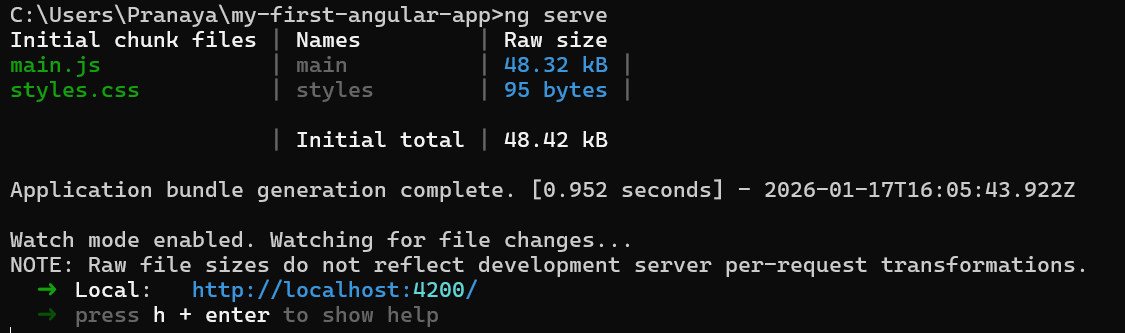
Step 5: Run the Angular Application
To start the Angular development server, run:
- ng serve
What ng serve Does?
- Compiles the Angular application
- Starts a local development server
- Watches files for changes
- Automatically refreshes the browser
You will see output similar to:
- Compiled successfully.
- Local: http://localhost:4200/
Step 6: Open the Application in a Browser
- Open any web browser
- Go to the following URL: http://localhost:4200
You will see the default Angular welcome page
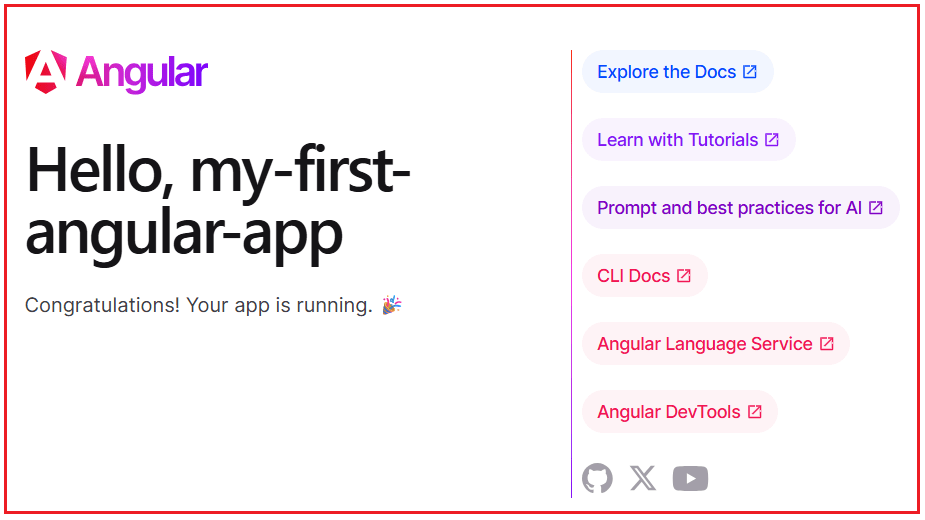
This confirms:
- Angular project is running.
- Development server is working.
- Environment setup is correct.
Congratulations! Your first Angular application is live.
Step 7: Stop the Development Server (When Needed)
To stop the server:
- Go back to Command Prompt
- Press Ctrl + C
- Press Y (if prompted)
This stops the Angular server safely.
Building the Angular Application using Angular CLI
When you want to create a production-ready build, run:
- ng build
What ng build Does
- Compiles Angular code
- Optimizes files
- Generates production-ready output
- Stores files in the dist folder
This step is usually done before deployment.

Creating, Building, and Running an Angular Project Using Visual Studio Code
Visual Studio Code (VS Code) provides an integrated development environment where we can write code, run Angular CLI commands, build applications, and debug them, all from a single place. Instead of switching between Command Prompt, a browser, and an editor, VS Code lets us manage the entire Angular workflow efficiently through its integrated terminal. Now, we will create an Angular project inside the D:\Angular-Projects folder, build it, and run it step by step.
Step 1: Open Visual Studio Code
First, we need to open Visual Studio Code.
- Click the Start Menu
- Search for Visual Studio Code
- Click to open it
Once opened, you will see the VS Code Welcome Screen, which confirms that the editor is ready to use.
Step 2: Open an Integrated Terminal in VS Code
VS Code includes a built-in terminal that behaves just like Command Prompt or PowerShell.
- In VS Code, click Terminal → New Terminal
- A terminal panel will appear at the bottom of the editor
By default, on Windows, this terminal usually opens as PowerShell, which we can use to run Angular CLI commands.
Step 3: Choose or Create a Workspace Folder
Before creating an Angular project, we must decide where to store it. Keeping all Angular projects inside a single folder is a best practice.
Requirement: We want to create the project inside: D:\Angular-Projects
Switch to D Drive
In the VS Code terminal, type:
- D:
This switches the terminal from the C drive to the D drive.
Create Angular-Projects Folder
Now, create a folder named Angular-Projects:
- mkdir Angular-Projects
This command creates a directory that will store all Angular projects.
Move into the Folder
Navigate into the newly created folder:
- cd Angular-Projects
This folder will contain all your Angular projects. At this point, the terminal prompt should look like:
- PS D:\Angular-Projects>
This confirms that we are in the correct location.
Step 4: Create a New Angular Project from VS Code
Now we are ready to create an Angular project. Run the following command in the VS Code terminal:
- ng new my-first-angular-app
This command tells Angular CLI to generate a new Angular application named my-first-angular-app.
PowerShell Execution Policy Error
This happens because Windows PowerShell blocks scripts by default for security reasons. Angular CLI internally uses a PowerShell script (ng.ps1), which PowerShell does not allow to run unless explicitly permitted.
Fixing the PowerShell Execution Policy (One-Time Setup)
Open Windows PowerShell as Administrator
- Click Start Menu
- Search for Windows PowerShell
- Right-click → Run as Administrator
Allow Scripts for Current User
Run the following command:
- Set-ExecutionPolicy RemoteSigned
PowerShell will ask:
- Do you want to change the execution policy?
- [Y] Yes [A] Yes to All [N] No
- Type A and press Enter
This allows trusted scripts (like Angular CLI) to run safely.
Retry Creating the Angular Project
Now return to the VS Code terminal and run again:
- ng new my-first-angular-app
This time, Angular CLI will proceed without errors.
What Happens During Project Creation
Angular CLI now automatically:
- Creates the project folder structure
- Generates configuration files
- Installs npm dependencies
- Sets up TypeScript
This process may take a few minutes, depending on the internet speed.
Step 5: Answer Angular CLI Prompts
During creation, Angular CLI will ask a few configuration questions. Choose the following options:
- Which stylesheet system would you like to use? → CSS
- Enable Server-Side Rendering (SSR) and Static Site Generation (SSG)? → No
- Configure AI tools with Angular best practices? → None
Angular CLI will then finish creating the project.
Step 6: Open the Project in VS Code
- Click File → Open Folder
- Browse to- D:\Angular-Projects\my-first-angular-app
- Select the folder
- Click Select Folder
- If asked to trust the workspace, click Yes, I trust the authors.
VS Code will now load the entire Angular project.
Step 7: Build the Angular Project in VS Code
Before running the app, it is good practice to verify that it builds successfully. In the VS Code terminal, ensure you are inside the project folder:
- cd my-first-angular-app
Then run:
- ng build
What ng build Does
- Compiles Angular and TypeScript code
- Optimizes application files
- Generates production-ready output
- Stores build files inside the dist/ folder
A successful build confirms that the project is correctly configured.
Step 8: Run the Angular Application in VS Code
To start the development server, run:
- ng serve
What ng serve Does
- Starts a local development server
- Compiles the application
- Watches for file changes
- Automatically reloads the browser
When the app is ready, you will see:
- Local: http://localhost:4200/
Step 9: Open the App in Browser
- Open Chrome (or any browser)
- Go to: http://localhost:4200
You will see the Angular welcome page, confirming that:
- The project was created successfully
- The build process works
- The application is running correctly
Step 10: Stop the Application
When you want to stop the development server:
- Click inside the VS Code terminal
- Press Ctrl + C
- Confirm if prompted
This safely stops the server.
Understanding Angular Version
When learning Angular, one of the most confusing topics for beginners is the Angular versioning system. Many learners assume that once they install Node.js, npm, or Angular CLI, Angular itself is installed globally and its version is automatically fixed. In reality, Angular versioning works very differently. Angular versions are not system-level; instead, they are project-specific. This design is intentional and plays a critical role in Angular’s stability, flexibility, and long-term maintainability.
To fully understand Angular versions, we must clearly understand what an Angular version represents, where it exists, how it is selected, and how it can be identified.
What Is an Angular Version?
An Angular version refers to the Angular framework used in an Angular application. Angular is not a single file or library; it is a collection of tightly related packages that together form the Angular framework. Some of the core Angular packages include:
- @angular/core
- @angular/common
- @angular/compiler
- @angular/router
- @angular/forms
All these Angular packages are released together and always share the same version number. This common version number is the Angular version of the project. In simple terms: Angular version = the version of the Angular framework installed inside a specific project
Important Clarification: Angular Is Not Installed Globally
One of the most important concepts for beginners to understand is that Angular is not installed globally on your computer. Unlike Node.js or Visual Studio Code, Angular does not exist as a system-wide installation. Angular is installed per project, which means:
- Two Angular projects on the same computer can use different Angular versions
- Installing Angular CLI does not install the Angular framework globally
- The Angular framework exists inside the project’s node_modules folder
- Each project controls its own Angular version independently
This approach allows old projects to remain stable while new projects can adopt newer Angular versions.
Angular Version vs Node.js and npm
To avoid confusion, it is important to clearly separate the roles of the tools involved in Angular development.
Node.js
- Provides the runtime environment to execute JavaScript outside the browser
- Required for Angular tooling to work
npm
- Acts as a package manager
- Downloads Angular and all third-party libraries
Angular CLI
- A command-line tool
- Helps create, build, run, and manage Angular projects
- Does not represent the Angular framework itself
Angular Framework
- The actual web application framework
- Runs in the browser
- Installed inside each project
In short:
- Installing Node.js and npm prepares the system
- Installing Angular CLI provides a development tool
- Creating an Angular project installs Angular itself
How Angular Version Is Selected
When we create a new Angular project using the command:
ng new my-first-angular-app
Angular CLI performs a sequence of decisions behind the scenes:
- It checks the installed Angular CLI version
- It verifies the Node.js version for compatibility
- It selects a compatible and recommended Angular framework version
- It installs that Angular version inside the project
- It records the version details in the project’s package.json
This means the Angular CLI decides which Angular version to install, based on compatibility rules and Angular’s official release strategy.
How to Identify the Angular Version Used by a Project
Since the Angular version belongs to the project, it must be identified from within the project.
Method 1: Using ng version
When the ng version command is executed inside a project, Angular CLI displays a detailed summary of the environment.
From the output:
- Angular CLI shows the tool version
- Node.js shows the runtime version
- npm shows the package manager version
- The section labeled Angular lists framework packages
The version displayed next to @angular/core represents the Angular version used by the project. All other Angular packages share this same version.
Method 2: Checking package.json
Another reliable way to identify the Angular version is by inspecting the project’s package.json file.
Inside the dependencies section, entries such as:
“@angular/core”: “^21.1.0”
indicate:
- The Angular framework version used by the project
- The acceptable update range for Angular packages
Here, @angular/core acts as the authoritative reference for the Angular version.
Why do all Angular Packages Have the Same Version?
Angular packages are versioned together to ensure:
- Compatibility between core features
- Consistent behaviour across routing, forms, and compiler
- Simplified upgrades and maintenance
- Reduced risk of breaking changes
This unified versioning strategy is one of Angular’s strengths in enterprise-scale applications.
In the next article, I will discuss the folder structure of the Angular application in detail. In this article, I explain how to create an Angular project using Angular CLI, step by step, with one example. I hope you enjoy this article.
About the Author: Pranaya Rout
Pranaya Rout has published more than 3,000 articles in his 11-year career. Pranaya Rout has very good experience with Microsoft Technologies, Including C#, VB, ASP.NET MVC, ASP.NET Web API, EF, EF Core, ADO.NET, LINQ, SQL Server, MYSQL, Oracle, ASP.NET Core, Cloud Computing, Microservices, Design Patterns and still learning new technologies.