
Back to: Angular Tutorials For Beginners and Professionals
Child Routes in Angular with Real-time Examples
Routing in Angular does not stop at simple page-to-page navigation. Real-world applications almost always require Nested Layouts, Section-Based Navigation, and Hierarchical URL Structures. This is where Child Routes and Nested Routing become essential. In this post, we will explore Child Routes in Angular using the latest standalone component architecture, understand why nested routing exists, and implement it step by step with a real-world dashboard-style layout.
What Are Child Routes in Angular?
Child Routes (also called Nested Routing) allow an Angular application to divide a large page into sections, with a parent component serving as the layout and child components representing the pages within that layout. Instead of replacing the entire screen when the URL changes, Angular replaces only the inner content area while keeping the parent layout intact. This makes applications feel more structured and professional, especially for dashboards and account-based systems.
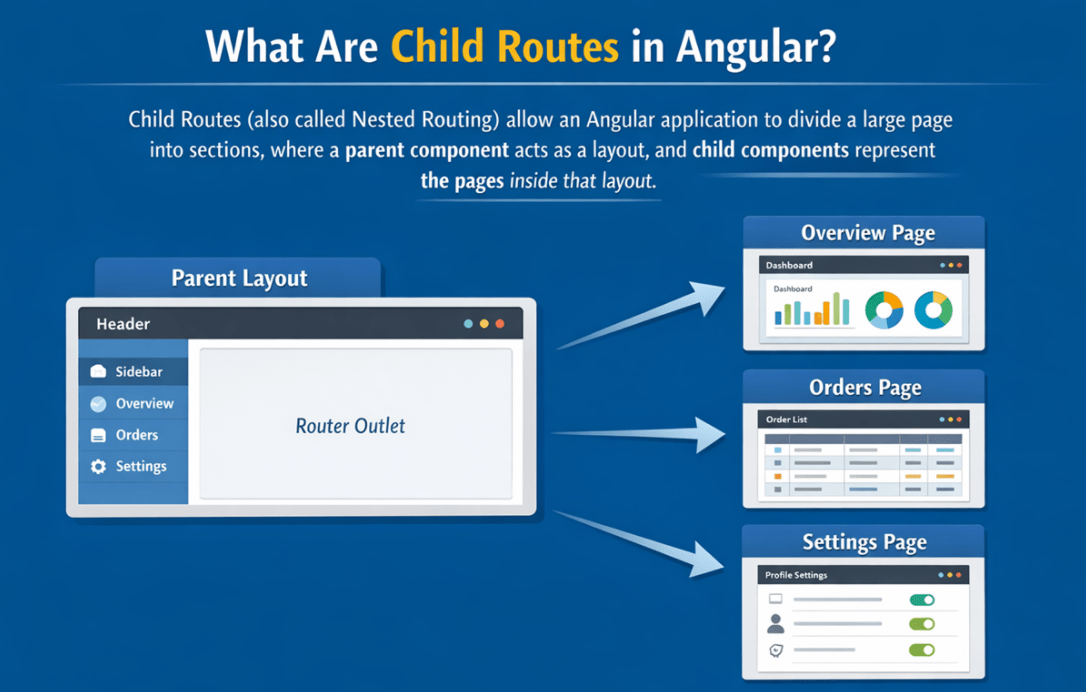
In simple terms:
- Parent Route → Defines the layout or section (header, sidebar, tabs, etc.)
- Child Routes → Define the individual pages inside that section
- Nested <router-outlet> → Decides where the child pages are rendered
Example URL Structure
- /account
- /account/overview
- /account/orders
- /account/settings
Here:
- /account is the parent route that loads the Account layout
- Overview, orders, and settings are child routes
- Only the content area inside the Account layout changes, not the entire page
This is why child routing is commonly used in areas such as My Account, Admin Panels, and Dashboards.
Why Do We Need Child Routes in Angular?
Without child routes, every navigation would reload the Entire Page Layout, even when only a small part of the page needs to change. In real applications, this quickly leads to problems.
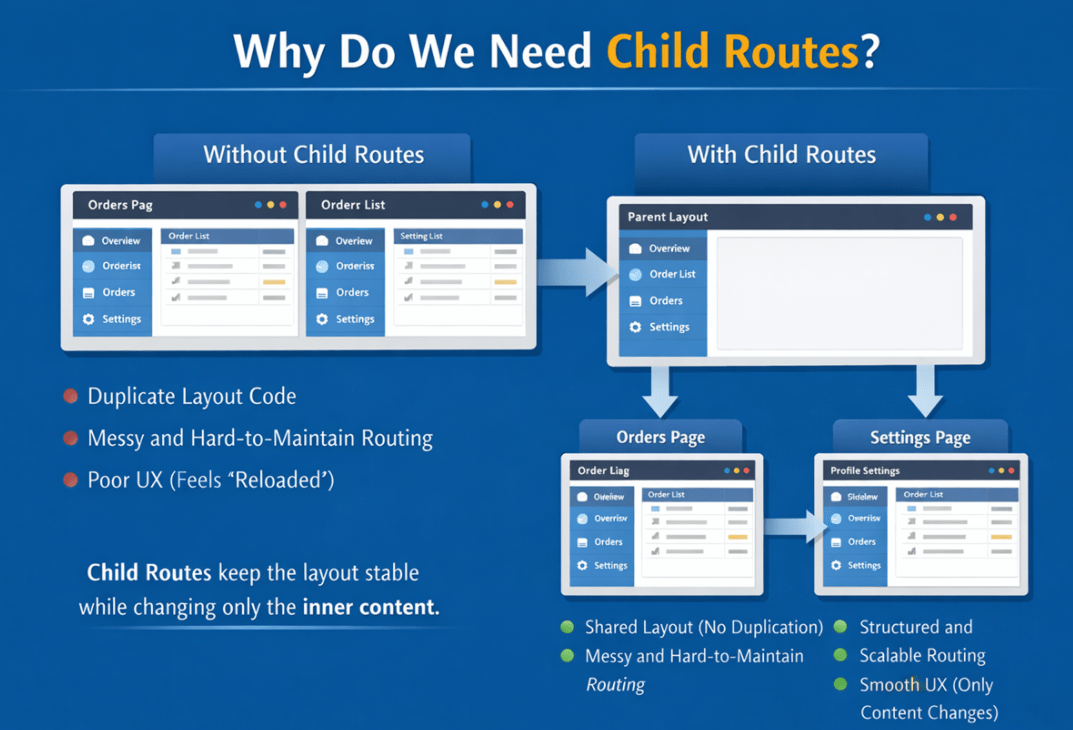
Problems Without Child Routes
- The same header, sidebar, or menu must be duplicated in multiple components
- Navigation feels less smooth and less professional
- Route configuration becomes scattered and harder to understand
- Maintaining or updating the layout requires changes in many places
How Child Routes Solve These Problems
Child routes solve this by allowing Angular to keep the layout component loaded and change only the inner content. They help to:
- Preserve a shared layout across related pages
- Enable section-level navigation without reloading the layout
- Keep URLs clean and hierarchical, reflecting the structure of the application
- Improve maintainability and scalability by centralizing layout and routing logic
Real-World Analogy
Think of a shopping mall:
- The mall building is the parent route
- Each shop inside the mall is a child route
- You can move from one shop to another without leaving the mall
Similarly, Angular allows users to navigate between child routes while remaining within the parent layout. The structure remains stable, and only the content changes.
When Should You Use Child Routes in Angular Applications?
Child routes should be used whenever multiple pages belong to the same logical section of an application.

They are ideal when:
- A section has its Own Menu, Tabs, or Sidebar.
- Multiple pages share the Same Layout and Structure.
- You want Clean, Meaningful, Hierarchical URLs.
- You want to apply Guards Once at the Parent Level instead of repeating them for every page
In short, if several pages feel like they belong together visually and functionally, child routes are the correct and scalable solution.
Real-time Application to Understand Child Routes in Angular?
In this application, we will build a realistic Account Dashboard that demonstrates how Child Routes and Nested Routing work in a real-world Angular application.
The application includes a public login page and a protected account section. Once a user logs in, they are taken to the Account area, which acts as a parent layout containing a common header, sidebar, and navigation menu. All account-related pages are implemented as child routes, and only the content area changes when navigating between them.
Application Route Structure
- /login: A public login page where users authenticate using demo credentials.
- /account: The parent route that loads the Account layout. This layout remains constant and contains the sidebar and navigation menu.
-
- /account/overview: Displays a dashboard-style summary of the user’s activity and account statistics.
- /account/orders: Shows the user’s order history, order status, and totals.
- /account/settings: Allows the user to view and update profile information and preferences.
-
Security Implementation
All account-related child routes are secured using CanActivateChild, applied at the /account parent route. This ensures that:
- Every child page under /account is protected automatically
- Unauthorized users are redirected to the login page
- The originally requested URL is preserved for smooth redirection after login
This setup demonstrates how nested routing, shared layouts, and centralized security work together to create a clean, maintainable, and professional Angular application.
Step 1: Create the Angular Project
- ng new NestedRoutingDemo
- cd NestedRoutingDemo
- ng serve
Step 2: Create the Pages
Create the following components:
- ng g component pages/login
- ng g component pages/account
- ng g component pages/account-overview
- ng g component pages/account-orders
- ng g component pages/account-settings
Step 3: Add Bootstrap CDN
Open src/index.html and add Bootstrap CDN.
<!doctype html>
<html lang="en">
<head>
  <meta charset="utf-8">
  <title>Nested Routing Demo</title>
  <base href="/">
  <meta name="viewport" content="width=device-width, initial-scale=1">
  <link rel="icon" type="image/x-icon" href="favicon.ico">
  <link href="https://cdn.jsdelivr.net/npm/bootstrap@5.3.3/dist/css/bootstrap.min.css" rel="stylesheet">
</head>
<body>
  <app-root></app-root>

  <script src="https://cdn.jsdelivr.net/npm/bootstrap@5.3.3/dist/js/bootstrap.bundle.min.js"></script>
</body>
</html>
Step 4: Create Auth Service
First, create a folder named services inside the src/app folder. Then, create a TypeScript file named auth.service.ts within the src/app/services folder and copy-paste the following code. This service keeps the login logic in one place. It performs a simple dummy login check and stores the login status plus user details (name and role) in localStorage. Other parts of the app (header, guards, pages) read these values to decide whether to show Login/Logout and whether a user can access protected routes.
import { Injectable } from '@angular/core';

@Injectable({
    providedIn: 'root'
})
export class AuthService {
  // Keys used to store authentication-related values in localStorage
  // Note: localStorage persists even after browser refresh/close.
  private readonly keyLoggedIn = 'isLoggedIn';
  private readonly keyUserName = 'userName';
  private readonly keyUserRole = 'userRole';

  /**
   * Checks whether the user is currently logged in.
   * We store login status as a string ('true' or 'false') in localStorage.
   */
  isLoggedIn(): boolean {
    return localStorage.getItem(this.keyLoggedIn) === 'true';
  }

  /**
   * Returns the logged-in user's display name.
   * If no value exists, returns empty string (safe fallback for UI).
   */
  getUserName(): string {
    return localStorage.getItem(this.keyUserName) || '';
  }

  /**
   * Returns the logged-in user's role (Admin / Account / etc.).
   * If no value exists, returns empty string.
   */
  getUserRole(): string {
    return localStorage.getItem(this.keyUserRole) || '';
  }

  /**
   * Performs login using dummy credentials (for demo/testing).
   * In real applications:
   * - Call API to validate username/password
   * - Receive token + user profile
   * - Store token (securely) and user details
   *
   * Returns:
   * - true  => login success (user info stored in localStorage)
   * - false => login failed (caller shows error message)
   */
  login(username: string, password: string): boolean {
    // Demo User 1: Admin login
    if (username === 'admin' && password === 'admin@123') {
      // Mark user as logged in
      localStorage.setItem(this.keyLoggedIn, 'true');

      // Store user identity details to show in common header
      localStorage.setItem(this.keyUserName, 'Pranaya Rout');
      localStorage.setItem(this.keyUserRole, 'Admin');

      return true;
    }

    // Demo User 2: Account user login
    if (username === 'account' && password === 'account@123') {
      // Mark user as logged in
      localStorage.setItem(this.keyLoggedIn, 'true');

      // Store user identity details to show in common header
      localStorage.setItem(this.keyUserName, 'Account User');
      localStorage.setItem(this.keyUserRole, 'Account');

      return true;
    }

    // If credentials do not match any demo user, login fails
    return false;
  }

  /**
   * Logs out the user by removing all auth-related values from localStorage.
   * After calling this, user will be treated as "not logged in" by guards and UI.
   */
  logout(): void {
    localStorage.removeItem(this.keyLoggedIn);
    localStorage.removeItem(this.keyUserName);
    localStorage.removeItem(this.keyUserRole);
  }
}
Step 5: Create Guard Service
Create a TypeScript file named auth-guard.service.ts within the src/app/services folder and copy-paste the following code. This guard protects all child routes under a parent route using CanActivateChild. If the user is logged in, navigation is allowed; otherwise, the user is redirected to /login, with a returnUrl included so they can be sent back to the requested child page after successful login.
import { Injectable } from '@angular/core';
import {
  // CanActivateChild:
  // Guard interface that protects ALL child routes under a parent route.
  // Example: /account/overview, /account/orders, /account/settings
  // If this guard returns false/UrlTree, navigation to child routes is blocked.
  CanActivateChild,

  // ActivatedRouteSnapshot:
  // A "read-only snapshot" of the route information at the moment navigation happens.
  // Contains route params, query params, route config, and data for the CURRENT route being activated.
  ActivatedRouteSnapshot,

  // RouterStateSnapshot:
  // A "read-only snapshot" of the entire router state at navigation time.
  // Most importantly, it contains the FULL URL user is trying to access (state.url),
  // which we often use for returnUrl redirection after login.
  RouterStateSnapshot,

  // Router:
  // Angular's Router service used to navigate programmatically and also to create UrlTree.
  // In guards, we usually avoid router.navigate() and instead return a UrlTree.
  Router,

  // UrlTree:
  // A special object that represents a URL in Angular routing.
  // If a guard returns a UrlTree, Angular cancels the current navigation
  // and redirects to that UrlTree target automatically.
  // Example: return router.createUrlTree(['/login'], { queryParams: { returnUrl: state.url } })
  UrlTree
} from '@angular/router';

import { AuthService } from './auth.service';

@Injectable({ providedIn: 'root' })
export class AuthGuardService implements CanActivateChild {

  /**
   * AuthGuardService protects CHILD routes under a parent route.
   * Example:
   *  {
   *    path: 'account',
   *    component: Account,
   *    canActivateChild: [AuthGuardService],
   *    children: [...]
   *  }
   *
   * Meaning:
   * - Any URL like /account/overview, /account/orders, /account/settings
   *   will pass through this guard first.
   */
  constructor(private authService: AuthService, private router: Router) {}

  /**
   * This method runs automatically whenever the user tries to access
   * any child route of a protected parent route.
   *
   * Return Types:
   * - true  => allow navigation (user can open the page)
   * - UrlTree => block navigation and redirect to another route
   */
  canActivateChild(
    route: ActivatedRouteSnapshot,
    state: RouterStateSnapshot
  ): boolean | UrlTree {

    // STEP 1: Check whether user is logged in (stored in localStorage by AuthService)
    if (this.authService.isLoggedIn()) {
      // User is logged in -> allow access to requested child route
      return true;
    }

    /**
     * STEP 2: User is NOT logged in -> redirect to Login page.
     *
     * We also pass "returnUrl" (the URL user originally requested)
     * so that after successful login, we can redirect them back.
     *
     * Example:
     * - User tries to open: /account/orders
     * - Guard redirects to: /login?returnUrl=/account/orders
     * - After login success: redirect back to /account/orders
     */
    return this.router.createUrlTree(['/login'], {
      queryParams: { returnUrl: state.url }
    });
  }
}
Step 6: Configure Child Routes (Nested Route Table)
Open src/app/app.routes.ts file, and copy-paste the following code. This file defines the application’s route structure. It makes /login public and defines /account as a parent route with children: overview, orders, and settings. The key point is that the guard is applied once at the parent level via canActivateChild, so every /account/… page is automatically protected.
import { Routes } from '@angular/router';
import { Login } from './pages/login/login';
import { Account } from './pages/account/account';
import { AccountOverview } from './pages/account-overview/account-overview';
import { AccountOrders } from './pages/account-orders/account-orders';
import { AccountSettings } from './pages/account-settings/account-settings';

import { AuthGuardService } from './services/auth-guard.service';

export const routes: Routes = [
  /**
   * DEFAULT ROUTE (Application Entry Point)
   * When user opens the application root URL: http://localhost:4200/
   * we redirect them to the Login page.
   */
  { path: '', redirectTo: 'login', pathMatch: 'full' },

  /**
   * PUBLIC ROUTE
   * Login page should be accessible without authentication.
   * Example: /login
   */
  { path: 'login', component: Login },

  /**
   * PROTECTED ROUTE (PARENT LAYOUT + CHILD ROUTES)
   *
   * /account is a parent (layout) route. It loads the Account component,
   * which contains the sidebar/menu and a <router-outlet>.
   *
   * Inside that <router-outlet>, Angular renders one of the child components
   * based on the remaining URL segment:
   *   /account/overview  -> AccountOverview
   *   /account/orders    -> AccountOrders
   *   /account/settings  -> AccountSettings
   *
   * SECURITY:
   * canActivateChild: [AuthGuardService] means:
   * - Every child route under /account/* is protected.
   * - If the user is NOT logged in, the guard redirects to:
   *      /login?returnUrl=/account/xyz
   * - After successful login, we navigate back to returnUrl.
   */
  {
    path: 'account',
    component: Account,
    canActivateChild: [AuthGuardService],
    children: [
      /**
       * DEFAULT CHILD ROUTE
       * If user opens only /account, redirect them to /account/overview.
       */
      { path: '', redirectTo: 'overview', pathMatch: 'full' },

      /** Child route: /account/overview */
      { path: 'overview', component: AccountOverview },

      /** Child route: /account/orders */
      { path: 'orders', component: AccountOrders },

      /** Child route: /account/settings */
      { path: 'settings', component: AccountSettings }
    ]
  },

  /**
   * WILDCARD ROUTE (Fallback)
   * If user enters an unknown URL that doesn't match any route,
   * redirect them to Login.
   *
   * IMPORTANT:
   * Wildcard route should always be the LAST route in the route list.
   */
  { path: '**', redirectTo: 'login' }
];
Step 7: Build the Application Shell (Navbar + Main Outlet)
App Component
Open src/app/app.ts file, and copy-paste the following code. This is your root (App) component. It reads login information (isLoggedIn, userName, userRole) from AuthService and exposes simple methods like logout() and goToLogin() for the global header. It acts as the “shell controller” for the whole app, while navigation and page loading happen through the router outlet.
import { Component } from '@angular/core';
import { NavigationEnd, Router, RouterOutlet } from '@angular/router';
import { AuthService } from './services/auth.service';

@Component({
  standalone: true,
  // RouterOutlet is required because this component hosts the <router-outlet> in app.html
  imports: [RouterOutlet],
  selector: 'app-root',
  templateUrl: './app.html'
})
export class App {
  constructor(
    /**
     * Router is used for:
     * - detecting route changes (to decide when to show/hide header)
     * - navigating programmatically (Login / Logout redirection)
     */
    private router: Router,

    /**
     * AuthService stores login state and user info (name/role) in localStorage.
     * The App component reads those values to show Login/Logout and user details in the header.
     */
    private authService: AuthService
  ) {}

  /**
   * Returns true if user is logged in.
   * Used in the UI to decide whether to show "Login" button or "UserName(Role) + Logout".
   */
  get isLoggedIn(): boolean {
    return this.authService.isLoggedIn();
  }

  /**
   * Gets the logged-in user's display name from AuthService (localStorage).
   * Used in the header to show: "Pranaya Rout (Admin)"
   */
  get userName(): string {
    return this.authService.getUserName();
  }

  /**
   * Gets the logged-in user's role from AuthService (localStorage).
   * Used in the header to show: "Pranaya Rout (Admin)"
   */
  get userRole(): string {
    return this.authService.getUserRole();
  }

  /**
   * Navigates user to the Login page.
   * Used when user is not logged in and clicks the "Login" button.
   */
  goToLogin(): void {
    this.router.navigateByUrl('/login');
  }

  /**
   * Logs out the user and redirects to the Login page.
   * - Clears login info from localStorage using AuthService.logout()
   * - Redirects user to /login
   */
  logout(): void {
    this.authService.logout();
    this.router.navigateByUrl('/login');
  }
}
App Template
Open src/app/app.html file, and copy-paste the following code. This file is the application shell UI. It contains a single common navbar (header) with Login/Logout and user info, and a main <router-outlet> that loads either the Login page or the Account parent layout (and its children). This is where you avoid duplicate headers by keeping only one top header for the entire app.
  <nav class="navbar navbar-dark bg-dark px-3 py-2">
    <a class="navbar-brand fw-semibold" routerLink="/account">
      My Portal
    </a>

    <div class="ms-auto d-flex align-items-center gap-2">
      @if (isLoggedIn) {
        <span class="text-white-50 small">
          {{ userName }} ({{ userRole }})
        </span>

        <button class="btn btn-outline-light btn-sm" (click)="logout()">
          Logout
        </button>
      } @else {
        <button class="btn btn-primary btn-sm" (click)="goToLogin()">
          Login
        </button>
      }
    </div>
  </nav>

<div class="container-fluid p-3">
  <router-outlet></router-outlet>
</div>
Step 8: Login Page
Login Component
Open src/app/pages/login/login.ts file, and copy-paste the following code. This component handles the login screen using simple variables (template-driven forms). It validates that username and password are entered, calls authService.login(), and on success it redirects either to the returnUrl (if the guard sent the user) or to /account/overview by default.
import { Component } from '@angular/core';
import { FormsModule } from '@angular/forms';
import { ActivatedRoute, Router } from '@angular/router';
import { AuthService } from '../../services/auth.service';

@Component({
  standalone: true,
  imports: [FormsModule],
  templateUrl: './login.html'
})
export class Login {

  /**
   * Template-driven form fields.
   * These variables are bound to the input controls using [(ngModel)] in login.html.
   */
  username = '';
  password = '';

  /**
   * Holds validation or login error messages.
   * If set, the UI will display this message to the user.
   */
  errorMessage = '';

  /**
   * Demo hint text shown on the login page (optional).
   * Helps testers/learners know which credentials to use.
   */
  demoHint = 'Demo Login: admin / admin@123';

  constructor(
    /**
     * AuthService handles login/logout and stores login state in localStorage.
     */
    private authService: AuthService,

    /**
     * Router is used for programmatic navigation after login/logout.
     */
    private router: Router,

    /**
     * ActivatedRoute is used to read query string values from the current URL.
     * Example: /login?returnUrl=/account/orders
     */
    private route: ActivatedRoute
  ) {
    /**
     * If the user is already logged in and tries to open /login manually,
     * redirect them directly to the Account page.
     * This avoids showing the login screen unnecessarily.
     */
    if (this.authService.isLoggedIn()) {
      this.router.navigateByUrl('/account/overview');
    }
  }

  /**
   * Called when user clicks the Login button.
   * This method validates input, performs login, and redirects user.
   */
  onLogin(): void {
    // Clear old errors before re-validating or attempting login
    this.errorMessage = '';

    /**
     * BASIC VALIDATION:
     * Ensure user entered both username and password.
     * (We keep it simple - later you can add more validations.)
     */
    if (!this.username || !this.password) {
      this.errorMessage = 'Username and Password are required.';
      return;
    }

    /**
     * Attempt login:
     * AuthService checks the credentials and returns true/false.
     * In real apps, this would call an API and validate server-side.
     */
    const success = this.authService.login(this.username, this.password);

    // If login failed, show an error message and stop further processing
    if (!success) {
      this.errorMessage = 'Invalid username or password.';
      return;
    }

    /**
     * Redirect after successful login:
     *
     * 1) If user was redirected to login by the guard, we will have:
     *      /login?returnUrl=/account/orders
     *    so we should send them back to that original page.
     *
     * 2) Otherwise, send them to the default landing page:
     *      /account/overview
     */
    const returnUrl = this.route.snapshot.queryParamMap.get('returnUrl');
    this.router.navigateByUrl(returnUrl || '/account/overview');
  }
}
Login Template
Open the src/app/pages/login/login.html file, and copy-paste the following code. This template provides a clean login form UI using Bootstrap styling. It binds input values using [(ngModel)], shows an error message when needed, and triggers onLogin() when the user clicks the Login button. It’s intentionally simple and professional-looking for a demo dashboard login page.
<div class="container" style="max-width: 520px;">
  <div class="text-center mt-5 mb-4">
    <h3 class="mb-1">Login</h3>
    <p class="text-muted mb-0">Sign in to access the Account dashboard.</p>
    <div class="text-muted small mt-2">{{ demoHint }}</div>
  </div>

  <div class="card shadow-sm border-0">
    <div class="card-body p-4">

      @if (errorMessage) {
        <div class="alert alert-danger">{{ errorMessage }}</div>
      }

      <div class="mb-3">
        <label class="form-label">Username</label>
        <input class="form-control"
               [(ngModel)]="username"
               name="username"
               placeholder="Enter username" />
      </div>

      <div class="mb-3">
        <label class="form-label">Password</label>
        <input class="form-control"
               type="password"
               [(ngModel)]="password"
               name="password"
               placeholder="Enter password" />
      </div>

      <button class="btn btn-primary w-100" (click)="onLogin()">
        Login
      </button>
    </div>
  </div>
</div>
Step 9: Build the Parent Layout Component
Account Component
Open src/app/pages/account/account.ts file, and copy-paste the following code. This is the parent layout component for the Account section. It holds dummy profile data (name/role/email/lastLogin) and the sidebar navigation links (navLinks). The main job of this component is to provide a stable layout (sidebar + content area) while Angular loads child pages into the nested router outlet.
import { Component } from '@angular/core';
import { RouterLink, RouterLinkActive, RouterOutlet } from '@angular/router';

/**
 * A simple TypeScript type that represents user details
 * displayed in the left sidebar of the Account layout.
 */
type UserProfile = {
  name: string;
  role: string;
  email: string;
  lastLogin: string;
};

@Component({
  standalone: true,

  /**
   * RouterOutlet:
   * - Required because Account is a parent (layout) component.
   * - Child routes (Overview/Orders/Settings) will render inside <router-outlet> in account.html.
   *
   * RouterLink & RouterLinkActive:
   * - Used for sidebar navigation links.
   * - RouterLink navigates to child pages (overview/orders/settings).
   * - RouterLinkActive adds an "active" CSS class to the selected menu item.
   */
  imports: [RouterOutlet, RouterLink, RouterLinkActive],

  // Separate HTML template for clean UI design
  templateUrl: './account.html'
})
export class Account {

  /**
   * Dummy user profile data for UI display.
   * This data is used in account.html to show:
   * - user name
   * - role
   * - email
   * - last login information
   *
   * Later, you can replace this with real data coming from AuthService or an API.
   */
  profile: UserProfile = {
    name: 'Pranaya Rout',
    role: 'Admin',
    email: 'pranaya@example.com',
    lastLogin: 'Today, 10:45 AM'
  };

  /**
   * Sidebar navigation configuration.
   * Each item represents a child route under /account.
   *
   * Example URLs:
   * - /account/overview
   * - /account/orders
   * - /account/settings
   *
   * icon:
   * - Bootstrap Icons class name (optional, for professional UI)
   *
   * "as const":
   * - Makes this array read-only (prevents accidental modification)
   * - Keeps TypeScript types strict and safer
   */
  navLinks = [
    { label: 'Overview', path: 'overview', icon: 'bi-speedometer2' },
    { label: 'Orders', path: 'orders', icon: 'bi-receipt' },
    { label: 'Settings', path: 'settings', icon: 'bi-gear' }
  ] as const;
}
Account Template
Open src/app/pages/account/account.html file, and copy-paste the following code. This is the Account parent layout template. The left side shows the profile, and the sidebar menu, and the right side contains a nested <router-outlet>. When you click Overview/Orders/Settings, only the content on the right changes—the sidebar stays the same. This is exactly what child routes are meant for.
<!--
  This is the PARENT (layout) template for the Account section.

  IMPORTANT:
  - This page stays visible while navigating between child routes.
  - Only the content inside <router-outlet> (right side) changes.
  - Example child URLs:
      /account/overview
      /account/orders
      /account/settings
-->

<div class="container-fluid">
  <div class="row g-3">

    <!--
      LEFT SIDE: Sidebar column
      - On large screens (lg and above), sidebar takes 3 columns out of 12
      - On small screens, it becomes full width (col-12)
    -->
    <div class="col-12 col-lg-3">

      <!-- Sidebar card container -->
      <div class="card shadow-sm">
        <div class="card-body">

          <!--
            Profile section (dummy data)
            - Shows user avatar + name + role
            - Replace these values with dynamic binding later if needed:
              {{ profile.name }}, {{ profile.role }}, etc.
          -->
          <div class="d-flex align-items-center gap-2 mb-3">

            <!-- Simple avatar circle (first letter of name) -->
            <div class="rounded-circle bg-primary text-white d-flex align-items-center justify-content-center"
                 style="width: 42px; height: 42px;">
              P
            </div>

            <!-- User name and role -->
            <div>
              <div class="fw-semibold">Pranaya Rout</div>
              <div class="text-muted small">Admin</div>
            </div>
          </div>

          <!-- Additional profile info -->
          <div class="text-muted small mb-1">pranaya@example.com</div>
          <div class="text-muted small mb-3">Last login: Today, 10:45 AM</div>

          <!--
            Navigation Menu (Account Child Routes)
            - Uses the navLinks array from account.ts
            - routerLink navigates to child paths relative to /account
              e.g., "overview" => /account/overview
            - routerLinkActive adds "active" class to the clicked link
          -->
          <div class="list-group">
            @for (link of navLinks; track link.path) {
              <a class="list-group-item list-group-item-action"
                 routerLink="{{ link.path }}"
                 routerLinkActive="active">
                {{ link.label }}
              </a>
            }
          </div>

        </div>
      </div>
    </div>

    <!--
      RIGHT SIDE: Content column
      - On large screens, content takes 9 columns out of 12
      - This area displays the currently selected child component
    -->
    <div class="col-12 col-lg-9">
      <div class="card shadow-sm">
        <div class="card-body">

          <!--
            Child Route Placeholder
            - Angular renders the matched child component here.
            - When user clicks:
                Overview -> loads AccountOverview component here
                Orders   -> loads AccountOrders component here
                Settings -> loads AccountSettings component here
          -->
          <router-outlet></router-outlet>

        </div>
      </div>
    </div>

  </div>
</div>
Step 10: Build the Child Pages
Account Overview Component
Open src/app/pages/account-overview/account-overview.ts file, and copy-paste the following code. This child component provides dummy “dashboard-style” data, such as stat cards and recent activity. It also includes a small helper method for selecting badge classes. Its role is to represent one child page (/account/overview) loaded inside the Account layout.
import { Component } from '@angular/core';

type StatCard = { title: string; value: string; hint: string };
type Activity = { id: number; title: string; time: string; status: 'success' | 'warning' | 'info' };

@Component({
  standalone: true,
  templateUrl: './account-overview.html'
})
export class AccountOverview {
  // Dummy data comes from THIS component (Overview)
  stats: StatCard[] = [
    { title: 'Orders (30d)', value: '128', hint: 'All statuses' },
    { title: 'Pending', value: '7', hint: 'Needs attention' },
    { title: 'Refund Requests', value: '2', hint: 'Under review' },
    { title: 'Wallet Balance', value: '₹1,250', hint: 'Available' }
  ];

  activities: Activity[] = [
    { id: 1, title: 'Order #103 delivered', time: 'Today, 10:45 AM', status: 'success' },
    { id: 2, title: 'Payment pending for Order #102', time: 'Today, 09:10 AM', status: 'warning' },
    { id: 3, title: 'Profile updated (Address)', time: 'Yesterday, 06:20 PM', status: 'info' }
  ];

  getBadgeClass(s: Activity['status']): string {
    return s === 'success'
      ? 'bg-success'
      : s === 'warning'
        ? 'bg-warning text-dark'
        : 'bg-info text-dark';
  }
}
Account Overview Template
Open the src/app/pages/account-overview/account-overview.html file, and copy-paste the following code. This template displays the Overview UI using cards and a recent activity list. It uses @for for looping and @if for conditional UI, so it matches the latest Angular control-flow style. It renders inside the parent’s nested router outlet.
<nav class="mb-3">
  <span class="text-muted small">Account</span>
  <span class="text-muted small"> / </span>
  <span class="fw-semibold small">Overview</span>
</nav>

<div class="row g-3 mb-3">
  @for (s of stats; track s.title) {
    <div class="col-12 col-md-6 col-lg-3">
      <div class="card border-0 shadow-sm h-100">
        <div class="card-body">
          <div class="text-muted small">{{ s.title }}</div>
          <div class="fs-4 fw-semibold">{{ s.value }}</div>
          <div class="text-muted small">{{ s.hint }}</div>
        </div>
      </div>
    </div>
  }
</div>

<div class="card border-0 shadow-sm">
  <div class="card-header bg-primary text-white">
    Recent Activity
  </div>
  <div class="card-body">
    @if (activities.length === 0) {
      <div class="alert alert-warning mb-0">No recent activity found.</div>
    } @else {
      <ul class="list-group">
        @for (a of activities; track a.id) {
          <li class="list-group-item d-flex justify-content-between align-items-start">
            <div>
              <div class="fw-semibold">{{ a.title }}</div>
              <div class="text-muted small">{{ a.time }}</div>
            </div>
            <span class="badge {{ getBadgeClass(a.status) }}">Status</span>
          </li>
        }
      </ul>
    }
  </div>
</div>
Account Orders Component
Open src/app/pages/account-orders/account-orders.ts file, and copy-paste the following code. This child component contains dummy order data and a few helper getters/methods (total orders, total amount, currency formatting, and status badge class). It represents the Orders child page and keeps the data logic inside the Orders component.
import { Component } from '@angular/core';

type OrderStatus = 'Delivered' | 'Pending' | 'Cancelled';

type OrderItem = {
  id: number;
  date: string;
  amount: number;
  items: number;
  status: OrderStatus;
};

@Component({
  standalone: true,
  templateUrl: './account-orders.html'
})
export class AccountOrders {
  // Dummy data comes from THIS component (Orders)
  orders: OrderItem[] = [
    { id: 103, date: '2026-02-08', amount: 2499, items: 3, status: 'Delivered' },
    { id: 102, date: '2026-02-07', amount: 799, items: 1, status: 'Pending' },
    { id: 101, date: '2026-02-05', amount: 1299, items: 2, status: 'Cancelled' }
  ];

  get totalOrders(): number {
    return this.orders.length;
  }

  get totalAmount(): number {
    return this.orders.reduce((sum, o) => sum + o.amount, 0);
  }

  formatCurrency(v: number): string {
    return `₹${v.toLocaleString('en-IN')}`;
  }

  getStatusBadgeClass(s: OrderStatus): string {
    if (s === 'Delivered') return 'bg-success';
    if (s === 'Pending') return 'bg-warning text-dark';
    return 'bg-secondary';
  }
}
Account Orders Template
Open src/app/pages/account-orders/account-orders.html file, and copy-paste the following code. This template shows the Orders page UI: summary cards at the top and a list of orders below, with action buttons such as View/Invoice/Support.
<nav class="mb-3">
  <span class="text-muted small">Account</span>
  <span class="text-muted small"> / </span>
  <span class="fw-semibold small">Orders</span>
</nav>

<div class="row g-3 mb-3">
  <div class="col-12 col-md-6">
    <div class="card border-0 shadow-sm">
      <div class="card-body">
        <div class="text-muted small">Total Orders</div>
        <div class="fs-4 fw-semibold">{{ totalOrders }}</div>
      </div>
    </div>
  </div>
  <div class="col-12 col-md-6">
    <div class="card border-0 shadow-sm">
      <div class="card-body">
        <div class="text-muted small">Total Amount</div>
        <div class="fs-4 fw-semibold">{{ formatCurrency(totalAmount) }}</div>
      </div>
    </div>
  </div>
</div>

<div class="card border-0 shadow-sm">
  <div class="card-header bg-primary text-white d-flex justify-content-between align-items-center">
    <span>Order History</span>
    <button class="btn btn-light btn-sm">Export</button>
  </div>

  <div class="card-body">
    @if (orders.length === 0) {
      <div class="alert alert-warning mb-0">No orders found.</div>
    } @else {
      <div class="list-group">
        @for (o of orders; track o.id) {
          <div class="list-group-item">
            <div class="d-flex justify-content-between align-items-start">
              <div>
                <div class="fw-semibold">Order #{{ o.id }}</div>
                <div class="text-muted small">Date: {{ o.date }} • Items: {{ o.items }}</div>
              </div>
              <div class="text-end">
                <div class="fw-semibold">{{ formatCurrency(o.amount) }}</div>
                <span class="badge {{ getStatusBadgeClass(o.status) }}">{{ o.status }}</span>
              </div>
            </div>

            <div class="mt-2 d-flex gap-2">
              <button class="btn btn-outline-primary btn-sm">View</button>
              <button class="btn btn-outline-secondary btn-sm">Invoice</button>
              <button class="btn btn-outline-danger btn-sm">Support</button>
            </div>
          </div>
        }
      </div>
    }
  </div>
</div>
Account Settings Component
Open src/app/pages/account-settings/account-settings.ts file, and copy-paste the following code. This child component stores dummy profile settings and preference toggles. It has simple methods like toggle() and save() so the UI can behave like a real settings page without any advanced patterns. It represents /account/settings.
import { Component } from '@angular/core';

type Preference = { key: string; label: string; enabled: boolean };

@Component({
  standalone: true,
  templateUrl: './account-settings.html'
})
export class AccountSettings {
  // Dummy data comes from THIS component (Settings)
  preferences: Preference[] = [
    { key: 'emailAlerts', label: 'Email alerts for orders', enabled: true },
    { key: 'smsAlerts', label: 'SMS alerts for delivery', enabled: false },
    { key: 'weeklySummary', label: 'Weekly activity summary', enabled: true }
  ];

  profile = {
    fullName: 'Pranaya Rout',
    phone: '+91-90000-00000',
    city: 'Bhubaneswar'
  };

  save(): void {
    // Demo method — replace with service call
    alert('Settings saved (demo).');
  }

  toggle(prefKey: string): void {
    const p = this.preferences.find(x => x.key === prefKey);
    if (p) p.enabled = !p.enabled;
  }
}
Account Settings Template
Open the src/app/pages/account-settings/account-settings.html file, and copy-paste the following code. This template displays two professional cards: Profile and Preferences. The preferences list shows Enabled/Disabled states using conditional rendering, and the Save button calls the component’s save() method. Like the other child pages, it loads inside the Account layout’s nested router outlet.
<nav class="mb-3">
  <span class="text-muted small">Account</span>
  <span class="text-muted small"> / </span>
  <span class="fw-semibold small">Settings</span>
</nav>

<div class="row g-3">
  <div class="col-12 col-lg-6">
    <div class="card border-0 shadow-sm">
      <div class="card-header bg-primary text-white">Profile</div>
      <div class="card-body">
        <div class="mb-3">
          <label class="form-label">Full Name</label>
          <input class="form-control" [value]="profile.fullName" />
        </div>

        <div class="mb-3">
          <label class="form-label">Phone</label>
          <input class="form-control" [value]="profile.phone" />
        </div>

        <div class="mb-3">
          <label class="form-label">City</label>
          <input class="form-control" [value]="profile.city" />
        </div>

        <button class="btn btn-primary" (click)="save()">Save Changes</button>
      </div>
    </div>
  </div>

  <div class="col-12 col-lg-6">
    <div class="card border-0 shadow-sm">
      <div class="card-header bg-dark text-white">Preferences</div>
      <div class="card-body">
        @for (p of preferences; track p.key) {
          <div class="d-flex justify-content-between align-items-center border rounded p-2 mb-2">
            <div class="fw-semibold">{{ p.label }}</div>

            <button class="btn btn-sm"
                    [class.btn-success]="p.enabled"
                    [class.btn-outline-secondary]="!p.enabled"
                    (click)="toggle(p.key)">
              @if (p.enabled) { Enabled } @else { Disabled }
            </button>
          </div>
        }
      </div>
    </div>
  </div>
</div>
Conclusion: Why Child Routes Matter in Angular?
Child Routes and Nested Routing allow Angular applications to create section-based layouts in which a parent component remains constant while only the inner content changes. This approach avoids layout duplication, keeps routing organized, and enables cleaner guard and security management using canActivateChild. By combining nested <router-outlet> usage with standalone components, Angular applications can achieve professional, scalable, and maintainable routing structures commonly required in real-world dashboards and account-based systems.
Nice
Child route section isn’t there. Could you please add it