
Back to: Angular Tutorials For Beginners and Professionals
Template VS TemplateURL in Angular
In this article, I will discuss Template vs TemplateURL in an Angular Application with examples. Please read our previous article, where we discussed the Angular Component Decorator in detail. At the end of this article, you will understand the following pointers:
- What are Templates in Angular?
- Inline vs External Templates
- Template vs TemplateUrl in Angular
What Are Templates in Angular?
In Angular, a template represents a component’s visual output. It defines what the user sees in the browser and how the user interface is structured. In simple words, A template is the HTML that Angular renders on the screen for a component.
However, it is very important to understand that Angular templates are not plain static HTML files like traditional web pages. Instead, they are dynamic views that are tightly connected to the component’s TypeScript class. Because of this connection, Angular templates can:
- Display data coming from the component class
- React to user actions such as clicks and input
- Automatically update the UI when data changes
So, a more accurate and complete definition is: An Angular template is a dynamic HTML view that is directly connected to a component’s TypeScript class and stays synchronized with it. This dynamic nature of templates enables Angular to build interactive, reactive user interfaces.
Role of a Template in a Component
Angular follows a strict, clear separation of responsibilities to keep applications clean, maintainable, and scalable. Each part has a specific role:
- Component Class (TypeScript) → Holds data and behaviour
- Template (HTML) → Defines UI structure and presentation
- Angular Framework → Acts as a bridge that keeps both in sync
The template itself:
- Does not own data
- Does not contain business logic
- Does not manage application state
Instead, the template only uses and displays what the component class provides. This separation ensures that UI-related code remains simple and focused, while all logic stays inside the component class.
Simple Example: Class + Template Relationship
Component Class
export class Welcome{
  message = 'Welcome to Angular';
}
Template
<h2>{{ message }}</h2>
What Happens Here?
- The component class defines the data (message)
- The template displays that data on the screen
- Angular automatically connects the template with the class
The template never defines the message variable. It only reads it from the component class. Whenever the message value changes in the class, Angular automatically updates the UI without any manual DOM manipulation.
Different ways to create Templates in Angular
As we already discussed, the template is part of a component that renders the user interface that the end-user can interact with. We can create a template in two ways. They are as follows:
- Inline template
- External Template
Inline Templates in Angular
An inline template is a way to define a component’s HTML directly within the @Component decorator, using the template property. In this approach, the UI markup is written as a string inside the TypeScript file.
Inline Template Example
Here, the HTML is embedded directly within the component definition rather than in a separate HTML file. The UI is written as a string inside TypeScript.
import { Component } from '@angular/core';

@Component({
  selector: 'app-inline',
  template: `<h2>Inline Template Example</h2>`
})

export class Inline{}
Characteristics of Inline Templates
Inline templates have the following characteristics:
- HTML lives inside the .ts file
- Suitable for very small and simple UI
- Useful for demos, examples, and learning
- Difficult to read for complex layouts
As the UI grows in size and complexity, inline templates make the component file harder to understand and maintain.
External Templates in Angular
An External Template is an HTML file linked to a component via the templateUrl property. In this approach, the UI markup is placed in a separate .html file, while the logic remains in the TypeScript class.
External Template Example
Here, the component class and the template are clearly separated into different files.
Component Class
import { Component } from '@angular/core';

@Component({
  selector: 'app-external',
  templateUrl: './external.html'
})
export class External {
  title = 'External Template Example';
}
Template (external.html)
<h2>{{ title }}</h2>
Why External Templates Are Preferred?
Angular strongly promotes the principle of Separation of Concerns, which means:
- TypeScript → Logic and behaviour
- HTML → UI structure and presentation
- CSS → Styling and appearance
This approach provides several advantages:
- Keeps files small, focused, and readable
- Makes debugging easier
- Allows designers and developers to work independently
- Scales well as applications grow larger
Because of these benefits, external templates are the industry-standard approach in Angular applications.
Template vs TemplateUrl in Angular
This is a common confusion because both define the same “template concept,” but they differ in where the HTML is written.
template
template: `<h2>Hello</h2>`
- Accepts an HTML string
- Used for inline templates
- Written directly in the decorator
templateUrl
templateUrl: ‘./component.html’
- Accepts a file path
- Used for external templates
- HTML stored in a separate file
Important Note: Functionally, there is no difference between template and templateUrl. Angular compiles both into the same internal representation. The difference exists only for organizational and maintainability reasons.
Example to Understand Inline vs External Template in Angular:
In this example, we will practically understand the difference between Inline Templates and External Templates by creating two simple components inside the same Angular project and observing how Angular renders them. The goal of this example is not just to run the code, but to clearly understand where the UI lives, how Angular reads it, and why external templates are preferred in real-world applications.
Step 1: Create a New Angular Project
Before creating components, we need an Angular project. Angular applications are not just collections of files—they are structured workspaces created and managed by Angular CLI.
Open Terminal (or VS Code Terminal)
Open Visual Studio Code and run the following command in the Terminal:
- ng new template-demo
During setup, Angular CLI will ask a few questions:
- Stylesheet Format → CSS
- SSR or SSG/Prerendering? → N
- AI Tools? → None
Angular CLI will now:
- Create the project structure
- Install required dependencies
- Prepare the application
Move into the project folder
Once completed, move into the project folder by executing the following command in Terminal:
- cd template-demo
Step 2: Open the Project in Visual Studio Code
Run the following command in Terminal:
- code .
This opens the project in Visual Studio Code. At this stage, the important files and folders are:
- src/app/ → Application components
- src/main.ts → Application entry point
- src/index.html → Host HTML page
- src/app/app.ts → Root component
This confirms that the project is ready for development.
Step 3: Run the Angular Application (Verify Setup)
Before doing anything else, verify the project runs correctly. In the terminal, run:
- ng serve
Open the browser and navigate to:
- http://localhost:4200
You should see the default Angular page. This confirms that:
- Angular CLI is installed correctly
- The project setup is valid
- The development server is working
Step 4: Create a Component with an Inline Template
Now we will create a component that uses an inline template, meaning the HTML is written directly in the TypeScript file.
Generate Component
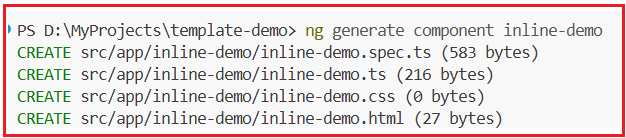
ng generate component inline-demo
Angular CLI creates a folder: src/app/inline-demo/, and it should create the following files:
Modify inline-demo.ts
Open src/app/inline-demo/inline-demo.ts and replace its content with the following:
import { Component } from '@angular/core';

@Component({
  selector: 'app-inline-demo',
    template: `
    <h2>Inline Template Component</h2>
    <p>This UI is written directly inside the component file.</p>
  `,
  styleUrl: './inline-demo.css',
})
export class InlineDemo {
}
What Is Happening Here?
- The HTML is written inside the @Component decorator
- The UI exists inside the TypeScript file
- No external HTML file is used for rendering
- Angular reads the template property and treats it as the component’s view
This approach is called an Inline Template.
Step 5: Create a Component with an External Template
Now we will create another component that uses an external template, where the HTML lives in a separate file.
Generate Component
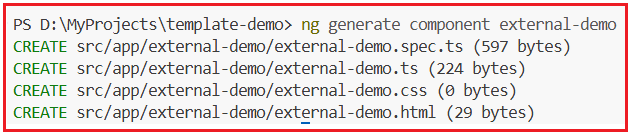
ng generate component external-demo
Angular CLI creates the src/app/external-demo/ folder, and it should create the following files:
Modify external-demo.ts
Open src/app/external-demo/external-demo.ts and update it as follows:
import { Component } from '@angular/core';

@Component({
  selector: 'app-external-demo',
  templateUrl: './external-demo.html',
  styleUrl: './external-demo.css',
})
export class ExternalDemo {
   title = 'External Template Component';
}
External Template File
Open src/app/external-demo/external-demo.html and add the following content:
<h2>{{ title }}</h2>
<p>This UI is written in a separate HTML file.</p>
What Is Happening Here?
- The component class contains only logic and data
- The HTML lives in a separate .html file
- Angular loads the template using templateUrl
- This is the recommended Angular approach
Step 6: Use Both Components in the Root Component
Creating a component does not automatically display it. Angular displays a component only when its selector is used in another template. Please modify app.ts as follows.
import { Component, signal } from '@angular/core';
import { InlineDemo } from './inline-demo/inline-demo';
import { ExternalDemo } from './external-demo/external-demo';

@Component({
  selector: 'app-root',
  imports: [InlineDemo, ExternalDemo],
  templateUrl: './app.html',
  styleUrl: './app.css'
})
export class App {
  protected readonly title = signal('template-demo');
}
Use Template Selector in Root Template
Please modify app.html as follows.
<h1>Inline vs External Template Demo</h1>
<app-inline-demo></app-inline-demo>
<app-external-demo></app-external-demo>
What Is Happening Here?
- Both components are imported into the root component
- Their selectors are used in HTML:
-
- <app-inline-demo>
- <app-external-demo>
-
- Angular replaces these selectors with the actual rendered UI
This is how Angular composes UI using components.
Step 7: Run the Application
If the server is not running, start it again:
- ng serve
Open the browser: http://localhost:4200
Step 8: Observe the Output
On the screen, you will see:
- A heading from the root component
- UI rendered from the inline template
- UI rendered from the external template
Even though both approaches are written differently, Angular renders them the same way.

Step 9: Key Learning from This Example
Inline Template
- HTML inside TypeScript
- Useful for very small UI
- Hard to maintain for real projects
External Template
- HTML in a separate file
- Clean separation of concerns
- Industry-standard approach
- Preferred for production applications
Step 10: Final Conclusion
Internally, Angular treats inline templates and external templates the same. The difference is only in how developers organize code.
- Inline template → Convenience
- External template → Scalability & maintainability
That is why real-world Angular applications always prefer external templates using templateUrl.
In this chapter, you clearly understood the difference between inline and external templates and why external files are preferred. In the next article, I will discuss HTML Attributes vs. DOM Properties with Examples. I would like to have your feedback. Please post your feedback, questions, or comments about this article.
About the Author: Pranaya Rout
Pranaya Rout has published more than 3,000 articles in his 11-year career. Pranaya Rout has very good experience with Microsoft Technologies, Including C#, VB, ASP.NET MVC, ASP.NET Web API, EF, EF Core, ADO.NET, LINQ, SQL Server, MYSQL, Oracle, ASP.NET Core, Cloud Computing, Microservices, Design Patterns and still learning new technologies.
very helpful for beginner
It is very good
make a video this tutorials
Good explanation. There is one correction.~ is tilde symbol. ` is called as backtick symbol
Super explanation …easy to understand …i love it too much…thanks a lot.
Inline template or external template – which should you use and why?
This exact comparison is demonstrated clearly in our YouTube video with live Angular examples.
Watching the video will help you visually understand the difference and choose the right approach for real projects.
👉 Watch now: https://youtu.be/64sujzqpeko