
Back to: Angular Tutorials For Beginners and Professionals
Implementing Angular Reactive Forms with a Real-time Application
Reactive Forms in Angular follow a Code-First Approach, where the entire form structure, validation rules, and behaviour are written in TypeScript, and the HTML template is used only to display the form.
Now, we will:
- Learn how to implement Reactive Forms in Angular.
- Understand the syntax and purpose of each class and directive.
- Build a simple Registration Form example using Angular Reactive Forms
By the end, you will clearly understand how Reactive Forms work in real applications.
Reactive Forms Syntax:
Reactive Forms don’t work automatically because Angular treats forms as an optional feature (so apps that don’t use them don’t load extra code). So, to use reactive forms, we must explicitly import ReactiveFormsModule.
In a Standalone Component, there is no AppModule for imports. So, we import it inside the component like this:
- imports: [ReactiveFormsModule]
Why is this required?
ReactiveFormsModule gives Angular two things:
Form APIs (TypeScript Side): These are the classes we use to create and validate the form in code:
- FormControl (Single Field)
- FormGroup (Group of Fields)
- Validators (Validation Rules)
- FormBuilder (Shortcut to Create Forms)
Form Directives (HTML Side): These are the “connectors” that let HTML talk to our TypeScript form:
- [formGroup]
- formControlName
What happens if you don’t import ReactiveFormsModule?
- Angular will not recognize [formGroup] and formControlName
- Your page will show errors like “Can’t bind to formGroup…”
- The form will not work at all
So, ReactiveFormsModule is the “switch” that turns on reactive form features in both TypeScript and HTML.
Field Level Validation vs Form Level Validation
Field-level validation checks one input field at a time, like validating “Email is required” or “Password must be at least 8 characters.” Form-level validation checks multiple fields together, such as ensuring that “Password and Confirm Password match” or that “Start Date must be before End Date.”
Field validation rules are attached directly to a specific FormControl, while form validation rules are attached to the FormGroup because the rule depends on values from more than one control.
Field Level Validation (FormControl)
- Applied to a single control (e.g., email, fullName)
- Examples: required, minLength, pattern, email
- Error lives on that control: email.errors
Form Level Validation (FormGroup)
- Applied to the whole form/group (checks relationships between fields)
- Examples: password match, date range, “GST required only for Business”. Again, it can be done at the form level or at the dynamic field level.
- Error lives on the group: registerForm.errors
When to use which
- If the rule needs only one field → Field Level
- If the rule needs two/more fields → Form Level
In simple words, Field validation validates a single control, while form validation validates rules that depend on multiple controls together.
FormControl, FormGroup, FormBuilder, HTML Binding, and Validation Messages
Reactive Forms are built step by step: starting with a single field, then grouping fields, and finally connecting everything to HTML. Each concept solves a very specific problem, and understanding why they exist is very important.
Think of a Reactive Form like a data model in code: FormControl is one property, FormGroup is an object, and FormBuilder is a shortcut to create that object cleanly. HTML does not define rules; it only binds to what already exists in TypeScript.
FormControl (Single Field)
A FormControl represents exactly one input field in the UI, such as Name, Email, or Password. Angular uses it to store the field’s value, track whether it is valid, and remember how the user interacted with it (touched, dirty, etc.).
Whenever the user types into an input, Angular updates the corresponding FormControl, not the HTML element directly. That’s why all validation logic lives in TypeScript.
Example
import { FormControl, Validators } from '@angular/forms';

name = new FormControl('', [
  Validators.required,
  Validators.minLength(3)
]);
What this means
- ” → Starting value of the field (empty on page load)
- Validators.required → Gield must not be empty
- Validators.minLength(3) → User must enter at least 3 characters
So, the name is not just a value. It is a complete controller for that field (value + validation + state like touched/dirty).
Key Points to Remember:
- One FormControl = one input field
- Stores value, validation state, and user interaction state
- Ideal for rules that depend on only one field
- Errors are accessed as name.errors
So, FormControl is the TypeScript object that controls a single input field (its value, validation rules, and state).
FormGroup (Multiple Fields Together)
A FormGroup is a container that holds multiple FormControl objects. It represents a complete form or a logical section of a form, such as Registration, Login, or Address details. Angular treats the group as a single unit, allowing it to validate, submit, reset, or disable all fields together.
Example
import { FormGroup, FormControl, Validators } from '@angular/forms';

registerForm = new FormGroup({
  fullName: new FormControl('', [Validators.required]),
  email: new FormControl('', [Validators.required, Validators.email])
});
What does this mean?
- The whole form is named registerForm
- It contains two controls:
-
- fullName
-
- Each control has its own validation rules
Now Angular can check:
- Is the whole form valid? → registerForm.valid
- Is a specific field valid? → registerForm.get(’email’)?.valid
Key Points to Remember:
- One FormGroup = multiple FormControls
- Represents a complete form or form section
- Required when fields need to work together
- Errors are accessed as registerForm.errors
So, FormGroup holds multiple FormControls and represents the entire form in TypeScript.
FormBuilder (Cleaner Form Creation)
Creating new FormControl() instances repeatedly can be repetitive in real projects. FormBuilder exists to reduce repetitive code and make form definitions shorter and more readable. Internally, FormBuilder still creates FormControl and FormGroup objects; we are just using a cleaner syntax.
Example
import { FormBuilder, Validators } from '@angular/forms';

private formBuilder = inject(FormBuilder);

registerForm = this.formBuilder.group({
  fullName: ['', [Validators.required]],
  email: ['', [Validators.required, Validators.email]]
});
Here, Angular understands:
- fullName: [”] → create a FormControl with default value ”
- [Validators.required] → apply validations
So FormBuilder doesn’t change how the form works. It only makes the code easier to read and maintain. In simple words, FormBuilder is a shortcut that creates the same FormControls/FormGroup with less code.
Connecting TypeScript Form with HTML
In Reactive Forms, HTML never creates the form. The form already exists in TypeScript, and HTML only connects to it.
You connect:
- The entire form using [formGroup]
- Each individual field using formControlName
Example
<form [formGroup]="registerForm">
  <input type="text" formControlName="fullName" />
  <input type="email" formControlName="email" />
</form>
What this achieves
- HTML inputs are linked to FormControls
- Validation, value updates, and state tracking happen automatically
- No validation logic is written in HTML
Key Points to Remember:
- [formGroup] binds the form model
- formControlName binds individual fields
- HTML is display-only
So, TypeScript defines the form; HTML only binds and displays it.
When to Show Validation Messages?
Showing validation errors immediately on page load feels aggressive and confusing to users. That’s why Angular provides interaction states like touched and dirty. A good user experience shows errors only after the user interacts with the field.
Example
@if (fullName?.touched && fullName?.invalid) {
  <div class="invalid-feedback d-block">
    @if (fullName?.errors?.['required']) {
      <div>Full Name is required.</div>
    }
    @if (fullName?.errors?.['minlength']) {
      <div>Minimum 3 characters required.</div>
    }
  </div>
}
What does this mean?
Show error only when:
- User interacted with the field (touched)
- And, the field is invalid (invalid)
- Then show the exact message depending on which rule failed (required or minlength)
This creates a professional UX:
- No errors on page load
- Errors appear only when the user makes a mistake
So, validation messages should appear only after the user interacts with a field.
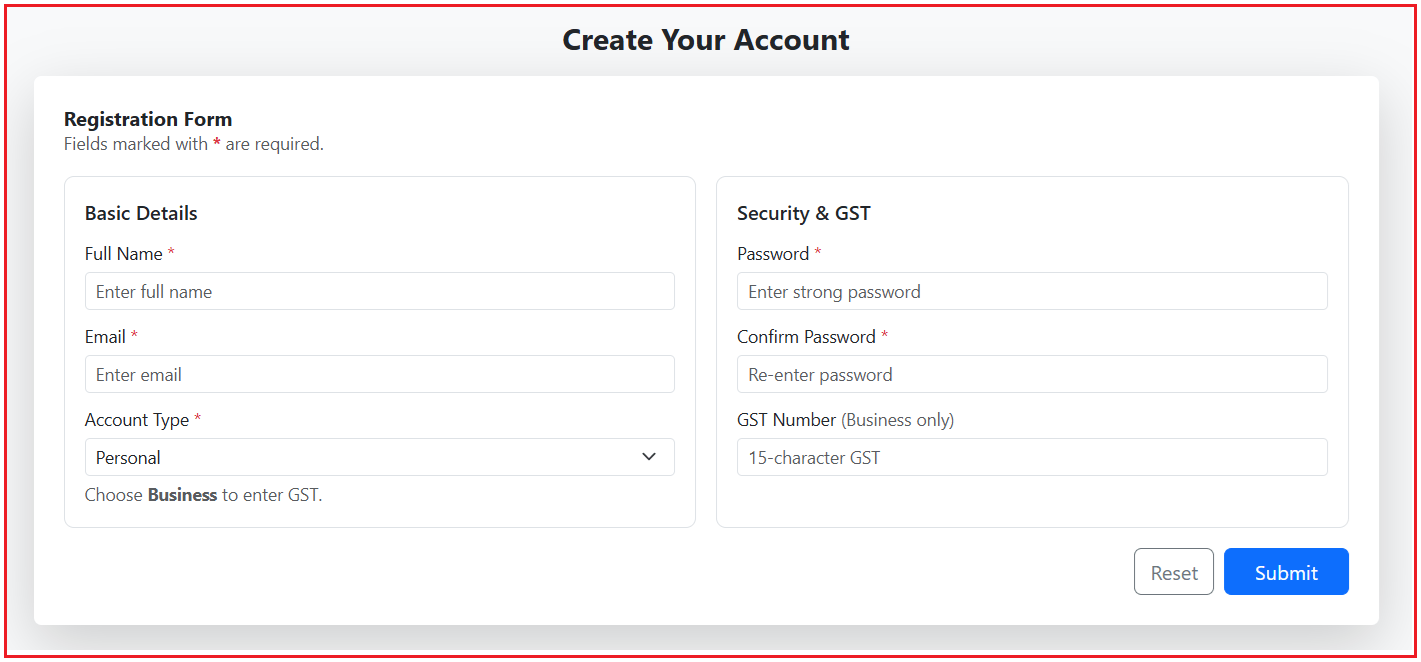
Example: Registration Form
The following registration form example demonstrates how Reactive Forms are used in real applications, not just how they work syntactically. Every requirement in the form, such as mandatory fields, cross-field validation, conditional rules, and clean UI feedback, is intentionally designed to show why Reactive Forms are preferred when business logic becomes non-trivial.
The core idea behind this example is Code First, Template Second. All form structure, validation rules, and business decisions are written in TypeScript, while HTML only displays the form and reacts to the form state. This separation makes the form predictable, testable, and easy to extend.
What Business Requirements Does This Example Cover?
This form simulates a real registration scenario:
- Some fields are Always Mandatory (Full Name, Email, Password)
- Some rules depend on Other Fields (Confirm Password must match Password)
- Some fields become mandatory Only Under Certain Conditions (GST Number for Business accounts)
- The user must receive Clear Feedback
- The system must clearly distinguish invalid vs valid submissions
Reactive Forms are ideal here because HTML alone cannot manage these dependencies cleanly.
Create an Angular Project
Run the following commands:
- ng new ReactiveFormDemo
- cd ReactiveFormDemo
Adding Bootstrap CDN
Open the src/index.html file, and copy-paste the following code.
<!doctype html>
<html lang="en">
<head>
  <meta charset="utf-8">
  <title>ReactiveFormDemo</title>
  <base href="/">
  <meta name="viewport" content="width=device-width, initial-scale=1">
  <link rel="icon" type="image/x-icon" href="favicon.ico">
  <!-- Bootstrap CSS -->
  <link href="https://cdn.jsdelivr.net/npm/bootstrap@5.3.3/dist/css/bootstrap.min.css" rel="stylesheet">
</head>
<body>
  <app-root></app-root>
</body>
</html>
App Component
In Reactive Forms, the form is not built in HTML. Instead, the form is built in TypeScript using FormGroup and FormControl. So, our Register component contains:
- The form structure (which fields exist)
- The validation rules for each field
- The logic for special rules (GST condition, password match)
- The submit logic and success message
Open the src/app/app.ts file, and copy-paste the following code.
// Provides the @Component decorator to define this Angular component.
import { Component } from '@angular/core';

// Provides common directives/pipes (like @if, @for, date, currency) used in templates.
import { CommonModule } from '@angular/common';

import {
  ReactiveFormsModule,  // Enables Reactive Forms features like formGroup and formControlName in the template.
  FormBuilder,          // Helps create FormGroup/FormControl objects in a shorter and cleaner way.
  Validators,           // Provides built-in validation rules like required, minlength, email, etc.
  AbstractControl,      // Base type for FormControl/FormGroup used mainly in custom validators.
  ValidationErrors,     // Represents the error object returned by a validator when validation fails.
  FormGroup             // Represents the complete form as a group of multiple form controls.
} from '@angular/forms';

@Component({
  selector: 'app-root',
  standalone: true,
  imports: [CommonModule, ReactiveFormsModule],
  templateUrl: './app.html'
})
export class App {

  // Holds the complete Reactive Form.
  // - Form structure + validation rules are defined here (code-first approach).
  registerForm: FormGroup;

  // Used only to display the final submitted form data on UI.
  // (We keep it null until the user submits a valid form.)
  submittedData: any = null;

  // Stores success message after successful form submission.
  successMessage: string = '';

  constructor(private formBuilder: FormBuilder) {

      // Create the form group using FormBuilder for clean and readable code.
      this.registerForm = this.formBuilder.group(
      {
        // Full Name validation:
        // 1) Required
        // 2) Minimum 3 characters
        fullName: ['', [Validators.required, Validators.minLength(3)]],

        // Email validation:
        // 1) Required
        // 2) Must be a valid email format
        email: ['', [Validators.required, Validators.email]],

        // Account Type:
        // Default value is "Personal"
        // We will apply GST rules only when user selects "Business"
        accountType: ['Personal', [Validators.required]],

        // GST Number: Dynamic Validator
        // No validators initially.
        // Validators will be dynamically added/removed when Account Type changes.
        gstNumber: [''],

        // Password validation:
        // 1) Required
        // 2) Minimum 6 characters
        password: ['', [Validators.required,  Validators.pattern(this.strongPasswordPattern)]],

        // Confirm Password validation: Form-level validator
        // Required (matching is handled by a form-level validator)
        confirmPassword: ['', [Validators.required]]
      },
      {
        // Form-level validator:
        // This validates multiple fields together.
        // Here we validate: password === confirmPassword
        validators: [this.passwordsMatchValidator]
      }
    );
  }

  // Getter Helpers
  // These getters make template code shorter and cleaner.
  // Example: fullName?.touched instead of registerForm.get('fullName')?.touched

  get fullName() { return this.registerForm.get('fullName'); }
  get email() { return this.registerForm.get('email'); }
  get accountType() { return this.registerForm.get('accountType'); }
  get gstNumber() { return this.registerForm.get('gstNumber'); }
  get password() { return this.registerForm.get('password'); }
  get confirmPassword() { return this.registerForm.get('confirmPassword'); }

  // Strong Password Pattern:
  // At least 8 characters, 1 uppercase, 1 lowercase, 1 number, and 1 special character.
  private readonly strongPasswordPattern: RegExp = /^(?=.*[a-z])(?=.*[A-Z])(?=.*\d)(?=.*[@$!%*?&])[A-Za-z\d@$!%*?&]{8,}$/;

  // Custom Validator
  // Custom Form-Level Validator:
  // Ensures Password and Confirm Password are the same.
  // - If both values match => return null (valid)
  // - If mismatch => return { passwordMismatch: true } (invalid)
  private passwordsMatchValidator(control: AbstractControl): ValidationErrors | null {

    // Read both field values from the form group.
    const pwd = control.get('password')?.value;
    const cpwd = control.get('confirmPassword')?.value;

    // If user has not entered one of the fields yet,
    // do not show mismatch error.
    if (!pwd || !cpwd) return null;

    // Return error object only when values differ.
    return pwd === cpwd ? null : { passwordMismatch: true };
  }

  // Dynamic Validation: GST
  // Called when the user changes Account Type dropdown.
  // Rule:
  // - Personal => GST not required
  // - Business => GST required and must be exactly 15 characters
  onAccountTypeChange(): void {

    const selectedType = this.accountType?.value;

    if (selectedType === 'Business') {

      // Business account => GST must be provided
      this.gstNumber?.setValidators([
        Validators.required,
        Validators.minLength(15),
        Validators.maxLength(15)
      ]);

    } else {

      // Personal account => GST is not required
      this.gstNumber?.clearValidators();

      // clear GST value to avoid accidentally submitting old data
      this.gstNumber?.setValue('');
    }

    // IMPORTANT:
    // Whenever you add/remove validators dynamically,
    // you must refresh validation status.
    this.gstNumber?.updateValueAndValidity();
  }

  // Submit Handler
  // Called when user submits the form.
  // - If invalid => mark all fields touched (to show validation messages)
  // - If valid => store submitted data for display
  onSubmit(): void {
    // Clear old success message on every submit attempt.
    this.successMessage = '';

    // If form is invalid, show errors on UI by marking all controls touched.
    if (this.registerForm.invalid) {
      this.registerForm.markAllAsTouched();
      return;
    }

    // Form is valid => capture the form values.
    this.submittedData = this.registerForm.value;

    // Set success message for UI
    this.successMessage = 'Registration successful! Your form has been submitted.';
  }
}
App Template
Open the src/app/app.html file, and copy-paste the following code.
<div class="bg-light py-4">
  <div class="container">

    <!-- Page Title -->
    <div class="text-center mb-3">
      <h1 class="h4 fw-bold mb-1">Create Your Account</h1>
    </div>

    <div class="row justify-content-center">
      <div class="col-12 col-lg-11 col-xl-10">

        <!-- Success Alert -->
        @if (successMessage) {
          <div class="alert alert-success alert-dismissible fade show shadow-sm py-2" role="alert">
            <div class="d-flex align-items-center gap-2">
              <div class="fw-semibold">Success!</div>
              <div class="flex-grow-1">{{ successMessage }}</div>
              <button type="button" class="btn-close" data-bs-dismiss="alert" aria-label="Close"></button>
            </div>
          </div>
        }

        <!-- Main Card -->
        <div class="card border-0 shadow-lg">
          <div class="card-body p-3 p-md-4">

            <div class="d-flex align-items-center justify-content-between mb-3">
              <div>
                <h2 class="h6 fw-bold mb-0">Registration Form</h2>
                <div class="text-muted small">Fields marked with <span class="text-danger fw-bold">*</span> are required.</div>
              </div>
            </div>

            <form [formGroup]="registerForm" (ngSubmit)="onSubmit()" novalidate>
              <div class="row g-3">

                <!-- LEFT SECTION (3 Fields) -->
                <div class="col-12 col-lg-6">
                  <div class="border rounded-3 bg-white p-3 h-100">
                    <div class="fw-semibold mb-2">Basic Details</div>

                    <!-- Full Name -->
                    <div class="mb-2">
                      <label class="form-label small mb-1">
                        Full Name <span class="text-danger">*</span>
                      </label>

                      <input
                        type="text"
                        class="form-control form-control-sm"
                        formControlName="fullName"
                        placeholder="Enter full name"
                        [class.is-invalid]="fullName?.touched && fullName?.invalid"
                      />

                      @if (fullName?.touched && fullName?.invalid) {
                        <div class="invalid-feedback d-block">
                          @if (fullName?.errors?.['required']) {
                            <div>Full Name is required.</div>
                          }
                          @if (fullName?.errors?.['minlength']) {
                            <div>Minimum 3 characters required.</div>
                          }
                        </div>
                      }
                    </div>

                    <!-- Email -->
                    <div class="mb-2">
                      <label class="form-label small mb-1">
                        Email <span class="text-danger">*</span>
                      </label>

                      <input
                        type="email"
                        class="form-control form-control-sm"
                        formControlName="email"
                        placeholder="Enter email"
                        [class.is-invalid]="email?.touched && email?.invalid"
                      />

                      @if (email?.touched && email?.invalid) {
                        <div class="invalid-feedback d-block">
                          @if (email?.errors?.['required']) {
                            <div>Email is required.</div>
                          }
                          @if (email?.errors?.['email']) {
                            <div>Enter a valid email.</div>
                          }
                        </div>
                      }
                    </div>

                    <!-- Account Type -->
                    <div>
                      <label class="form-label small mb-1">
                        Account Type <span class="text-danger">*</span>
                      </label>

                      <select
                        class="form-select form-select-sm"
                        formControlName="accountType"
                        (change)="onAccountTypeChange()">
                        <option value="Personal">Personal</option>
                        <option value="Business">Business</option>
                      </select>

                      <div class="form-text small">
                        Choose <strong>Business</strong> to enter GST.
                      </div>
                    </div>

                  </div>
                </div>

                <!-- RIGHT SECTION (3 Fields) -->
                <div class="col-12 col-lg-6">
                  <div class="border rounded-3 bg-white p-3 h-100">
                    <div class="fw-semibold mb-2">Security & GST</div>

                    <!-- Password -->
                    <div class="mb-2">
                      <label class="form-label small mb-1">
                        Password <span class="text-danger">*</span>
                      </label>

                      <input
                        type="password"
                        class="form-control form-control-sm"
                        formControlName="password"
                        placeholder="Enter strong password"
                        [class.is-invalid]="password?.touched && password?.invalid"
                      />

                      @if (password?.touched && password?.invalid) {
                        <div class="invalid-feedback d-block">
                          @if (password?.errors?.['required']) {
                            <div>Password is required.</div>
                          }
                          @if (password?.errors?.['pattern']) {
                            <div>Password must include uppercase, lowercase, number, special character (min 8).</div>
                          }
                        </div>
                      }
                    </div>

                    <!-- Confirm Password -->
                    <div class="mb-2">
                      <label class="form-label small mb-1">
                        Confirm Password <span class="text-danger">*</span>
                      </label>

                      <input
                        type="password"
                        class="form-control form-control-sm"
                        formControlName="confirmPassword"
                        placeholder="Re-enter password"
                        [class.is-invalid]="
                          (confirmPassword?.touched && confirmPassword?.invalid) ||
                          (registerForm.touched && registerForm.errors?.['passwordMismatch'])
                        "
                      />

                      @if (confirmPassword?.touched && confirmPassword?.invalid) {
                        <div class="invalid-feedback d-block">
                          @if (confirmPassword?.errors?.['required']) {
                            <div>Confirm Password is required.</div>
                          }
                        </div>
                      }

                      @if (registerForm.touched && registerForm.errors?.['passwordMismatch']) {
                        <div class="text-danger small mt-1">
                          Password and Confirm Password must match.
                        </div>
                      }
                    </div>

                    <!-- GST Number -->
                    <div>
                      <label class="form-label small mb-1">
                        GST Number <span class="text-muted">(Business only)</span>
                      </label>

                      <input
                        type="text"
                        class="form-control form-control-sm"
                        formControlName="gstNumber"
                        placeholder="15-character GST"
                        [class.is-invalid]="gstNumber?.touched && gstNumber?.invalid"
                      />

                      @if (gstNumber?.touched && gstNumber?.invalid) {
                        <div class="invalid-feedback d-block">
                          @if (gstNumber?.errors?.['required']) {
                            <div>GST is required for Business account.</div>
                          }
                          @if (gstNumber?.errors?.['minlength'] || gstNumber?.errors?.['maxlength']) {
                            <div>GST must be exactly 15 characters.</div>
                          }
                        </div>
                      }
                    </div>

                  </div>
                </div>

              </div>

              <!-- Buttons -->
              <div class="d-flex flex-column flex-sm-row gap-2 justify-content-end mt-3">

                <button
                  type="button"
                  class="btn btn-outline-secondary"
                  (click)="registerForm.reset({ accountType: 'Personal' })">
                  Reset
                </button>

                <button type="submit" class="btn btn-primary px-4">
                  Submit
                </button>

              </div>

            </form>

          </div>
        </div>

        <!-- Submitted Output -->
        @if (submittedData) {
          <div class="card border-0 shadow-sm mt-3">
            <div class="card-body p-3">
              <div class="d-flex justify-content-between align-items-center mb-2">
                <div class="fw-semibold">Submitted Data</div>
                <span class="badge text-bg-success">Valid</span>
              </div>
              <pre class="bg-light p-2 rounded mb-0 small">{{ submittedData | json }}</pre>
            </div>
          </div>
        }

      </div>
    </div>

  </div>
</div>
How This Example Works?
- We define the form structure in TypeScript using FormBuilder.
- We attach validation rules using Validators.
- HTML binds the form to [formGroup] and the fields to formControlName.
- On submit:
-
- If invalid → show errors by calling markAllAsTouched()
- If valid → display submitted data
-
- GST validation changes based on Account Type using a normal (change) event handler.
Conclusion:
In this example, we learned how Angular Reactive Forms work using a clear code-first approach, where the form structure, validation rules, and business logic are fully controlled in TypeScript. By understanding FormControl, FormGroup, FormBuilder, and proper HTML binding, we built a registration form that includes Field-Level Validation, Form-Level Validation, and Conditional Rules like GST for Business accounts. This approach makes forms predictable, scalable, and easy to maintain, which is why Reactive Forms are the preferred choice for real-world and enterprise Angular applications.
Post the next article please
thank you so much, i really appreciate you for this
Thank you so much for your articles, it is very easy to understand. Really appreciate your effort on this.
Can you please post some articles on Remote api (Web API) calls using Angular.
Nice, Thank you so much, please add next all Topics related Angular.
thank you very much , can you post the next article please
Please Post Next Article
Rather than having to always look in the console for the results, it’s easier to add it to the html.
I add this to the bottom of my form when testing:
{{ studentForm.value | json}}
Please add RxJs and observables concepts, it would be much helpful.
post next article please