
Back to: Angular Tutorials For Beginners and Professionals
Angular Nested Component Real-time Application: Mini Store Dashboard
In this session, we will develop a real-time application using Angular components and nested components. The Mini Store Dashboard is a simple, real-time Angular application designed to demonstrate the use of containers and nested components, along with clear component communication. It shows how a parent component controls the application state, while child components focus solely on UI rendering and user interactions, using @Input() and @Output(). The following Dashboard will be developed using Angular Container and Nested Components.
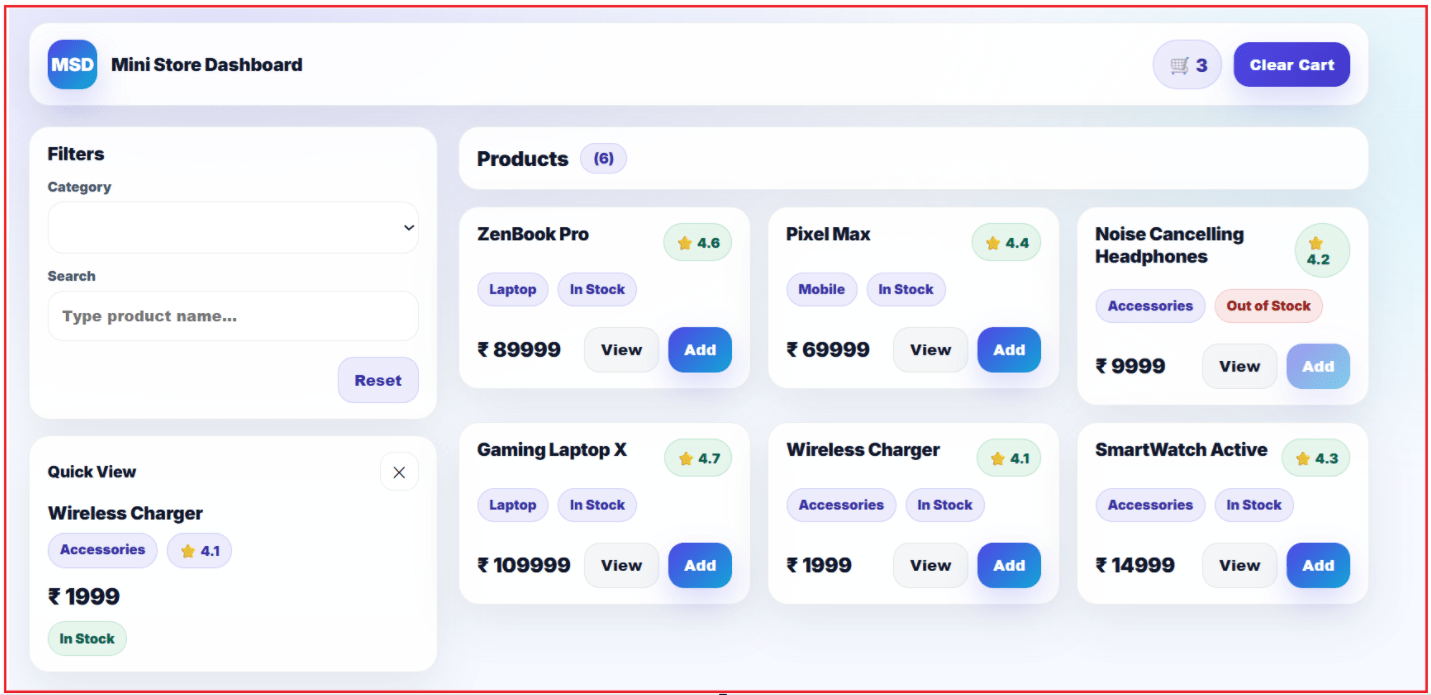
Parent Component controls the State and Data
In Angular, a single component should own and control the main data for a screen. That component is called the Container (Parent / Smart) component. In this app, the container controls:
- Products → What data exists on the screen
- Filters → Which category/search is currently selected
- Selected Product → Which product is currently chosen for Quick View
- Cart Count → The current cart number shown in the header
Key Note: The container is the single source of truth. That means: only the container decides what the UI should show.
Child components display UI and raise actions
Child components are created to split a big screen into smaller, reusable UI parts. Child components mainly do two things:
- Display UI using the data they receive
- Raise actions/events when the user interacts
They do not control the application’s main state.
Key Note: Child components are like “UI pieces” that depend on the container.
Data Flow in Our App:
Angular uses a clear, controlled communication system between parent and child components.
A) Parent → Child (Downward data flow)
This happens when the parent wants the child to show something.
Examples (conceptually):
- Parent sends the cart count to the header so the header can show it
- Parent sends filter values to the filter section so it can display selected options
- Parent sends a list of products to the grid so it can display cards
Key Note: Parent-to-child is about data sharing and is usually one-way.
B) Child → Parent (Upward communication)
This happens when something happens inside a child, and the child wants to inform the parent. Examples:
- User clicks Add → Child informs parent Add this product.
- User clicks View → Child informs parent Show details for this product.
- User changes filter → Child informs parent Update filters.
- User clicks Clear Cart → Child informs parent Clear the cart.
Key Note: Child-to-parent is about notification (“something happened”), not about controlling the state.
What actually happens when the user clicks View?
When a user clicks View on a product card:
- The card component does not display details by itself
- The card only says, “User wants to view this product.”
Then the container (parent) decides:
- Where to show the details (Quick View panel, modal, new page, etc.)
- What exact UI should be updated?
Key Note: Children request actions. The parent decides what to do.
Step-by-step Implementation:
Step 1: Create project + generate components
- ng new MyStoreDashboard
- cd MyStoreDashboard
- ng generate component store/store-container
- ng generate component store/store-header
- ng generate component store/product-filter
- ng generate component store/product-grid
- ng generate component store/product-card
Create ONE shared model file
A shared model avoids duplicate type definitions, prevents type-mismatch errors, and keeps the entire application consistent and maintainable. A shared model is a single file where you define common types/interfaces like:
- Product
- Category
Create this file: src/app/store/store-models.ts and then copy-paste the following code.
export type Category = 'All' | 'Laptop' | 'Mobile' | 'Accessories';

export interface Product {
  id: number;
  name: string;
  category: Category;
  price: number;
  rating: number;
  inStock: boolean;
}
Without it, you need to define Product multiple times in different components (StoreContainer, ProductGrid, ProductCard), and then TypeScript treats them as different types even if they look the same.
Update Global Styles
Global styles apply to the entire application (body, font, background, theme variables, etc.). Open src/styles.css and copy-paste the following code.
/* Google Font */
@import url('https://fonts.googleapis.com/css2?family=Inter:wght@400;600;700;800;900&display=swap');

:root {
  /* Brand Colors */
  --primary: #4f46e5;      /* Indigo */
  --primary-dark: #4338ca;
  --accent: #06b6d4;       /* Cyan */
  --success: #16a34a;      /* Green */
  --danger: #dc2626;       /* Red */
  --warning: #f59e0b;      /* Amber */

  /* Text */
  --text: #0f172a;
  --muted: #475569;

  /* Surface */
  --bg: #f6f8ff;
  --card: rgba(255, 255, 255, 0.92);
  --border: rgba(15, 23, 42, 0.08);

  /* Shadows */
  --shadow: 0 14px 40px rgba(15, 23, 42, 0.08);
  --shadow-hover: 0 20px 55px rgba(15, 23, 42, 0.12);

  /* Radius */
  --radius: 18px;
}

* {
  box-sizing: border-box;
}

body {
  margin: 0;
  font-family: 'Inter', system-ui, -apple-system, Segoe UI, Roboto, Arial, sans-serif;
  color: var(--text);
  background: radial-gradient(1200px 600px at 20% 0%, rgba(79, 70, 229, 0.12), transparent 60%),
              radial-gradient(900px 500px at 100% 20%, rgba(6, 182, 212, 0.10), transparent 60%),
              linear-gradient(180deg, #f8fbff 0%, var(--bg) 100%);
}
Modify Root Component
Please modify the app.ts root component as follows:
// Importing Component decorator from Angular core library
// This decorator is used to define an Angular component
import { Component } from '@angular/core';

// Importing the StoreContainer component
// This is a child (nested) component that will be used inside this component's template
import { StoreContainer } from './store/store-container/store-container';

// @Component decorator defines metadata for this component
@Component({
  // Selector is the custom HTML tag used to render this component
  // <app-root></app-root>
  // It will be used inside index.html
  selector: 'app-root',

  // Imports array is used because this is a Standalone Component
  // It tells Angular which components can be used inside this component's template
  imports: [StoreContainer],

  // HTML template file associated with this component
  // This file contains the UI structure
  templateUrl: './app.html',

  // CSS file associated with this component
  // This file contains styles specific to this component
  styleUrl: './app.css'
})

// Root component class of the Angular application
// This component acts as the entry point of the app
export class App {
  // Currently, no logic is needed here
  // Child components like StoreContainer handle the main functionality
}
Modify Root Template
Please modify the app.html root template as follows:
<app-store-container></app-store-container>
Store Container (Parent Component)
StoreContainer is the brain of the dashboard. The StoreContainer is the smart component that owns data/state and controls the whole flow.
Responsibilities
- Holds the product data
- Holds the selected category and search text
- Performs filtering logic
- Maintains cart count
- Receives events from children and updates the state
Communication
- Parent → Child: sends data using @Input
- Child → Parent: receives events using @Output
Modify Store Container (Parent / Smart) Component
Open src/app/store/store-container/store-container.ts and copy-paste the following code.
import { Component } from '@angular/core';

/*
  These are CHILD components used inside StoreContainer's template (store-container.html).
  Since this is a Standalone Component (no NgModule), we must explicitly import them.
*/
import { StoreHeader } from '../store-header/store-header';
import { ProductFilter } from '../product-filter/product-filter';
import { ProductGrid } from '../product-grid/product-grid';

/*
  Shared types (single source of truth)
  This avoids duplicate Product/Category definitions and prevents type mismatch issues.
*/
import { Category, Product } from '../store-models';

@Component({
  // Selector to use this component in HTML: <app-store-container></app-store-container>
  selector: 'app-store-container',

  // Child components used in the template must be imported here.
  imports: [StoreHeader, ProductFilter, ProductGrid],

  // UI template and styles for this container component
  templateUrl: './store-container.html',
  styleUrls: ['./store-container.css']
})
export class StoreContainer {

  // Cart count shown in the header (StoreHeader)
  cartCount = 0;

  // Categories shown in the ProductFilter dropdown
  categories: Category[] = ['All', 'Laptop', 'Mobile', 'Accessories'];

  // Current selected category (used for filtering)
  selectedCategory: Category = 'All';

  // Search text entered by user (used for filtering)
  searchText = '';

  // Holds the product selected when user clicks "View"
  // If null => Quick View panel is hidden
  selectedProduct: Product | null = null;

  // In-memory product data (for learning/demo purpose)
  // In real projects, this data typically comes from API/service.
  products: Product[] = [
    { id: 1, name: 'ZenBook Pro', category: 'Laptop', price: 89999, rating: 4.6, inStock: true },
    { id: 2, name: 'Pixel Max', category: 'Mobile', price: 69999, rating: 4.4, inStock: true },
    { id: 3, name: 'Noise Cancelling Headphones', category: 'Accessories', price: 9999, rating: 4.2, inStock: false },
    { id: 4, name: 'Gaming Laptop X', category: 'Laptop', price: 109999, rating: 4.7, inStock: true },
    { id: 5, name: 'Wireless Charger', category: 'Accessories', price: 1999, rating: 4.1, inStock: true },
    { id: 6, name: 'SmartWatch Active', category: 'Accessories', price: 14999, rating: 4.3, inStock: true }
  ];

  /*
    filteredProducts is a "computed property" (getter).
    The template uses it like: [products]="filteredProducts"

    Why getter?
    - Always returns the latest filtered list
    - No need to manually recompute after each filter change
    - Keeps filtering logic inside the container (smart component)
  */
  get filteredProducts(): Product[] {
    return this.products
      // Filter by category (if All => no category filtering)
      .filter(p => (this.selectedCategory === 'All' ? true : p.category === this.selectedCategory))

      // Filter by search text (case-insensitive)
      .filter(p => p.name.toLowerCase().includes(this.searchText.trim().toLowerCase()));
  }

  /*
    Child (ProductFilter) → Parent (StoreContainer)
    The filter component emits filtersChanged event with selected category + search text.
    StoreContainer receives it and updates its own state.
  */
  onFiltersChanged(filters: { category: Category; searchText: string }) {
    this.selectedCategory = filters.category;
    this.searchText = filters.searchText;
  }

  /*
    Child (ProductGrid/ProductCard) → Parent (StoreContainer)
    When user clicks Add, the child emits the selected product.
    The container decides what to do (business logic).

    Here, we only increase cartCount if product is in stock.
  */
  onAddToCart(product: Product) {
    if (!product.inStock) return; // Prevent adding out-of-stock items
    this.cartCount++;
  }

  /*
    Child (ProductGrid/ProductCard) → Parent (StoreContainer)
    When user clicks "View", the child emits the selected product.
    We store it in selectedProduct so the Quick View panel can display details.
  */
  onViewDetails(product: Product) {
    this.selectedProduct = product;
  }

  /*
    Child (StoreHeader) → Parent (StoreContainer)
    When user clicks Clear Cart in the header, the header emits clearCart event.
    StoreContainer handles it by resetting the count.
  */
  onClearCart() {
    this.cartCount = 0;
  }

  /*
    Called when user clicks X (close) in Quick View panel.
    Setting selectedProduct to null hides the Quick View UI.
  */
  closeDetails() {
    this.selectedProduct = null;
  }
}
Modify Store Container (Parent / Smart) Template
Open src/app/store/store-container/store-container.html and copy-paste the following code.
<div class="page">
  <!-- CHILD COMPONENT: StoreHeader
       Parent → Child communication:
       - [cartCount] sends data from StoreContainer to StoreHeader using @Input()
       Child → Parent communication:
       - (clearCart) is an event emitted by StoreHeader using @Output()
         When emitted, parent method onClearCart() will run -->
  <app-store-header
    [cartCount]="cartCount"
    (clearCart)="onClearCart()">
  </app-store-header>

  <div class="layout">
    <aside class="left">
      <!-- CHILD COMPONENT: ProductFilter
           Parent → Child:
           - categories, selectedCategory, searchText are sent to filter using @Input()
           Child → Parent:
           - (filtersChanged) is emitted by ProductFilter using @Output()
             It sends an object like { category, searchText } to the parent -->
      <app-product-filter
        [categories]="categories"
        [selectedCategory]="selectedCategory"
        [searchText]="searchText"
        (filtersChanged)="onFiltersChanged($event)">
      </app-product-filter>

      <!-- QUICK VIEW PANEL (inside Parent template)
           We are NOT using *ngIf. Instead we use [hidden] property binding.
           - When selectedProduct is null -> [hidden]="true" -> panel is hidden
           - When selectedProduct has a product -> [hidden]="false" -> panel is visible -->
      <div class="details" [hidden]="!selectedProduct">

        <div class="details-header">
          <h3>Quick View</h3>

          <!-- Close button
               Calls the parent method closeDetails()
               closeDetails() sets selectedProduct = null
               and this panel becomes hidden again -->
          <button class="btn-link" (click)="closeDetails()">✕</button>
        </div>

        <div class="details-body">
          <!-- Safe navigation operator (?.)
               Because selectedProduct can be null, we use ?. to avoid errors -->
          <div class="name">{{ selectedProduct?.name }}</div>

          <div class="meta">
            <span class="pill">{{ selectedProduct?.category }}</span>
            <span class="pill">⭐ {{ selectedProduct?.rating }}</span>
          </div>

          <div class="price">₹ {{ selectedProduct?.price }}</div>

          <!-- Class binding
               If selectedProduct is NOT in stock, then 'out' class is added
               This helps us apply different styling for out-of-stock items -->
          <div class="stock" [class.out]="!selectedProduct?.inStock">
            <!-- Interpolation + conditional expression
                 Displays In Stock / Out of Stock based on selectedProduct.inStock -->
            {{ selectedProduct?.inStock ? 'In Stock' : 'Out of Stock' }}
          </div>
        </div>
      </div>
    </aside>

    <main class="right">
      <!-- Top bar title for products section -->
      <div class="topbar">
        <div class="title">
          <!-- filteredProducts is a getter in StoreContainer
               filteredProducts.length changes automatically when filters change -->
          Products <span class="count">({{ filteredProducts.length }})</span>
        </div>
      </div>

      <!-- CHILD COMPONENT: ProductGrid
           Parent → Child:
           - [products] sends the filtered product list to the grid using @Input()
           Child → Parent:
           - (addToCart) is emitted by ProductGrid/ProductCard (Output event)
             Parent handles it using onAddToCart($event)
           - (viewDetails) is emitted by ProductGrid/ProductCard (Output event)
             Parent handles it using onViewDetails($event), which sets selectedProduct -->
      <app-product-grid
        [products]="filteredProducts"
        (addToCart)="onAddToCart($event)"
        (viewDetails)="onViewDetails($event)">
      </app-product-grid>
    </main>
  </div>
</div>
Modify Store Container (Parent / Smart) CSS
Open src/app/store/store-container/store-container.css and copy-paste the following code.
:host {
  display: block;
}

/* Page background + theme */
.page {
  min-height: 100vh;
  padding: 22px;
  box-sizing: border-box;
  color: var(--text);
  font-family: 'Inter', system-ui, -apple-system, Segoe UI, Roboto, Arial, sans-serif;

  background: radial-gradient(1200px 600px at 20% 0%, rgba(79, 70, 229, 0.12), transparent 60%),
              radial-gradient(900px 500px at 100% 20%, rgba(6, 182, 212, 0.10), transparent 60%),
              linear-gradient(180deg, #f8fbff 0%, var(--bg) 100%);
}

/* Main two-column layout */
.layout {
  max-width: 1180px;
  margin: 18px auto 0;
  display: grid;
  grid-template-columns: 360px 1fr;
  gap: 18px;
}

/* Responsive: stack on smaller screens */
@media (max-width: 980px) {
  .layout {
    grid-template-columns: 1fr;
  }
}

.left, .right {
  display: flex;
  flex-direction: column;
  gap: 14px;
}

/* Products header bar */
.topbar {
  background: var(--card);
  border: 1px solid var(--border);
  border-radius: var(--radius);
  padding: 14px 16px;
  box-shadow: var(--shadow);
}

.title {
  font-size: 18px;
  font-weight: 950;
  letter-spacing: -0.2px;
  display: flex;
  align-items: center;
  gap: 10px;
}

.count {
  font-weight: 900;
  font-size: 13px;
  padding: 5px 11px;
  border-radius: 999px;
  background: rgba(79, 70, 229, 0.10);
  border: 1px solid rgba(79, 70, 229, 0.18);
  color: #3730a3;
}

/* Quick View panel */
.details {
  background: var(--card);
  border: 1px solid var(--border);
  border-radius: var(--radius);
  box-shadow: var(--shadow);
  padding: 14px 16px;
}

.details-header {
  display: flex;
  align-items: center;
  justify-content: space-between;
}

.details-header h3 {
  margin: 0;
  font-size: 14px;
  font-weight: 950;
  letter-spacing: -0.2px;
  color: var(--text);
}

/* Close icon button */
.btn-link {
  width: 34px;
  height: 34px;
  border-radius: 12px;
  border: 1px solid var(--border);
  background: rgba(255, 255, 255, 0.85);
  cursor: pointer;
  display: grid;
  place-items: center;
  font-size: 14px;
  transition: transform 120ms ease, background 120ms ease;
}

.btn-link:hover {
  background: #ffffff;
  transform: translateY(-1px);
}

.details-body .name {
  font-size: 16px;
  font-weight: 950;
  margin: 10px 0 8px;
  letter-spacing: -0.2px;
}

.meta {
  display: flex;
  gap: 8px;
  flex-wrap: wrap;
  margin-bottom: 12px;
}

.pill {
  background: rgba(79, 70, 229, 0.10);
  border: 1px solid rgba(79, 70, 229, 0.18);
  padding: 7px 10px;
  border-radius: 999px;
  font-size: 12px;
  font-weight: 900;
  color: #3730a3;
}

.price {
  font-size: 20px;
  font-weight: 950;
  letter-spacing: -0.3px;
  margin: 6px 0 10px;
  color: var(--text);
}

/* Stock badge */
.stock {
  display: inline-flex;
  align-items: center;
  gap: 6px;
  font-size: 12px;
  font-weight: 950;
  padding: 7px 10px;
  border-radius: 999px;
  background: rgba(22, 163, 74, 0.10);
  color: #065f46;
  border: 1px solid rgba(22, 163, 74, 0.18);
}

.stock.out {
  background: rgba(220, 38, 38, 0.10);
  color: #991b1b;
  border: 1px solid rgba(220, 38, 38, 0.18);
}
Store Header Child Component
StoreHeader is a presentational component that displays header info and emits user actions. StoreHeader is a UI-only component that shows:
- App title
- Cart count
- Clear cart button
Responsibilities
- Displays data from parent: cartCount
- Raises an event to the parent: clearCart
Modify Store Header (Child) Component
Open src/app/store/store-header/store-header.ts and copy-paste the following code.
import { Component, EventEmitter, Input, Output } from '@angular/core';

@Component({
  // Selector used in parent template like:
  // <app-store-header></app-store-header>
  selector: 'app-store-header',

  // HTML + CSS files for this component
  templateUrl: './store-header.html',
  styleUrls: ['./store-header.css']
})
export class StoreHeader {

  /*
    @Input() (Parent → Child communication)
    - cartCount value comes from the parent (StoreContainer)
    - Parent binds it like: [cartCount]="cartCount"
    - This component only displays it (does not control it)
  */
  @Input() cartCount = 0;

  /*
     @Output() (Child → Parent communication)
    - clearCart is a custom event this child component can raise
    - EventEmitter<void> means:
      "I will emit an event, but I will not send any data with it"
    - Parent listens like: (clearCart)="onClearCart()"
  */
  @Output() clearCart = new EventEmitter<void>();

  /*
    Called when user clicks "Clear Cart" button in the header UI.
    - It emits (raises) the clearCart event.
    - The child does NOT clear the cart itself.
    - The parent decides what to do when it receives this event.
  */
  onClear() {
    this.clearCart.emit(); // Emit event to parent (no data is sent)
  }
}
Modify Store Header (Child) Template
Open src/app/store/store-header/store-header.html and copy-paste the following code.
<header class="header">
  <!-- Left side: Branding section -->
  <div class="brand">
    <!-- App logo block (just UI text, not dynamic) -->
    <div class="logo">MSD</div>

    <div>
      <!-- App title (static text) -->
      <div class="name">Mini Store Dashboard</div>
    </div>
  </div>

  <!-- Right side: Cart section -->
  <div class="cart">

    <!-- Displays cartCount received from Parent using @Input()
         Parent binds like: [cartCount]="cartCount" -->
    <div class="badge">🛒 {{ cartCount }}</div>

    <!-- Clear Cart button
         (click)="onClear()" calls the method in StoreHeader component class
         That method emits @Output() clearCart event to the parent.

         [disabled]="cartCount === 0" disables the button when cart is empty,
         so user cannot clear when there's nothing to clear. -->
    <button class="btn" (click)="onClear()" [disabled]="cartCount === 0">
      Clear Cart
    </button>
  </div>
</header>
Modify Store Header (Child) CSS
Open src/app/store/store-header/store-header.css and copy-paste the following code.
.header {
  max-width: 1180px;
  margin: 0 auto;
  background: var(--card);
  border: 1px solid var(--border);
  border-radius: var(--radius);
  padding: 14px 16px;
  box-shadow: var(--shadow);
  display: flex;
  align-items: center;
  justify-content: space-between;
}

.brand {
  display: flex;
  gap: 12px;
  align-items: center;
}

.logo {
  width: 44px;
  height: 44px;
  border-radius: 14px;
  display: grid;
  place-items: center;
  font-weight: 950;
  color: white;
  background: linear-gradient(135deg, var(--primary) 0%, var(--accent) 110%);
  box-shadow: 0 14px 30px rgba(79, 70, 229, 0.22);
}

.name {
  font-weight: 950;
  font-size: 16px;
  letter-spacing: -0.2px;
}

.sub {
  font-size: 12px;
  color: var(--muted);
  font-weight: 700;
}

.cart {
  display: flex;
  align-items: center;
  gap: 10px;
}

.badge {
  display: inline-flex;
  align-items: center;
  gap: 8px;
  padding: 10px 12px;
  border-radius: 999px;
  font-weight: 900;
  color: #3730a3;
  background: rgba(79, 70, 229, 0.10);
  border: 1px solid rgba(79, 70, 229, 0.18);
}

.btn {
  border: none;
  padding: 10px 14px;
  border-radius: 14px;
  cursor: pointer;
  font-weight: 950;
  background: linear-gradient(135deg, var(--primary) 0%, var(--primary-dark) 100%);
  color: white;
  box-shadow: 0 12px 26px rgba(79, 70, 229, 0.20);
}

.btn:hover { transform: translateY(-1px); }

.btn:disabled {
  opacity: 0.55;
  cursor: not-allowed;
  transform: none;
}
Product Filter Child Component
ProductFilter collects filter input and emits filter changes to the container component. This is the Filters panel on the left.
Responsibilities
- Shows category dropdown + search input
- Collects user filter inputs
- Emits the selected filter values back to the parent
Modify Product Filter (Child) Component
Open src/app/store/product-filter/product-filter.ts and copy-paste the following code.
import { Component, EventEmitter, Input, Output } from '@angular/core';
import { FormsModule } from '@angular/forms'; // Needed for [(ngModel)] two-way binding in the template

/*
  Category is a UNION TYPE.
  This means category can be ONLY one of these values.
  It prevents invalid category strings like 'TV' or 'Camera'.
*/
type Category = 'All' | 'Laptop' | 'Mobile' | 'Accessories';

@Component({
  // Selector used in parent template like:
  // <app-product-filter></app-product-filter>
  selector: 'app-product-filter',

  // Standalone component (no NgModule needed)
  standalone: true,

  /*
    Imports used inside this component template:
    - FormsModule: enables [(ngModel)] for dropdown/input two-way binding
  */
  imports: [FormsModule],

  // HTML + CSS files for this component
  templateUrl: './product-filter.html',
  styleUrls: ['./product-filter.css']
})
export class ProductFilter {

  /*
    @Input() categories (Parent → Child)
    - Parent (StoreContainer) sends the category list
    - Example: [categories]="categories"
    - Used to populate the dropdown items
  */
  @Input() categories: Category[] = [];

  /*
    @Input() selectedCategory (Parent → Child)
    - Parent sends the currently selected category
    - Example: [selectedCategory]="selectedCategory"
    - This is bound to dropdown using [(ngModel)]
  */
  @Input() selectedCategory: Category = 'All';

  /*
    @Input() searchText (Parent → Child)
    - Parent sends current search text (if any)
    - Example: [searchText]="searchText"
    - This is bound to textbox using [(ngModel)]
  */
  @Input() searchText = '';

  /*
    @Output() filtersChanged (Child → Parent)
    - This is a custom event emitted to parent
    - It sends an object: { category, searchText }
    - Parent listens like: (filtersChanged)="onFiltersChanged($event)"
  */
  @Output() filtersChanged = new EventEmitter<{ category: Category; searchText: string }>();

  /*
    Called when user clicks "Reset"
    - Resets filter values to defaults
    - Then calls apply() to notify parent immediately
    - Parent will refresh the product grid based on default filters
  */
  reset() {
    this.selectedCategory = 'All'; // reset category
    this.searchText = '';          // reset search text
    this.apply();                  // notify parent with default values
  }

  /*
    Called when user clicks "Apply" (or when you want to apply filters)
    - Emits the current category and searchText to the parent
    - The child does NOT filter products itself
    - The parent (StoreContainer) does the filtering
  */
  apply() {
    this.filtersChanged.emit({
      category: this.selectedCategory,
      searchText: this.searchText
    });
  }
}
Modify Product Filter (Child) Template
Open src/app/store/product-filter/product-filter.html and copy-paste the following code.
<div class="card">
  <!-- Card heading (static text) -->
  <div class="title">Filters</div>

  <!-- Category label -->
  <label class="label">Category</label>

  <!-- Category dropdown
       [(ngModel)]="selectedCategory"  -> Two-way binding:
       - Shows current selectedCategory in dropdown
       - Updates selectedCategory when user selects a new option

       (change)="apply()" -> When user changes category,
       call apply() to emit filtersChanged event to parent -->
  <select class="control" [(ngModel)]="selectedCategory" (change)="apply()">

    <!-- Populate dropdown options using for loop
         - Loop over categories array received from parent via @Input()
         [value]="c" -> actual value to set when selected
         {{ c }}     -> text displayed to the user -->
          @for (c of categories; track c)
          {
              <option [value]="c">{{ c }}</option>
          }
  </select>

  <!-- Search label -->
  <label class="label">Search</label>

  <!-- Search textbox
       [(ngModel)]="searchText" -> Two-way binding:
       - Shows current searchText
       - Updates searchText as user types

       (input)="apply()" -> Every time user types,
       call apply() to emit updated filters to the parent -->
  <input
    class="control"
    [(ngModel)]="searchText"
    (input)="apply()"
    placeholder="Type product name..." />

  <!-- Reset button section -->
  <div class="actions">
    <!-- Reset button
         Calls reset() in component class.
         reset() sets values back to defaults and then calls apply() -->
    <button class="btn light" (click)="reset()">Reset</button>
  </div>
</div>
Modify Product Filter (Child) CSS
Open src/app/store/product-filter/product-filter.css and copy-paste the following code.
.card {
  background: var(--card);
  border: 1px solid var(--border);
  border-radius: var(--radius);
  box-shadow: var(--shadow);
  padding: 14px 16px;
}

.title {
  font-weight: 950;
  font-size: 16px;
  margin-bottom: 12px;
  letter-spacing: -0.2px;
}

.label {
  display: block;
  font-size: 12px;
  font-weight: 900;
  color: var(--muted);
  margin: 12px 0 6px;
}

.control {
  width: 100%;
  padding: 12px 12px;
  border-radius: 14px;
  border: 1px solid var(--border);
  outline: none;
  background: rgba(255, 255, 255, 0.96);
  font-weight: 800;
  color: var(--text);
}

.control:focus {
  border-color: rgba(79, 70, 229, 0.45);
  box-shadow: 0 0 0 4px rgba(79, 70, 229, 0.12);
}

.actions {
  margin-top: 14px;
  display: flex;
  justify-content: flex-end;
}

.btn.light {
  border: none;
  padding: 10px 14px;
  border-radius: 14px;
  cursor: pointer;
  font-weight: 950;
  background: rgba(79, 70, 229, 0.10);
  border: 1px solid rgba(79, 70, 229, 0.18);
  color: #3730a3;
}

.btn.light:hover {
  background: rgba(79, 70, 229, 0.14);
}
Product Grid Child Component
ProductGrid is a UI coordinator that renders a collection and forwards user events upward. This is the Products listing section.
Responsibilities
- Receives the filtered product list from the parent
- Loops through them
- Shows multiple product cards
- Emits:
- Add to cart event
- View details of the event
Modify Product Grid (Child) Component
Open src/app/store/product-grid/product-grid.ts and copy-paste the following code.
import { Component, EventEmitter, Input, Output } from '@angular/core';
import { ProductCard } from '../product-card/product-card'; // Child component used inside ProductGrid template
import { Product } from '../store-models'; // Shared Product model (single source of truth)

@Component({
  // Selector used in parent template like:
  // <app-product-grid></app-product-grid>
  selector: 'app-product-grid',

  /*
   Imports needed by this component template:
    - CommonModule: for *ngFor / pipes, etc.
    - ProductCard: because template uses <app-product-card>
  */
  imports: [ProductCard],

  // HTML + CSS files for this component
  templateUrl: './product-grid.html',
  styleUrls: ['./product-grid.css']
})
export class ProductGrid {

  /*
    @Input() products (Parent → Child)
    - Parent (StoreContainer) sends the product list to display
    - Example binding: [products]="filteredProducts"
  */
  @Input() products: Product[] = [];

  /*
    @Output() addToCart (Child → Parent)
    - ProductGrid will emit the product when user clicks "Add" inside ProductCard
    - Parent listens like: (addToCart)="onAddToCart($event)"
  */
  @Output() addToCart = new EventEmitter<Product>();

  /*
     @Output() viewDetails (Child → Parent)
    - ProductGrid will emit the product when user clicks "View" inside ProductCard
    - Parent listens like: (viewDetails)="onViewDetails($event)"
  */
  @Output() viewDetails = new EventEmitter<Product>();

  /*
     Called when ProductCard raises its (add) event.
    - This method simply forwards the same product upward to the parent.
    - ProductGrid itself does NOT update cart count (parent handles that logic).
  */
  onAdd(product: Product) {
    this.addToCart.emit(product); // Emit selected product to StoreContainer
  }

  /*
     Called when ProductCard raises its (view) event.
    - This method forwards the product upward to the parent.
    - Parent sets selectedProduct and shows Quick View panel.
  */
  onView(product: Product) {
    this.viewDetails.emit(product); // Emit selected product to StoreContainer
  }
}
Modify Product Grid (Child) Template
Open src/app/store/product-grid/product-grid.html and copy-paste the following code.
<!-- Product Grid Container
     [hidden] is PROPERTY BINDING (not *ngIf)
     - If products.length === 0  -> [hidden]="true"  -> grid is hidden
     - If products.length > 0    -> [hidden]="false" -> grid is visible -->
<div class="grid" [hidden]="products.length === 0">

  <!-- @for is the NEW Angular control flow (Angular 17+)
       It replaces *ngFor and is the recommended approach now.

       Meaning:
       - Loop through each product (p) inside products array
       - For every product, create one <app-product-card>

       track p.id:
       - Helps Angular identify each item uniquely (better performance) -->
  @for (p of products; track p.id) {

    <!-- Child Component: ProductCard
         Parent (ProductGrid) → Child (ProductCard)
         - [product]="p" sends each product object into ProductCard using @Input()

         Child (ProductCard) → Parent (ProductGrid)
         - (add) event is emitted by ProductCard when user clicks "Add"
           We handle it using onAdd($event)

         - (view) event is emitted by ProductCard when user clicks "View"
           We handle it using onView($event)

         NOTE:
         $event = the product that ProductCard emitted -->
    <app-product-card
      [product]="p"
      (add)="onAdd($event)"
      (view)="onView($event)">
    </app-product-card>
  }
</div>

<!-- Empty message section
     [hidden] makes this message visible only when there are NO products:
     - If products.length > 0  -> [hidden]="true"  -> message hidden
     - If products.length === 0 -> [hidden]="false" -> message shown -->
<div class="empty" [hidden]="products.length > 0">
  No products found. Try changing filters.
</div>
What is the use of track in Angular?
In Angular, track (earlier called trackBy) is used to help Angular identify each item in a list uniquely when rendering repeated elements. Its main purpose is to improve performance and ensure correct UI updates. When Angular displays a list of items (like products), it re-renders the list whenever the data changes.
Without track:
- Angular cannot know which item is the same
- It assumes everything might have changed
- It may destroy and recreate all UI elements again
This is inefficient and can cause:
- Performance issues
- Unnecessary DOM updates
- Loss of UI state (like focus, animations)
Modify Product Grid (Child) CSS
Open src/app/store/product-grid/product-grid.css and copy-paste the following code.
.grid {
  display: grid;
  grid-template-columns: repeat(3, minmax(240px, 1fr));
  gap: 14px;
}

@media (max-width: 1200px) {
  .grid { grid-template-columns: repeat(2, minmax(240px, 1fr)); }
}

@media (max-width: 760px) {
  .grid { grid-template-columns: 1fr; }
}

.empty {
  background: rgba(255,255,255,0.88);
  backdrop-filter: blur(10px);
  border: 1px solid rgba(15, 23, 42, 0.06);
  border-radius: 18px;
  padding: 18px;
  box-shadow: 0 14px 36px rgba(15, 23, 42, 0.06);
  font-weight: 900;
  opacity: 0.75;
}
Product Card Child Component
ProductCard is the smallest reusable presentational component that emits actions to the parent. Each individual product tile.
Responsibilities
- Displays product info:
- Name, category, stock, rating, price
- Has Buttons:
- View
- Add
- Emits Events:
- (view) and (add) to ProductGrid/Parent
Modify Product Card (Child) Component
Open src/app/store/product-card/product-card.ts and copy-paste the following code.
import { Component, EventEmitter, Input, Output } from '@angular/core';
import { Product } from '../store-models';      // Shared Product model (single source of truth)

@Component({
  // Selector used like:
  // <app-product-card></app-product-card>
  selector: 'app-product-card',

  // HTML + CSS files for this card component
  templateUrl: './product-card.html',
  styleUrls: ['./product-card.css']
})
export class ProductCard {

  /*
     @Input() product (Parent → Child communication)
    - Parent (ProductGrid) sends one Product object to this card.
    - Binding example: [product]="p"

    product! (Non-null assertion):
    - Tells TypeScript: "This will definitely be provided by parent"
    - Without this, TS may complain: product might be undefined.
  */
  @Input() product!: Product;

  /*
     @Output() add (Child → Parent communication)
    - This event is emitted when user clicks the "Add" button on the card
    - It sends the Product object to the parent
    - Parent listens like: (add)="onAdd($event)"
  */
  @Output() add = new EventEmitter<Product>();

  /*
     @Output() view (Child → Parent communication)
    - This event is emitted when user clicks the "View" button on the card
    - It sends the Product object to the parent
    - Parent listens like: (view)="onView($event)"
  */
  @Output() view = new EventEmitter<Product>();

  /*
     Called when user clicks "Add" button in product-card.html
    - Emits the current product to parent via (add) event
    - Child does NOT update cart count (parent handles that business logic)
  */
  addToCart() {
    this.add.emit(this.product); // Send selected product upward
  }

  /*
     Called when user clicks "View" button in product-card.html
    - Emits the current product to parent via (view) event
    - Parent sets selectedProduct and shows it in Quick View panel
  */
  viewNow() {
    this.view.emit(this.product); // Send selected product upward
  }
}
Modify Product Card (Child) Template
Open src/app/store/product-card/product-card.html and copy-paste the following code.
<div class="card">
  <!-- Top section: Product name + rating -->
  <div class="top">
    <!-- Display product name (product comes from parent via @Input()) -->
    <div class="name">{{ product.name }}</div>

    <!-- Display product rating -->
    <div class="rating">⭐ {{ product.rating }}</div>
  </div>

  <!-- Meta section: Category + Stock status -->
  <div class="meta">
    <!-- Category tag -->
    <span class="tag">{{ product.category }}</span>

    <!-- Stock tag
         [class.out]="!product.inStock" -> class binding
         - If product is NOT in stock, 'out' class is added (for red styling)
         - If in stock, 'out' class is not added

         The text is shown using a conditional expression:
         product.inStock ? 'In Stock' : 'Out of Stock' -->
    <span class="tag" [class.out]="!product.inStock">
      {{ product.inStock ? 'In Stock' : 'Out of Stock' }}
    </span>
  </div>

  <!-- Bottom section: Price + Action buttons -->
  <div class="bottom">
    <!-- Display product price -->
    <div class="price">₹ {{ product.price }}</div>

    <div class="actions">
      <!-- View button
           (click)="viewNow()" calls the method in ProductCard TS.
           That method emits @Output() view event and sends this product to parent. -->
      <button class="btn light" (click)="viewNow()">View</button>

      <!-- Add button
           (click)="addToCart()" calls ProductCard TS method.
           That method emits @Output() add event and sends this product to parent.

           [disabled]="!product.inStock" disables Add button if product is out of stock,
           so user cannot add unavailable products. -->
      <button class="btn" (click)="addToCart()" [disabled]="!product.inStock">
        Add
      </button>
    </div>
  </div>
</div>
Modify Product Card (Child) CSS
Open src/app/store/product-card/product-card.css and copy-paste the following code.
.card {
  background: var(--card);
  border: 1px solid var(--border);
  border-radius: var(--radius);
  box-shadow: var(--shadow);
  padding: 14px 16px;
  display: flex;
  flex-direction: column;
  gap: 10px;
  transition: transform 140ms ease, box-shadow 140ms ease;
}

.card:hover {
  transform: translateY(-3px);
  box-shadow: var(--shadow-hover);
}

.top {
  display: flex;
  justify-content: space-between;
  gap: 10px;
  align-items: flex-start;
}

.name {
  font-weight: 900;
  letter-spacing: -0.3px;
  font-size: 16px;
  line-height: 1.25;
}

.rating {
  font-weight: 900;
  background: rgba(22, 163, 74, 0.10);
  padding: 8px 10px;
  border-radius: 999px;
  font-size: 12px;
  border: 1px solid rgba(22, 163, 74, 0.20);
  color: #065f46;
}

.meta {
  display: flex;
  gap: 8px;
  flex-wrap: wrap;
}

.tag {
  background: rgba(79, 70, 229, 0.10);
  border: 1px solid rgba(79, 70, 229, 0.18);
  padding: 7px 10px;
  border-radius: 999px;
  font-size: 12px;
  font-weight: 900;
  color: #3730a3;
}

.tag.out {
  background: rgba(220, 38, 38, 0.10);
  border: 1px solid rgba(220, 38, 38, 0.18);
  color: #991b1b;
}

.bottom {
  display: flex;
  justify-content: space-between;
  align-items: center;
  margin-top: 8px;
  gap: 10px;
}

.price {
  font-weight: 950;
  font-size: 18px;
  letter-spacing: -0.2px;
}

.actions {
  display: flex;
  gap: 8px;
}

/* Primary button */
.btn {
  border: none;
  padding: 10px 14px;
  border-radius: 14px;
  cursor: pointer;
  font-weight: 900;
  background: linear-gradient(135deg, var(--primary) 0%, var(--accent) 120%);
  color: white;
  box-shadow: 0 12px 26px rgba(79, 70, 229, 0.20);
}

.btn:hover {
  transform: translateY(-1px);
}

/* Secondary button */
.btn.light {
  background: rgba(15, 23, 42, 0.04);
  border: 1px solid var(--border);
  color: var(--text);
  box-shadow: none;
}

.btn:disabled {
  opacity: 0.55;
  cursor: not-allowed;
  transform: none;
}
This application clearly illustrates how Angular applications remain clean and maintainable by separating state management from UI logic. By following a structured parent–child communication pattern, the Mini Store Dashboard reflects real-world Angular design practices and provides a strong foundation for building scalable applications.

About the Author: Pranaya Rout
Pranaya Rout has published more than 3,000 articles in his 11-year career. Pranaya Rout has very good experience with Microsoft Technologies, Including C#, VB, ASP.NET MVC, ASP.NET Web API, EF, EF Core, ADO.NET, LINQ, SQL Server, MYSQL, Oracle, ASP.NET Core, Cloud Computing, Microservices, Design Patterns and still learning new technologies.
🎥 Watch the Complete Video Tutorial
If you want a clear, real-world understanding of Angular Nested Components and Component Communication, I strongly recommend watching this video.
In the video, I explain:
How Parent (Container) and Child components work together
@Input() for Parent → Child data flow
@Output() and EventEmitter for Child → Parent communication
One-way data flow in Angular
A complete real-time Mini Store Dashboard example
👉 Watch the full video here: https://youtu.be/LB5__qDO6gA
This video will help you build clean, scalable, and professional Angular applications with confidence.