
Back to: Angular Tutorials For Beginners and Professionals
Angular Event Binding with Examples
In this article, I will discuss Angular Event Binding with examples. So far, we have learned Angular Interpolation, Property Binding, Attribute Binding, Class Binding, and Style Binding. These features help us display data, control DOM properties, set HTML attributes, and apply dynamic UI styling.
- Interpolation → Display Values
- Property Binding → Control DOM Element Behaviour
- Attribute Binding → Control HTML Structure
- Class Binding → Apply Reusable Visual States
- Style Binding → Apply Dynamic, Calculated Styles
But there is one missing piece. A real application is not only about displaying data — it must also respond to the user’s actions such as:
- Click Buttons (Pay Now, Place Order, Add to Cart)
- Type in Inputs (Quantity, Coupon Code)
- Change Dropdowns (Shipping option)
- Submit Forms (Checkout)
Angular Event Binding is the feature that allows your UI to react to these actions and update the application state. Event Binding allows the UI to Send User Actions (Events) from the View → Component, so the component can update data, run business rules, and the UI updates automatically through Angular’s Change Detection Mechanism.
What is an Event?
An event is a signal that something has happened in a system. In the context of web applications, an event represents a user action that the application can listen to and respond to. Events are how the browser communicates to the application—without events, a web page would be static and unaware of user interactions. In simple terms, an event answers the question: Something just happened—do you want to react to it?
What Triggers an Event?
An event can be triggered by:
- User interactions (clicking, typing, selecting, hovering)
- Browser actions (page load, resize, scroll)
- Form activities (submit, change, focus, blur)
Each event occurs at a specific moment in time and is associated with a particular HTML element or the browser window.
Common Examples of Events
- Clicking a button → click event
- Typing in an input → input or keydown event
- Submitting a form → submit event
- Changing a dropdown → change event
- Hovering over an element → mouseover event
These events allow applications to become interactive and responsive.
Why Events Are Important
Events are essential because they:
- Enable user interaction
- Allow applications to react dynamically
- Trigger business logic
- Drive state changes in the application
- Connect the user interface to application behavior
Without events, applications would have no way to know when or how users interact with them.
What is Angular Event Binding?
Angular Event Binding is a one-way communication mechanism from the View to the Component. It allows the User Interface (HTML) to notify the Component Logic (TypeScript) when a user performs an action.
From a conceptual perspective:
- The view displays data
- The user interacts with the view
- The component reacts to those interactions
Angular Event Binding is the bridge that enables this interaction flow. Unlike interpolation, property binding, attribute binding, class binding, or style binding—which push data from the component to the view—event binding works in the opposite direction. This is why event binding is fundamental to building interactive applications.
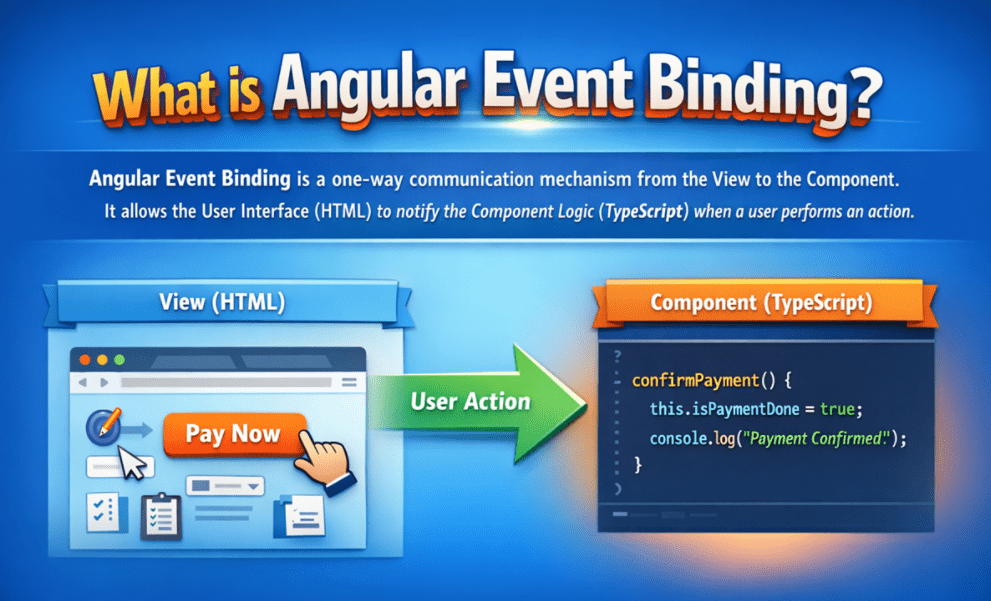
In simple words: Angular Event Binding connects DOM events—such as clicks, key presses, input changes, and form submissions—to component methods, allowing the application to react to user behaviour in a structured and controlled way.
Why Event Binding Exists?
Modern web applications are interactive systems, not static pages. Users constantly interact with the UI by:
- Clicking a button
- Typing in an input
- Hovering over an element
- Submitting a form
- Changing Dropdown values
These actions must trigger business logic, such as:
- Updating application state
- Calling APIs
- Validating input
- Changing UI behaviour
Angular Event Binding exists to capture these interactions and route them into the component, without writing manual JavaScript event listeners or directly touching the DOM.
Angular Event Binding Syntax
Syntax: (eventName)=”handlerMethod()”
Here:
- eventName: Refers to a standard DOM event (such as click, input, change, submit)
- (eventName): Parentheses tell Angular: Listen for this event on this element.
- handlerMethod(): A method defined in the component class that should run when the event occurs
Angular automatically wires the DOM event to the component method.
Example: <button (click)=”confirmPayment()”>Pay Now</button>
What This Means:
- (click): Listens for the browser’s click event on the button.
- confirmPayment(): A method defined in the component that contains business logic
- When the user clicks the button, Angular calls confirmPayment() automatically
No manual event listeners. No direct DOM access.
Flow of Angular Event Binding
Angular Event Binding follows a predictable, structured interaction cycle that connects user actions to application logic and, ultimately, to UI updates. Let’s walk through each step and understand what really happens.
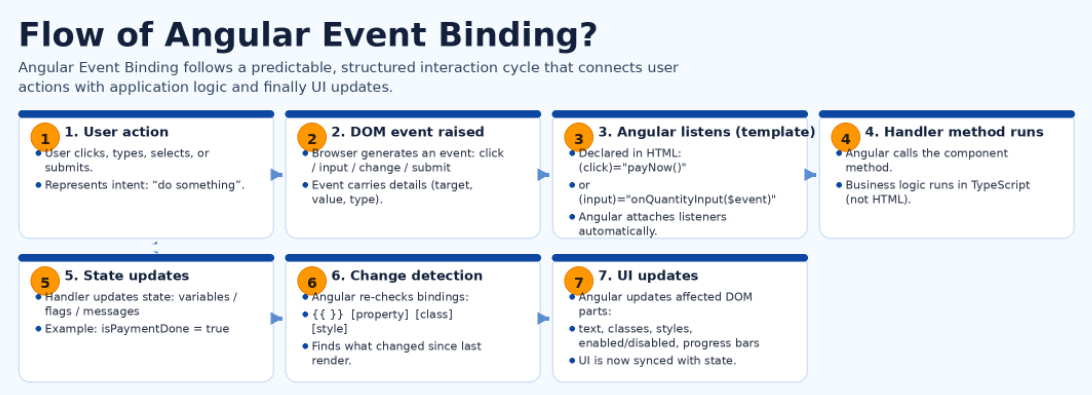
1. User Performs an Action in the Browser
Everything starts with the user interacting with the UI. This can be:
- Clicking a button
- Typing into an input field
- Selecting a dropdown option
- Submitting a form
At this point, nothing Angular-specific has happened yet. The user is simply interacting with standard HTML elements in the browser. This step represents intent — the user is telling the application: “I want something to happen.”
2. The DOM Raises an Event
When the user interacts with an element, the browser’s DOM system generates an event such as:
- Click
- Input
- Change
- Submit
This event contains information like:
- What type of event occurred
- Which element triggered it
- Additional data (for example, typed text)
This is still pure browser behaviour, independent of Angular.
3. Angular Intercepts the Event via the Template
Angular only reacts to events that are explicitly declared in the template using event binding syntax:
- (click)=”payNow()”
- (input)=”onQuantityInput($event)”
By declaring event bindings:
- We are telling Angular which events we care about
- Angular attaches internal listeners behind the scenes
When the DOM event fires, Angular intercepts it before our code runs. This step is critical because Angular does not listen to all events—only the ones we declare.
4. Angular Calls the Bound Component Method
Once Angular intercepts the event, it:
- Looks up the corresponding handler method in the component
- Executes that method in the component’s context
For example:
payNow(): void {
  this.isPaymentDone = true;
}
At this point:
- No UI update has happened yet
- Only the component logic is running
This keeps business rules inside TypeScript, not HTML.
5. The Method Updates Component State
Inside the event handler, the method typically:
- Updates variables
- Toggles flags
- Modifies data structures
- Sets messages or statuses
Example:
- this.isPaymentDone = true;
- this.deliveryProgressPercent = 60;
This step is crucial: Angular applications do not update the UI directly. They update the state, and the UI reacts to that state.
6. Angular Change Detection Runs Automatically
After the event handler finishes:
- Angular automatically runs change detection
- It checks all bindings in the template:
-
- Interpolation ({{ }})
- Property bindings ([disabled])
- Class bindings ([class.paid])
- Style bindings ([style.width.%])
-
Angular compares:
- Old values
- New values
And determines what needs to change in the DOM. No developer intervention is required here.
7. The UI Updates Automatically
Finally:
- Angular updates only the affected parts of the DOM
- Visual changes appear instantly:
-
- Text updates
- Buttons enable/disable
- Badges change color
- Progress bars move
-
The UI is now fully synchronized with the updated component state. This completes the interaction loop: User Action → Logic → State → UI
Creating a New Angular Application
In real applications, users don’t just look at data — they interact with it. An E-commerce Order Summary + Checkout page is a perfect real-world example because it combines:
- Displaying data
- Responding to user actions
- Updating UI instantly
- Enforcing business rules
What the user should be able to do (these are “events”)?
- Increase/Decrease Quantity
-
- Real-life meaning: the user is updating the quantity of a cart item.
- Angular needs: handle the button click event to modify the quantity.
-
- Enter the coupon code and apply it
-
- Real-life meaning: user types a coupon and clicks apply (or presses Enter).
- Angular needs: handle input events to capture text input, and handle click/enter events to validate the coupon.
-
- Select Shipping Option
-
- Real-life meaning: shipping affects delivery options, prices, ETAs, etc.
- Angular needs: handle the change event when the selection changes.
-
- Click Pay Now
-
- Real-life meaning: payment changes the state of the order workflow.
- Angular needs: handle click → update isPaymentDone → UI changes automatically.
-
- Click Place Order
-
- Real-life meaning: final form submission.
- Angular needs: handle submit event → prevent page refresh → validate state → show confirmation.
-
What the UI Should Visually Reflect?
This is where the example becomes industry-standard, because modern apps always combine Actions, State, and UI Feedback.
- Paid/Pending (Class Binding)
-
- We use class binding to apply “paid” (green) or “pending” (yellow) styles.
- Why class binding? Because it’s clean: logic stays in TS, styling stays in CSS.
-
- Progress Bar (Style Binding width %)
-
- Progress is a number (0–100). The progress bar is a visual result of that number.
- Style binding is the best fit because you directly bind the width using %.
-
- Button Disable/Enable (Property Binding)
-
- Buttons should not allow invalid actions, like “Place Order” before payment.
- Property binding on [disabled] is the natural Angular way because disabled is a DOM property.
-
In short, Event Binding changes the data, and all other bindings reflect that updated data on the screen. That’s the real Angular workflow.
Step 1: Create a new Angular app
Run in VS Code terminal:
ng new event-binding-demo
Choose:
- Stylesheet: CSS
- SSR/SSG: No
- AI tools: None
Step 2: Run the app
- cd event-binding-demo
- ng serve
Open:
- http://localhost:4200
Step 3: Add global CSS (src/styles.css)
Event Binding is about user interactions, but we still need simple CSS because:
- Class Binding needs CSS classes to show visual differences
- Style Binding needs a visible progress bar effect
- We are avoiding Bootstrap and using clean custom classes
Please update the src/styles.css file as follows.
/* ------------------------------------------------------------
   Page wrapper
   Purpose:
   - Provides a clean readable font for the page
   - Adds spacing so content is not stuck to browser edges
   ------------------------------------------------------------ */
.page {
  font-family: Arial, sans-serif; /* Simple readable font */
  padding: 16px;                  /* Space around entire content */
}

/* ------------------------------------------------------------
   Card container (Order Summary box)
   Purpose:
   - Creates a bordered "card" UI to group order details
   - Keeps the width limited so it looks neat on large screens
   ------------------------------------------------------------ */
.card {
  border: 1px solid #d0d0d0; /* Light border to separate card from background */
  border-radius: 10px;         /* Rounded corners for a modern look */
  padding: 14px;               /* Inner spacing so text doesn't touch border */
  max-width: 720px;            /* Keeps UI readable (not full-width) */
}

/* ------------------------------------------------------------
   Row spacing helper
   Purpose:
   - Adds vertical gap between blocks (like line items)
   - Keeps HTML clean (no repeated <br> or extra margins inline)
   ------------------------------------------------------------ */
.row {
  margin: 10px 0; /* Top & bottom spacing between sections */
}

/* ------------------------------------------------------------
   Badge base (common style for all status labels)
   Purpose:
   - Creates a pill-shaped label used for Payment/Membership
   - Individual states like .paid, .pending, .premium override colors
   ------------------------------------------------------------ */
.badge {
  display: inline-block; /* Allows padding + border-radius to behave like a label */
  padding: 4px 10px;     /* Controls badge size */
  border-radius: 999px;  /* Large value => perfect pill shape */
  font-size: 13px;       /* Slightly smaller than normal text */
  margin-left: 6px;      /* Space after the title text: "Payment Status:" */
}

/* ------------------------------------------------------------
   Payment status styles (used with Class Binding)
   In HTML we do:
   - [class.paid]="isPaymentDone"
   - [class.pending]="!isPaymentDone"
   Purpose:
   - Paid should look successful (green)
   - Pending should look warning-like (yellow)
   ------------------------------------------------------------ */
.paid {
  background: #1c7c1c; /* Green background means success */
  color: #fff;         /* White text for contrast */
}

.pending {
  background: #ffcc00; /* Yellow indicates pending/warning */
  color: #222;         /* Dark text improves readability on yellow */
}

/* ------------------------------------------------------------
   Membership styles (used with Class Binding)
   In HTML we do:
   - [class.premium]="isPremiumCustomer"
   - [class.regular]="!isPremiumCustomer"
   Purpose:
   - Premium has a stronger highlight (blue)
   - Regular stays neutral (gray)
   ------------------------------------------------------------ */
.premium {
  background: #0057d8; /* Blue indicates premium / special access */
  color: #fff;
}

.regular {
  background: #6c757d; /* Gray indicates regular/normal membership */
  color: #fff;
}

/* ------------------------------------------------------------
   Low stock highlight (used with Class Binding)
   In HTML we do:
   - [class.low-stock]="stockLeft <= 5"
   Purpose:
   - When stock is low, show the number in bold red to catch attention
   ------------------------------------------------------------ */
.low-stock {
  color: #d10000;    /* Red means urgency / warning */
  font-weight: bold;   /* Bold makes stock count stand out */
}

/* ------------------------------------------------------------
   Button styling (small cleanup)
   Purpose:
   - Adds consistent padding so buttons look clickable and neat
   - cursor:pointer gives hand icon (UX improvement)
   ------------------------------------------------------------ */
button {
  padding: 6px 10px; /* Makes button size comfortable to click */
  cursor: pointer;   /* Hand cursor indicates clickable action */
}

/* ------------------------------------------------------------
   Input and dropdown styling
   Purpose:
   - Adds padding so input/select fields look clean and readable
   ------------------------------------------------------------ */
input,
select {
  padding: 6px; /* Comfortable spacing inside form controls */
}

/* ------------------------------------------------------------
   Progress bar container
   Purpose:
   - Creates the outer progress bar "track"
   - overflow:hidden ensures inner fill stays inside rounded corners
   ------------------------------------------------------------ */
.progress-box {
  border: 1px solid #ccc;   /* Outer boundary of progress track */
  border-radius: 8px;         /* Rounded corners for modern bar */
  height: 14px;               /* Bar height */
  width: 260px;               /* Fixed width for demo */
  overflow: hidden;           /* Keeps fill clipped inside rounded border */
  display: inline-block;      /* Allows bar to sit next to text */
  vertical-align: middle;     /* Aligns bar properly with label text */
  margin-left: 8px;           /* Space after the "35%" text */
}

/* ------------------------------------------------------------
   Progress fill (width is controlled by Style Binding)
   In HTML we do:
   - [style.width.%]="deliveryProgressPercent"
   Purpose:
   - Shows the completed portion of the progress bar
   ------------------------------------------------------------ */
.progress-fill {
  display: block;          /* Required so width% actually affects the element */
  height: 100%;            /* Fills the height of .progress-box */
  background: #0057d8;   /* Blue fill to represent progress */
}

/* ------------------------------------------------------------
   UI message (feedback area)
   Purpose:
   - Shows success/errors after events like click/apply coupon/payment
   - Bold makes the message clearly visible to the user
   ------------------------------------------------------------ */
.message {
  margin-top: 12px;   /* Space before message area */
  font-weight: bold;  /* Emphasizes the feedback message */
}
Step 4: Update Root Component (src/app/app.ts)
Please update src/app/app.ts file as follows. The following code is self-explanatory, so please read the comment lines for a better understanding.
import { Component } from '@angular/core';

@Component({
  selector: 'app-root',
  templateUrl: './app.html',
})
export class App {
  // 1) DISPLAY DATA (Real-time values usually come from API)
  customerName: string = 'Pranaya Rout'; // Logged-in customer name
  orderId: string = 'ORD-10021';         // Current order reference number
  productName: string = 'Angular Course - Full Stack Bundle'; // Product/title to show on UI
  price: number = 4999; // Product price (per unit)

  // 2) UI STATE (User-driven values change via Event Binding)
  quantity: number = 1;        // Quantity selected by user (via buttons / typing)
  couponCode: string = '';     // Coupon code typed by user
  shippingOption: string = 'Standard'; // Dropdown selection

  // 3) STATUS FLAGS (These control UI badges, enable/disable etc.)
  isPremiumCustomer: boolean = true; // Premium gets discount
  isPaymentDone: boolean = false;    // Payment status controls Pay/Place Order buttons

  // 4) INVENTORY / DELIVERY (Common in e-commerce dashboards)
  stockLeft: number = 3;              // Remaining inventory shown to user/admin
  deliveryProgressPercent: number = 35; // Progress bar fill (0 to 100)

  // 5) UI FEEDBACK MESSAGE
  uiMessage: string = ''; // Displays success/error messages after user actions

  // 6) DISPLAY HELPERS (Used by Interpolation + Class/Style Binding)
  // Returns a label for the Payment badge
  // Used in template like: {{ getPaymentLabel() }}
  getPaymentLabel(): string {
    return this.isPaymentDone ? 'Paid' : 'Pending';
  }

  // Returns a label for the Membership badge
  // Used in template like: {{ getMembershipLabel() }}
  getMembershipLabel(): string {
    return this.isPremiumCustomer ? 'Premium' : 'Regular';
  }

  // Computes the final payable amount based on business rules
  // Real-time rule: Premium users get 20% discount
  // Used in template like: ₹{{ getFinalPayable() }}
  getFinalPayable(): number {
    const total = this.price * this.quantity;                    // base total = unit price × quantity
    const discount = this.isPremiumCustomer ? total * 0.2 : 0;   // 20% discount for premium
    return total - discount;                                     // final payable amount
  }

  // 7) EVENT HANDLERS (Event Binding: View → Component)
  // These methods are called when the user clicks/types/selects.
  // After data changes here, Angular automatically updates the UI.

  // (click) Increase quantity button
  // Real-time: Cart quantity should not exceed a practical limit (demo: max 10)
  increaseQuantity(): void {
    if (this.quantity < 10) {
      this.quantity++; // update the state
      this.uiMessage = `Quantity updated to ${this.quantity}.`; // show feedback message
    }
  }

  // (click) Decrease quantity button
  // Real-time: Quantity should not go below 1
  decreaseQuantity(): void {
    if (this.quantity > 1) {
      this.quantity--; // update the state
      this.uiMessage = `Quantity updated to ${this.quantity}.`; // show feedback message
    }
  }

  // (input) Quantity typed into the textbox
  // NOTE: We are not using ngModel yet. So we manually read the input from $event.
  onQuantityInput(event: Event): void {
    // Read current input value from the textbox
    const value = (event.target as HTMLInputElement).value;

    // Convert the string value to a number
    const parsed = Number(value);

    // Basic validation: must be a valid number and within 1..10
    if (!Number.isNaN(parsed) && parsed >= 1 && parsed <= 10) {
      this.quantity = parsed; // store in component state
      this.uiMessage = `Quantity set to ${this.quantity}.`;
    } else {
      // If user types invalid input, we don't update quantity
      this.uiMessage = 'Quantity must be between 1 and 10.';
    }
  }

  // (input) Coupon code typed into textbox
  // We store the latest typed value in couponCode
  onCouponInput(event: Event): void {
    this.couponCode = (event.target as HTMLInputElement).value;
  }

  // (click) Apply Coupon OR (keyup.enter) Apply Coupon
  // Real-time: coupon validation usually happens via API, here we simulate it with a simple rule
  applyCoupon(): void {
    const code = this.couponCode.trim().toUpperCase(); // normalize coupon input

    // If empty, show guidance
    if (code === '') {
      this.uiMessage = 'Please enter a coupon code.';
      return;
    }

    // Demo rule: only SAVE10 is considered valid
    if (code === 'SAVE10') {
      this.uiMessage = 'Coupon applied: SAVE10.';
    } else {
      this.uiMessage = `Invalid coupon: ${code}`;
    }
  }

  // (change) Shipping dropdown selection changed
  // Real-time: shipping changes can affect delivery ETA & price (demo shows only message)
  onShippingChange(event: Event): void {
    this.shippingOption = (event.target as HTMLSelectElement).value;
    this.uiMessage = `Shipping set to: ${this.shippingOption}`;
  }

  // (click) Pay Now button
  // Real-time: payment success changes multiple UI elements:
  // - payment badge becomes "Paid"
  // - Pay Now button gets disabled
  // - Place Order becomes enabled
  // - progress increases
  payNow(): void {
    this.isPaymentDone = true; // update payment status flag
    this.uiMessage = `Payment received for ${this.orderId}. You can now place the order.`;

    // Demo: once paid, order moves forward in workflow
    this.deliveryProgressPercent = 60;
  }

  // (submit) Place Order form submit
  // Real-time: final confirmation should not happen unless payment is done
  placeOrder(event: Event): void {
    event.preventDefault(); // prevent full page reload on form submit

    // Validate payment state first
    if (!this.isPaymentDone) {
      this.uiMessage = 'Please complete payment before placing the order.';
      return;
    }

    // Payment done: order can be placed successfully
    this.uiMessage = `Order placed successfully! Order Id: ${this.orderId}`;
    this.deliveryProgressPercent = 100; // demo: show as completed
  }

  // (click) Toggle Membership button
  // Real-time: membership changes can affect pricing (discount) and UI badge
  toggleMembership(): void {
    this.isPremiumCustomer = !this.isPremiumCustomer; // flip the membership flag
    this.uiMessage = `Membership changed to: ${this.getMembershipLabel()}`;
  }
}
What Is the Event Interface in Angular?
The Event interface in Angular refers to the standard DOM Event object that represents events triggered by the browser, such as click, input, change, submit, or keypress. Angular does not create a custom event interface of its own for basic DOM events; instead, it uses the browser’s native Event interface and exposes it to the component through event binding. In simple terms, the Event interface is the data structure that carries information about what just happened in the UI.
Why the Event Interface Exists?
When a user interacts with the UI, the browser needs a way to describe:
- What event occurred
- Which element triggered it
- What additional data is associated with it
The Event interface exists to encapsulate all this information into a single object that Angular can pass to your component.
Step 5: Update Root Template (src/app/app.html)
This template is designed to show how all bindings work together:
What the user does (events)
- Click buttons
- Type values
- Select options
- Submit order
What Angular does automatically
- Updates badges using class binding
- Updates progress bar using style binding
- Enables/disables buttons using property binding
- Updates totals and messages using interpolation
Please update src/app/app.html file as follows. The following code is self-explanatory, so please read the comment lines for a better understanding.
<!--
     This template demonstrates ALL bindings learned so far (except Attribute Binding & ngIf):
     1) Interpolation       => {{ ... }} to display values
     2) Property Binding    => [disabled], [value] to control DOM properties
     3) Class Binding       => [class.xxx] to apply CSS classes based on state
     4) Style Binding       => [style.xxx] to apply dynamic inline styles
     5) Event Binding       => (click), (input), (change), (keyup.enter), (submit)
-->

<div class="page">
  <!-- Static heading (not dynamic) -->
  <h2>Order Summary (Event Binding Demo)</h2>

  <!-- Card UI container (pure CSS styling) -->
  <div class="card">
    <!-- =======================================================
         1) INTERPOLATION (Component → View)
         Used to show plain text values from the component.
         ======================================================= -->
    <div class="row"><b>Customer:</b> {{ customerName }}</div>
    <div class="row"><b>Order Id:</b> {{ orderId }}</div>
    <div class="row"><b>Product:</b> {{ productName }}</div>

    <hr />

    <!-- =======================================================
         2) CLASS BINDING (Visual state)
         Apply .paid OR .pending based on isPaymentDone flag.
         ======================================================= -->
    <div class="row">
      <b>Payment Status:</b>

      <!--
          badge is always applied; paid/pending is conditional
          if true => apply green Paid style
          if false => apply yellow Pending style -->
      <span
        class="badge"
        [class.paid]="isPaymentDone"
        [class.pending]="!isPaymentDone"
      >
        <!-- Interpolation calling helper method -->
        {{ getPaymentLabel() }}
      </span>
    </div>

    <!-- =======================================================
         3) CLASS BINDING + EVENT BINDING (Membership toggle)
         - Shows Premium/Regular visually using class binding
         - Changes membership using a click event
         ======================================================= -->
    <div class="row">
      <b>Membership:</b>

      <span
        class="badge"
        [class.premium]="isPremiumCustomer"
        [class.regular]="!isPremiumCustomer"
      >
        {{ getMembershipLabel() }}
      </span>

      <!-- Event Binding: user clicks to toggle membership -->
      <button
        type="button"
        (click)="toggleMembership()"
        style="margin-left: 10px"
      >
        Toggle Membership
      </button>
    </div>

    <!-- =======================================================
         4) CLASS BINDING (Low stock highlight)
         If stockLeft <= 5 => show stock count in bold red.
         No ngIf used (we are only highlighting, not hiding/showing).
         ======================================================= -->
    <div class="row">
      <b>Stock Left:</b>
      <span [class.low-stock]="stockLeft <= 5">
        {{ stockLeft }}
      </span>
    </div>

    <hr />

    <!-- =======================================================
         5) PROPERTY BINDING + EVENT BINDING (Quantity controls)
         - (click) updates quantity using methods
         - [disabled] prevents invalid actions
         - (input) captures typed value manually (no ngModel yet)
         ======================================================= -->
    <div class="row">
      <b>Quantity:</b>

      <!-- Decrease quantity (disabled when quantity is already 1) -->
      <!-- Property binding to DOM disabled property -->
      <button
        type="button"
        (click)="decreaseQuantity()"
        [disabled]="quantity <= 1"
      >
        -
      </button>

      <!-- Input box:
           [value] shows the latest quantity from the component
           (input) reads user typing and updates component state
           NOTE: This is manual one-way UI → TS (not two-way binding yet). -->
      <input
        type="text"
        [value]="quantity"
        (input)="onQuantityInput($event)"
        style="width: 60px; margin: 0 6px"
      />

      <!-- Increase quantity (disabled when quantity reaches max 10) -->
      <button
        type="button"
        (click)="increaseQuantity()"
        [disabled]="quantity >= 10"
      >
        +
      </button>

      <!-- Real-time calculation using interpolation expression -->
      <span style="margin-left: 10px">
        <b>Total:</b> ₹{{ price * quantity }}
      </span>
    </div>

    <!-- =======================================================
         6) EVENT BINDING (Coupon)
         - (input) stores coupon text into component
         - (keyup.enter) applies coupon when user presses Enter
         - (click) applies coupon using button
         ======================================================= -->
    <div class="row">
      <b>Coupon:</b>

      <!-- show current coupon in UI -->
      <!-- store typed value in TS -->
      <!-- apply when Enter pressed -->
      <input
        type="text"
        [value]="couponCode"
        (input)="onCouponInput($event)"
        (keyup.enter)="applyCoupon()"
        style="margin-left: 6px; width: 150px"
      />

      <button
        type="button"
        (click)="applyCoupon()"
        style="margin-left: 6px"
      >
        Apply
      </button>
    </div>

    <!-- =======================================================
         7) EVENT BINDING (Dropdown change)
         - [value] shows currently selected shipping option
         - (change) updates shippingOption in the component
         ======================================================= -->
    <div class="row">
      <b>Shipping:</b>

      <select
        [value]="shippingOption"
        (change)="onShippingChange($event)"
        style="margin-left: 6px"
      >
        <option value="Standard">Standard</option>
        <option value="Express">Express</option>
        <option value="NextDay">Next Day</option>
      </select>
    </div>

    <hr />

    <!-- =======================================================
         8) STYLE BINDING (Progress bar width)
         [style.width.%] sets the inner bar width based on number (0..100).
         This is a perfect real-world use case for style binding.
         ======================================================= -->
    <div class="row">
      <b>Delivery Progress:</b>
      <span>{{ deliveryProgressPercent }}%</span>

      <!-- Outer track -->
      <span class="progress-box">
        <!-- Inner fill: width changes dynamically -->
        <span
          class="progress-fill"
          [style.width.%]="deliveryProgressPercent"
        ></span>
      </span>
    </div>

    <!-- =======================================================
         9) INTERPOLATION WITH METHOD (Business rule)
         Shows final payable after discount logic in TS.
         ======================================================= -->
    <div class="row">
      <b>Final Payable:</b> ₹{{ getFinalPayable() }}
    </div>

    <hr />

    <!-- =======================================================
         10) EVENT BINDING + PROPERTY BINDING (Pay Now)
         - (click) marks payment as done
         - [disabled] prevents paying again once paid
         ======================================================= -->
    <div class="row">
      <button
        type="button"
        (click)="payNow()"
        [disabled]="isPaymentDone"
      >
        Pay Now
      </button>

      <!-- Style binding used for subtle UI feedback -->
      <span
        [style.marginLeft.px]="10"
        [style.opacity]="isPaymentDone ? 1 : 0.7"
      >
        (After payment, you can place the order)
      </span>
    </div>

    <!-- =======================================================
         11) FORM SUBMIT EVENT (Place Order)
         - (submit) calls placeOrder($event)
         - event.preventDefault() is handled in TS to stop page reload
         - [disabled] prevents order placement before payment
         ======================================================= -->
    <form (submit)="placeOrder($event)" class="row">
      <button type="submit" [disabled]="!isPaymentDone">
        Place Order
      </button>

      <!-- Style binding: "disabled-like" info text without ngIf -->
      <span
        [style.marginLeft.px]="10"
        [style.opacity]="isPaymentDone ? 1 : 0.5"
        [style.pointerEvents]="isPaymentDone ? 'auto' : 'none'"
      >
        (Order submission enabled after payment)
      </span>
    </form>

    <!-- =======================================================
         12) UI FEEDBACK MESSAGE (Interpolation)
         Shows messages after user actions: quantity change, coupon apply,
         shipping change, payment done, order placed, etc.
         ======================================================= -->
    <div class="message">{{ uiMessage }}</div>
  </div>
</div>
Output:

Conclusion: Why Event Binding Matters in Angular Application?
Angular Event Binding is what turns your Angular UI into a real application. Until now, we used different bindings to display values, control DOM properties, set attributes, and apply styling dynamically. But Event Binding adds the missing part: User Interaction.
With event binding, the user can click, type, select, and submit – and Angular responds immediately by executing TypeScript methods that update the application state.
In the next article, I will discuss Two-Way Data Binding in Angular with Examples. Here, in this article, I try to explain Angular Event Binding with Examples. I would like to have your feedback. Please post your feedback, questions, or comments about this article.
About the Author: Pranaya Rout
Pranaya Rout has published more than 3,000 articles in his 11-year career. Pranaya Rout has very good experience with Microsoft Technologies, Including C#, VB, ASP.NET MVC, ASP.NET Web API, EF, EF Core, ADO.NET, LINQ, SQL Server, MYSQL, Oracle, ASP.NET Core, Cloud Computing, Microservices, Design Patterns and still learning new technologies.
Wow na kya baat he ye aap me yrr
….
wowwww!!!You make everything easy for everyone.
Apko lakho salam.
Want to master Angular Event Binding with real-world examples?
In this video, I explain how Angular handles user interactions such as clicks, input, dropdown changes, and form submissions—and how these events flow from the template to the component, updating the UI automatically through Angular’s change detection.
You’ll see a complete, real-time example where event binding works together with interpolation, property binding, class binding, and style binding to build an interactive Angular application.
🎥 Watch the full video here: https://youtu.be/ENbXy7Thmro