
Back to: Angular Tutorials For Beginners and Professionals
In this chapter, I will discuss the Angular Environment Setup Step by Step. Please read our previous article, which discusses Introduction to Modern Web Development & Angular. Before we start writing Angular code, it is very important to set up the development environment correctly. A properly configured environment ensures that Angular applications run smoothly, tools work as expected, and beginners do not encounter unnecessary errors during learning.
In this chapter, you will learn what an environment is, why environment setup matters, and how to install and configure all required software step by step on Windows OS. You will also understand what happens behind the scenes when you create an Angular project and how Angular organizes files and folders. By the end of this chapter, you will understand the following pointers:
- What Is an Environment & Why is Environment Setup Important?
- Software Required for Angular Development
- Understanding Node.js and Why It Is Required in Angular?
- What is npm?
- Downloading and Installing Node.js and npm
- What Is Angular CLI?
- Installing Angular CLI Globally
- Understanding Angular CLI Commands
- Creating, Building, and Running an Angular Project Using Angular CLI
- What Is Visual Studio Code (VS Code)?
- Why Visual Studio Code Is Ideal for Angular?
- Installing Visual Studio Code (VS Code)
- Angular Setup in Visual Studio Code
- Creating, Building, and Running an Angular Project Using Visual Studio Code
- Understanding Angular Version
- Understanding the File and Folder Structure of an Angular Application
What Is an Environment?
In software development, an Environment refers to the complete setup of software, tools, and system configurations that allow developers to build, run, and test applications on their computer. Before writing any Angular code, our system must be prepared with the right tools so that Angular can function correctly. Without a proper environment, even simple Angular commands will fail or behave unpredictably. An Angular development environment typically includes the following components:
- Operating System (Windows) – The platform where all tools and applications run
- Runtime Software (Node.js) – Executes JavaScript outside the browser and powers Angular tools.
- Package Manager (npm) – Installs, updates, and manages Angular and third-party libraries.
- Framework Tools (Angular CLI) – Creates projects, builds apps, runs servers, etc.
- Code Editor (Visual Studio Code) – Used to write, edit, and manage Angular source code.
Together, these tools form the foundation of Angular development. When properly set up, they work seamlessly in the background, allowing you to focus on learning Angular concepts rather than struggling with configuration.
Why Environment Setup Is Important
Angular is not just HTML and JavaScript running in a Browser. It is a full-fledged framework that relies on multiple tools working together. If even one required tool is missing, outdated, or incorrectly configured, Angular applications may fail to run, show unexpected errors, or behave differently across systems. A proper environment setup helps you:
- Avoid Version Conflicts between Node.js, Angular, and Project Dependencies.
- Prevent Common Beginner Errors caused by missing or misconfigured tools.
- Ensure Consistent Behaviour across different machines and team members.
- Make project creation, build, and execution smooth and reliable.
You can think of the environment setup like preparing a workshop before starting construction. When all tools are arranged, tested, and ready, work becomes smooth and efficient. But if tools are missing or broken, even simple tasks become slow and frustrating. A well-prepared Angular environment saves time, reduces confusion, and creates a strong foundation for learning and building real-world applications.
Software Required for Angular Development (Windows OS)
To develop Angular applications on Windows, you need the following tools:
- Node.js (includes npm)
- Angular CLI
- Visual Studio Code
- Web Browser (Chrome Recommended)
Each tool has a specific role, and together they form a complete Angular environment.
Understanding Node.js and Why It Is Required in Angular
When beginners start learning Angular, one of the most common questions they ask is: Angular runs in the browser, so why do we need Node.js at all? To understand why Node.js is required, we must first understand what Node.js is and what Angular actually needs to function.
What Is Node.js?
Node.js is a JavaScript Runtime Environment that allows JavaScript to run outside the browser. Traditionally, JavaScript could only execute inside browsers such as Chrome, Edge, or Firefox. Node.js changed this by enabling JavaScript to run directly on the operating system.
In simple terms, Node.js lets JavaScript run on your computer, not just in the browser.
What Node.js Is NOT?
To avoid confusion, it is important to clarify what Node.js is not in the context of Angular:
- Node.js is not Angular
- Node.js does not run Angular applications in the browser
- Node.js is not shipped to users when they access an Angular website
Angular applications ultimately run in the browser. Node.js is only required during Development and Build Time, not at runtime in the browser.
Why Angular Needs Node.js?
Angular itself is written in TypeScript, which browsers do not understand directly. Angular applications must be compiled, bundled, optimized, and prepared before they can run in the browser. All these tasks require a JavaScript Execution Environment. This is where Node.js becomes essential. Angular needs Node.js to:
- Execute Angular CLI Commands
- Compile TypeScript into JavaScript
- Bundle multiple files into optimized outputs
- Install and Manage Libraries using NPM
- Run Development Servers
All these operations rely on Node.js to execute JavaScript-based tools.
Why Browsers Alone Are Not Enough?
Browsers are designed to:
- Display Web Pages
- Execute Client-Side JavaScript
- Handle User Interactions
Browsers are Not Designed to:
- Compile TypeScript to JavaScript.
- Manage Dependencies (Installing Packages)
- Bundle Source Code
- Perform Automated Testing
These responsibilities require a Server-Side Execution Environment, which Node.js provides.
Does Node.js Run in Production Angular Apps?
No.
- Node.js is not required on the client’s machine.
- Angular applications run purely in the browser.
- Node.js is used only by developers during development and build processes.
The output of an Angular build is standard HTML, CSS, and JavaScript that any browser can run.
What is npm?
NPM stands for Node Package Manager. It is a tool for downloading, installing, updating, and managing JavaScript libraries. npm works together with Node.js and is automatically installed when Node.js is installed on a system.
In simple terms, npm is the tool that Angular uses to get all the code it depends on. Without npm, modern JavaScript frameworks like Angular cannot function.
Why npm Exists
Modern applications are not built from scratch. Instead, they are composed of many reusable libraries that solve common problems such as Routing, HTTP Communication, Forms Handling, Testing, and more. Managing these libraries manually would be slow, error-prone, and inefficient.
NPM was created to solve this problem by providing:
- A Centralized Registry of JavaScript Packages
- A standard way to install and manage dependencies, i.e., third-party libraries.
- Automatic Version Tracking and Updates
This allows developers to focus on building applications instead of managing library files manually.
Downloading and Installing Node.js and npm on Windows 11
Before working with Angular, you must install Node.js on your system. Angular tools such as the Angular CLI are built on top of Node.js and cannot function without it. Along with Node.js, npm (Node Package Manager) is installed automatically. npm is used by Angular to download, install, and manage libraries and project dependencies.
Now, we will download Node.js from the official website and install it step by step on Windows 11, ensuring that everything is configured correctly.
Step 1 – Open the Official Node.js Download Page
To begin the installation, we must download Node.js from its official source.
- Open any web browser, such as Chrome, Microsoft Edge, or Firefox
- In the address bar, type the following URL and press Enter:
- The Node.js download page will appear
This page lets you select the Node.js version and platform that best suit your operating system.
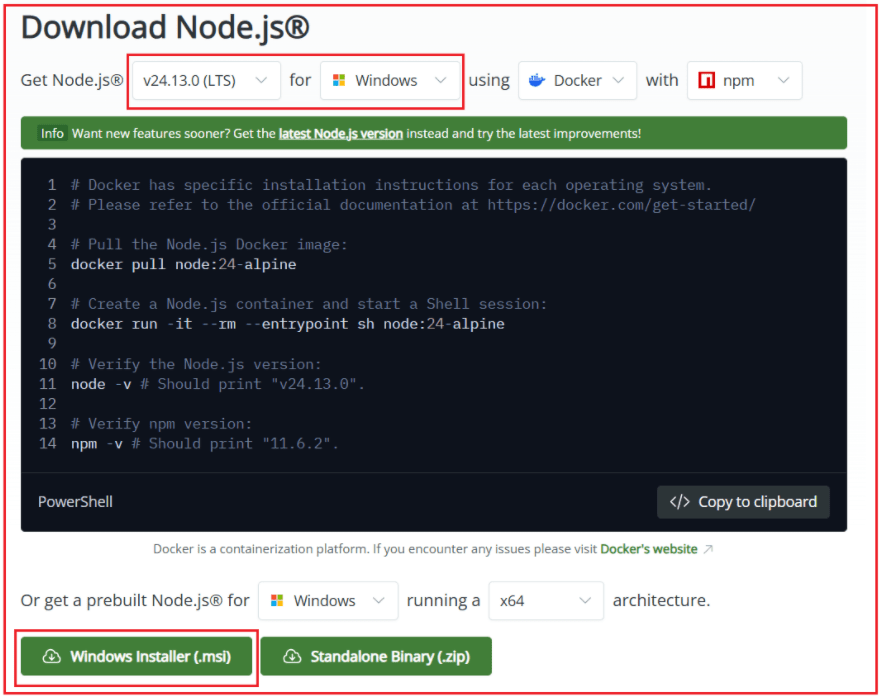
Understanding LTS and Current Versions
On the Node.js download page, you will notice version information such as:
- LTS (Long-Term Support)
- Current
What does this mean?
- LTS (Long-Term Support)
-
- Stable and well-tested
- Receives security updates for a long time
- Recommended for Angular and enterprise applications
-
- Current
-
- Contains the latest features
- Shorter support duration
- May introduce breaking changes
-
For Angular and real-world projects, always choose the LTS version. In our case, you can clearly see v24.13.0 (LTS) selected, which is the correct and recommended choice. For a better understanding, please look at the following image.
Step 2 – Start the Download
Once the LTS version and Windows platform are selected:
- Click the Windows Installer (.msi) button
- The browser will automatically start downloading the installer file
Important Note
- The Windows Installer (.msi) is the easiest and safest option for beginners
- This installer includes both Node.js and npm
- There is no need to install npm separately
Step 3 – Locate the Downloaded Installer
After the download is complete:
- Open File Explorer
- Navigate to the Downloads folder
- Look for a file with a name similar to:
-
- node-v24.13.0-x64.msi
-
Here, the version number may change, but the format remains the same.
Step 4 – Run the Installer
- Double-click the downloaded .msi file
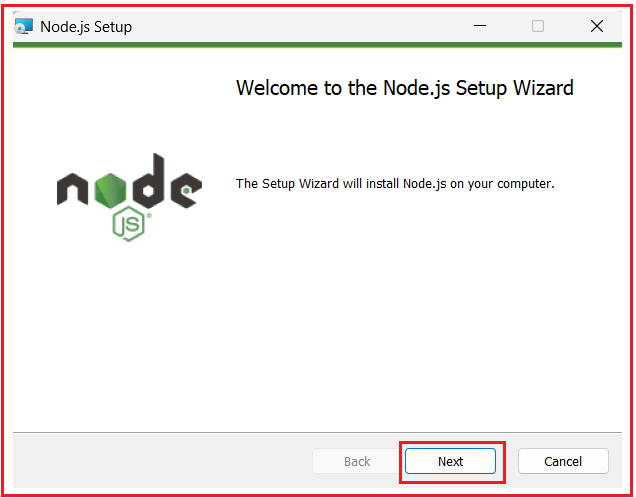
- The Node.js Setup Wizard will open
- On the welcome screen, click Next
This wizard will guide you through the installation process.
Step 5 – Accept License Agreement
On the license agreement screen:
- Read the license text (optional for beginners)
- Select “I accept the terms in the License Agreement.”
- Click Next
Accepting the license allows Node.js to be installed on your system.

Step 6 – Choose Installation Location
Next, the installer will ask where Node.js should be installed.
- By default, the path is: C:\Program Files\nodejs\
Recommendation
- Do not change the default path
- Keeping the default location avoids configuration issues
Click Next to continue.
Step 7 – Select Components
On the component selection screen, ensure the following options are selected:
- Node.js runtime – required to run JavaScript outside the browser
- npm package manager – required for Angular and dependency management
- Add to PATH – allows running node and npm commands from anywhere
- Online documentation shortcuts – optional
Why “Add to PATH” Is Important
If this option is not selected:
- Commands like node -v and npm -v will not work.
- Angular CLI installation will fail.
Make sure Add to PATH is checked, then click Next.
Step 8 – Install and Finish
- Click Install
- Wait while the installer copies files and configures the system
- Once installation completes, click Finish
At this point, Node.js and npm are successfully installed on your Windows 11 system.
Step 9 – Verify the Installation
After installation, verify that both Node.js and npm are working correctly.
Open Command Prompt
- Press Windows + R
- Type cmd
- Press Enter
In the command prompt, type:
- node -v
If Node.js was installed correctly, it will show a version number like:
- v24.13.0
Now check npm:
- npm -v
You should see a version number like:
- 11.6.2
Seeing both numbers confirms that Node.js and npm are both installed and ready to use on your system.
What This Confirms
Seeing both version numbers confirms that:
- Node.js is installed correctly
- npm is installed and accessible
- PATH configuration is working
- Your system is ready for Angular development
What Is Angular CLI?
Angular CLI (Command Line Interface) is an official tool from the Angular team that simplifies Angular development. Instead of manually configuring files and folders, Angular CLI automates project setup and enforces best practices from the beginning. Angular CLI allows developers to:
- Create new Angular projects with a standard structure
- Run a local development server
- Build production-ready applications
- Generate components, services, modules, and other files
- Run tests and code quality checks
Angular CLI acts like a smart assistant for Angular developers. It removes repetitive manual work and ensures that projects follow a consistent structure. For beginners, Angular CLI is especially helpful because it reduces confusion and lets you focus on learning Angular concepts rather than on setup complexity.
Installing Angular CLI Globally
After installing Node.js and npm, the next and most important step is installing the Angular CLI. Angular CLI is the official tool from the Angular team for creating, running, building, and managing Angular applications. Without Angular CLI, working with Angular becomes difficult and error-prone. Installing Angular CLI globally means it will be available from any folder on your system, which is exactly how professionals use it.
Step 1: Open Command Prompt
- Press Windows + R
- Type cmd
- Press Enter
You do not need Administrator mode in most cases. A normal Command Prompt is sufficient.
Step 2: Install Angular CLI Globally
In the Command Prompt, type the following command:
- npm install -g @angular/cli
What This Command Means
- npm → Uses Node Package Manager
- install → Installs a package
- -g → Installs the package globally
- @angular/cli → Official Angular CLI package
This command tells npm to download Angular CLI and make it available system-wide.
Step 3: Wait for Installation to Complete
After running the command:
- npm will download Angular CLI
- Required dependencies will be installed
- This may take 1–3 minutes, depending on internet speed
During installation, you will see text scrolling in the terminal. This is normal. Do not close the Command Prompt until the process finishes. Once complete, you should see a message indicating that packages were added successfully.
Step 4: Verify Angular CLI Installation
After installation, you must verify that Angular CLI is installed correctly.
Run this command: ng version
Step 5: Understand the Output of ng version
If Angular CLI is installed correctly, you will see output similar to:
- Angular CLI Version
- Node.js Version
- Package Manager Version
- Operating System
What This Confirms
- Angular CLI is installed
- The ng command is recognized
- Your environment is correctly configured
- Angular is ready to use
If this information appears, the Angular CLI installation is successful.
Why Angular CLI Is Installed Globally
Installing Angular CLI globally allows you to:
- Create Angular projects from any folder
- Use Angular commands without extra setup
- Follow industry-standard workflows
- Avoid repeated installations per project
This is how Angular is used in real companies and production environments.
Angular CLI Commands
Angular CLI provides several commonly used commands that help during development, testing, and deployment. Some important CLI commands include:
- ng new – Create a new project
- ng serve – Runs the development server and reloads the browser automatically
- ng build – Creates optimized files for production deployment
- ng generate – Generates components, services, modules, and other code
- ng test – Runs unit tests for the application
- ng lint – Checks code quality and style issues
These commands form the daily workflow of Angular developers. Learning them early helps you work faster and understand how Angular applications move from development to production.
What Is Visual Studio Code (VS Code)?
Visual Studio Code (VS Code) is a modern, lightweight, and intelligent code editor developed by Microsoft. It is widely used for web development and has become the industry standard editor for Angular applications. VS Code is not just a place to type code; it actively understands your code and assists you while writing it.
VS Code supports TypeScript, JavaScript, HTML, and CSS out of the box, which makes it an excellent choice for Angular development. Because Angular itself is written in TypeScript, VS Code can analyze Angular code deeply and provide meaningful suggestions, warnings, and error messages.
What Visual Studio Code Is Used For
Visual Studio Code is used to:
- Write and edit Angular source code
- Navigate large Angular projects easily
- Detect errors and warnings while typing
- Integrate with Angular CLI and TypeScript tools
- Run commands using the built-in terminal
Unlike a simple text editor, VS Code actively helps developers by:
- Suggesting code completions
- Highlighting mistakes early
- Providing quick fixes
- Improving overall productivity
This makes VS Code suitable for both beginners who are learning Angular and professionals working on large enterprise projects.
Why Visual Studio Code Is Ideal for Angular?
Angular projects can grow large and complex as applications evolve. Managing components, services, routes, and configurations becomes difficult without a smart editor. Visual Studio Code provides features that make Angular development structured, faster, and less error-prone. VS Code helps Angular developers by:
- Providing IntelliSense for Angular and TypeScript
- Supporting Angular Language Service for templates
- Offering Debugging Tools for application execution
- Integrating a Built-In Terminal for Angular CLI commands
With the right setup, Visual Studio Code becomes more than just a code editor. It becomes a complete Angular development environment, reducing frustration and accelerating learning.
Installing Visual Studio Code (VS Code)
Before starting Angular development, we need to install Visual Studio Code on our system. The installation process is simple, but choosing the right options is important for a smooth development experience.
Step 1: Download Visual Studio Code from the Official Website
To ensure security and authenticity, VS Code must always be downloaded from the official website.
- Open any web browser, such as Chrome, Edge, or Firefox
- Go to the official VS Code download page: https://code.visualstudio.com/Download
- Click the Download for Windows button
The website automatically detects Windows 11 and downloads the correct installer for your system.
Step 2: Run the Installer
Once the download is complete:
- Open your Downloads folder
- Double-click the downloaded .exe file
- The VS Code Setup Wizard will open
- Accept the license agreement and click Next
This starts the installation process and prepares your system to install VS Code.
Step 3: Enable Important Options
During installation, VS Code shows several optional settings. Some of these options are very important for Angular development and should be enabled.
Add to PATH
This option allows you to access Visual Studio Code from the command line. By enabling this:
- VS Code integrates smoothly with Angular CLI workflows
- Developer productivity improves significantly
This option is highly recommended.
Open with Code (File & Folder)
This option adds Open with Code to the Windows right-click context menu. It allows you to:
- Right-click any folder
- Instantly open it as a project in VS Code
This is extremely useful when working with Angular projects. After selecting these options, click Next to continue.
Step 4: Complete the Installation
- Click Install
- Wait for the installation to finish
- Click Finish
Visual Studio Code is now installed on your system.
Angular Setup in Visual Studio Code
Out of the box, VS Code is powerful, but it becomes even more effective for Angular development when enhanced with the right extensions. Extensions allow VS Code to understand Angular-specific syntax, enforce best practices, and improve code quality.
Recommended VS Code Extensions for Angular
Open VS Code first, then install the following extensions.
1. Angular Language Service
This is the most important extension for Angular developers.
It provides:
- Angular-specific IntelliSense
- Error detection in Angular templates
- Auto-completion for bindings and directives
- Inline feedback while writing HTML templates
This extension allows VS Code to understand Angular templates the same way the Angular compiler does.
2. Prettier
Prettier is an automatic code formatting tool.
It:
- Formats code consistently
- Improves readability
- Removes formatting inconsistencies
- Is widely used in professional Angular teams
Using Prettier ensures that code remains clean and easy to maintain.
3. ESLint
ESLint is a static code analysis tool.
It:
- Detects potential coding mistakes
- Enforces Angular and TypeScript best practices
- Improves long-term code quality
ESLint helps catch problems early, before they turn into bugs.
How to Install Extensions
Installing extensions in VS Code is simple:
- Open Visual Studio Code
- Click the Extensions icon on the left sidebar
- Search for each extension by name:
- Angular Language Service
- Prettier
- ESLint
- Click Install for each extension
In most cases, no restart is required. The extensions become active immediately.
Now that the development environment is fully set up, the next step is to create an Angular Project. In the next article, I will walk through creating an Angular project with the Angular CLI and Visual Studio Code.
About the Author: Pranaya Rout
Pranaya Rout has published more than 3,000 articles in his 11-year career. Pranaya Rout has very good experience with Microsoft Technologies, Including C#, VB, ASP.NET MVC, ASP.NET Web API, EF, EF Core, ADO.NET, LINQ, SQL Server, MYSQL, Oracle, ASP.NET Core, Cloud Computing, Microservices, Design Patterns and still learning new technologies.
Great article. I think covered all the aspects.
Thanks for sharing this.
Sir , I am newly leaning angular , I followed al the steps described above , but the angular version which got installed in my system is latest 19 and there are few differences in the folder structure. Detais below:
how can i downgrade my installation , or please suggest if you have tutorial matching the recent version of angular.
Angular CLI: 19.2.6
Node: 22.14.0
Package Manager: npm 10.9.2
OS: win32 x64
Angular:
…
Package Version
——————————————————
@angular-devkit/architect 0.1902.6 (cli-only)
@angular-devkit/core 19.2.6 (cli-only)
@angular-devkit/schematics 19.2.6 (cli-only)
@schematics/angular 19.2.6 (cli-only)