
Back to: Angular Tutorials For Beginners and Professionals
Angular Custom Pipes with Examples
In this article, I will discuss how to create Angular Custom Pipes with Examples. Please read our previous article on Built-in Angular Pipes. In real-world Angular applications, data rarely comes in a format that is directly suitable for display. Dates are raw timestamps, amounts are plain numbers, names may have inconsistent casing, and identifiers are often too long to show in the UI. Handling such formatting logic within components quickly leads to bloated, unreadable code.
Angular solves this problem using Pipes. In this post, we will discuss what Angular Pipes are, why Custom Pipes are needed, and how to build a real-time Custom Pipe application using the latest Angular standalone architecture.
What is an Angular Pipe?
In Angular, a Pipe is a simple and powerful feature that transforms data for display.
A pipe:
- Takes input data
- Transforms it
- Returns a formatted value for the UI
Pipes never modify the original data — they only affect how the data appears in the template.
- Pipes do not change the original data
- Pipes are used only in templates
- Pipes keep components clean and focused on logic
Example (Built-in Pipe)
{{ price | currency:’INR’ }}
Here:
- price remains unchanged in the component
- Only the UI displays it as currency
What is a Custom Pipe?
A Custom Pipe is a reusable transformer we create when built-in pipes (like date, currency, and uppercase) are not enough for our business formatting.
Examples:
- Mask Sensitive Values (PAN, Email)
- Display status as user-friendly text
- Convert a 10-digit number to a readable phone format
- Convert raw backend codes into UI labels
How to create a Custom Pipe in Angular?
To create a custom pipe in Angular, we need to create a new TypeScript file, decorate the class with @Pipe(), give it a name, and implement PipeTransform by writing the transform() method that contains the logic to format or convert data for display. The pipe (|) symbol is then used in the template, allowing data to be transformed cleanly and reused without changing the original value.
Basic Syntax to Create a Custom Pipe in Angular:
// Step 1: Import the Angular APIs required for a Pipe
// - Pipe         → decorator that tells Angular: this class is a Pipe
// - PipeTransform→ interface that forces you to implement transform()
//                (transform() is the method Angular will call from the template)
import { Pipe, PipeTransform } from '@angular/core';

@Pipe({
  // Step 2: Pipe name (this is what you write after the | in HTML)
  // Example in template:  {{ value | sample }}
  name: 'sample',

  // Step 3: Standalone pipe (Angular 15+)
  // - You can import this pipe directly inside a standalone component’s imports: []
  // - No need to declare it in any NgModule
  standalone: true,

  // Step 4: Pure pipe (recommended)
  // - true  (default): runs only when input value or pipe arguments change
  // - false (impure): runs on every change detection cycle (can hurt performance)
  pure: true
})
export class SamplePipe implements PipeTransform {

  // Step 5: transform() is the heart of any Pipe
  //
  // Angular automatically calls transform() whenever the template uses:
  //   {{ inputValue | sample:arg1:arg2 }}
  //
  // Parameters:
  // - value  → the actual input coming from template (left side of |)
  // - ...args→ optional parameters passed after :
  //
  // Return:
  // - The final string/number/value that should be displayed in the UI
  transform(
    value: string | null | undefined, // input from template
    prefix = 'Mr.',                   // example optional argument #1
    makeUppercase = false             // example optional argument #2
  ): string {

    // Step 6: Safety check (avoid runtime errors)
    // If value is null/undefined/empty → return an empty string.
    if (!value) return '';

    // Step 7: Normalize/clean the input (optional)
    // trim() removes extra spaces so output looks consistent.
    let text = value.trim();

    // Step 8: Apply transformation logic (this is your custom formatting)
    // Example transformation: uppercase if requested
    if (makeUppercase) {
      text = text.toUpperCase();
    }

    // Step 9: Return the final formatted value
    // This is what will be shown in the HTML where the pipe is used.
    return `${prefix} ${text}`;
  }
}
How to use this pipe in HTML
<!-- Basic usage -->
<div>{{ fullName | sample }}</div>

<!-- With parameters -->
<div>{{ fullName | sample:'Mrs.':true }}</div>
Real-Time Application to Understand Angular Custom Pipes
We will build a screen with two parts:
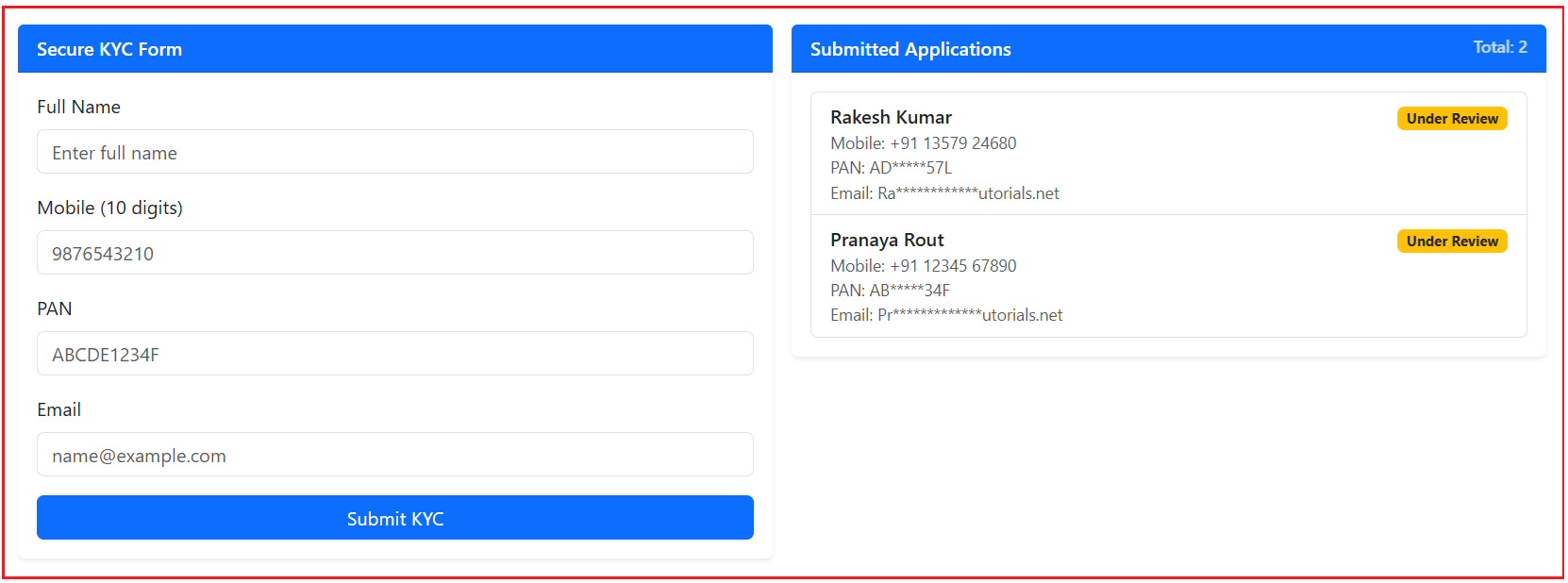
Secure KYC Form (Left)
User enters:
- Full Name
- Mobile
- PAN
Submitted Applications Dashboard (Right)
Once submitted, the record appears in a list showing:
- Applicant name (Formatted)
- Mobile (Formatted)
- PAN (Masked)
- Email (Masked)
- Status Badge
- Submitted time (Relative)
This is a very common enterprise screen for:
- Demat Account Onboarding
- Bank Account Opening
- Insurance Onboarding
- Customer Onboarding Portals
Create the project:
- ng new kyc-pipes-demo
- cd kyc-pipes-demo
- ng generate component kyc
Add Bootstrap CDN in src/index.html
Open src/index.html file and then copy-paste the following code.
<!doctype html>
<html lang="en">
<head>
  <meta charset="utf-8">
  <title>SupportTickets</title>
  <base href="/">
  <meta name="viewport" content="width=device-width, initial-scale=1">
  <link rel="icon" type="image/x-icon" href="favicon.ico">
  <link href="https://cdn.jsdelivr.net/npm/bootstrap@5.3.8/dist/css/bootstrap.min.css"
        rel="stylesheet"
        integrity="sha384-sRIl4kxILFvY47J16cr9ZwB07vP4J8+LH7qKQnuqkuIAvNWLzeN8tE5YBujZqJLB"
        crossorigin="anonymous">
</head>
<body>
  <app-root></app-root>
</body>
</html>
Create the Models (Type Safety)
First, create a folder named models within the src/app folder. Then add a TypeScript file named kyc.model.ts within the src/app/models folder, and copy-paste the following code.
export type KycStatus = 'Pending' | 'Verified' | 'Rejected';

export interface KycApplication {
  id: number;
  fullName: string;
  mobile: string;
  pan: string;
  email: string;
  status: KycStatus;
  createdAt: Date;
}
Creating Custom Pipes in Angular
First, create a folder named pipes within the src/app folder, where we will create all our custom pipes.
Custom Pipe #1 – Mask Sensitive Text (PAN/Email)
Show PAN/email safely:
- PAN: ABCDE1234F → AB****34F
- Email: pranaya@example.com → pr****@example.com
Add a TypeScript file named mask.pipe.ts within the src/app/pipes folder, and copy-paste the following code. The following code is self-explanatory, so please read the comment line for a better understanding.
import { Pipe, PipeTransform } from '@angular/core';

@Pipe({
  // Pipe name used in the template:
  // Example: {{ pan | mask }}
  name: 'mask',

  // Standalone pipe (Angular 15+):
  // Means you can import it directly inside a standalone component's `imports: []`
  // without declaring it in any NgModule.
  standalone: true,

  // Pure pipe (recommended default):
  // Runs only when the *input value or arguments* change.
  // (Better performance than impure pipes, which run on every change detection.)
  pure: true
})
export class MaskPipe implements PipeTransform {

  // transform() is the only required method for a pipe.
  // Angular calls it automatically whenever the template uses:
  //   {{ value | mask:showStart:showEnd:maskChar }}
  //
  // Parameters:
  // - value     : original text to be masked (PAN / email / phone, etc.)
  // - showStart : how many starting characters should remain visible
  // - showEnd   : how many ending characters should remain visible
  // - maskChar  : which character to use for masking (default '*')
  transform(
    value: string | null | undefined,
    showStart = 2,
    showEnd = 2,
    maskChar = '*'
  ): string {

    // Safety check:
    // If value is null/undefined/empty → return empty string
    if (!value) return '';

    // Normalize input:
    // trim() removes extra spaces so masking is consistent.
    // Example: "  ABCDE1234F " becomes "ABCDE1234F"
    const text = value.trim();

    // Edge case handling:
    // If the text is too short to mask (or start+end consumes whole string),
    // return the original text as-is.
    //
    // Example:
    // text="ABCD", showStart=2, showEnd=2 → nothing to mask → return "ABCD"
    if (text.length <= showStart + showEnd) return text;

    // Visible start portion:
    // Keep first showStart characters.
    // Example: showStart=2, "ABCDE1234F" → "AB"
    const start = text.slice(0, showStart);

    // Visible end portion:
    // Keep last showEnd characters.
    // Example: showEnd=2, "ABCDE1234F" → "4F"
    const end = text.slice(text.length - showEnd);

    // Masked middle portion:
    // Calculate how many characters must be hidden and fill with maskChar.
    // Example:
    // length=10, showStart=2, showEnd=2 → maskCount=6 → "******"
    const maskCount = text.length - (showStart + showEnd);
    const masked = maskChar.repeat(maskCount);

    // Final masked output:
    // Example: "AB" + "******" + "4F" → "AB******4F"
    return `${start}${masked}${end}`;
  }
}
Custom Pipe #2 – Mobile Number Formatting
Display the number nicely:
- 9876543210 → +91 98765 43210
Add a TypeScript file named mobile-format.pipe.ts within the src/app/pipes folder, and copy-paste the following code. The following code is self-explanatory, so please read the comment line for a better understanding.
import { Pipe, PipeTransform } from '@angular/core';

@Pipe({
  // Pipe name used in the template:
  // Example: {{ mobile | mobileFormat }}
  // Example with parameter: {{ mobile | mobileFormat:'+91' }}
  name: 'mobileFormat',

  // Standalone pipe (Angular 15+):
  // Import it directly inside a standalone component’s `imports: []`
  // (No need to declare it in an NgModule.)
  standalone: true,

  // Pure pipe:
  // Runs only when the input value (mobile number) or arguments (countryCode) change.
  // This improves performance compared to impure pipes.
  pure: true
})
export class MobileFormatPipe implements PipeTransform {

  // transform() is called automatically by Angular when you use the pipe in the template.
  //
  // Parameters:
  // - value       : the input mobile number as typed/stored (may contain spaces, +91, hyphens, etc.)
  // - countryCode : optional parameter (default is '+91')
  //
  // Goal:
  // Convert a raw 10-digit number into a readable format:
  // 9876543210  -> +91 98765 43210
  transform(value: string | null | undefined, countryCode = '+91'): string {

    // Safety check:
    // If the value is null/undefined/empty, return an empty string.
    if (!value) return '';

    // Normalize the value:
    // Remove everything that is NOT a digit.
    // \D means "non-digit characters"
    // Example:
    // "+91 98765-43210" -> "919876543210"
    // "98765 43210"     -> "9876543210"
    const digitsOnly = value.replace(/\D+/g, '');

    // Validation check:
    // We want exactly a 10-digit mobile number (Indian format).
    // If it’s not 10 digits, we should NOT force formatting,
    // because it may be incomplete or an international number.
    //
    // Returning the original value keeps UI honest and avoids wrong formatting.
    if (digitsOnly.length !== 10) return value;

    // Format into a readable layout:
    // Break the 10 digits into 5 + 5 format:
    // First 5 digits: digitsOnly.slice(0, 5)
    // Last 5 digits : digitsOnly.slice(5)
    //
    // Final output example:
    // +91 98765 43210
    return `${countryCode} ${digitsOnly.slice(0, 5)} ${digitsOnly.slice(5)}`;
  }
}
Custom Pipe #3 – Status Label
Backend status is often raw. UI needs friendly labels.
- Pending => display Under Review
- Verified => display Approved
- Rejected => display Needs Re-Upload
Add a TypeScript file named status-label.pipe.ts within the src/app/pipes folder, and copy-paste the following code. The following code is self-explanatory, so please read the comment line for a better understanding.
import { Pipe, PipeTransform } from '@angular/core';
import { KycStatus } from '../models/kyc.model';

@Pipe({
  // Pipe name used in the template:
  // Example: {{ app.status | statusLabel }}
  //
  // Without this pipe, the UI would show raw backend values like:
  // Pending / Verified / Rejected
  // With this pipe, the UI shows user-friendly labels.
  name: 'statusLabel',

  // Standalone pipe (Angular 15+):
  // Import it directly in a standalone component's `imports: []`.
  standalone: true,

  // Pure pipe:
  // Runs only when the status value changes.
  // Since status is a simple string/union type, pure pipe is perfect here.
  pure: true
})
export class StatusLabelPipe implements PipeTransform {

  // transform() is called automatically when Angular sees:
  // {{ status | statusLabel }}
  //
  // Input:
  // - status: KycStatus (ex: 'Pending', 'Verified', 'Rejected')
  //
  // Output:
  // - a more user-friendly label that makes sense on dashboards
  transform(status: KycStatus): string {

    // Map internal/backend status to UI display text.
    // This keeps templates clean and avoids repeating conditions in HTML.
    switch (status) {

      // Raw value "Pending" is correct for backend,
      // but for users it's clearer to say "Under Review"
      case 'Pending':
        return 'Under Review';

      // "Verified" is backend language,
      // but "Approved" is more business-friendly in UI
      case 'Verified':
        return 'Approved';

      // "Rejected" can feel harsh or unclear,
      // so we use a more actionable message in UI
      case 'Rejected':
        return 'Needs Re-Upload';

      // Safety fallback:
      // If a new status is introduced later and not handled here,
      // we return the original status so UI still shows something
      // instead of blank/undefined.
      default:
        return status;
    }
  }
}
src/app/kyc/kyc.ts
Open src/app/kyc/kyc.ts file, and then copy-paste the following code. The following code is self-explanatory, so please read the comment line for a better understanding.
import { Component } from '@angular/core';
import { FormsModule } from '@angular/forms';
import { CommonModule } from '@angular/common';

// App-specific model types (type-safety for our form + dashboard list)
import { KycApplication, KycStatus } from '../models/kyc.model';

// Custom Pipes (standalone pipes must be imported just like directives/components)
import { MaskPipe } from '../pipes/mask.pipe';
import { MobileFormatPipe } from '../pipes/mobile-format.pipe';
import { StatusLabelPipe } from '../pipes/status-label.pipe';

@Component({
  // Component selector used in HTML:
  // <app-kyc></app-kyc>
  selector: 'app-kyc',

  // Standalone component (Angular latest):
  // No NgModule needed. Everything used in the template must be listed in `imports`.
  standalone: true,

  // Template dependencies:
  // - FormsModule: enables [(ngModel)] for two-way binding
  // - CommonModule: enables common pipes (date/currency/number/titlecase/etc.)
  // - MaskPipe/MobileFormatPipe/StatusLabelPipe: your custom pipes used in template
  imports: [
    FormsModule,
    CommonModule,

    // Custom Pipes
    MaskPipe,
    MobileFormatPipe,
    StatusLabelPipe
  ],

  // External template file (UI stays in HTML, logic stays in TS)
  templateUrl: './kyc.html'
})
export class Kyc {

  // Form Fields (Template-driven / ngModel)
  // These properties hold the current values typed by the user.
  // Because of [(ngModel)], these values stay in sync with the UI.
  fullName = '';
  mobile = '';
  pan = '';
  email = '';

  // UI State Flag
  // Used to control WHEN validation messages / error highlights should appear.
  // Common behavior:
  // - false initially (clean UI)
  // - true after user clicks Submit (show errors if any)
  isSubmitted = false;

  // Local auto-increment ID generator (demo purpose)
  // In real apps, backend/database generates IDs.
  private nextId = 1001;

  // In-memory list of submitted applications (demo purpose)
  // After successful submit, we push a new record into this list.
  // Template uses @for to render this list like a dashboard.
  applications: KycApplication[] = [];

  // Validation Getters (Readable + reusable rules)
  // These getters return TRUE when a field is invalid.
  // Keeping validation logic here makes:
  // - submit() cleaner
  // - template cleaner
  // - rules reusable in multiple places

  // Full Name is invalid when it is empty or only spaces
  get isFullNameInvalid(): boolean {
    return this.fullName.trim().length === 0;
  }

  // Mobile is invalid when it is not exactly 10 digits
  // (If you also use digits-only directive, mobile stays numeric)
  get isMobileInvalid(): boolean {
    return this.mobile.trim().length !== 10;
  }

  // PAN is invalid when it is not exactly 10 characters
  // (If you use uppercase directive, PAN stays uppercase)
  get isPanInvalid(): boolean {
    return this.pan.trim().length !== 10;
  }

  // Email is invalid when it does not match a basic email pattern
  // This is a simple UI-level validation, not full RFC-level validation.
  get isEmailInvalid(): boolean {
    return !/^[^\s@]+@[^\s@]+\.[^\s@]+$/.test(this.email.trim());
  }

  // Master flag for whole form validity
  // If ANY field is invalid, form is invalid.
  get isFormInvalid(): boolean {
    return (
      this.isFullNameInvalid ||
      this.isMobileInvalid ||
      this.isPanInvalid ||
      this.isEmailInvalid
    );
  }

  // Submit Handler
  // This method is called when user clicks "Submit KYC"
  submit(): void {

    // Step 1: mark that user attempted submission
    // UI will now show validation messages / error styles.
    this.isSubmitted = true;

    // Step 2: stop if form has any invalid field
    // We don't add anything to the dashboard unless it's valid.
    if (this.isFormInvalid) return;

    // Step 3: build a new record (same shape as KycApplication interface)
    // We store trimmed values so data remains clean and consistent.
    const newApp: KycApplication = {
      id: this.nextId++,              // demo-generated unique id
      fullName: this.fullName.trim(), // clean name
      mobile: this.mobile.trim(),     // clean mobile
      pan: this.pan.trim(),           // clean PAN
      email: this.email.trim(),       // clean email
      status: 'Pending',              // new submissions start as Pending
      createdAt: new Date()           // store submission timestamp
    };

    // Step 4: add new record at the top of the list (most recent first)
    // This is common dashboard behavior.
    this.applications = [newApp, ...this.applications];

    // Step 5: clear form fields after successful submission
    // Prepares UI for next entry.
    this.fullName = '';
    this.mobile = '';
    this.pan = '';
    this.email = '';

    // Step 6: reset UI validation state
    // Form looks fresh again for next submission.
    this.isSubmitted = false;
  }

  // UI Helper: Badge color based on status
  // Template can call this method to decide the Bootstrap badge class.
  // Keeps status-to-color mapping in one place (not repeated in HTML).
  getBadgeClass(status: KycStatus): string {
    switch (status) {
      case 'Verified': return 'bg-success';         // green
      case 'Rejected': return 'bg-danger';          // red
      case 'Pending': return 'bg-warning text-dark';// yellow
      default: return 'bg-secondary';               // gray fallback
    }
  }
}
src/app/kyc/kyc.html
Open src/app/kyc/kyc.html file, and then copy-paste the following code. The following code is self-explanatory, so please read the comment line for a better understanding.
<div class="container my-4">
  <div class="row g-3">

    <!--  LEFT SIDE: KYC FORM
         - Uses [(ngModel)] for Two-Way Binding
         - Uses @if for conditional validation messages -->
    <div class="col-12 col-lg-6">
      <div class="card shadow-sm border-0">
        <div class="card-header bg-primary text-white fw-semibold">Secure KYC Form</div>
        <div class="card-body">

          <!--  Full Name Field -->
          <div class="mb-3">
            <label class="form-label">Full Name</label>

            <!-- Two-Way Binding:
                 [(ngModel)]="fullName"
                 - Updates the component variable when user types
                 - Updates the input box if the variable changes in TS
                 - Keeps UI and TS always in sync -->
            <input class="form-control"
                   [(ngModel)]="fullName"
                   placeholder="Enter full name">

            <!-- Conditional Rendering:
                 @if checks the validation flags from the component.
                 - isSubmitted becomes true only after submit() is clicked
                 - isFullNameInvalid is a getter that checks empty/space-only value -->
            @if (isSubmitted && isFullNameInvalid) {
              <div class="text-danger small mt-1">Full Name is required.</div>
            }
          </div>

          <!-- Mobile Field -->
          <div class="mb-3">
            <label class="form-label">Mobile (10 digits)</label>

            <!-- Two-Way Binding:
                 [(ngModel)]="mobile"
                 - mobile variable holds the current input value

                 HTML Constraint:
                 maxlength="10"
                 - prevents typing more than 10 characters (UI-level protection) -->
            <input class="form-control"
                   [(ngModel)]="mobile"
                   maxlength="10"
                   placeholder="9876543210">

            <!-- Validation Message:
                 Shown only after submit attempt (isSubmitted = true)
                 and when mobile length is not exactly 10 digits -->
            @if (isSubmitted && isMobileInvalid) {
              <div class="text-danger small mt-1">Mobile must be 10 digits.</div>
            }
          </div>

          <!-- PAN Field -->
          <div class="mb-3">
            <label class="form-label">PAN</label>

            <!-- Two-Way Binding:
                 [(ngModel)]="pan"
                 - pan variable always contains latest PAN value

                 HTML Constraint:
                 maxlength="10"
                 - PAN is always expected to be 10 characters -->
            <input class="form-control"
                   [(ngModel)]="pan"
                   maxlength="10"
                   placeholder="ABCDE1234F">

            <!-- Validation Message:
                 Shown after submit attempt if PAN is not exactly 10 characters -->
            @if (isSubmitted && isPanInvalid) {
              <div class="text-danger small mt-1">PAN must be 10 characters.</div>
            }
          </div>

          <!-- Email Field -->
          <div class="mb-3">
            <label class="form-label">Email</label>

            <!-- Two-Way Binding:
                 [(ngModel)]="email"
                 - email variable stays in sync with what user types -->
            <input class="form-control"
                   [(ngModel)]="email"
                   placeholder="name@example.com">

            <!-- Validation Message:
                 Shown after submit attempt if email fails regex validation -->
            @if (isSubmitted && isEmailInvalid) {
              <div class="text-danger small mt-1">Enter a valid email.</div>
            }
          </div>

          <!-- Event Binding:
               (click)="submit()"
               - calls submit() method in component when button is clicked -->
          <button class="btn btn-primary w-100" (click)="submit()">Submit KYC</button>
        </div>
      </div>
    </div>

    <!--  RIGHT SIDE: SUBMITTED APPLICATIONS DASHBOARD
         - Uses @if for empty state
         - Uses @for for rendering list items
         - Uses Built-in + Custom Pipes for display formatting -->
    <div class="col-12 col-lg-6">
      <div class="card shadow-sm border-0">
        <div class="card-header bg-primary text-white fw-semibold d-flex justify-content-between">
          <span>Submitted Applications</span>

          <!-- Interpolation + Built-in Number Pipe:
               applications.length -> total records
               number:'1.0-0' -> show as whole number (no decimals) -->
          <span class="small opacity-75">Total: {{ applications.length | number:'1.0-0' }}</span>
        </div>

        <div class="card-body">

          <!-- Conditional Rendering:
               If no records exist, show a friendly empty message -->
          @if (applications.length === 0) {
            <div class="alert alert-warning mb-0">No submissions yet.</div>
          } @else {

            <div class="list-group">

              <!-- Loop Rendering:
                   @for creates one list item for each application record

                   track app.id:
                   Helps Angular efficiently update DOM when list changes
                   (important when inserting new record at top) -->
              @for (app of applications; track app.id) {
                <div class="list-group-item d-flex justify-content-between align-items-start">

                  <div>
                    <!-- Built-in Pipe: titlecase
                         Converts name into proper display casing
                         Example: "pranaya rout" -> "Pranaya Rout" -->
                    <div class="fw-semibold">{{ app.fullName | titlecase }}</div>

                    <!-- Custom Pipe: mobileFormat
                         Formats a 10-digit mobile number into readable form
                         Example: "9876543210" -> "+91 98765 43210" -->
                    <div class="text-muted small">Mobile: {{ app.mobile | mobileFormat:'+91' }}</div>

                    <!-- Custom Pipe: mask
                         Masks sensitive PAN partially
                         mask:2:3:'*'
                         - show first 2 characters
                         - mask the middle using '*'
                         - show last 3 characters -->
                    <div class="text-muted small">PAN: {{ app.pan | mask:2:3:'*' }}</div>

                    <!-- Custom Pipe: mask (email)
                         Masks email to protect sensitive data in UI
                         mask:2:12:'*' keeps first 2 and last 12 visible (as per your choice) -->
                    <div class="text-muted small">Email: {{ app.email | mask:2:12:'*' }}</div>
                  </div>

                  <div class="text-end">

                    <!-- Property Binding:
                         [class]="getBadgeClass(app.status)"
                         - dynamically applies Bootstrap badge class based on status
                         - getBadgeClass() returns something like:
                           'bg-success', 'bg-warning text-dark', etc. -->
                    <span class="badge" [class]="getBadgeClass(app.status)">

                      <!-- Custom Pipe: statusLabel
                           Converts backend status into user-friendly label
                           Example:
                           Pending  -> Under Review
                           Verified -> Approved
                           Rejected -> Needs Re-Upload -->
                      {{ app.status | statusLabel }}
                    </span>
                  </div>

                </div>
              }
            </div>

          }
        </div>
      </div>
    </div>

  </div>
</div>
Modifying Root Component
Open src/app/app.ts file, and then copy-paste the following code.
import { Component } from '@angular/core';
import { Kyc } from './kyc/kyc';

@Component({
  selector: 'app-root',
  imports: [Kyc],
  templateUrl: './app.html',
  styleUrl: './app.css'
})
export class App {
}
Modifying Root Template
Open src/app/app.html file, and then copy-paste the following code.
<app-kyc></app-kyc>
Best Practices for Custom Pipes in Angular Application
- Keep pipes focused (do one job)
- Don’t call APIs or heavy logic inside pipes
- Prefer pure pipes
- Pipes should be used for display, not for modifying actual business data
- If formatting is complex and used across many screens, pipes are ideal
Conclusion: Why Custom Pipes Matter in Angular Applications?
Custom Pipes are one of the best ways to keep Angular templates clean and professional, especially when your UI requires consistent formatting for real-world data (such as KYC details, payment information, and dashboard labels). In this real-time app, we used built-in pipes for common formatting and custom pipes for business-specific transformations, such as masking PAN/email, formatting mobile numbers, and converting statuses.

About the Author: Pranaya Rout
Pranaya Rout has published more than 3,000 articles in his 11-year career. Pranaya Rout has very good experience with Microsoft Technologies, Including C#, VB, ASP.NET MVC, ASP.NET Web API, EF, EF Core, ADO.NET, LINQ, SQL Server, MYSQL, Oracle, ASP.NET Core, Cloud Computing, Microservices, Design Patterns and still learning new technologies.
Waiting for next tutorial on angular. Will be better if you make a complete asp.net crud with angular at the end.
Thanks a lot for the hard work. Keep it up guys.
*** Everyone please keep social distance to protect your loved ones from CORONA ***
{{student.Name | myTitle:student.Gender}}
don’t need to pass “name”?
They mentioned above the coding , The Student name gets passed automatically. But I don’t know how it passed the argument automatically.
The Student’s name gets passed automatically. plz explain
In pipe concept, on which property, we need formation, we need to use that property then the pipe symbol like:
property | pipename
=> this syntax style tells the Angular that put the specific pipe on that property and basically it will be assigned to the 1st parameter of the transform method
then if the transform method has any parameter, we need to pass them with the syntax style using :
property | pipename : parameter1 : parameter2
In the HTML template, {{student.Name | myTitle:student.Gender}} passes the student’s name and gender to the custom pipe myTitle. The pipe then transforms the name based on the gender and returns the modified name