
Back to: Angular Tutorials For Beginners and Professionals
Angular Custom Directives with Examples
In this article, I will discuss Angular Custom Directives with Examples. Please read our previous article before proceeding to this article, where we discussed the Angular Attribute Directives with Examples. Angular already provides many powerful built-in directives, such as @if, @for, ngModel, ngClass, and ngStyle. However, real-world applications often need custom UI behaviour that is not available out of the box. This is where Custom Directives become extremely useful. Custom Directives let us create reusable instructions that tell Angular how an element should behave or look, without repeating the same logic across multiple components.
What are Custom Directives in Angular?
In Angular, Custom Directives are user-defined directives that let us create reusable behaviour and attach it to HTML elements. Just like Angular provides built-in directives such as @if, @for, ngModel, ngClass, and ngStyle, custom directives let us define new instructions that Angular understands and applies to the DOM. In simple words: A Custom Directive is a class that tells Angular how an element should behave or look, based on our own logic.
Key points to understand:
- Custom directives are Not Components.
- They Do Not Have Templates.
- They only Enhance Existing Elements.
- They are mainly used to Add Behaviour or Styling.
- Most custom directives are Attribute Directives.
So, when Angular’s built-in directives are not enough for your UI needs, Custom Directives fill that gap.
Why Do We Need Custom Directives in Angular?
In real-time applications, the same UI behaviour is repeated across many screens. If we write that logic repeatedly inside components or templates:
- Code becomes Duplicate
- Maintenance becomes Difficult
- UI behaviour becomes Inconsistent
Custom Directives solve this by allowing us to write once and reuse everywhere.
Real-Time Scenarios Where Custom Directives Are Needed
Let’s look at very common real-world scenarios where Custom Directives become the cleanest and most professional solution.
Scenario 1: Highlight Important Fields
In real-time applications, users must immediately understand what requires attention. For example, mandatory fields should stand out, invalid inputs should be clearly visible, and focused elements should guide the user naturally. If we apply styles manually in every component:
- The same CSS logic gets repeated
- UI behaviour becomes inconsistent
- Maintenance becomes difficult when styles change
A custom directive solves this by centralizing the highlighting logic. Once applied, the directive automatically highlights elements based on the rule you define, ensuring consistency across all screens without repeating code.
Scenario 2: Disable Copy / Paste / Right Click
Some applications require strict control over user interactions. For example:
- Online exams must prevent copying questions
- Secure forms may block pasting sensitive data
- Admin dashboards may disable right-click for security reasons
Handling these behaviours inside components leads to:
- Complex event handling code
- Repeated logic across multiple screens
A custom directive can intercept browser events like copy, paste, and right-click at the element level and block them cleanly. This keeps the component logic simple while consistently enforcing security rules.
Scenario 3: Role-Based UI Behaviour
In enterprise applications, users often have different roles, such as:
- Admin
- Editor
- Viewer (read-only)
Each role requires different UI behaviour. For example:
- Read-only users should not see enabled action buttons
- Admin sections should visually stand out
Instead of embedding role checks in every component, a custom directive can:
- Apply role-based behaviour automatically
- Enforce UI rules consistently
- Reduce conditional logic in templates
This makes role management cleaner and more maintainable.
Scenario 4: Input Restrictions
Input validation and formatting are extremely common in real-time applications:
- Phone numbers should accept only digits
- PAN, IFSC, or codes may need uppercase input
- Certain fields should block copy-paste
If handled inside components:
- Logic gets duplicated
- Behaviour becomes inconsistent across forms
Custom directives allow you to attach input rules directly to elements, making forms cleaner and ensuring that restrictions are applied uniformly wherever required.
Scenario 5: Disable Actions Based on Condition
Business rules often determine whether a user action is allowed. For instance:
- A delivered order should not allow cancellation
- A resolved ticket should not allow updates
Embedding these conditions in every component leads to:
- Repetitive checks
- Hard-to-trace bugs
- UI logic mixed with business rules
A custom directive centralizes this behaviour. It automatically enables or disables actions based on conditions, ensuring that business rules are enforced consistently across the entire application.
How to Create a Custom Directive in Angular?
Creating a custom directive in Angular is simple and systematic. Angular provides a dedicated decorator called @Directive() that allows us to define our own reusable behaviours and attach them to existing HTML elements. The following is the basic syntax:
// Directive      → Tells Angular: this class is a directive
// ElementRef     → Gives the element where directive is applied
// Input          → Takes value from HTML into directive
// Renderer2      → Safe way to change styles/classes
// HostListener   → Listen to events like input/mouseenter/mouseleave

import { Directive, ElementRef, Input, Renderer2, HostListener } from '@angular/core';

@Directive({
  // selector '[appCustom]' means: use this directive like an ATTRIBUTE
  // Example: <div appCustom></div>
  selector: '[appCustom]'
  standalone: true
})
export class CustomDirective {

  // Input: allows passing a value from HTML into directive
  //
  // Usage styles:
  // 1) Attribute style (string):
  //    <input appCustom="someValue" />
  //
  // 2) Property binding style (any type):
  //    <input [appCustom]="someVariable" />
  //
  // Whatever comes from appCustom will be available in this variable.
  @Input('appCustom') valueFromTemplate: any;

  // ElementRef: Gives the host element (the element having appCustom)
  // Renderer2: safe tool to change style/class/attribute/property of that element
  constructor(private el: ElementRef, private renderer: Renderer2) {}

  // HostListener listens to event on the host element.
  // Pick the event you need: 'input' (typing), 'blur', 'focus', 'click', etc.

  // HostListener: when mouse enters the element
  @HostListener('mouseenter')
  onMouseEnter(): void {
    // Add a border when user hovers
    this.renderer.setStyle(this.el.nativeElement, 'border', '1px solid #0d6efd');
  }

  // HostListener: when mouse leaves the element
  @HostListener('mouseleave')
  onMouseLeave(): void {
    // Remove border when hover ends
    this.renderer.removeStyle(this.el.nativeElement, 'border');
  }
}
Real-time Application: Secure KYC Form + Submitted Applications Dashboard
This screen is extremely common in enterprise applications where a user submits identity/contact details and the system immediately shows a “submission summary” on the same page. You’ll see this pattern in:
- Demat / Bank Account Opening Portals
- KYC Onboarding Journeys
- Insurance Proposal Entry Systems
- Customer Onboarding / Verification Dashboards
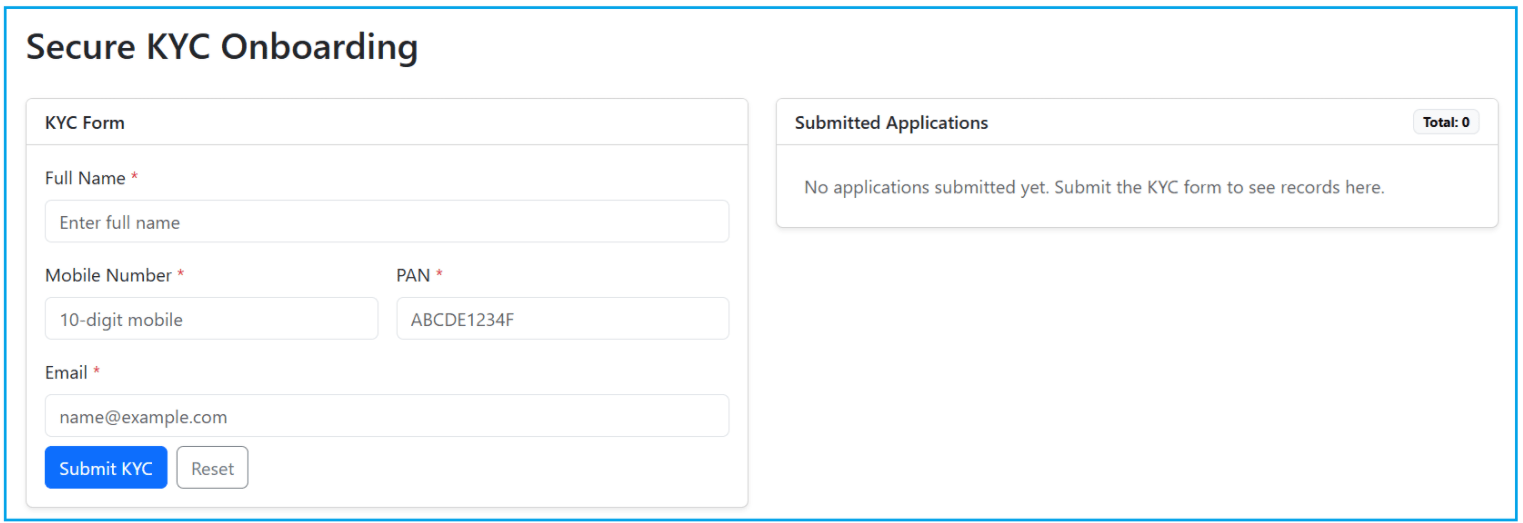
The goal is simple: collect required KYC inputs safely, validate them cleanly, and show submitted records instantly. We will build a page divided into two professional Bootstrap cards as shown in the image below:
Left Side: Secure KYC Form
The user enters:
- Full Name (Required)
- Mobile Number (Required, Digits Only + must be exactly 10 digits)
- PAN (Required, Auto Converts to Uppercase)
- Email (Required, Validated Format)
Right Side: Submitted Applications Dashboard
This acts like a mini “back-office list” on the same screen.
- It shows the Total Submissions Count
- It lists the latest KYC submission at the top
- If no data is submitted yet, it shows an Empty-State Message
This instantly confirms to the user that their submission has been captured.
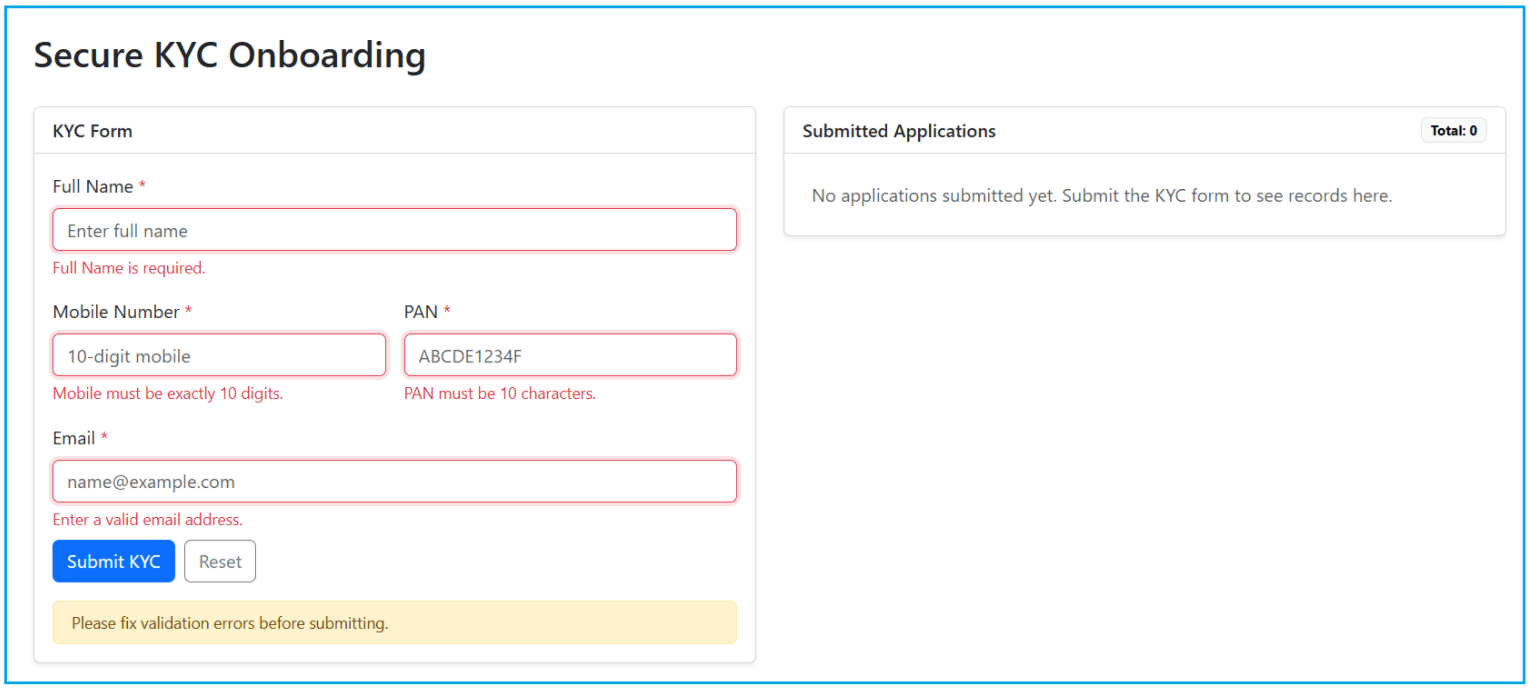
What happens when the user submits invalid data?
When the user clicks Submit KYC without entering valid data:
- Each Invalid Field Shows:
-
- A Red Border Highlight (done by your custom directive)
- A Field-Level Error Message below it
-
- A Global Warning Message is shown at the bottom:
-
- Please fix validation errors before submitting.
-
For a better understanding, please have a look at the following image:
What happens when the user submits valid data?
When valid details are entered, and the user clicks Submit KYC:
- The form passes validation
- A new KYC record is created in memory
- The right-side dashboard updates immediately:
-
- Total count increases from 0 → 1
- A new list item appears showing:
-
- ID
- Full name
- Mobile, PAN, Email
- Status badge (Submitted/Pending)
-
-
Also, after successful submission, the form clears and becomes fresh again (no errors shown). For a better understanding, please have a look at the following image:

Let us proceed and implement the above application step by step.
Step 1: Create the Angular Project
- ng new SecureKYC
- cd SecureKYC
- ng serve
Step 2: Add Bootstrap CDN
Open: src/index.html and copy-paste the following code.
<!doctype html>
<html lang="en">
<head>
  <meta charset="utf-8">
  <title>OrderDashboard</title>
  <base href="/">
  <meta name="viewport" content="width=device-width, initial-scale=1">
  <link rel="icon" type="image/x-icon" href="favicon.ico">
  <!-- Bootstrap CSS (CDN) -->
  <link href="https://cdn.jsdelivr.net/npm/bootstrap@5.3.8/dist/css/bootstrap.min.css"
        rel="stylesheet"
        integrity="sha384-sRIl4kxILFvY47J16cr9ZwB07vP4J8+LH7qKQnuqkuIAvNWLzeN8tE5YBujZqJLB"
        crossorigin="anonymous">
</head>
<body>
  <app-root></app-root>
</body>
</html>
Step 3: Creating Custom Directives
First, create a folder named directives within the src/app folder, where we will create all our Angular Custom Directives.
Input Rule Directive (Digits / Uppercase)
This directive controls the type of data a user can enter in an input field. It intercepts user input events and enforces a predefined input rule, such as allowing only numbers or converting text to uppercase, before the data is accepted by the application. Create a TypeScript file named input-rule.ts within the src/app/directives folder, and copy-paste the following code.
// Import core Angular APIs required for building a custom attribute directive
// - Directive      → Marks the class as an Angular directive
// - ElementRef     → Provides access to the DOM element
// - HostListener   → Listens to DOM events on the host element like mouseenter/mouseleave
// - Input          → Takes value from HTML into directive
import { Directive, ElementRef, HostListener, Input } from '@angular/core';

// @Directive tells Angular that this class is a directive (not a component)
// selector '[appInputRule]' means this directive will be used as an HTML attribute
@Directive({
  selector: '[appInputRule]',
  standalone: true
})
export class InputRuleDirective {

  // Input binding that accepts a rule from the template
  // Usage example:
  // <input appInputRule="digits">
  // <input appInputRule="uppercase">
  //
  // 'digits'   → allows only numeric characters
  // 'uppercase' → converts text to uppercase
  //
  // Default rule is 'digits' if nothing is passed
  @Input('appInputRule') rule: 'digits' | 'uppercase' = 'digits';

  // ElementRef is injected by Angular and represents the host element on which this directive is applied.
  // In this case, the host element is an <input>, so ElementRef lets us access that input element.
  constructor(private el: ElementRef) {}

  // @HostListener('input') tells Angular:
  // Whenever the HOST element (the element where this directive is applied)
  // triggers the browser's 'input' event, call the method below.
  //
  // The 'input' event happens whenever the input's value changes, such as:
  // - user types a character
  // - user deletes (Backspace/Delete)
  // - user pastes text
  // - autocomplete / mobile keyboard changes the value
  @HostListener('input')

  // This is a normal TypeScript method.
  // Angular will automatically execute it because of @HostListener above.
  //
  // The method name 'onInput' is NOT special.
  // You could rename it to anything (e.g., handleInputChange, formatValue, etc.)
  // and it will still work as long as @HostListener is attached.

  onInput() {
    // Place your directive logic here:
    // 1) Read the current value from the host element
    // 2) Validate/format/clean the value
    // 3) Write the updated value back to the input if needed

    // Extract the actual native DOM element from ElementRef.
    // `nativeElement` is the actual HTMLInputElement in the browser.
    // Example: the exact <input> tag on which the directive is attached.
    const input = this.el.nativeElement;

    // Read the current text/value present inside the input box at this moment.
    // This includes whatever the user has typed or pasted so far.
    let value = input.value;

    // Rule 1: Digits only
    // \D matches any non-digit character
    // replace(/\D+/g, '') removes everything except numbers
    // Example: "98a7-6" -> "9876"
    if (this.rule === 'digits') {
      value = value.replace(/\D+/g, '');
    }

    // Rule 2: Uppercase
    // Convert the entire input value to uppercase characters
    // Example: "abc12d" -> "ABC12D"
    if (this.rule === 'uppercase') {
      value = value.toUpperCase();
    }

    // Only update the DOM if our formatted/cleaned value is different.
    // Why?
    // - Avoids rewriting the same value again and again.
    // - Prevents unnecessary DOM work (better performance).
    // - Helps avoid repeated event triggering in some cases.
    if (input.value !== value) {
        // Write the final cleaned/formatted value back into the input box.
        // At this point, "value" is the corrected version (digits-only, uppercase, etc.)
        // so the user immediately sees the corrected text on the screen.
        input.value = value;

        // Changing input.value programmatically does NOT automatically
        // notify Angular's change detection or form controls.
        //
        // Dispatching a native 'input' event explicitly informs Angular
        // that the value has changed, so:
        // - [(ngModel)] receives the updated value
        // - Reactive Forms update their FormControl
        // - Any (input) event bindings are triggered
        input.dispatchEvent(new Event('input'));
    }
  }
}
Required Field Error Directive (Required + Error)
This directive controls visual error feedback for required fields. It does not validate data — it only decides when error styling should appear based on signals from the component. Create a TypeScript file named required-error.ts within the src/app/directives folder, and copy-paste the following code.
// Import Angular APIs used to build an attribute directive.
//
// - Directive  → Tells Angular this class is a directive (not a component/service)
// - ElementRef → Gives access to the host DOM element (the element where directive is applied)
// - Input      → Allows the directive to receive values from the template (HTML)
// - Renderer2  → Angular-safe way to update the DOM (styles/classes/attributes)
import { Directive, ElementRef, Input, Renderer2 } from '@angular/core';

@Directive({
  // Attribute selector:
  // This directive is used like a normal HTML attribute.
  // Example:
  // <input appRequiredError />
  selector: '[appRequiredError]',
  standalone: true
})
export class RequiredErrorDirective {

  // Input #1: Is this field required?
  //
  // The component decides this and passes it to the directive.
  // Example:
  // <input appRequiredError [requiredField]="true" />
  @Input() requiredField: boolean = false;

  // Input #2: Should we show the required error right now?
  //
  // Typical real-time usage:
  // - Initially: showError = false (don’t show errors on first load)
  // - After submit click: showError = true (show errors for invalid fields)
  //
  // Example:
  // <input appRequiredError [showError]="isSubmitted && isNameInvalid" />
  @Input() showError: boolean = false;

  // ElementRef points to the exact host element (input/select/textarea/etc.)
  // Renderer2 is used to safely add/remove styles (Angular recommended approach)
  constructor(private el: ElementRef, private renderer: Renderer2) {}

  // ngOnChanges is called automatically whenever ANY @Input() value changes.
  // That means this method will run when:
  // - requiredField changes (true/false)
  // - showError changes (true/false)
  //
  // This is perfect for directives because the UI can react immediately
  // without the component manually calling anything.
  ngOnChanges(): void {
    this.applyRequiredErrorStyle();
  }

  // Applies or removes the "required error" UI styling based on the current inputs.
  private applyRequiredErrorStyle(): void {

    // The actual DOM element where the directive is attached.
    // Example: the real <input> element.
    const element = this.el.nativeElement;

    // STEP 1: Always reset/remove previous error styles first.
    // Why?
    // - If the field becomes valid later, old red border/glow must be removed.
    // - Keeps UI consistent with the latest state.
    this.renderer.removeStyle(element, 'border');
    this.renderer.removeStyle(element, 'box-shadow');

    // STEP 2: Apply error styles only when:
    // - field is marked as required AND
    // - the component says "show error now"
    //
    // This prevents showing errors on first load and shows them only when needed.
    if (this.requiredField && this.showError) {

      // Red border (Bootstrap danger color style)
      this.renderer.setStyle(element, 'border', '1px solid #dc3545');

      // Soft red glow to visually indicate error state
      this.renderer.setStyle(element, 'box-shadow', '0 0 0 .2rem rgba(220,53,69,.15)');
    }
  }
}
Step 4: Modify Root Component
Open src/app/app.ts file and copy-paste the following code.
import { Component } from '@angular/core';
import { FormsModule } from '@angular/forms';

// Custom Directives used in this screen
// 1) InputRuleDirective     → formats input in real-time (digits-only / uppercase)
// 2) RequiredErrorDirective → applies error UI only when (requiredField && showError) is true
import { InputRuleDirective } from './directives/input-rule';
import { RequiredErrorDirective } from './directives/required-error';

// Allowed status values for each submitted KYC record
// Using a union type prevents invalid values like 'Done' or 'Approved' by mistake.
type KycStatus = 'Pending' | 'Verified';

// Data structure of one submitted KYC application
// This is what we store in memory and show on the dashboard list.
interface KycApplication {
  id: number;        // unique identifier (simulating backend-generated ID)
  fullName: string;  // applicant full name
  mobile: string;    // 10-digit mobile number
  pan: string;       // 10-character PAN
  email: string;     // applicant email id
  status: KycStatus; // current processing status
}

@Component({
  selector: 'app-root',

  // Standalone Component imports
  // Anything used in the HTML template must be imported here.
  //
  // - FormsModule         → enables template-driven forms features like [(ngModel)]
  // - InputRuleDirective  → used as an attribute directive on input fields
  // - RequiredErrorDirective → used to show required-field styling after submit attempt
  imports: [
    InputRuleDirective,
    RequiredErrorDirective,
    FormsModule,
  ],

  // External template file (clean separation of TS + HTML)
  templateUrl: './app.html'
})
export class App {

  // FORM MODEL (Template-driven form values)
  // These are bound to the input fields using [(ngModel)].
  // They always contain the latest values typed by the user.
  fullName = '';
  mobile = '';
  pan = '';
  email = '';

  // UI STATE (Controls when validation errors are shown)
  // We keep it false initially so the form looks clean on first load.
  // We set it true only when user clicks Submit.
  // Template uses this to show:
  // - validation messages
  // - RequiredErrorDirective styling
  isSubmitted = false;

  // IN-MEMORY STORAGE (Demo Purpose)
  // In real applications, IDs are generated by the backend database.
  // Here we simulate that using an auto-increment variable.
  private nextId = 1001;

  // Stores all submitted applications in memory.
  // This list is shown in the dashboard on the right side.
  applications: KycApplication[] = [];

  // VALIDATION GETTERS (Readable + reusable rules)
  // These getters keep the submit() method simple.
  // Also, the template can directly use these flags for UI messages.

  // Full Name must not be empty
  get isFullNameInvalid(): boolean {
    // trim() removes leading/trailing spaces so "   " is treated as empty
    return this.fullName.trim().length === 0;
  }

  // Mobile must be exactly 10 digits
  // Note: InputRuleDirective (digits rule) already removes non-digits.
  get isMobileInvalid(): boolean {
    return this.mobile.trim().length !== 10;
  }

  // PAN must be exactly 10 characters
  // Note: InputRuleDirective (uppercase rule) already converts to uppercase.
  get isPanInvalid(): boolean {
    return this.pan.trim().length !== 10;
  }

  // Basic email format validation
  // This checks: something@something.something
  get isEmailInvalid(): boolean {
    return !/^[^\s@]+@[^\s@]+\.[^\s@]+$/.test(this.email.trim());
  }

  // Single “master” check for overall form validity
  // If any field fails, the form is invalid.
  get isFormInvalid(): boolean {
    return (
      this.isFullNameInvalid ||
      this.isMobileInvalid ||
      this.isPanInvalid ||
      this.isEmailInvalid
    );
  }

  // SUBMIT HANDLER
  submit(): void {

    // Step 1: Mark as submitted
    // This activates required-field styling + validation messages in the UI.
    this.isSubmitted = true;

    // Step 2: Stop if validation fails
    // We don't store anything until the form is valid.
    if (this.isFormInvalid) return;

    // Step 3: Build the record that will be shown in the dashboard list
    // trim() ensures stored values are clean and consistent.
    const newApp: KycApplication = {
      id: this.nextId++,              // simulate auto-generated unique ID
      fullName: this.fullName.trim(), // clean full name
      mobile: this.mobile.trim(),     // clean mobile
      pan: this.pan.trim(),           // clean PAN
      email: this.email.trim(),       // clean email
      status: 'Pending'               // default status for newly created record
    };

    // Step 4: Add the latest record at the TOP of the list
    // This is common in dashboards (most recent entry first).
    this.applications = [newApp, ...this.applications];

    // Step 5: Reset fields for next entry
    // Makes the form ready for a new submission.
    this.fullName = '';
    this.mobile = '';
    this.pan = '';
    this.email = '';

    // Step 6: Reset submission state
    // This removes validation UI and makes the next form entry clean.
     this.isSubmitted = false;
  }

  // RESET HANDLER
  reset(): void {
    // Clear all input fields
    this.fullName = '';
    this.mobile = '';
    this.pan = '';
    this.email = '';

    // Reset validation UI state (hide errors / remove red highlight)
    this.isSubmitted = false;
  }
}
What is …this.applications?
The (…) is called the spread operator in JavaScript/TypeScript.
- this.applications = [newApp, …this.applications];
It creates a new array where:
- newApp comes first
- Then all the existing items of this.applications are added after it
So, the latest submitted KYC record appears at the top of the list.
If you want the newest at the bottom, use this:
- this.applications = […this.applications, newApp];
That means: “first, all old items, then add the new one”.
Step 5: Modify Root Template
Open src/app/app.html file and copy-paste the following code.
<div class="container py-4">

  <div class="d-flex flex-column flex-md-row justify-content-between align-items-md-center gap-2 mb-4">
    <div>
      <h2 class="mb-1">Secure KYC Onboarding</h2>
    </div>
  </div>

  <div class="row g-4">

    <!--  KYC FORM (LEFT) -->
    <div class="col-lg-6">
      <div class="card shadow-sm">
        <div class="card-header bg-white fw-semibold">
          KYC Form
        </div>

        <div class="card-body">
          <div class="row g-3">

            <!-- Full Name -->
            <div class="col-12">
              <label class="form-label">
                Full Name <span class="text-danger">*</span>
              </label>

              <!-- [(ngModel)] = Two-Way Data Binding
                   - Reads fullName from TS and shows it in the input
                   - Updates fullName in TS whenever user types

                   appRequiredError = Custom Directive
                   - Applies required-field error styling (red border/glow)

                   [requiredField] = Property Binding to directive input
                   - Marks this field as required for the directive logic

                   [showError] = Property Binding to directive input
                   - Tells directive when to show the error style:
                     only after submit attempt AND when invalid -->
              <input class="form-control"
                     [(ngModel)]="fullName"
                     appRequiredError
                     [requiredField]="true"
                     [showError]="isSubmitted && isFullNameInvalid"
                     placeholder="Enter full name" />

              <!-- @if = Built-in Angular control flow (built-in directive)
                   Displays the error message only when the condition is true -->
              @if (isSubmitted && isFullNameInvalid) {
                <div class="text-danger small mt-1">Full Name is required.</div>
              }
            </div>

            <!-- Mobile -->
            <div class="col-md-6">
              <label class="form-label">
                Mobile Number <span class="text-danger">*</span>
              </label>

              <!-- [(ngModel)] = Two-Way Data Binding (mobile)

                   appInputRule="digits" = Custom Directive
                   - Forces digits-only input (removes alphabets/symbols)

                   appRequiredError + [requiredField] + [showError]
                   - Same required-field error styling mechanism -->
              <input class="form-control"
                     [(ngModel)]="mobile"
                     appInputRule="digits"
                     maxlength="10"
                     appRequiredError
                     [requiredField]="true"
                     [showError]="isSubmitted && isMobileInvalid"
                     placeholder="10-digit mobile" />

              @if (isSubmitted && isMobileInvalid) {
                <div class="text-danger small mt-1">Mobile must be exactly 10 digits.</div>
              }
            </div>

            <!-- PAN -->
            <div class="col-md-6">
              <label class="form-label">
                PAN <span class="text-danger">*</span>
              </label>

              <!-- [(ngModel)] = Two-Way Data Binding (pan)

                   appInputRule="uppercase" = Custom Directive
                   - Converts whatever user types into uppercase

                   appRequiredError + [requiredField] + [showError]
                   - Highlights this input as error after submit when PAN is invalid -->
              <input class="form-control"
                     [(ngModel)]="pan"
                     appInputRule="uppercase"
                     maxlength="10"
                     appRequiredError
                     [requiredField]="true"
                     [showError]="isSubmitted && isPanInvalid"
                     placeholder="ABCDE1234F" />

              @if (isSubmitted && isPanInvalid) {
                <div class="text-danger small mt-1">PAN must be 10 characters.</div>
              }
            </div>

            <!-- Email -->
            <div class="col-12">
              <label class="form-label">
                Email <span class="text-danger">*</span>
              </label>

              <!-- [(ngModel)] = Two-Way Data Binding (email)

                   appRequiredError + [requiredField] + [showError]
                   - Shows required error styling only after submit attempt if email is invalid -->
              <input class="form-control"
                     [(ngModel)]="email"
                     appRequiredError
                     [requiredField]="true"
                     [showError]="isSubmitted && isEmailInvalid"
                     placeholder="name@example.com" />

              @if (isSubmitted && isEmailInvalid) {
                <div class="text-danger small mt-1">Enter a valid email address.</div>
              }
            </div>

            <!-- Buttons -->
            <div class="col-12 d-flex gap-2 mt-2">

              <!-- (click) = Event Binding
                   Calls submit() method in TS when button is clicked -->
              <button class="btn btn-primary"
                      type="button"
                      (click)="submit()">
                Submit KYC
              </button>

              <!-- (click) = Event Binding
                   Calls reset() method in TS to clear the form -->
              <button class="btn btn-outline-secondary"
                      type="button"
                      (click)="reset()">
                Reset
              </button>
            </div>

            <!-- @if = Built-in Angular control flow
                 Shows a global warning only after submit attempt AND when form is invalid -->
            @if (isSubmitted && isFormInvalid) {
              <div class="col-12">
                <div class="alert alert-warning py-2 mb-0 small">
                  Please fix validation errors before submitting.
                </div>
              </div>
            }

          </div>
        </div>
      </div>
    </div>

    <!--  SUBMITTED APPLICATIONS (RIGHT) -->
    <div class="col-lg-6">
      <div class="card shadow-sm">
        <div class="card-header bg-white d-flex justify-content-between align-items-center">
          <span class="fw-semibold">Submitted Applications</span>

          <!-- {{ }} = Interpolation
               Prints the value of applications.length in the UI -->
          <span class="badge text-bg-light border">Total: {{ applications.length }}</span>
        </div>

        <div class="card-body p-0">

          <!-- @if / @else = Built-in Angular control flow
               Shows either "empty state" or the list depending on array length -->
          @if (applications.length === 0) {
            <div class="p-4 text-muted">
              No applications submitted yet. Submit the KYC form to see records here.
            </div>
          } @else {

            <div class="list-group list-group-flush">

              <!-- @for = Built-in Angular loop control flow
                   Iterates over applications array
                   track a.id = track by unique id for better performance and correct DOM reuse -->
              @for (a of applications; track a.id) {
                <div class="list-group-item">
                  <div class="d-flex justify-content-between align-items-start">
                    <div>
                      <!-- {{ }} = Interpolation (shows values on UI) -->
                      <div class="fw-semibold">#{{ a.id }} - {{ a.fullName }}</div>

                      <!-- {{ }} = Interpolation -->
                      <div class="text-muted small">
                        Mobile: {{ a.mobile }} | PAN: {{ a.pan }} | Email: {{ a.email }}
                      </div>
                    </div>

                    <!-- {{ }} = Interpolation -->
                    <span class="badge text-bg-success">{{ a.status }}</span>
                  </div>
                </div>
              }

            </div>
          }
        </div>
      </div>
    </div>

  </div>
</div>
Conclusion: Why Angular Custom Directives Matter?
Angular Custom Directives matter because they allow developers to separate UI behaviour from UI structure. They help us:
- Eliminate duplicate UI logic
- Improve code readability
- Enforce consistent UI behaviour
- Build scalable and maintainable applications
- Keep components focused only on data and flow
In real-world Angular applications, custom directives serve as UI behaviour building blocks, just as components serve as UI layout building blocks. In the next article, I will discuss Angular Pipes with Examples. In this article, I explain Angular Custom Directives with Examples. I would like to have your feedback. Please post your feedback, questions, or comments about this article.
I have a doubt.Let consider I have a component with four tables with different kind of data.Shall i use 4 different trackbByfunction or can i make it as common function for all the tables in same component.Will it work out?
if same data is displayed across all tables then common function is fine.