
Back to: Angular Tutorials For Beginners and Professionals
Angular Container and Nested Components
In this article, I will discuss Angular Container and Nested Components in detail. Please read our previous article, where we discussed Angular Two-Way Data Binding with examples.
In Angular, applications are made up of components — small, reusable building blocks that define both the UI and behaviour. But in real-world scenarios, one large component can’t handle everything. That’s why Angular applications are designed using a hierarchy of components, where some components are placed inside others — these are called nested components.
As your application grows, these components often need to share data or respond to user actions happening in other parts of the app. This is where component communication comes into play. Whether you’re building a dashboard, e-commerce site, or user management system, learning how components interact and exchange data is critical for building scalable and maintainable Angular applications.
Two core concepts make this possible:
- Nested Components – structuring your UI into manageable blocks.
- Component Communication – enabling data flow between components (Parent to Child and Child to Parent).
Understanding nested components and how data flows between them is essential for real-time Angular application development.
What is an Angular Nested Component?
An Angular Nested Component (also called a Child Component) is a component that is used inside another component’s template.
- The outer component is called the Parent (or Container) Component
- The inner component is called the Child (or Nested) Component
In simple terms, one component contains another component in its HTML. Angular is built on a component-based architecture. Using nested components helps you design modular, reusable, and scalable UIs — which is a must for real-time applications.
Why do we need Nested Components?
Nested components are required because real-world Angular applications are too large and complex to be handled by a single component. They help us by:
- Breaking large UIs into smaller parts: Each component handles only one specific part of the UI.
- Reusability: A nested component can be created once and reused in multiple places (for example, a ProductCard used on different pages).
- Separation of concerns: Each component has a single responsibility, making the code easier to understand and manage.
- Better maintainability: Smaller components are easier to debug, update, and test.
- Cleaner and readable templates: The parent component stays simple, while complex UI logic moves into child components.
Simple Real-World Analogy
Think of a web page as a house:
- The house is the parent component
- Rooms like the kitchen, bedroom, and hall are nested components
Each room has its own purpose, but together they form a complete house, just like nested components complete a full UI.
What is an Angular Container Component?
An Angular Container Component (also called a Smart Component or Parent Component) is a component that primarily handles data/state/business logic, and coordinates child components, while child components focus on displaying the UI and emitting events. A container component typically:
- Fetches data from services or APIs
- Manages application state (loading flags, selected items, filters, etc.)
- Handles business logic and calculations
- Passes required data to nested (child) components
- Listens to events raised by child components
The actual UI rendering is delegated to nested components, keeping responsibilities clearly separated.
Why Do We Need Container Components?
Container components are essential for building clean, scalable, and maintainable Angular applications. They help by:
- Separating logic from presentation: Container components focus on how the application works, while nested components focus on how the UI looks.
- Keeping child components simple and reusable: Presentational components remain UI-focused and can be reused in different parts of the application.
- Centralizing data and state management: All data fetching, API calls, and state handling happen in one place.
- Improving testability: Business logic can be tested independently from UI logic.
- Making applications easier to scale: As applications grow, logic remains organized and predictable.
Simple Real-World Analogy
Think of a Restaurant:
- The Restaurant Manager is the container component → Handles orders, resources, and decisions.
- The chefs and waiters are the nested (presentational) components → focus only on preparing and serving food.
Each has a clear responsibility, and together they make the system work smoothly.
In Angular Applications, container components manage data, state, and business logic, while nested components focus on displaying the UI and emitting events. This separation makes Angular applications clean, testable, and scalable.
Why Component Communication is Required in Real-time Angular Applications?
In a real-time Angular application, components cannot work in isolation. A real screen is built using multiple components (parent and child), and they must share data and respond to user actions together. That is why component communication is required—so the application behaves as a single connected system rather than as separate UI blocks.
Why is Communication Needed?
Component communication is required to:
- Display Dynamic Data: Data flows from Parent to Child so that UI updates automatically when data changes.
- Capture User Actions: Events flow from Child to Parent so the application can respond to clicks, selections, or form submissions.
- Keep the UI Synchronized: Multiple components often depend on the same data and must update together.
- Avoid Code Duplication: Business logic stays in the parent, while UI logic stays in child components.
- Build Scalable and Maintainable Applications: Clear data flow makes large applications easier to understand and manage.
Real-Time Examples
- Updating cart count when a product is added
- Refreshing a dashboard when a filter is selected
- Saving form data from a child component
- Updating multiple UI sections based on one user action
Without proper communication:
- Components become disconnected
- Data becomes inconsistent
- User interactions fail to reflect across the UI
So, Component Communication allows Angular applications to work as a single, connected system by enabling controlled data flow between components in response to real-time user actions and data changes.
What are Angular Component Input Properties?
Angular Component Input Properties are used to pass data from a parent (container) component to a child (nested) component. In Angular, a child component uses the @Input() Decorator to mark a property that receives its value from the parent.
In simple terms, Input properties enable Parent → Child communication, where the parent controls the data, and the child only consumes it.
Simple Analogy:
Think of Input properties like function parameters:
- A function receives values through parameters
- A child component receives values through @Input()
The function (or child component) uses the value but does not determine it—the caller (parent) decides what value to pass.
Common Real-Time Use Cases (Input Properties)
- Passing Product Details to a product card component
- Sending User Information to a profile summary component
- Passing Filters or Search Text to a list component
- Sending Theme, Settings, or Configuration Values to UI components
How to Pass Data from the Container Component to the Nested Component?
In Angular, data is passed from a container (parent) component to a nested (child) component using Input properties. This communication follows a one-way data flow, where the parent owns the data and the child only receives and uses it. Angular enables this pattern using:
- The @Input() decorator
- Property Binding in the parent’s template
Step 1: Child Component – Declaring an Input Property
@Input() productName: string = ”;
Explanation:
- @Input() marks productName as a property that will receive its value from the parent component.
- This tells Angular that the value of productName does not originate inside the child.
At this stage, the child component:
- Does not know where the data comes from
- Simply declares that it is ready to receive a value
Step 2: Parent Template – Sending Data to the Child
<app-product-card [productName]=”selectedProduct.name”></app-product-card>
Explanation:
- <app-product-card> is the selector of the child component.
- [productName] is Property Binding, which connects the parent’s data to the child’s input property.
- selectedProduct.name is a value owned and managed by the parent component.
- Angular automatically assigns selectedProduct.name to the child’s productName input.
Whenever selectedProduct changes in the parent, the updated value is automatically passed to the child.
Key Characteristics of Parent → Child Communication
- One-way data flow: Data flows only from parent to child.
- Parent controls the data: The parent component is the source of truth.
- Child consumes the data: The child uses the input value for display or internal logic, without changing the original data.
- Automatic updates: Angular keeps the child input synchronized with parent data changes.
Angular Input properties allow a parent component to send data to a child component in a controlled, predictable way, making components reusable, dynamic, and easy to maintain.
What are Angular Component Output Properties?
Angular Component Output Properties are used to send data or events from a child (nested) component to its parent (container) component. In Angular, a child component defines an output property using the @Output() decorator, usually together with an EventEmitter. This allows the child component to notify the parent when something happens inside it.
In simple terms, Output properties enable Child-parent communication, where the child informs, and the parent decides what action to take.
Simple Analogy
Think of Output properties like raising a signal:
- The child component raises a signal (event)
- The parent component hears the signal and reacts
The child does not perform the action; it only notifies the parent that something has happened.
Common Real-Time Use Cases
- Button clicked inside a child component
- Form submitted from a nested component
- Item selected from a dropdown or list
- Delete, edit, or update the action triggered in a reusable component
How to Pass Data from the Nested Component to the Container Component?
In Angular, a nested (child) component cannot directly change the data or state of its parent (container) component. This restriction exists to keep components loosely coupled and predictable. Therefore, when something happens within a child component—such as a button click, form submission, or selection change—the child must notify the parent rather than perform the action itself.
Angular supports this communication pattern using events. The child component raises an event, and the parent component listens for it and decides what action to take. This pattern is known as Child → Parent communication.
Angular provides three key elements to achieve this:
- @Output() Decorator
- EventEmitter
- Event Binding in the parent template
Step 1: Child Component – Creating and Emitting an Event
@Output() sendMessage = new EventEmitter<string>();
sendData() {
this.sendMessage.emit(‘Hello from Child!’);
}
Explanation:
- @Output() marks a property as an event that the parent component can listen to.
- sendMessage becomes the event name exposed to the parent.
- EventEmitter<string> creates an event capable of sending string data.
- The generic type (string) specifies the data type this event will emit.
- emit(‘Hello from Child!’) triggers the event and sends the data to whoever is listening.
At this point, the child component:
- Does not know which component is listening
- Does not know what action will be taken
- Simply emits an event with data
Step 2: Parent Template – Listening to the Child Event
<app-child (sendMessage)=”onMessageReceived($event)”></app-child>
Explanation:
- <app-child> is the selector of the child component.
- (sendMessage) refers to the event name defined in the child component using @Output().
- onMessageReceived($event) is the parent’s method that will execute when the event occurs.
- $event contains the data sent by the child using emit().
Step 3: Parent Component – Handling the Event
onMessageReceived(data: string) {
console.log(data);
}
Explanation:
- The parent component receives the emitted data as a method parameter.
- The parent decides what to do next (e.g., call an API, update state, refresh the UI).
- All business logic remains inside the parent component.
Key Characteristics of Child → Parent Communication
- Data flows only from Child → Parent
- Communication is event-based
- The child component does not modify parent data
- The child only notifies, the parent controls the logic
- The child does not know who is listening to the event
So, Angular Output properties allow a child component to emit events to its parent using @Output() and EventEmitter, enabling controlled and event-driven Child → Parent communication.
Example to Understand Angular Container and Nested Components:
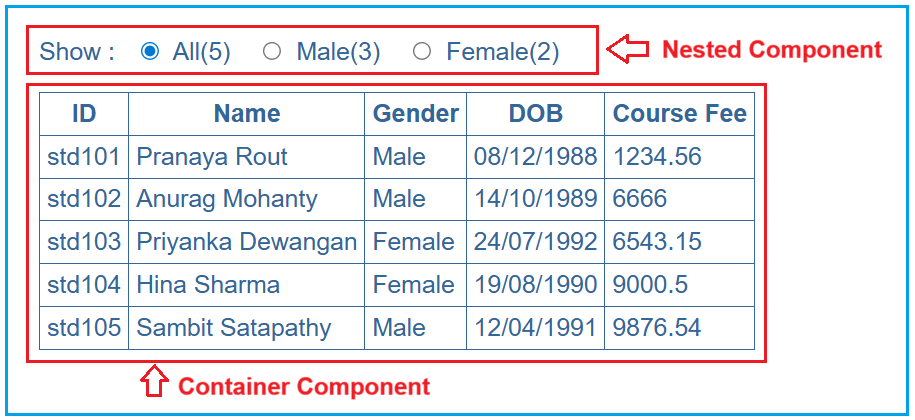
We will build a Student Dashboard UI with the following requirements:
- Display a list of students in a table
- Allow filtering students by:
- All
- Male
- Female
- Show student counts next to each filter option
- Update the table immediately when the user changes the filter
This is not a toy example. It represents a very common real-time UI pattern used in dashboards, admin panels, and enterprise applications. For clarity, please see the following image. The following Dashboard we will develop using Angular Container and Nested Components.
Why Do We Need Multiple Components?
If we build everything inside one component:
- The component becomes large and hard to maintain.
- UI logic and business logic get mixed up.
- Reusability becomes difficult.
- Testing becomes harder.
To avoid these problems, Angular encourages component decomposition.
Component Roles in This Example
We split the UI into two logical components:
- Container Component → Student List Component
- Nested (Child) Component → Student Count Component
Each component has a single, clear responsibility.
Creating Project
- ng new student-dashboard
- cd student-dashboard
- ng generate component student-list
- ng generate component student-count
Create a simple Student model
The Student model defines a clear contract for student data. This gives us:
- Type safety
- Self-documenting code
- Fewer runtime errors
- Easier refactoring
Using union types like:
- Gender = ‘Male’ | ‘Female’
- StudentFilter = ‘All’ | Gender
ensures that:
- Invalid values are caught at compile time
- The filter logic stays consistent across components
This is a modern Angular + TypeScript best practice.
Create src/app/models/student.ts file and then copy-paste the following code.
export type Gender = 'Male' | 'Female';
export type StudentFilter = 'All' | Gender;

export interface Student {
  ID: string;
  FirstName: string;
  LastName: string;
  DOB: Date;
  Gender: Gender;
  CourseFee: number;
}
Student Count Component
This will be our Nested Component. A Nested Component is responsible for:
- Displaying UI elements
- Capturing user interactions
- Remaining stateless or minimally stateful
- Not owning business logic
In this example, the Student Count Component:
- Displays radio buttons (All / Male / Female)
- Displays counts next to each option
- Knows which option is currently selected
- Emits an event when the user changes selection
StudentCount (Nested / Child) Component
Open student-count.ts file and then copy and paste the following code into it.
import { Component, EventEmitter, Input, Output } from '@angular/core';
import { StudentFilter } from '../models/student';

@Component({
  selector: 'app-student-count',
  standalone: true,
  templateUrl: './student-count.html',
  styleUrls: ['./student-count.css'],
})
export class StudentCount {
  // Parent -> Child (data)
  @Input() all = 0;
  @Input() male = 0;
  @Input() female = 0;

  @Input() selected: StudentFilter = 'All';

  // Child -> Parent (event)
  @Output() selectionChanged = new EventEmitter<StudentFilter>();

  onSelectionChange(value: StudentFilter): void {
    this.selectionChanged.emit(value);
  }
}
src/app/student-count/student-count.html
Open student-count.html file and then copy and paste the following code into it.
<span class="radioClass">Show :</span>

<label class="radioClass">
  <input
    type="radio"
    name="options"
    [checked]="selected === 'All'"
    (change)="onSelectionChange('All')"
  />
  {{ "All(" + all + ")" }}
</label>

<label class="radioClass">
  <input
    type="radio"
    name="options"
    [checked]="selected === 'Male'"
    (change)="onSelectionChange('Male')"
  />
  {{ "Male(" + male + ")" }}
</label>

<label class="radioClass">
  <input
    type="radio"
    name="options"
    [checked]="selected === 'Female'"
    (change)="onSelectionChange('Female')"
  />
  {{ "Female(" + female + ")" }}
</label>
src/app/student-count/student-count.css
Open student-count.css file and then copy and paste the following code into it.
.radioClass {
  color: #369;
  font-family: Arial, Helvetica, sans-serif;
  font-size: large;
  margin-right: 14px;
  user-select: none;
}

input[type="radio"] {
  margin-right: 6px;
}
Student List Component:
This will be our Container Component. A Container Component is responsible for:
- Holding application data
- Managing business logic
- Deciding how the UI behaves
- Responding to user actions
In our example, the Student List Component:
- Owns the students array (single source of truth)
- Calculates:
-
- Total count
- Male count
- Female count
-
- Applies filtering logic
- Controls which students are displayed
- Reacts when the selected filter changes
Open src/app/student-list/student-list.ts and copy-paste the following code into it.
import { Component } from '@angular/core';
import { Student, StudentFilter } from '../models/student';
import { StudentCount } from '../student-count/student-count';

@Component({
  selector: 'app-student-list',
  standalone: true,
  imports: [StudentCount],
  templateUrl: './student-list.html',
  styleUrls: ['./student-list.css'],
})
export class StudentList {
  students: Student[] = [
    { ID: 'std101', FirstName: 'Pranaya',  LastName: 'Rout',      DOB: new Date(1988, 11, 8), Gender: 'Male',   CourseFee: 1234.56 },
    { ID: 'std102', FirstName: 'Anurag',   LastName: 'Mohanty',   DOB: new Date(1989,  9,14), Gender: 'Male',   CourseFee: 6666.00 },
    { ID: 'std103', FirstName: 'Priyanka', LastName: 'Dewangan',  DOB: new Date(1992,  6,24), Gender: 'Female', CourseFee: 6543.15 },
    { ID: 'std104', FirstName: 'Hina',     LastName: 'Sharma',    DOB: new Date(1990,  7,19), Gender: 'Female', CourseFee: 9000.50 },
    { ID: 'std105', FirstName: 'Sambit',   LastName: 'Satapathy', DOB: new Date(1991,  3,12), Gender: 'Male',   CourseFee: 9876.54 },
  ];

  selectedFilter: StudentFilter = 'All';

  get totalCount(): number {
    return this.students.length;
  }

  get maleCount(): number {
    return this.students.filter(s => s.Gender === 'Male').length;
  }

  get femaleCount(): number {
    return this.students.filter(s => s.Gender === 'Female').length;
  }

  get filteredStudents(): Student[] {
    if (this.selectedFilter === 'All') return this.students;
    return this.students.filter(s => s.Gender === this.selectedFilter);
  }

  onFilterChanged(filter: StudentFilter): void {
    this.selectedFilter = filter;
  }

  trackById = (_: number, s: Student) => s.ID;

  // Since you haven't covered pipes, we format date as a simple string method.
  // This keeps the output readable without introducing DatePipe.
  formatDob(dob: Date): string {
    const day = String(dob.getDate()).padStart(2, '0');
    const month = String(dob.getMonth() + 1).padStart(2, '0');
    const year = dob.getFullYear();
    return `${day}/${month}/${year}`;
  }
}
src/app/student-list/student-list.html
Open src/app/student-list/student-list.html and copy-paste the following code into it.
<app-student-count
  [all]="totalCount"
  [male]="maleCount"
  [female]="femaleCount"
  [selected]="selectedFilter"
  (selectionChanged)="onFilterChanged($event)"
></app-student-count>

<br /><br />

<table>
  <thead>
    <tr>
      <th>ID</th>
      <th>Name</th>
      <th>Gender</th>
      <th>DOB</th>
      <th>Course Fee</th>
    </tr>
  </thead>

  <tbody>
    @if (filteredStudents.length > 0) {
      @for (student of filteredStudents; track trackById($index, student)) {
        <tr>
          <td>{{ student.ID }}</td>
          <td>{{ student.FirstName }} {{ student.LastName }}</td>
          <td>{{ student.Gender }}</td>
          <td>{{ formatDob(student.DOB) }}</td>
          <td>{{ student.CourseFee }} </td>
        </tr>
      }
    } @else {
      <tr>
        <td colspan="5">No Students to display</td>
      </tr>
    }
  </tbody>
</table>
src/app/student-list/student-list.css
Open src/app/student-list/student-list.css and copy-paste the following code into it.
table {
  color: #369;
  font-family: Arial, Helvetica, sans-serif;
  font-size: large;
  border-collapse: collapse;
}

td {
  border: 1px solid #369;
  padding: 5px;
}

th {
  border: 1px solid #369;
  padding: 5px;
}
src/app/app.ts
Open src/app/app.ts and copy-paste the following code into it.
import { Component } from '@angular/core';
import { StudentList } from './student-list/student-list';

@Component({
  selector: 'app-root',
  imports: [StudentList],
  templateUrl: './app.html',
  styleUrl: './app.css'
})
export class App {
}
src/app/app.html
Open src/app/app.html and copy-paste the following code into it.
<app-student-list></app-student-list>
That’s it. We have completed the first phase of our implementation. At this point, if you run the application, then you should see the student count radio buttons and the student list. Except that nothing is going to work.
Conclusion: Why Nested Components Matter in Angular Applications?
Nested components are the backbone of every real-world Angular application. They allow you to break down complex UIs into smaller, reusable, and focused components, making the application modular, clean, and easier to maintain.
But once the UI is split into components, communication becomes critical.
- Parent → Child communication uses @Input() to send data down.
- Child → Parent communication uses @Output() and EventEmitter to notify the parent of events.
This structured, one-way data flow ensures that:
- Components remain loosely coupled
- Logic stays predictable
- UI updates happen consistently and clearly
Nested components structure the UI, and component communication brings the UI to life. Together, they make Angular applications clean, scalable, and professional.
In this article, I explain Angular Container and Nested Components with an example. I would like to have your feedback. Please post your feedback, questions, or comments about this article.

About the Author: Pranaya Rout
Pranaya Rout has published more than 3,000 articles in his 11-year career. Pranaya Rout has very good experience with Microsoft Technologies, Including C#, VB, ASP.NET MVC, ASP.NET Web API, EF, EF Core, ADO.NET, LINQ, SQL Server, MYSQL, Oracle, ASP.NET Core, Cloud Computing, Microservices, Design Patterns and still learning new technologies.
Not Working .studentTitle didn’t find .Plz fix the error
I don’t use studentTitle in this example. Kindly check and if still you have any issue kindly share your component.ts and component.html code.
{{student.FirstName | studentTitle:student.Gender}} plz explain this line of code on your student-list.component.html
I’m getting this error when i run this program
ERROR in src/app/Student/student-list/student-list.component.html:16:39 – error NG8004: No pipe found with name ‘studentPipe’.
16 {{student.FirstName | studentPipe:student.Gender}}
~~~~~~~~~~~
Hey, please remove the code | studentTitle:student.Gender and check. This is a type error. Thanks for identifying the issue.
I already check it but still not working
Error: The selector “app-student-list” did not match any elements
at DefaultDomRenderer2.selectRootElement (platform-browser.js:1160)
at locateHostElement (core.js:12266)
at ComponentFactory$1.create (core.js:34122)
at ApplicationRef.bootstrap (core.js:43172)
at core.js:42760
at Array.forEach ()
at PlatformRef._moduleDoBootstrap (core.js:42756)
at core.js:42711
at ZoneDelegate.invoke
Thank you for your response
bootstrap: [StudentListComponent]=>bootstrap: [AppComponent,StudentListComponent]
selector in app.component.html as directives then it works
Nice app
this does not work……
getting this error….
Error: The selector “app-student-list” did not match any elements
at DefaultDomRenderer2.selectRootElement (platform-browser.js:1160)
at locateHostElement (core.js:12266)
at ComponentFactory$1.create (core.js:34122)
at ApplicationRef.bootstrap (core.js:43172)
at core.js:42760
at Array.forEach ()
at PlatformRef._moduleDoBootstrap (core.js:42756)
at core.js:42711
at ZoneDelegate.invoke
how does this look when coded?
bootstrap: [StudentListComponent]=>bootstrap: [AppComponent,StudentListComponent]
selector in app.component.html as directives then it works
Looking forward for complete Angular topics, Please post it soon _/\_
it does not work- please help:
ERROR Error: The selector “app-student-list” did not match any elements
at DefaultDomRenderer2.selectRootElement (platform-browser.js:670)
at locateHostElement (core.js:9804)
at ComponentFactory$1.create (core.js:25092)
at ApplicationRef.bootstrap (core.js:29646)
at core.js:29338
at Array.forEach ()
at PlatformRef._moduleDoBootstrap (core.js:29338)
at core.js:29308
at ZoneDelegate.invoke (zone.js:372)
at Object.onInvoke (core.js:28680)
go to index.html and place in the body.
in index.html
<!—->
write this in body of index.html
*ngFor doesn’t recognise students for the loop, for the life of me I can’t figure this out
simply put this in the body of index.html , then it works
simply put below code in the body of index.html then it works.
🎥 Watch the Complete Video Tutorial
If you want a clear, real-world understanding of Angular Nested Components and Component Communication, I strongly recommend watching this video.
In the video, I explain:
How Parent (Container) and Child components work together
@Input() for Parent → Child data flow
@Output() and EventEmitter for Child → Parent communication
One-way data flow in Angular
A complete real-time Mini Store Dashboard example
👉 Watch the full video here: https://youtu.be/LB5__qDO6gA
This video will help you build clean, scalable, and professional Angular applications with confidence.