
Back to: Angular Tutorials For Beginners and Professionals
Angular Components with Examples
In this article, I will discuss Angular Components with examples. Please read our previous article on Angular Application Architecture & Bootstrapping. Angular is a component-based framework, which means every Angular application is built using components—the smallest and most important units of the Angular UI. Every screen, feature, and section you see in an Angular app (such as Headers, Sidebars, Buttons, Forms, Cards, Lists, and Page Sections) is created and controlled by components working together.
Without components, Angular cannot display or manage any user interface, which is why understanding components clearly is the most important first step in mastering Angular development. By the end of this chapter, you will be able to:
- What is an Angular component?
- Why are components the foundation of Angular applications?
- Understand what a template is and how it connects UI with TypeScript logic?
- Understand the three core parts of an Angular Component:
-
- Component Class
- Template
- Decorator
-
- Create components using Angular CLI
What Is a Component in Angular?
A Component is the smallest and most important building block of an Angular application. It represents one specific part of the screen, such as a Header, Footer, Menu, Login Form, Product Card, Dashboard Widget, or List Item. Angular applications are built entirely by combining many such components together. For a better understanding, please have a look at the image below:
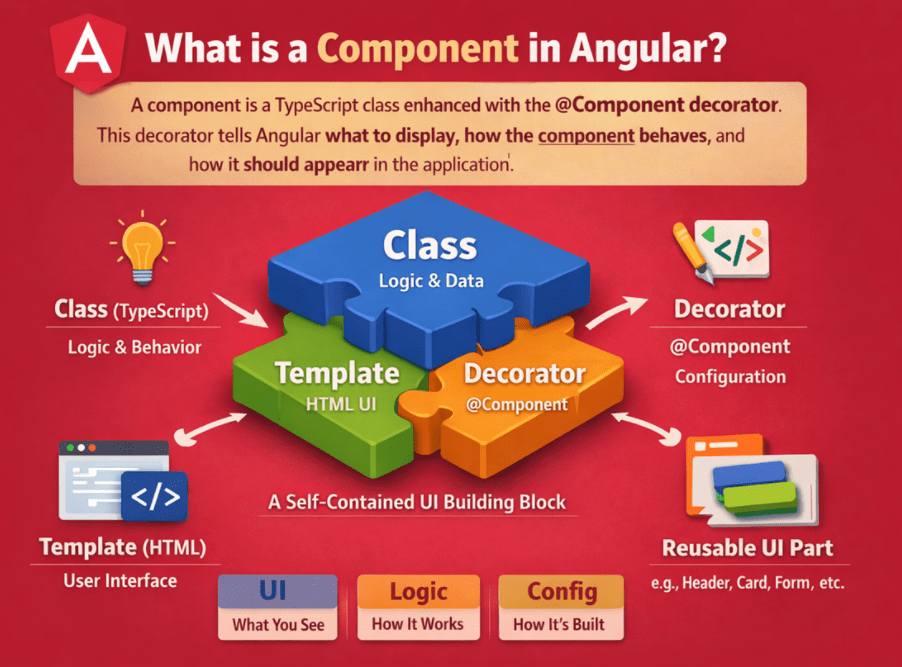
An Angular component is not just HTML. It is a complete, self-contained unit that includes:
- UI (Template) – what the user sees on the screen
- Logic (Component Class) – the data and behaviour that control the UI
- Metadata (Decorator) – tells Angular how to link the class and the template.
In technical terms, a component is a TypeScript class decorated with the @Component decorator. This decorator tells Angular what to display, how the component behaves, and how it should appear in the application.
Why Components Matter in Angular Application?
Components solve a very real problem in application development: as apps grow, writing everything in one large HTML/JavaScript file becomes messy and unmanageable. Components make Angular applications clean and scalable because they:
- Break the UI into Smaller Parts (easy to build, test, debug, and maintain)
- Promote Separation of Concerns (UI is separate from the rest of the app logic)
- Enable Reusability (the same UI block can be reused in many places)
- Support Modular Architecture (features can be built independently)
Without components, UI code becomes large, complex, and difficult to manage. With components, Angular applications remain organized even as they grow in size and complexity.
Angular UI is a Component Tree
When you open a real Angular application, you do not see one big HTML page. Instead, you are seeing many small components working together. That means, a real Angular app is not “One Big Page.” It is a tree of many components working together:
- Root Component at the top (App)
- Many Child Components inside it (Header, Sidebar, Page Components, Card Components, Footer, etc.)
- Nested Components: Components can be nested inside other components to form complex layouts
Example:
- AppComponent
-
- HeaderComponent
- SidebarComponent
- CourseListComponent
-
- CourseCardComponent
-
- FooterComponent
-
Each of these is a separate Angular component responsible for a specific part of the screen. This tree structure allows Angular to manage UI updates efficiently and keeps the application architecture clean.
Real-time Analogy
Think of an Angular application like a Shopping Mall. The mall is one large place, but it is made up of many independent shops. Each shop has its own design, rules, and purpose, yet together they form the complete mall. In Angular:
- The Mall is the application
- Each Shop is a component
What Is a Template in Angular?
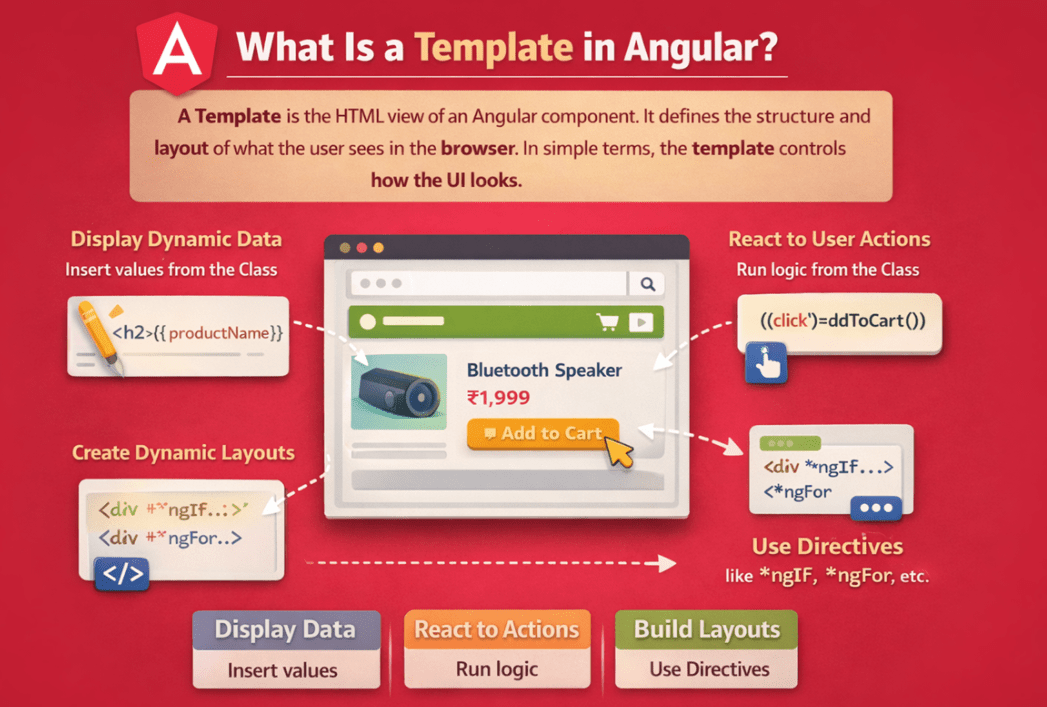
A Template is the HTML view of an Angular Component. It defines the structure and layout of what the user sees in the browser. In simple terms, the template controls how the UI looks.
However, in Angular, a template is not just static HTML. Angular templates are dynamic, meaning they can display data coming from the component class and automatically update the UI when that data changes.
At a high level, remember this simple rule:
- Template → Shows the UI
- Component Class → Holds data and behaviour
- Angular → Connects the template and the class with the help of the @Component Decorator
For a better understanding, please have a look at the image below:
How a Template Connects to Component Logic in Angular?
The Angular Data Binding techniques directly connects template with the component class:
- It Displays Values defined in the component class (example: showing a message, product name, price)
- It can respond to User Actions (like button clicks, input changes)
- It Updates Automatically when the component’s data changes (Angular keeps the UI in sync)
At the same time, the template should not contain business logic. Its main responsibility is presentation, while all data and behaviour come from the component class—this keeps your code clean and well-structured.
Simple Example (Template reading data from class)
Consider this simple example:
Component Class (Logic):
export class Welcome{
  message = 'Welcome to Angular!';
}
Template (UI):
<h2>{{ message }}</h2>
Here’s what happens:
- The Component Class holds the data (message)
- The Template displays that data on the screen
- Angular automatically connects the two
The {{ message }} syntax tells Angular to take the value from the component class and render it in the HTML. This syntax is called Interpolation, and you will learn it in detail in the Data Binding chapter.
Responsibilities of a Template
An Angular template is responsible for:
- Displaying values defined in the component class
- Creating the visual structure and layout of the UI
- Reacting to user actions (such as clicks or input)
- Automatically updating the UI when data changes
What a template should not do:
- Contain business logic
- Perform complex calculations
- Manage application state
A template is the Visual Layer of a component. It displays data and responds to user actions, while the component class controls what data is available and how it behaves. Angular acts as the bridge that connects the template and the class. This clear separation makes Angular applications easier to understand, maintain, and scale.
Understanding Component Structure (Class + Template + Decorator)
An Angular component becomes complete only when the three core parts work together. These parts form the basic structure of every component and cannot exist independently. You can think of a component as a triangle made of Class, Template, and Decorator.
- Component = Class + Template + Decorator
Each part has a clear responsibility, and Angular combines them to create and render the UI. For a better understanding, please look at the image below:

Component Class (TypeScript) – The Brain
The Component Class is a normal TypeScript class that contains Data and Logic required by the UI. This is where we define:
- Properties (data/values to display in the UI)
- Methods (actions/behaviour triggered by the user)
The class does not write HTML directly. Instead, it provides the data and functions that the template uses.
Example (Class Only):
export class Welcome {
  message = 'Welcome to Angular!';
}
By itself, this is just a TypeScript class. It becomes an Angular component only when it is connected to a template and decorated with the @Component decorator.
Template (HTML) – The Face
The Template is the component’s HTML view. It defines the UI structure that the user sees. The template stays clean because it mainly focuses on presentation and uses Angular syntax to:
- Read values from the component class
- Trigger methods from the component class when users interact
Each component has a single primary template.
Example Template:
<h2>{{ message }}</h2>
Here, {{ message }} reads the message property from the component class. This shows how the template displays data provided by the class.
@Component Decorator – The Instruction Sheet
Angular needs a way to know:
- This class is a component
- Which HTML template should be used for this component
- Which styles should be applied
- What tag name (selector) should represent this component in HTML
That is exactly what the @Component Decorator does. It is placed above the class that tells Angular how to build and render the component. Without this decorator, Angular will treat the class as a normal TypeScript class and ignore it during rendering.
Example (Complete Component):
import { Component } from '@angular/core';

@Component({
  selector: 'app-welcome',
  templateUrl: './welcome.html',
  styleUrls: ['./welcome.css']
})
export class Welcome {
  message = 'Welcome to Angular!';
}
What the decorator tells Angular
- selector: The custom HTML tag for this component. Example usage:
-
- <app-welcome></app-welcome>
-
- templateUrl: Where the external HTML template file is located.
- styleUrls: Where the component’s CSS file(s) are located.
In modern Angular, you may also see standalone: true inside @Component. That simply means the component can be used without declaring it in an NgModule. You’ll understand the details of decorators in the next chapter.
Putting it all together
- The Class stores Data + Behaviour
- The Template displays data + calls behaviour
- The Decorator connects everything and tells Angular how to render the component
What do you mean by standalone component?
In older Angular style, every component had to be listed inside an NgModule (like AppModule) under declarations, and Angular used that module to know the component exists. With standalone components, the components become self-sufficient, meaning Angular can use them directly as long as they’re imported where needed.
A standalone component:
- Is self-contained
- Declares its own dependencies
- Can be used directly in routing or inside other components
- Does not need NgModule
Angular introduced this to make applications:
- Simpler
- More readable
- Easier to maintain
Creating Components via Angular CLI
In real-world Angular development, we use the Angular CLI command to create components. When we use Angular CLI commands, Angular:
- Creates the correct files
- Applies standard naming conventions
- Adds required configuration automatically
- Ensures the component integrates properly with the application
This is why professional Angular projects always rely on the Angular CLI rather than manual file creation.
Step 1: Create a New Angular Project
Angular applications are not just collections of files; they are structured workspaces with configuration, build tools, and runtime setup. Open a terminal in Visual Studio Code and run the following command:
- ng new my-angular-app
During setup, Angular CLI will ask a few questions (Styles, SSR, AI, etc.). When you run the above command, Angular CLI:
- Creates a complete project folder
- Sets up build configuration
- Installs required dependencies
- Prepares the application for component creation
Once completed, navigate into the project folder:
- cd my-angular-app
You are now inside an Angular workspace, which is the environment where components can be safely generated and managed. Now your Angular application is ready, and you can start creating components.
Step 2: Command to Generate a Component
To generate a component, run the following command from the project root in Visual Studio Terminal:
- ng generate component welcome
Or use the shorthand:
- ng g c welcome
Command Breakdown
- ng → Angular CLI command
- generate / g → generate something
- component / c → specify component
- welcome → component name
What Files Does CLI Generate?
After running the command, Angular CLI creates a folder like this:
- src/app/welcome /
Inside the folder, you will find:
- welcome.ts → Component class + @Component decorator
- welcome.html → Template
- welcome.css (or .scss) → Styles
- welcome.spec.ts → Unit test file (you can ignore initially)
For a better understanding, please refer to the following image:
This structure is the standard: a TypeScript class, an HTML template, and a selector that defines how it’s used.
How the Welcome Component is used in HTML (Selector + Import)
Creating a component with Angular CLI only generates the component files; it does not automatically place it on the screen. Angular will display a component only when it is referenced inside another component’s template. This is done using the component’s selector.
A component is only a definition—Angular knows how the component looks and behaves, but it does not know where to place it until we explicitly tell it. To display a component in the user interface, Angular requires two things:
- A selector that identifies the component
- A template where that selector is used
Role of the Selector
Every Angular component has a selector, defined inside the @Component decorator. The selector acts as a custom HTML tag that Angular understands. In the Welcome (welcome.ts) component, the selector is defined as:
import { Component } from '@angular/core';

@Component({
  selector: 'app-welcome',
  templateUrl: './welcome.html',
})

export class Welcome {
}
For the welcome component, the selector is:
- selector: ‘app-welcome’
This tells Angular: whenever you see <app-welcome> in a template, render the Welcome component there. The selector does not display anything on its own. It simply provides Angular with a marker that can be used inside other templates.
Parent Component: Importing the Welcome Component
Please modify the app.ts file as follows. In this example, App is the parent component, and Welcome is the child component. In app.ts, the Welcome component is imported and added to the imports array:
import { Component, signal } from '@angular/core';
import { Welcome } from './welcome/welcome';

@Component({
  selector: 'app-root',
  imports: [Welcome],
  templateUrl: './app.html',
  styleUrl: './app.css'
})’

export class App {
  protected readonly title = signal('my-angular-app');
}
Using the Welcome Component in HTML
Once the component is imported, it can be used inside the parent component’s template using its selector. In app.html:
<h1>My Angular Application</h1>
<app-welcome></app-welcome>
This is where the Welcome component is actually placed in the UI.
What Angular Does Internally
When Angular processes the template and encounters:
<app-welcome></app-welcome>
Angular performs the following steps automatically:
- Identifies the selector app-welcome
- Finds the associated Welcome component
- Loads its template (welcome.html)
- Connects it to its class (welcome.ts)
- Applies its styles (welcome.css)
- Renders the final UI at that position in the DOM
This process happens during Angular’s rendering cycle and requires no manual intervention.
Component Reusability
One of the most powerful features of components is reusability. The same component can be used multiple times:
- <app-welcome></app-welcome>
- <app-welcome></app-welcome>
- <app-welcome></app-welcome>
Each instance:
- Uses the same template and logic
- Is rendered independently
- Can maintain its own state
This allows developers to build complex UIs by assembling reusable building blocks instead of repeating code.
In this chapter, you learned the fundamentals of Angular components—the core building blocks of every Angular application. You understood what a component is, why components are essential, and how Angular structures a component using the Component Class, Template, and Decorator. You also learned how to create components using Angular CLI and how to display them in the UI using selectors and imports.
In the next article, I will discuss the Angular Component Decorator and Template with examples. I would like to have your feedback. Please post your feedback, questions, or comments about this Angular Components with Examples article.
About the Author: Pranaya Rout
Pranaya Rout has published more than 3,000 articles in his 11-year career. Pranaya Rout has very good experience with Microsoft Technologies, Including C#, VB, ASP.NET MVC, ASP.NET Web API, EF, EF Core, ADO.NET, LINQ, SQL Server, MYSQL, Oracle, ASP.NET Core, Cloud Computing, Microservices, Design Patterns and still learning new technologies.
The BEST website about .NET technology!!!!!!!!!!!!!!!!!
All of your articles are having clear explanations about Angular. God bless you.
I GOT TCS JOB THROUGH THIS LINK CONTENT……..YOU ARE THA GOD FOR ME
Till this page. everything is clear. Good going
This article is very useful for any beginner.
Great tutorial.
this is gread webside
All articles are good. Specially design pattern well explained…
Prefer learning with visuals?
This topic is explained step by step in our YouTube video, where we break down Angular Components using real-world examples and clear diagrams.
Watching the video will help you understand how components actually work together in a real Angular application.
👉 Watch here: https://youtu.be/64sujzqpeko