
Back to: Angular Tutorials For Beginners and Professionals
Angular applications do not start magically when you open the browser. A well-defined, carefully designed startup process runs in the background before anything appears on the screen. Understanding this startup flow is crucial for every Angular developer because it explains how Angular loads, configures, and displays your application. In This Chapter, You Will Learn the following pointers:
- How an Angular application starts in the browser.
- Role of index.html as the single host page.
- Why is main.ts the real entry point of Angular?
- Understanding the Angular bootstrapping process.
- Purpose of app.config.ts and global configuration.
- How Angular sets up dependency injection (Root Injector).
- What the Root Component is and why it matters.
- How Angular renders UI inside <app-root>.
- How routing is initialized and works internally.
- Role of <router-outlet> in loading page content.
How does an Angular Application Start?
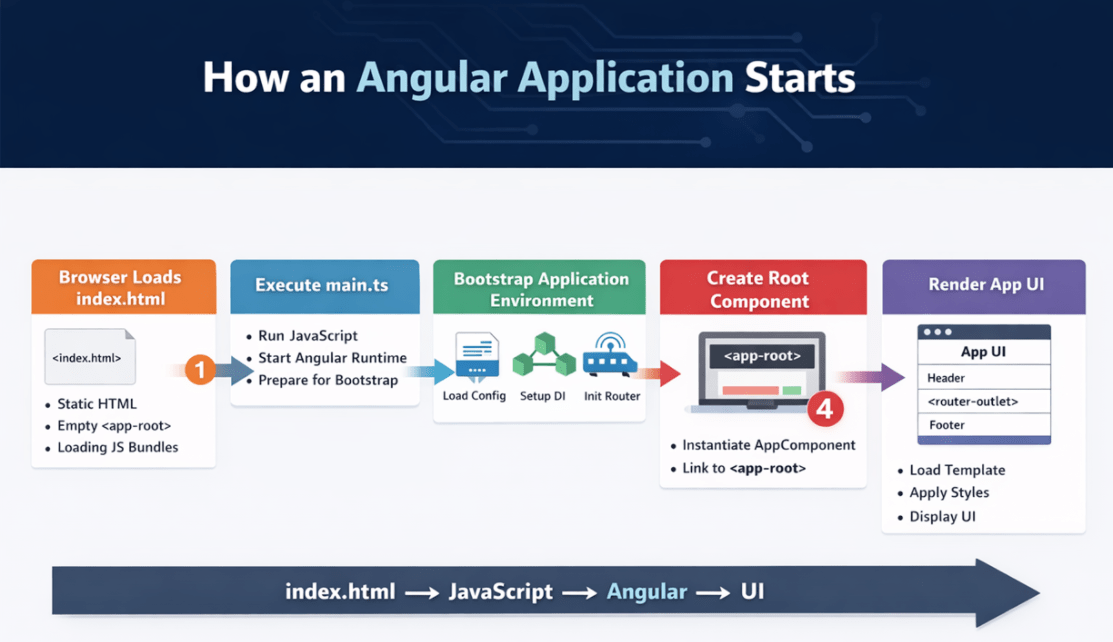
An Angular application does not start all at once. It starts in Clearly Defined Phases, where responsibility moves from the Browser, to Compiled JavaScript, to the Angular Framework, and finally to our Components. Each step exists for a specific reason, and Angular does not skip or merge these steps.
Let us proceed to understand the Angular Application execution process step by step. Think of Angular startup like a handover: Browser → JavaScript → Angular → UI. For a better understanding, please have a look at the following image:
Step 1: Browser Loads index.html
The very first thing that happens is handled entirely by the Browser, not Angular. When the user opens your application URL, the browser requests and loads the index.html file. At this point, Angular has Not Yet Started. The browser simply parses the HTML, builds the initial DOM, and prepares to load JavaScript files from the server.
Key Points
- Controlled entirely by the browser
- Angular is not running yet
- No application logic is executed
- <app-root> is just an empty HTML element
Layman Example: Entering the Mall Building
- When you go to a shopping mall, the first thing you need to do is to enter the building. At this moment, you haven’t visited any shop; you are just inside the mall.
- Similarly, when a user opens an Angular application, the browser loads index.html. This file is just the building structure. Angular is not active yet.
The index.html is just the entry gate, not the mall experience.
What Exists at This Moment
- Static HTML
- Empty <app-root>
- JavaScript files are referenced, but Angular code has not yet started executing.
Default index.html file Code:
The following is the default code for index.html, which you will find in the src/app folder of your project. This file is created by default when you create an Angular project using Angular CLI.
<!doctype html>
<html lang="en">
<head>
  <meta charset="utf-8">
  <title>MyFirstAngularApp</title>
  <base href="/">
  <meta name="viewport" content="width=device-width, initial-scale=1">
  <link rel="icon" type="image/x-icon" href="favicon.ico">
</head>
<body>
  <app-root></app-root>
</body>
</html>
What is <app-root></app-root>?
The <app-root></app-root> is not HTML, not JavaScript, and not executed by the browser. It is simply a Custom HTML Element Placeholder where Angular will later render our application UI. At the time the browser loads index.html:
- The browser does Not Know what <app-root> is.
- The browser does Nothing with it.
- It remains an Empty Element in the DOM.
Why Does Angular Need <app-root>?
Angular needs one fixed DOM location where it can:
- Attach the Root Component
- Render the Application UI
- Control all further UI Updates
That location is <app-root> inside the index.html file. Angular will later say: Find <app-root> and replace it with my application UI.
Step 2: Browser Executes Compiled JavaScript (Angular Starts from main.ts)
Once the browser finishes loading JavaScript bundles referenced in index.html, it then starts executing them. One of those bundles contains the compiled version of main.ts. This is where Angular officially starts. From here onward, Angular, not the browser, controls the application startup process. This file (main.ts) tells Angular how to start and which component (i.e., Root Component) represents the application.
Key Points
- First Angular-controlled file
- Initializes Angular
- Starts the Bootstrapping process
- No UI is rendered yet
Layman Example: Mall Management Switches on Power
- Once inside the mall, the management turns on the electricity, starts the elevators, and activates the security systems. Now the mall is operational.
- In Angular, this happens when the browser executes the compiled JavaScript of main.ts. This is where Angular wakes up.
Default main.ts file Code:
The following is the default code of the main.ts file. Please read the comment lines for a better understanding.
// bootstrapApplication is a TypeScript function
// Its responsibility is to:
// - Start the Angular framework runtime
// - Create the Dependency Injection (DI) system
// - Bootstrap (initialize) the root application
import { bootstrapApplication } from '@angular/platform-browser';

// appConfig is a JavaScript Object
// This object contains global application configuration such as:
// - Router providers
// - HTTP providers
// - Error handling providers
// Angular reads this object DURING bootstrap BEFORE creating any component.
import { appConfig } from './app/app.config';

// App IS a TypeScript Class
// This class is decorated with @Component, which tells Angular:
// - This class represents a UI component
// - It has a template, styles, and metadata
// App is the ROOT component:
// - Created exactly once
// - Lives for the entire application lifetime
// - Owns the <app-root> UI area
import { App } from './app/app';

// APPLICATION BOOTSTRAP (MOST CRITICAL SECTION)
// This is where Angular ACTUALLY starts.
// Everything above only prepares definitions.
// When this function is called:
// - Angular runtime starts
// - Dependency Injection system is created
// - Root component is instantiated
// - UI rendering begins
bootstrapApplication(App, appConfig)

// If any error occurs during the bootstrap process
// (for example, invalid configuration, missing providers, missing imports, etc.),
// this catch block logs the error to the console.
  .catch((err) => console.error(err));
What is the use of the import keyword in TypeScript?
The import keyword is a TypeScript/JavaScript feature that imports code from another file or package into the current file. Think of import as: I want to use something that is defined elsewhere.
Without import:
- Angular does not know these items exist
- You cannot use them in this file
Important Note: The import statement does NOT execute code. It only makes definitions (types, functions, objects) available.
Step 3: Angular Bootstraps the Root Application
Bootstrapping is the process by which Angular prepares the Application Environment, not the UI. During this phase, Angular reads Global Configuration (app.config.ts), and then Registers all Global Providers and initializes the Router. This step ensures that all required services and features are ready before any component is created. This step is about preparation, not rendering.
Layman Example: Mall Rules & Facilities Setup
Before opening shops, the mall sets up:
- Security Rules
- Information Desk
- Navigation Boards
- Emergency Handling
Similarly, Angular bootstraps the application by reading app.config.ts.
Default app.config.ts file Code:
The following is the default code of the app.config.ts file. I have provided inline comments to improve understanding. Please read the comments.
// ApplicationConfig is an Interface
// This Interface contains application-level configuration that Angular understands during bootstrap.
// provideBrowserGlobalErrorListeners IS a TypeScript Function.
// provideBrowserGlobalErrorListeners sets up global error handling
import { ApplicationConfig, provideBrowserGlobalErrorListeners } from '@angular/core';

// provideRouter IS a TypeScript Function
// Enable Angular routing feature, so routing works app-wide
import { provideRouter } from '@angular/router';

// routes is a CONSTANT VARIABLE
// whose value is an ARRAY of route configuration objects.
// Each object inside the array defines:
// - URL path
// - Which component to load
// Angular Router READS this configuration.
import { routes } from './app.routes';

// appConfig is a JavaScript OBJECT created at runtime.
// Angular reads this object during bootstrap (in main.ts)
// and uses it to configure the entire application.
export const appConfig: ApplicationConfig = {
  // providers is a Property of the appConfig object.
  // providers is an ARRAY of provider definitions.
  // Each provider tells Angular how to create or register something
  // inside the Dependency Injection (DI) system.
  providers: [

    // Calling provideBrowserGlobalErrorListeners() function
    // This allows Angular to catch and handle uncaught runtime errors.
    // These listeners are registered once and live for the entire app lifetime.
    provideBrowserGlobalErrorListeners(),

    // Calling provideRouter(routes)
    // - Function is executed
    // - routes array is passed as input
    // - Angular Router is initialized
    // - Navigation rules are registered
    provideRouter(routes)

  ]
};
Step 4: Root Component Is Created
Once bootstrapping is complete (application environment is set up), Angular finally creates the Root Component (app.ts). This component represents the Entire Application and acts as the Starting Point of the component tree. Angular instantiates this component Exactly Once and links it to the <app-root> element found in index.html.
Layman Example: Opening the Main Reception Area
- Now the mall opens its Main Reception Area, which stays open all day and controls where people go.
- In Angular, this is the Root Component (App). Angular creates it once and attaches it to <app-root>.
Default app.ts file Code:
The following is the default code of the app.ts file. I have provided inline comments to improve understanding. Please read the comments.
// Component() is a special decorator function that Angular uses to:
// - Read metadata
// - Understand how to create and render a component
// - Link a class to a template and styles
// Without @Component, Angular treats the class as a normal TypeScript class.

// signal is a Function
// It is used to:
// - Holds a value
// - Automatically tracks reads
// - Automatically triggers UI updates when value changes
// signal is part of Angular's modern reactivity system.
import { Component, signal } from '@angular/core';

// RouterOutlet is a Directive Class
// This directive acts as a placeholder in the template.
// Angular Router inserts routed component templates here.

// RouterLink is a Directive Class
// This directive enables navigation via links
// without reloading the page.
import { RouterOutlet, RouterLink } from '@angular/router';

// @Component decorator tells Angular that this class is a Component
// and provides metadata required to create and render it.
@Component({

  // selector defines the custom HTML tag for this component.
  // Angular looks for <app-root></app-root> in index.html and attaches this component there.
  selector: 'app-root',

  // Any directives/components/pipes you want to use must be imported here.
  // We import RouterOutlet because app.html contains <router-outlet>.
  // RouterLink enables CLIENT-SIDE navigation in Angular applications.
   imports: [ RouterOutlet],

  // templateUrl points to the HTML file that defines the UI of this Root Component.
  templateUrl: './app.html',

  // styleUrl points to the CSS file that contains styles scoped only to this component.
  styleUrl: './app.css'
})
export class App {

  // title is a reactive state variable created using signal().
  // How it works:
  // - title() → READ value
  // - title.set(newValue) → UPDATE value
  //
  // When the value changes:
  // - Angular automatically re-renders the UI
  //
  // protected:
  // - Accessible inside the class
  // - Accessible inside the template
  // - NOT accessible outside the component
  protected readonly title = signal('my-first-angular-app-started');

}
Step 5: UI Is Rendered Inside <app-root>
Angular applications can have many templates, but each component has exactly one template. After creating the Root Component (app.ts), Angular loads its template (app.html), applies styles (app.css), evaluates bindings, and generates real HTML. This rendered HTML replaces the empty <app-root> element in index.html. This is the first moment the user actually sees the application UI.
Layman Example: Visible Mall Layout
Now visitors can see:
- Mall name
- Directions
- Floors
- Common areas
This is when Angular loads app.html.
Modify app.html file:
Please modify the app.html file as follows. I have provided inline comments to improve understanding. Please read the comments. This is the main app template, and inside this app template (root template), all other templates are going to be rendered.
<!-- Static HTML heading.
     This is rendered exactly as written and does not change dynamically. -->
<h1>Welcome</h1>

<!-- Angular interpolation syntax.
     title() is a signal defined in the Root Component (app.ts).
     Angular reads the current value of the signal and displays it here.
     If the signal value changes, Angular automatically updates this text
     without reloading the page. -->
<p>{{ title() }}</p>

<!--
  <router-outlet> is NOT a normal HTML tag.
  It is an Angular Router directive that acts like a placeholder.

  Meaning:
  - When the URL matches a route (e.g., /products), Angular creates that route’s component
    and renders its template INSIDE this router-outlet area.
  - If no route matches (or routes are empty), this area stays empty.
  - The App component remains on the page; only the content inside router-outlet changes.
-->
<router-outlet></router-outlet>
Example to Understand Angular Routing
Let us understand Angular Routing using a simple real-world example with three pages:
- Home
- Product
- About
Angular will not load multiple HTML pages. Instead, it will load different component templates inside <router-outlet> based on the URL.
Step 1: Modify Root Template (app.html) to include links (Anchor Tags)
This file defines the application’s fixed layout. It contains navigation links and a <router-outlet> where routed content appears. So, modify the app.html file as follows. Here are 3 links: Home, Product, and About.
<h1>My Angular App</h1>
<nav>
  <a routerLink="/">Home</a> |
  <a routerLink="/product">Product</a> |
  <a routerLink="/about">About</a>
</nav>
<hr>

<!-- Routed component templates will appear here -->
<router-outlet></router-outlet>
What This Means
- Header and navigation are always visible
- <router-outlet> is the dynamic area
- Clicking links changes the URL, not the page
- The router-outlet will be replaced with the routed components template UI.
What is RouterLink?
The RouterLink enables CLIENT-SIDE navigation in Angular applications. It Does the following:
- Binds a URL path to an HTML element (usually <a> tag)
- Intercepts click events
- Prevents full page reload
- Tells Angular Router to change the URL internally
Example usage in template: <a routerLink=”/product”>Product</a>
What happens when clicked:
- The browser does NOT reload the page
- Angular Router updates the URL
- Router matches the URL against routes[]
- The corresponding component is created
- Component template is rendered inside <router-outlet>
Why RouterLink is needed:
- Normal <a href=””> causes full page reload
- RouterLink keeps navigation fast and SPA-based
Understand Where Components Live
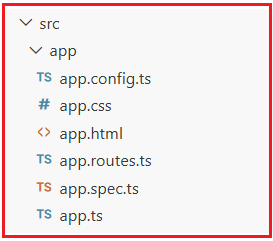
All application components live inside src/app/. Each component gets its own folder. Inside your project, you will see:
How to create a Component in Angular?
In order to create a component using Angular CLI, you need to use the following command in the terminal.
- ng g c Name
- ng generate component Name
Here,
- Here, ng stands for Angular, and it will call the Angular CLI.
- Here, g stands for generating (you can also use the full word generate).
- Here, c is an abbreviation for component (you can also use the full word component).
- Here, the Name is the name of the component
Step 2: Create Components (One Component = One Template)
Each route points to one component, and each component has its own HTML template. We need to create the component file; the corresponding HTML file will generate automatically.
Home Component
In the terminal, please execute the following command:
- ng g c Home
You will get the following response:

home.ts
Then, please modify the home.ts file as follows:
import { Component } from '@angular/core';

@Component({
  templateUrl: './home.html',
})
export class Home {

}
home.html
<h2>Home</h2>
<p>Welcome to the Home page</p>
Product Component
In the terminal, please execute the following command:
- ng g c Product
You will get the following response
product.ts
import { Component } from '@angular/core';

@Component({
  templateUrl: './product.html',
})
export class Product {

}
product.html
<h2>Product</h2>
<p>Here are our products</p>
About Component
In the terminal, please execute the following command:
- ng g c About
You will get the following response:
about.ts
import { Component } from '@angular/core';

@Component({
  templateUrl: './about.html',
})
export class About {

}
about.html
<h2>About</h2>
<p>About our company</p>
Step 3: Define Routes (app.routes.ts)
Routing in Angular is the mechanism that allows an application to display different views or pages without reloading the browser. Instead of loading multiple HTML pages, Angular uses a single HTML page and dynamically swaps component templates based on the current URL.
The Angular Router listens to URL changes, matches them against predefined route rules, and decides which component should be displayed inside the <router-outlet>. This approach enables smooth navigation, faster user experience, and a true Single Page Application (SPA) behaviour.
Layman Example: Direction Boards in the Mall
The mall has boards like:
- Food Court → 2nd Floor
- Electronics → Ground Floor
Angular routing does the same.
Please modify the app.routes.ts file as follows. This file tells Angular which component template should appear for which URL.
// Routes is Type Alias in TypeScript.
// Routes describes the STRUCTURE of routing configuration.
// Internally, it is equivalent to:
//   Route[]
// Meaning:
// - An ARRAY
// - Each element is a Route object
// - Each Route object defines how a URL maps to a Component
import { Routes } from '@angular/router';

// Home, Product, About Components
// Each class is decorated with @Component, making it an Angular Component.
// Angular Router uses these classes to:
// - Create component instances
// - Render their templates
// - Insert them into <router-outlet>
import { Home } from './home/home';
import { Product } from './product/product';
import { About } from './about/about';

// routes IS a Constant Object (Array)
// This array defines ALL navigation rules of the application.
// Angular Router:
// - Reads this configuration ONCE at startup
// - Stores it internally
// - Uses it to match URLs during navigation
export const routes: Routes = [

  // Default Route
  // path: ''
  // Empty path represents the ROOT URL.
  // Example: http://localhost:4200/
  // When the browser URL matches exactly '',
  // Angular Router:
  // - Creates an instance of Home component
  // - Renders its template
  // - Inserts it into <router-outlet>
  { path: '', component: Home },

  // Product Route
  // path: 'product'
  // Matches the URL: http://localhost:4200/product
  // Router behavior:
  // - Destroys the previously routed component (if any)
  // - Creates Product component
  // - Renders Product template inside <router-outlet>
  { path: 'product', component: Product },

  // About Route
  // path: 'about'
  // Matches the URL: http://localhost:4200/about
  // Router behavior:
  // - Creates About component
  // - Displays it inside <router-outlet>
  { path: 'about', component: About }

];
Modify app.ts to include RouterLink
// Component() is a special decorator function that Angular uses to:
// - Read metadata
// - Understand how to create and render a component
// - Link a class to a template and styles
// Without @Component, Angular treats the class as a normal TypeScript class.

// signal is a Function
// It is used to:
// - Holds a value
// - Automatically tracks reads
// - Automatically triggers UI updates when value changes
// signal is part of Angular's modern reactivity system.
import { Component, signal } from '@angular/core';

// RouterOutlet is a Directive Class
// This directive acts as a placeholder in the template.
// Angular Router inserts routed component templates here.

// RouterLink is a Directive Class
// This directive enables navigation via links
// without reloading the page.
import { RouterOutlet, RouterLink } from '@angular/router';

// @Component decorator tells Angular that this class is a Component
// and provides metadata required to create and render it.
@Component({

  // selector defines the custom HTML tag for this component.
  // Angular looks for <app-root></app-root> in index.html and attaches this component there.
  selector: 'app-root',

  // Any directives/components/pipes you want to use must be imported here.
  // We import RouterOutlet because app.html contains <router-outlet>.
  // RouterLink enables CLIENT-SIDE navigation in Angular applications.
   imports: [ RouterOutlet, RouterLink],

  // templateUrl points to the HTML file that defines the UI of this Root Component.
  templateUrl: './app.html',

  // styleUrl points to the CSS file that contains styles scoped only to this component.
  styleUrl: './app.css'
})
export class App {

  // title is a reactive state variable created using signal().
  // How it works:
  // - title() → READ value
  // - title.set(newValue) → UPDATE value
  //
  // When the value changes:
  // - Angular automatically re-renders the UI
  //
  // protected:
  // - Accessible inside the class
  // - Accessible inside the template
  // - NOT accessible outside the component
  protected readonly title = signal('your-first-angular-app-started');

}
In this chapter, you learned how an Angular application starts and what happens behind the scenes before anything appears in the browser. You understood the complete startup flow, from the browser loading index.html, to Angular executing main.ts, bootstrapping the application, creating the root component, and finally rendering the UI inside <app-root>.
About the Author: Pranaya Rout
Pranaya Rout has published more than 3,000 articles in his 11-year career. Pranaya Rout has very good experience with Microsoft Technologies, Including C#, VB, ASP.NET MVC, ASP.NET Web API, EF, EF Core, ADO.NET, LINQ, SQL Server, MYSQL, Oracle, ASP.NET Core, Cloud Computing, Microservices, Design Patterns and still learning new technologies.
Fantastic, Thanks.
Very very good. Its like you are sitting next to us and explaining
The last screen shot of app.routes.ts is actually having content of app.ts.
Hi
Thanks for pointing out the issue. Attached the updated code.