
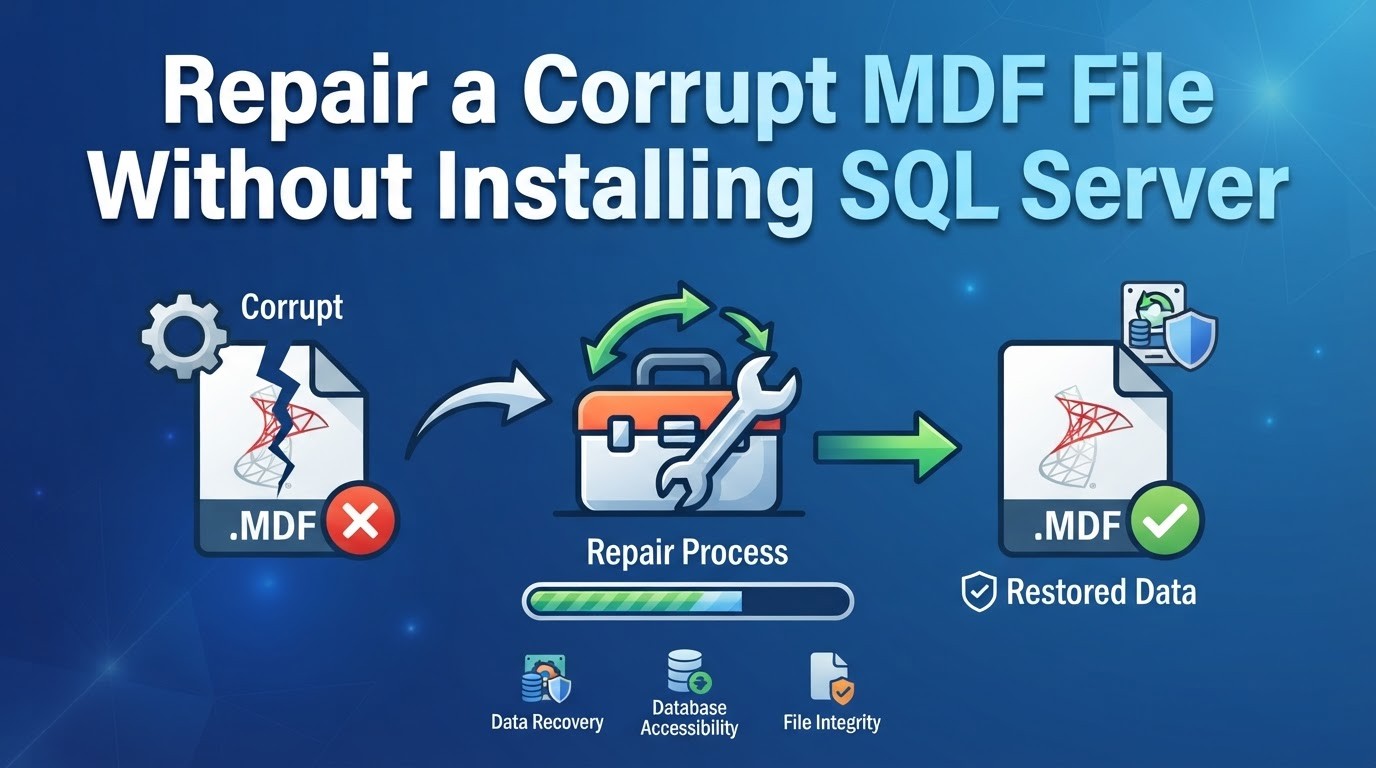
How to Repair a Corrupt MDF File Without Installing SQL Server
There are few worse ways to start your day than having a database which is refusing to attach. Your application is offline, your error log is jammed full of Message 824 and Message 5172 errors, and your data is only stored in an MDF file that SQL Server simply will not read. If your last backup was old or corrupt, the pressure is even greater.
Normally what you’d do is start up a SQL Server instance, run DBCC CHECKDB with a repair option. This sometimes works but requires a server, licence, and time. If you’re using REPAIR_ALLOW_DATA_LOSS then you’ll need to be ok with losing some rows. Alternatively you can use an online SQL repair tool such as Online SQL Repair. Upload your corrupt MDF file to the web based service, and let it repair the data. You can preview the repaired data, and download a new fixed MDF file. No installation required, no instance, no setup.
This guide will explain how MDF files become corrupt, why you may want to avoid installing any software, and show you how to use Stellar Online SQL Repair. We’ll also look at the limitations of using this tool.
What Causes MDF File Corruption
The MDF is the main data file within a SQL Server database. This contains system tables, user tables, indexes and records. The data is stored within 8KB pages. A database in SQL Server is flags corrupt when a file header or individual data pages contain unexpected or altered values against expected metadata and checksums. Common reasons for this happening are:
- A power cut or server outage during writing.
- Disk failure, bad sectors or faulty storage controller.
- Unexpected shutdown causing corruption to the header.
- Virus/Malware infection.
- Copy/transfer was interrupted.
As a result the database will show as SUSPECT state. The DBCC CHECKDB command report consistency errors when fail and can’t be repaired. Attach operations will fail. Queries will also fail with I/O errors on tables that were working yesterday. We have designed our service to cater for three common scenarios: A SUSPECT database, a missing or corrupt backup and a failed DBCC CHECKDB.
Why repair an MDF file without installing SQL Server
There are many reasons why you may want to repair your MDF without installing SQL Server. Running DBCC repair commands can be a risky process. Not only can the DBCC options alter your MDF, but there can be issues if you run into an issue. Setting up an extra instance of SQL Server can take some time. Many people such as consultants, support engineers or developers running SQL Server on their laptop may not even have SQL Server available to them.
Online SQL Repair allows you to overcome these problems. As the service runs in read-only mode you will not alter your original MDF. A new MDF will be created containing the recovered data. This means that you won’t touch anything in your production environment which is important if your corrupt MDF file was taken from a server you don’t want to put extra pressure on.
Benefits of using this service include:
- Speed – Simply upload and go.
- Safety – You will be working on a copy.
- Accessibility – All you need is any machine with a modern web browser. Supported browsers include Chrome, Firefox, Edge and Safari.
- Cost – Free option for smaller databases.
Things to Check Before Repairing an MDF File
The preparation required will take just a few minutes.
- Make a copy of the MDF file. Although the service won’t modify your file, having an unmodified copy is a good idea. Corruption should never be a single point of failure.
- Unlock the file. If SQL Server still has the file locked, either stop the service or detach the database.
- Check the size. The free plan allows up to 500MB of file size, Premium allows up to 5GB. For anything larger you’ll need the desktop edition.
- Know the version. Stellar support major versions from SQL Server 2005 up to 2025. Most files should be supported.
- One file only. The online service will only process one MDF file.
How to Repair a Corrupt MDF File Using Stellar Online SQL Repair
There are 3 stages involved in this process.
Step 1: Upload the Corrupt MDF File
Begin by clicking the ‘Repair MDF File’ button. Login and upload your database. The file will be uploaded securely to Stellar’s server.
Step 2: Repair the MDF File Online
The file will be analysed and repaired automatically. Most files will only take around 15 minutes to repair. As with anything this can depend on how large and damaged the file is. Larger and more severely damaged files will take longer.
Step 3: Preview and Download the Repaired MDF File
Once the file has been repaired the tables and the amount of records available to recover will be shown in your browser. This is the most useful part of the process. Check that the amount of records being shown match up to what you expect.
Open a couple of tables you know well. If any important data is missing you won’t waste any money. When you’re happy click ‘Download MDF File’. The repaired database will be downloaded to your default Downloads folder in your browser. With the free plan you will have access to download for 24 hours. With the premium plan this increases to 48 hours.
Copy the repaired file to a SQL Server instance you trust and attach it. If you have no usable log file, this works:
CREATE DATABASE RecoveredDB
ON (FILENAME = ‘D:\Repaired\Sales_repaired.mdf’)
FOR ATTACH_REBUILD_LOG;
DBCC CHECKDB (‘RecoveredDB’) WITH NO_INFOMSGS;
A clean CHECKDB result tells you the structure is sound. Then spot-check the business data: row counts, recent transactions, key lookup tables. Structural health and data completeness are different questions, and you want a yes to both.
What Stellar Online SQL Repair Recovers and Its Limitations
This page says the service rebuilds tables and records and maintains the original structure. For a full repair, including views, stored procedures, triggers and indexes make sure to use the desktop version. There are small differences in how it is described throughout the sections so it’s best to look at the preview. Make sure any objects you want to be repaired are listed.
The plans are straightforward:
| Plan | Price | File size | Notes |
|---|---|---|---|
| Online Free | $0 | Up to 500 MB | One MDF per session, download available for 24 hours |
| Online Premium | $99 per MDF file | Up to 5 GB | One MDF per request, download available for 48 hours |
| Desktop Corporate | $299 | No size limit | Unlimited MDF files, works offline, saves locally |
Many small and mid-sized databases such as those from a departmental application, customer facing tool or development copy will easily be able to take advantage of the free tier, giving you an idea on whether your data can be saved at all. This makes Online SQL Repair a logical starting point.
Is It Safe to Upload an MDF File to an Online Repair Tool?
This is a good question! Often databases contain customer, financial or personal information. According to Stellar, files are transferred via a secure channel, are fully automated and are permanently removed from their servers once they’ve been processed. On the free plan, files are removed after 24 hours and on Premium, 48 hours. Stellar note that they also have a privacy policy,
If your data is regulated (such as health or payment data), we’d recommend you read the privacy policy and speak to your compliance team. If your internal guidelines state the data can never leave your network, then the offline desktop version would be the best option.
When to Use the Desktop SQL Database Repair Software
This option is ideal for ad-hoc scenarios involving smaller file sizes. The desktop version should be used if:
- You have large (greater than 5gb) MDF file(s)
- Multiple corrupt files to repair
- Company policy prohibits transmitting your data to a third party server
- Views, stored procedures, triggers and indexes need to be verified
There is no file size restrictions on repairing multiple files with the desktop version and results are saved locally.
How to Prevent SQL Database Corruption
Preventing future corruption Repair tools are for if things go wrong. The following simple habits will dramatically reduce the chances of future emergencies:
- Schedule regular full and transaction log backups and regularly verify they can be restored by running them on a different machine. Backups that have never been restored are just wishful thinking!
- Schedule DBCC CHECKDB to run to detect any corruption early.
- Ensure PAGE_VERIFY has been set to CHECKSUM.
- Use a UPS on your servers to ensure you can monitor disk health and event logs.
- Run RESTORE VERIFYONLY on your backups.
Final thoughts
Although you may feel like you’ve got a big problem on your hands if you have a corrupted MDF file, if it is within the size restrictions, you can simply upload your database to Online SQL Repair and it will be repaired within minutes. You’ll be able to preview it from a browser and if you want to test it out you can use the free version. For larger or more sensitive databases, you can use the desktop version. Either way, ensure you make a backup copy of your file, check it using DBCC CHECKDB and get your backup routine sorted!
Frequently Asked Questions
1. Can it repair databases that have been identified as SUSPECT?
Yes, simply upload the database MDF file. We will analyse your database and repair any corrupt tables and records. This is ideal when your DBCC CHECKDB cannot repair the database alone.
2. Will I lose my original MDF file?
No, the online repair only uses ‘read only’. You source file will remain untouched and we will create a repaired file for you to download. As always best practice is to keep a copy of your original file.
3. If the MDF file is over 500MB large, what do I do?
The free plan only allows up to 500MB. Our premium plan allows you to repair files up to 5GB for $99 per MDF file. Our desktop edition allows unlimited files with no limits in size.
4. How do I know if all the data has been recovered?
First use the browser to view your data. This will show you how many tables and records we can recover. Once downloaded you will need to attach the file to SQL Server and run DBCC CHECKDB. Compare the number of rows and latest records to what you know should be there.
5. What versions of SQL Server and browsers does it work with?
We support all major versions of SQL Server. Including 2025, 2022, 2019, 2017, 2016, 2014, 2012, 2008, 2005 & older. We support Chrome, Firefox, Edge & Safari. No installation of SQL Server is required.