
Back to: Angular Tutorials For Beginners and Professionals
Preloading of Angular Routing with a Real-time Application
In this post, we will discuss Preloading in Angular Routing with a real-time application. When building real-world Angular applications, routing plays a crucial role in deciding how fast and smooth the user experience feels. While lazy loading helps reduce initial load time, it can sometimes introduce a small delay when a user navigates to a feature for the first time. This is where Preloading of Angular Routing becomes useful.
Preloading is a simple technique that allows Angular to load lazy-loaded routes in the background, after the main application has loaded. This improves navigation speed without affecting the initial load performance.
What is Preloading in Angular Routing?
Preloading in Angular routing is a router feature that improves the first-time experience of lazy routes. With lazy loading, Angular does not download a feature route’s code until the user actually navigates to it. Preloading keeps the same lazy setup (so the initial bundle stays small), but after the first page loads and the application becomes stable, Angular starts downloading selected lazy routes quietly in the background.
So, preloading does not make routes “eager.” The routes are still lazy (separate bundles), but Angular fetches them earlier—at a safer time—so when the user clicks later, Angular does not need to download the code at that moment. That’s why preloading feels like a “smoothness upgrade” on top of lazy loading.
Key Points to Remember:
- Preloading happens after the initial page becomes ready/stable.
-
- It never blocks the first screen from loading.
-
- Preloaded routes are still lazy routes (separate chunks/bundles).
-
- The difference is when they are downloaded.
-
- Goal: Remove “first-click delay” on important lazy routes.
In simple words: Preloading keeps the initial app load fast like lazy loading, but downloads chosen lazy routes in the background so later navigation feels instant.
Why Do We Need Preloading?
Lazy loading is excellent for performance because it reduces the initial download size. But it introduces a common UX issue: the first time a user opens a lazy feature, Angular must:
- Request the route bundle.
- Download it.
- Parse/execute it.
- Then render the page.
Even a single second of delay is noticeable—especially in professional apps where users expect navigation to feel immediate. This is why lazy loading alone is not always enough for frequently-used feature routes.
Preloading solves this by moving that first-time cost to the background. The app loads fast, the user can start working immediately, and Angular uses idle time after startup to fetch the important feature bundles. As a result, when the user clicks the feature later, it opens smoothly because the code is already available.
Key Points to Remember:
- Lazy loading saves initial load time, but can cause a first navigation delay.
-
- The delay includes download + execution, not just download.
-
- Preloading shifts that cost time in the background (after the app loads).
-
- This improves perceived performance and user confidence.
-
In simple words: We use preloading to keep the first page fast while removing the annoying first-click delay on important lazy pages.
Real-time Example Scenario to Understand Lazy, Eager, and Preloading in Angular
The following example demonstrates all three Angular routing loading strategies—Eager Loading, Lazy Loading, and Lazy Loading with Preloading—in a single real-world application.
Instead of showing these strategies in isolation, the example intentionally mixes them so you can easily understand:
- Which routes load immediately?
- Which routes load on demand?
- Which lazy routes are downloaded in the background?
- How does behaviour change with and without preloading?
The goal is not to teach syntax, but to help you observe Angular’s loading behaviour using DevTools and clearly see when and why JavaScript chunks are downloaded.
Overview of the Example:
- Home + Catalog (Eager): These are common pages, so they load with the main bundle and open instantly.
- Reports (Lazy, No Preloading): This simulates a feature that is not always needed, so it should download only when the user opens it.
- Admin (Lazy, With Preloading): This simulates a heavy page that users often open soon—so we keep it lazy (to protect initial load) but preload it in the background to remove first-click delay.
Step 1: Create the Angular Project
Run these commands:
- ng new ShopPortal
- cd ShopPortal
- ng serve
Step 2: Generate Pages
We create multiple pages: Home, Catalog, Reports, and Admin. Each page represents a different real-world usage pattern:
- Home → landing page
- Catalog → commonly used
- Reports → heavy but frequently visited after login
- Admin → heavy and rarely visited
Run these commands:
- ng g c pages/home
- ng g c pages/catalog
- ng g c pages/reports
- ng g c pages/admin
Step 3: Add Bootstrap CDN
Add Bootstrap CSS/JS CDN in index.html. Open src/index.html file, and copy-paste the following code.
<!doctype html>
<html lang="en">
<head>
  <meta charset="utf-8">
  <title>ShopPortal</title>
  <base href="/">
  <meta name="viewport" content="width=device-width, initial-scale=1">
  <link rel="icon" type="image/x-icon" href="favicon.ico">
  <link href="https://cdn.jsdelivr.net/npm/bootstrap@5.3.3/dist/css/bootstrap.min.css"
        rel="stylesheet" />
</head>
<body>
  <app-root></app-root>

  <script src="https://cdn.jsdelivr.net/npm/bootstrap@5.3.3/dist/js/bootstrap.bundle.min.js"></script>
</body>
Step 4: Building Simple UI Content
We add simple HTML content to each page explaining its purpose. The UI is intentionally simple, so learners focus on:
- Routing behaviour
- Network requests
- Chunk loading
This avoids distraction from business logic or UI complexity.
src/app/pages/home/home.html
Open src/app/pages/home/home.html file, and copy-paste the following code.
<h2 class="fw-bold">Home</h2>
<p class="text-muted">
  This is the landing page of the portal. It is eager loaded, so it is included in the initial bundle and opens instantly.
</p>
src/app/pages/catalog/catalog.html
Open src/app/pages/catalog/catalog.html file, and copy-paste the following code.
<h2 class="fw-bold">Catalog</h2>
<p class="text-muted">
  This is a commonly visited page in a real application. It is eager loaded for fast and consistent navigation.
</p>
src/app/pages/reports/reports.html
Open the src/app/pages/reports/reports.html file, and copy-paste the following code.
<h2 class="fw-bold">Reports</h2>
<p class="text-muted">
  This route is lazy loaded with preloading enabled. Its code downloads automatically in the background after the app starts.
</p>
src/app/pages/admin/admin.html
Open src/app/pages/admin/admin.html file, and copy-paste the following code.
<h2 class="fw-bold">Admin</h2>
<p class="text-muted">
  This route is lazy loaded with preloading enabled. Its code downloads automatically in the background after the app starts.
</p>
Step 5: Modifying Root Component to Include Navigation Links
Open src/app/app.ts file, and copy-paste the following code.
import { Component } from '@angular/core';
import { RouterLink, RouterLinkActive, RouterOutlet } from '@angular/router';

@Component({
  selector: 'app-root',
  standalone: true,
  imports: [RouterLink, RouterLinkActive, RouterOutlet],
  templateUrl: './app.html',
  styleUrl: './app.css',
})
export class App {
  links = [
    { path: '', label: 'Home' },
    { path: 'catalog', label: 'Catalog' },
    { path: 'reports', label: 'Reports' },
    { path: 'admin', label: 'Admin' },
  ];
}
Modifying Root Template
Open src/app/app.html file, and copy-paste the following code.
<nav class="navbar navbar-expand-lg navbar-dark bg-dark border-bottom">
  <div class="container">
    <a class="navbar-brand fw-semibold" [routerLink]="''">Portal</a>

    <button
      class="navbar-toggler"
      type="button"
      data-bs-toggle="collapse"
      data-bs-target="#mainNav"
      aria-controls="mainNav"
      aria-expanded="false"
      aria-label="Toggle navigation"
    >
      <span class="navbar-toggler-icon"></span>
    </button>

    <div class="collapse navbar-collapse" id="mainNav">
      <ul class="navbar-nav ms-auto">
        @for (link of links; track link.path) {
          <li class="nav-item">
            <a
              class="nav-link"
              [routerLink]="link.path"
              routerLinkActive="active"
              [routerLinkActiveOptions]="{ exact: link.path === '' }"
            >
              {{ link.label }}
            </a>
          </li>
        }
      </ul>
    </div>
  </div>
</nav>

<main class="bg-light">
  <div class="container py-4">
    <router-outlet />
  </div>
</main>
Step 6: Creating Routes with Lazy and Eager Loading
Open src/app/app.routes.ts file, and copy-paste the following code.
import { Routes } from '@angular/router';

// EAGER: direct imports
import { Home } from './pages/home/home';
import { Catalog } from './pages/catalog/catalog';

export const routes: Routes = [
  // EAGER
  { path: '', component: Home },
  { path: 'catalog', component: Catalog },

  // LAZY
  {
    path: 'reports',
    loadComponent: () => import('./pages/reports/reports').then(m => m.Reports),
  },
  {
    path: 'admin',
    loadComponent: () => import('./pages/admin/admin').then(m => m.Admin),
  },

  { path: '**', redirectTo: '' },
];
Lazy Loading Without Preloading (Default):
Open src/app/app.config.ts file, and copy-paste the following code.
import { ApplicationConfig } from '@angular/core';
import { provideRouter } from '@angular/router';
import { routes } from './app.routes';

export const appConfig: ApplicationConfig = {
  providers: [
    provideRouter(routes),
  ],
};
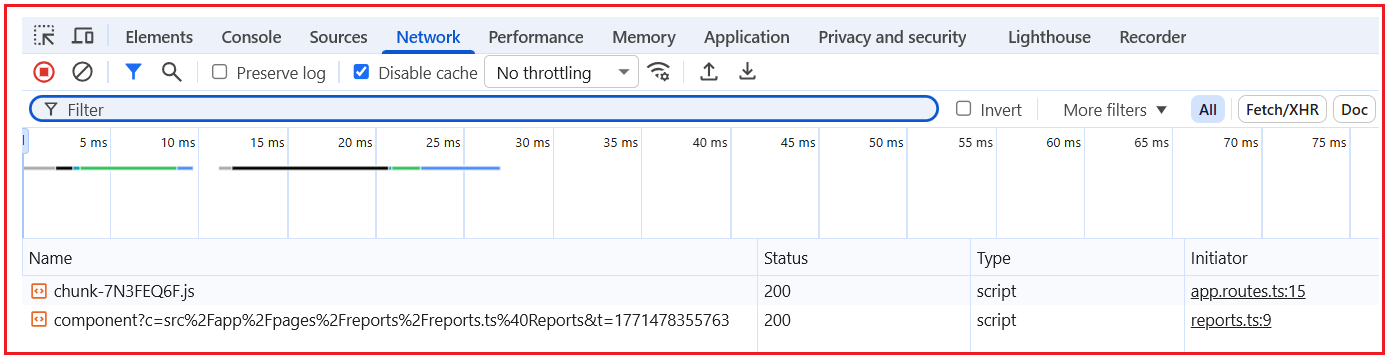
Step 7: Prove Lazy Loading (No Preloading)
- Open Chrome DevTools → Network
- Tick Disable cache
- Refresh the app on /
- Do not click anything
- Now click Reports
-
- You should see a JS chunk download only when you click Reports
-
- Go back and click Admin
- You’ll see another chunk download only when you click Admin
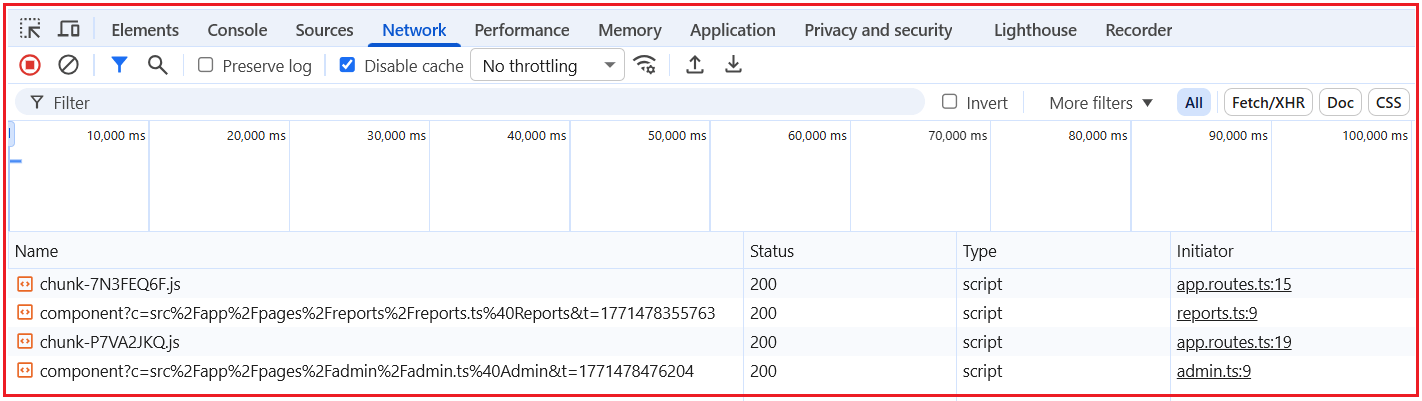
That is lazy loading without preloading.
Step 8: Enable Lazy Loading WITH Preloading
Open src/app/app.config.ts file, and copy-paste the following code.
// Used to configure the app in a standalone Angular setup
import { ApplicationConfig } from '@angular/core';

// provideRouter      -> registers the router and our route list
// withPreloading     -> enables preloading support
// PreloadAllModules  -> built-in strategy: preload ALL lazy routes in the background
import { provideRouter, withPreloading, PreloadAllModules } from '@angular/router';

// The routes array (Home, Catalog, Reports, Admin, etc.)
import { routes } from './app.routes';

// Application-wide configuration for a standalone Angular app
export const appConfig: ApplicationConfig = {
  providers: [

    // Register routes and turn on preloading
    // PreloadAllModules means: after the app loads, Angular downloads all lazy route bundles automatically
    provideRouter(

      routes, // All route definitions (eager and lazy)

      // Enables preloading support in Angular routing
      // PreloadAllModules tells Angular to preload
      // ALL lazy-loaded routes in the background
      withPreloading(PreloadAllModules)
    ),
  ],
};
Step 9: Prove Lazy Loading (With Preloading)
- DevTools → Network, keep Disable cache ON
- Refresh the app on /
- Do not click Reports/Admin
- Wait a moment
-
- You should see the lazy chunks download automatically in the background
-

- Now click Reports and Admin
- They should open faster because the code is already downloaded
That is lazy loading with preloading.
Selective (Conditional) Loading in Angular Routing
So far, our example demonstrated Eager Loading, Lazy Loading, and Lazy Loading with Preloading. However, one practical limitation of PreloadAllModules is that it preloads all lazy routes, whether they are important or not. In real-world applications, this is not always desirable. Some lazy routes are frequently visited and should be preloaded, while others are rarely used and should remain lazy. This is where Selective (or Conditional) Loading comes into play.
What is Selective or Conditional Loading in Angular?
Selective Loading (also called Conditional Preloading) is a technique where only specific lazy routes are preloaded, while others remain purely lazy.
In simple terms:
- Routes are still lazy-loaded.
- Angular preloads only the routes we explicitly mark.
- Other lazy routes load only when the user navigates/
So instead of:
- Preload everything
We move to:
- Preload only what makes sense.
Why Do We Need Selective Loading?
Preloading all lazy routes is convenient, but it is not always optimal. Consider our example:
- Reports/Dashboard → Heavy, frequently accessed soon after landing.
- Admin → Heavy, rarely accessed, restricted.
Preloading both:
- Uses unnecessary network bandwidth
- Downloads the Admin code even when most users never open it
- Reduces control over performance optimization
Selective Loading solves this by allowing us to:
- Preload important lazy routes
- Skip preloading rarely used or restricted routes
- Maintain fast startup and smooth navigation
In short, Selective Loading gives us control.
Modifying the Existing Example for Selective Loading
Now, we want the following behaviour:
- Home & Catalog → Eager
- Reports → Lazy + Preloaded
- Admin → Lazy only (NOT Preloaded)
This keeps:
- Reports fast on first navigation
- Admin is lightweight and on-demand
Step 1: Mark Routes for Selective Preloading
Angular allows us to attach Custom Route Data to routes. We will use this data to indicate which routes should be preloaded. So, please modify app.routes.ts file as follows:
import { Routes } from '@angular/router';
// Eager Loading: direct imports (part of initial bundle)
import { Home } from './pages/home/home';
import { Catalog } from './pages/catalog/catalog';

export const routes: Routes = [

  // Home page loads immediately when the app starts (Eager)
  { path: '', component: Home },

  // Catalog page also loads with the main bundle (Eager)
  { path: 'catalog', component: Catalog },

  // Reports is a LAZY route (code is split into a separate chunk)
  // Because preload = true, our Selective Preloading Strategy will preload it in the background
  {
    path: 'reports',
    loadComponent: () => import('./pages/reports/reports').then(m => m.Reports),
    data: { preload: true }, // preload this lazy route after app load
  },

  // Admin is also a LAZY route (separate chunk)
  // Because preload = false, it will NOT preload
  // Its chunk will download only when the user clicks Admin
  {
    path: 'admin',
    loadComponent: () => import('./pages/admin/admin').then(m => m.Admin),
    data: { preload: false }, // do not preload; load only on navigation
  },

  // Any unknown URL redirects back to Home
  { path: '**', redirectTo: '' },
];
Here:
- data.preload = true → Eligible for preloading
- data.preload = false → Excluded from preloading
At this point, nothing has changed yet because Angular does not automatically read this flag.
Step 2: Create the Selective Preloading Strategy
Now we tell Angular: Preload only the lazy routes where data.preload is true. This is done by providing a simple preloading strategy. So, create a TypeScript file named selective-preloading.ts within the src/app folder, and then copy-paste the following code.
// Used to mark this class as injectable so Angular DI can create it
import { Injectable } from '@angular/core';

// PreloadingStrategy = interface for preloading logic
// Route = route info (path, data, etc.)
import { PreloadingStrategy, Route } from '@angular/router';

// Observable = return type expected by preload()
// of() = creates an Observable for "do nothing"
import { Observable, of } from 'rxjs';

// Angular will create and reuse this strategy automatically
@Injectable({ providedIn: 'root' })
export class SelectivePreloading implements PreloadingStrategy {

  // This method is called by Angular Router for each lazy route
  preload(route: Route, load: () => Observable<any>) {

    // route.data contains custom data we add in app.routes.ts
    // Example:
    // data: { preload: true }  -> preload in background
    // data: { preload: false } -> do not preload
    const shouldPreload = route.data?.['preload'] === true;

    // If preload flag is true, call load() to download the route bundle in background
    if (shouldPreload) {
      return load();
    }

    // If preload flag is false or missing, do nothing (skip preloading)
    // The route will still be lazy loaded when the user navigates to it.
    return of(null);
  }
}
Step 3: Enable Selective Preloading Strategy in app.config.ts
Update src/app/app.config.ts file as follows:
// Type used to configure the app
import { ApplicationConfig } from '@angular/core';

// provideRouter = register routes
// withPreloading = enable a preloading strategy
import { provideRouter, withPreloading } from '@angular/router';

// All routes (Home, Catalog, Reports, Admin)
import { routes } from './app.routes';

// Our custom logic: preload only routes with data.preload = true
import { SelectivePreloading } from './selective-preloading';

export const appConfig: ApplicationConfig = {
  providers: [
    // Registers Angular Router with our routes
    // and tells Angular Router to use SelectivePreloading for preloading logic
    provideRouter(
      routes,                             // Route definitions
      withPreloading(SelectivePreloading) // Wnable selective preloading strategy
    ),
  ],
};
Step 4: Prove Selective Loading with DevTools
Do this in Chrome:
- Open DevTools → Network
- Turn ON:
-
- Disable cache
- Preserve log
-
- Go to / (Home) and do Empty Cache and Hard Reload
- Wait 2–5 seconds without clicking anything
What you must see:
- A request/chunk for Reports appears automatically (because it is preloaded).
- No request/chunk for Admin appears yet.
Now click:
- Click Admin
- Only now should the Admin chunk/request appear (lazy-only proof).
Eager, Lazy, and Preloading in Angular Routing
Angular provides three ways to load routes, each serving a specific purpose.
Eager Loading
Eager loading means Angular loads the route’s code immediately at application startup. The code is included in the main JavaScript bundle.
This means:
- Navigation to the route is always instant
- But the initial app load becomes heavier as the app grows
Eager loading is best suited for:
- Landing pages
- Core features
- Frequently used screens
Lazy Loading
With lazy loading, Angular separates routes into different bundles and loads them only when the user navigates to them.
This means:
- Initial application load is fast
- Code is downloaded only when needed
- First navigation to a lazy route may have a small delay
Lazy loading is ideal for:
- Feature modules
- Heavy or optional sections
- Rarely used pages
Preloading
Preloading is an enhancement of lazy loading.
Routes are still lazy:
- They are not part of the initial bundle
- They do not block app startup
But Angular downloads selected lazy routes in the background, after the first screen is ready.
This means:
- Initial load stays fast
- Lazy routes are ready before the user clicks
- First navigation feels smooth and instant
Preloading gives you the best of both worlds: fast startup and fast navigation.
In simple words, Preloading allows Angular to keep routes lazy while downloading important ones in the background, giving both a fast startup and smooth navigation.
Conclusion: Why Angular Preloading Matters?
Preloading in Angular Routing is a powerful optimization technique that builds on lazy loading to improve the overall user experience. It allows Angular applications to load quickly at startup while still ensuring that important feature routes are ready when users need them. By combining eager loading for core pages, lazy loading for optional features, and preloading (including selective preloading) for frequently used routes, developers can strike the right balance between performance and usability. When used properly, preloading removes first-click delays and makes navigation feel smooth, responsive, and professional.
About the Author: Pranaya Rout
Pranaya Rout has published more than 3,000 articles in his 11-year career. Pranaya Rout has very good experience with Microsoft Technologies, Including C#, VB, ASP.NET MVC, ASP.NET Web API, EF, EF Core, ADO.NET, LINQ, SQL Server, MYSQL, Oracle, ASP.NET Core, Cloud Computing, Microservices, Design Patterns and still learning new technologies.