
Back to: Angular Tutorials For Beginners and Professionals
Loading Strategies in Angular Routing
Angular applications are built using Components, Services, and Routes. How and when these parts are loaded into the browser plays a huge role in Performance, Scalability, and User Experience. Angular provides different Loading Strategies to control this behaviour.
At a high level, a loading strategy defines when route-related code is loaded into the application. Angular mainly uses two routing-based loading strategies: Eager Loading and Lazy Loading.
What Are the Different Loading Strategies in Angular?
In Angular, a Loading Strategy decides when Route-Related Components and their code are loaded into the browser. This directly affects how fast the Application Starts, how smooth Navigation Feels, and how well the App Scales as it grows.
At the routing level, Angular primarily supports three loading strategies. Each strategy defines when Angular downloads and initializes route components.
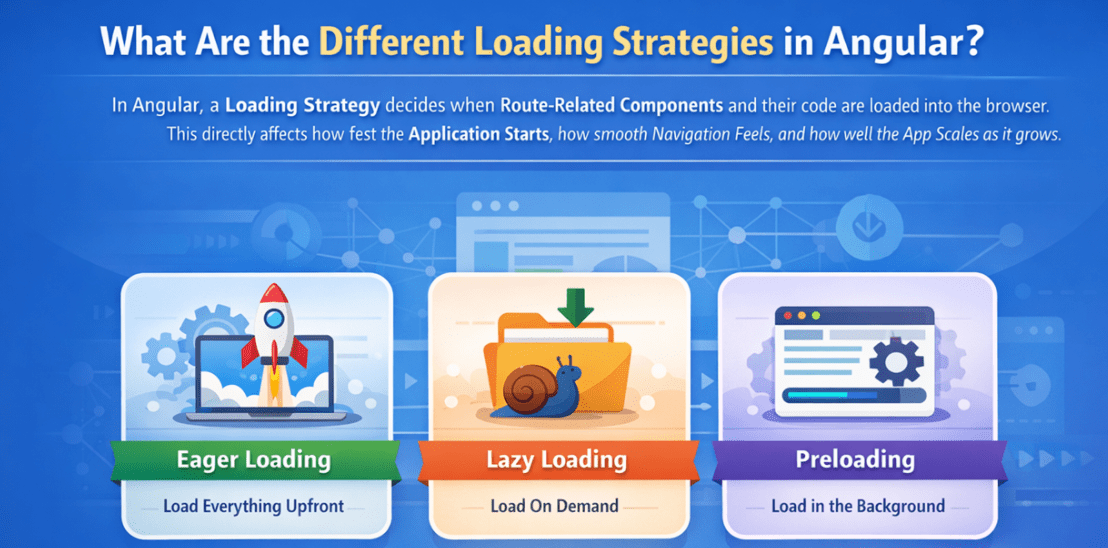
Eager Loading
In Eager Loading, Angular loads all routes and their components at application startup.
- All routes are downloaded when the app first opens
- Every page is immediately available after the initial load
- Navigation between pages is very fast because no extra code needs to be downloaded later
In simple words: Load everything at the beginning, then navigate instantly.
Lazy Loading
In Lazy Loading, Angular loads routes only when the user navigates to them.
- The route code is not downloaded during the initial app load
- Each feature or section is split into separate code chunks
- Code is fetched on demand, only when required
In simple words: Load only what the user needs, when the user needs it.
Preloading (Lazy Routes + Background Loading)
Preloading is an enhancement on top of lazy loading.
- Routes are still configured as lazy
- After the first screen is shown, Angular downloads lazy routes silently in the background
- This improves perceived performance without slowing down the initial load
In simple words: Show the app fast, then quietly prepare the remaining routes in advance.
Choosing the Right Loading Strategy
All three strategies are valid and used in real-world Angular applications. The right choice depends on:
- Application Size (small vs large apps)
- User Behaviour (which pages are visited most)
- Performance Goals (fast startup vs fast navigation everywhere)
In this chapter, we focus only on Eager Loading and Lazy Loading, because they form the core foundation for understanding Angular routing behaviour. Once these concepts are clear, Preloading becomes much easier to understand. In the next chapter, we will explore Preloading strategies in detail.
What Is Eager Loading in Angular Routing?
Eager Loading means that Angular loads all configured routes and their related code when the application starts. In simple terms, when a user opens your Angular application for the very first time, the browser downloads one main JavaScript bundle that contains most (or all) of the application’s pages, components, services, and routing configuration.
Because everything is loaded upfront, all routes are immediately available after the app finishes loading. Even if the user never visits a page, its code is still downloaded and kept ready in memory.
This approach makes navigation between pages very fast, because Angular does not need to download any extra code when the user clicks links or changes routes.
Key Points of Eager Loading
- Eager loading is the Default Behaviour in Angular if you do not configure lazy loading.
- Route code (component + template code) is downloaded/bundled upfront, but components are instantiated only when the route is activated.
- No additional files are downloaded during navigation.
- Routing setup remains simple and easy to understand.
- The initial bundle size is larger because everything is included upfront.
Real-time Analogy: Eager loading is like packing everything you might need into one bag before starting a trip. You carry a heavier bag at the beginning, but you never have to stop and fetch anything later.
Why Eager Loading Is Important?
Eager loading is important because it provides users with a smooth, instant experience after the app finishes loading. Once the first page is displayed, moving between eagerly loaded pages does not require extra time to fetch code from the server. This is especially useful for features that must always be available and should never feel slow or take long to load.
Some parts of an application are so important that they should be ready from the very beginning. Users expect pages like Home, Login, and the basic Dashboard to open quickly and respond immediately when navigating between them. Eager loading helps you meet this expectation simply.
Why Eager Loading Matters?
- Predictable Behaviour: All primary routes are loaded in advance, so you don’t have to worry about extra loading when users navigate.
- No runtime loading delays for core pages: Since code is already in memory, switching between eagerly loaded pages feels instant.
- Simpler application structure: You do not need to split features into separate chunks, reducing mental overhead.
In short, eager loading makes sure your most important user journeys are always fast and reliable once the app has started.
When to Use Eager Loading in Real-Time Scenarios?
Eager loading is a good choice when most pages are important and frequently used, and when the initial load time is acceptable for your app. It works especially well in small or medium-sized applications where performance is not heavily impacted by loading everything at once. Below are some practical scenarios where eager loading is a good fit:
Public-Facing Pages
These are pages that almost every user will visit, often immediately after opening the app.
- Landing/Home page (/, /home)
- Simple informational pages like About Us and Contact Us (as long as they are lightweight)
- A Product Listing or Main Catalog page that most users interact with early
Because these pages are so common, loading them eagerly makes the first user experience smoother.
Essential User Flows
These are flows that are critical for using the application.
- Login / Sign Up pages
- A normal user’s Dashboard, if it is not extremely heavy
- The basic navigation shell (header, sidebar, footer) that appears on almost every page
If these routes are eagerly loaded, the user can move quickly between core features without waiting for additional downloads.
Small or Medium-Sized Applications
In many real projects, the app is not huge, and the total number of pages is limited.
- If your application has only a few pages and simple logic, the initial bundle size stays manageable. In such cases, eager loading:
-
- Keeps the routing setup straightforward
- Avoids the extra complexity of configuring lazy routes and preloading
- Is often more than enough from a performance point of view
-
How Eager Loading Works in Angular?
To understand eager loading, imagine that Angular tries to load everything in advance so your app can respond quickly when the user clicks different links or menu items. Instead of loading pages one by one on demand, Angular eagerly loads all configured routes and their components when the app starts.
Behind the scenes, Angular and the browser work together in a few clear steps. You don’t need to know all the low-level details, but having a simple mental picture will help you understand what’s happening when your app loads and when you navigate between pages.
Step 1: Build Time (Before the App Runs in the Browser)
During development, you write our components, routes, and services. When you run a build (ng build or ng serve), Angular prepares everything for the browser.
What happens at build time:
- Angular looks at your route configuration and identifies which routes are eagerly loaded.
- All eagerly loaded components, services, and other required code are packed into the initial bundles (often referred to as the “main bundle”).
- The end result is a set of optimized JavaScript files that the browser can download and execute.
You can think of this step as packing your bag before a trip. Angular includes all the features you need, so you don’t have to stop and repack later.
Step 2: Application Startup (First Time the User Opens the App)
Now the user opens your Angular application in the browser by hitting the URL (for example, https://myapp.com).
What the browser and Angular do:
- The browser downloads the initial bundles generated by Angular during the build.
- These bundles contain:
-
- The Routing Configuration (information about which path shows which component)
- All Components that are eagerly loaded (e.g., Home, About, Products)
- The required services, utilities, and shared code
-
At this point, all eagerly loaded routes are ready to use, even if the user hasn’t clicked on them yet.
Step 3: First Route Activation (Showing the Initial Page)
Once the code is downloaded, Angular starts running inside the browser.
What Angular does on startup:
- Angular bootstraps (initializes) the root component and sets up the router.
- The router checks the current URL (for example, /home or /) and decides which component should be displayed first.
- Angular then creates and displays that component inside the root view (often inside a <router-outlet>).
For the user, this is the moment when the app’s first screen appears.
Step 4: Subsequent Navigation (Moving Between Eagerly Loaded Pages)
After the first page loads, the user can click links to navigate to other routes, such as/about or/products.
What happens when the user navigates:
- The router sees that the target route (e.g., /about) is already eagerly loaded.
- Angular does not need to download any extra JavaScript files for that route.
- Instead, Angular:
-
- Destroys the old component’s view (for example, Home component).
- Creates the new component’s view (for example, About component).
-
- Because no new network request is required, navigation feels quick and smooth.
So, every time the user moves between eagerly loaded routes, Angular mostly just switches components in memory, not fetches new code.
In Simple Words
- With eager loading, we pay the download cost only once at app launch.
- After that, moving between eagerly loaded pages feels instant because the browser already has all the necessary code.
- From the browser’s point of view, routing becomes mostly an in-memory operation:
- Show a different component on the screen.
- Do not go to the server and download a new file.
So: Eager loading = Download everything important upfront, then enjoy fast navigation between those routes.
What is Lazy Loading in Angular Routing?
Lazy loading means Angular does not load all feature code at the start of the application. Instead, some routes are kept aside, and their code is loaded only when the user actually visits them. In simple words: Load only what you need, when you need it.
For example, your /admin section can be lazy-loaded. As long as the user never visits /admin, the browser will not download the admin-related code. Only when the user navigates to /admin does Angular fetch that part of the application from the server and display the page.
Key Points of Lazy Loading
- Performance Optimisation: Lazy loading helps reduce the initial bundle size, making the app’s first load faster.
- Separate Bundles (chunks): Routes configured for lazy loading are built into separate bundles (also called “chunks”) during the build process.
- On-demand Loading: These feature bundles are fetched from the server only when the user navigates to those specific routes.
Overall, lazy loading breaks our application into multiple smaller bundles, each responsible for a specific feature or section (e.g., Admin, Reports, Account).
You can think of lazy loading as keeping some rooms in a building locked and opening them only when someone actually enters that area. You don’t keep all the lights and AC running everywhere from the beginning—you switch them on only when that part is needed.
Why is Lazy Loading Important?
Lazy loading is important because it directly improves the speed and performance of your Angular application, especially as the app grows larger. Instead of forcing every user to download all the code at once, you let them download only the parts they actually use.
By loading less code upfront, the app can start faster, which gives users a better first experience—especially on slow networks or mobile devices. As your application becomes bigger with many modules, pages, and features, lazy loading helps keep it scalable and manageable.
Benefits of Lazy Loading
- Faster initial load: Because the first JavaScript download is smaller, the app can show the first screen more quickly.
- Better user experience on slow networks: Users on mobile data or on poor connections reach the main page faster, rather than waiting for the entire app to download.
- Scales well as features grow: When new features are added, they become their own lazy-loaded chunks, so you don’t keep increasing the single main bundle for everyone.
- Pay-Per-Navigation model: Only users who actually visit heavy sections (like /admin or /reports) download those features. Others are not forced to pay that cost.
In modern Angular development, lazy loading is considered a best practice for feature-based applications, especially when your app has many sections or complex features.
When to Use Lazy Loading in Real-Time Scenarios?
Lazy loading is ideal when some parts of your application are not needed immediately or are used by only a small group of users. If a user might never visit a particular section during their session, there is no point in loading its code at startup. Here are some practical, real-time scenarios where lazy loading makes a lot of sense:
Admin or Back-Office Modules
These are usually meant for internal staff, not regular end users.
- Example routes: /admin, /admin/users, /admin/settings
- Why lazy load here?
-
- Only admins or internal users can access these URLs.
- It is unnecessary to load admin features for normal visitors who may never see those pages.
-
Reports and Analytics
These modules often include charts, graphs, and heavy third-party libraries.
- Example routes: /reports, /analytics, /dashboard-advanced
- Why lazy load here?
- These sections can be large and complex.
- Loading them on demand keeps the initial app light and fast.
User Account Management
Some users may log in, browse products, and leave—without ever opening their account settings.
- Example routes: /account, /profile/settings, /billing
- Why lazy load here?
- Not every user opens their profile or billing page in every session.
- These screens can be loaded only when the user actually needs them.
Multi-Tenant or Role-Based Sections
In many applications, different roles see completely different sections.
- Example:
-
- A Customer sees /customer/dashboard,
- A Seller sees /seller/dashboard,
- An Admin sees /admin/dashboard.
-
- Why lazy load here?
-
- Each role-based area can be lazy-loaded separately, so each user type downloads only what they need.
-
Simple Rules for Using Lazy Loading
In short, use lazy loading whenever a feature is:
- Not required for the initial experience: The user can start using the app without needing that section right away.
- Heavy or complex: It has many components, complex views, or depends on large third-party libraries.
- Role-specific or rarely visited: Only certain users (like Admins) or occasional actions need that part of the app.
How Lazy Loading Works in Angular?
To understand lazy loading, imagine that Angular does not bring all rooms of the house online at once. Instead, it keeps some rooms closed and only opens them (and switches on lights, AC, etc.) when someone actually walks towards that room.
In technical terms, Angular splits our application into Small Code Bundles. The main bundle loads at the beginning, and the extra bundles (for lazy routes) are loaded On Demand when the user navigates to those routes. Let’s walk through the process step by step.
Step 1: Route Configuration (Marking Routes as Lazy)
Before the app runs, you define which routes should be lazy loaded.
- In your main routing configuration, you mark some routes as lazy using special options like loadChildren or loadComponent with dynamic imports.
- Angular then knows:
-
- These routes should not be fully included in the main bundle.
- Instead, they should be placed in separate code chunks (separate bundles).
-
At build time, Angular prepares additional bundles for these lazy routes, ready to be loaded later when needed.
Step 2: Application Startup (First Load of the App)
Now the user opens your Angular application in the browser.
- When the app first loads:
-
- Angular downloads the main bundle, which contains the app’s core components (home page, basic layout, shared components, etc.).
- The lazy-loaded bundles (for routes like /admin, /reports, etc.) are not downloaded yet.
-
- Even though the code is not downloaded, the router still knows that lazy routes exist.
-
- For example, it knows that /admin is a valid path, but it does not yet have the actual implementation (components, templates) in memory.
-
At this stage, the app is up and running with only the essential features loaded.
Step 3: User Navigates to a Lazy Route
Now the user clicks on a menu item, for example, “Admin Panel”, which points to /admin.
- What Angular’s router does:
-
- It checks the route configuration and sees that /admin is a lazy-loaded route.
- It then triggers a dynamic import to download the specific admin bundle (code chunk) from the server.
- If you have implemented a loading indicator (spinner or progress bar), Angular can display it while this bundle is being fetched.
-
So, only when the user goes to /admin does the browser download the admin-related code.
Step 4: Angular Initializes the Lazy Feature
Once the lazy bundle has been downloaded successfully:
- Angular:
-
- Reads the route configuration inside that lazy feature (for example, the admin routes).
- Figures out which component should be shown for the current URL (for example, /admin → AdminLayout).
- Creates and displays the correct component inside the view.
-
From the user’s perspective, it looks like they navigated to a new page.
From Angular’s perspective, it just downloaded and activated a new section of the app.
Step 5: Subsequent Navigation Inside the Same Lazy Area
Now the user is already inside the admin area and moves between different admin pages, for example:
- From /admin/overview to /admin/users
- From /admin/users to /admin/settings
At this point:
- No new bundles are downloaded because:
-
- The admin feature chunk is already in memory.
-
- Angular only:
-
- Switches between components inside that admin section.
- Updates the view based on the new route.
-
So, navigation within the same lazy-loaded group is very fast and behaves just like eager-loaded routes.
Step 6: Navigation Back to Eager Routes (and Closing the App)
If the user now leaves the admin section and goes back to /home:
- The code for the admin feature remains in memory while the app is open.
-
- This means if the user goes back to /admin again in the same session, they do not need to re-download the admin bundle.
-
- When the user closes the browser or tab:
-
- The in-memory data (including eager and lazy code) is cleared as usual.
- Next time they open the app, the process starts again from Step 2.
-
In Simple Words
- At startup, Angular loads only the essential parts of the app (main bundle).
- Lazy routes are known to the router, but their code is downloaded later, only when the user navigates to them.
- After a lazy bundle is loaded once, navigation inside that feature is instant and does not need additional downloads.
So: Lazy loading = Load the core app first, then download extra sections just in time when the user actually needs them.
Eager vs Lazy Loading in Angular:
Eager vs Lazy loading controls when route code is downloaded, not when components/services are created. Let us proceed and understand the differences between these two loading strategies.
Eager Loading:
- Eager-loaded routes mean the route code (components + templates) is included in the initial bundle and downloaded at application startup.
- Component instances are created only when the route is activated, and typically a new component instance is created each time you revisit the route (after navigating away).
- Navigation feels instant between eager routes because no extra route files need to be downloaded during navigation.
- Initial load can be slower if you eager-load too many large features, since the first bundle becomes large.
- Best for core/common pages (Home, Login, basic shell/layout) that most users will open early.
Lazy Loading:
- Lazy-loaded routes mean the route code (components + templates) is downloaded only on the first visit (as a separate chunk), then usually cached.
- Component instances are created only when the route is activated, and typically a new component instance is created on each revisit (after leaving the route).
- Angular does not download the same component or template again when revisiting a lazy-loaded route during the same session. Lazy-loaded code is downloaded once per session, but component instances are created every time the route is activated.
- Initial app load time improves because large feature code isn’t downloaded upfront.
- The first navigation to a lazy route may feel slightly slower because Angular must download that chunk first.
- Best for large/rarely used/role-based areas like Admin, Reports, Analytics, Settings, etc.
Eager vs. lazy loading affects code download timing, whereas component creation always depends on route activation. In real time, we eagerly load core features and lazy-load heavy or less-used sections to balance fast startup with rich functionality.

About the Author: Pranaya Rout
Pranaya Rout has published more than 3,000 articles in his 11-year career. Pranaya Rout has very good experience with Microsoft Technologies, Including C#, VB, ASP.NET MVC, ASP.NET Web API, EF, EF Core, ADO.NET, LINQ, SQL Server, MYSQL, Oracle, ASP.NET Core, Cloud Computing, Microservices, Design Patterns and still learning new technologies.