
Back to: Angular Tutorials For Beginners and Professionals
Angular Style Binding with Examples
In this article, I will discuss Angular Style Binding with Examples. So far, we have learned Angular Interpolation, Property Binding, Attribute Binding, and Class Binding. Each of these binding techniques solves a specific category of UI problems. However, there are situations where applying or removing an entire CSS class is either unnecessary. In real-world applications, we often need to:
- Change a single CSS property dynamically.
- Apply inline visual feedback based on numeric values.
- Compute styles at runtime.
- Adjust styles when the UI logic is simple and localized.
Angular Style Binding is designed to solve exactly these scenarios.
What Is a CSS Style and Why Do We Need It?
A CSS style defines how a specific visual property of an HTML element should appear, such as its color, size, spacing, border, visibility, or alignment. Unlike CSS classes (which group multiple visual rules under a name), a CSS style typically represents a single visual property or a small set of related properties.
CSS styles exist because modern applications require full control over appearance, not just predefined visual categories. Many UI elements require dynamic, continuous, or calculated values, such as widths, heights, colors, opacity, or positioning.
In short:
- CSS styles answer “how exactly should this look right now?”
- CSS classes answer “what visual category does this element belong to?”
Both are essential—but they solve different problems.
What Is Angular Style Binding?
Angular Style Binding is a one-way data binding technique that allows us to dynamically set or update individual CSS style properties of an HTML element based on values or expressions defined in the component. Instead of writing JavaScript to find an element and manually change its style, we declare style rules in the template, and Angular keeps those styles in sync with component data.
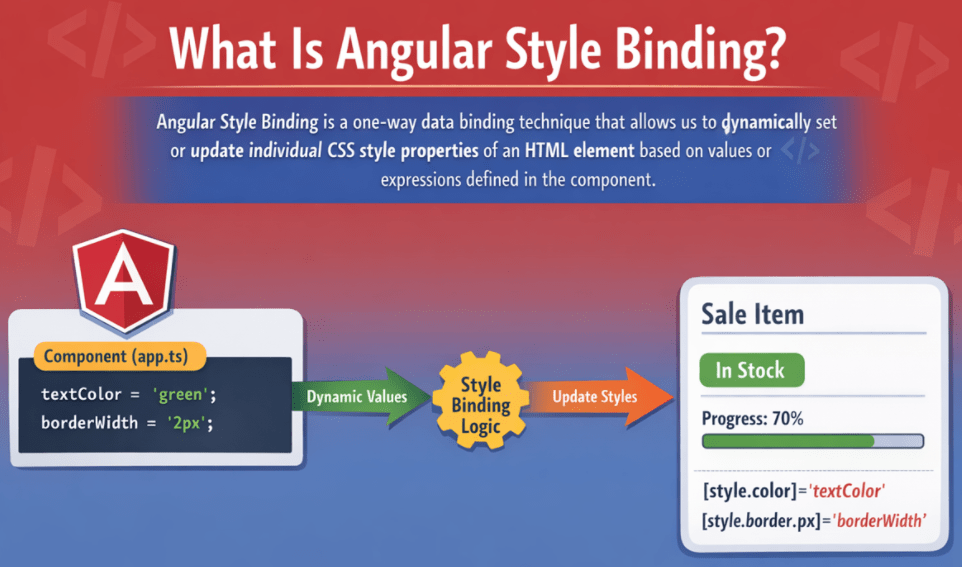
In other words, Angular Style Binding connects: Business State (data) → Direct Style Values (color, width, display, border, etc.)
- Component provides values (e.g., deliveryProgressPercent = 65)
- Template binds those values to styles (e.g., [style.width.%]=”deliveryProgressPercent”)
- Angular updates the DOM automatically whenever the value changes
So, style binding is best when you want the UI to react using specific CSS property values, not just apply a predefined class.
Why Do We Need Angular Style Binding?
In real applications, many UI effects require dynamic style values, not just switching classes. For example:
- Progress bar width depends on a number (0–100)
- Border thickness changes based on priority
- Elements show/hide using display when you are not using ngIf
- Links become “disabled-looking” by adjusting pointer-events and opacity
Without style binding, you usually fall into messy patterns:
- Writing a manual DOM manipulation.
- Mixing UI updates into click handlers.
- Creating too many “micro classes” for every tiny variation (like width: 63%, width: 64%, width: 65%).
With style binding:
- UI becomes data-driven and precise
- You can bind numeric and computed values directly.
- Templates remain declarative (this style depends on this value).
- Angular keeps the DOM updated through change detection.
Angular Style Binding Syntax
Angular Style Binding means: Bind a CSS style property of an element to a value coming from the component.
Syntax: [style.CSS_PROPERTY]=”expression”
Here:
- style → tells Angular we are binding a CSS style,
- CSS_PROPERTY → The CSS property we want to control.
- expression → A value or method from the component.
Angular evaluates the expression and applies the result as the style value.
Real-World Scenario to Understand Angular Style Binding
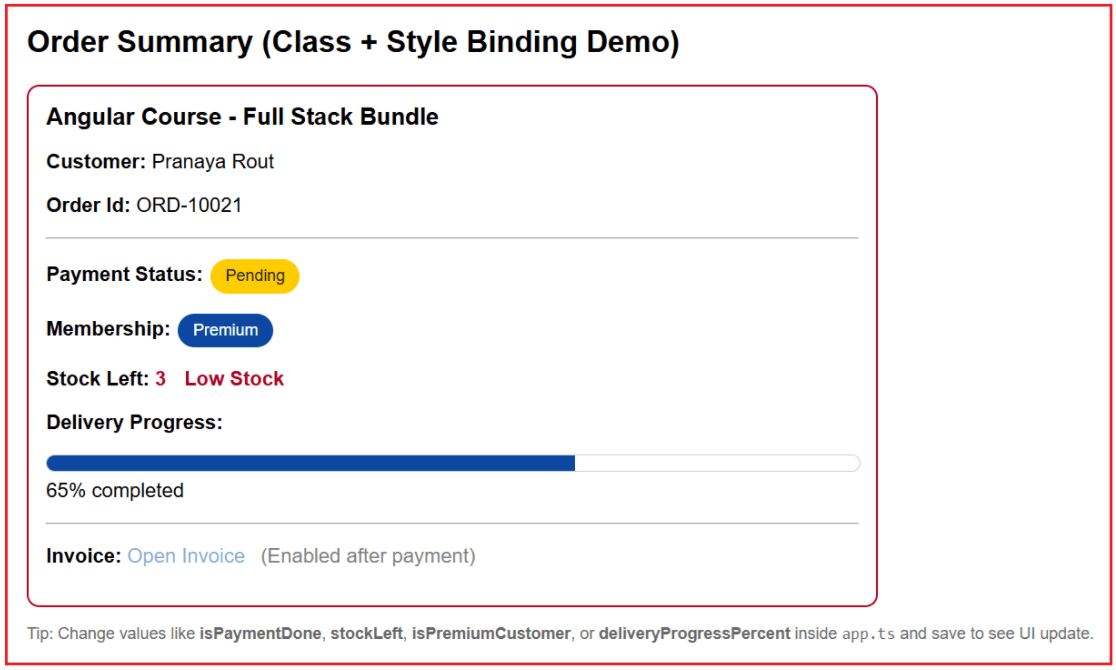
In this example, we simulate a real e-commerce Order Summary screen where the UI must instantly communicate business status through visual signals. In real systems, this data typically comes from an API response (order service), a payment gateway confirmation, an inventory service, and a delivery tracking service. Angular then converts that live business state into a user-friendly interface using Class Binding for reusable states and Style Binding for calculated values.
- Payment status (Paid/Pending) controls the UI via class binding (paid/pending), so users can instantly recognize success vs. pending. It also affects invoice availability and can optionally drive style effects, such as opacity (a disabled look), via style binding.
- Membership type (Premium/Regular) controls the membership badge appearance via class binding (premium/regular), as it is a clear, reusable category shown across many screens (profile, checkout, admin dashboard).
- Delivery progress (0–100%) controls the progress bar fill via style binding ([style.width.%]), since the width is a numeric, continuously changing value that must map directly to a percentage width in CSS.
- Invoice usability (Enabled/Disabled) is controlled via a class binding (invoice-enabled / invoice-disabled) to manage both behaviour (pointer-events) and appearance. In addition, we use style binding for opacity (via getInvoiceOpacity()) to visually indicate the disabled state more clearly.
Creating a New Angular Application to Understand Style Binding
Let us understand Angular Style Binding with a new Angular application.
Step 1: Create a New Angular App
ng new style-binding-demo
Choose:
- Stylesheet → CSS
- SSR / SSG → No
- AI tools → None
Step 2: Navigate and Run the App
- cd style-binding-demo
- ng serve
Open: http://localhost:4200
Step 3: Update Root Component (app.ts)
The component holds business data, not styling decisions. Open src/app/app.ts and copy-paste the following code. The following code is self-explanatory; please read the comments for better understanding.
import { Component } from '@angular/core';

@Component({
  selector: 'app-root',
  templateUrl: './app.html',
})
export class App {

  // ==========================================================
  // ORDER SUMMARY DATA (Simulated API Response)
  // ==========================================================
  // These fields represent "normal business data" that is displayed in the UI.
  // In a real application, they usually come from an API call like:
  //   this.http.get<OrderSummary>(...)
  // The template shows these values using interpolation:  {{ value }}
  customerName: string = 'Pranaya Rout';
  orderId: string = 'ORD-10021';
  productName: string = 'Angular Course - Full Stack Bundle';

  // ==========================================================
  // BUSINESS STATE FLAGS (The UI reacts to these values)
  // ==========================================================
  // These booleans represent BUSINESS MEANING, not styling.
  // The template converts this meaning into visuals using:
  // - Class Binding  => [class.someClass]="condition"
  // - Style Binding  => [style.someStyle]="expression"
  //
  // Example:
  // isPaymentDone=true   => show "Paid" badge, enable invoice link, etc.
  // isPaymentDone=false  => show "Pending" badge, disable invoice link, etc.
  isPaymentDone: boolean = false;       // Payment status: true = Paid, false = Pending
  isPremiumCustomer: boolean = true;    // Customer type: true = Premium, false = Regular
  isHighPriorityOrder: boolean = true;  // Priority flag: true = highlight order card for urgent/VIP handling

  // ==========================================================
  // INVENTORY + DELIVERY PROGRESS (Numeric data)
  // ==========================================================
  // Numeric values often need "style binding" because they map naturally to CSS values.
  // Example:
  // deliveryProgressPercent = 65  => [style.width.%]="65" => width: 65%
  stockLeft: number = 3;                 // Remaining quantity; used to show "Low Stock" warning when <= 5
  deliveryProgressPercent: number = 65;  // Range 0–100; used to control progress bar fill width

  // ==========================================================
  // INVOICE RESOURCE (Enabled only after payment)
  // ==========================================================
  // In real projects, invoice links are often returned only after successful payment.
  // Until then, the link should look disabled and should not be clickable.
  invoiceUrl: string = 'https://example.com/invoice/ORD-10021.pdf';

  // ==========================================================
  // HELPER METHODS (UI Decision Methods)
  // ==========================================================
  // Why methods?
  // - Keeps the HTML template clean and readable
  // - Centralizes "UI rules" in one place
  // - Makes your bindings simple and expressive
  //
  // NOTE: These are not "DOM manipulation" methods.
  // They only compute values; Angular applies them to the UI via bindings.

  // ----------------------------------------------------------
  // Low Stock Rule (used by multiple template bindings)
  // ----------------------------------------------------------
  // Business rule:
  // If stock is 5 or less, treat it as low stock and show urgency visuals.
  isLowStock(): boolean {
    return this.stockLeft <= 5;
  }

  // ----------------------------------------------------------
  // Payment Display Text (Used inside the badge)
  // ----------------------------------------------------------
  // Converts boolean payment status into user-friendly label text.
  // Template usage: {{ getPaymentLabel() }}
  getPaymentLabel(): string {
    return this.isPaymentDone ? 'Paid' : 'Pending';
  }

  // ----------------------------------------------------------
  // Membership Display Text (Used inside the membership badge)
  // ----------------------------------------------------------
  // Converts boolean membership flag into human-readable label.
  // Template usage: {{ getMembershipLabel() }}
  getMembershipLabel(): string {
    return this.isPremiumCustomer ? 'Premium' : 'Regular';
  }

  // ----------------------------------------------------------
  // Progress Bar Width (Style Binding)
  // ----------------------------------------------------------
  // Progress bar needs a numeric percentage (0–100).
  // Template usage: [style.width.%]="getProgressWidth()"
  //
  // Defensive programming:
  // - Ensures invalid values (e.g., -20 or 150) do not break the UI.
  // - Guarantees progress bar remains within visible limits.
  getProgressWidth(): number {
    return Math.max(0, Math.min(this.deliveryProgressPercent, 100));
  }

  // ----------------------------------------------------------
  // Invoice Opacity (Style Binding)
  // ----------------------------------------------------------
  // Controls how "disabled" the invoice link looks.
  // Paid  -> opacity 1 (normal visibility)
  // Unpaid -> opacity 0.5 (faded/disabled look)
  getInvoiceOpacity(): string {
    return this.isPaymentDone ? '1' : '0.5';
  }
}
Step 4: Store Static Styles in styles.css
These styles do not change at runtime, so they belong in a CSS class. Open src/styles.html and copy-paste the following code. The following code is self-explanatory; please read the comments for better understanding.
/* ============================================================
   GLOBAL LAYOUT (Fixed / Non-dynamic UI)
   ------------------------------------------------------------
   Purpose:
   - These styles define the base look of the page.
   - They do NOT change with component data.
   - Any state-based visual changes (Paid/Pending, Low Stock, etc.)
     are handled using Angular Class/Style Binding in the template.
   ============================================================ */

/* Page wrapper:
   - Applies a clean default font
   - Adds padding so content doesn't touch the screen edges */
.page {
  font-family: Arial, sans-serif; /* Beginner-friendly, readable font */
  padding: 16px;                  /* Comfortable spacing around the whole page */
}

/* ============================================================
   CARD (Order Summary Container)
   ------------------------------------------------------------
   Purpose:
   - A reusable UI "card" layout block.
   - Provides structure: border, padding, radius, width, spacing.
   - Border can be overridden when an order is high priority.
   ============================================================ */

/* Base card design (always applied) */
.card {
  border: 1px solid #d0d0d0; /* Default border for normal orders */
  border-radius: 10px;       /* Rounded corners for modern UI */
  padding: 14px;             /* Inner space so text doesn't touch the border */
  max-width: 650px;          /* Keeps content readable on large screens */
  margin-top: 12px;          /* Space between heading and card */
}

/* Priority highlight:
   - Applied ONLY when Angular toggles this class:
       [class.priority-border]="isHighPriorityOrder"
   - Visually signals VIP/urgent/high-value orders */
.priority-border {
  border: 2px solid #b00020; /* Strong red border to grab attention */
}

/* Card title styling (product name heading) */
.title {
  margin-top: 0;        /* Removes default browser margin above the title */
  margin-bottom: 10px;  /* Adds spacing between title and the details below */
}

/* ============================================================
   BADGES (Reusable UI Labels)
   ------------------------------------------------------------
   Purpose:
   - .badge provides common badge shape/spacing.
   - State classes (.paid, .pending, .premium, .regular) apply meaning/colors.
   - Angular toggles these state classes using class binding.
   ============================================================ */

/* Badge base style (always applied to all badges) */
.badge {
  display: inline-block; /* Makes span behave like a compact UI label */
  padding: 6px 12px;     /* Inner spacing for a “badge” feel */
  border-radius: 999px;  /* Pill shape (fully rounded corners) */
  margin-left: 6px;      /* Space between label text and the badge */
  font-size: 13px;       /* Slightly smaller text to match typical badge UI */
}

/* --------------------------
   PAYMENT STATUS BADGES
   Angular usage:
   - [class.paid]="isPaymentDone"
   - [class.pending]="!isPaymentDone"
   Meaning:
   - Paid => success
   - Pending => attention required
--------------------------- */

/* Applied when payment is completed */
.paid {
  background: #1c7c1c;   /* Green indicates success */
  color: #fff;           /* White text for contrast */
  font-weight: bold;     /* Emphasize successful state */
}

/* Applied when payment is not completed yet */
.pending {
  background: #ffcc00;   /* Yellow indicates pending/warning */
  color: #222;           /* Dark text for readability on yellow */
}

/* --------------------------
   MEMBERSHIP BADGES
   Angular usage:
   - [class.premium]="isPremiumCustomer"
   - [class.regular]="!isPremiumCustomer"
   Meaning:
   - Premium => special/priority benefits
   - Regular => normal/default user
--------------------------- */

/* Applied for premium users */
.premium {
  background: #0d47a1;   /* Blue indicates premium/special access */
  color: #fff;
}

/* Applied for regular users */
.regular {
  background: #6c757d;   /* Gray indicates standard category */
  color: #fff;
}

/* ============================================================
   LOW STOCK VISUALS
   ------------------------------------------------------------
   Purpose:
   - Highlight stock count when inventory is low.
   - Show a "Low Stock" warning label.
   - Visibility may be controlled via class binding.
   ============================================================ */

/* Applied only when stock is low (e.g., <= 5)
   Angular usage:
   - [class.low-stock]="isLowStock()" */
.low-stock {
  color: #b00020;        /* Red indicates urgency */
  font-weight: bold;     /* Bold to make it stand out */
}

/* Warning label text next to stock count */
.stock-warning {
  margin-left: 10px;     /* Space between the number and warning text */
  color: #b00020;        /* Same urgent red color */
  font-weight: bold;
}

/* Utility: hide element while keeping it in the DOM
   Angular usage example:
   - [class.hidden]="!isLowStock()"
   Note:
   - Useful when you don’t want to use ngIf (element remains in DOM). */
.hidden {
  display: none; /* Completely hides the element from layout */
}

/* ============================================================
   DELIVERY PROGRESS BAR (Fixed structure + Dynamic fill)
   ------------------------------------------------------------
   Purpose:
   - Track (.progress-track) is fixed UI structure.
   - Fill (.progress-fill) has fixed color + height.
   - Only the fill WIDTH is dynamic, controlled in HTML using style binding:
       [style.width.%]="getProgressWidth()"
   ============================================================ */

/* Progress bar outer container (represents 100% width track) */
.progress-track {
  height: 12px;          /* Bar height */
  border: 1px solid #ccc;/* Light border to show track */
  border-radius: 10px;   /* Rounded corners */
  overflow: hidden;      /* Keeps fill inside rounded corners */
  width: 100%;           /* Track always spans full available width */
}

/* Progress bar inner fill (represents completed percentage) */
.progress-fill {
  height: 100%;               /* Fill matches track height */
  background-color: #0d47a1;  /* Blue fill color */
}

/* ============================================================
   INVOICE LINK STATES (Enabled vs Disabled)
   ------------------------------------------------------------
   Purpose:
   - Visually + functionally disable invoice link until payment is done.
   - Angular toggles these classes:
       [class.invoice-enabled]="isPaymentDone"
       [class.invoice-disabled]="!isPaymentDone"
   ============================================================ */

/* Disabled look + behavior */
.invoice-disabled {
  pointer-events: none;  /* Prevents clicking (functional disable) */
  opacity: 0.5;          /* Faded appearance (visual disable) */
  text-decoration: none; /* Optional: reduce "clickable" look */
  color: #0d47a1;        /* Keep consistent brand color */
}

/* Enabled link behavior */
.invoice-enabled {
  pointer-events: auto;  /* Allows clicking */
  opacity: 1;            /* Normal visibility */
  color: #0d47a1;
}

/* ============================================================
   TIP TEXT + DIVIDER SPACING
   ------------------------------------------------------------
   Purpose:
   - Keep consistent styling for helper text and separators.
   - Avoid repeating inline spacing styles throughout templates.
   ============================================================ */

/* Tip paragraph shown under the card */
.tip {
  margin-top: 14px;  /* Space above the tip */
  color: #666;       /* Muted gray to keep it subtle */
  font-size: 13px;   /* Smaller helper text */
}

/* Consistent spacing around <hr> elements */
.hr-gap {
  margin: 12px 0;    /* Vertical spacing above and below divider */
}
Step 5: Update Root Template (app.html)
Open src/app/app.html and copy-paste the following code. The following code is self-explanatory; please read the comments for better understanding.
<div class="page">

  <!-- Page heading -->
  <h2>Order Summary (Class + Style Binding Demo)</h2>

  <!--
    Card container:
    - "card" is always applied (base layout).
    - "priority-border" is applied conditionally using class binding.
  -->
  <div class="card" [class.priority-border]="isHighPriorityOrder">

    <!-- Product title displayed using interpolation -->
    <h3 class="title">{{ productName }}</h3>

    <!-- Basic order details -->
    <p><b>Customer:</b> {{ customerName }}</p>
    <p><b>Order Id:</b> {{ orderId }}</p>

    <!-- Divider with standard spacing -->
    <hr class="hr-gap" />

    <!-- =====================================================
         1) PAYMENT STATUS (CLASS BINDING)
         - paid/pending are reusable "state classes"
         - Angular adds/removes these classes based on isPaymentDone
         ===================================================== -->
    <p>
      <b>Payment Status:</b>
      <span
        class="badge"
        [class.paid]="isPaymentDone"
        [class.pending]="!isPaymentDone"
      >
        {{ getPaymentLabel() }}
      </span>
    </p>

    <!-- =====================================================
         2) MEMBERSHIP (CLASS BINDING)
         - premium/regular are reusable "state classes"
         - Angular toggles these classes based on isPremiumCustomer
         ===================================================== -->
    <p>
      <b>Membership:</b>
      <span
        class="badge"
        [class.premium]="isPremiumCustomer"
        [class.regular]="!isPremiumCustomer"
      >
        {{ getMembershipLabel() }}
      </span>
    </p>

    <!-- =====================================================
         3) STOCK LEFT (CLASS BINDING)
         - low-stock highlights the number when stock is low
         - hidden shows/hides the "Low Stock" label without ngIf
         ===================================================== -->
    <p>
      <b>Stock Left:</b>

      <span [class.low-stock]="isLowStock()">
        {{ stockLeft }}
      </span>

      <span
        class="stock-warning"
        [class.hidden]="!isLowStock()"
      >
        Low Stock
      </span>
    </p>

    <!-- =====================================================
         4) DELIVERY PROGRESS (STYLE BINDING)
         - width.% needs a numeric value (0–100)
         - style binding is perfect for continuous numeric UI values
         ===================================================== -->
    <p><b>Delivery Progress:</b></p>

    <div class="progress-track">
      <div
        class="progress-fill"
        [style.width.%]="getProgressWidth()"
      ></div>
    </div>

    <p style="margin-top: 6px;">
      {{ getProgressWidth() }}% completed
    </p>

    <!-- Divider -->
    <hr class="hr-gap" />

    <!-- =====================================================
         5) INVOICE LINK (CLASS BINDING)
         - invoice-enabled/invoice-disabled are state classes
         - href is set only when payment is done
         ===================================================== -->
    <p>
      <b>Invoice:</b>

      <a
        [href]="isPaymentDone ? invoiceUrl : null"
        target="_blank"
        [class.invoice-enabled]="isPaymentDone"
        [class.invoice-disabled]="!isPaymentDone"
        [style.opacity]="getInvoiceOpacity()"
      >
        Open Invoice
      </a>

      <span style="margin-left: 8px; color: gray;">
        (Enabled after payment)
      </span>
    </p>

  </div>

  <!-- Tip/help text -->
  <p class="tip">
    Tip: Change values like <b>isPaymentDone</b>, <b>stockLeft</b>,
    <b>isPremiumCustomer</b>, or <b>deliveryProgressPercent</b> inside
    <code>app.ts</code> and save to see UI update.
  </p>

</div>
Output:
Differences between Angular Class Binding vs Angular Style Binding
Angular Class Binding and Angular Style Binding both connect component data to UI appearance, but they operate at different levels.
Class Binding (state-to-class mapping)
Class binding applies or removes predefined CSS rules by toggling class names.
- Best when you want reusable design tokens like: .paid, .pending, .premium
- Keeps templates cleaner because class names represent meaning
- Works great for consistent design systems
Example use cases:
- Paid vs pending badge
- Active tab
- Selected card
- Error highlight
Style Binding (state-to-property value mapping)
Style binding sets specific CSS property values directly.
- Best when values are continuous or computed (%, px, colors, borders)
- Perfect for progress bars, dynamic widths, spacing
Example use cases:
- Progress bar width (65%)
- Dynamic border string (2px solid red)
- Show/hide using display
- Disable links using pointer-events and opacity
A simple rule to remember
- Use Class Binding when you can describe the visual meaning with a reusable class.
- Use Style Binding when you need precise values that change dynamically.
Conclusion: Why Style Binding Matters in Angular Applications?
Angular Style Binding complements Angular Class Binding by providing precise, data-driven control over individual visual properties. It is essential for building modern, interactive, and responsive user interfaces in which visual values change continuously based on the application state.
By using Angular Style Binding correctly:
- Business logic stays in the component
- Visual precision stays in CSS
- Templates remain clean and declarative
- UI automatically reacts to data changes
Mastering both Class Binding and Style Binding is a key step toward building professional-grade Angular applications that feel intuitive, responsive, and production-ready. In the next article, I will discuss Angular Event Binding with examples. In this article, I explain Angular Style Binding with examples. I would like to have your feedback. Please post your feedback, questions, or comments about this article.

About the Author: Pranaya Rout
Pranaya Rout has published more than 3,000 articles in his 11-year career. Pranaya Rout has very good experience with Microsoft Technologies, Including C#, VB, ASP.NET MVC, ASP.NET Web API, EF, EF Core, ADO.NET, LINQ, SQL Server, MYSQL, Oracle, ASP.NET Core, Cloud Computing, Microservices, Design Patterns and still learning new technologies.
My colleague recommended this website to me . Now am recommending to my circle .
I request you to add to cover more topics like HTTP,Observables ,Guards ,Interceptors
This is a detailed explanation.
From now on, this tutorial is my Angular reference.
Want to understand Angular Style Binding clearly with real-world examples?
In this video, I explain how Angular Style Binding lets you dynamically control individual CSS properties —such as colors, widths, opacity, and visibility — based on component data, without manual DOM manipulation.
You’ll see practical scenarios such as progress bars, conditional styling, and precise UI feedback that go beyond basic class binding.
🎥 Watch the complete explanation here: https://youtu.be/KxHr_mQN5OE