
Back to: Microservices using ASP.NET Core Web API Tutorials
Working with GitHub Remote Repositories Using Visual Studio
When we work alone, a local Git repository is enough. But real-world software development is a team activity. Code must be shared, reviewed, and synchronized across multiple developers and machines. This is where remote repositories, especially GitHub, become essential.
What is a remote repository, and why do teams use it?
A Remote Repository is a repository stored on another location, usually on a server or cloud platform such as GitHub. It contains the same project history, branches, and commits, but it is available online, allowing multiple developers to access it.
Teams use a remote repository because:
- It acts as the central shared codebase
- Everyone can push their work to a common place
- Everyone can pull the latest updates from teammates
- It helps with collaboration, code review, and backup
- It supports workflows like pull requests, branch sharing, and deployment
Without a remote repository:
- Each developer only has their own local copy
- Sharing code becomes manual and difficult
- Team coordination becomes slow and risky
So, in real projects:
- Local Repository = your workspace
- Remote Repository = team’s shared workspace
How to Create a New GitHub Remote Repository?
On GitHub, creating a new repository is done from the top-right + menu by choosing New repository. GitHub’s docs describe this as the standard way to create a repository from the web UI.
Step-by-step:
- Open https://github.com
- Sign in to your GitHub account
- Click the + icon at the top-right
- Click New repository
- Enter a Repository name
- Choose Public or Private
- Click Create repository
For a better understanding, please have a look at the following image:
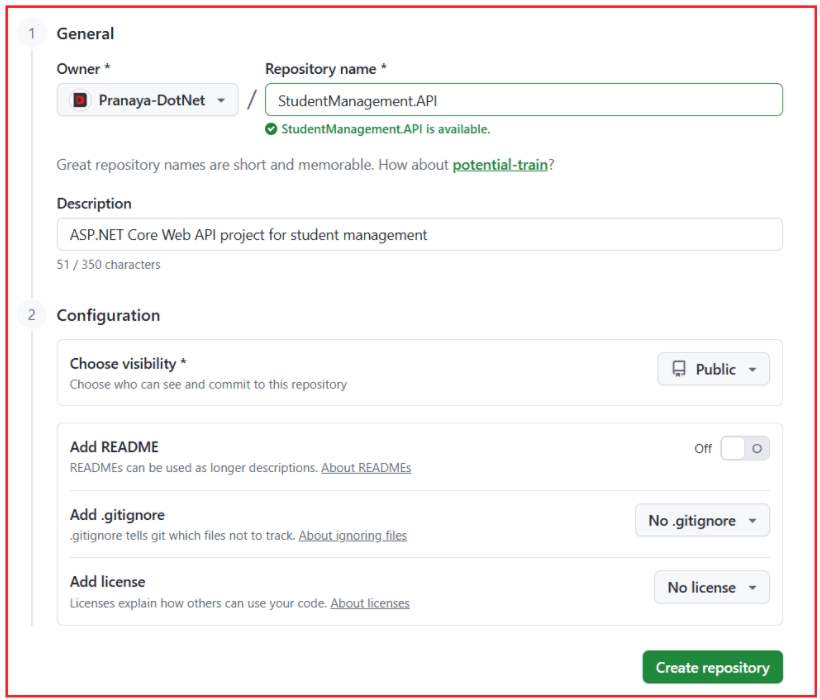
Settings:
Please provide the following:
- Owner: Keep your account (Pranaya-DotNet)
- Repository name: StudentManagement.API
- Description: Optional. You can leave it blank, or add something like: ASP.NET Core Web API project for student management
- Choose visibility: Public
- Add README: Off
- Add .gitignore: No .gitignore
- Add license: No license
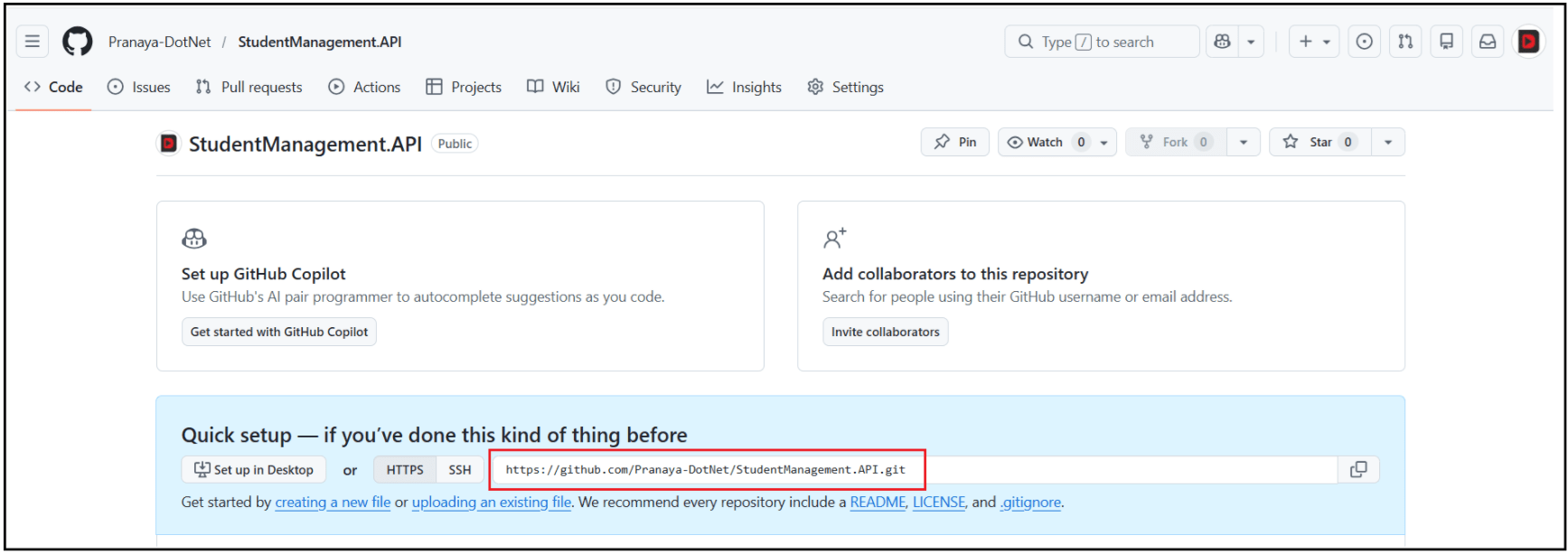
- Then click Create repository. You should see the following. Please copy the repository URL.
Why are these options correct for us?
Because:
- We already have the project locally.
- Our local repo already has files and commit history.
- We only want an empty remote repository on GitHub
Public vs Private Repositories
A GitHub repository can be either Public or Private. This decides who can see your code on GitHub. When you create a new repository, GitHub asks you to choose one of these two visibility options. A Public repository can be viewed by anyone on the internet. A Private repository can only be viewed by you and the people you explicitly give access to.
What is a Public Repository?
A Public Repository is open for everyone to view. That means:
- Anyone can visit the repository page
- Anyone can see your files, commits, branches, and README
- Anyone can clone the repository to their machine
Public repositories are commonly used for:
- Open-source projects
- Learning projects
- Sample/demo projects
- Portfolios
- Code you want to share publicly
Example: If you create a public ASP.NET Core Web API project on GitHub, other developers can view your controllers, services, and project structure directly.
What is a Private Repository?
A Private Repository is restricted. That means:
- Only you can see it by default
- Only invited collaborators or team members can access it
- Other people cannot view or clone it without permission
Private repositories are commonly used for:
- Company projects
- Client work
- Personal projects not ready to share
- Projects containing business logic or sensitive code
Example: If your ASP.NET Core project is for a real client or internal company use, it should usually be private.
Which one should you choose?
Choose Public if:
- You want to share your code openly
- It is a learning/demo/open-source project
- You want others to view your work
Choose Private if:
- The project is personal or confidential
- It is the company/client code
- You do not want others to access it
How to Link Our Existing Local Visual Studio Repo to GitHub?
Because we already have a local repo, we usually do not clone first. Instead, we connect our existing local repo to the GitHub repo as a remote.
Step 1: Copy your GitHub Repository URL
On GitHub, open your new repository and copy the clone URL. It will look like:
GitHub uses this URL as the remote address for your repo.
Step 2: In Visual Studio, click Git → Push to Git Service…

Step 3: In the Create a Git Repository Window
Choose:
- Existing Remote
- License template: None
- Add a README.md: Leave unchecked
- Remote URL: keep your GitHub repository URL as it is. https://github.com/Pranaya-DotNet/StudentManagement.API.git.
- Confirm the branch (usually main). Look at the bottom-right corner of Visual Studio. You will see the current branch name there.
- Click Push
What is Visual Studio doing behind the scenes?
- Our local repo gets a remote named origin
- That origin points to our GitHub repo URL
- After that, Push/Pull work between local and GitHub
How to verify the Repo in GitHub after Push?
After you click Push in Visual Studio, verify it on GitHub. Open your repository page on GitHub. Check the Code tab (main repository page). Your project files and folders should now be visible there.
Check the Branch Dropdown and make sure you are viewing the correct branch (usually main). GitHub’s branch selector lets you view branches from the repository page.
Click the commits/history link for the repository (or open a file and use its history) to confirm your latest commit message appears. GitHub documents that you can view a repository’s commit history from the commits page.
In simple words, open the GitHub repo, confirm your files appear under the Code tab, make sure the right branch is selected, and verify your latest commit is visible in the commit history.
What is Push?
Push means sending our local commits to the remote repository. Push sends only committed changes. Uncommitted changes are not pushed.
So, the flow is:
- Make changes
- Commit locally
- Push to GitHub
When we push:
- GitHub gets our latest commits
- Other developers can then pull our changes
- Our branch on GitHub is updated
Simple meaning: Push = Upload my local commits to GitHub
How to Push Your Existing Local Code to GitHub
A push sends our local commits to the remote repository.
Step-by-step in Visual Studio:
- First, make sure your files are committed locally
- Open View → Git Changes
- If you still have changed files:
-
- Stage them
- Enter a commit message
- Click Commit
-
- Then click Push (Git → Push)
What happens:
- Visual Studio uploads your local commits
- GitHub receives them on the linked branch
- Your code now appears in the GitHub repository
Important: Only committed changes are pushed. Uncommitted edits stay only on your machine.
What is Pull?
Pull means bringing the latest changes from the remote repository into your local repository. When you pull:
- Git first gets the latest remote changes
- Then it merges those changes into your local branch
So, if another developer pushed code to GitHub, you use Pull to update your local copy.
Simple meaning: Pull = Download the latest changes from GitHub and update my local branch
How to Pull the Latest Changes from GitHub
A pull gets the latest changes from the remote repository and updates your local branch.
Step-by-step in Visual Studio:
- Open the project in Visual Studio
- Go to the Git menu
- Click Pull
What happens:
- Visual Studio downloads the latest commits from GitHub
- Then it merges them into your current local branch
Use Pull when:
- You start your workday
- Another developer has pushed code
- Your own branch on GitHub has new commits
- Before you push your own work
Difference between Push and Pull?
These two are in opposite directions.
- Push: Moves your local commits from your computer to GitHub
- Pull: Moves remote commits from GitHub to your computer
So:
- Push = Local → Remote
- Pull = Remote → Local
Why Pull Before Push?
You should usually Pull before Push because the remote repository may already contain new changes from other developers. If you push without pulling:
- Your local branch may be outdated
- GitHub may reject your push
- You may need to merge changes later under pressure
If you pull first:
- You get the latest code from teammates
- You resolve any conflicts locally
- Your push becomes smoother and safer
Simple team rule:
- Start work by pulling the latest changes
- Before the final push, pull again if needed
- Then push your commits
This reduces:
- Push rejection
- Merge surprises
- Team conflicts
What happens when Push is Rejected?
A push is usually rejected when the remote branch has commits that your local branch does not have.
This means:
- GitHub has a newer history
- Your local branch is behind
- Git will not let you overwrite the remote branch automatically
Common reason: Another developer pushed changes before you did.
What Git is protecting: Git is preventing accidental loss of remote commits.
What you should do:
- Pull the latest changes from GitHub
- Resolve conflicts if needed
- Commit the merge (if required)
- Push again
Simple meaning: Push rejected = your local branch is not up to date with the remote branch. Do not panic. This is a normal part of teamwork.
What is a Clone?
Clone means creating a full local copy of an existing remote repository. When you clone a GitHub repository:
- Git downloads all files
- Git downloads the commit history
- Git downloads branches and remote connection info
- A local Git repository is created on your machine
You usually clone when:
- You are joining an existing project
- The project already exists on GitHub
- You want a local working copy of that remote repository
Simple meaning: Clone = Download the remote project and set it up locally
How to Clone a GitHub Repository
A clone creates a full local copy of a remote repository.
Step-by-step in Visual Studio:
- Open Visual Studio
- Go to Git → Clone Repository
- Paste the GitHub Repository URL
- Choose the local folder
- Click Clone
What happens after cloning:
- The project is downloaded locally
- You can immediately pull, commit, and push to that repo (subject to permissions)
Conclusion
A remote repository is essential for team-based development because it gives everyone a shared, online version of the project. GitHub is where teams store and share code, while each developer continues to work safely in their own local repository. By understanding clone, push, pull, and origin, you understand the foundation of real-world Git collaboration.
In Visual Studio, all of this becomes much easier because the IDE gives you built-in options to connect to GitHub, publish your repository, pull the latest changes, push your commits, and resolve conflicts. Once your local repository is connected to GitHub, your day-to-day work becomes smoother, safer, and more professional.