
Back to: Microservices using ASP.NET Core Web API Tutorials
Response Compressions in API Gateway
Response compression is one of the simplest yet most powerful optimizations you can enable in an API Gateway. It reduces the size of responses sent from the server to clients, leading to faster response times, lower bandwidth usage, and better user experience, all without changing your existing application logic.
What is Response Compression?
Response Compression is a process where the API Gateway reduces the size of the data (response) that it sends back to the client. Whenever a user requests something from your microservices system, the backend returns data in formats such as JSON, XML, or HTML. If that data is large, it takes more time to travel over the network, especially on slower internet connections.
Response Compression fixes this problem by shrinking the size of the data before sending it. The data content remains the same, only the way it is packed changes.
You can think of it just like compressing a file on your computer into a .zip format. The file still contains the same information, but it’s smaller and faster to share. When the client (such as a web browser or mobile app) receives this compressed data, it automatically decompresses it before showing it to the user.
In short, Response Compression makes your APIs faster, lighter, and more efficient without changing their content or business logic.
Why Do We Need Response Compression?
In a Microservices System, APIs constantly send and receive data between the server and the client. Most of this data is in JSON format, a text-based format that can get quite large. Let’s take some real examples from our E-Commerce Microservices Architecture:
- When a customer opens the product catalog, the Product Service might send hundreds of product records, names, prices, images, and stock information.
- When a customer checks their order history, the Order Service sends multiple order details, each containing items, payment status, and delivery tracking.
- When an admin generates sales reports or dashboards, the Analytics Service sends large structured datasets.
- Even during a product search, the system might send back thousands of matching items.
All of these responses can add up to megabytes of data. Large API responses increase:
- Time taken to transfer data over the network,
- Bandwidth usage,
- Load times are especially slow on mobile networks or for anyone on a weak internet connection.
Response Compression reduces the size of the response by 70% to 90%. This means data that would normally take 2 seconds to transfer may arrive in 0.4 seconds. This brings several major benefits:
- Faster Page Load Times: Less data means quicker delivery.
- Reduced Response Time: The time between a request and its response decreases.
- Lower Bandwidth Usage: Saves server and network resources.
- Better User Experience: Apps feel smoother and more responsive.
So, response compression does not change the response or APIs. It reduces the “size” of data to speed up transmission.
How Does Response Compression Work?
The process is simple but smart. Whenever a client (browser or mobile app) sends a request to our API Gateway, it usually includes a special header:
- Accept-Encoding: gzip, br
This header tells the Gateway that the client supports compressed responses, meaning it can understand and decompress formats like Gzip or Brotli. Once the API Gateway receives this request, it checks if response compression is enabled in its configuration.
If enabled, here’s what happens step-by-step:
- The microservice (like ProductService or OrderService) sends its normal raw JSON response to the API Gateway.
- Before forwarding it to the client, the API Gateway compresses the data using a compression algorithm such as Gzip or Brotli, based on the Accept-Encoding header.
- The Gateway then adds another response HTTP header:
-
- Content-Encoding: gzip
- This tells the client that the data is compressed using Gzip or Brotli.
-
- The client automatically detects the header and decompresses the content before displaying the data.
This entire process is automatic:
- No additional coding required in the frontend,
- No change in response data format,
- No change in the API contract.
This entire process happens in milliseconds and is completely transparent to the user. The only visible difference is that the response arrives much faster.
Common Compression Algorithms
There are a few common algorithms used for compressing responses:
Gzip
- The most widely used compression format for web APIs.
- It offers a 60–80% Reduction in data size and works seamlessly across almost all browsers and API clients.
- It’s the default choice for most microservice systems.
- Ideal for compressing JSON, XML, or Plain Text.
Brotli
- Google developed a newer and more efficient algorithm.
- It can achieve 70–90% Reduction, smaller output than Gzip, but uses slightly more CPU time for compression.
- Ideal for static files like HTML, CSS, or JS.
Deflate
- An older and lightweight compression method.
- It’s still supported by many systems, but is less commonly used today because Gzip and Brotli perform better.
In most modern .NET Core API Gateways, Gzip is used because it offers the best balance between speed, CPU usage, and compatibility.
Example to Understand Response Compression in API Gateway:
We want our API Gateway (Ocelot) to:
- Compress responses (e.g., product lists, order summaries) before sending them to clients.
- Only compress when:
-
- The client says it supports that encoding (Accept-Encoding).
- The response is big enough (above a configurable threshold).
- The content type is compressible (JSON/text, etc.).
-
- Be able to enable/disable compression and tune the threshold via appsettings.json.
- Avoid relying on every microservice; do it once at the gateway (edge optimization).
Add the Response Compression Package
In Visual Studio, open the Package Manager Console and select your API Gateway project (not the individual microservices). Run the following command:
- Install-Package Microsoft.AspNetCore.ResponseCompression
This adds the built-in .NET Core middleware that supports Gzip and Brotli compression providers.
Configure Gzip in the Program.cs
In the API Gateway project, open Program.cs and configure response compression. Please modify the Program class as follows. This configuration ensures only textual data, such as JSON, plain text, or HTML, is compressed.
using APIGateway.Middlewares;
using APIGateway.Services;
using Microsoft.AspNetCore.Authentication.JwtBearer;
using Microsoft.IdentityModel.Tokens;
using Newtonsoft.Json.Serialization;
using Ocelot.DependencyInjection;
using Ocelot.Middleware;
using Serilog;
using System.Text;
using Microsoft.AspNetCore.ResponseCompression;
using System.IO.Compression;

namespace APIGateway
{
    public class Program
    {
        public static async Task Main(string[] args)
        {
            var builder = WebApplication.CreateBuilder(args);

            // Add Response Compression Services
            builder.Services.AddResponseCompression(options =>
            {
                // Enable compression for HTTPS as well
                options.EnableForHttps = true;

                // Use Gzip as the compression provider
                options.Providers.Add<GzipCompressionProvider>();

                // Compress only textual responses (JSON, text, HTML)
                options.MimeTypes = ResponseCompressionDefaults.MimeTypes.Concat(new[]
                {
                    "application/json",
                    "text/plain",
                    "text/html"
                });
            });

            // Configure Gzip Compression Level
            builder.Services.Configure<GzipCompressionProviderOptions>(options =>
            {
                // Optimal = higher compression ratio (slightly more CPU)
                options.Level = CompressionLevel.Optimal;
            });

            // MVC Controllers + Newtonsoft JSON Configuration
            builder.Services
                .AddControllers()
                .AddNewtonsoftJson(options =>
                {
                    // Newtonsoft.Json used instead of System.Text.Json
                    // because it provides finer control over property naming
                    // and serialization behavior.
                    options.SerializerSettings.ContractResolver = new DefaultContractResolver
                    {
                        // Preserve property names as defined in the DTOs.
                        // No camelCasing or snake_casing transformation.
                        NamingStrategy = new DefaultNamingStrategy()
                    };

                    // Optional: Uncomment if you want Enum values serialized as strings
                    // options.SerializerSettings.Converters.Add(new Newtonsoft.Json.Converters.StringEnumConverter());
                });

            // Ocelot Configuration (API Gateway Routing Layer)
            builder.Configuration.AddJsonFile("ocelot.json", optional: false, reloadOnChange: true);
            builder.Services.AddOcelot(builder.Configuration);

            // Structured Logging Setup (Serilog)
            Log.Logger = new LoggerConfiguration()
                .ReadFrom.Configuration(builder.Configuration)
                .Enrich.FromLogContext()
                .CreateLogger();

            builder.Host.UseSerilog(); // Replace default .NET logger with Serilog.

            builder.Services.AddEndpointsApiExplorer();
            builder.Services.AddSwaggerGen();

            // JWT Authentication (Bearer Token Validation)
            builder.Services
                .AddAuthentication(options =>
                {
                    // Define the default authentication scheme as Bearer
                    options.DefaultAuthenticateScheme = JwtBearerDefaults.AuthenticationScheme;
                    options.DefaultChallengeScheme = JwtBearerDefaults.AuthenticationScheme;
                })
                .AddJwtBearer(options =>
                {
                    // Token validation configuration
                    options.TokenValidationParameters = new TokenValidationParameters
                    {
                        ValidateIssuer = true,
                        ValidIssuer = builder.Configuration["JwtSettings:Issuer"],

                        // We’re not validating audience because microservices share same gateway.
                        ValidateAudience = false,

                        // Enforce token expiry check
                        ValidateLifetime = true,

                        // Ensure token signature integrity using secret key
                        ValidateIssuerSigningKey = true,
                        IssuerSigningKey = new SymmetricSecurityKey(
                            Encoding.UTF8.GetBytes(builder.Configuration["JwtSettings:SecretKey"]!)
                        ),

                        // No extra grace period for expired tokens
                        ClockSkew = TimeSpan.Zero
                    };
                });

            builder.Services.AddAuthorization(); // Enables [Authorize] attributes.

            // Downstream Microservice Clients (typed HttpClientFactory)
            var urls = builder.Configuration.GetSection("ServiceUrls");

            builder.Services.AddHttpClient("OrderService", c =>
            {
                c.BaseAddress = new Uri(urls["OrderService"]!);
            });

            builder.Services.AddHttpClient("UserService", c =>
            {
                c.BaseAddress = new Uri(urls["UserService"]!);
            });

            builder.Services.AddHttpClient("ProductService", c =>
            {
                c.BaseAddress = new Uri(urls["ProductService"]!);
            });

            builder.Services.AddHttpClient("PaymentService", c =>
            {
                c.BaseAddress = new Uri(urls["PaymentService"]!);
            });

            // Custom Aggregation Service Registration
            builder.Services.AddScoped<IOrderSummaryAggregator, OrderSummaryAggregator>();

            var app = builder.Build();

            // Swagger (API Explorer for development/debugging)
            if (app.Environment.IsDevelopment())
            {
                app.UseSwagger();
                app.UseSwaggerUI();
            }

            app.UseHttpsRedirection();

            // Enable Response Compression middleware
            // Response Compression should be applied early
            // UseResponseCompression() must run before anything that writes the response body (controllers, reverse proxy, Ocelot/YARP).
            app.UseResponseCompression();

            // Global Cross-Cutting Middleware
            app.UseCorrelationId();
            app.UseRequestResponseLogging();

            // BRANCH 1: Custom Aggregated Endpoints (/gateway/*)
            app.MapWhen(
                ctx => ctx.Request.Path.StartsWithSegments("/gateway", StringComparison.OrdinalIgnoreCase),
                gatewayApp =>
                {
                    // Enable endpoint routing for this sub-pipeline
                    gatewayApp.UseRouting();

                    // Apply authentication & authorization
                    gatewayApp.UseAuthentication();
                    gatewayApp.UseAuthorization();

                    // Register controller actions under this branch
                    gatewayApp.UseEndpoints(endpoints =>
                    {
                        endpoints.MapControllers();
                    });
                });

            // BRANCH 2: Ocelot Reverse Proxy
            app.UseAuthentication();

            // Middleware for pre-validation of Bearer tokens (optional)
            app.UseGatewayBearerValidation();

            // Ocelot middleware handles routing, transformation, and load-balancing
            await app.UseOcelot();

            // Start the Application
            app.Run();
        }
    }
}
Why in API Gateway and not microservices?
Because compression should ideally happen only once, right before the response leaves your network boundary. If you compress inside each microservice and then again in the Gateway, it wastes CPU and may even increase latency (response time).
Verify with Browser or Postman
Fetching Products:
Method: GET
URL: {{gateway_base}}/products/products?pageNumber=1&pageSize=20
Header: Accept-Encoding: gzip

You should see Content-Encoding: gzip header in the response:
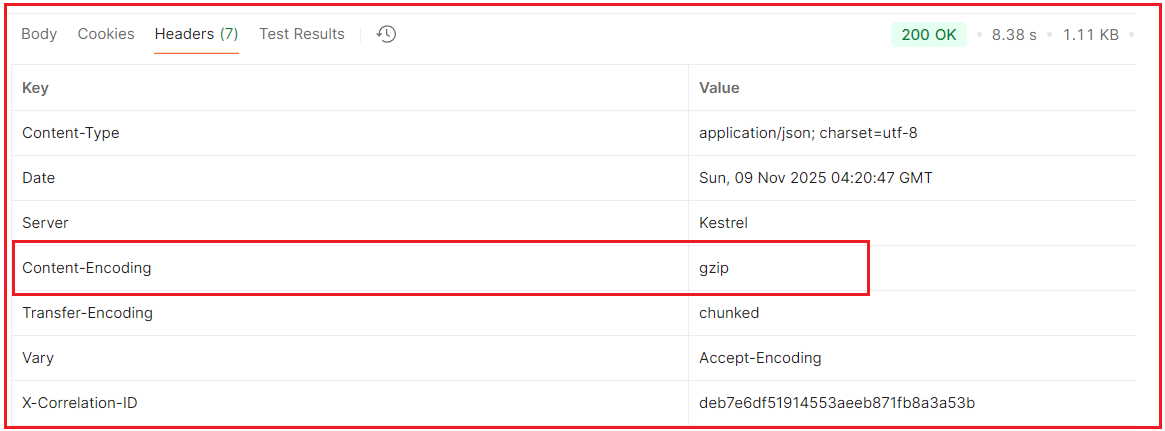
This confirms the API Gateway is successfully compressing outgoing responses.
Understanding Response Size in Postman:

Here,
- Response Size: Compressed response size (1.08 KB). This is the actual size downloaded by the client, including headers + compressed body.
- Response Headers: Size of HTTP headers (217 B). The metadata (status, content-type, encoding, etc.) is sent along with the body.
- Response Body: Compressed payload (888 B). The Gzip-compressed version of the JSON/text response.
- Uncompressed: Original payload size before compression (2.73 KB). Postman automatically decompresses it to show how large it would’ve been without compression.
Why Avoid Compressing Small or Binary Responses
Small Responses (<1 KB)
- Compression itself consumes CPU cycles.
- For very small text payloads, the CPU cost of compression and decompression is often greater than the bandwidth savings.
- In many cases, the compressed output is even larger than the original (because of Gzip headers and metadata).
- Example: compressing a 500 B JSON may produce a 600 B Gzip file.
Binary / Image / Already-Compressed Files
- Formats like .jpg, .png, .mp4, .zip, and .pdf are already compressed.
- Re-compressing them:
-
- Adds CPU overhead.
- Gives negligible (or negative) size savings.
- It may even slightly increase the file size because of wrapper overhead.
-
- Therefore, compression is valuable mainly for text-based formats (JSON, XML, HTML, CSV, etc.).
Enabling Advanced Conditional Compression
To make compression configurable (enable/disable, threshold size, and encoding preference), we will add a custom middleware and configuration section.
Add Compression Config Section in appsettings.json
Please modify the appsettings.json file as follows:
{
  "AllowedHosts": "*",

  "JwtSettings": {
    "Issuer": "UserService.API",
    "SecretKey": "fPXxcJw8TW5sA+S4rl4tIPcKk+oXAqoRBo+1s2yjUS4="
  },

  "Serilog": {
    "MinimumLevel": {
      "Default": "Information",
      "Override": {
        "Microsoft": "Error",
        "System": "Error",
        "Ocelot": "Error"
      }
    },

    "Properties": {
      "Application": "APIGateway",
      "Environment": "Development"
    },

    "WriteTo": [
      {
        "Name": "Async",
        "Args": {
          "configure": [
            {
              "Name": "Console",
              "Args": {
                "outputTemplate": "{Timestamp:yyyy-MM-dd HH:mm:ss} [{Level:u3}] [{Application}/{Environment}] CorrelationId={CorrelationId} {Message:lj}{NewLine}{Exception}"
              }
            }
          ]
        }
      },
      {
        "Name": "Async",
        "Args": {
          "configure": [
            {
              "Name": "File",
              "Args": {
                "path": "logs/UserService-.log",
                "rollingInterval": "Day",
                "retainedFileCountLimit": 30,
                "shared": true,
                "outputTemplate": "{Timestamp:yyyy-MM-dd HH:mm:ss} [{Level:u3}] [{Application}/{Environment}] CorrelationId={CorrelationId} {Message:lj}{NewLine}{Exception}"
              }
            }
          ]
        }
      }
    ]
  },

  "ServiceUrls": {
    "OrderService": "https://localhost:7082",
    "UserService": "https://localhost:7269",
    "ProductService": "https://localhost:7234",
    "PaymentService": "https://localhost:7154"
  },

  "CompressionSettings": {
    "Enabled": true,
    "CompressionThresholdBytes": 1024,
    "SupportedEncodings": [ "br", "gzip" ],
    "DefaultEncoding": "gzip"
  }
}
Code Explanation
- Enabled: Global switch to enable/disable compression.
- CompressionThresholdBytes: Minimum response size (bytes) before compression.
- SupportedEncodings: Algorithms supported by your API Gateway.
- DefaultEncoding: Fallback encoding if the client doesn’t specify one clearly.
Create a Strongly-Typed Configuration Class
First, create a folder named Models. Then, create a class file named CompressionSettings.cs within the Models folder and copy-paste the following code. This allows us to inject compression settings into the application anywhere via the Options pattern.
namespace APIGateway.Models
{
    public class CompressionSettings
    {
        public bool Enabled { get; set; } = true;
        public int CompressionThresholdBytes { get; set; } = 1024; // Default 1 KB
        public string[] SupportedEncodings { get; set; } = new[] { "br", "gzip" };
        public string DefaultEncoding { get; set; } = "gzip";
    }
}
Create a Custom Middleware Class
Create a class file named ConditionalResponseCompressionMiddleware.cs within the Middlewares folder of the API Gateway project and then copy-paste the following code. This middleware inspects every outgoing response and decides whether to compress it based on content type, size, and client capability.
using System.IO.Compression;
using Microsoft.Extensions.Options;
using APIGateway.Models;

namespace APIGateway.Middlewares
{
    // Middleware for conditional response compression at the API Gateway level.
    // - Uses a memory buffer to inspect the generated response.
    // - Applies Brotli or Gzip based on:
    //     * Client capabilities (Accept-Encoding)
    //     * Response size threshold
    //     * Allowed content types
    // - Respects dynamic settings via IOptionsMonitor (no restart needed for config changes).
    public class ConditionalResponseCompressionMiddleware
    {
        private readonly RequestDelegate _next;
        private readonly IOptionsMonitor<CompressionSettings> _settingsMonitor;

        public ConditionalResponseCompressionMiddleware(RequestDelegate next, IOptionsMonitor<CompressionSettings> settings)
        {
            _next = next;
            _settingsMonitor = settings;
        }

        public async Task InvokeAsync(HttpContext context)
        {
            // Always read the latest config so changes in appsettings (with reloadOnChange) are honored.
            var settings = _settingsMonitor.CurrentValue;

            // 1. Global toggle:
            // If compression is disabled via configuration, short-circuit and let the pipeline continue as-is.
            if (!settings.Enabled)
            {
                await _next(context);
                return;
            }

            // 2. Swap the response body with an in-memory buffer:
            // We let downstream components write to this buffer so we can:
            //   - Inspect size
            //   - Inspect content type
            //   - Decide whether and how to compress
            var originalBody = context.Response.Body;
            using var buffer = new MemoryStream();
            context.Response.Body = buffer;

            // 3. Execute the rest of the pipeline:
            // Controllers / endpoints run here and write their response into "buffer".
            await _next(context);

            // 4. Capture response metadata after execution.
            // At this point, the response body is fully available in the buffer.
            var contentType = context.Response.ContentType;
            var acceptEncoding = context.Request.Headers["Accept-Encoding"].ToString();

            // 5. Skip compression if:
            //  - Client did not send "Accept-Encoding" header (meaning it can’t handle compressed data)
            //  - Or the response content type is not suitable for compression (e.g., images, PDFs, videos)
            if (string.IsNullOrEmpty(acceptEncoding) ||
                !IsCompressibleContentType(contentType))
            {
                // Restore original stream and flush the uncompressed response.
                buffer.Position = 0;
                context.Response.Body = originalBody;
                await buffer.CopyToAsync(context.Response.Body);
                return;
            }

            // 6. Compress only if the response size exceeds the configured threshold
            // (e.g., 1 KB or 2 KB as specified in appsettings.json)
            if (buffer.Length > settings.CompressionThresholdBytes)
            {
                // Resolve which encoding to use based on:
                //   - Client's Accept-Encoding header.
                //   - SupportedEncodings + DefaultEncoding from configuration.
                var encoding = SelectEncoding(acceptEncoding, settings);

                // Ensure we read from the beginning.
                buffer.Position = 0;
                using var compressed = new MemoryStream();

                // 7. Perform the actual compression into the "compressed" stream.
                // Brotli: more efficient, preferred by modern clients.
                if (encoding.Equals("br", StringComparison.OrdinalIgnoreCase))
                {
                    using (var brotli = new BrotliStream(compressed, CompressionLevel.Optimal, leaveOpen: true))
                    {
                        await buffer.CopyToAsync(brotli);
                    }
                }
                // Gzip: widely supported, safe fallback.
                else if (encoding.Equals("gzip", StringComparison.OrdinalIgnoreCase))
                {
                    using (var gzip = new GZipStream(compressed, CompressionLevel.Optimal, leaveOpen: true))
                    {
                        await buffer.CopyToAsync(gzip);
                    }
                }
                else
                {
                    // If we end up with an encoding we don't handle,
                    // fall back to sending the original uncompressed response.
                    buffer.Position = 0;
                    context.Response.Body = originalBody;
                    await buffer.CopyToAsync(context.Response.Body);
                    return;
                }

                // 8. Update response headers:
                // Inform client which encoding is used and set Content-Length accordingly.
                context.Response.Headers["Content-Encoding"] = encoding;
                context.Response.ContentLength = compressed.Length;

                // 9. Write compressed payload to the real response stream.
                compressed.Position = 0;
                context.Response.Body = originalBody;
                await compressed.CopyToAsync(context.Response.Body);
            }
            else
            {
                // 10. Below threshold: send as-is without compression.
                // Restores original stream and copies buffered content.
                buffer.Position = 0;
                context.Response.Body = originalBody;
                await buffer.CopyToAsync(context.Response.Body);
            }
        }

        // Determines the preferred compression encoding based on the client’s Accept-Encoding header
        // and supported encodings defined in appsettings.json.
        private string SelectEncoding(string acceptEncoding, CompressionSettings settings)
        {
            // Prefer Brotli when:
            // - Client accepts "br"
            // - And "br" is enabled in configuration.
            if (acceptEncoding.Contains("br", StringComparison.OrdinalIgnoreCase) &&
                settings.SupportedEncodings.Contains("br", StringComparer.OrdinalIgnoreCase))
            {
                return "br";
            }

            // Otherwise, try Gzip under the same conditions.
            if (acceptEncoding.Contains("gzip", StringComparison.OrdinalIgnoreCase) &&
                settings.SupportedEncodings.Contains("gzip", StringComparer.OrdinalIgnoreCase))
            {
                return "gzip";
            }

            // As a safety net, use whatever DefaultEncoding is configured.
            return settings.DefaultEncoding;
        }

        // Determines whether a given content type is suitable for compression.
        // We compress only textual formats (JSON, XML, HTML, JavaScript, etc.)
        // and skip binary formats (images, PDFs, audio, video, etc.).
        private static bool IsCompressibleContentType(string? contentType)
        {
            if (string.IsNullOrEmpty(contentType))
                return false;

            // Allow only compressible MIME types
            return contentType.StartsWith("application/json", StringComparison.OrdinalIgnoreCase) ||
                   contentType.StartsWith("text/", StringComparison.OrdinalIgnoreCase) ||
                   contentType.StartsWith("application/xml", StringComparison.OrdinalIgnoreCase) ||
                   contentType.StartsWith("application/javascript", StringComparison.OrdinalIgnoreCase) ||
                   contentType.StartsWith("application/xhtml+xml", StringComparison.OrdinalIgnoreCase);
        }
    }
}
Register the Middleware in the Program.cs Clathe ss
In API Gateway Program.cs class file, we need to register the ConditionalResponseCompressionMiddleware. So, please modify the Program class file as follows. We no longer need the built-in AddResponseCompression() or UseResponseCompression() because our middleware provides a smarter, configurable version that supports both Brotli and Gzip.
using APIGateway.Middlewares;
using APIGateway.Models;
using APIGateway.Services;
using Microsoft.AspNetCore.Authentication.JwtBearer;
using Microsoft.AspNetCore.ResponseCompression;
using Microsoft.IdentityModel.Tokens;
using Newtonsoft.Json.Serialization;
using Ocelot.DependencyInjection;
using Ocelot.Middleware;
using Serilog;
using System.IO.Compression;
using System.Text;

namespace APIGateway
{
    public class Program
    {
        public static async Task Main(string[] args)
        {
            var builder = WebApplication.CreateBuilder(args);

            // MVC Controllers + Newtonsoft JSON Configuration
            builder.Services
                .AddControllers()
                .AddNewtonsoftJson(options =>
                {
                    options.SerializerSettings.ContractResolver = new DefaultContractResolver
                    {
                        NamingStrategy = new DefaultNamingStrategy()
                    };
                });

            // Bind CompressionSettings section to our model using opions pattern
            builder.Services.Configure<CompressionSettings>(
                builder.Configuration.GetSection("CompressionSettings"));

            // Ocelot Configuration (API Gateway Routing Layer)
            builder.Configuration.AddJsonFile("ocelot.json", optional: false, reloadOnChange: true);
            builder.Services.AddOcelot(builder.Configuration);

            // Structured Logging Setup (Serilog)
            Log.Logger = new LoggerConfiguration()
                .ReadFrom.Configuration(builder.Configuration)
                .Enrich.FromLogContext()
                .CreateLogger();

            builder.Host.UseSerilog(); // Replace default .NET logger with Serilog.

            builder.Services.AddEndpointsApiExplorer();
            builder.Services.AddSwaggerGen();

            // JWT Authentication (Bearer Token Validation)
            builder.Services
                .AddAuthentication(options =>
                {
                    // Define the default authentication scheme as Bearer
                    options.DefaultAuthenticateScheme = JwtBearerDefaults.AuthenticationScheme;
                    options.DefaultChallengeScheme = JwtBearerDefaults.AuthenticationScheme;
                })
                .AddJwtBearer(options =>
                {
                    // Token validation configuration
                    options.TokenValidationParameters = new TokenValidationParameters
                    {
                        ValidateIssuer = true,
                        ValidIssuer = builder.Configuration["JwtSettings:Issuer"],

                        // We’re not validating audience because microservices share same gateway.
                        ValidateAudience = false,

                        // Enforce token expiry check
                        ValidateLifetime = true,

                        // Ensure token signature integrity using secret key
                        ValidateIssuerSigningKey = true,
                        IssuerSigningKey = new SymmetricSecurityKey(
                            Encoding.UTF8.GetBytes(builder.Configuration["JwtSettings:SecretKey"]!)
                        ),

                        // No extra grace period for expired tokens
                        ClockSkew = TimeSpan.Zero
                    };
                });

            builder.Services.AddAuthorization(); // Enables [Authorize] attributes.

            // Downstream Microservice Clients (typed HttpClientFactory)
            var urls = builder.Configuration.GetSection("ServiceUrls");

            builder.Services.AddHttpClient("OrderService", c =>
            {
                c.BaseAddress = new Uri(urls["OrderService"]!);
            });

            builder.Services.AddHttpClient("UserService", c =>
            {
                c.BaseAddress = new Uri(urls["UserService"]!);
            });

            builder.Services.AddHttpClient("ProductService", c =>
            {
                c.BaseAddress = new Uri(urls["ProductService"]!);
            });

            builder.Services.AddHttpClient("PaymentService", c =>
            {
                c.BaseAddress = new Uri(urls["PaymentService"]!);
            });

            // Custom Aggregation Service Registration
            builder.Services.AddScoped<IOrderSummaryAggregator, OrderSummaryAggregator>();

            var app = builder.Build();

            // Swagger (API Explorer for development/debugging)
            if (app.Environment.IsDevelopment())
            {
                app.UseSwagger();
                app.UseSwaggerUI();
            }

            app.UseHttpsRedirection();

            // Custom conditional compression middleware
            app.UseMiddleware<ConditionalResponseCompressionMiddleware>();

            // Global Cross-Cutting Middleware
            app.UseCorrelationId();
            app.UseRequestResponseLogging();

            // BRANCH 1: Custom Aggregated Endpoints (/gateway/*)
            app.MapWhen(
                ctx => ctx.Request.Path.StartsWithSegments("/gateway", StringComparison.OrdinalIgnoreCase),
                gatewayApp =>
                {
                    // Enable endpoint routing for this sub-pipeline
                    gatewayApp.UseRouting();

                    // Apply authentication & authorization
                    gatewayApp.UseAuthentication();
                    gatewayApp.UseAuthorization();

                    // Register controller actions under this branch
                    gatewayApp.UseEndpoints(endpoints =>
                    {
                        endpoints.MapControllers();
                    });
                });

            // BRANCH 2: Ocelot Reverse Proxy
            app.UseAuthentication();

            // Middleware for pre-validation of Bearer tokens (optional)
            app.UseGatewayBearerValidation();

            // Ocelot middleware handles routing, transformation, and load-balancing
            await app.UseOcelot();

            // Start the Application
            app.Run();
        }
    }
}
When Should You Use Response Compression?
Response Compression should be enabled by default in most modern API Gateways, but it becomes especially important in the following situations:
- When your APIs return large JSON responses (product lists, reports, analytics data).
- When your users are mostly on mobile or low-bandwidth networks.
- When you want to optimize data transfer between the Gateway and the client.
- When your API Gateway is a public entry point serving many users worldwide.
In these cases, compression can dramatically improve performance without adding much overhead.
When You Should Avoid Compression
Compression isn’t always beneficial. There are a few situations where it should be turned off:
- Already Compressed Files: Don’t compress content like images, videos, ZIP files, or PDFs. They’re already compressed; recompressing them wastes CPU time and can even increase file size.
- Small Responses (<1 KB): Tiny JSON or text files don’t benefit much from compression. The time taken to compress them can outweigh the savings.
- Binary File Transfers: Binary formats (like .exe, .jpg, .mp4) are not ideal for compression and can slow things down rather than speed them up.
A good rule of thumb is: Compress large text-based data, skip binary or tiny files.
Real-Time Scenarios in E-Commerce Microservices
Product Listing API
The /api/products endpoint often returns hundreds or thousands of product records, names, prices, images, and details.
- Without compression, this can easily exceed several megabytes.
- With Gzip enabled at the API Gateway, that same response might shrink by up to 80%, drastically improving response speed for end users.
Order History API
When a customer checks their past orders:
- The Order Service returns multiple orders, each containing product and payment info.
- The total payload size may reach 500 KB or more.
By enabling compression, the API Gateway reduces the payload to 100–150 KB, resulting in smoother mobile experiences and lower network usage.
Admin Reports API
Admin dashboards typically request large analytical data, total sales, top-selling items, user activity, refunds, etc. Since these reports are text-heavy (JSON), compressing them before sending speeds up loading and improves dashboard performance.
Search and Filter API
Search endpoints often return dynamic data with multiple filters applied. Response Compression helps ensure that even when large search results are returned, users see results quickly without delay.
Conclusion
Response Compression in API Gateway is a simple yet powerful optimization that improves API performance and efficiency. It’s especially useful in systems like our E-Commerce Microservices Architecture, where large JSON payloads are frequently transmitted between services and clients.
Enabling compression makes your Gateway smarter. It delivers smaller payloads, faster responses, and smoother user experiences without changing the underlying business logic.