
Back to: Microservices using ASP.NET Core Web API Tutorials
Response Caching in API Gateway using Redis Distributed Cache
Response Caching in an API Gateway is a performance optimization technique that stores the results of frequently requested data in a cache (temporary storage) so that subsequent identical requests can be served much faster, without hitting the backend microservices repeatedly.
In a Microservices architecture, multiple backend services, such as Product, Order, and User, are frequently requested by the client. Many of these responses do not change often, such as:
- Product list
- Category list
- Country, State, and Cities
- Static configuration
Calling these services repeatedly increases network load, increases overall response time, and puts unnecessary pressure on microservices. This is where Response Caching at the API Gateway becomes extremely valuable. Instead of calling downstream services every time, the API Gateway:
- Checks if the data exists in cache
- If yes → Returns cached response instantly
- If no → Calls downstream service → Stores response in Redis → Returns response
The API Gateway becomes a smart edge caching layer, returning cached results instantly without hitting downstream microservices. When combined with Redis, a distributed in-memory cache, this caching mechanism becomes robust, scalable, and fault-tolerant across multiple API Gateway instances.
What is Response Caching?
Response caching means the API Gateway stores a copy of a microservice response in a fast-access memory (cache). When the same request comes again (with identical parameters), the Gateway returns the cached response instead of forwarding it to the microservice. This reduces:
- Load on backend services
- Latency
- Database hits
- Network usage
- CPU usage
Caching gives the user a faster, smoother, high-performance experience. For example:
- A GET request for /api/products/electronics is called frequently.
- The Gateway caches the response for 60 seconds.
- Any subsequent identical requests within that 60-second window will be served directly from cache, skipping the ProductService call entirely.
Why Use Response Caching at the Gateway Layer?
While individual microservices can implement their own caching, centralizing it at the API Gateway offers multiple advantages:
- Unified Control: All cache policies (duration, invalidation, size) are managed centrally.
- Reduced Backend Load: Avoids repeated downstream calls for the same data.
- Improved Latency: Cached responses are served instantly.
- Scalable Performance: Redis supports distributed caching across multiple gateway nodes.
- Better User Experience: Faster response time leads to smoother client interaction.
For example, product catalog data or read-heavy endpoints like /api/categories, /api/offers, or /api/trending benefit greatly from gateway-level caching.
Where Should We Use Response Caching?
Caching should be applied only to safe and idempotent requests, primarily:
- GET requests.
- Responses that don’t change frequently (static or semi-static data).
Examples:
- GET Product list
- GET Product details
- GET Category list
- GET Order summary pages
- GET Locations / States / Countries
- GET Trending products
- GET Home page content
Do not cache:
- POST/PUT/DELETE endpoints.
- User-specific or dynamic data.
- Sensitive data.
Examples:
- Payment status
- OTP generation
- Order creation
- Cart update
- Login / Register
How Response Caching Works
Here is how it works.
Step 1: Client hits the API Gateway
The client sends a request to the API Gateway Example: GET /products/list
Step 2: Gateway checks Redis for a cached response
The Gateway checks Redis to see if there’s already a cached response for that request’s key.
- Redis key is based on URL + Query Parameters + Headers (optional)
- If found → return cached response instantly
Step 3: If the cache is missing
- Gateway forwards the request to the downstream service
- Microservice returns the response to the API Gateway.
- Gateway stores it in Redis with an expiration time.
Step 4: Future requests
- Future requests with the same key will hit the cache until it expires
- Microservices remain free for actual heavy operations
Setting up Redis on Windows 10/11
Redis is an open-source, in-memory data structure store that is often used as a high-performance cache, database, or message broker. Although Redis was initially designed for Unix-like systems (Linux and macOS), it can still be run on Windows using a compatible build or Windows Subsystem for Linux (WSL). Here, we’ll walk through how to set it up using the Microsoft-maintained Windows-compatible version.
Download the Windows-Compatible Version of Redis:
Please visit the following GitHub URL to download a Windows-compatible version of Redis supported by Microsoft:
https://github.com/microsoftarchive/redis/releases/tag/win-3.0.504
Once you visit the URL above, the page below will open. From this page, download the Redis-x64-3.0.504.zip file from the GitHub Repo on your machine, as shown in the page below.
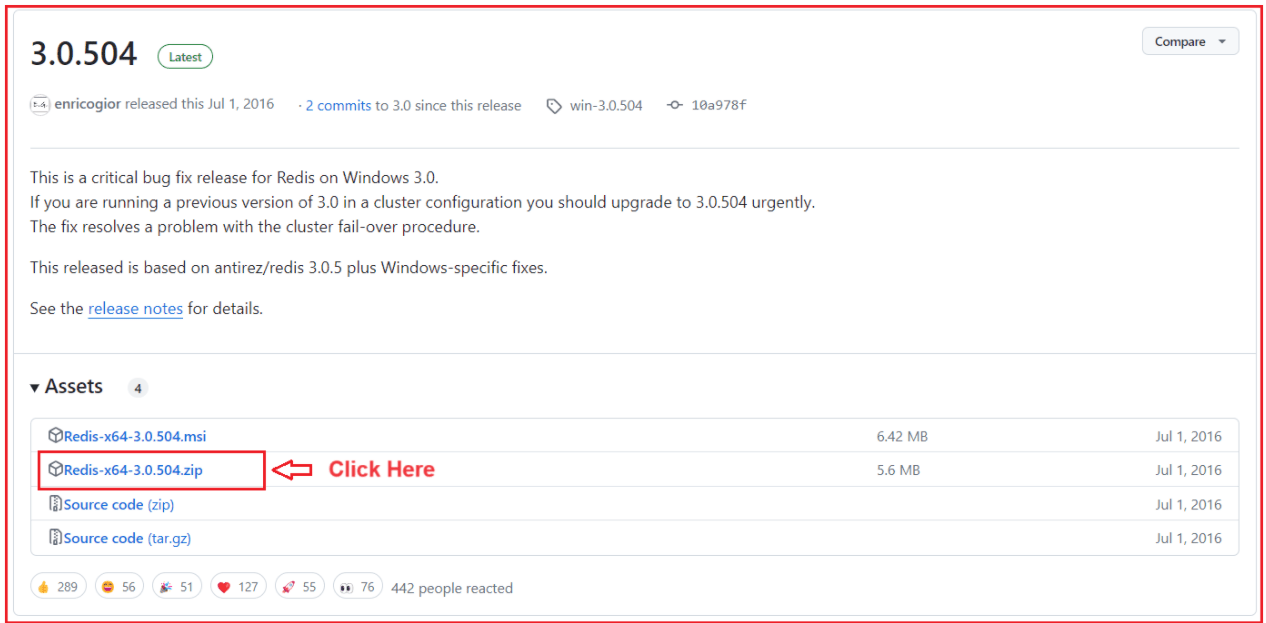
Note: This is an older Windows-compatible build, but it works reliably for development and testing. For production use, it’s better to run Redis on Linux or through Docker.
Extract the ZIP File:
Once you click on the Redis-x64-3.0.504.zip link from the GitHub page, the ZIP file will begin downloading to your system. After the download completes, navigate to the folder where the file is saved, for example, your Downloads folder, and extract it to a preferred location such as C:\Redis.
To extract:
- Right-click the ZIP file and select “Extract All…”, or use a tool like WinRAR or 7-Zip.
- Choose a destination folder, e.g., C:\Redis, and click Extract.
- Once extraction completes, open the newly created C:\Redis folder.
You should now see several files similar to the ones shown in the image below:
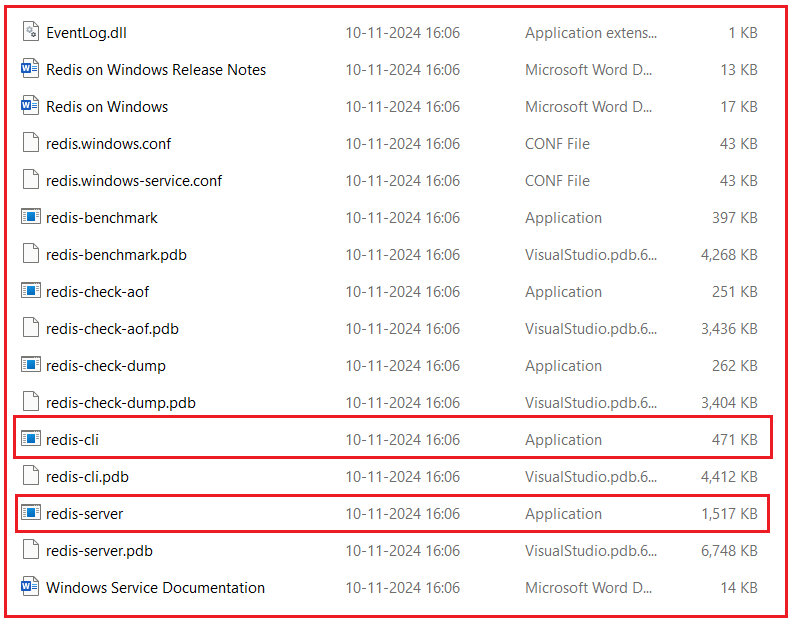
Extracted Redis Folder:
This folder contains all the components needed to run Redis on Windows. Among these, two executables are most important:
- redis-server.exe → This is the Redis Server program. When you double-click it, it launches the actual Redis service that listens on the default port 6379. This process keeps your Redis database running in memory, ready to accept connections and store data.
- redis-cli.exe → This is the Redis Command Line Interface (CLI). It’s a lightweight tool that lets you communicate with a running Redis server. You can use it to test the connection, run commands, and inspect data stored in Redis.
Other files in the folder (such as .conf, .pdb, and .dll files) support configuration, debugging, and service installation:
- .conf files define server configuration settings (such as port numbers, log paths, and memory limits).
- .pdb files contain debugging symbols, used mainly for development.
- .dll files are dynamic libraries that Redis depends on to run.
Start the Redis Server:
After extracting Redis, navigate to the folder where you have placed it, for example, C:\Redis. Inside this folder, you’ll find the executable file named redis-server.exe, which is responsible for launching the Redis database engine.
To start the Redis server:
- Double-click redis-server.exe.
- A new command prompt window will open, displaying Redis initialization messages.
- You’ll see an ASCII Redis logo, version details, the process ID (PID), and the port number Redis is listening on.
Here’s what the console window looks like when Redis starts successfully:

When you see this message: The server is now ready to accept connections on port 6379, it confirms that Redis has started successfully and is ready to handle requests.
Redis runs by default in standalone mode and listens on port 6379, which is the standard communication port used by most Redis clients and applications. As long as this window remains open, the Redis server will continue running and accepting connections from clients such as redis-cli.exe or from your ASP.NET Core Web API.
Important Note: Do not close this console window while you are testing or developing your application; closing it will immediately stop the Redis server.
Finally, remember the port number (6379) because we will use it in our ASP.NET Core application to communicate with the Redis server.
Test the Redis Server:
Once your Redis server is up and running (after you have started redis-server.exe), you can verify whether it’s working correctly by using the Redis Command Line Interface (CLI) tool, redis-cli.exe.
To do this:
- Open the folder where Redis was extracted (for example, C:\Redis).
- Double-click on redis-cli.exe to launch the command-line interface.
- By default, it automatically connects to the Redis server running on localhost (127.0.0.1) and the default port 6379.
When the CLI window opens, you will see a prompt similar to this:
- 127.0.0.1:6379>
This means the CLI is connected to the Redis instance running on your local machine at port 6379. Now, to check whether the Redis server is active and accepting commands, type the following command and press Enter:
- PING
If everything is set up correctly, you should see the response:
- PONG
This confirms that:
- The Redis server is running successfully.
- The client (redis-cli) can communicate with the server.
- The default port (6379) is open and accessible.
For a better understanding, please have a look at the image below.
Here:
- 127.0.0.1 represents your local machine’s loopback address (equivalent to localhost).
- 6379 is the default Redis communication port.
- The PING command checks server responsiveness.
- The PONG response indicates that the server is healthy and ready for further commands.
Basic Redis Commands:
Once Redis is running successfully, you can start interacting with it using its command-line interface (redis-cli.exe). Redis follows a key-value data storage model, similar to a dictionary in programming, where you store a value under a specific key and later retrieve or delete it using that same key. Let’s go through some of the most important basic commands with a real example.
Set a Value
Command: SET Country “India”
This command stores a value (“India”) in Redis under the key Country. If the key already exists, Redis overwrites the existing value with the new one. Once you press Enter, Redis responds with:
- OK
This indicates that the value has been successfully stored in memory. Internally, Redis holds this key-value pair in RAM, making it extremely fast to read and write. You can think of this as saving a variable in memory for later use.
Get a Value
Command: GET Country
This command retrieves the value stored under the key Country. Since we previously stored “India” with the SET command, Redis will respond with:
- “India”
This confirms that Redis successfully saved and can retrieve the data. If you try to GET a key that doesn’t exist, Redis simply returns:
- (nil)
which means no data is associated with that key.
Delete a Key
Command: DEL Country
This command deletes the key Country and its associated value from Redis. Once deleted, you can no longer retrieve it using the GET command. Redis responds with:
- (integer) 1
The number 1 indicates that one key was successfully deleted. If you try deleting a key that doesn’t exist, Redis will return (integer) 0, meaning no keys were deleted.
For a better understanding, please have a look at the following image.
List All Keys
Command: KEYS *
This command returns all keys currently stored in Redis. It helps check what data is available.
However, this command should only be used for testing or debugging, not in production, because it scans the entire database, which can slow down Redis if there are many keys.
For example, after running SET Country “India”, the command: KEYS * will return:
- “Country”
Integrating Redis Cache in ASP.NET Core Web API:
After successfully installing and running Redis, the next step is to integrate it into your API Gateway project to cache responses from downstream microservices. This improves performance, reduces load on backend APIs, and provides faster response times for repeated requests.
Step 1: Install Required Packages
To connect your ASP.NET Core project with Redis, you need to install the Microsoft.Extensions.Caching.StackExchangeRedis package. This library provides the official Redis cache provider integration for the .NET distributed caching abstraction (IDistributedCache).
Please run the following command in Visual Studio Package Manager Console. While executing the command, please select the API Gateway Project.
- Install-Package Microsoft.Extensions.Caching.StackExchangeRedis
This package enables .NET Core to use StackExchange.Redis, which is the most efficient and widely used Redis client library for .NET. Once installed, you can inject and use IDistributedCache anywhere in your project, including custom middlewares and services.
Step 2: Add Redis Configuration in appsettings.json
Next, you must provide Redis connection details and caching configuration inside the appsettings.json file of your API Gateway project. Please add the following section to the appsettings.json file of your API Gateway project.
"RedisCacheSettings": {
  "Enabled": true,
  "ConnectionString": "localhost:6379",
  "InstanceName": "APIGatewayCache:",
  "DefaultCacheDurationInSeconds": 60,
  // Endpoint-level cache durations
  "CachePolicies": {
    "/products/products": 180,
    "/products/products/": 0
  }
}
Explanation:
- Enabled: Turns caching on or off globally. When set to true, caching is active; when false, all caching logic is skipped.
- ConnectionString: Defines where the Redis server is located and how to connect. For example, “localhost:6379” connects to a local Redis instance.
- InstanceName: Adds a prefix to all cache keys created by this application. Useful to prevent key conflicts when multiple apps share the same Redis server.
- DefaultCacheDurationInSeconds: Sets the default lifespan (TTL) for cached responses when no specific duration is defined in CachePolicies.
- CachePolicies: Specifies which endpoints should be cached and for how long. Each key is an endpoint path, and each value is its cache duration (in seconds). Endpoints not listed here won’t be cached.
Step 3: Register Redis Cache in the Program.cs:
After defining the configuration, register the Redis cache service in the Program.cs file. This allows the application to communicate with Redis and store data centrally rather than in memory. So, please add the following code to the Program class.
// Register Redis as the distributed caching provider for the API Gateway.
//    This allows our middleware (and any service) to store and retrieve cache data
//    in a centralized Redis instance instead of in-memory cache.
builder.Services.AddStackExchangeRedisCache(options =>
{
    // The connection string defines how our app connects to the Redis server.
    //    Example format: "localhost:6379" (for local Redis)
    //    or "redis:6379,password=yourpassword,ssl=False,abortConnect=False" (for containerized/remote setup)
    //    The value is read from appsettings.json → "RedisCacheSettings:ConnectionString".
    options.Configuration = builder.Configuration["RedisCacheSettings:ConnectionString"];

    // The instance name is an optional logical prefix used to differentiate keys
    //    when multiple applications share the same Redis server.
    //    Example: If InstanceName = "ApiGateway_", all cache keys will start with that prefix.
    //    This helps prevent key collisions between different microservices or environments.
    options.InstanceName = builder.Configuration["RedisCacheSettings:InstanceName"];
});
This configuration makes the IDistributedCache service available throughout our application. Any component, including custom middleware, can now use it to set, get, or remove cached responses directly from Redis.
Step 4: Create a ResponseCachingMiddleware
Now that Redis is registered, create a custom middleware that intercepts incoming HTTP requests, checks whether a cached version exists in Redis, and either returns it immediately or caches the response for future requests.
This middleware ensures that your Gateway automatically handles caching without modifying individual controllers or services. So, create a new class file named ResponseCachingMiddleware.cs within the Middlewares folder, and copy-paste the following code.
using Microsoft.Extensions.Caching.Distributed;
namespace APIGateway.Middlewares
{
    // Custom middleware responsible for handling response caching
    // at the API Gateway level using Redis Distributed Cache.
    public class ResponseCachingMiddleware
    {
        private readonly RequestDelegate _next;
        private readonly IDistributedCache _cache;
        private readonly IConfiguration _config;
        private readonly ILogger<ResponseCachingMiddleware> _logger;

        public ResponseCachingMiddleware(RequestDelegate next, IDistributedCache cache, IConfiguration config, ILogger<ResponseCachingMiddleware> logger)
        {
            _next = next;
            _cache = cache;
            _config = config;
            _logger = logger;
        }

        public async Task InvokeAsync(HttpContext context)
        {
            // STEP 1: Check if caching is applicable for this request
            // Caching applies only to GET requests and only when globally enabled in appsettings.json.
            if (context.Request.Method != HttpMethods.Get ||
                !_config.GetValue<bool>("RedisCacheSettings:Enabled"))
            {
                // Move to the next middleware if conditions not met (no caching for POST/PUT/DELETE)
                await _next(context);
                return;
            }

            // STEP 2: Load per-endpoint cache configuration
            // CachePolicies defines which endpoints are cacheable and their TTL (in seconds).
            var cachePolicies = _config
                .GetSection("RedisCacheSettings:CachePolicies")
                .Get<Dictionary<string, int>>() ?? new();

            // Convert current request path to lowercase for case-insensitive matching
            var requestPath = context.Request.Path.Value?.ToLowerInvariant() ?? string.Empty;

            // STEP 3: Identify if current endpoint is explicitly configured for caching
            // We use StartsWith() to allow prefix matches (e.g., /products/products/123 → /products/products/)
            var matchedPolicy = cachePolicies
                .FirstOrDefault(p => requestPath.StartsWith(p.Key.ToLowerInvariant()));

            if (matchedPolicy.Key == null)
            {
                // If the route isn’t listed in CachePolicies → skip caching logic completely
                await _next(context);
                return;
            }

            // STEP 4: Determine the cache duration (TTL)
            // If a TTL is defined in CachePolicies, use it. Otherwise, fall back to DefaultCacheDurationInSeconds.
            var cacheDuration = matchedPolicy.Value > 0
                ? matchedPolicy.Value
                : _config.GetValue<int>("RedisCacheSettings:DefaultCacheDurationInSeconds");

            // STEP 5: Generate a unique and deterministic cache key
            // Key format → METHOD:/route/path?sortedQueryParameters
            var cacheKey = GenerateCacheKey(context);

            // STEP 6: Attempt to fetch the cached response from Redis
            string? cachedResponse = null;
            try
            {
                cachedResponse = await _cache.GetStringAsync(cacheKey);
            }
            catch (Exception ex)
            {
                // Important: swallow Redis errors, just log and treat as cache miss
                _logger.LogWarning(ex,
                    $"Redis GET failed for key {cacheKey}. Proceeding without cached response.");
            }

            if (!string.IsNullOrEmpty(cachedResponse))
            {
                // If found → directly return cached content to client (bypass microservice call)
                context.Response.ContentType = "application/json";
                await context.Response.WriteAsync(cachedResponse);
                return;
            }

            // STEP 7: Capture the downstream (microservice) response for caching
            // Temporarily replace the response stream to intercept output
            var originalBodyStream = context.Response.Body;
            using var memoryStream = new MemoryStream();
            context.Response.Body = memoryStream;

            // Call the next middleware (which will eventually invoke the microservice)
            await _next(context);

            // STEP 8: Cache the response only if the request succeeded (HTTP 200 OK)
            if (context.Response.StatusCode == StatusCodes.Status200OK)
            {
                // Read response content from the memory stream
                memoryStream.Seek(0, SeekOrigin.Begin);
                var responseBody = await new StreamReader(memoryStream).ReadToEndAsync();

                // Store response in Redis with the computed TTL
                try
                {
                    await _cache.SetStringAsync(cacheKey, responseBody, new DistributedCacheEntryOptions
                    {
                        AbsoluteExpirationRelativeToNow = TimeSpan.FromSeconds(cacheDuration)
                    });
                }
                catch (Exception ex)
                {
                    Console.WriteLine($"Redis GET failed for key {cacheKey}. Proceeding without cached response.");
                    // Again, FAIL-OPEN: log but do not break the request
                    _logger.LogWarning(ex,
                        "Redis SET failed for key {CacheKey}. Response will not be cached.", cacheKey);
                }

                // Reset the stream and copy response back to the original output stream
                memoryStream.Seek(0, SeekOrigin.Begin);
                await memoryStream.CopyToAsync(originalBodyStream);
            }

            // STEP 9: Restore the original response stream to continue pipeline execution
            context.Response.Body = originalBodyStream;
        }

        // Generates a normalized cache key based on HTTP method, path, and sorted query parameters.
        // Example:
        //   Request:  GET /products/products?pageSize=20&pageNumber=1
        //   CacheKey: GET:/products/products?pagenumber=1&pagesize=20
        private static string GenerateCacheKey(HttpContext context)
        {
            var request = context.Request;
            var method = request.Method.ToUpperInvariant();
            var path = request.Path.Value?.ToLowerInvariant() ?? string.Empty;

            // Sort and encode query parameters to ensure consistent key generation
            var query = request.Query
                .OrderBy(q => q.Key)
                .Select(q =>
                    $"{Uri.EscapeDataString(q.Key.ToLowerInvariant())}={Uri.EscapeDataString(q.Value)}");

            var queryString = string.Join("&", query);

            // Include query string only if present (avoid trailing '?')
            return string.IsNullOrEmpty(queryString)
                ? $"{method}:{path}"
                : $"{method}:{path}?{queryString}";
        }
    }
}
Step 5: Create a ResponseCachingMiddlewareExtensions
To make your middleware registration cleaner and reusable, create an extension method for IApplicationBuilder. So, create a new class file named ResponseCachingMiddlewareExtensions.cs within the Extensions folder, and copy-paste the following code:
using APIGateway.Middlewares;

namespace APIGateway.Extensions
{
    // Provides a clean and reusable extension method
    // to register the custom Response Caching Middleware
    // into the ASP.NET Core request processing pipeline.
    public static class ResponseCachingMiddlewareExtensions
    {
        public static IApplicationBuilder UseRedisResponseCaching(this IApplicationBuilder builder)
        {
            // Register the custom middleware in the pipeline.
            // When invoked, ASP.NET Core will automatically create and inject
            // all required dependencies (IDistributedCache, IConfiguration, etc.)
            // for the ResponseCachingMiddleware constructor.
            return builder.UseMiddleware<ResponseCachingMiddleware>();
        }
    }
}
Step 6: Register Middleware in Program.cs
Finally, activate your middleware in the ASP.NET Core request pipeline. Place the middleware before Ocelot but after logging:
// Enable Redis-based Response Caching
app.UseRedisResponseCaching();
Now run the applications and test the Get All products endpoints; it should work as expected.
So, integrating Redis into the ASP.NET Core API Gateway enables efficient response caching, significantly improving performance and scalability. By storing frequently accessed data in Redis, the Gateway can serve repeated requests faster, reduce load on downstream microservices, and deliver a smoother user experience. This setup ensures centralized, distributed caching that is both reliable and easy to manage across multiple services.