
Back to: Microservices using ASP.NET Core Web API Tutorials
Preparing the ASP.NET Core Web API Project for CI/CD
In this chapter, we will prepare a real ASP.NET Core Web API project that will be used throughout the remaining chapters. The main goal here is not automation yet. The goal is to create a clean base project, understand the basic project flow, connect it to Git and GitHub, and first manually publish and deploy it. Once we clearly understand the manual process, CI/CD becomes much easier to understand.
What We Will Build in This Chapter
Now, we will create a simple project named StudentManagement.API. This project will be small on purpose. We do not need database complexity here, as the focus is on CI/CD preparation, not business logic. We just need a clean project that can:
- Run successfully in Visual Studio
- Expose a few API endpoints
- Return data
- Support health checking
- Be committed to Git
- Be pushed to GitHub
- Be published
- Be deployed to IIS
This project will become the base project for the next chapters.
Step 1: Create the ASP.NET Core Web API Project in Visual Studio
Open Visual Studio and follow these steps:
- Click Create a new project
- Select ASP.NET Core Web API
- Click Next
- Project name: StudentManagement.API
- Choose a suitable location
- Click Next
- Framework: .NET 8
- Authentication Type: None
- Configure for HTTPS: Checked
- Enable OpenAPI support: Checked
- Use controllers: Checked
- Click Create
Step 2: Clean the Default Template and Prepare Our Base Project
Most Web API templates come with a sample WeatherForecast controller. It is always better to replace that with something meaningful.
Delete the Default Files
Delete the following default files if they exist:
- WeatherForecast.cs
- WeatherForecastController.cs
Now we will create our own simple project structure.
Create the Following Folders
Inside the project, add these folders:
- Controllers, if not already created.
- Models
- Services
Step 3: Add the Model Class
Create a new class inside the Models folder named Student.cs. We are keeping the model very simple because the goal is not domain complexity. We only need enough functionality to verify that the API can be built, run, published, and deployed properly.
namespace StudentManagement.API.Models
{
    public class Student
    {
        public int Id { get; set; }
        public string Name { get; set; } = string.Empty;
        public string Email { get; set; } = string.Empty;
        public string Course { get; set; } = string.Empty;
    }
}
Step 4: Add the Service Interface
Inside the Services folder, add an interface named IStudentService.cs. This interface defines the operations our service will support.
using StudentManagement.API.Models;
namespace StudentManagement.API.Services
{
    public interface IStudentService
    {
        List<Student> GetAll();
        Student? GetById(int id);
        Student Add(Student student);
    }
}
Step 5: Add the Service Implementation
Inside the Services folder, add a class named StudentService.cs. We are not adding SQL Server yet because our focus here is project preparation for CI/CD. We need a small but working application.
using StudentManagement.API.Models;
namespace StudentManagement.API.Services
{
    public class StudentService : IStudentService
    {
        private static readonly List<Student> Students = new()
        {
            new Student { Id = 1, Name = "Anil", Email = "anil@example.com", Course = "ASP.NET Core" },
            new Student { Id = 2, Name = "Rina", Email = "rina@example.com", Course = "C#" }
        };

        public List<Student> GetAll()
        {
            return Students;
        }

        public Student? GetById(int id)
        {
            return Students.FirstOrDefault(x => x.Id == id);
        }

        public Student Add(Student student)
        {
            student.Id = Students.Max(x => x.Id) + 1;
            Students.Add(student);
            return student;
        }
    }
}
Step 6: Add the Students Controller
Inside the Controllers folder, add a controller named StudentsController.cs. This provides enough API functionality to properly test the project.
using Microsoft.AspNetCore.Mvc;
using StudentManagement.API.Models;
using StudentManagement.API.Services;
namespace StudentManagement.API.Controllers
{
    [Route("api/[controller]")]
    [ApiController]
    public class StudentsController : ControllerBase
    {
        private readonly IStudentService _studentService;

        public StudentsController(IStudentService studentService)
        {
            _studentService = studentService;
        }

        [HttpGet]
        public IActionResult GetAll()
        {
            var students = _studentService.GetAll();
            return Ok(students);
        }

        [HttpGet("{id}")]
        public IActionResult GetById(int id)
        {
            var student = _studentService.GetById(id);

            if (student == null)
            {
                return NotFound($"Student with Id {id} not found.");
            }

            return Ok(student);
        }

        [HttpPost]
        public IActionResult Create(Student student)
        {
            var createdStudent = _studentService.Add(student);
            return CreatedAtAction(nameof(GetById), new { id = createdStudent.Id }, createdStudent);
        }
    }
}
Step 7: Add a Health Endpoint for Future Deployment Validation
Later, when we deploy through CI/CD, we will need a simple endpoint to confirm that the API is alive after deployment. Create a new controller named HealthController.cs within the Controllers folder.
using Microsoft.AspNetCore.Mvc;
namespace StudentManagement.API.Controllers
{
    [Route("api/[controller]")]
    [ApiController]
    public class HealthController : ControllerBase
    {
        [HttpGet]
        public IActionResult Get()
        {
            return Ok(new
            {
                Status = "Healthy",
                Message = "Student Management API is running successfully."
            });
        }
    }
}
Step 8: Update Program.cs
Now open Program.cs and update it as follows:
using StudentManagement.API.Services;
namespace StudentManagement.API
{
    public class Program
    {
        public static void Main(string[] args)
        {
            var builder = WebApplication.CreateBuilder(args);

            // Add services to the container.
            builder.Services.AddControllers()
                .AddJsonOptions(options =>
                {
                    // This will use the property names as defined in the C# model
                    options.JsonSerializerOptions.PropertyNamingPolicy = null;
                });

            builder.Services.AddEndpointsApiExplorer();
            builder.Services.AddSwaggerGen();

            // Register application services
            builder.Services.AddSingleton<IStudentService, StudentService>();

            var app = builder.Build();

            // Configure the HTTP request pipeline.
            if (app.Environment.IsDevelopment())
            {
                app.UseSwagger();
                app.UseSwaggerUI();
            }

            app.UseHttpsRedirection();

            app.UseAuthorization();

            app.MapControllers();

            app.Run();
        }
    }
}
Step 9: Run and Test the Project
Run the project and test the following endpoints:
- GET /api/students
- GET /api/students/1
- POST /api/students
- GET /api/health
You can test them using:
- Swagger UI
- Postman
- Browser for GET requests
Example POST Request Body
{
  "Name": "Suman",
  "Email": "suman@example.com",
  "Course": "CI/CD with .NET"
}
Step 10: Understand Build, Rebuild, Publish, and Deploy
Build
Build compiles the code and checks whether the application has any compile-time errors. In Visual Studio:
- Click Build
- Then click Build Solution
- If there is a syntax error, the build will fail
- If everything is correct, the build will succeed
So, Build means Visual Studio compiles the code and checks whether the project can be converted into executable output.
Rebuild
Rebuild first cleans the old compiled files and then builds the solution again from scratch. In Visual Studio:
- Click Build
- Then click Rebuild Solution
Use Rebuild when you want a fresh compile and do not want to depend on old generated files.
Publish
Publish creates the project’s deployable output. This output is different from just building. It prepares the files needed to run the application on the target environment.
Deploy
Deploy means placing the published output on the target server, such as IIS.
Step 11: Initialize Git for the Project
Now we will bring the project under Git Version Control. We have already installed GIT on our machine. Now, to add the project to GIT, in Visual Studio, from the top menu,
- Select Git
- Click Create Git Repository.
Now, Visual Studio opens the Create a Git repository dialog. This window lets you decide how and where to initialize Git for your project.
Creating a Local Repository:
To create a LOCAL Git repository, select ONLY this:
- Left panel → click Local only
- Right panel:
-
- Local path → leave as it is
- .gitignore template → Default (VisualStudio)
- License template → None
- Add a README.md → leave unchecked
-
- Click Create
Step 12: Understand Clone, Commit, Push, and Pull
- Clone: Clone means downloading a repository from GitHub to your local machine. Use this when the repository already exists online, and you want to work on it locally.
- Commit: Commit means saving a snapshot of your local changes into Git history.
- Push: Push means sending local committed changes to GitHub.
- Pull: Pull means getting the latest changes from GitHub into your local machine.
Step 13: Connect the Visual Studio Project to GitHub
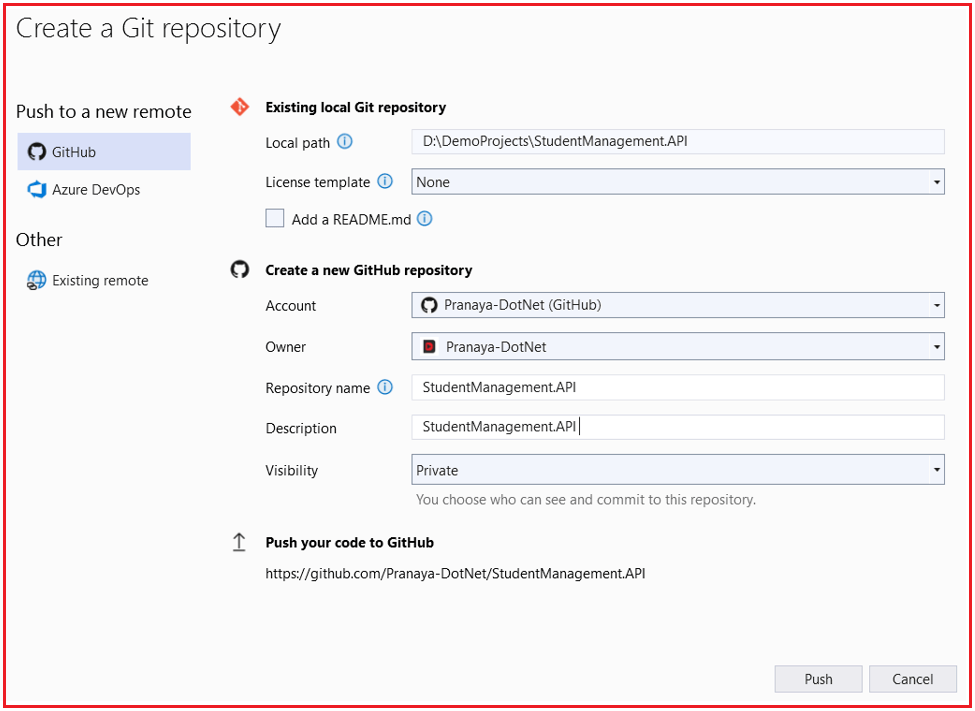
Now, we will connect our project to a GitHub Remote repository. We can do this in one of the following two ways:
Option 1: Create a Repository from Visual Studio
- Open the project in Visual Studio
- Go to the Git → Push to Git Service option
- Create a new Git repository
- Choose GitHub as the remote
- Sign in if needed
- Create the repository
- Push the code
For a better understanding, please look at the image below:
Option 2: Create an Empty Repository in GitHub First
- Open GitHub in the browser
- Create a new empty repository named StudentManagement.API
- Do not add README, .gitignore, or license if you want a clean first push from Visual Studio
- In Visual Studio, connect the local Git repository to that remote repository
- Push the code
Step 14: Understand Development and Production Configuration
In application development, we have different environments such as Development, Staging, and Production. Similarly, we also want different configurations for different environments. For this, ASP.NET Core provides different configuration files. They are as follows:
- appsettings.json: This is the common configuration file used across environments.
- appsettings.Development.json: Used when the application runs in the Development environment.
- appsettings.Production.json: Used when the application runs in the Production environment.
Real-time Scenario:
In a real-time application, we keep common settings in the appsettings.json file and environment-specific settings in the matching environment file. For example:
appsettings.json
The common settings or configuration go here.
{
  "ApplicationSettings": {
    "ApplicationName": "Student Management API"
  },
  "Logging": {
    "LogLevel": {
      "Default": "Information",
      "Microsoft.AspNetCore": "Warning"
    }
  },
  "AllowedHosts": "*"
}
appsettings.Development.json
The settings or configuration for the development environment go here.
{
  "ApplicationSettings": {
    "ApplicationName": "Student Management API - Development"
  }
}
appsettings.Production.json
The settings or configuration for the production environment go here.
{
  "ApplicationSettings": {
    "ApplicationName": "Student Management API - Production"
  }
}
Why Different Settings for Different Environments:
Development and production environments are not the same.
In development:
- We may use detailed logging
- We may use local values
- We may enable Swagger
In production:
- Logging is controlled
- Secrets should not be hardcoded
- Behavior is more restricted and safer
Step 15: Manually Publish the Project from Visual Studio
Let us proceed to understand the steps for publishing the code manually in Visual Studio.
Steps
- Right-click the project in Solution Explorer
- Click Publish
- Select Folder
- Choose a publish location, for example: D:\Deploy\StudentManagement.API\publish
- Choose Release configuration
- Click Publish
After publishing, go to that folder and see the output files. This is the actual deployable output. These are the files that will go to IIS. Later, the CI/CD pipeline will automatically generate the same kind of output.
Step 16: Understand IIS Prerequisites for ASP.NET Core Deployment
Before deployment to IIS, the local machine must be ready.
- IIS must be enabled in Windows
- .NET 8 Hosting Bundle must be installed on the IIS machine
- ASP.NET Core Module must be available
- The deployment folder must have proper permissions
If these prerequisites are missing, the application may publish successfully but fail to run in IIS.
Step 17: Manually Deploy the Published Files to Local IIS
Now we will perform the deployment activity manually.
Step A: Create Deployment Folder
Create a folder such as: C:\inetpub\StudentManagement.API and then copy the published files from the publish folder into this IIS folder.
Step B: Open IIS Manager
Open IIS Manager.
Step C: Create an Application Pool
Create a new Application Pool with these settings:
- Name: StudentManagementAPIAppPool
- .NET CLR Version: No Managed Code
Why No Managed Code?
ASP.NET Core runs using the ASP.NET Core Module and Kestrel behind IIS, so IIS does not need to manage it as classic .NET Framework code.
Step D: Create the IIS Site
Create a new site:
- Site Name: StudentManagement.API
- Physical Path: C:\inetpub\StudentManagement.API
- Binding: Choose a port like 8080
- Assign it to the application pool we just created in the previous step.
Step E: Start the Site
Now browse the site. Try these URLs:
- http://localhost:8080/api/health
- http://localhost:8080/api/students
If everything is correct, the API should respond.
Step 18: Set the environment in the publish profile
Open your publish profile file inside the project: Properties\PublishProfiles\YourProfileName.pubxml and then add this:
<Project>
  <PropertyGroup>
    <EnvironmentName>Development</EnvironmentName>
  </PropertyGroup>
</Project>
When you publish, ASPNETCORE_ENVIRONMENT is automatically added to the generated web.config.
Step 19: Verify That Local Deployment Is Working
Once the site is created in IIS, do not just assume deployment is successful. Always verify the following checklist.
- The site was started in IIS
- The correct port is used
- /api/health returns success
- /api/students returns data
- No server error appears
- Published files are in the correct folder
This verification habit is very important because our CI/CD pipeline will do the same job automatically later.
Conclusion:
In this chapter, we created and prepared a simple .NET 8 ASP.NET Core Web API project that will be used in the upcoming chapters for CI/CD implementation. We also understood how to run, build, publish, connect it to Git and GitHub, and deploy it manually to IIS. This gives us a strong practical foundation, so when we automate the same process later, it will be much easier to understand and implement.
Want to see how CI/CD actually works in a real .NET project?
Instead of just reading, watch the complete hands-on implementation where I show how code moves from GitHub to deployment using GitHub Actions and IIS.
👉 Click here to watch: https://youtu.be/tKBa4qPOOqA
This will make the entire concept crystal clear.