
Back to: Microservices using ASP.NET Core Web API Tutorials
Logging with Ocelot API Gateway in ASP.NET Core Web API
In a microservices architecture, the Ocelot API Gateway plays a key role in handling incoming requests and routing them to the appropriate services. To make this process reliable and easier to monitor, proper logging is essential.
Now, we will explain how to implement structured logging using Serilog in the Ocelot API Gateway. We will also learn how to use custom middleware to track each request with a unique Correlation ID, which helps us easily trace a single request across multiple services.
What is Serilog in ASP.NET Core?
Serilog is a Popular, High-Performance, Structured Logging Third-Party Library for .NET applications, including ASP.NET Core Web API, that provides developers with a powerful and flexible way to capture, store, and analyze log data.
Unlike traditional logging (which stores plain text), Serilog stores logs as Structured Data, meaning logs are saved in a key-value format, making them Easily Searchable, Filterable, and Queryable in tools like Seq, Elasticsearch/Kibana, or even SQL Server.
Example
Traditional log (unstructured):
User John placed an order with ID 789
Structured Serilog log:
{
  "Timestamp": "2025-10-21T08:00:12Z",
  "UserName": "John",
  "Action": "OrderPlaced",
  "OrderId": 789
}
This structure makes filtering like OrderId = 789 or UserName = ‘John’ possible directly from dashboards.
Why Use Serilog in Microservices (Especially API Gateway)?
In a microservices ecosystem, the API Gateway is the Single-Entry Point for all client requests. So, it is crucial to have Centralized, Structured, and Correlated Logging to trace every request from client → gateway → microservice → response.
Key Benefits
- Centralized Logging: Capture every request that passes through the gateway.
- Structured Output: Easy integration with Seq, Elasticsearch/Kibana, or Azure Application Insights.
- Minimal Code Changes: Configuration-driven via appsettings.json.
- Performance-Friendly: Async logging with batching.
- Request/Response Tracking: Helps in debugging routing or performance issues in Ocelot.
Common Serilog Sinks
A sink is where Serilog writes its log data. You can configure one or more sinks together.
- Console: Logs to console (ideal for development).
- File: Logs to rolling text or JSON files.
- Seq: Logs to the Seq dashboard (powerful structured log viewer).
- Elasticsearch: Integrates with the ELK stack for analytics.
- SQL Server / PostgreSQL: Stores structured logs in databases.
- Application Insights / Grafana Loki: Cloud and container-native observability.
Example: You can simultaneously log to Console and File for local debugging and persistent history.
Install Required Serilog NuGet Packages
Before we start coding, we need to install the necessary Serilog packages. These packages support logging to multiple destinations (sinks) and allow configuration via JSON. These packages include:
- Serilog.AspNetCore: Integrates Serilog with ASP.NET Core, replacing the default logging provider.
- Serilog.Sinks.Console: Enables log output to the console, which is very useful during development for real-time log monitoring.
- Serilog.Sinks.File: Enables logging to files on disk. This is useful for persistent storage, auditing, and post-event analysis.
- Serilog.Settings.Configuration: Allows Serilog to be configured via appsettings.json, so you can change log settings without modifying code.
- Serilog.Sinks.Async: Wraps logging sinks with asynchronous functionality to improve performance by offloading log processing to a background thread.
You can install these packages using the NuGet Package Manager or by executing the following commands in the Visual Studio Package Manager Console:
- Install-Package Serilog.AspNetCore
- Install-Package Serilog.Sinks.Console
- Install-Package Serilog.Sinks.File
- Install-Package Serilog.Settings.Configuration
- Install-Package Serilog.Sinks.Async
Configure Serilog in appsettings.json for Centralized Logging
The appsettings.json file holds centralized configuration for Serilog, defining how logs are generated, formatted, and stored. It eliminates the need to hard-code logging logic in the application by allowing developers to control log levels and output sinks directly from configuration.
This configuration determines:
- Which logs are recorded (MinimumLevel).
- Where they are sent (WriteTo sinks such as Console or File).
- What metadata is attached (Properties).
- How each log entry appears (outputTemplate).
This makes Serilog logging flexible, maintainable, and environment-independent. Please modify the appsettings.json file as follows to include all Serilog settings. The following configuration is self-explanatory; please read the comment lines for better understanding.
{
  // ASP.NET Core Host Configuration.
  // Allows the application to accept requests from any host.
  "AllowedHosts": "*",

  // SERILOG CONFIGURATION SECTION
  "Serilog": {

    // Minimum Log Levels
    "MinimumLevel": {
      "Default": "Information", // Global minimum level. Only logs of this level or higher will be written.
      // Levels: Verbose < Debug < Information < Warning < Error < Fatal

      // Override rules to reduce noise from framework-level logs.
      "Override": {
        // Logs from Microsoft.* namespaces (e.g., ASP.NET internals) will be shown only
        // when they are "Error" or higher.
        "Microsoft": "Error",

        // Same as above, but for System.* namespaces (e.g., BCL libraries).
        "System": "Error",

        // Restrict Ocelot gateway logs to "Error" level and above.
        "Ocelot": "Error"
      }
    },

    // Global metadata automatically attached to every log entry.
    // These help identify which app/environment produced the log
    // when aggregating logs from multiple services.
    "Properties": {
      "Application": "APIGateway", // Custom tag for application name.
      "Environment": "Development" // Useful when running multiple environments (Dev/Staging/Prod).
    },

    // OUTPUT (SINK) CONFIGURATIONS - Where Logs Are Written
    "WriteTo": [

      // ---------------- CONSOLE SINK ----------------
      {
        // Writes logs to the terminal (console window). It is handy during development
        "Name": "Console",

        "Args": {
          // Defines how each log line is formatted in the console.
          // Tokens in braces are placeholders replaced by property values at runtime.
          //
          // {Timestamp}   → When the log was created. Date and time of the log event
          // [{Level:u3}]  → Shortened Log level abbreviation (INF, WRN, ERR, etc.).
          // [{Application}/{Environment}] → Custom app/environment identifiers from Properties.
          // CorrelationId={CorrelationId} → Displays the correlation ID for tracing a request end-to-end.
          // {Message:lj}  → Main log message (with structured data if present, JSON Data).
          // {NewLine}{Exception} → Adds a newline and exception details (if any).
          "outputTemplate": "{Timestamp:yyyy-MM-dd HH:mm:ss} [{Level:u3}] [{Application}/{Environment}] CorrelationId={CorrelationId} {Message:lj}{NewLine}{Exception}"
        }
      },

      // ---------------- FILE SINK ----------------
      {
        // Writes logs to disk files for persistence and later analysis.
        "Name": "File",

        "Args": {
          // Log file path and naming convention.
          // The '-' will be replaced with the date when using rolling log files.
          // Example: logs/APIGateway-2025-10-21.log
          "path": "logs/APIGateway-.log",

          // Creates a new log file daily (helps keep files smaller and organized).
          "rollingInterval": "Day",

          // Keeps the last 30 log files and deletes older ones automatically.
          "retainedFileCountLimit": 30,

          // Allows multiple processes (if any) to write to the same log file safely.
          "shared": true,

          // Uses the same log format as the console output for consistency.
          "outputTemplate": "{Timestamp:yyyy-MM-dd HH:mm:ss} [{Level:u3}] [{Application}/{Environment}] CorrelationId={CorrelationId} {Message:lj}{NewLine}{Exception}"
        }
      }
    ]
  }
}
Key Points to Remember:
- Centralized Setup: No code modification required to change log formats or sinks.
- Structured Logging: Captures logs as key-value pairs for searchability in tools like Kibana or Seq.
- Multiple Outputs: Writes logs simultaneously to the Console and to rolling daily log files.
- Level Control: Filters framework noise by setting higher thresholds (Microsoft, System, Ocelot to Error).
- Contextual Info: Attaches metadata such as Application and Environment to every log.
- Correlation Ready: Log templates include placeholders for CorrelationId, allowing end-to-end tracing.
Create a CorrelationIdMiddleware:
This middleware ensures that every incoming request has a Unique Correlation ID, which is used to trace the request across multiple microservices. If a request already includes the header X-Correlation-ID, it reuses it; otherwise, it generates a new GUID. The Correlation ID is then added to:
- The Request Header (for downstream microservices),
- The Response Header (for client reference),
- The Serilog LogContext, so all log entries automatically include it.
This is the foundation of End-to-End Distributed Tracing in microservices. So, first, create a folder named Middlewares at the project root directory. Then, inside the Middlewares folder, create a class file named CorrelationIdMiddleware.cs, and copy-paste the following code:
using Serilog.Context;
namespace APIGateway.Middlewares
{
    // Middleware that ensures every incoming request has a unique Correlation ID.
    // This ID is used to trace a request end-to-end across multiple microservices
    // and is automatically attached to all Serilog log entries.
    public class CorrelationIdMiddleware
    {
        // The next middleware in the request pipeline.
        private readonly RequestDelegate _next;

        // The HTTP header name used to carry the correlation ID.
        private const string HeaderName = "X-Correlation-ID";

        // Constructor injects the next delegate in the pipeline.
        public CorrelationIdMiddleware(RequestDelegate next)
        {
            _next = next;
        }

        // Invoked once per HTTP request.
        // Responsible for generating or reusing a Correlation ID and injecting it into:
        //      1. The request header (for downstream services)
        //      2. The response header (for clients)
        //      3. The Serilog log context (for structured logging)
        public async Task InvokeAsync(HttpContext context)
        {
            // Try to retrieve the correlation ID from the incoming request headers.
            // If not present, generate a new one.
            if (!context.Request.Headers.TryGetValue(HeaderName, out var cid) || string.IsNullOrWhiteSpace(cid))
            {
                // Generate a new GUID (without hyphens for compactness)
                cid = Guid.NewGuid().ToString("N");

                // Add the newly generated correlation ID to the request header
                // so that downstream services (like other microservices) can reuse it.
                context.Request.Headers[HeaderName] = cid;
            }

            // Ensure the same correlation ID is returned to the client
            // in the response header, so API consumers can match request/response.
            context.Response.Headers[HeaderName] = cid;

            // LogContext.PushProperty temporarily adds a property to Serilog’s log context.
            // Every log created during this request will automatically include CorrelationId.
            // Example log output:
            // 2025-10-21 10:05:12 [INF] [APIGateway/Development] CorrelationId=8e2f94a9c2d74f7d9bcedff2a742f847
            using (LogContext.PushProperty("CorrelationId", cid.ToString()))
            {
                // Continue request processing by invoking the next middleware.
                await _next(context);
            }
        }
    }

    // Extension method for registering the CorrelationIdMiddleware
    // in a fluent and readable way inside Program.cs (app.UseCorrelationId()).
    public static class CorrelationIdMiddlewareExtensions
    {
        // Adds the CorrelationIdMiddleware to the ASP.NET Core request pipeline.
        public static IApplicationBuilder UseCorrelationId(this IApplicationBuilder builder)
        {
            // This allows easy, self-documenting registration in Program.cs:
            // app.UseCorrelationId();
            return builder.UseMiddleware<CorrelationIdMiddleware>();
        }
    }
}
Key Points
- Header Propagation: Ensures X-Correlation-ID travels through the whole request chain.
- Automatic Generation: Creates a new Unique ID if the client doesn’t provide one.
- Log Enrichment: Pushes the ID into Serilog’s context so it appears automatically in all log entries.
- Response Header Echo: Makes debugging easier by showing the same ID in client responses.
- Reusability: Includes an extension method UseCorrelationId() for clean registration in Program.cs.
Create a RequestResponseLoggingMiddleware:
This middleware logs every incoming request and outgoing response in detail. It captures:
- HTTP Method, Path, and Client IP.
- Request Body and Response Body (up to 64 KB) with Sensitive Data Masking.
- Execution time in milliseconds.
It also masks sensitive information, such as passwords and tokens, before logging in. This middleware ensures both Security and Observability in production environments.
How It Works:
- Reads the request body safely (with buffering enabled).
- Stores the response temporarily in a MemoryStream for inspection.
- Logs all metadata, including payloads, execution time, and response status.
- Uses a regex-based masking method to hide confidential values.
- Copies the response back to the client without altering it.
So, create a class file named RequestResponseLoggingMiddleware.cs, within the Middlewares folder, and then copy-paste the following code:
using Serilog;
using System.Text;
using System.Text.Json;
using System.Text.RegularExpressions;

namespace APIGateway.Middlewares
{
    // Middleware for logging detailed information about every incoming request
    // and outgoing response in the ASP.NET Core API Gateway.
    // Responsibilities:
    //      1. Logs HTTP Method, URL Path, QueryString, IP Address, Request Body.
    //      2. Measure and log total request-processing time.
    //      3. Logs response status code, response time, and response body.
    //      4. Masks sensitive fields like passwords, tokens, and secrets.
    public class RequestResponseLoggingMiddleware
    {
        // List of sensitive key names that should be masked in logs.
        // Add or remove entries as needed for your application security needs.
        private static readonly string[] DefaultSensitiveKeys = new[]
        {
            "password", "pwd", "token", "secret", "api_key", "apikey", "token",
            "accesstoken", "refreshtoken", "access_token", "refresh_token"
        };

        // Delegate reference to invoke the next middleware in the request pipeline.
        private readonly RequestDelegate _next;

        // Limit how much data can be logged from a request or response body (in bytes).
        // This protects the gateway from memory overuse if clients send very large payloads.
        private const int MaxBodySize = 64 * 1024; // 64 KB

        // Constructor injection of the pipeline delegate.
        public RequestResponseLoggingMiddleware(RequestDelegate next)
        {
            _next = next;
        }

        // Primary Entry Point for Every HTTP Request
        public async Task InvokeAsync(HttpContext context)
        {
            // Stopwatch to measure total request processing time.
            var stopWatch = System.Diagnostics.Stopwatch.StartNew();

            // Variable to hold request body content (if captured).
            string requestBody = string.Empty;

            try
            {
                // CAPTURE REQUEST BODY (only for JSON POST/PUT/PATCH requests)
                if (ShouldCaptureRequest(context.Request))
                {
                    // EnableBuffering allows us to read the body stream multiple times
                    // (without consuming it permanently).
                    context.Request.EnableBuffering();

                    // Read the full request body as a string.
                    using var reader = new StreamReader(context.Request.Body, Encoding.UTF8, leaveOpen: true);
                    var raw = await reader.ReadToEndAsync();

                    // Reset the body stream position so downstream middleware can still read it.
                    context.Request.Body.Position = 0;

                    // If the request body is within allowed size, log it safely (after masking sensitive data)
                    requestBody = raw.Length <= MaxBodySize
                        ? MaskSensitiveData(raw)
                        : $"[Request body too large: {raw.Length / 1024} KB truncated]";
                }

                // PREPARE TO CAPTURE RESPONSE BODY

                // Original Response Stream: Keep a reference to the original stream
                var originalBody = context.Response.Body;

                //  Temporary Response Stream: Temporary buffer to hold response.
                await using var memoryStream = new MemoryStream();

                // Replace the response stream.
                context.Response.Body = memoryStream;

                // Gather request metadata for structured logging
                var requestPath = context.Request.Path.Value ?? "/";
                var queryString = context.Request.QueryString.HasValue ? context.Request.QueryString.Value : string.Empty;
                var clientIp = context.Connection.RemoteIpAddress?.ToString() ?? "-";
                var reqLenText = context.Request.ContentLength.HasValue ? $"{context.Request.ContentLength.Value} B" : "-";

                // Build a human-readable request log message with pipe-separated fields
                var reqSegments = new List<string>
                {
                    $"Incoming request Method: {context.Request.Method}",
                    $"Path: {requestPath}{queryString}",
                    $"IP={clientIp}",
                    $"ContentLength={reqLenText}"
                };

                // Add the request body if available
                if (!string.IsNullOrEmpty(requestBody))
                    reqSegments.Add($"Request Body: {requestBody}");

                // Log the final combined request details
                Log.Information(string.Join(" | ", reqSegments));

                // INVOKE NEXT MIDDLEWARE (Actual API Execution)
                await _next(context);

                // Stop the stopwatch as soon as response is generated
                stopWatch.Stop();

                // CAPTURE RESPONSE BODY CONTENT
                // Reset the memory stream’s position to the beginning
                // because downstream middleware has already written the full response
                // into this temporary stream. We now need to read it from the start.
                memoryStream.Position = 0;

                // Variable that will store the final response body text.
                string responseBody;

                // Create a StreamReader to read text from the memoryStream (the captured response).
                // leaveOpen: true keeps the memoryStream usable later when we copy it back to the original stream.
                using (var reader = new StreamReader(memoryStream, Encoding.UTF8, leaveOpen: true))
                {
                    // Read the entire response stream into a raw string.
                    // This gives us the exact JSON/text returned by the downstream service.
                    var raw = await reader.ReadToEndAsync();

                    // Reset the position back to zero again so that the stream can be
                    // copied to the original Response.Body later for client delivery.
                    memoryStream.Position = 0;

                    // Only process the body if it’s within the configured maximum capture size (64 KB)
                    if (raw.Length <= MaxBodySize)
                    {
                        // Attempt to format the body as indented JSON.
                        // This makes the logged response human-readable instead of a
                        // compact single-line JSON string. If the content is not JSON,
                        // parsing will throw and we’ll fall back to plain text.
                        try
                        {
                            // Parse the raw string into a structured JsonDocument.
                            using var jsonDoc = JsonDocument.Parse(raw);

                            // Serialize the JsonDocument back to text but with indentation.
                            // WriteIndented = true adds line breaks and spacing for readability.
                            var pretty = JsonSerializer.Serialize(
                                jsonDoc,
                                new JsonSerializerOptions { WriteIndented = true }
                            );

                            // Apply masking to hide sensitive fields (passwords, tokens, etc.)
                            // before including the content in logs.
                            responseBody = MaskSensitiveData(pretty);
                        }
                        catch
                        {
                            // Fallback path when parsing fails.
                            // If the response isn’t valid JSON (for example plain text,
                            // XML, or binary data), skip formatting and just mask sensitive
                            // values using Regex on the raw string.
                            responseBody = MaskSensitiveData(raw);
                        }
                    }
                    else
                    {
                        // Handle large payloads.
                        // When the response body exceeds MaxBodySize (64 KB),
                        // don’t log its contents. Instead, record a truncated note.
                        responseBody = $"[Response body too large: {raw.Length / 1024} KB truncated]";
                    }
                }

                // Copy the captured response back to the original stream
                await memoryStream.CopyToAsync(originalBody);

                // BUILD & LOG RESPONSE DETAILS
                // Response size in bytes
                var resLenText = $"{memoryStream.Length} B";

                // Build a human-readable response log
                var resSegments = new List<string>
                {
                    $"Outgoing response {context.Response.StatusCode} in {stopWatch.ElapsedMilliseconds} ms",
                    $"IP={clientIp}",
                    $"ContentLength={resLenText}"
                };

                // Include body if available.
                if (!string.IsNullOrEmpty(responseBody))
                    resSegments.Add($"Response Body: {responseBody}");

                // Log the final combined response details
                Log.Information(string.Join(" | ", resSegments));
            }
            catch (Exception ex)
            {
                // HANDLE UNEXPECTED ERRORS
                // Stop timer if exception occurs
                stopWatch.Stop();

                // Log error with full exception stack trace for debugging
                Log.Error(ex, "Error in RequestResponseLoggingMiddleware");

                // Re-throw to allow global exception handlers to act
                throw;
            }
        }

        // Determines whether the request body should be captured based on:
        //      1. Content-Type being JSON.
        //      2. HTTP Method being POST, PUT, or PATCH.
        // Avoids unnecessary logging for GET requests or binary content.
        private static bool ShouldCaptureRequest(HttpRequest request)
        {
            if (string.IsNullOrWhiteSpace(request.ContentType))
                return false;

            return request.ContentType.Contains("application/json", StringComparison.OrdinalIgnoreCase)
                   && (request.Method == HttpMethods.Post
                       || request.Method == HttpMethods.Put
                       || request.Method == HttpMethods.Patch);
        }

        // Masks sensitive values (like passwords, tokens, or secrets) from JSON-formatted
        // strings before they are logged. This ensures that confidential information
        // never appears in log files.
        // Example transformation:
        // Input:  {"user":"admin","password":"mypwd","token":"abcd123"}
        // Output: {"user":"admin","password":"****","token":"****"}
        private static string MaskSensitiveData(string body)
        {
            try
            {
                // STEP 1: Build a single regex pattern that includes all sensitive keys.
                // DefaultSensitiveKeys = ["password", "pwd", "token", "secret", ...]
                //
                // The `string.Join("|", ...)` joins all items using the '|' character,
                // which in regex means "OR".
                //
                // Example output pattern:
                //     password|pwd|token|secret|api_key|apikey|access_token|refresh_token
                //
                // `Regex.Escape()` ensures that special characters (like underscores)
                // in key names are treated literally, not as regex operators.
                var pattern = string.Join("|", DefaultSensitiveKeys.Select(Regex.Escape));

                // STEP 2: Construct the actual regex expression.
                // The constructed regex will look like this:
                //   (?i)("(?:(password|pwd|token|...))"\s*:\s*")[^"]*(")
                //
                // Explanation of each piece:
                //   (?i)                  → Enables case-insensitive matching (so "Password" or "TOKEN" also match).
                //   \"(?:{pattern})\"     → Matches any property name in double quotes whose name is in our key list.
                //   \s*:\s*               → Matches the colon separating the key from its value, with optional spaces.
                //   \"[^\"]*\"            → Matches the quoted string value (everything between the next pair of quotes).
                //
                // Combined, this finds JSON fragments like:
                //     "password": "myp@ss"
                //     "api_key" : "12345"
                // and captures them in groups for replacement.

                var regex = new Regex($"(?i)(\"(?:{pattern})\"\\s*:\\s*\")[^\"]*(\")");

                // STEP 3: Replace all captured sensitive values with "****"
                // $1 and $2 are backreferences to the first and second capture groups:
                //   $1 → everything before the sensitive value (e.g., "password":")
                //   $2 → the closing double quote after the value
                //
                // The sensitive content between $1 and $2 gets replaced with "****".
                //
                // Example:
                //   Before:  "token":"abcd1234"
                //   After :  "token":"****"
                return regex.Replace(body, "$1****$2");
            }
            catch
            {
                // STEP 4: Fallback for unexpected situations.
                // If:
                //   - The input isn't valid JSON,
                //   - The regex construction fails, or
                //   - The body contains special encodings that break parsing,
                // ...then we simply return the original text without modification.
                //
                // This ensures logging continues safely instead of crashing the app.
                return body;
            }
        }

    }

    // Extension method for easily adding this middleware
    // to the ASP.NET Core pipeline via app.UseRequestResponseLogging().
    public static class RequestResponseLoggingMiddlewareExtensions
    {
        public static IApplicationBuilder UseRequestResponseLogging(this IApplicationBuilder builder)
        {
            // Enables a clean, self-explanatory registration in Program.cs:
            // app.UseRequestResponseLogging();
            return builder.UseMiddleware<RequestResponseLoggingMiddleware>();
        }
    }
}
Key Points
- Full Request Visibility: Logs method, URL, headers, and body (where applicable).
- Response Tracking: Captures response content, size, and processing time.
- Security-Aware Logging: Uses regex-based masking to hide sensitive data (password, token, etc.).
- Size Protection: Limits body capture to 64 KB to prevent log overload.
- Pretty-Printing: Formats JSON responses to make logs easier to read.
- Reusable Extension: Registered easily using the app.UseRequestResponseLogging().
Configure Serilog and Custom Middleware in Program.cs
This is the Application Entry Point where all components are assembled, such as Serilog configuration, middleware registration, and Ocelot pipeline setup. It performs the following:
- Initializes Serilog from appsettings.json.
- Replaces default .NET logging with Serilog.
- Loads the Ocelot routing configuration from ocelot.json.
- Adds custom middlewares (CorrelationId and RequestResponseLogging).
- Registers and executes the Ocelot gateway middleware as the final step.
This file ensures that Serilog, Ocelot, and Custom Logging Middlewares work together in a seamless pipeline. So, please modify the Program.cs class as follows. The following code is self-explanatory; please read the comment lines for better understanding.
using APIGateway.Middlewares;
using Ocelot.DependencyInjection;
using Ocelot.Middleware;
using Serilog;

namespace APIGateway
{
    public class Program
    {
        public async static Task Main(string[] args)
        {
            var builder = WebApplication.CreateBuilder(args);

            // Configure Serilog as the application's main logging provider.
            //
            // The LoggerConfiguration() object defines how logs are captured,
            // formatted, and written to sinks (e.g., console, file).
            //
            // Serilog supports structured logging, so every log entry can include
            // custom properties (like CorrelationId, Environment, RequestPath, etc.)
            // that make log analysis easier in tools like Seq, Kibana, or Grafana.
            //
            // 1️ .ReadFrom.Configuration(builder.Configuration)
            //     → Reads all Serilog settings (sinks, templates, overrides, etc.)
            //       directly from appsettings.json. This allows configuration
            //       without recompiling code.
            //
            // 2️ .Enrich.FromLogContext()
            //     → Captures context-specific properties pushed via LogContext
            //       (for example, CorrelationId from your custom middleware).
            //
            // 3️ .CreateLogger()
            //     → Finalizes the logger and assigns it to Log.Logger,
            //       making it globally available via Serilog’s static Log class.
            Log.Logger = new LoggerConfiguration()
                 .ReadFrom.Configuration(builder.Configuration)
                 .Enrich.FromLogContext()
                 .CreateLogger();

            // Replace the default .NET logging system with Serilog.
            //
            // By default, ASP.NET Core uses Microsoft.Extensions.Logging
            // which outputs unstructured text logs.
            //
            // The call below tells the host to pipe all framework and application
            // logs through Serilog instead. This ensures consistent, structured
            // log output everywhere.
            builder.Host.UseSerilog();

            // Load Ocelot Configuration
            // Ocelot uses a JSON file (ocelot.json) that defines all routes —
            // mapping between client-facing (Upstream) URLs and internal microservice (Downstream) URLs.
            //
            // optional:false  → ensures ocelot.json must exist; app won’t start without it.
            // reloadOnChange:true → allows automatic route updates during development
            //                       without restarting the API Gateway.
            builder.Configuration.AddJsonFile(
                "ocelot.json",
                optional: false,
                reloadOnChange: true
            );

            // Register Ocelot Services
            // This adds all required Ocelot services (middleware, configuration providers,
            // route matching, downstream request handling, etc.) to the DI container.
            //
            // Passing builder.Configuration allows Ocelot to access the ocelot.json content.
            builder.Services.AddOcelot(builder.Configuration);

            var app = builder.Build();

            app.UseHttpsRedirection();

            // Add custom middleware before Ocelot.
            //
            // UseCorrelationId()
            //    → Attaches a unique correlation ID (X-Correlation-ID) to every request.
            //      This value is pushed into Serilog’s LogContext so you can trace
            //      the same request across multiple microservices easily.
            //
            // UseRequestResponseLogging()
            //    → Logs the request and response bodies, masking sensitive fields
            //      (passwords, tokens, etc.), and includes timing metrics.
            app.UseCorrelationId();
            app.UseRequestResponseLogging();

            // Register Ocelot Middleware (Core Gateway Logic)
            // Ocelot middleware is the heart of the API Gateway.
            // What Ocelot Middleware Does:
            //   - Inspects incoming HTTP requests.
            //   - Matches it to a configured route defined in ocelot.json.
            //   - Forwards the request to the correct downstream microservice.
            //   - Collects the downstream response and returns it to the client.
            //
            // IMPORTANT:
            // This MUST be the LAST middleware in the pipeline,
            // Once Ocelot handles a request, no other middleware executes afterward.

            await app.UseOcelot();

            app.Run();
        }
    }
}
Key Points
- Centralized Logging Activation: Initializes Serilog from configuration.
- Context Enrichment: Enables contextual data, such as CorrelationId, through Enrich.FromLogContext().
- Complete Pipeline Control: Places custom middlewares before Ocelot to ensure all requests are logged.
What does Asynchronous Logging mean?
Asynchronous logging means that Serilog writes log events to sinks (such as files or the console) in the background, without blocking your main thread. This improves Application Throughput, Response Time, and Prevents I/O Delays — especially when you have:
- High-frequency logging (like middleware or background jobs)
- File or network sinks (e.g., Seq, Elasticsearch)
- Logging inside performance-critical APIs
Without async sinks, logging calls like _logger.LogInformation() still completes very fast, but it involves a Small Synchronous Disk Write or console output operation on the request thread. Our appsettings.json has two sinks:
"WriteTo": [
  { "Name": "Console", "Args": { "outputTemplate": "..." } },
  { "Name": "File", "Args": { "path": "logs/UserService-.log", ... } }
]
These sinks are synchronous by default, so Serilog writes directly to the console and file on the same thread that handles the HTTP request. That means while Serilog is very efficient, it still performs a blocking write for every log entry.
How to Enable Asynchronous Logging
To make logging asynchronous, you need to wrap each sink with the AsyncSinkWrapper provided by Serilog.Sinks.Async package which we have already installed.
Then, we need to modify the WriteTo section to use “Async” as the sink name, and nest your real sink (like File or Console) inside its Args.configure block. Please modify the appsettings.json file as follows to enable async logging.
{
  "AllowedHosts": "*",
  "Serilog": {
    "MinimumLevel": {
      "Default": "Information",
      "Override": {
        "Microsoft": "Error",
        "System": "Error",
        "Ocelot": "Error"
      }
    },

    "Properties": {
      "Application": "APIGateway",
      "Environment": "Development"
    },

    "WriteTo": [
      {
        "Name": "Async",
        "Args": {
          "configure": [
            {
              "Name": "Console",
              "Args": {
                "outputTemplate": "{Timestamp:yyyy-MM-dd HH:mm:ss} [{Level:u3}] [{Application}/{Environment}] CorrelationId={CorrelationId} {Message:lj}{NewLine}{Exception}"
              }
            }
          ]
        }
      },
      {
        "Name": "Async",
        "Args": {
          "configure": [
            {
              "Name": "File",
              "Args": {
                "path": "logs/UserService-.log",
                "rollingInterval": "Day",
                "retainedFileCountLimit": 30,
                "shared": true,
                "outputTemplate": "{Timestamp:yyyy-MM-dd HH:mm:ss} [{Level:u3}] [{Application}/{Environment}] CorrelationId={CorrelationId} {Message:lj}{NewLine}{Exception}"
              }
            }
          ]
        }
      }
    ]
  }
}
What Happens Behind the Scenes
- The Async wrapper introduces a background queue.
- When _logger.LogInformation() is called, Serilog queues the log message immediately, and returns.
- A background worker writes the logs to your file or console asynchronously.
- The main thread (serving the HTTP request) continues execution immediately, improving response time.
How to use Serilog in Other Microservices and how to get the Correlation ID while logging?
Let’s go step by step and understand how to use Serilog in other microservices and how to automatically include the same Correlation ID in their logs when the request flows through the Ocelot Gateway.
When the client request passes through our Ocelot API Gateway, our custom CorrelationIdMiddleware injects a unique header: X-Correlation-ID: <GUID>. This ID then travels with the request to all downstream microservices (like UserService, OrderService, PaymentService, etc.).
Each microservice needs to:
- Read the X-Correlation-ID header from the incoming request.
- Attach it to Serilog’s LogContext so every log line automatically contains the same correlation value.
This gives you End-To-End Tracing across services in your distributed system.
Configure Serilog in Each Microservice
Each microservice should have its own Serilog configuration, typically in Program.cs and appsettings.json. I am showing the setup in the User Microservice; you need to do the same in all Microservices.
Configuring Serilog in User Microservice:
Please install the following packages using the NuGet Package Manager or by executing the following commands in the Visual Studio Package Manager Console. Please select UserService.API Project while executing the following commands.
- Install-Package Serilog.AspNetCore
- Install-Package Serilog.Sinks.Console
- Install-Package Serilog.Sinks.File
- Install-Package Serilog.Settings.Configuration
- Install-Package Serilog.Sinks.Async
Note: Each microservice (e.g., UserService, OrderService, PaymentService) should install and configure Serilog in the same way as the API Gateway. These packages enable console + file logging, JSON configuration, and asynchronous, high-performance logging.
Configure appsettings.json in each Microservice
Each microservice should contain a Serilog section identical in structure to the API Gateway’s. I am adding the following Serilog section within the appsettings.json file of UserService.API project.
{
  "ConnectionStrings": {
    "UserDbConnection": "Server=LAPTOP-6P5NK25R\\SQLSERVER2022DEV;Database=UserServiceDB;Trusted_Connection=True;TrustServerCertificate=True;"
  },

  "JwtSettings": {
    "Issuer": "UserService.API",
    "SecretKey": "fPXxcJw8TW5sA+S4rl4tIPcKk+oXAqoRBo+1s2yjUS4=",
    "AccessTokenExpirationMinutes": 120
  },

  "AllowedHosts": "*",
  "Serilog": {
    "MinimumLevel": {
      "Default": "Information",
      "Override": {
        "Microsoft": "Error",
        "System": "Error",
        "Ocelot": "Error"
      }
    },
    "Properties": {
      "Application": "UserService",
      "Environment": "Development"
    },
    "WriteTo": [
      {
        "Name": "Async",
        "Args": {
          "configure": [
            {
              "Name": "Console",
              "Args": {
                "outputTemplate": "{Timestamp:yyyy-MM-dd HH:mm:ss} [{Level:u3}] [{Application}/{Environment}] CorrelationId={CorrelationId} {Message:lj}{NewLine}{Exception}"
              }
            }
          ]
        }
      },
      {
        "Name": "Async",
        "Args": {
          "configure": [
            {
              "Name": "File",
              "Args": {
                "path": "logs/UserService-.log",
                "rollingInterval": "Day",
                "retainedFileCountLimit": 30,
                "shared": true,
                "outputTemplate": "{Timestamp:yyyy-MM-dd HH:mm:ss} [{Level:u3}] [{Application}/{Environment}] CorrelationId={CorrelationId} {Message:lj}{NewLine}{Exception}"
              }
            }
          ]
        }
      }
    ]
  }
}
Note: Please apply the above Serilog configurations to every API layer’s appsettings.json file.
Add Correlation Middleware in Each Microservice
Each microservice needs a lightweight middleware that:
- Reads the X-Correlation-ID header (if present).
- Generates one if missing (for internal calls).
- Pushes it into Serilog’s LogContext for automatic logging.
CorrelationIdMiddleware
First, create a folder named Middlewares at the root of the UserService.API layer project. Then, inside the Middlewares folder, add a class file named CorrelationIdMiddleware.cs, and copy-paste the following code.
using Serilog.Context;
namespace UserService.API.Middlewares
{
    public class CorrelationIdMiddleware
    {
        private readonly RequestDelegate _next;
        private const string CorrelationHeader = "X-Correlation-ID";

        public CorrelationIdMiddleware(RequestDelegate next)
        {
            _next = next;
        }

        public async Task InvokeAsync(HttpContext context)
        {
            // Try to get the existing Correlation ID from headers
            if (!context.Request.Headers.TryGetValue(CorrelationHeader, out var correlationId))
            {
                // If not found, create a new one
                correlationId = Guid.NewGuid().ToString("N");
                context.Request.Headers[CorrelationHeader] = correlationId;
            }

            // Make it available in the response header too
            context.Response.Headers[CorrelationHeader] = correlationId;

            // Push into Serilog’s context for automatic inclusion in logs
            using (LogContext.PushProperty("CorrelationId", correlationId))
            {
                await _next(context);
            }
        }
    }

    // Extension for easy registration
    public static class CorrelationIdMiddlewareExtensions
    {
        public static IApplicationBuilder UseCorrelationId(this IApplicationBuilder builder)
        {
            return builder.UseMiddleware<CorrelationIdMiddleware>();
        }
    }
}
Note: Please create the above Middleware in every API layer project.
Add Serilog Setup in Program.cs of Each Microservice
Each microservice should have its own Serilog setup. So, within the Program.cs class file, we need to register the Serilog service, and also, we need to register the Custom Middleware Component. Please add the following code to the Program class.
// Configure Serilog from appsettings.json
Log.Logger = new LoggerConfiguration()
    .ReadFrom.Configuration(builder.Configuration)
    .Enrich.FromLogContext()
    .CreateLogger();

builder.Host.UseSerilog();

// Add Correlation Middleware before MapControllers
app.UseCorrelationId();
Each service reads Serilog settings from appsettings.json and uses .Enrich.FromLogContext() to automatically include the Correlation ID in every log once it’s pushed to the context.
Use Logger in User Controller:
First, we need to inject the ILogger<T> where T is the class name. T can be a controller, service class, repository, etc. So, first inject the ILogger<UserController> as follows through the constructor of the UserController class.
public class UserController : ControllerBase
{
    private readonly IUserService _userService;
    private readonly ILogger<UserController> _logger;

    public UserController(IUserService userService, ILogger<UserController> logger)
    {
        _userService = userService;
        _logger = logger;
    }
}
Note: Wherever you want logging, just inject the ILogger<T> and log the messages.
Modifying the Login Action Method with Logging:
Next, please modify the Login action method of the User Controller as follows.
[HttpPost("login")]
public async Task<IActionResult> Login([FromBody] LoginDTO dto)
{
    var ipAddress = HttpContext.Connection.RemoteIpAddress?.ToString() ?? "Unknown";
    var userAgent = GetNormalizedUserAgent();

    _logger.LogInformation($"Login request received. IP={ipAddress}, EmailOrUserName={dto.EmailOrUserName}");

    try
    {
        var loginResponse = await _userService.LoginAsync(dto, ipAddress, userAgent);

        if (!string.IsNullOrEmpty(loginResponse.ErrorMessage))
        {
            _logger.LogWarning($"Login failed for {dto.EmailOrUserName}. Reason: {loginResponse.ErrorMessage}");

            loginResponse.Succeeded = false;
            return Unauthorized(ApiResponse<LoginResponseDTO>.FailResponse(
                loginResponse.ErrorMessage, null, loginResponse));
        }

        loginResponse.Succeeded = true;
        _logger.LogInformation(loginResponse.RequiresTwoFactor
                ? $"2FA required for {dto.EmailOrUserName}"
                : $"User {dto.EmailOrUserName} logged in successfully.");

        return Ok(ApiResponse<LoginResponseDTO>.SuccessResponse(
            loginResponse,
            loginResponse.RequiresTwoFactor
                ? "Two-factor authentication required."
                : "Login successful."));
    }
    catch (Exception ex)
    {
        _logger.LogError(ex, $"Unexpected error occurred during login for {dto.EmailOrUserName}");
        return StatusCode(500, ApiResponse<LoginResponseDTO>.FailResponse($"Unexpected error occurred during login for {dto.EmailOrUserName}", new List<string> { ex.Message }));
    }
}
Testing Logging with Login Endpoint
Now, run all the Microservices, and then test the Login endpoint as follows:
Method: POST
URL: https://localhost:7047/users/user/login
Request Body:
{
  "EmailOrUserName": "pranayakumar777@gmail.com",
  "Password": "Test@12345",
  "ClientId": "web"
}
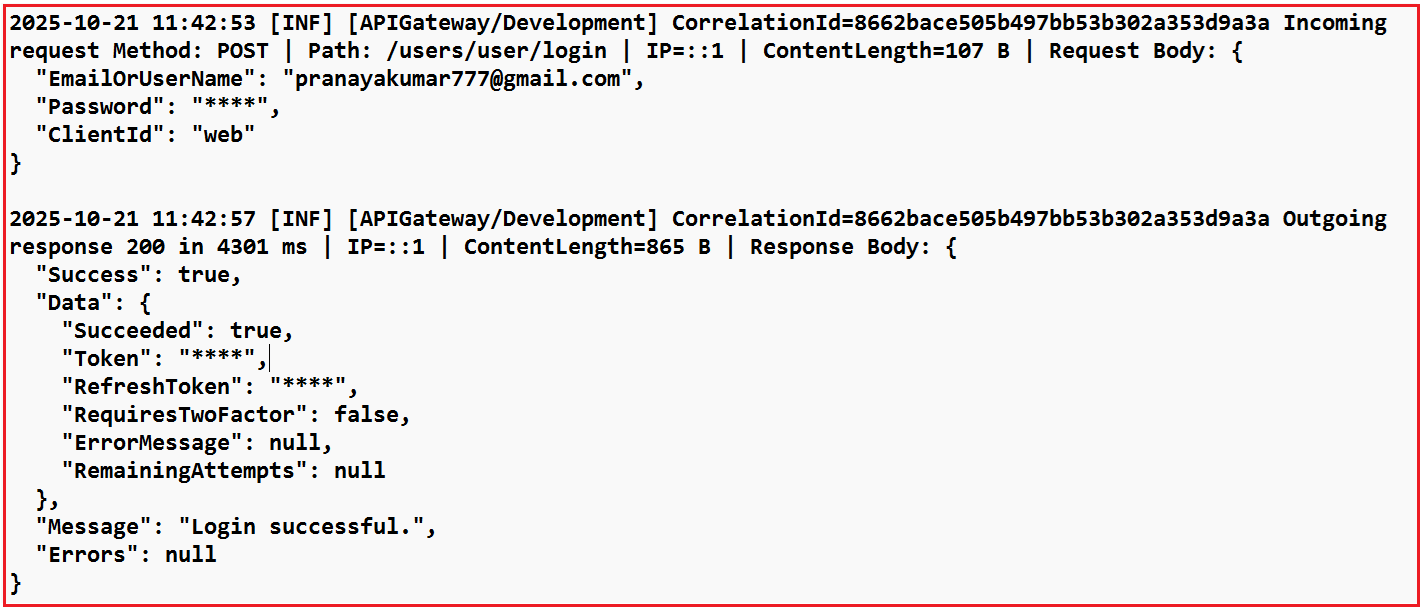
Log Statement in API Gateway Log File:
The following is the log statement in the API Gateway Log File for the above request
Log Statement in User Service Log File:
The following is the log statement in the User Service Log File for the above request.

By integrating Serilog with the Ocelot API Gateway, we can maintain clear and consistent logs for every request and response. The use of Correlation IDs ensures smooth end-to-end tracking across all services. This approach makes debugging, monitoring, and maintaining microservices much easier while improving the overall reliability and transparency of the system.