
Back to: Microservices using ASP.NET Core Web API Tutorials
Creating a Git Repository for an ASP.NET Core Web API Project
In Part-1, we understood why Source Code Management (SCM) is essential, and in Part-2, we successfully Installed and Configured Git and GitHub with Visual Studio. Now it’s time to apply that knowledge in a real ASP.NET Core Web API project. In this part, we will learn how Git is actually used in day-to-day development: creating repositories, initializing Git, understanding what should and should not be committed, and making the first commit correctly.
What is a Git Repository?
A Git Repository is A Structured Storage Location where Git tracks and manages a project’s source code along with its complete change history. It is not just a folder of files; it is a version-controlled environment where Git records every meaningful change made to the project over time.
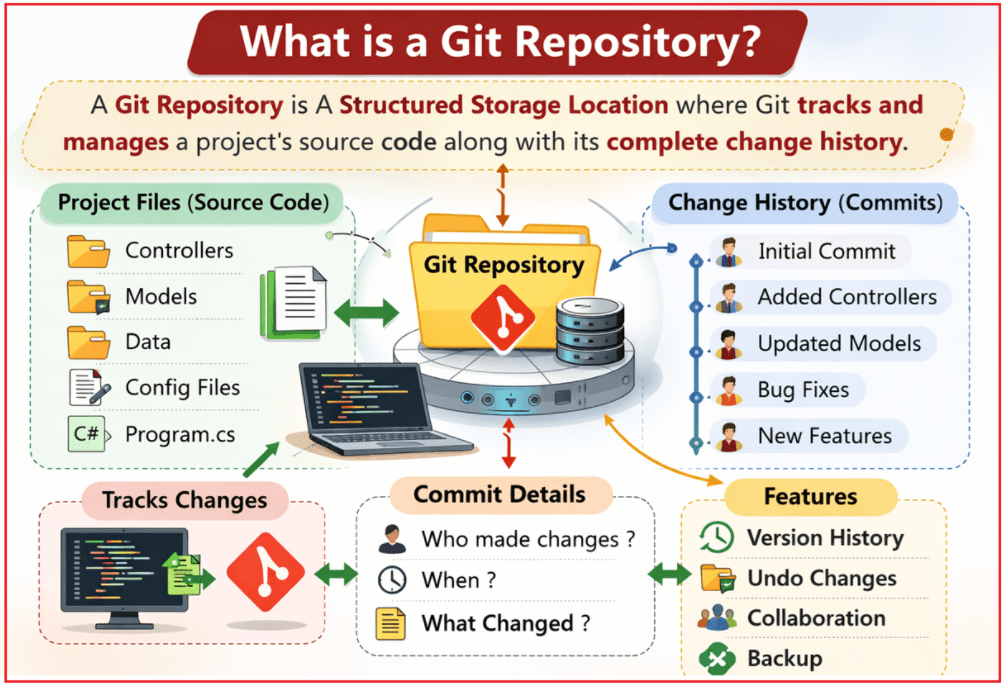
A repository represents:
- The Current State of a Project
- All Previous States of the project
- The relationships between those states
A repository allows Git to answer questions like:
- What did the project look like yesterday?
- What changed between the two versions?
- Who introduced a specific change?
In short, a repository is the foundation of version control. So, it contains not only the current version of files but also every previous version that ever existed after Git tracking began. Once a project becomes a Git repository, Git starts recording:
- Every committed change
- Who made the change
- When the change was made
- Why the change was made (commit message)
Types of Repositories:
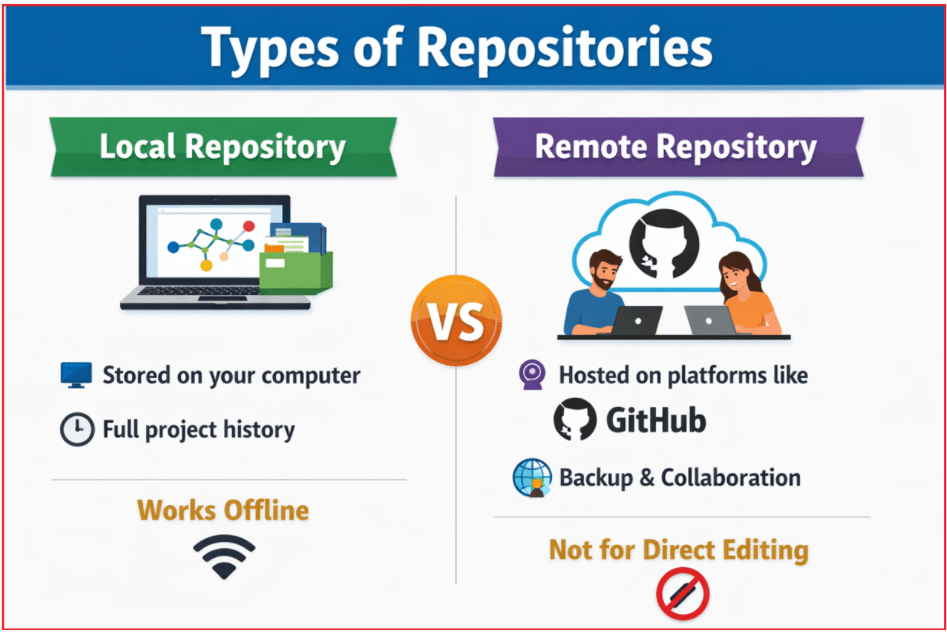
There are 2 types of Repositories. They are as follows:
- Local Repository
- Remote Repository
What is a Local Repository?
A Local Repository is a repository that exists within a developer’s local system and is fully managed by Git on that machine.
- It is the primary working repository.
- It is where development actually happens.
- It contains the complete project history.
A local repository is self-contained, meaning:
- It does not depend on any server.
- It can function without the internet.
- It can perform all version control operations independently.
The local repository contains:
- The current working files
- All commits made by the developer
- Complete version history
- Branch and merge information
What is a Remote Repository?
A Remote Repository is a Git repository hosted outside the local machine, typically on a server or a cloud-based platform such as GitHub. It serves as a centralized hub for code sharing, collaboration, and backups.
Remote repositories are not meant for direct editing. Instead, developers synchronize their local repositories with the remote repository by pushing and pulling changes. This allows multiple developers to work independently while maintaining a shared, authoritative version of the project.
A remote repository serves as:
- A Shared Reference Point for multiple local repositories
- A Synchronization Mechanism
- A Distributed Backup
A remote repository does not replace local repositories. Instead, it acts as a coordination layer that keeps multiple independent local repositories consistent with one another. The remote repositories exist to support distributed collaboration.
Working with a Local Repository in ASP.NET Core Web API Projects:
In modern software development, application creation and source code management are treated as two separate responsibilities. Development tools like Visual Studio intentionally separate these concerns so that developers clearly understand when an application is created and when version control is introduced.
Because of this design, working with a local repository in an ASP.NET Core Web API project always happens in two clearly defined stages.
- First, the Web API application is created as a normal project.
- Second, Git is integrated to convert that project into a local repository that can track changes over time.
Stage 1: Creating a New ASP.NET Core Web API Project
In the first stage, Visual Studio focuses exclusively on application creation. The objective is to scaffold a functional ASP.NET Core Web API project that can be built, executed, and extended with business logic. At this stage:
- No version control system is involved
- Git does not track any files
- The project exists purely as a normal codebase
This design allows developers to validate the project structure and runtime behaviour before introducing version control.
Step-by-Step Process: Creating the Project
- Open Visual Studio
- Click Create a new project
- Select ASP.NET Core Web API
- Click Next
- Provide the following details:
-
- Project name: StudentManagement.API
- Location
- Solution name: StudentManagement
-
- Check the option:
-
- Place the solution and project in the same directory
-
- Click Create
At this point:
- The ASP.NET Core Web API project is created successfully
- The application can be built and run
- Controllers and configuration files are available
- Git is not yet involved
The project exists solely as an application, not as a version-controlled entity.
Stage 2: Integrating Git to Create a Local Repository
A project becomes a local Git repository only when Git is explicitly initialized. Initializing Git means instructing Git to begin tracking the project’s files and to maintain a historical record of all future changes. This process is strictly local in nature and:
- Does not modify application code
- Does not upload anything online
- Does not involve GitHub
- Works entirely offline
The result is a local repository that resides completely on the developer’s machine.
Step-by-Step Process:
Step 1: Open the Project in Visual Studio
- Launch Visual Studio
- Open the StudentManagement.API project
At this stage, the project still exists as a normal application without version control.
Step 2: Initialize Git Using Visual Studio
From the top menu,
- Select Git
- Click Create Git Repository.
When you select Git → Create Git Repository from the top menu in Visual Studio, Visual Studio opens the Create a Git repository dialog. This window allows you to decide how and where Git should be initialized for your project.
To create a LOCAL Git repository from this screen, select ONLY this:
- Left panel → click Local only
- Right panel:
-
- Local path → leave as it is
- .gitignore template → Default (VisualStudio)
- License template → None
- Add a README.md → leave unchecked
-
- Click Create

Step 3: Internal Actions Performed by Visual Studio
When Git is initialized, Visual Studio performs the following operations internally:
- Creates a hidden .git folder in the project root.
- Configures Git to track eligible project files.
- Applies a default .gitignore file suitable for .NET projects
- Prepares the project for version tracking through commits.
No source code files are altered, and no remote repository is created.
How to Check the .git Folder and .gitignore file?
- Open File Explorer
- Go to your project root folder (example: D:\Projects\StudentManagement)
- Click View (top menu)
- Click Show
- Check Hidden items
You will now see a folder named .git. If the .git folder is visible → Git is initialized successfully.
What is .git Folder?
The .git folder is the core of a Git repository. It is created automatically when Git is initialized in a project directory. This folder does not contain application code; instead, it contains all the metadata and internal data structures that Git uses to manage version control. Inside the .git folder, Git stores:
- The complete commit history of the project
- Information about branches and tags
- Configuration details that define how Git behaves for this repository
- References that allow Git to reconstruct any previous version of the code
The presence of the .git folder is what formally defines a Git repository. A project without this folder is just a normal collection of files, regardless of whether Git is installed on the machine.
What is .gitignore File?
The .gitignore file defines which files and folders Git should deliberately ignore and exclude from version tracking. Its purpose is to ensure that only meaningful source code and configuration files are committed to the repository. In a .NET project, many files are:
- Automatically generated by the build process
- Temporary in nature
- Specific to a developer’s machine or IDE
Tracking such files would clutter the repository and make collaboration difficult. The .gitignore file prevents this by listing patterns for files and folders that should never be committed. In ASP.NET Core projects, .gitignore typically excludes:
- bin/ (compiled output)
- obj/ (intermediate build files)
- .vs/ (Visual Studio internal data)
- Temporary and cache files
What is .gitattributes File?
The .gitattributes file controls how Git treats files internally, rather than deciding whether files are tracked or ignored. It is mainly used to define rules related to:
- Line-ending normalization across operating systems
- How files are compared (diff behaviour)
- How files are merged
Visual Studio automatically creates this file to ensure consistent behaviour when a project is shared across different environments such as Windows, Linux, and macOS. For beginners, this file usually does not require any modification. It exists to prevent subtle issues related to file formatting and comparison in collaborative scenarios.
What Files Should Be Committed in a .NET Project?
Only files essential to understanding, building, and running the application should be committed. These files define the project’s structure, logic, and configuration, allowing the application to be recreated on any machine.
Typically, safe and required files include:
- Controllers, Models, Services, and DTOs (application logic)
- Program.cs and startup-related files
- appsettings.json (without sensitive information)
- Project files (.csproj)
- Solution file (.sln)
- Documentation files such as README.md
These files together represent the source of truth for the application.
Which Files/Folders Should Never Be Committed?
Files and folders generated automatically or specific to the environment should never be committed. These files do not reflect the application’s logic and may vary across machines.
Common examples include:
- bin/ – compiled binaries generated during build
- obj/ – intermediate build artifacts
- .vs/ – Visual Studio-specific cache and settings
These files:
- Can be recreated at any time
- Differ across systems and developers
- Increase repository size unnecessarily
- Create noise in the commit history
Committing them is a common beginner mistake and leads to messy repositories.
Conclusion
Creating a Git repository is not just a technical step—it’s a professional discipline. Understanding what to commit, what to ignore, and how to properly initialize Git ensures a clean history, better collaboration, and long-term maintainability. With this, you now know how to:
- Create repositories correctly
- Initialize Git safely
- Protect sensitive data
- Make a strong first commit
Next, we will explore commits, staging, push, pull, and real collaboration workflows.
About the Author: Pranaya Rout
Pranaya Rout has published more than 3,000 articles in his 11-year career. Pranaya Rout has very good experience with Microsoft Technologies, Including C#, VB, ASP.NET MVC, ASP.NET Web API, EF, EF Core, ADO.NET, LINQ, SQL Server, MYSQL, Oracle, ASP.NET Core, Cloud Computing, Microservices, Design Patterns and still learning new technologies.
If you want a clear and beginner-friendly explanation of how Git works in real ASP.NET Core projects, don’t miss this video!
I’ve walked through Working Directory → Staging Area → Repository, explained local vs remote repositories, and demonstrated the entire Git workflow inside Visual Studio step by step.
🎥 Watch the full tutorial here: https://youtu.be/5vxY5f93mXM
This video will help you understand Git from a practical, project-oriented perspective — perfect for students, beginners, and working professionals.
Make sure to watch it till the end to get the complete flow!