
Back to: Microservices using ASP.NET Core Web API Tutorials
Building Continuous Integration (CI) Pipeline with GitHub Actions
In this chapter, we will automate the build and testing process of our ASP.NET Core Web API project using GitHub Actions. Instead of manually building and testing the project every time, we will create a pipeline that runs automatically whenever code is pushed to GitHub. This is the first real step into automation. Everything we did manually in the previous chapter (build, test, publish) will now happen automatically on GitHub.
What We Will Do in This Chapter
By the end of this chapter, our GitHub repository will do the following automatically whenever code is pushed:
- Download the latest source code
- Install the required .NET 8 SDK
- Restore NuGet Packages
- Build the Solution
- Run Tests
- Publish the Web API
- Upload the publish output as a workflow artifact
Continuous Integration Workflow with GitHub Action:
For a better understanding, please have a look at the following image.
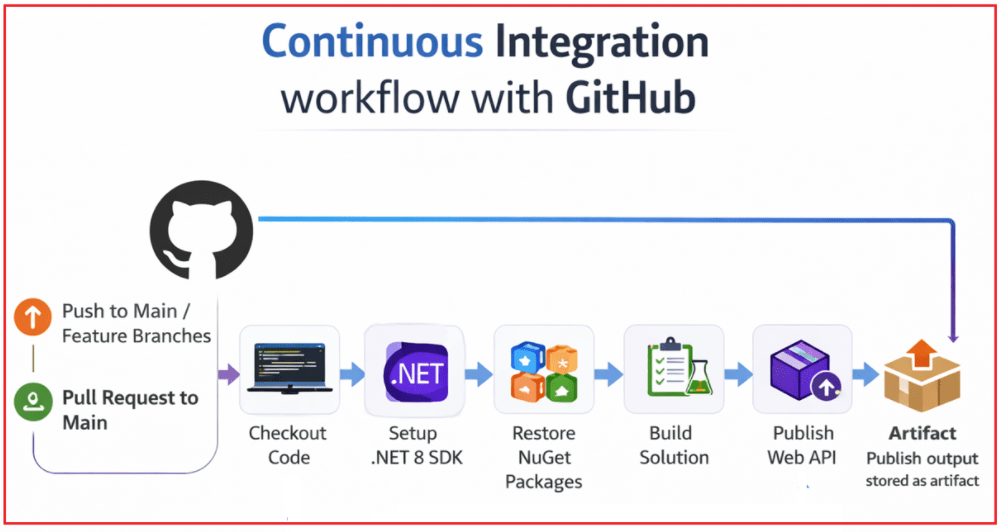
Trigger the workflow
The pipeline starts when one of these events happens:
- A developer pushes code to main
- A developer pushes code to a feature branch
- A developer creates or updates a pull request targeting main
This is the starting point shown on the left side of the image.
GitHub receives the code change
After a push or pull request event, GitHub Actions detects the trigger and automatically starts the workflow. This means no manual build is needed every time code changes.
Checkout code
In this step, GitHub downloads the latest repository files into the runner machine. This is important because the runner starts as an empty machine, so the project files must first be copied there before anything else can happen.
Setup .NET SDK
Once the code is available, GitHub installs or prepares the .NET SDK on the runner. This allows the machine to understand and execute commands like dotnet restore, dotnet build, dotnet test, and dotnet publish.
Restore NuGet Packages
Next, the workflow downloads all required NuGet dependencies used by the solution. Without this step, the project may fail because the required libraries and packages would be missing.
Build Solution
After restoring packages, GitHub compiles the solution. This step checks whether the code is valid from a compile-time point of view, such as:
- Syntax errors
- Missing references
- Invalid class or method names
- General build failures
Publish Web API
Once the build succeeds, the workflow creates the publish output for the Web API project. This is the deployment-ready version of the application, which contains the compiled files and required runtime content needed later for deployment.
Artifact
Finally, GitHub saves the published output as an artifact. An artifact is simply a stored output produced by the workflow. Since the runner machine is temporary and gets destroyed after execution, saving the output as an artifact ensures you can later:
- Download it
- Inspect it
- Reuse it for deployment in later stages
Basic GitHub Actions Terms
Before we start building a CI/CD pipeline with GitHub Actions, we need to clearly understand a few important terms. In simple words, GitHub Actions works like a small automated system inside our GitHub repository. We define what should happen, when it should happen, and where it should run. The four most important terms we need to know are Workflow, Job, Step, and Runner.
Workflow – The Complete Automation File
A workflow is the main automation file that tells GitHub what tasks to perform. It is written in YAML format and stored inside the .github/workflows/ folder of the repository.
You can think of a workflow as the full pipeline definition. It tells GitHub:
- When to start
- What jobs to run
- What steps should each job perform
For example, a workflow can tell GitHub:
- Run when code is pushed to main
- Build the project
- Run tests
- Publish the application
Job – A group of related tasks
A job is a collection of steps that are executed together on the same runner. Inside one workflow, we can define one job or multiple jobs depending on our requirements. A job helps organize work into logical sections.
For example, one workflow may contain:
- A build job
- A test job
- A deploy job
Jobs can run:
- One after another, when one job depends on another
- In parallel, when jobs are independent
Step – A single action inside a job
A step is the smallest working unit inside a job. Each step performs one specific action. A job is made up of multiple steps executed in sequence.
For example, a job may contain steps like:
- Checkout source code
- Install .NET SDK
- Restore NuGet packages
- Build the solution
- Run tests
- Publish the application
Each step does only one part of the overall work. In simple terms, a step is a single instruction or command that helps complete the job.
Runner – The machine that executes the workflow
A runner is the machine where the workflow job actually runs. GitHub needs a machine to run commands such as dotnet restore, dotnet build, or dotnet test. That machine is called the runner.
- In our case, we will use a GitHub-hosted runner called ubuntu-latest.
- This means GitHub automatically provides a temporary Linux machine for us.
- That machine is created when the workflow starts and used to execute the job steps.
Simple real-time understanding
To make it even easier, think of it like this:
- Workflow = The full plan
- Job = One major part of the plan
- Step = One task inside that plan
- Runner = The machine or worker doing the task
So, when GitHub Actions runs:
- The workflow starts
- It executes one or more jobs
- Each job contains multiple steps
- Those jobs run on a runner
Step 1: Add a Very Small Test Project First
Since our CI pipeline will run tests, it is better to create at least one simple unit test.
Create the xUnit Test Project in Visual Studio
Inside the same solution:
- Right-click the solution
- Click Add
- Click New Project
- Choose xUnit Test Project
- Name it StudentManagement.API.Tests
- Select .NET 8
- Click Create
Now add a project reference:
- Right-click StudentManagement.API.Tests
- Click Add
- Click Project Reference
- Select StudentManagement.API
- Click OK
This makes the test project able to access StudentService.
Step 2: Add One Simple Unit Test
Create or update a test file in the test project, for example, StudentServiceTests.cs. This test is intentionally simple. Our goal here is not advanced testing. Our goal is to ensure the CI pipeline can verify that the build is healthy and the tests are running.
using StudentManagement.API.Services;
namespace StudentManagement.API.Tests
{
    public class StudentServiceTests
    {
        [Fact]
        public void GetAll_ShouldReturnSeededStudents()
        {
            // Arrange
            var service = new StudentService();

            // Act
            var students = service.GetAll();

            // Assert
            Assert.NotNull(students);
            Assert.NotEmpty(students);
            Assert.True(students.Count >= 2);
        }
    }
}
Step 3: Commit and Push the Test Project
Before creating the workflow, commit the new test project to GitHub. Use a commit message like: Added xUnit test project for CI pipeline
Push the changes to GitHub so the repository contains:
- API Project
- Test Project
- Solution File
Step 4: Create the GitHub Actions Workflow Folder and File
In your GitHub repository, create the following folder structure: .github/workflows/ci.yml. This file will contain our CI pipeline workflow. Please follow the steps below to create the file and folder:
On your screen (top-right area), you will see:
- Add file (next to the green “Code” button). Click it.
Then choose:
- Create new file
Now you will see a file name input box. Type exactly:
- .github/workflows/ci.yml
What Happens Automatically
Once you type this:
- .github folder will be created
- workflows folder will be created inside it
- ci.yml file will be created
You don’t need to create folders separately
Step 5: Decide When the Workflow Should Run
We want the CI pipeline to run in two common situations:
- When code is pushed to main
- When a pull request targets main
Step 6: Create the First CI Workflow
The YAML file is nothing but a set of instructions that GitHub will follow automatically whenever a specific event happens in the repository. You can think of it like telling GitHub: Whenever I Push Code or create/update a Pull Request, take my project code, download the required NuGet packages, build it, test it, publish it, and keep the output ready for me. So, please add the following YAML inside .github/workflows/ci.yml file, then we will understand the code:
# Name of the workflow. You can give any name
name: StudentManagement API CI

on:
  # Run CI when code is pushed to main or any feature branch
  push:
    branches:
      - main
      - feature/**

  # Run CI when a pull request is created or updated for main
  pull_request:
    branches:
      - main

# A job is a group of steps. its internal key name is: build-test-publish
# display name is Build, Test, and Publish which is visible to user
# it will run on a machine which is a Linux machine ubuntu
jobs:
  build-test-publish:
    name: Build, Test, and Publish
    runs-on: ubuntu-latest

    # steps are the works or tasks done inside a job
    steps:
      # Step 1: Download the repository code
      - name: Checkout source code
        uses: actions/checkout@v5

      # Step 2: Install .NET 8 SDK
      - name: Setup .NET 8 SDK
        uses: actions/setup-dotnet@v5
        with:
          dotnet-version: '8.0.x'

      # Step 3: Restore NuGet packages
      - name: Restore dependencies
        run: dotnet restore StudentManagement.API.sln

      # Step 4: Build the solution in Release mode
      - name: Build solution
        run: dotnet build StudentManagement.API.sln --configuration Release --no-restore

      # Step 5: Run unit tests
      - name: Run tests
        run: dotnet test StudentManagement.API.sln --configuration Release --no-build --verbosity normal

      # Step 6: Publish the API project
      - name: Publish Web API
        run: dotnet publish StudentManagement.API/StudentManagement.API.csproj --configuration Release --output ./publish --no-build

      # Step 7: Store the publish output as an artifact
      - name: Upload publish artifact
        uses: actions/upload-artifact@v6
        with:
          name: studentmanagement-api-publish
          path: ./publish
Step 7: Understand YAML
Now, let us understand the workflow line by line.
1: name
name: StudentManagement API CI
This is the display name that appears in the GitHub Actions tab. It is similar to naming a folder, document, or project so you can identify it easily.
2: on
on:
push:
branches:
– main
– feature/**
pull_request:
branches:
– main
This is one of the most important parts. This tells GitHub: When should this workflow start? So, on means the trigger condition. This workflow starts in two cases.
Case 1: push
push:
branches:
– main
– feature/**
This means, run the workflow when code is pushed to:
- main
- any branch starting with feature/
Examples:
- feature/add-health-endpoint
- feature/fix-student-service
- feature/change-health-message
All of these match feature/**.
Case 2: pull_request
pull_request:
branches:
– main
This means run the workflow when a pull request is created or updated for the main branch.
Example:
- source branch = feature/change-health-message
- target branch = main
Then the workflow runs.
3: jobs
jobs:
build-test-publish:
A job is a group of steps. Our workflow currently has one job, and its internal key name is: build-test-publish
This is not what users mainly see on screen. It is more like the internal identifier of the job. If the full workflow is a full exam, then a job is one paper of that exam. Inside that paper, there are many questions. Those questions are your steps.
4: Job name
name: Build, Test, and Publish
This is the display name of the job. When we open the workflow run in GitHub Actions, we will see this name on the screen.
So:
- build-test-publish = Internal Job Id
- Build, Test, and Publish = Display name shown in UI
5: runs-on
runs-on: ubuntu-latest
This tells GitHub which machine should run our workflow job. GitHub provides us with a temporary machine to run the steps. Here, that machine is: ubuntu-latest. That means GitHub will create a Linux machine and run our workflow on it.
Why Machine?
Our code is stored in GitHub, but GitHub still needs a machine to actually execute commands like:
- dotnet restore
- dotnet build
- dotnet test
That machine is called the runner.
6: Steps Section
steps:
This means, inside this job, do these tasks one by one. Each task starts with – name:. So, from this point onward, GitHub will perform each step in sequence. The step names are not fixed. They are only for display and readability in GitHub Actions.
Very important point
These steps run in order. So, if one step fails, the next step usually does not continue.
Example:
- If the build fails, tests will not run
- If tests fail, publish will not run
That is exactly what we want in CI.
Job Step-1: Check out the Source Code
– name: Checkout source code
uses: actions/checkout@v5
This step downloads the repository code into the runner machine. When GitHub starts the workflow, the runner machine is empty. It does not automatically contain project files. So, first, GitHub must copy the repository content into that machine. That is what actions/checkout does.
Job Step-2: Set up .NET 8 SDK
– name: Setup .NET 8 SDK
uses: actions/setup-dotnet@v5
with:
dotnet-version: ‘8.0.x’
This step installs or prepares the .NET SDK required to run .NET commands. Our project is a .NET 8 project. So, before GitHub can run commands like:
- dotnet restore
- dotnet build
- dotnet test
- dotnet publish
The runner machine must have the correct .NET SDK. This step makes sure that .NET 8 is available.
Why 8.0.x?
It means use .NET 8 and allow the latest patch version.
Example:
- 8.0.100
- 8.0.204
- 8.0.300
So, we are saying: I want .NET 8, not .NET 7 or .NET 9.
Job Step-3: Restore dependencies
– name: Restore dependencies
run: dotnet restore StudentManagement.API.sln
This step downloads all required NuGet packages for the solution. Our project may depend on packages such as:
- Swashbuckle
- xUnit
- other NuGet packages
Those packages are not always stored inside our repository. Instead, they are downloaded when needed. That is what dotnet restore does. Without restoration, our project may not be built because the required packages are missing.
Job Step-4: Build solution
– name: Build solution
run: dotnet build StudentManagement.API.sln –configuration Release –no-restore
This step compiles our code. GitHub now checks whether our entire solution can be compiled successfully. It verifies things like:
- Syntax errors
- Missing references
- Wrong class names
- Compile-time issues
If there is any compile error, this step fails.
Why –configuration Release?
Because in CI/CD, we usually want to validate the project in Release mode, which is closer to deployment-ready mode.
Why –no-restore?
Because the restore was already done in the previous step. So, we are telling GitHub: Do not download packages again. Just build now.
Job Step-5: Run tests
– name: Run tests
run: dotnet test StudentManagement.API.sln –configuration Release –no-build –verbosity normal
This step runs our unit tests. After the code builds successfully, GitHub checks whether it behaves correctly. If any test fails, the workflow fails.
A project can be built successfully, but still contain logical problems. Example:
- API builds correctly
- But a service method returns the wrong data
- or a test expectation is not met
So, build checks compilation, but test checks behavior.
Why –no-build?
Because the solution has already been built in the previous step. So here we are saying, do not build again. Just run the tests.
What is –verbosity normal?
It controls how much information appears in the logs. normal gives readable output without being too short or too detailed.
Job Step-6: Publish Web API
– name: Publish Web API
run: dotnet publish StudentManagement.API/StudentManagement.API.csproj –configuration Release –output ./publish –no-build
This step creates the final deployment-ready files for the Web API.
- Build creates compiled code.
- Publish goes one step further and prepares the files that are actually used for deployment.
- These files are placed inside:./publish
So, GitHub creates a folder named publish and stores the deployment output there.
Why are we publishing only the .csproj and not the whole solution?
Because deployment is needed only for the API Project, not for the test project. That is why the publish command targets: StudentManagement.API/StudentManagement.API.csproj
Why –no-build?
Because the project was already built in the previous step.
Job Step-7: Upload publish artifact
– name: Upload publish artifact
uses: actions/upload-artifact@v6
with:
name: studentmanagement-api-publish
path: ./publish
This step stores the published output in GitHub after the workflow finishes. The runner machine is temporary. After the workflow completes, that machine is destroyed. So, if we do not save the publish folder somewhere, it will be lost. This step tells GitHub: Please keep the contents of ./publish and store them as an artifact.
What is an artifact?
An artifact is simply a saved output file or folder produced by the workflow. In our case, the artifact contains:
- Published API files
- Ready-to-deploy output
Why is this useful?
Because later you can:
- Download it from GitHub
- Inspect the output
- Use it for deployment in later chapters
Step 8: Commit and Push the Workflow File
If you are creating this file in your local repository, push it to GitHub. Use a commit message like:
- Added the first GitHub Actions CI workflow
- Push it to GitHub.
The moment the file is pushed to GitHub on a matching branch, GitHub Actions should automatically trigger the workflow.
Note: In our case, we are creating the file in GitHub, so pull the changes.
Step 9: Watch the Workflow Run in GitHub
Open your repository in GitHub.
Then:
- Click Actions
- Select the workflow name
- Open the latest run
- Watch the steps execute one by one
Step 10: Download and Show the Published Artifact
After the workflow succeeds, open the workflow run summary and look for the artifact section. There you should see: studentmanagement-api-publish
GitHub stores artifacts from workflow runs and allows them to be downloaded later.
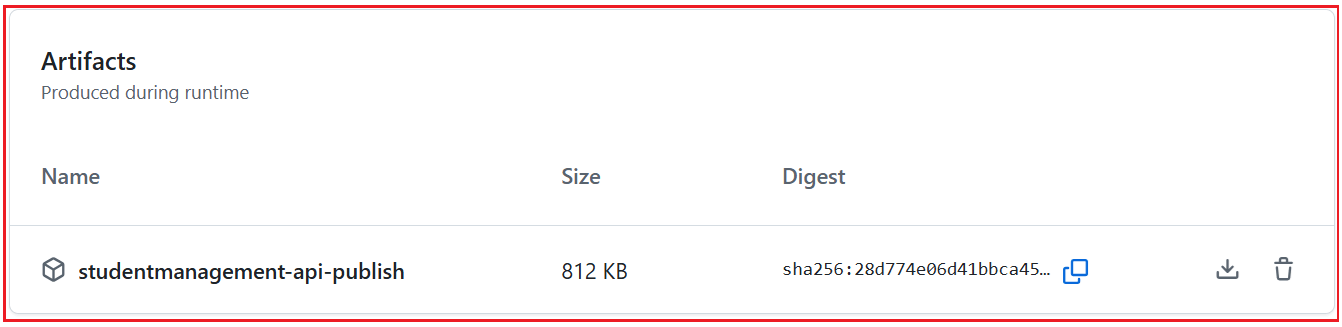
Download the artifact, which should contain the published files. This is the same type of output we manually created in Chapter 2. The difference is that GitHub Actions has now created it automatically.
Step 11: Pull Request
Now, we will demonstrate the second trigger.
Step-A: Create a new branch
For example, create a feature/change-health-message branch from the local main branch.
Step-B: Make a small change in the code
Please modify the Health Controller as follows:
using Microsoft.AspNetCore.Mvc;
namespace StudentManagement.API.Controllers
{
    [Route("api/[controller]")]
    [ApiController]
    public class HealthController : ControllerBase
    {
        [HttpGet]
        public IActionResult Get()
        {
            return Ok(new
            {
                Code = 200,
                Status = "Healthy",
                Message = "Student Management API is running successfully."
            });
        }
    }
}
Step-C: Commit the Feature in Visual Studio
Now commit only this feature work.
Steps
- Open Git → Git Changes
- You should see:
-
- Controllers/HealthController.cs
-
- Review them
- Stage the files
- In the commit message box, enter: Adding Status Code in Health Check Message Body
- Click Commit Staged
Step-D: Push the Feature Branch to GitHub
A PR (Pull Request) cannot be created until the branch is available on GitHub.
- Stay on branch: feature/change-health-message
- Go to Git
- Click Push
If this is the first push to the branch, Visual Studio will publish it to GitHub. After the push, the branch is now visible on GitHub.
Step-E: Create a Pull Request in GitHub
Now move to GitHub.
- Open GitHub in the browser
- Open repository: StudentManagement.API
Step-F: Open PR (Pull Request) Creation Screen
GitHub usually shows a banner like: Compare & pull request. Click that.
Step-G: Select Branches
Set:
- base = main
- compare = feature/change-health-message
This means:
- Take code from feature/change-health-message
- Merge it into the main
Step-H: Enter the PR Title and Description
Now fill the Pull Request properly.
PR Title
Adding Status Code in Health Check Message Body
PR Description
This PR adds a Status Code to the Health Check Message Body
Then click Create pull request. The workflow should run, and you should see the following.

The workflow should run again because the YAML includes a Pull Request trigger for main. This is how teams stop broken code from entering the main branch. The build and tests run before the merge. That is one of the biggest real-world benefits of CI.
Step-12: Understanding Success and Failure Conditions
A workflow run is successful only if all required steps are completed successfully. In our CI workflow:
- If the restore fails, the job stops
- If the build fails, the job stops
- If tests fail, the job stops
- If the publish fails, the job stops
This is exactly what we want, because CI should block bad code early. In CI, failure is not a problem. Hidden failure is the real problem.
Step 15: Create One Intentional Failure
Open StudentsController.cs and introduce a small compile error, such as:
- Remove a semicolon
- Misspell a class name
- Use a missing variable
Now commit and push the change to GitHub. The workflow should fail in the Build solution step.
Then open the logs, and you should see the error. After that, fix the error and push again. The pipeline should pass.
Conclusion:
In this chapter, we created our first Continuous Integration pipeline using GitHub Actions for the .NET 8 ASP.NET Core Web API project. We understood how GitHub automatically restores packages, builds the solution, runs tests, publishes the application, and stores the output as an artifact whenever code is pushed or a pull request is updated. This gives us a strong practical foundation for the next chapters, where we will move from continuous integration to deployment automation and complete CI/CD implementation.
Want to see how CI/CD actually works in a real .NET project?
Instead of just reading, watch the complete hands-on implementation where I show how code moves from GitHub to deployment using GitHub Actions and IIS.
👉 Click here to watch: https://youtu.be/tKBa4qPOOqA
This will make the entire concept crystal clear.