
Back to: Microservices using ASP.NET Core Web API Tutorials
Automating Deployment to IIS with CI/CD Pipeline using GitHub Actions
In the previous chapters, we already completed the most important foundation work.:
- We created the ASP.NET Core Web API project and manually deployed it to IIS
- Then, we automated the CI pipeline in GitHub Actions: Build, Test, Publish
- And secured configurations using Secrets & Variables
That means our project is now ready for the next real-world step: Deployment Automation.
What We Will Build in This Chapter
In this chapter, we will extend our existing StudentManagement.API project and its CI workflow into a real deployment pipeline. Our deployment flow will look like this:
Developer Pushes Code → GitHub Actions Runs CI → Publish Output Is Generated → CD Job Runs on Self-Hosted Runner → Files Are Copied to IIS Folder → IIS App Pool/Site Is Restarted → Health Endpoint Is Tested
So, from this chapter onward, we are no longer stopping at build and publish. We are moving to actual deployment automation.
What Is Continuous Delivery in Our Project?
Up to now, our pipeline was doing the following automatically:
- Download Repository Code
- Installing the .NET SDK
- Restore Packages
- Build the Solution
- Run Unit Tests
- Publish the Web API
- Store the published output as an artifact
That was the CI part.
Now, in this chapter, we add the CD part. In our project, Continuous Delivery means:
- The deployment-ready files will be produced automatically.
- The deployment process to IIS will also be executed automatically.
- Deployment should happen only after the build and test pass.
- After deployment, the application should be checked to confirm it is running properly.
So, in very simple words:
- CI checks whether the code is good
- CD moves the good code to the IIS server
Why Deployment Automation Is Needed
Before automation, deployment usually looked like this:
- Open Visual Studio
- Publish the project manually
- Open the publish folder
- Copy the files manually
- Paste them into the IIS deployment folder
- Stop the site or app pool manually
- Replace old files
- Start the site again
- Open a browser or Postman and test endpoints
This manual process works for learning, but in real work, it creates many problems:
- One step may be forgotten
- Wrong files may be copied
- Old files may remain in the folder
- Release and Debug confusion may happen
- Deployment takes time every time
- Different people may deploy differently
That is exactly why deployment automation is important. Once we define the steps in a pipeline, the same correct process runs every time.
What do we want to achieve?
By the end of this chapter, when we push code to the selected branch:
- CI should run first
- Build, test, and publish should be complete
- CD should run next
- Files should be deployed to IIS automatically
- IIS should start serving the latest version
- /api/health should confirm the application is healthy
This is the exact kind of flow that we implement in CI/CD.
Part 1: Understand Why We Need a Self-Hosted Runner
GitHub-Hosted Runner vs Self-Hosted Runner
In the previous chapter, we used:
- runs-on: ubuntu-latest
That means GitHub gave us a temporary Linux machine to run build and test commands. That is perfect for CI, but it is not suitable for local IIS deployment.
Why?
Because the GitHub-hosted runner:
- Cannot directly access our local IIS machine
- Cannot access our local C:\inetpub\… folder
- Cannot stop our local IIS application pool
- Cannot control services on our own Windows machine
So, for IIS deployment, we need the workflow to run on the IIS machine itself. That is why we use a self-hosted runner.
What Is a Self-Hosted Runner?
A self-hosted runner is simply a machine we control, and GitHub Actions uses it to run the job.
In our case:
- The IIS machine itself will become the runner
- GitHub will send the deployment job to that machine
- That machine will execute PowerShell commands locally
- Those commands will copy files into the IIS deployment folder and restart the application
So here the important idea is:
- CI can run on GitHub-hosted runner
- CD should run on a self-hosted Windows runner when deploying to local IIS
Real-Time Understanding
Think of it like this:
- GitHub-hosted runner = Rented temporary worker.
- Self-hosted runner = Your own permanent worker inside your own office.
If the work is just build/test, any worker can do it. But if the work is:
- Access local IIS
- Copy to C:\inetpub
- Restart the app pool
- Verify the localhost deployment
Then the worker must be physically on that machine.
Part 2: Prepare the IIS Machine for Automated Deployment
Before connecting the machine as a self-hosted runner, we first make sure the IIS machine is ready.
Step 1: Verify IIS Is Installed
Open Windows Features and make sure IIS is enabled. At minimum, IIS should already be working because in Chapter 2 we manually deployed the API to IIS. That manual deployment foundation is important here because this chapter is simply automating the same process.
Step 2: Verify .NET Hosting Bundle Is Installed
Since this is an ASP.NET Core Web API application running behind IIS, the IIS machine must have the correct .NET Hosting Bundle installed.
Without the hosting bundle:
- IIS may start the site
- But an ASP.NET Core application may fail to run
- You may see HTTP 500.30 or startup-related errors
So, always confirm the target IIS machine has the correct runtime and hosting bundle installed for the .NET version used by the project. In our case, the project is based on .NET 8, so the IIS machine must support .NET 8 hosting.
Step 3: Verify the Existing IIS Site
From the previous manual deployment chapter, we already know how to create:
- Deployment folder
- Application pool
- IIS site
- Port binding
Use the same setup here. For example:
- Deployment Folder: C:\inetpub\StudentManagement.API
- Application Pool: StudentManagementAPIAppPool
- Site Name: StudentManagement.API
- Port: 8080
Step 4: Confirm the Manual Site Still Works
Before automation, always confirm that the current site is working manually.
Test:
- http://localhost:8080/api/health
- http://localhost:8080/api/students
If manual deployment is already broken, automation will not fix it. Automation only repeats the process faster; it does not correct a bad server setup.
Part 3: Understand the Role of web.config in IIS Hosting
When ASP.NET Core is published to IIS, the publish output usually includes a web.config file. This file is very important because IIS uses it to understand how to start the ASP.NET Core application through the ASP.NET Core Module.
So, during deployment:
- Do not randomly delete web.config
- Do not replace it with unrelated content
- Make sure the published output contains the correct web.config
If web.config is missing or corrupted, the site may fail to run even though the deployment completed successfully. That is why our deployment process should deploy the published output as-is, not random files manually.
Part 4: Recommended Folder Structure for Deployment
For clean deployment automation, do not copy files directly from random folders. Use a proper structure. The following is the recommended folder structure on the IIS machine.
- C:\actions-runner\: This is where the self-hosted runner will be installed.
- C:\apps\StudentManagement.API\temp\publish\: This is the temporary staging folder where the published artifact downloaded from GitHub Actions will be stored before deployment.
- C:\apps\StudentManagement.API\current\: This is the actual IIS deployment folder used by the site. IIS will serve the application from this folder.
- C:\apps\StudentManagement.API\backup\: This is the backup folder where the current live IIS deployment files will be copied before deploying the new version. If the health check or smoke test fails after deployment, these backup files will be used for rollback.
This structure keeps the runner files, temporary deployment files, backup files, and live IIS files separate. As a result, deployment becomes cleaner, easier to understand, and safer.
Part 5: Set Up the Self-Hosted Runner on the IIS Machine
Now we will connect the IIS machine to GitHub as a self-hosted runner.
Open GitHub Repository Settings
In your GitHub repository:
- Go to Settings
- Click Actions
- Click Runners
- Click New self-hosted runner
Choose:
- Operating System: Windows
- Architecture: x64
GitHub will show commands.
What you should do now
Run these commands on the same Windows machine where IIS is installed.
1: Open PowerShell as Administrator
This matters if you want the runner to be installed as a Windows service. So, please open Windows PowerShell in administrator mode.
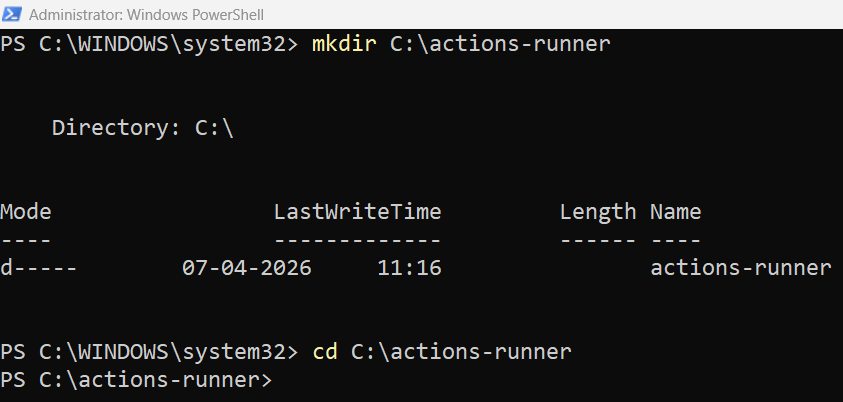
2: Create the runner folder
Please execute the following command in PowerShell.
- mkdir C:\actions-runner
- cd C:\actions-runner
3: Download and extract the runner
Use the exact version GitHub shows on your screen. Please execute the following one by one.
First Execute: Download the latest runner package
Invoke-WebRequest -Uri https://github.com/actions/runner/releases/download/v2.333.1/actions-runner-win-x64-2.333.1.zip -OutFile actions-runner-win-x64-2.333.1.zip
Second Execute: Validate the hash
if((Get-FileHash -Path actions-runner-win-x64-2.333.1.zip -Algorithm SHA256).Hash.ToUpper() -ne ‘d0c4fcb91f8f0754d478db5d61db533bba14cad6c4676a9b93c0b7c2a3969aa0’.ToUpper()){ throw ‘Computed checksum did not match’ }
Third Execute: Extract the installer
Add-Type -AssemblyName System.IO.Compression.FileSystem ; [System.IO.Compression.ZipFile]::ExtractToDirectory(“$PWD/actions-runner-win-x64-2.333.1.zip”, “$PWD”)
4: Configure the runner
Now, execute the following code in PowerShell. This will create the runner and start the configuration. Please replace RUNNER_REGISTRATION_TOKEN with the actual token shown on GitHub.
./config.cmd –url https://github.com/Pranaya-DotNet/StudentManagement.API –token <RUNNER_REGISTRATION_TOKEN>
After running, GitHub will ask you multiple questions.
Enter Runner Group
Enter runner group (press Enter for default): Just press Enter, which will use the default.
Enter Runner Name (VERY IMPORTANT)
Enter the name of the runner:
Give a meaningful name. Recommended Names (for our project)
- IIS-Deployment-Runner
- StudentManagement-IIS-Runner
- Local-IIS-CD-Runner
- Prod-IIS-Runner (if production)
I am giving IIS-Deployment-Runner.
Enter Labels
Enter any additional labels: iis
GitHub already applies the default self-hosted labels for OS and architecture, and custom labels are meant for your own targeting. Your workflow already uses: runs-on: [self-hosted, windows, iis]. So, adding iis is the important custom label here.
Enter Work Folder
Enter name of work folder:
Press Enter (default: _work)
Run as a service? (VERY IMPORTANT)
Do you want to run the runner as a service? (Y/N)
Recommended Answer: Y (YES)
Under which Windows account should the runner service run?
Type exactly this: NT AUTHORITY\SYSTEM
You should see the following message:

What Should Be the Service Name?
Pattern: actions.runner.<Owner>-<Repo>.<RunnerName>
Example: actions.runner.Pranaya-DotNet-StudentManagement.API.IIS-Deployment-Runner
How to Verify Runner Service is Running?
Open PowerShell as Administrator and run: Get-Service *runner*
Then also run: Get-Service “actions.runner*”
If it exists, you should get a result with a status like Running or Stopped.

How to Stop, Start, and Restart the Service?
Start the Service
Start-Service “actions.runner.Pranaya-DotNet-StudentManagement.API.IIS-Deployment-Runner“
Stop the Service
Stop-Service “actions.runner.Pranaya-DotNet-StudentManagement.API.IIS-Deployment-Runner“
Restart the Service
Restart-Service “actions.runner.Pranaya-DotNet-StudentManagement.API.IIS-Deployment-Runner“
Confirm the Runner Is Online
Go back to GitHub repository → Settings → Actions → Runners. You should now see the runner as Idle or Online. That means GitHub can now send deployment jobs to this IIS machine. Idle means Runner is ONLINE but not currently doing any job.
Simple Meaning
- Online / Idle → Ready to accept jobs
- Busy → Currently running a pipeline
- Offline → Not connected / service stopped
Part 6: Prepare GitHub Environments and Deployment Variables
In the previous chapter, we already worked with:
- GitHub variables
- GitHub secrets
- Environments such as Development and Production
Now we will use that same concept for deployment.
Create or Reuse the Development Environment
If you already created the Development environment in the previous chapter, continue using it. Inside that environment, add deployment-related variables such as:
- IIS_APP_POOL = StudentManagementAPIAppPool
- TEMP_PUBLISH_PATH = C:\apps\StudentManagement.API\temp\publish\
- BACKUP_PATH = C:\apps\StudentManagement.API\backup\
- DEPLOY_PATH = C:\apps\StudentManagement.API\current\
- API_HEALTH_URL = http://localhost:8080/api/health
- SMOKE_TEST_URL = http://localhost:8080/api/students
These are non-sensitive values, so variables are fine. If you need sensitive values later, those can go into secrets.
Part 7: Build the Deployment Strategy
Before writing YAML, let us first clearly decide the deployment sequence.
Deployment Sequence We Will Use
Our CD job will do the following:
- Download the published artifact generated by CI
- Stop the IIS site or application pool
- Copy the published files to the IIS deployment folder
- Start the IIS site or application pool
- Wait a few seconds
- Call the health endpoint
- Fail the pipeline if the health check does not pass
Why Stop IIS During Deployment?
Sometimes, IIS keeps files locked. If files are locked:
- Copy may fail
- Some files may not overwrite
- Deployment becomes inconsistent
So, during deployment, it is safer to stop the application pool or site first, replace files, then start it again.
Part 8: Create the Multi-Stage CI/CD Workflow
Now we will extend our existing workflow from Chapter 3. Earlier, our CI workflow had one job:
- Build, Test, and Publish
Now we will create two jobs:
- ci-build-test-publish
- cd-deploy-to-iis
The second job should run only if the first job succeeds.
Complete Workflow Example
Create or update .github/workflows/cicd.yml file with the following YAML. The following code is self-explained, so please read the comment lines for a better understanding.
# This is the display name of the workflow in GitHub Actions
name: StudentManagement API CI-CD

# Trigger section
# This workflow will run whenever code is pushed to main
# Example:
#   Code push to main
#   feature branch -> merged into main -> workflow runs
on:
  push:
    branches:
      - main

jobs:
  # ---------------------------------------------------
  # JOB 1: CONTINUOUS INTEGRATION (CI)
  # This job runs on GitHub's hosted Ubuntu machine
  # Steps:
  #   1. Download source code
  #   2. Install .NET 8 SDK on the runner
  #   3. Restore NuGet packages
  #   4. Build the solution
  #   5. Run Unit tests
  #   6. Publish the application
  #   7. Upload published output as artifact
  # ---------------------------------------------------
  ci-build-test-publish:
    name: CI - Build, Test, and Publish
    runs-on: ubuntu-latest

    steps:
      # Step 1: Download the latest repository code
      # actions/checkout pulls your GitHub repository content
      # into the runner machine
      - name: Checkout source code
        uses: actions/checkout@v5

      # Step 2: Install .NET 8 SDK on the runner
      # This is required because dotnet restore/build/test/publish
      # commands need the .NET SDK
      - name: Setup .NET 8 SDK
        uses: actions/setup-dotnet@v5
        with:
          dotnet-version: '8.0.x'

      # Step 3: Restore NuGet packages for the solution
      # This downloads all package dependencies referenced
      # by the solution/project
      - name: Restore dependencies
        run: dotnet restore StudentManagement.API.sln

      # Step 4: Build the solution in Release mode
      # --configuration Release -> build optimized release version
      # --no-restore -> do not restore again because already done above
      - name: Build solution
        run: dotnet build StudentManagement.API.sln --configuration Release --no-restore

      # Step 5: Run tests in Release mode
      # --no-build -> do not build again because build already happened
      # --verbosity normal -> show normal level test logs
      - name: Run tests
        run: dotnet test StudentManagement.API.sln --configuration Release --no-build --verbosity normal

      # Step 6: Publish the Web API project
      # Publish creates deployment-ready files
      # Output goes into ./publish folder on the runner
      - name: Publish Web API
        run: dotnet publish StudentManagement.API/StudentManagement.API.csproj --configuration Release --output ./publish --no-build

      # Step 7: Upload the published output as an artifact
      # Artifact = packaged files stored by GitHub Actions
      # Later, the CD job will download this artifact
      - name: Upload publish artifact
        uses: actions/upload-artifact@v4
        with:
          name: studentmanagement-api-publish
          path: ./publish

  # ----------------------------------------------------------
  # JOB 2: CONTINUOUS DEPLOYMENT (CD)
  # This job runs on your self-hosted Windows IIS machine
  # Steps:
  #   1. Download published artifact
  #   2. Prepare folders
  #   3. Backup current live deployment
  #   4. Stop IIS App Pool
  #   5. Copy new files
  #   6. Start IIS App Pool
  #   7. Run health check
  #   8. Run smoke test
  #   9. Rollback if something fails
  # ----------------------------------------------------------
  cd-deploy-to-iis:
    name: CD - Deploy to IIS

    # needs means:
    # Run this deployment job only after the CI job succeeds
    # If build/test/publish fails, deployment will not run
    needs: ci-build-test-publish

    # This job should run only on your self-hosted IIS machine
    # self-hosted -> Your own runner
    # windows     -> Runner is Windows based
    # iis         -> Custom label added while configuring runner
    runs-on: [self-hosted, windows, iis]

    # Development environment in GitHub
    # This lets the workflow read environment variables like:
    #   TEMP_PUBLISH_PATH
    #   BACKUP_PATH
    #   DEPLOY_PATH
    #   IIS_APP_POOL
    #   API_HEALTH_URL
    #   SMOKE_TEST_URL
    environment:
      name: Development

    steps:
      # Step 1: Make sure all required folders exist
      # Why needed?
      # Because deployment will fail if these folders are missing
      - name: Ensure deployment folders exist
        shell: powershell
        run: |
          # Read folder paths from GitHub environment variables
          # These values are configured in GitHub -> Settings -> Environments -> Development
          $tempPath = "${{ vars.TEMP_PUBLISH_PATH }}"
          $backupPath = "${{ vars.BACKUP_PATH }}"
          $deployPath = "${{ vars.DEPLOY_PATH }}"

          # If temp folder does not exist, create it
          # TEMP_PUBLISH_PATH stores downloaded artifact files temporarily
          if (!(Test-Path $tempPath)) {
              New-Item -ItemType Directory -Path $tempPath -Force | Out-Null
          }

          # If backup folder does not exist, create it
          # BACKUP_PATH stores the previous live version for rollback
          if (!(Test-Path $backupPath)) {
              New-Item -ItemType Directory -Path $backupPath -Force | Out-Null
          }

          # If deployment folder does not exist, create it
          # DEPLOY_PATH is the live IIS physical folder
          if (!(Test-Path $deployPath)) {
              New-Item -ItemType Directory -Path $deployPath -Force | Out-Null
          }

          Write-Host "Required folders verified successfully."

      # Step 2: Download the artifact created in CI job
      # The published files are downloaded to TEMP_PUBLISH_PATH
      - name: Download publish artifact
        uses: actions/download-artifact@v5
        with:
          name: studentmanagement-api-publish
          path: ${{ vars.TEMP_PUBLISH_PATH }}

      # Step 3: Backup the current deployment
      # Why?
      # If the new deployment fails, we can restore old working files
      - name: Backup current IIS deployment
        shell: powershell
        run: |
          # Current live deployment folder
          $source = "${{ vars.DEPLOY_PATH }}"

          # Backup folder where current live version will be stored
          $backup = "${{ vars.BACKUP_PATH }}"

          Write-Host "Preparing backup..."

          # Clean old backup contents first
          # This ensures backup folder contains only the latest backup
          if (Test-Path $backup) {
              Get-ChildItem -Path $backup -Force -ErrorAction SilentlyContinue | Remove-Item -Recurse -Force -ErrorAction SilentlyContinue
          }

          # If current deployment exists, backup it
          if (Test-Path $source) {

              # robocopy is a robust Windows file copy command
              # /MIR = mirror source to destination
              #        copies new files and removes extra files in destination
              # /R:2 = retry 2 times on failure
              # /W:5 = wait 5 seconds between retries
              robocopy $source $backup /MIR /R:2 /W:5

              # Store robocopy exit code in a variable
              $exitCode = $LASTEXITCODE

              # Important:
              # Robocopy does NOT follow normal success/failure pattern
              # 0 to 7  = acceptable/success-like results
              # 8 or more = actual failure
              if ($exitCode -ge 8) {
                  throw "Backup failed. Robocopy exit code: $exitCode"
              }

              Write-Host "Backup completed successfully. Robocopy exit code: $exitCode"

              # exit 0 means explicitly finish step as success
              # This is useful because robocopy may return non-zero codes even on success
              exit 0
          }
          else {
              # First deployment case: no existing live deployment
              Write-Host "Deployment path does not exist yet. Skipping backup."
          }

      # Step 4: Stop IIS App Pool before deployment
      # Why stop?
      # Because IIS may lock DLLs/files while app is running
      - name: Stop IIS App Pool
        shell: powershell
        run: |
          # Import IIS PowerShell module
          # Without this, commands like Get-WebAppPoolState and Stop-WebAppPool won't work
          Import-Module WebAdministration

          # Read app pool name from GitHub variable
          $appPool = "${{ vars.IIS_APP_POOL }}"

          # Check current state of app pool
          # Value can be Started, Stopped, etc.
          $state = (Get-WebAppPoolState -Name $appPool).Value

          # Stop only if not already stopped
          if ($state -ne "Stopped") {
              Stop-WebAppPool -Name $appPool
              Write-Host "IIS App Pool stopped successfully."
          }
          else {
              Write-Host "IIS App Pool is already stopped."
          }

      # Step 5: Wait a few seconds after stopping app pool
      # Why wait?
      # To give IIS time to fully release files and locks
      - name: Wait after stopping app pool
        shell: powershell
        run: Start-Sleep -Seconds 5

      # Step 6: Confirm artifact is really present
      # Why needed?
      # If artifact download failed or folder is empty,
      # deployment should stop immediately
      - name: Clean deployment temp folder check
        shell: powershell
        run: |
          # Temp folder where artifact was downloaded
          $source = "${{ vars.TEMP_PUBLISH_PATH }}"

          # Ensure temp path exists
          if (!(Test-Path $source)) {
              throw "Temp publish path does not exist: $source"
          }

          # Get files from temp folder
          $files = Get-ChildItem -Path $source -Force -ErrorAction SilentlyContinue

          # If folder is empty, deployment should not continue
          if ($null -eq $files -or $files.Count -eq 0) {
              throw "Temp publish path is empty. Deployment artifact was not downloaded correctly."
          }

          Write-Host "Publish artifact is available for deployment."

      # Step 7: Deploy the new published files
      # This is the actual file copy from temp folder to live IIS folder
      - name: Deploy published files to IIS folder
        shell: powershell
        run: |
          # Source = temp folder containing published files downloaded from artifact
          $source = "${{ vars.TEMP_PUBLISH_PATH }}"

          # Destination = actual IIS live deployment folder
          $destination = "${{ vars.DEPLOY_PATH }}"

          # Create destination folder if it does not exist
          if (!(Test-Path $destination)) {
              New-Item -ItemType Directory -Path $destination -Force | Out-Null
          }

          # Copy files from temp folder to IIS live folder
          robocopy $source $destination /MIR /R:2 /W:5

          # Capture robocopy exit code
          $exitCode = $LASTEXITCODE

          # Only fail when exit code is 8 or above
          if ($exitCode -ge 8) {
              throw "Deployment failed during file copy. Robocopy exit code: $exitCode"
          }

          Write-Host "Deployment copy completed successfully. Robocopy exit code: $exitCode"

          # Mark step successful explicitly
          exit 0

      # Step 8: Start IIS App Pool again after deployment
      # This makes IIS serve the newly deployed version
      - name: Start IIS App Pool
        shell: powershell
        run: |
          # Load IIS PowerShell module
          Import-Module WebAdministration

          # Read app pool name
          $appPool = "${{ vars.IIS_APP_POOL }}"

          # Check current app pool state
          $state = (Get-WebAppPoolState -Name $appPool).Value

          # Start only if not already started
          if ($state -ne "Started") {
              Start-WebAppPool -Name $appPool
              Write-Host "IIS App Pool started successfully."
          }
          else {
              Write-Host "IIS App Pool is already started."
          }

      # Step 9: Wait for app startup
      # Why?
      # After app pool starts, app still needs some time to boot
      - name: Wait for application startup
        shell: powershell
        run: Start-Sleep -Seconds 10

      # Step 10: Health check
      # Purpose:
      # Confirm the API is alive and responding with HTTP 200
      - name: Run health check
        shell: powershell
        run: |
          # Read health check URL from GitHub variable
          $url = "${{ vars.API_HEALTH_URL }}"

          Write-Host "Running health check: $url"

          try {
              # Invoke-WebRequest sends HTTP request
              # -TimeoutSec 30 means wait up to 30 seconds
              $response = Invoke-WebRequest -Uri $url -UseBasicParsing -TimeoutSec 30
          }
          catch {
              # If request itself fails, stop pipeline
              throw "Health check request failed. Error: $($_.Exception.Message)"
          }

          # If API did not return HTTP 200, deployment should fail
          if ($response.StatusCode -ne 200) {
              throw "Health check failed. Status code: $($response.StatusCode)"
          }

          Write-Host "Health check passed successfully."

      # Step 11: Smoke test
      # Purpose:
      # Confirm one actual business/API endpoint also works
      # Health endpoint proves app is alive
      # Smoke test proves app functionality is alive
      - name: Run smoke test
        shell: powershell
        run: |
          # Read smoke test URL from GitHub variable
          $url = "${{ vars.SMOKE_TEST_URL }}"

          Write-Host "Running smoke test: $url"

          try {
              # Invoke-RestMethod is better when expecting JSON/API data
              $response = Invoke-RestMethod -Uri $url -Method Get -TimeoutSec 30
          }
          catch {
              throw "Smoke test request failed. Error: $($_.Exception.Message)"
          }

          # If response is null, something is wrong
          if ($null -eq $response) {
              throw "Smoke test failed. No data returned."
          }

          # If API returns an array/list, make sure it has data
          if ($response -is [System.Array]) {
              if ($response.Count -lt 1) {
                  throw "Smoke test failed. Response array is empty."
              }
          }

          Write-Host "Smoke test passed successfully."

      # Step 12: Rollback on failure
      # This step runs only if any earlier step in this job fails
      # Example failures:
      #   - file copy fails
      #   - health check fails
      #   - smoke test fails
      - name: Rollback deployment on failure
        if: ${{ failure() }}
        shell: powershell
        run: |
          # Load IIS management commands
          Import-Module WebAdministration

          # Read variables used during rollback
          $appPool = "${{ vars.IIS_APP_POOL }}"
          $backup = "${{ vars.BACKUP_PATH }}"
          $destination = "${{ vars.DEPLOY_PATH }}"
          $rollbackHealthUrl = "${{ vars.API_HEALTH_URL }}"

          Write-Host "Deployment validation failed. Starting rollback..."

          # Check whether backup folder exists
          # If backup folder itself is missing, rollback cannot continue
          if (!(Test-Path $backup)) {
              throw "Rollback failed. Backup path does not exist: $backup"
          }

          # Get files from backup folder
          $backupFiles = Get-ChildItem -Path $backup -Force -ErrorAction SilentlyContinue

          # If backup folder is empty, rollback cannot restore anything
          if ($null -eq $backupFiles -or $backupFiles.Count -eq 0) {
              throw "Rollback failed. Backup folder is empty."
          }

          # Stop app pool before restoring backup files
          $state = (Get-WebAppPoolState -Name $appPool).Value
          if ($state -ne "Stopped") {
              Stop-WebAppPool -Name $appPool
              Write-Host "IIS App Pool stopped for rollback."
          }
          else {
              Write-Host "IIS App Pool already stopped."
          }

          # Wait a few seconds to release file locks
          Start-Sleep -Seconds 5

          # Ensure destination folder exists before restoring files
          if (!(Test-Path $destination)) {
              New-Item -ItemType Directory -Path $destination -Force | Out-Null
          }

          # Copy backup files back to live deployment folder
          robocopy $backup $destination /MIR /R:2 /W:5

          # Capture rollback robocopy exit code
          $exitCode = $LASTEXITCODE

          # Fail only if real robocopy error occurs
          if ($exitCode -ge 8) {
              throw "Rollback file restore failed. Robocopy exit code: $exitCode"
          }

          Write-Host "Rollback copy completed successfully. Robocopy exit code: $exitCode"

          # Start app pool again after rollback
          $state = (Get-WebAppPoolState -Name $appPool).Value
          if ($state -ne "Started") {
              Start-WebAppPool -Name $appPool
              Write-Host "IIS App Pool started after rollback."
          }
          else {
              Write-Host "IIS App Pool already started."
          }

          # Wait for rolled back application to start
          Start-Sleep -Seconds 10

          # Run health check again on restored version
          try {
              $rollbackResponse = Invoke-WebRequest -Uri $rollbackHealthUrl -UseBasicParsing -TimeoutSec 30
          }
          catch {
              throw "Rollback completed, but health check request failed after rollback. Error: $($_.Exception.Message)"
          }

          # If rollback version is still unhealthy, rollback is not considered successful
          if ($rollbackResponse.StatusCode -ne 200) {
              throw "Rollback completed, but health check after rollback failed. Status code: $($rollbackResponse.StatusCode)"
          }

          Write-Host "Rollback completed successfully."

          # Explicitly mark rollback step successful
          exit 0

      # Step 13: Mark workflow as failed after rollback
      # Why do this?
      # Because even if rollback succeeded, the new deployment failed
      # So GitHub Actions should still show the workflow as failed
      - name: Mark workflow as failed after rollback
        if: ${{ failure() }}
        shell: powershell
        run: |
          throw "Deployment failed. Rollback was executed."
How to set the Environment as Development in IIS?
Please add the following Property Group within the .csproj file.
<PropertyGroup>
<EnvironmentName>Development</EnvironmentName>
</PropertyGroup>
Conclusion
This chapter automated the deployment of our ASP.NET Core Web API to IIS by using a self-hosted GitHub Actions runner, a multi-stage CI/CD workflow, PowerShell-based deployment steps, and post-deployment health validation.
About the Author: Pranaya Rout
Pranaya Rout has published more than 3,000 articles in his 11-year career. Pranaya Rout has very good experience with Microsoft Technologies, Including C#, VB, ASP.NET MVC, ASP.NET Web API, EF, EF Core, ADO.NET, LINQ, SQL Server, MYSQL, Oracle, ASP.NET Core, Cloud Computing, Microservices, Design Patterns and still learning new technologies.
We have created a complete real-time video tutorial on Automating IIS Deployment using a CI/CD Pipeline with GitHub Actions.
In this video, you will learn how to move from manual deployment to a fully automated deployment process using a self-hosted runner, PowerShell scripts, and proper health checks.
This is not just theory — it is a practical, industry-level implementation step by step.
👉 Watch the full video here:
https://youtu.be/pV16DQiyFJ0
If you are serious about learning real-world DevOps in .NET, this video will give you complete clarity.