
One picture can give you an idea of what a thing looks like, but a combination of pictures can tell you a lot more. From fashion design to character, product or a professional portrait, having the same perspectives creates a complete visual set. The AI image generator can be used to generate those variations without having to organise a new shoot for each frame. Using Dreamina and its newest and most advanced image generation model, Seedream 5.0 Pro, you can experience the front, side, three-quarter and rear views without losing the image feeling of the subject.
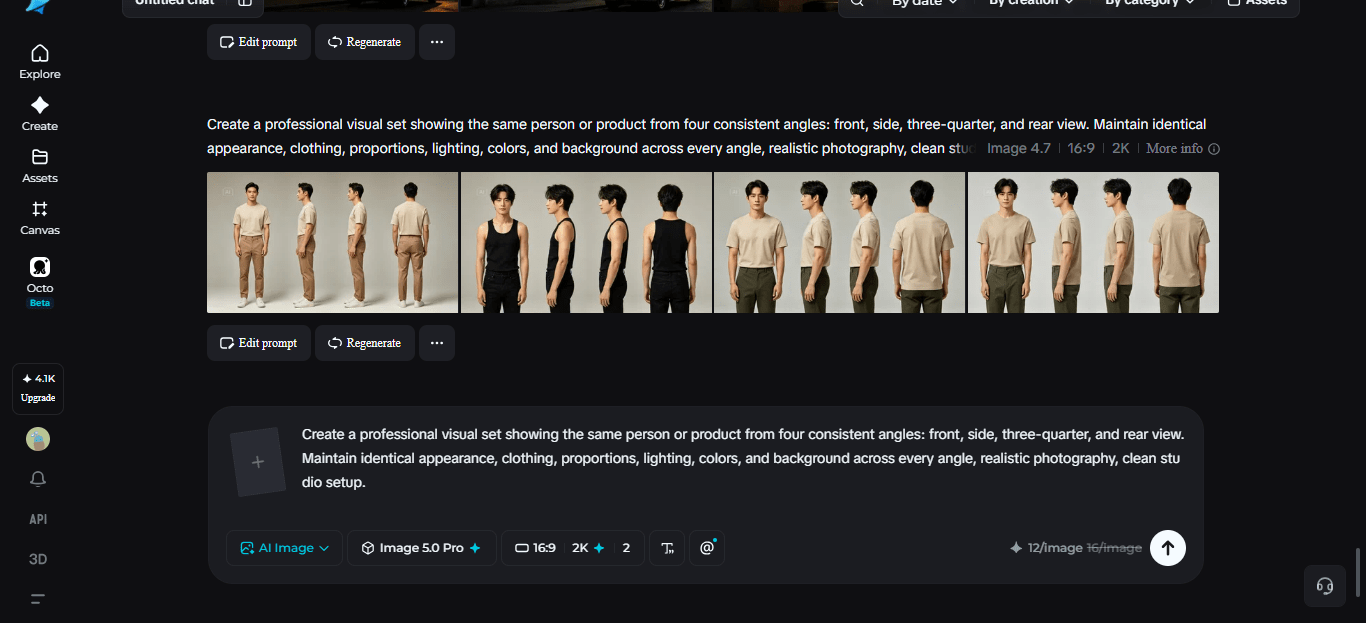
Why there are several perspectives?
Appearance is determined by a front view, and shape and proportions are determined by a profile. It’s often more dynamic to shoot a three-quarter angle and a rear view can round out a reference set.
Regular angles can also be helpful for presentations, concept development and visual planning.
Have a clear visual introduction
The first step to consistency is a dependable beginning. Describe what you are drawing to Dreamina. State specific features like hairstyle, dress, facial features, materials, colours or proportions.
Write down the viewpoint you want clearly. Rather than saying “another angle”, be specific about the camera position and how much of the subject is to be shown.
Control what changes and what doesn’t
Create a visual identity and maintain consistency in your prompts. Take into account securing these particulars:
- Clothing and accessories
- Unique physical or design attributes
- Lighting style
- Background atmosphere
After those variables are controlled, you can start to play with camera placement without creating disjointed images.
Meet Seedream 5.0 Pro
The Seedream 5.0 Pro by Dreamina is well-suited for controlled variations in vision. Its image editing system features point selection, lasso selection, sketch guidance, and regional controls, which provide the creator with options to work on specific areas without reconstructing a whole composition.
Also, it provides intelligent layer separation, which means that the subjects, backgrounds, text, and effects can all be edited separately. 14 languages are supported for native text generation, and built-in online research gives the ability to add up-to-date and accurate visual context. Its 2K output comes in handy when details are very important.
Seeing things in photographs means thinking like a photographer
If you’re getting a professional portrait, you may want to switch from a front-facing shot to a slightly raised three-quarter shot. You may change from a head-on shot to a low-angle shot to suggest the form of a product.
Create an angle set in Dreamina
Step 1: Write down a text prompt and/or add reference image
Go to Dreamina and create a long description of the human subject wearing suitable clothing for the situation, followed by a description of the wanted camera angle. Use a reference image for more consistency. Alternate attempts: “A fashion professional in a dark grey blazer, white button-down shirt, and dark grey jeans with a three-quarters portrait of the subject from the left, looking naturally with soft shadows, warm lighting, clean background, and realistic fabric details, in an office-like setting with a modern style and a contemporary aesthetic.
Imagine: A contemporary, well-dressed fashion designer in a dark charcoal grey blazer, white shirt and dark grey trousers, standing in a right-side profile in a professional setting, with facial features, hair, proportions, warm cinematic lighting, soft shadows and realistic texture for clothing and professional photography all preserved.
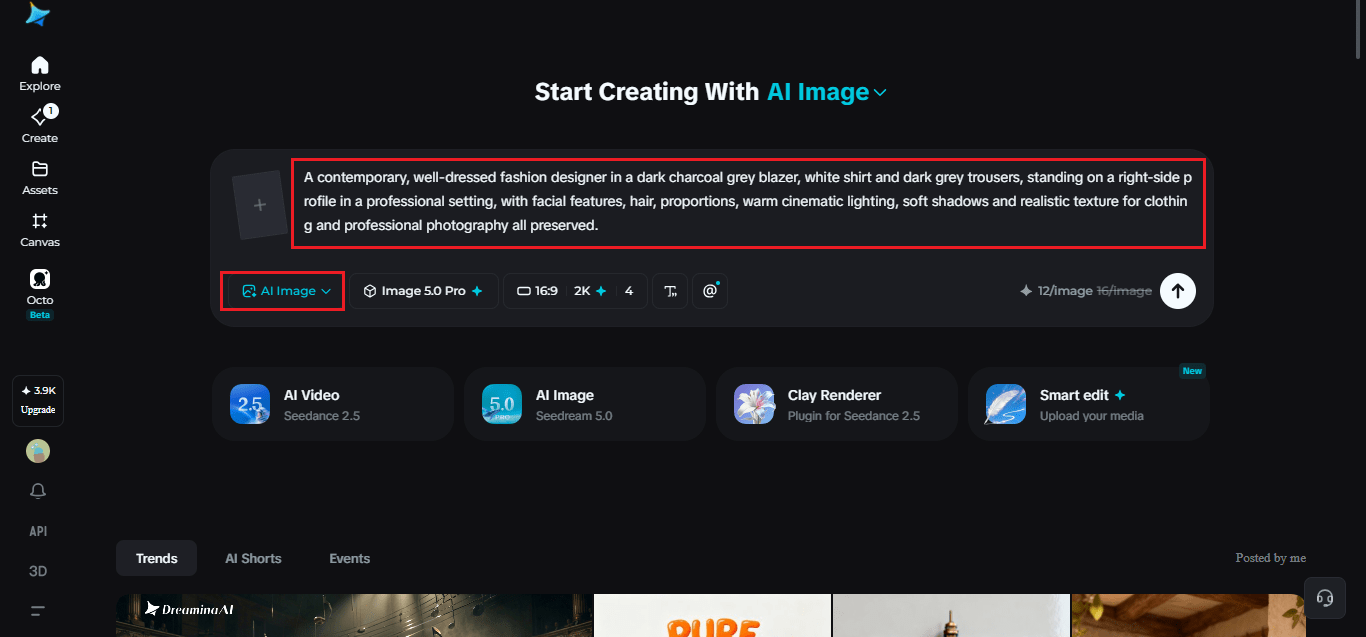
Step 2: Adjust parameters and generate images
Select Image 5.0 Pro from the models by Seedream 5.0 Pro. Use 1K for testing and 2K when a higher level of detail is required: set the aspect ratio and size based on where the visual will be used. Consistency is important between the angle variations; then click on Dreamina’s icon to generate.

Step 3: Customise and download the content
Take advantage of Dreamina’s AI customisation features to fine-tune your outcome. The tools available for Inpaint, Expand, Remove, and Retouch can alter selected areas, extend the composition, remove unwanted objects and polish imperfections, respectively. If it looks good, click the “Download” icon to save the completed picture.
Polish each viewpoint, but don’t begin again
There might be minor inconsistencies even in the strongest generations. Dreamina’s AI customisation features provide you with choices to fix them up. To correct a selected area, expand it to add space, remove it to remove distracting elements and retouch it to correct any imperfections.
Create a visual system of angles
After obtaining some views, order these views as a sequence of coordination. A front, profile, ¾ and rear view can be a handy reference sheet. Diverse perspectives can also turn into particular campaign possessions for creative projects.
It also works for:
- Exploring character design and concept art.
- Fashion presentations
- Product visualization
- Creating storyboards and video planning.
Maintaining believable perspective changes
The change of camera position should not result in a sudden shift of the subject. Look for changes in the shape of the face, clothing, size, or accessories. If one image seems significantly different, make the reference more powerful and be very specific about what should be the same.
This is even more important if images are going to be used as video frames. A coherent set provides more stability and continuity for an AI video workflow, allowing the AI to maintain a recognisable subject throughout the shots.
Have each angle tell a new story
A multiple point of view is more useful when it serves a purpose. Close-up front-view shots can highlight expressions. A silhouette can be accentuated by a side angle. A wider three-quarter composition can set up surroundings. Rather than producing variations for sheer numbers, choose what to convey for each one.
A little planning can keep a collection from becoming repetitive.
Collect the entire collection
It’s not always about compromising consistency when making multiple angles. Using Dreamina, you can set a topic, give visual cues, specify exact viewpoints, and edit individual outcomes. Targeted editing, separation, multilingual text handling, online research and detailed 2K output are useful control features provided by Seedream 5.0 Pro.
From creating a character to showcasing a fashion concept, a product or preparing visuals for a video, Dreamina offers a real solution to experiment with perspective without losing the subject. Begin with one big idea and build each new way of thinking to add to the story. This simplifies the process of collecting, sharing and reusing the collection.