
Back to: Microservices using ASP.NET Core Web API Tutorials
Merging and Resolving Conflicts in GIT Repository
In real-world ASP.NET Core projects, work is almost always done using multiple branches. Features, bug fixes, and experiments are developed separately and later merged into a stable branch, such as main. Understanding how merging works and how to resolve conflicts when they happen is a must-have skill for every developer.
Merge conflicts are normal, not mistakes. They simply mean that Git needs your help deciding how the final code should look. Once you understand the why and how, resolving conflicts becomes a calm, logical process instead of something scary.
What is Merging?
Merging means combining the work from one branch into another branch.
For example:
- We create a feature/add-teacher-api
- We add a new controller and commit our changes
- Later, we merge that branch into main
After the merge, the target branch contains the new changes from the source branch. So, you can think of merging like this: two separate work paths are being brought back together into one common codebase.
When Do We Merge Branches?
We need to merge branches when the work in one branch is ready to be included in another. The following are the common situations:
- A feature is completed and tested
- A bug fix is finished
- A hotfix must be applied quickly
- A branch needs the latest updates from main
Typical examples:
- Merge feature/authentication into main after development is complete
- Merge bugfix/login-error into main after the issue is fixed
- Merge main into your feature branch to bring in the latest team changes
So, merging happens whenever two branches need to be brought together.
What is a Merge Conflict?
A merge conflict happens when Git cannot automatically combine changes from two branches. This usually means:
- Both branches changed the same file
- And the changes affect the same lines or nearby code
- Git is not sure which version is correct
At that point, Git stops the merge and asks you to choose the final correct code manually. A conflict is not an error in Git. It is simply Git saying: I found multiple changes here, but I need you to decide what the final version should be.
Why Merge Conflicts Occur?
Merge conflicts occur when two branches change the same code in different ways. The following are the common reasons:
- Two branches modify the same method
- Same configuration file changed differently
- Middleware added in a different order
- Service registrations changed in multiple branches
Git can auto-merge when changes are in different places. But when the same part of the same file is changed in different ways, Git needs manual help.
Common Conflict Scenarios in Web API Projects
In ASP.NET Core Web API projects, some files are changed frequently, so conflicts occur more often. The following are the common examples:
Program.cs
Multiple developers add services, middleware, CORS, Swagger, authentication, logging, etc.
- Middleware order changes (UseCors, UseAuthentication, UseAuthorization)
- Service registrations (AddControllers, AddDbContext, DI)
- JSON options, Swagger, CORS setup
Controllers
Two branches edit the same action method or add overlapping changes.
- Multiple developers adding endpoints in the same controller file
- Route attribute changes
- Authorization attributes changes
DTOs / Models
One branch adds a property while another changes validation or naming.
- Same DTO updated with different properties
- Validation attributes added in parallel
- Renaming properties (breaking serialization expectations)
appsettings.json
Different branches update configuration values, connection settings, or feature flags.
- Different branches adding different config sections
- Logging settings changes
- Connection string differences (teams should avoid committing secrets)
Dependency Injection (Service registrations)
- One branch adds new service registration
- Another refactors interface or implementation name
Example to Understand Merging with Conflicts:
Now we will simulate it using Program.cs.
- Branch A (Teacher Branch): Change JSON serialization so it does NOT use camelCase and returns property names exactly as they are defined in our Models/DTOs.
- Branch B (Bugfix Branch): Add CORS middleware to allow all origins.
Branch Teacher: Ignore camelCase naming
First, select the feature/add-teacher-api branch and then modify the program class as follows. Here, we are changing the JSON serialization settings.
using StudentManagement.API.Services;
namespace StudentManagement.API
{
    public class Program
    {
        public static void Main(string[] args)
        {
            var builder = WebApplication.CreateBuilder(args);

            // Add services to the container.
            builder.Services.AddControllers()
            .AddJsonOptions(options =>
            {
                // Keep property names exactly as defined in C# model classes (NO camelCase)
                options.JsonSerializerOptions.PropertyNamingPolicy = null;
            });

            builder.Services.AddEndpointsApiExplorer();
            builder.Services.AddSwaggerGen();

            builder.Services.AddSingleton<IStudentService, StudentService>();

            var app = builder.Build();

            // Configure the HTTP request pipeline.
            if (app.Environment.IsDevelopment())
            {
                app.UseSwagger();
                app.UseSwaggerUI();
            }

            app.UseHttpsRedirection();

            app.UseAuthorization();

            app.MapControllers();

            app.Run();
        }
    }
}
Commit Changes
- View → Git Changes
- Message: Return JSON property names as model names (disable camelCase)
- Commit All
Branch Bug Fixes: Add CORS Policy
First, select the bugfix/student-bug branch and then modify the program class as follows. Here, we are adding a CORS policy to allow all origins.
using StudentManagement.API.Services;
namespace StudentManagement.API
{
    public class Program
    {
        public static void Main(string[] args)
        {
            var builder = WebApplication.CreateBuilder(args);

            // Add services to the container.
            builder.Services.AddControllers();

            builder.Services.AddEndpointsApiExplorer();
            builder.Services.AddSwaggerGen();

            builder.Services.AddSingleton<IStudentService, StudentService>();

            builder.Services.AddCors(options =>
            {
                options.AddPolicy("AllowAll", policy =>
                {
                    policy
                        .AllowAnyOrigin()
                        .AllowAnyMethod()
                        .AllowAnyHeader();
                });
            });

            var app = builder.Build();

            app.UseCors("AllowAll");

            // Configure the HTTP request pipeline.
            if (app.Environment.IsDevelopment())
            {
                app.UseSwagger();
                app.UseSwaggerUI();
            }

            app.UseHttpsRedirection();

            app.UseAuthorization();

            app.MapControllers();

            app.Run();
        }
    }
}
Commit Changes
- Git Changes
- Message: Add CORS policy to allow all origins
- Commit All
Merge Our 2 Local Branches into Local Main
Since we are using only a local repository (no GitHub/remote), the workflow is very simple. We just need to merge both branches into the main one by one and resolve the Program.cs if needed.
Step-1: Confirm you are on the main
- In Visual Studio, look at the bottom-right (branch name).
- If it’s not main, click it → select main.
Step-2: Make sure the main has no pending changes
- Go to View → Git Changes
- Ensure it shows 0 changes
- If you see changes: Commit, Stash, or Discard first.
Step-3: Merge the Teacher Branch into the main
- Go to View → Git Repository
- Expand Branches
- Right-click your branch: feature/teacher-api
- Click feature/teacher-api into main
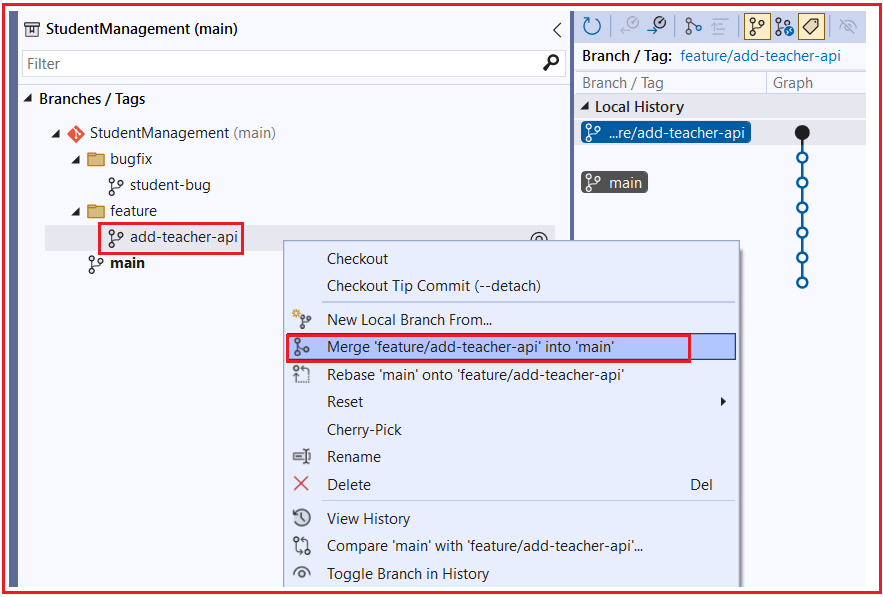
Then, it will open the below popup:
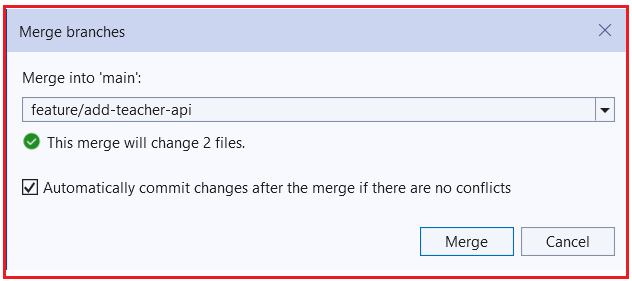
This window is saying:
- You are currently on the main
- You are about to merge feature/add-teacher-api into main
- It will change 2 files
- It will auto-commit if there are no conflicts
Click the Merge button. Now one of two things will happen:
Case A: No Conflicts
Visual Studio will:
- Merge the branch into main
- Create a merge commit automatically
- feature/add-teacher-api changes are now inside main
Case B: Conflict Happens
- It will open the Merge Editor
- Choose the final combined result
- Click Accept Merge
- Click Complete Merge
In our example, there is no Conflict, so the merge is Successful.
Step 4: Merge bugfix Branch into main
- Stay on the main
- Go to View → Git Repository
- Expand Branches
- Right-click your branch: bugfix/student-bug
- Click bugfix/student-bug into main
Now, when you click, it will open the following screen.

This window specifies:
- You are currently on the main
- You are trying to merge bugfix/student-bug into main
- Visual Studio detected 1 file with potential conflicts.
- This usually means Git can’t guarantee an auto-merge and may open the conflict window editor after you proceed.
- This is not an error. It’s just a warning.
- Now, click on the Merge button.
How do we resolve conflicts using Visual Studio Merge Editor?
When a conflict happens, Visual Studio opens the Merge Editor. You usually see three important choices:
- Current = The version in the branch you are currently on.
- Incoming = The version coming from the branch you are merging.
- Both = keep code from both sides (if both changes are needed).
What each option means:
Current
Choose Current when the code already in your current branch is the correct version, and the incoming version should not replace it.
Example:
- You are on the main
- main already has the correct JSON settings
- The incoming branch has an older version
- Keep Current
Incoming
Choose Incoming when the new code from the branch being merged is the correct version and should replace the current branch code.
Example:
- The incoming branch contains the proper bug fix
- The current branch has the older logic
- Keep Incoming
Both
Choose Both when both sets of changes are useful and must be combined.
Example:
- Current has JSON configuration
- Incoming has CORS policy
- You need both in the final Program.cs
Important:
Do not click blindly. Read the code and understand what the application needs. Sometimes, both are correct, but the final code may still need manual cleanup or reordering. After choosing the correct result:
- Save the resolved file
- Accept / Complete Merge
- Commit the merge result if required
Resolving Conflicts:
It will open the following Conflict Resolver window.
Here:
- Incoming (left): bugfix/student-bug has plain builder.Services.AddControllers(); (and it also has CORS code below).
- Current (right): main has AddControllers().AddJsonOptions(…) to disable camelCase and keep model property names.
Our requirement: We want BOTH
- AddJsonOptions(…PropertyNamingPolicy = null…) from main
- The CORS setup from bugfix/student-bug (and later the middleware calls too)
So, for this conflict, we should keep the Current (main) controller registration, and still keep the CORS code that’s being merged from the bugfix/student-bug branch. Now both branches are merged into the local main.
Why is testing after merge important?
Resolving a conflict only means Git is satisfied. It does not guarantee the application still works correctly.
After a merge, the code may:
- Build successfully, but behaves incorrectly
- Have the wrong middleware order
- Miss a DI registration
- Cause runtime errors
- Produce incorrect API responses
In ASP.NET Core, this is very important because:
- Middleware order affects behavior
- Service registration affects runtime resolution
- Controller changes may compile but fail at execution
- Config merge mistakes can break authentication, CORS, or Swagger
So, after every merge, always:
- Build the project
- Run the application
- Test the affected API endpoints
- Verify startup works without exceptions
A merge is not truly complete until the application is tested.
How Do We Bring the Latest Changes from Main into Our Branch?
While you are working, other developers may update the main branch.
To stay updated:
- Get the latest changes from main
- Merge main into your branch
- Fix conflicts, if any
- Continue working
Doing this regularly:
- Keeps your branch compatible
- Reduces merge problems later
- Makes final merging smooth
Updating your branch with main helps avoid big surprises at the end.
Bring main into feature/add-teacher-api Branch
- Switch to your branch (example: feature/add-teacher-api)
-
- bottom-right → select feature/add-teacher-api
-
- Open View → Git Repository
- Under Branches, right-click the main
- Click Merge into Current Branch
- If you get conflicts (likely Program.cs):
-
- Open Merge Editor
- Keep the correct combined code
- Accept Merge
-
- Go to Git Changes
- Click Commit Merge
Now feature/add-teacher-api contains the latest main. And you can do the same for the bug branch.
Conflicting Example Scenario 2:
Feature Branch (feature/add-teacher-api)
Goal: Add input validation.
Changes made:
- Checked if Student.Name is empty
- Returned BadRequest if validation fails
Modify the Add Method as follows:
[HttpPost]
public IActionResult Add(Student student)
{
    if (string.IsNullOrWhiteSpace(student.Name))
    {
        return BadRequest("Student name is required.");
    }

    var created = _studentService.Add(student);
    return CreatedAtAction(nameof(GetById), new { id = created.Id }, created);
}
Once you update, please commit these changes.
Bugfix Branch (bugfix/student-bug)
Goal: Add exception handling + logging.
Changes made:
- Wrapped logic in try-catch
- Logged unexpected exceptions
Modify the Add Method as follows:
[HttpPost]
public IActionResult Add(Student student)
{
    try
    {
        var created = _studentService.Add(student);
        return CreatedAtAction(nameof(GetById), new { id = created.Id }, created);
    }
    catch (Exception ex)
    {
        _logger.LogError(ex, "Error while adding student");
        return StatusCode(500, "Internal server error");
    }
}
Once you update, please commit these changes.
Why did the merge conflict happen?
Both branches modified the same method: public IActionResult Add(Student student)
Git sees:
- Different logic inside the same method
- Same lines changed in two different ways
Git cannot decide: should I keep the validation logic or the error handling logic? A merge conflict occurs.
Correct Way to Resolve the Conflict
Business requirement:
- Validation is needed
- Logging + error handling is needed
Correct merged code:
[HttpPost]
public IActionResult Add(Student student)
{
    if (string.IsNullOrWhiteSpace(student.Name))
    {
        return BadRequest("Student name is required.");
    }

    try
    {
        var created = _studentService.Add(student);
        return CreatedAtAction(nameof(GetById), new { id = created.Id }, created);
    }
    catch (Exception ex)
    {
        _logger.LogError(ex, "Error while adding student");
        return StatusCode(500, "Internal server error");
    }
}
We accept both, but in the correct order.
How to Do This in Visual Studio Merge Editor?
When the conflict screen is open:
- Do NOT blindly click “Accept Both.”
- Click into the Result (final) pane
- Manually arrange the code:
-
- Copy validation from Incoming
- Wrap the service call with a try-catch from Current
-
- Ensure order is:
-
- if (validation)
- try { service call }
- catch { logging }
-
- Click Accept Merge
- Build & run the project
How to Reduce Merge Conflicts in a team?
Merge conflicts cannot be avoided completely, but they can be reduced a lot with good team habits.
Best ways to reduce conflicts:
- Pull/merge the latest main regularly into your branch. This keeps your branch up to date and avoids major conflicts later.
- Make small, focused branches. Small branches are easier to merge than long-running branches.
- Commit small logical changes. Smaller commits make conflicts easier to understand and resolve.
- Avoid editing the same file unnecessarily. If one developer is already working heavily in Program.cs, coordinate before making large changes there.
- Communicate with the team. If multiple developers are touching shared files, discuss it early.
- Merge completed work sooner. The longer a branch stays separate, the more likely it is to conflict later.
- Use clear code organization. Group service registrations, middleware, and configuration cleanly, so edits are easier to combine.
Team rule: Frequent sync, small changes, and communication = fewer conflicts.
Conclusion
Merging is a normal and necessary part of Git-based development. It brings completed work from one branch into another branch so the project can continue moving forward. Most merges are automatic, but when two branches change the same code area differently, Git creates a conflict and asks you to decide the correct final result.
In Visual Studio, conflicts are easier to handle because the Merge Editor clearly shows Current, Incoming, and Both. Once you choose the correct combined code, you should always build and test the application to ensure the merged result is correct and stable.
About the Author: Pranaya Rout
Pranaya Rout has published more than 3,000 articles in his 11-year career. Pranaya Rout has very good experience with Microsoft Technologies, Including C#, VB, ASP.NET MVC, ASP.NET Web API, EF, EF Core, ADO.NET, LINQ, SQL Server, MYSQL, Oracle, ASP.NET Core, Cloud Computing, Microservices, Design Patterns and still learning new technologies.
🎥 Prefer Learning by Watching?
If you want a complete step-by-step understanding of Git Branching, Commit Best Practices, and Merge Conflict Resolution in ASP.NET Core, we’ve created a detailed video tutorial for you.
👉 Watch the full video here:
https://youtu.be/mFGYilvdHXY
In this video, you will see:
• Real-time branching using Visual Studio
• How to write professional commit messages
• Practical merge conflict resolution (with real examples)
• Clean workflow followed in real projects
💡 Highly recommended if you are preparing for interviews or working in team-based development.
Don’t miss it — this will make your Git concepts crystal clear