
Back to: Microservices using ASP.NET Core Web API Tutorials
Git Repository Branching for ASP.NET Core Development
When we build an ASP.NET Core project, we will keep adding features and fixing bugs. If we put everything into a single codebase, our working project can break at any time. Branching helps us work safely by keeping our changes separate until they are ready. Branching lets us work safely on changes without breaking the main (stable) code.
What is a Branch?
A branch is like creating a separate copy of your work path where you can work independently without touching the main project. Technically, a branch represents a separate line of development that starts from the current version of the code.
You can think of it this way: let me work on this feature separately. I don’t want to disturb the main project.
In Git, a branch does not copy files. Instead, Git remembers where your work starts and keeps tracking your new changes separately. You can make changes, commit them, and test them in that branch while the main project remains untouched.
When you create a branch:
- You start from the current version of the project.
- You can make changes without touching the main code.
- Your work stays separate until you decide to merge it.
Why Do We Need a Branch?
We need branches because software development isn’t done in a single step. Development happens gradually:
- We add new features
- We fix bugs
- We test and improve code
- We make mistakes and correct them
All of this takes time, and sometimes changes can be wrong or incomplete.
Without branches:
- Everyone edits the same code
- Mistakes can break the entire project
- Half-done work reaches stable code
With branches:
- You can work safely in isolation
- You can test your changes before sharing
- Other developers are not affected by your mistakes
In ASP.NET Core, even a small mistake, such as an incorrect dependency injection registration or a middleware ordering issue, can crash the application. Branches help us experiment, learn, and fix issues safely without breaking stable code.
What Is the Main Branch?
The main branch (usually named main) is the most important branch in a project. It contains the stable and trusted version of the code. The main branch usually contains:
- Working code
- Tested code
- Code that is safe to run or deploy
Everyone on the team trusts the main branch. That’s why it should always remain clean, stable, and reliable. Other branches are created from it, and after proper testing/review, they are merged back into it.
Why Should We Avoid Working Directly on Main?
Working directly on the main branch is risky and dangerous. The main branch is shared by everyone, so any mistake affects the whole team.
If someone:
- Commits half-finished code
- Pushes a bug
- Breaks the build
Then:
- The whole project can stop working
- Other developers are affected immediately
- Bugs may reach users or production
The correct approach is:
- Do all work in a separate branch
- Test the work properly
- Merge into the main only when it is correct
Rule: Main is for stable code, not for learning or experimenting. Avoid working directly on the main to keep the project safe.
What Is a Feature Branch?
A Feature Branch is a branch created to safely build a specific feature. It keeps all feature-related work isolated from the main branch.
Examples in ASP.NET Core:
- Adding a new module
- Adding a new controller
- Implementing login or authentication
- Adding a new API endpoint
- Adding caching or validation
- Fixing a bug
A feature is usually not implemented in a single commit. It needs multiple commits (step-by-step progress). A feature branch keeps all those commits together in one place so the team can review, test, and merge the feature as a complete unit.
All work related to that feature stays inside the same feature branch. This keeps changes organized and easy to review. When the feature is:
- Completed
- Tested
- Working properly
It is then merged into main.
Simple rule: One feature = one feature branch
How Branching Helps Multiple Developers?
Branching allows multiple developers to work on the same codebase simultaneously, a process called parallel development.
Example:
- Developer A works on feature/authentication
- Developer B works on the feature/payment
- Developer C works on bugfix/login-issue
- Developer D works on feature/reporting
Each developer:
- Works on their own branch
- Does not disturb others
- Commits safely and independently
Later, branches are merged into the main branch one by one in a controlled manner. This avoids conflicts, confusion, and delays. So, branching allows teams to work together smoothly without blocking each other.
What Is a Simple Branch Naming Convention?
Branch names should clearly explain what the branch is for. This helps everyone immediately understand the purpose. Good branch names improve readability, teamwork, and project organization, especially when the repository grows.
Common and simple convention:
- feature/<name> → feature/authentication, feature/payment
- bugfix/<name> → bugfix/login-error, bugfix/nullref-issue
- hotfix/<name> (urgent) → hotfix/payment-failure
Prefixes act like categories. When your repo has many branches, these prefixes help you quickly filter and understand what each branch is doing. They also improve communication in teams, just by reading the branch name, people understand the purpose.
Real-Time Branching Workflow in Visual Studio for Your Web API Project
We will do this like a hands-on lab in Visual Studio using two branches:
- feature/add-teacher-api
- bugfix/fix-student-bug
We will create real changes in each branch, then simulate a real conflict in Program.cs, and finally merge into main.
How to Ensure We Are in the main Branch
This is always the first step before creating any branch.
- Open your solution in Visual Studio
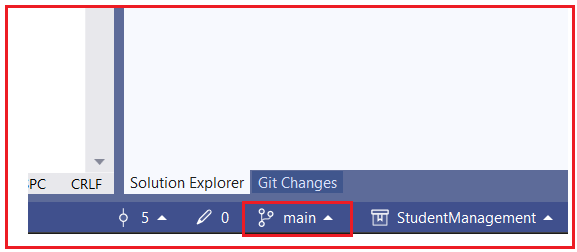
- Look at the bottom-right corner of Visual Studio
- You will see the current branch name
- Whatever branch name you see there is where your next changes will go.
Ensure you don’t have uncommitted changes
- Go to View → Git Changes.
- If you see file changes listed:
-
- Either Commit (best if the work is meaningful), or
- Stash (best if it’s incomplete).
-
Why this step matters:
- Branches are created from the currently checked-out branch
- If you are not on main, your new branch will be based on the wrong code
Create Add Teacher API Branch from main
This branch is for new feature development, so it must start from main. Ensure you are on the main branch.
Steps: Create the branch from main
Go to Git → Manage Branches. Then, right-click main → New Branch …
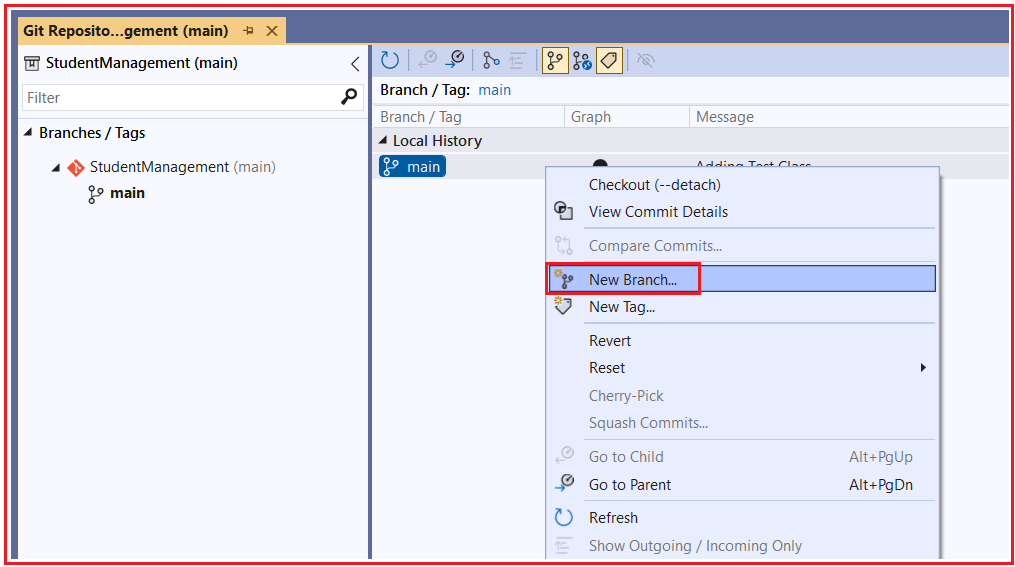
Give the following details and create the branch:
- Branch name: feature/add-teacher-api
- Check the checkout branch (so it switches immediately)
- Click Create

What Just Happened
- Git created a new branch starting from main
- Visual Studio automatically switched to feature/teacher-api
- Any code you write now belongs only to this branch
Create a Teacher Controller
You are now inside the feature/teacher-api.
- Right-click the Controllers folder
- Add → Controller → API Controller – Empty
- Name it: TeacherController
Then, copy and paste the following code into the TeacherController.
using Microsoft.AspNetCore.Mvc;
namespace StudentManagement.API.Controllers
{
    [Route("api/[controller]")]
    [ApiController]
    public class TeachersController : ControllerBase
    {
        [HttpGet]
        public IActionResult Get()
        {
            return Ok(new[]
            {
                new { Id = 1, Name = "Teacher 1", Subject = "Math" },
                new { Id = 2, Name = "Teacher 2", Subject = "Science" }
            });
        }
    }
}
Commit the Changes
- Open Git → Git Changes
- Stage TeacherController.cs
- Commit message: Added Teacher API Controller
Why We Commit Here
- Feature work progresses in small, meaningful commits
- Main remains untouched and stable
Create a bug fix branch from the main branch
Switch back to the main first
- Bottom-right branch selector → choose main
- Wait for Visual Studio to reload files.
Why: Your bugfix branch must start from main, not from the teacher branch.
Create the bugfix branch from main
- Git → Manage Branches
- Right-click main → New Branch From…
- Branch name: bugfix/student-bug
- Checkout branch
- Click Create
Add Logging Feature in the Student Controller (Bugfix Work)
You are now inside the bugfix/student-bug branch. Open StudentController and then copy-paste the following code. We have added the logging feature here.
using Microsoft.AspNetCore.Mvc;
using StudentManagement.API.Models;
using StudentManagement.API.Services;

namespace StudentManagement.API.Controllers
{
    [ApiController]
    [Route("api/[controller]")]
    public class StudentController : ControllerBase
    {
        private readonly ILogger<StudentController> _logger;

        private readonly IStudentService _studentService;

        public StudentController(IStudentService studentService, Logger<StudentController> logger)
        {
            _studentService = studentService;
            _logger = logger;
        }

        // GET /api/student
        [HttpGet]
        public IActionResult GetAll()
        {
            var students = _studentService.GetAll();
            return Ok(students);
        }

        // GET /api/student/1
        [HttpGet("{id:int}")]
        public IActionResult GetById(int id)
        {
            _logger.LogInformation("Fetching student with Id {Id}", id);

            var student = _studentService.GetById(id);

            if (student == null)
            {
                _logger.LogWarning("Student with Id {Id} not found", id);
                return NotFound($"Student with Id {id} not found.");
            }

            return Ok(student);
        }

        // POST /api/student
        [HttpPost]
        public IActionResult Add(Student student)
        {
            var created = _studentService.Add(student);
            return CreatedAtAction(nameof(GetById), new { id = created.Id }, created);
        }
    }
}
Commit the Changes:
- Git Changes → message: Fix student not found + add logging
- Commit All
Now your bugfix branch has a real fix + logging.
How to Switch Branches in Visual Studio?
Branch switching is very simple.
Step-by-Step
- Click branch name (bottom-right)
- Select one of:
-
- main
- feature/add-teacher-api
- bugfix/student-bug
-
What You Will Notice
- Files appear/disappear automatically
- TeacherController exists only in the feature branch
- Logging exists only in the bugfix branch
Conclusion:
Branching helps you work on new features and bug fixes without disturbing the stable main branch. You create a separate branch for each task, make and commit your changes there, and once everything is tested. By following this process, your ASP.NET Core project stays clean, stable, and easy to manage.
About the Author: Pranaya Rout
Pranaya Rout has published more than 3,000 articles in his 11-year career. Pranaya Rout has very good experience with Microsoft Technologies, Including C#, VB, ASP.NET MVC, ASP.NET Web API, EF, EF Core, ADO.NET, LINQ, SQL Server, MYSQL, Oracle, ASP.NET Core, Cloud Computing, Microservices, Design Patterns and still learning new technologies.
🎥 Prefer Learning by Watching?
If you want a complete step-by-step understanding of Git Branching, Commit Best Practices, and Merge Conflict Resolution in ASP.NET Core, we’ve created a detailed video tutorial for you.
👉 Watch the full video here:
https://youtu.be/mFGYilvdHXY
In this video, you will see:
• Real-time branching using Visual Studio
• How to write professional commit messages
• Practical merge conflict resolution (with real examples)
• Clean workflow followed in real projects
💡 Highly recommended if you are preparing for interviews or working in team-based development.
Don’t miss it — this will make your Git concepts crystal clear