
Back to: Microservices using ASP.NET Core Web API Tutorials
Core Git Concepts with Examples
Git is not just a collection of commands; it is a well-defined workflow for managing code changes safely, clearly, and professionally. In real software development, code changes continuously—features are added, bugs are fixed, and improvements are made over time. Git provides a structured way to track these changes so that nothing is lost, overwritten, or forgotten.
To use Git confidently, every developer must understand how Git organizes files, how changes move from one stage to another, and what actually happens behind the scenes when we add, commit, pull, or push code. Once these core ideas are clear, Git becomes predictable and easy to use.
What Are Working Directory, Staging Area, and Repository?
Git internally works with Three Distinct Areas, each representing a different state of our code. Understanding these three areas is the key to understanding Git itself.
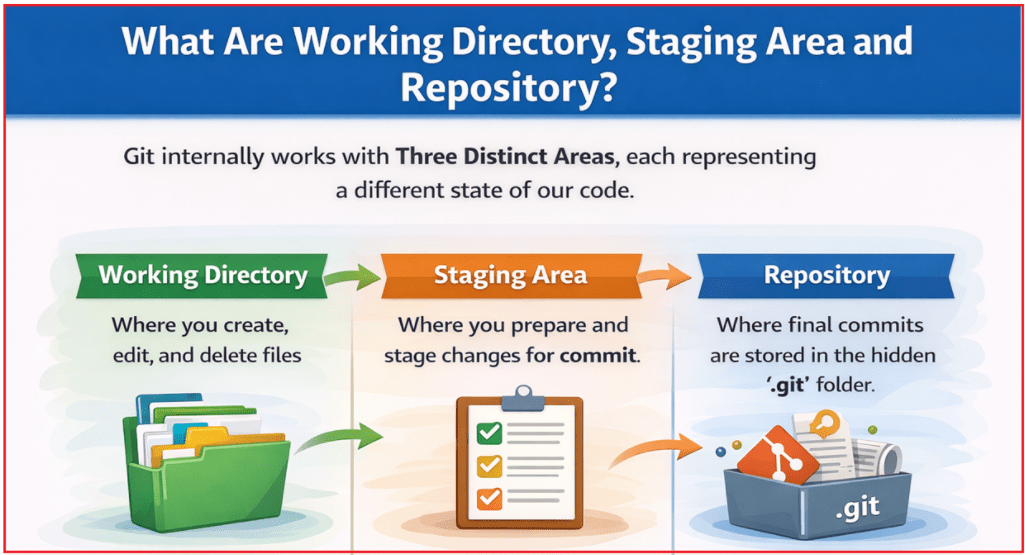
Working Directory
The Working Directory is the actual project folder on your computer where we actively work on our code. This is the place where development happens.
In the working directory:
- We create new files
- We edit existing files
- We delete or rename files
At this stage, we are simply working like normal file editing. Git does not automatically save these changes into history. Think of the working directory as your workspace or desk, where changes are still flexible and can be modified freely.
Staging Area
The Staging Area is a temporary holding area where we tell Git exactly which changes should be included in the next commit. It sits between:
- Our working directory.
- The repository (commit history)
The staging area allows us to review and organize changes before making them permanent. Instead of committing everything we changed, Git lets us carefully choose what to record now and what to wait on. You can think of staging as a preview or checklist for the next commit.
Repository
The Repository is where Git permanently stores committed snapshots of our project. Once changes are committed to the repository, they become part of the official project history. The repository contains:
- Commit history
- Branches
- Tags
- Metadata required by Git
Technically, this data is stored inside the hidden .git folder. The repository represents the long-term memory of our project.
What is staging, and why does it exist?
Staging exists so that commits can be made in a clean, intentional, and professional way, instead of committing everything that happens to be changed at the moment. In real development, our working directory often contains mixed changes, such as:
- A completed bug fix
- Some formatting changes
- A half-finished feature
Without staging, all these changes would be committed together, creating a confusing and messy history. Staging allows us to:
- Commit only the bug fix now
- Keep unfinished or experimental work uncommitted
- Create small, meaningful, and readable commits
This results in a clear commit history that explains what changed and why, which is extremely valuable for teams and future maintenance.
File States in Git: Untracked, Modified, Staged, Committed
From Git’s point of view, every file is always in one clear state. These states describe the file’s current status in the Git workflow. The four possible states are:
- Untracked
- Modified
- Staged
- Committed
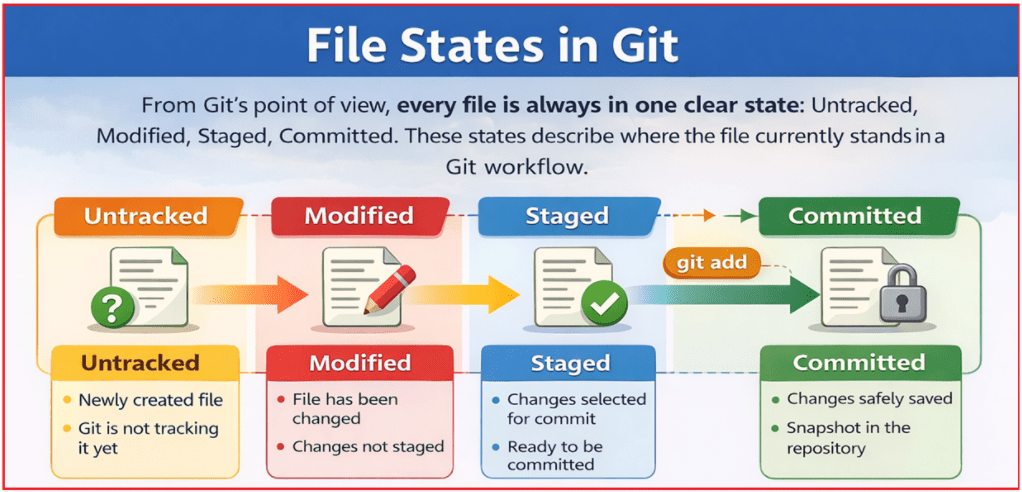
Untracked
- A new file has been created
- Git does not know about this file yet
- Example: a newly added .cs file
Git completely ignores untracked files until we explicitly tell Git to start tracking them. This prevents accidental commits of temporary or unwanted files.
Modified
- The file is already tracked by Git
- Changes have been made
- Changes are not yet staged
This state means that Git knows this file, but its changes are not ready to be committed. You are still working, reviewing, or refining the changes.
Staged
- Changes are selected for commit
- Added using git add
- Ready to be recorded permanently
Only staged changes will be included in the next commit. This is the final confirmation step before changes become part of history.
Committed
- Changes are saved in the repository history
- The commit becomes a permanent snapshot
- Changes can be compared, reverted, or merged later
Once committed, changes are official, traceable, and safe.
What Is a Commit?
A commit is a snapshot of the entire project at a specific point in time, stored in the repository history. A commit represents:
- A meaningful unit of work
- A stable version of the code
- A checkpoint you can safely return to later
Commits are not just file differences. Git efficiently stores full project snapshots, enabling reliable history tracking and rollback.
What Information Does a Commit Store?
Every commit stores essential metadata that explains the change clearly:
- Author → Who made the change
- Timestamp → When the change was made
- Commit Message → Why the change was made
- Unique SHA-1 Hash → A unique identifier for the commit
This information makes Git history understandable, auditable, and trustworthy.
Basic Git Actions: Add, Commit, Pull, Push
These four actions form the daily Git workflow used in real-world projects.
git add
This step prepares changes for committing.
- Moves changes from the working directory → staging area
- Selects what will be committed
- Can stage all changes or only selected files
git commit
This step records changes permanently.
- Saves staged changes to the local repository
- Creates a new snapshot in history
- Requires a clear and meaningful commit message
git pull
This step brings others’ work into your system.
- Fetches changes from the remote repository
- Merges them into the local branch
- Keeps your local code up-to-date
git push
This step publishes your work.
- Sends local commits to the remote repository
- Shares your work with others
- Makes your changes visible to the team
Example to Understand Git Core Concepts in ASP.NET Core with Visual Studio:
In this step, we are adding the Student feature to our project by creating a model, a service (interface + implementation), registering it in dependency injection, and finally exposing it through a controller. While doing this, we will observe how Git tracks changes at each stage.
Step 1: Add Initial Files (Working Directory Changes)
At this moment, we are only writing code. We have not told Git to save anything yet. All changes exist only in the Working Directory.
Create a model
Create a folder named Models and then add a class file named Student.cs within the Models folder and then copy-paste the following code:
namespace StudentManagement.API.Models
{
    public class Student
    {
        public int Id { get; set; }
        public string Name { get; set; } = string.Empty;
        public int Age { get; set; }
    }
}
What Git Sees Now
- Student.cs is a new file
- Git has never seen this file before
- File State: Untracked
Meaning in Simple Terms: The file exists on our machine, but Git is completely unaware of it. If we delete this file now, Git will not complain because it is not part of version control yet.
Create a Service
Create a folder named Services and then add a class file named IStudentService.cs within the Services folder, and then copy-paste the following code:
using StudentManagement.API.Models;
namespace StudentManagement.API.Services
{
    public interface IStudentService
    {
        List<Student> GetAll();
        Student? GetById(int id);
        Student Add(Student student);
    }
}
What Git Sees Now
- IStudentService.cs is a new file
- Git has never seen this file before
- File State: Untracked
Meaning in Simple Terms: This interface is still just a local file. Git has not started tracking it, and it is not part of the project history yet.
Services/StudentService.cs
Add a class file named StudentService.cs within the Services folder and then copy-paste the following code:
using StudentManagement.API.Models;
namespace StudentManagement.API.Services
{
    public class StudentService : IStudentService
    {
        // In-memory list just for learning
        private static readonly List<Student> _students = new List<Student>
        {
            new Student { Id = 1, Name = "Rahul", Age = 20 },
            new Student { Id = 2, Name = "Priya", Age = 21 }
        };

        public List<Student> GetAll()
        {
            return _students;
        }
        public Student? GetById(int id)
        {
            return _students.FirstOrDefault(s => s.Id == id);
        }

        public Student Add(Student student)
        {
            var nextId = _students.Max(s => s.Id) + 1;
            student.Id = nextId;
            _students.Add(student);
            return student;
        }
    }
}
What Git Sees Now
- StudentService.cs is a new file
- Git has never seen this file before
- File State: Untracked
Meaning in Simple Terms: You have added real logic, but from Git’s perspective, this code is still temporary and unrecorded.
Register the service in DI
Open Program.cs and add the following code:
using StudentManagement.API.Services;
namespace StudentManagement.API
{
    public class Program
    {
        public static void Main(string[] args)
        {
            var builder = WebApplication.CreateBuilder(args);

            builder.Services.AddControllers();
            builder.Services.AddEndpointsApiExplorer();
            builder.Services.AddSwaggerGen();

            builder.Services.AddSingleton<IStudentService, StudentService>();

            var app = builder.Build();

            // Configure the HTTP request pipeline.
            if (app.Environment.IsDevelopment())
            {
                app.UseSwagger();
                app.UseSwaggerUI();
            }

            app.UseHttpsRedirection();

            app.UseAuthorization();

            app.MapControllers();

            app.Run();
        }
    }
}
What Git Sees Now
- Program.cs is an existing tracked file
- Its content has been changed
- File State: Modified
Meaning in Simple Terms: Git already knows about the program.cs, but it now detects that the file’s content has changed compared to the last commit.
Create controller
Create a controller named StudentController within the Controllers folder, and copy-paste the following code.
using Microsoft.AspNetCore.Mvc;
using StudentManagement.API.Models;
using StudentManagement.API.Services;

namespace StudentManagement.API.Controllers
{
    [ApiController]
    [Route("api/[controller]")]
    public class StudentController : ControllerBase
    {
        private readonly IStudentService _studentService;

        public StudentController(IStudentService studentService)
        {
            _studentService = studentService;
        }

        // GET /api/student
        [HttpGet]
        public IActionResult GetAll()
        {
            var students = _studentService.GetAll();
            return Ok(students);
        }

        // GET /api/student/1
        [HttpGet("{id:int}")]
        public IActionResult GetById(int id)
        {
            var student = _studentService.GetById(id);
            if (student is null)
                return NotFound($"Student with Id {id} not found.");

            return Ok(student);
        }

        // POST /api/student
        [HttpPost]
        public IActionResult Add(Student student)
        {
            var created = _studentService.Add(student);
            return CreatedAtAction(nameof(GetById), new { id = created.Id }, created);
        }
    }
}
What Git Sees Now
- StudentController.cs is a new file
- Git has never seen this file before
- File State: Untracked
Understanding Visual Studio Git Symbols
Visual Studio integrates with Git and continuously compares our files with the last committed snapshot in the repository. Based on that comparison, it overlays small icons to answer one question: What is the current Git state of this file? These symbols are not random and not Visual Studio–specific. They directly represent Git states: Untracked, Modified, Unchanged (Committed). For a better understanding, please look at the following image.

Green Plus (+)
We created these files, but Git doesn’t yet consider them part of the project history. If you delete them now, Git won’t complain.
What It Means:
- The file is new
- Git has never tracked this file before
- Git thought: I see this file, but you haven’t told me to track it yet.
- Git File State: Untracked
Examples:
- Student.cs
- IStudentService.cs
- StudentService.cs
- StudentController.cs
Red Check Mark (✓)
Git knows this file very well, but it has detected differences compared to the last commit
What It Means:
- The file is already tracked by Git
- Its content has been modified
- Changes are not staged yet
- Git thought: This file has changed, but I’m waiting for you to decide what to do with it.
- Git File State: Modified
Example:
- Program.cs
Lock Icon 🔒
These files are safe, unchanged, and already stored in Git history.
What It Means
- The file is tracked
- It has no changes
- It matches exactly with the last commit
- Git File State: Committed
- Git thought: Nothing new here. This file is exactly as it was in the last commit.
Examples:
- WeatherForecast.cs
- WeatherForecastController.cs
- appsettings.json
- StudentManagement.API.http
How to add untracked files to Git?
Open Git → Commit or Stash… which should open the Git Changes window for our project as shown below:
Understanding the Git Changes Window
The Changes (5) Section
This means: Git has detected 5 files that are NOT yet committed. These files exist only in:
- Working Directory
- (Not yet in Git history)
Meaning of the Letters on the Right
A → Added (Untracked → Staged candidate)
Files marked with A are:
- New files
- Git has never tracked them before
- Currently untracked
In our case:
- StudentController.cs
- Student.cs
- IStudentService.cs
- StudentService.cs
These are new files we created.
M → Modified
Files marked with M are:
- Already tracked by Git
- Modified after the last commit
In our case:
- Program.cs
This file existed earlier, but we changed it.
Current Git State (Before Doing Anything)
Right now:
- All files are in Changes
- Nothing is staged
- Nothing is committed
Git is basically saying: I see changes. Tell me what to do.
Add (Stage) Files One by One
To add a Single File
- Hover over a file (for example, StudentController.cs)
- Click the + icon next to it
What Happens Internally
Visual Studio executes: git add Controllers/StudentController.cs
Result
- File moves from Changes → Staged Changes
- Git now tracks that file
- Still NOT committed
Once you add the file, it should move to the Staged Changes section, as shown below.
Add (Stage) All Files at Once
To Add All Files
- In the Changes header
- Click the + icon on the right
What Happens Internally
Visual Studio executes: git add .
Result
- All files have moved to Staged Changes
- All are ready to be committed
- Nothing permanent yet
For a better understanding, look at the image below:
How to Commit ONE FILE in Visual Studio?
Step 1: Make sure files are NOT staged
- Open Git → Git Changes
- Files should be under Changes, not Staged Changes.
- Click on the (-) button to move all stage changes to the changes section, as shown in the image below.
Step 2: Stage only ONE file
- Click + Stage next to the file you want.
- Example: StudentController.cs
Only this file moves to Staged Changes. All other files stay in Changes
Step 3: Commit
- Enter commit message: Added StudentController
- Click Commit Staged
What Happens Internally
Visual Studio runs: git commit -m “Added StudentController”
Git commits ONLY the staged file.
Other files:
- Are NOT committed
- Stay unchanged in Git history
How to Commit ALL FILES in Visual Studio
Step 1: Stage ALL files
- In Changes, click + Stage All
All files have moved to Staged Changes
Step 2: Commit
- Enter commit message: Added Student feature
- Click Commit Staged
What Happens Internally
Visual Studio runs: git commit -m “Added Student feature”. Git commits EVERY staged file into a single snapshot.
What Is Commit All in Visual Studio?
Commit All is a Visual Studio convenience option that lets you stage and commit in a single step.
In simple words:
- Commit All = Stage everything + Commit immediately
When Do You See Commit All?
You see Commit All when:
- Files are listed under Changes
- Nothing (or not everything) is staged yet
Visual Studio assumes: You want to commit everything that has changed. So, it offers Commit All instead of Commit Staged.
Conclusion
Git becomes simple once its core workflow is understood. By learning how changes move from the working directory to the staging area and then to the repository, you gain clear control over when and how your code is recorded. Concepts like file states, staging, and commits exist to keep history clean and changes intentional. With these fundamentals in place, Git fits into everyday development and becomes a reliable tool for safe, professional collaboration.
About the Author: Pranaya Rout
Pranaya Rout has published more than 3,000 articles in his 11-year career. Pranaya Rout has very good experience with Microsoft Technologies, Including C#, VB, ASP.NET MVC, ASP.NET Web API, EF, EF Core, ADO.NET, LINQ, SQL Server, MYSQL, Oracle, ASP.NET Core, Cloud Computing, Microservices, Design Patterns and still learning new technologies.
Watch the Complete Video Tutorial
If you want to understand Git Repository in ASP.NET Core with Visual Studio in a clear, step-by-step manner, I highly recommend watching the complete video tutorial.
In this video, I explain:
What a Git Repository actually is (local vs remote)
Working Directory, Staging Area, and Repository with real examples
How .git and .gitignore work in ASP.NET Core projects
How Visual Studio internally manages Git for Web API applications
A practical, real-world Git workflow every .NET developer should follow
👉 Watch the full video here: https://youtu.be/5vxY5f93mXM
I strongly suggest watching the video along with this article and trying the steps in your own ASP.NET Core project for better understanding.