
Back to: Microservices using ASP.NET Core Web API Tutorials
Installing & Setting Up Git and GitHub in Visual Studio
Modern software development is never about writing code alone. Real-world projects involve continuous changes, collaboration, backups, history tracking, and teamwork. This is where Git and Visual Studio’s Git integration become essential.
Git is a Version Control Tool that helps us track changes to our code over time, revert to older versions, and work safely without fear of breaking everything. Visual Studio has built-in Git integration, so we can do most Git tasks (commit, push, pull, branch, merge) without leaving the IDE.
What is Git?
Git is a free and open-source Distributed Version Control System (DVCS) used to:
- Track changes made to source code files
- Maintain a complete history of a project
- Allow multiple developers to work safely on the same codebase
- Restore older versions when something goes wrong
Git treats your code as a timeline of snapshots, not just files. It is a tool/software, not a website, and not part of Visual Studio by default.
Do We Need to Install Git Separately for Visual Studio?
Yes. 100% yes. This is one of the most misunderstood points for beginners.
- Visual Studio does NOT ship with Git.
- Visual Studio only provides a graphical interface.
- Git is the Actual Engine that performs version control.
Think of it like this:
- Git = Engine
- Visual Studio = Dashboard & controls
Without Git installed:
- Git menu options in Visual Studio won’t work correctly
- You won’t be able to create or manage repositories
So, the first and mandatory step is installing Git on Windows.
How to Install Git on Windows
To use Git with Visual Studio 2022, Git must first be installed on your Windows system. Git for Windows provides all the tools required to track source code changes and interact with remote repositories such as GitHub. The following steps explain how to download, install, and configure Git on Windows using recommended settings suitable for beginners and Visual Studio users.
Step 1: Download Git for Windows
- Open your browser
- Navigate to the official Git website: https://git-scm.com
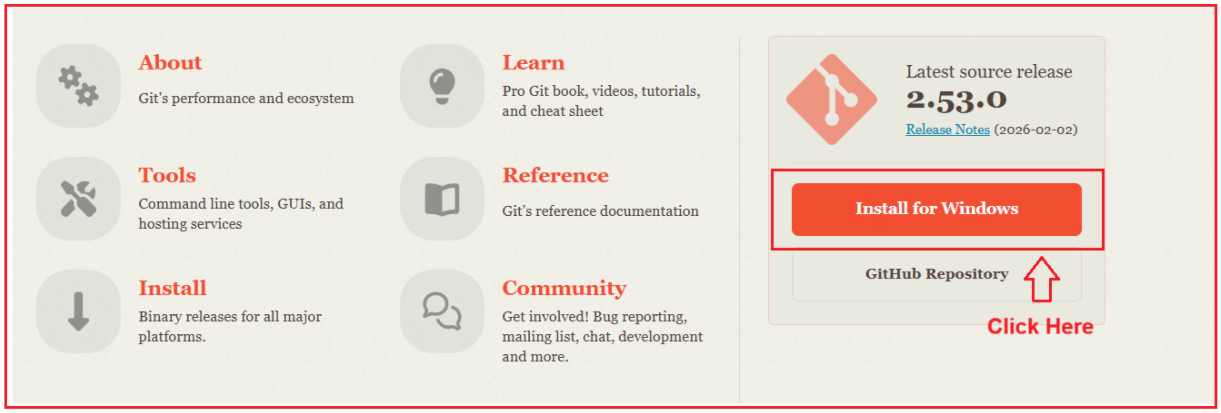
- Click Download for Windows
- The latest Git for Windows installer (.exe) will download automatically
For a better understanding, please have a look at the image below.
Choosing the Correct Installer
On the download page, you may see multiple options. For a typical 64-bit Windows PC (Intel/AMD), choose Git for Windows / x64 Setup (Standalone Installer). This is the standard and recommended installer.
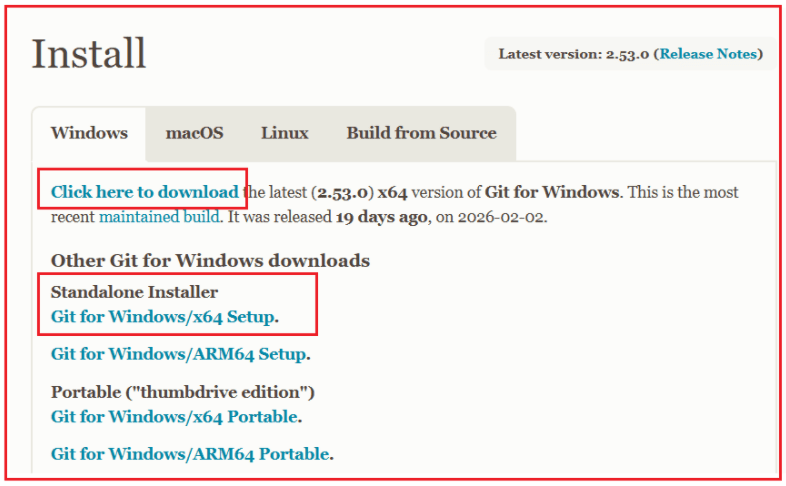
This installer is best for:
- Windows 10 / Windows 11
- Visual Studio 2022 users
- Beginners
- Regular desktops and laptops (Intel / AMD CPUs)
Step 2: Start the Git Installer
- Double-click the downloaded .exe file
- The Git Setup Wizard opens
- Click Next on the welcome screen

Step 3: Important Installation Screens
Most beginners get confused here. Follow these recommended settings.
Selecting the Destination Folder
Keep the default location:
- C:\Program Files\Git
- Click Next
The default path is stable, widely used, and works perfectly with Visual Studio.
Selecting Components
These options decide what extra features Git installs.
Keep the following options checked:
- Windows Explorer integration
-
- Open Git Bash here
- Open Git GUI here
-
- Git LFS (Large File Support)
- Associate .git* configuration files with the default editor
- Associate .sh files to be run with Bash
- Scalar (Git add-on to manage large-scale repositories)
Leave the following options unchecked:
- Additional desktop icons
- Check daily for Git for Windows updates
- Add a Git Bash profile to Windows Terminal
Click Next to continue. These settings provide all essential Git features without cluttering your system.
Select Start Menu Folder
This only controls where Git shortcuts appear.
- Keep the folder name as Git (default)
- Do not check “Don’t create a Start Menu folder.”
- Click Next
Selecting the Default Editor
Git sometimes opens a text editor for:
- Commit messages
- Configuration files
Select: Use Visual Studio Code as Git’s default editor
Why this choice?
- Clean and modern UI
- Beginner-friendly
- Industry standard
- Easy to understand commit messages
Click Next.
Note: The warning “This will be installed only for this user” is normal and safe. It simply means VS Code will be available for your Windows User Account.
Adjusting the Name of the Initial Branch
This decides the default branch name when creating new repositories.
Select:
- Override the default branch name
- Set the branch name to: main
Click Next. This follows modern Git and GitHub standards and avoids confusion later.
Adjusting PATH Environment
Select: Git from the command line and also from 3rd-party software
This option:
- Allows Git to work with:
-
- Git Bash
- Command Prompt
- PowerShell
- Visual Studio
-
- Does not override Windows system tools
Click Next. This is the recommended and safest choice.
Choosing the SSH Executable
Select: Use bundled OpenSSH
This allows Git to use the SSH client bundled with Git.
- Click Next
No extra configuration required.
Choosing HTTPS Transport Backend
Select: Use the OpenSSL library
This allows
- Secure HTTPS communication with GitHub and other services.
Click Next.
Configuring Line Ending Conversions
Select: Checkout Windows-style, commit Unix-style line endings
This ensures:
- Compatibility across Windows, Linux, and macOS
- Fewer line-ending issues in team projects
Click Next.
Configuring the Terminal Emulator for Git Bash
Select: Use MinTTY (the default terminal of MSYS2)
Benefits:
- Resizable terminal window
- Unicode support
- Modern command-line experience
Click Next.
Choose the Default Behaviour of git pull
Select: Fast-forward or merge
This option:
- Keeps history simple
- Works well for beginners
- Avoids unexpected failures
Click Next.
Choose a Credential Helper
Select: Git Credential Manager
This allows Git to:
- Securely store authentication tokens
- Avoid repeated login prompts
- Integrate smoothly with GitHub
Click Next.
Configuring Extra Options
This screen allows you to enable additional performance and system-related features for Git.
- Keep Enable file system caching selected to improve Git performance.
- Leave Enable symbolic links unchecked unless your project specifically requires symbolic links.
Click Install to complete the setup.
Completing the Git Setup Wizard
Once installation completes:
- Uncheck Launch Git Bash
- Uncheck View Release Notes
- Click Finish
Git is now successfully installed and ready to be used with Visual Studio.
How to Verify Git Installation?
After installing Git, verification is an important step. It ensures that Git is correctly installed on your system and available to tools such as Visual Studio. Verification can be done in multiple ways, and each method confirms a different aspect of the installation.
Method 1: Using Command Prompt
This method verifies that Git is installed at the operating system level and available in the system PATH.
Steps:
- Open Command Prompt
- Type the following command and press Enter:
- git –version
What this confirms:
- Windows can locate the Git executable
- Git is correctly installed
- PATH environment variables are configured properly
Expected Output:
If you see a version number, Git is installed correctly. If you see an error such as “git is not recognized as an internal or external command”, it means:
- Git is not installed correctly, or
- Git is installed, but not added to PATH
Method 2: Using Visual Studio 2022
This method verifies that Git is not only installed, but also integrated with Visual Studio.
Steps:
- Open Visual Studio 2022
- Open any:
-
- Project
- Solution
- Or local folder
-
- Once the project loads, observe the top menu bar
What to look for:
- The Git menu appears between View and Project
What this confirms:
- Git is installed on the machine
- Visual Studio has detected Git
- Visual Studio can communicate with Git successfully
Seeing the Git menu confirms that Git is installed, detected, and ready to use inside Visual Studio.
How does Visual Studio integrate with Git?
Visual Studio is not Git itself. Git is a separate version control tool installed on your system. Visual Studio serves as a graphical user interface (UI) that communicates with Git on your behalf. When you perform Git-related actions in Visual Studio, you are not bypassing Git—you are using Git indirectly.
Behind the scenes:
- Visual Studio sends instructions to Git
- Git performs the actual operation
- Visual Studio displays the results visually
For example:
- Clicking Commit → runs a Git commit
- Clicking Push → runs a Git push
- Clicking Create Branch → runs a Git branch command
This allows beginners to use Git effectively without memorizing commands, while still using Git’s full power.
Why Git Alone Is NOT Enough for Sharing?
Git works locally. This means it tracks changes only on your computer.
With only Git installed:
- Your repository exists only on your system
- Other people cannot access your code
- There is no online backup
Git is excellent for:
- Tracking changes
- Managing history
- Working with branches
But Git does not provide any online sharing mechanism by itself. To share code with students or teams, a remote hosting platform is required.
What is GitHub?
GitHub is a Cloud-Based Platform that hosts Git repositories and makes them accessible over the internet. It allows developers and teams to store, share, and collaborate on Git-based projects.
In simple terms, GitHub is the online home for Git repositories. GitHub does not replace Git. Instead, GitHub works with Git by providing:
- Remote Storage
- Sharing
- Collaboration tools
GitHub can be accessed from anywhere using a web browser. Official website: https://github.com. GitHub is not installed on your computer.
Why GitHub is Used:
- Store repositories online
- Share code with students or teams
- Maintain online backups
- Collaborate with others
- Use features like issues, pull requests, CI/CD
Difference Between Git and GitHub
This is one of the most important concepts for beginners. Git manages code changes locally, while GitHub hosts Git repositories online for sharing and collaboration.
Git:
- A version control system
- Installed on your computer
- Tracks changes and history
- Works offline
- Manages branches and commits
GitHub:
- A hosting service
- Runs on the internet
- Stores Git repositories online
- Enables sharing and collaboration
- Requires an account
Relationship:
- Git can work without GitHub
- GitHub cannot work without Git
How to Register with GitHub?
A GitHub account is required to host and share repositories online and can be created for free.
Step-by-step registration
- Go to https://github.com
- Click Sign up
- Enter:
- Email address
- Password
- Username
- Country/Region
- Verify your email
- Complete basic setup questions
That’s it. You now have a GitHub account.
How to Sign in to GitHub from Visual Studio?
Once Git and GitHub are ready, you can connect Visual Studio to your GitHub account.
Step 1: Open Visual Studio
Go to:
File → Account Settings
Step 2: Sign In
- Click Add Account
- Choose GitHub
This will open your browser, and you’ll need to log in with your GitHub account details. Then, it will open the following GitHub Authorization page.
GitHub Authorization Page
This screen appears when Visual Studio requests permission to access GitHub on your behalf. It allows Visual Studio to perform Git operations without repeatedly asking for credentials. This process is:
- Secure
- Official
- Required only once
You are not sharing your password with Visual Studio.
What Is Actually Happening Behind the Scenes?
When you clicked Sign in to GitHub from Visual Studio:
- Visual Studio redirected you to GitHub
- GitHub is about to create a Personal Access Token (PAT) automatically
- This token will be stored securely and used by Visual Studio
- GitHub is showing exactly what permissions Visual Studio will have
You are not sharing your password.
What is a Personal Access Token (PAT)?
A Personal Access Token (PAT) is a secure authentication token used in place of a password.
It looks like: ghp_xxxxxxxxxxxxxxxxxxxxx
PATs:
- Are generated from GitHub
- Have limited permissions
- Can be revoked anytime
Why PAT Is Used Instead of Passwords?
GitHub no longer allows password authentication for Git operations.
Reasons:
- Passwords are insecure
- Tokens can be limited and revoked
- Better protection against attacks
Visual Studio:
- Automatically uses PAT after sign-in
- Stores it securely using Windows Credential Manager
You don’t usually need to manually create PAT when using the Visual Studio login.
Conclusion:
Now that Git is installed and verified on your system, Visual Studio 2022 is ready to manage version control with its built-in Git features. With this setup, you can confidently create repositories, commit changes, and connect to GitHub whenever you want to publish and share your code with students in a clean and professional way.
About the Author: Pranaya Rout
Pranaya Rout has published more than 3,000 articles in his 11-year career. Pranaya Rout has very good experience with Microsoft Technologies, Including C#, VB, ASP.NET MVC, ASP.NET Web API, EF, EF Core, ADO.NET, LINQ, SQL Server, MYSQL, Oracle, ASP.NET Core, Cloud Computing, Microservices, Design Patterns and still learning new technologies.
🎥 Watch the Complete Video Explanation
If you want a clear, practical, and beginner-friendly explanation of Git Repository in ASP.NET Core with Visual Studio, I strongly recommend watching the full video.
In this video, I explain:
How Git works internally in real ASP.NET Core projects
Working Directory, Staging Area, and Repository with visuals
Local vs Remote Repository (GitHub)
.git and .gitignore explained the right way
What files should and should not be committed
A real Visual Studio–based workflow used in industry
👉 Watch the full video here: https://youtu.be/5vxY5f93mXM
This video complements this article perfectly and will help you visualize the concepts, avoid common mistakes, and gain confidence in using Git professionally with ASP.NET Core.