
Problem
My web application was working fine until I got a database error. MySQL told me “Table doesn’t exist in engine” (#1932).
It wasn’t a small table, it had almost 32,000 records and 98 columns and was in active use on the production server. It was critical application data I can’t afford to lose.
If I go to the MySQL data directory, the .frm and .ibd files are still there but MySQL won’t accept the table. It was a case of “here’s the table and it’s physically there but it’s now invisible inside the engine”
To add to the problem, XAMPP crashed on me earlier that day and my most recent backup was a week old. Restoring it means losing a week of data. I know I need a solution to recover with.
What I Tried Before Tool
Before I started any third party tool I tried:
• Restarting MySQL service several times
• Checking MySQL error logs
• Executing simple repair commands
• Checking file permissions
• Checking if the table was crashed
None of these helped.
Solution
I googled around for a fix and saw many posts about manually re-building tables from .frm and .ibd files
The process was complex and risky especially for a production database. Then I figured I’d try a proper MySQL repair tool and found Stellar Repair for MySQL
The program claims it can:
• Repair corrupted InnoDB tables
• Recover tables from .frm, .ibdata, and .ibd files
• Repair MyISAM tables
• Restore database objects such as tables, keys, indexes, triggers, and views
• Repair MySQL errors such as:
o Table doesn’t exist in engine
o Index file is crashed
o InnoDB corruption
o Database connection errors
How I Used the Software
Step 1: I downloaded and installed the demo version.
After launching the software, the main window showed the “Select Data Folder” option.
Step 2: Browsed and Selected the Data Folder
After launching the software, the main screen showed the “Select Data Folder” option. I simply browsed to my MySQL data directory and selected it. 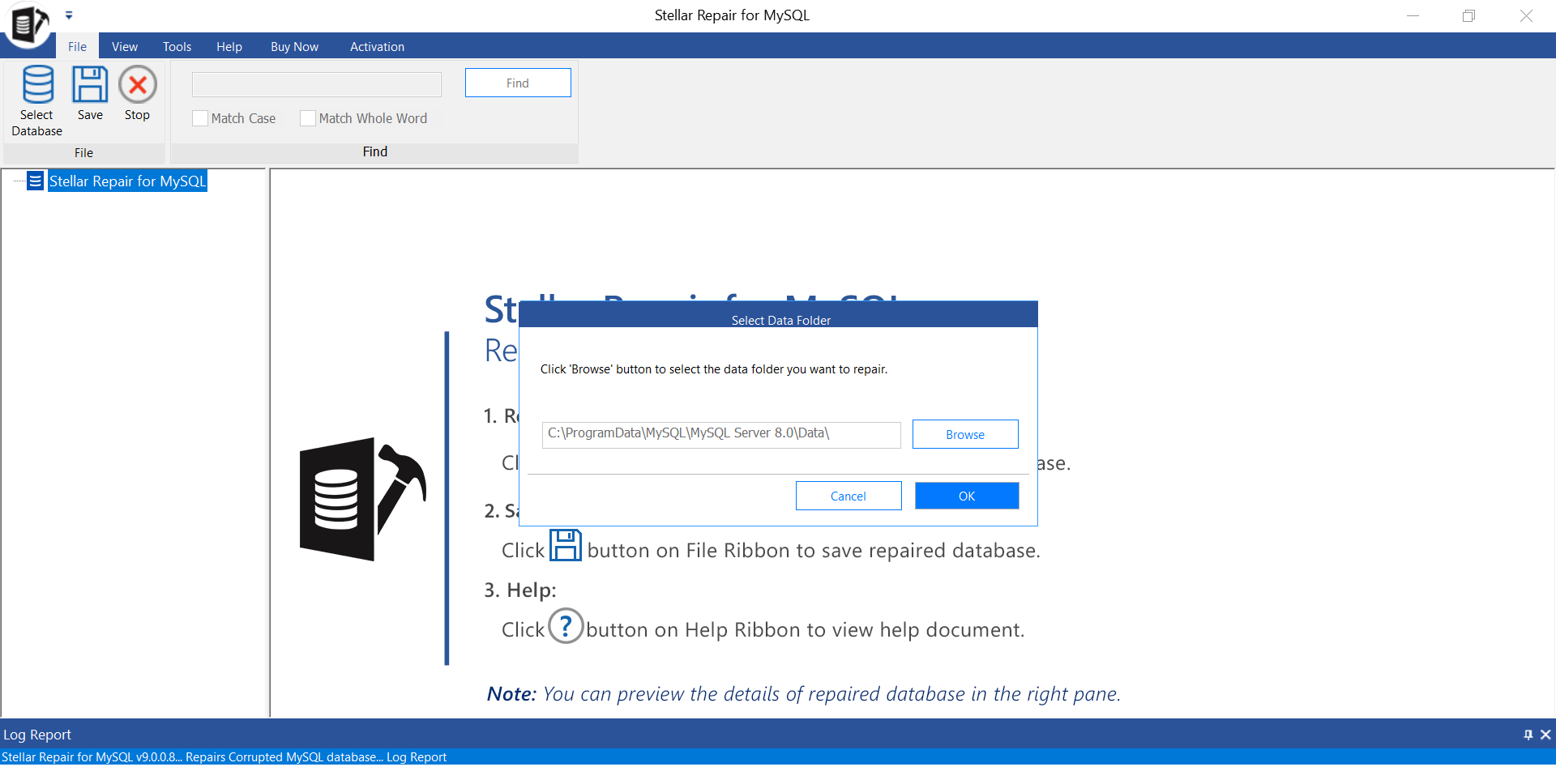 .
.
Step 3: Started the Repair Process
Once I clicked “OK,” the software listed all the databases found inside the selected folder. I chose the affected database and clicked on “Repair.” The scanning process started immediately.
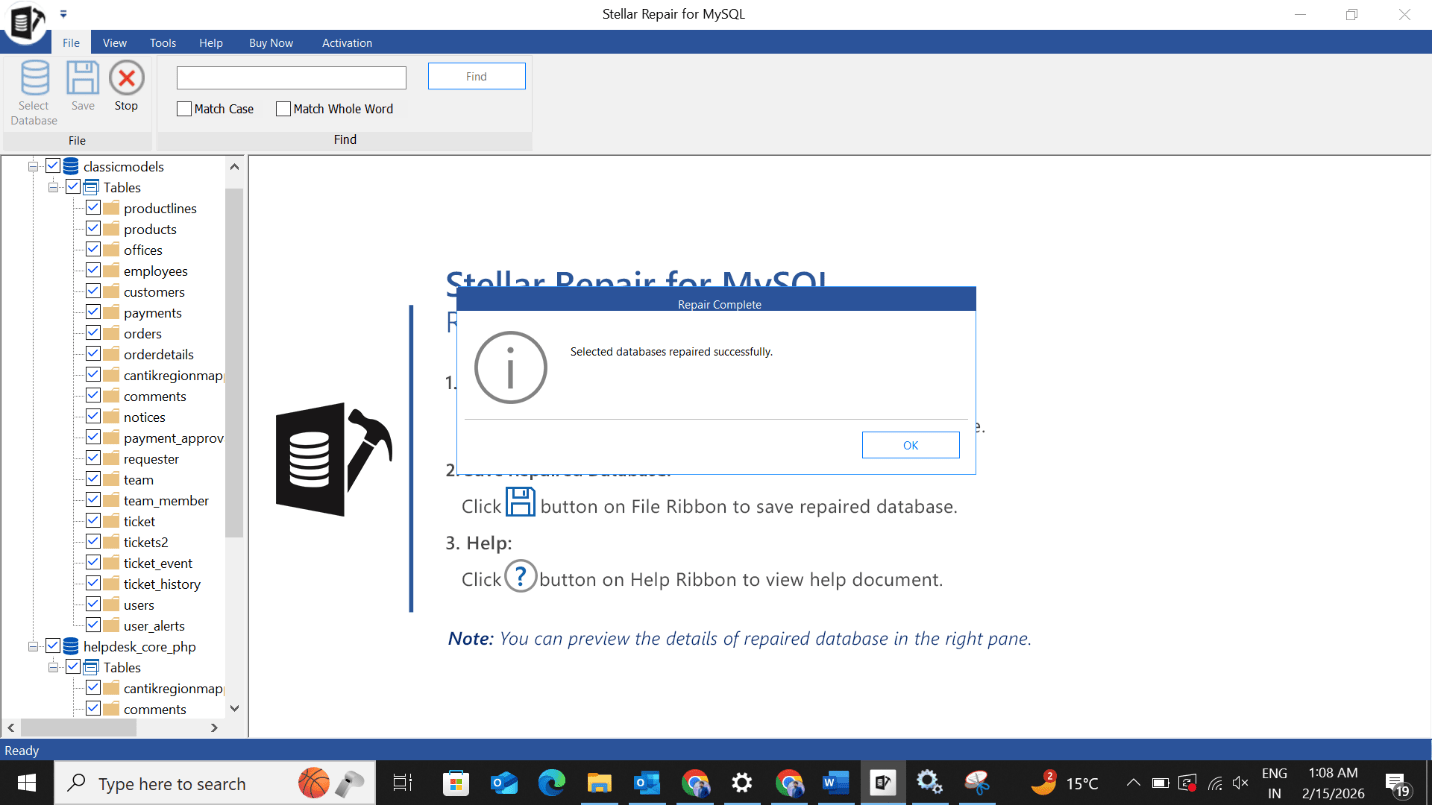
Step 5: Previewed the Recovered Table
After the scan completed, the software displayed a preview of the recovered database objects. I could see my missing table again along with its structure and records. This confirmed that the data was still recoverable.

Step 6: Activated and Saved the Recovered Data
After verifying the preview and confirming that my table structure and records were intact, I went ahead and purchased the licensed version of Stellar Repair for MySQL. Once the software was activated, I clicked on “Save” from the File menu to begin the recovery process.
A “Save Database” window appeared where I entered the required details and selected the appropriate save option. After confirming everything, I clicked “Save”, and the software started exporting the recovered database. Within a short time, the process completed successfully, and I received a confirmation message indicating that the saving process was finished.
Step 7: Verified Everything
Finally, I imported the recovered database into MySQL. The table opened normally, the #1932 error disappeared, and my application started working again.
Conclusion
The “Table doesn’t exist in engine” (#1932) problem in my situation was definitely not something that could be solved by restarting services or running the typical commands. The table files were there but just not accessible, restoring my backup from a week earlier would have meant losing a lot of important production data. So after the usual troubleshooting steps failed, Stellar Repair for MySQL was the sensible choice.
The program was easy to use , scan, preview and save , and having the ability to verify what was in the data before making the purchase gave me peace of mind. I was able to recover the table structure and records and get my app working again without having to rebuild the database from scratch.
All in all, if you’ve got a serious MySQL corruption or #1932 error and can’t use the backups, this is definitely something worth a shot before you assume the data is lost forever.