
Back to: Microservices using ASP.NET Core Web API Tutorials
Implementing CORS in ASP.NET Core Web API Microservices
In a microservices-based system, the frontend application and backend APIs usually run on different ports, domains, or subdomains. When a browser-based application, such as an ASP.NET Core MVC, Angular, Vue, or React app, attempts to call these APIs via JavaScript, the browser enforces security rules that may block the request.
This is where Cross-Origin Resource Sharing (CORS) becomes essential. In this document, we walk through a real-world scenario using an ASP.NET Core MVC client and an API Gateway to explain why CORS errors occur, how browsers handle preflight requests, and how to configure CORS in the API Gateway to enable safe communication between browser-based clients and microservices.
Example Scenario:
We will create a .NET 8 ASP.NET Core MVC app with:
- Login Page → Calls Gateway endpoint /users/user/login, receives JWT + Refresh Token
- UI uses:
-
- Bootstrap CDN
- jQuery AJAX
-
Create the MVC Project
Create a new ASP.NET Core MVC Project and name is Ecommerce.Web. Please select the ASP.NET Core Web App (Model-View-Controller) project template when creating the application.
Add Bootstrap + jQuery (CDN) in _Layout.cshtml
Please modify Views/Shared/_Layout.cshtml file as follows:
<head>
    <meta charset="utf-8" />
    <meta name="viewport" content="width=device-width, initial-scale=1.0" />
    <title>@ViewData["Title"] - ECommerceMvcClient</title>

    <!-- Bootstrap CSS -->
    <link href="https://cdn.jsdelivr.net/npm/bootstrap@5.3.3/dist/css/bootstrap.min.css" rel="stylesheet" />
</head>
<body class="bg-light">
    <header>
        <nav class="navbar navbar-expand-lg navbar-dark bg-dark">
            <div class="container">
                <a class="navbar-brand" asp-controller="Home" asp-action="Index">ECommerce MVC</a>
                <button class="navbar-toggler" type="button" data-bs-toggle="collapse" data-bs-target="#nav">
                    <span class="navbar-toggler-icon"></span>
                </button>
                <div id="nav" class="collapse navbar-collapse">
                    <ul class="navbar-nav ms-auto">
                        <li class="nav-item"><a class="nav-link" asp-controller="Account" asp-action="Register">Register</a></li>
                        <li class="nav-item"><a class="nav-link" asp-controller="Account" asp-action="Login">Login</a></li>
                    </ul>
                </div>
            </div>
        </nav>
    </header>

    <main class="container py-4">
        @RenderBody()
    </main>

    <!-- jQuery -->
    <script src="https://code.jquery.com/jquery-3.7.1.min.js"></script>

    <!-- Bootstrap JS -->
    <script src="https://cdn.jsdelivr.net/npm/bootstrap@5.3.3/dist/js/bootstrap.bundle.min.js"></script>

    @await RenderSectionAsync("Scripts", required: false)
</body>
Add Gateway Base URL in Appsettings
Please modify the appsettings.js file as follows:
{
  "Logging": {
    "LogLevel": {
      "Default": "Information",
      "Microsoft.AspNetCore": "Warning"
    }
  },
  "AllowedHosts": "*",
  // This is the API Gateway base URL
  "Gateway": {
    "BaseUrl": "https://localhost:7204"
  }
}
Create Account Controller
Create a new Empty MVC Controller named AccountController.cs within the Controllers folder, then copy-paste the following code.
using Microsoft.AspNetCore.Mvc;
namespace Ecommerce.Web.Controllers
{
    public class AccountController : Controller
    {
        public IActionResult Login()
        {
            return View();
        }
    }
}
Create Login View
Create a view named Login.cshtml within the Views/Account folder, and then copy-paste the following code.
@using Microsoft.Extensions.Configuration
@inject IConfiguration Configuration
@{
    ViewData["Title"] = "Login";
    var gatewayBaseUrl = Configuration["Gateway:BaseUrl"]; // e.g. https://localhost:7204
}

<div class="row justify-content-center">
    <div class="col-md-6">
        <div class="card shadow border-0">
            <div class="card-header bg-success text-white">
                <h5 class="mb-0">Login</h5>
            </div>
            <div class="card-body">

                <form id="loginForm" autocomplete="on" novalidate>
                    <div class="mb-3">
                        <label class="form-label">Email / Username</label>
                        <input id="email"
                               class="form-control"
                               placeholder="Enter email or username"
                               autocomplete="username" />
                    </div>

                    <div class="mb-3">
                        <label class="form-label">Password</label>
                        <input id="password"
                               type="password"
                               class="form-control"
                               placeholder="Enter password"
                               autocomplete="current-password" />
                    </div>

                    <button type="submit" class="btn btn-success w-100">Login</button>
                </form>

                <div id="msg" class="mt-3"></div>

            </div>
        </div>
    </div>
</div>

@section Scripts {
    <script>
        $(document).ready(function () {

            // Base URL of the API Gateway read from appsettings.json
            // Example: https://localhost:7204
            const gatewayBaseUrl = "@gatewayBaseUrl";

            // Helper: shows a Bootstrap alert message inside the #msg div
            // type: success | danger | warning | info
            function showMsg(text, type) {
                $("#msg").html(`<div class="alert alert-${type} mb-0">${text}</div>`);
            }

            // Helper: Detect a "likely CORS blocked" scenario in the browser
            // When CORS blocks, the browser does NOT give JS access to the response.
            // jQuery often reports:
            //   - textStatus = "error"
            //   - xhr.status = 0
            function isCorsLikely(xhr, textStatus) {
                return (textStatus === "error" && xhr && xhr.status === 0);
            }

            // Handle the form submit event
            $("#loginForm").on("submit", function (e) {

                // Stop the default form submit (page refresh).
                // We want to submit using AJAX instead.
                e.preventDefault();

                // Build the request body exactly as your API expects (PascalCase keys)
                // This matches your Postman request:
                // {
                //   "EmailOrUserName": "...",
                //   "Password": "...",
                //   "ClientId": "web"
                // }
                const payload = {
                    EmailOrUserName: $("#email").val(),
                    Password: $("#password").val(),
                    ClientId: "web" // fixed value as per your API requirement
                };

                // Send AJAX request to API Gateway login endpoint
                $.ajax({
                    // Full URL => https://localhost:7204/users/user/login
                    url: gatewayBaseUrl + "/users/user/login",

                    // HTTP method (must match API endpoint)
                    type: "POST",

                    // Tell server we are sending JSON
                    contentType: "application/json",

                    // Tell jQuery to parse the response as JSON
                    dataType: "json",

                    // Convert JS object -> JSON string
                    data: JSON.stringify(payload),

                    // Runs when API returns HTTP 200 (success response)
                    success: function (res) {

                        // Your API response format:
                        // { Success: true/false, Data: {...}, Message: "...", Errors: ... }
                        // We only show the message based on res.Success.
                        if (res && res.Success === true) {

                            // Show success message from API (or fallback)
                            showMsg(res.Message || "Login successful.", "success");
                        } else {
                            // HTTP 200 but business validation failed
                            // (Example: wrong password, user locked, etc.)
                            showMsg(res?.Message || "Login failed.", "danger");
                        }
                    },

                    // Runs when API returns non-200 OR request is blocked/failed
                    error: function (xhr, textStatus) {

                        // If CORS blocks, the browser prevents your JS from reading the response.
                        // So we show a friendly CORS message here.
                        if (isCorsLikely(xhr, textStatus)) {
                            showMsg(
                                "CORS issue: Browser blocked the request. Enable CORS in API Gateway and allow OPTIONS.",
                                "warning"
                            );
                            return;
                        }

                        // Non-CORS error:
                        // Could be 400, 401, 403, 500, etc.
                        // Try to extract a meaningful error message from the API response.
                        let msg = "Login failed.";

                        // If API returns JSON with a Message property
                        if (xhr?.responseJSON?.Message) msg = xhr.responseJSON.Message;

                        // Else show raw response text (if any)
                        else if (xhr?.responseText) msg = xhr.responseText;

                        // Show final message
                        showMsg(msg, "danger");
                    }
                });

            });

        });
    </script>
}
Modify Program Class:
Please modify the Program class as follows. Here, we are setting Login Page as our default page.
namespace Ecommerce.Web
{
    public class Program
    {
        public static void Main(string[] args)
        {
            var builder = WebApplication.CreateBuilder(args);

            // Add services to the container.
            builder.Services.AddControllersWithViews();

            var app = builder.Build();

            // Configure the HTTP request pipeline.
            if (!app.Environment.IsDevelopment())
            {
                app.UseExceptionHandler("/Home/Error");
                app.UseHsts();
            }

            app.UseHttpsRedirection();
            app.UseStaticFiles();

            app.UseRouting();

            app.UseAuthorization();

            app.MapControllerRoute(
                name: "default",
                pattern: "{controller=Account}/{action=Login}/{id?}");

            app.Run();
        }
    }
}
Run Consul in Development Mode
Please run the following command in Command Prompt.
consul agent -dev -client=0.0.0.0 -ui -node=consul-dev
Note: Keep this command window open while working with your microservices. If you close it, Consul stops, and services cannot register or be discovered.
Open Consul UI
Once Consul is running, we can monitor everything from the browser. Open your browser and navigate to: http://localhost:8500
Run Microservices
Please run all Microservices projects, specifically the API gateway and User Microservice.
Run MVC Project
Finally, run the MVC application. Now, open the Login Page, provide a valid Email and Password, and click on the Login button. You should see the CORS error message.
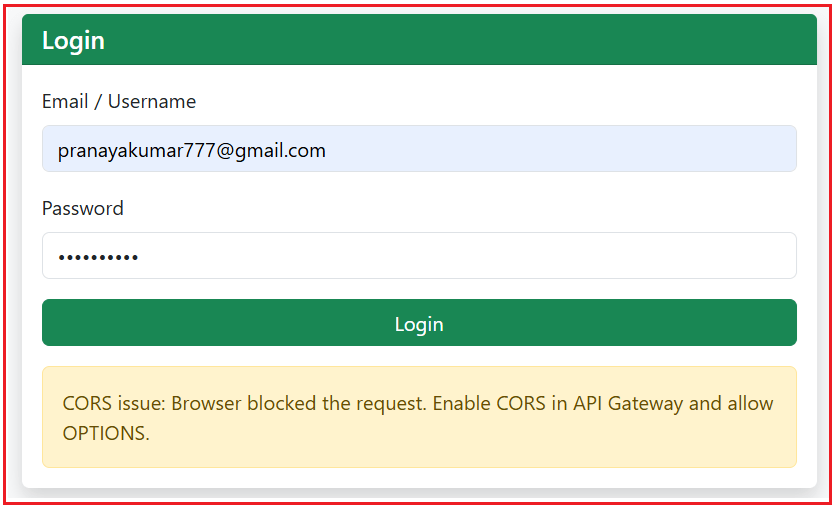
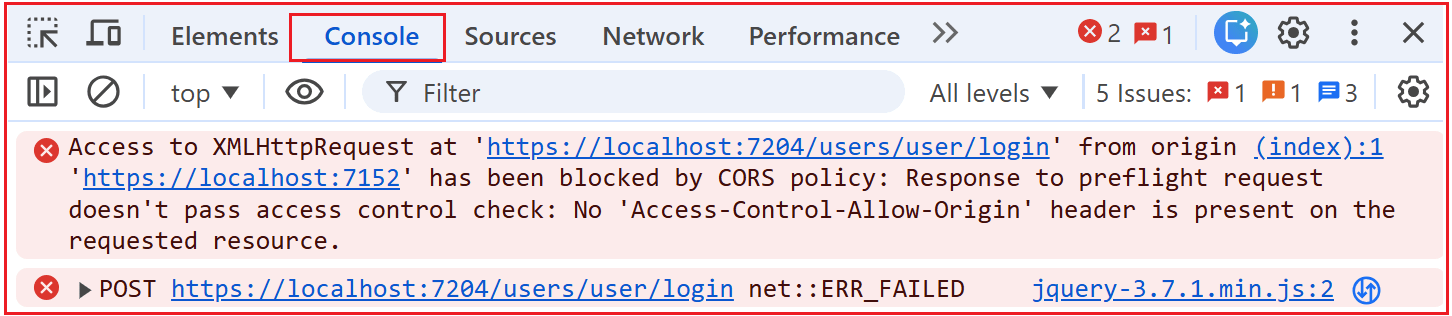
To understand this better, open the browser developer tool, open the Console tab, and you should see the following CORS issue:
What is Happening Internally?
Our login page runs on https://localhost:7152, our API Gateway runs on https://localhost:7204, and the browser treats different ports as different websites. So, when our page’s JavaScript (jQuery Ajax) tries to call the gateway, the browser first sends a small “Permission Check” request (called a Preflight/OPTIONS). Because the gateway doesn’t return the required CORS Permission Header (Access-Control-Allow-Origin), the browser blocks the actual request and displays a CORS error.
- Different ports mean different origins (7152 ≠ 7204), so the browser enforces cross-origin rules.
- The browser sends a Preflight (OPTIONS) request before the POST to ask, “Is this origin allowed?”
- The gateway response lacks an Access-Control-Allow-Origin header, so the browser blocks the call.
How to Enable CORS in API Gateway?
Enabling CORS in the API Gateway is a Two-Step Process because CORS in ASP.NET Core is split into Service Registration (what rules are allowed) and Middleware Execution (when those rules are applied to incoming requests). If either step is missing or placed incorrectly, the browser’s preflight request will fail, and JavaScript calls will be blocked.
Service Registration (AddCors)
- Define rules (which origins/headers/methods are allowed).
Middleware (UseCors)
- Must run before Authentication/Authorization, so OPTIONS preflight doesn’t get blocked.
Service Registration: Define the policy
Put this before var app = builder.Build();
builder.Services.AddCors(options =>
{
    options.AddPolicy("AllowAll", policy =>
    {
        policy
            .AllowAnyOrigin()   // Allow requests from ANY origin (any domain/port)
            .AllowAnyHeader()   // Allow ANY headers (Content-Type, Authorization, etc.)
            .AllowAnyMethod();  // Allow ANY methods (GET, POST, PUT, DELETE, OPTIONS)
    });
});
What each method does
- AddCors(…): Enables the CORS feature in ASP.NET Core.
- AddPolicy(“AllowAll”, …): Creates a named policy you can apply later. You can also give any name.
- AllowAnyOrigin(): Tells the gateway, I accept calls from any UI origin.
- AllowAnyHeader(): Allows headers needed by browsers, especially:
- Content-Type: application/json
- Authorization: Bearer <JWT>
- AllowAnyMethod(): Allows all methods, including OPTIONS (preflight).
Middleware: Apply the policy in the correct order
Put this after the app.UseRouting(); and before auth:
app.UseRouting();

// CORS must run here so it can handle OPTIONS (preflight)
app.UseCors("AllowAll");

app.UseAuthentication();
app.UseAuthorization();
Why must CORS be before auth?
- The browser sends an OPTIONS request first (preflight): “Can I call you from my origin?”
- If auth runs before CORS, the gateway may reject OPTIONS requests or fail to add CORS headers.
- Then the browser blocks the real POST and shows a CORS error.
Now, run the MVC application, go to the Login Page, provide valid credentials, and click on the Submit button. You should see the following response.

Network Tab:
In the network tab, you will see two login requests as shown in the image below.
Here:
- login (Status 204, Type: preflight): This is the browser’s OPTIONS request. It’s basically asking: “Gateway, are you allowing my website origin to call this endpoint with JSON headers?”
204 means “No Content” — that’s totally normal for preflight. The important part is the response headers, not the body. - login (Status 200, Type: xhr): This is our actual POST request triggered by jQuery Ajax. It only happens after the preflight succeeds.
Preflight Request:
If you click the preflight (204) entry and open Response Headers, you should see things like:
Here:
- Access-Control-Allow-Origin: …
- Access-Control-Allow-Methods: …
- Access-Control-Allow-Headers: …
That confirms CORS is enabled and working correctly in the Gateway.
Can I create Multiple CORS Policies?
Yes. We can create multiple CORS Policies.
// CORS Policies
// We can have multiple CORS Policies
builder.Services.AddCors(options =>
{
    // Policy 1: Allow ALL origins, headers, and methods (demo / dev)
    options.AddPolicy("AllowAll", policy =>
    {
        policy
            .AllowAnyOrigin()   // any UI/domain can call
            .AllowAnyHeader()   // any headers allowed
            .AllowAnyMethod();  // any HTTP methods allowed
    });

    // Policy 2: STRICT (specific origin + specific headers + specific methods)
    options.AddPolicy("StrictMvc", policy =>
    {
        policy
            .WithOrigins("https://localhost:7152")               // only this UI origin
            .WithHeaders("Content-Type", "Authorization")        // allow only these headers
            .WithMethods("GET", "POST");                         // allow only these methods
    });

    // Policy 3: MIXED (specific origin + ANY header + ANY method)
    options.AddPolicy("MixedPolicy", policy =>
    {
        policy
            .WithOrigins("https://localhost:7152")  // only this UI origin
            .AllowAnyHeader()                       // allow any headers (json, auth, custom, etc.)
            .AllowAnyMethod();                      // allow any methods (GET/POST/PUT/DELETE/OPTIONS)
    });
});
Can I apply Multiple CORS Policy Globally?
No. We can only apply one CORS Policy Globally. So, if we register multiple CORS policies, ASP.NET Core does not automatically pick one. At runtime, the policy used depends on how we apply CORS. If we apply CORS globally using middleware
- app.UseCors(“AllowAll”);
Then every request uses that one policy (AllowAll). The others are ignored unless we change the name. If you apply CORS per endpoint/controller/action (using attributes or endpoint metadata)
- [EnableCors(“StrictMvc”)]
Then that specific endpoint uses that policy, while other endpoints can use a different one.
Important Points:
- You cannot merge multiple policies for the same request. For a given request, the result is effectively the rules of one policy.
- When two CORS policies apply to the same endpoint (for example, one applied globally using UseCors(), and another applied specifically using [EnableCors]), the endpoint-specific policy wins. ASP.NET Core always prefers the most specific CORS policy for a request, because it assumes that a controller or endpoint knows its requirements better than a global default.
- In real-time, avoid mixing to prevent confusion—either:
-
- Use One Global Policy, or
- Use Per-Endpoint Policies with no conflicting global policy.
-
CORS is not an API issue but a browser security mechanism designed to protect users from unsafe cross-origin access. In ASP.NET Core microservices, the most reliable and maintainable approach is to handle CORS at the API Gateway, where all browser traffic enters the system. By correctly registering CORS services, applying middleware in the proper order, and understanding how preflight requests work, we can eliminate browser-side failures that occur even when APIs are healthy. A clear understanding of CORS ensures smoother frontend–backend integration, fewer production surprises, and a cleaner microservices architecture.
About the Author: Pranaya Rout
Pranaya Rout has published more than 3,000 articles in his 11-year career. Pranaya Rout has very good experience with Microsoft Technologies, Including C#, VB, ASP.NET MVC, ASP.NET Web API, EF, EF Core, ADO.NET, LINQ, SQL Server, MYSQL, Oracle, ASP.NET Core, Cloud Computing, Microservices, Design Patterns and still learning new technologies.