

Sports fans are impatient users. They open an app for a few seconds to check a score, expect it to load instantly on a weak mobile connection, and want a notification the moment a wicket falls or a goal goes in. Building separate native apps for Android and iOS to meet those expectations is expensive, and every update has to pass store review. A Progressive Web App (PWA) offers another route: one codebase, installable on any device, able to work offline and receive push notifications. In this tutorial we will build a live-score PWA for a sports platform using Blazor WebAssembly, ASP.NET Core and SignalR — step by step, with code you can run.
What Is a Progressive Web App?
A Progressive Web App is a regular web application that uses modern browser APIs to behave like an installed app. It runs from a URL, but the user can add it to the home screen, launch it in its own window and use parts of it without a network connection. Three technologies make this possible: HTTPS, a web app manifest and a service worker.
Core PWA Features: Installable, Offline-Ready, Push-Enabled
Every PWA is built on a short list of capabilities:
- Installable. The web app manifest describes the app’s name, icons and colours, so the browser can offer “Install” or “Add to Home Screen”.
- Offline-ready. A service worker sits between the app and the network, caching files and API responses so the app can start without a connection.
- Push-enabled. Through the Push API and Notifications API, the server can deliver alerts even when the app is closed.
- Secure. Service workers only run over HTTPS (localhost is the exception during development).
- Responsive. One interface adapts from a 5-inch phone to a desktop monitor.
PWA vs Native App: Pros and Cons
Neither approach wins everywhere. Here is how they compare on the points that matter most for a sports product:
- Codebase. A Blazor PWA needs one C# codebase for all platforms; native apps usually need two, or a cross-platform framework.
- Distribution. A PWA installs straight from the website; native apps must pass App Store and Google Play review.
- Updates. A PWA updates on the user’s next visit; with native apps, users have to install each update.
- Offline support. A PWA offers good offline support through service worker caching; native apps offer full offline support.
- Push notifications. Both support them, but on iOS a PWA receives push only once installed to the home screen (iOS 16.4 and later).
- Device APIs. A PWA is limited to what browsers expose; native apps get full access to the device.
- First load. A Blazor WebAssembly PWA has a heavier first load because the .NET runtime downloads once; a native app is downloaded from the store up front.
For content-driven platforms whose main job is to show fast-changing data, the PWA column usually wins on cost and speed of delivery.
Why Sports and Live-Data Platforms Choose PWAs
Sports products have an unusual profile: traffic spikes around matches, data changes every few seconds, and most visits come from phones. Several practical reasons push these platforms toward PWAs:
- Release speed. A bug fix during a tournament reaches users immediately, without waiting days for store approval.
- No store gatekeeping. App store policies restrict some categories of sports and real-money products by region, so a web-based install path keeps the product available.
- One codebase. A small team maintains a single application instead of three.
- Lower acquisition friction. A fan who lands on the site from search can install it in one tap, without visiting a store.
- Lightweight footprint. Users with limited phone storage are more willing to add a PWA than download a large native app.
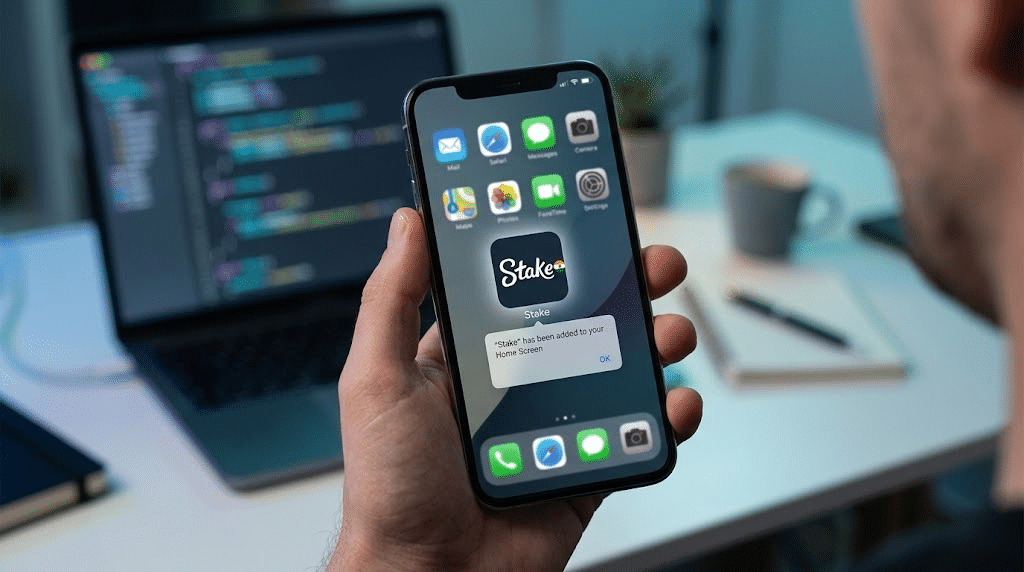
You can see this pattern in production today. Some sports platforms skip native apps entirely and instead let users add the website to their home screen as a PWA — Stake, for example, offers access through the browser and a home-screen shortcut rather than a store app. The same approach works well for score centres, fantasy leagues and club fan apps, which is exactly what we are going to build.
Prerequisites
Before you start, make sure you have the following installed and ready:
- .NET 10 SDK (the current LTS release; .NET 8 also works with the same steps).
- Visual Studio 2026 with the “ASP.NET and web development” workload, or VS Code with the C# Dev Kit extension.
- A Chromium-based browser (Chrome or Edge) for testing install prompts and DevTools audits.
- Basic knowledge of C#, Razor components, and ASP.NET Core Web API.
Creating a Blazor WebAssembly PWA Project
Blazor WebAssembly ships with a built-in PWA option, so we do not need to write the service worker from scratch. We will create two projects: a standalone Blazor WebAssembly client and a small ASP.NET Core API that supplies match data.
Using the .NET CLI (dotnet new blazorwasm –pwa)
Run the following commands to create a solution with both projects:
mkdir LiveScore && cd LiveScore
dotnet new sln -n LiveScore
dotnet new blazorwasm –pwa -o LiveScore.Client
dotnet new web -o LiveScore.Api
dotnet sln add LiveScore.Client LiveScore.Api
The –pwa flag is the important part: it adds the manifest, icons and service worker files to the client project.
Using Visual Studio
If you prefer Visual Studio, the process takes a few clicks:
- Select Create a new project and choose Blazor WebAssembly Standalone App.
- Name the project LiveScore.Client and click Next.
- Choose .NET 10.0, keep authentication set to None and tick Progressive Web Application.
- Click Create, then add an ASP.NET Core Empty project named LiveScore.Api to the same solution.
Understanding the Generated Project Structure
The PWA option adds a few files to wwwroot and a couple of lines to the project file:
- manifest.webmanifest — the app’s identity: name, icons, theme colour and display mode.
- service-worker.js — the development service worker. It deliberately does no caching, so you always see fresh code while debugging.
- service-worker.published.js — the production service worker. It caches the app’s files for offline use and replaces service-worker.js when you publish.
- icon-192.png and icon-512.png — the default install icons.
- index.html — now links the manifest and registers the service worker with navigator.serviceWorker.register(‘service-worker.js’).
In LiveScore.Client.csproj you will also find the ServiceWorkerAssetsManifest property. At publish time it generates service-worker-assets.js, a list of every file with a content hash, which the service worker uses to know what to cache and when to update.
Configuring the Web App Manifest
The manifest decides how the app looks once installed: its name under the icon, the splash screen colour and whether the browser address bar is visible. Open wwwroot/manifest.webmanifest and replace the default content with a version tailored to a sports app:
{
  "name": "LiveScore — Real-Time Sports Scores",
  "short_name": "LiveScore",
  "id": "./",
  "start_url": "./",
  "display": "standalone",
  "orientation": "portrait",
  "background_color": "#0B1E3A",
  "theme_color": "#0B1E3A",
  "description": "Live scores, fixtures and match alerts.",
  "icons": [
    { "src": "icon-192.png", "type": "image/png", "sizes": "192x192" },
    { "src": "icon-512.png", "type": "image/png", "sizes": "512x512" },
    { "src": "icon-maskable-512.png", "type": "image/png", "sizes": "512x512", "purpose": "maskable" }
  ],
  "shortcuts": [
    { "name": "Live now", "url": "./live", "icons": [{ "src": "icon-192.png", "sizes": "192x192" }] },
    { "name": "Fixtures", "url": "./fixtures", "icons": [{ "src": "icon-192.png", "sizes": "192x192" }] }
  ]
}
A few properties deserve attention:
- display: standalone removes the browser UI, so the installed app feels native.
- theme_color tints the status bar on Android and the title bar on desktop.
- purpose: maskable gives Android an icon with safe padding, so it is not cropped into an awkward circle.
- shortcuts add a long-press menu on the home-screen icon, letting fans jump straight to live matches.
Designing the Sports Data Model
With the shell configured, we need data to display. To keep the example focused, we will model a limited-overs cricket match, but the same structure adapts to football or tennis by changing the score fields.
Match, Team and Score Entities
Create a class library shared by both projects so the client and the API use identical types:
dotnet new classlib -o LiveScore.Shared
dotnet sln add LiveScore.Shared
dotnet add LiveScore.Client reference LiveScore.Shared
dotnet add LiveScore.Api reference LiveScore.Shared
Then add the models:
namespace LiveScore.Shared;

public enum MatchStatus { Scheduled, Live, Completed }

public record Team(int Id, string Name, string ShortName);

public record Innings(int TeamId, int Runs, int Wickets, double Overs);

public class Match
{
    public int Id { get; set; }
    public Team Home { get; set; } = default!;
    public Team Away { get; set; } = default!;
    public string Venue { get; set; } = string.Empty;
    public DateTime StartTimeUtc { get; set; }
    public MatchStatus Status { get; set; }
    public List<Innings> Innings { get; set; } = new();
}

public record ScoreUpdate(int MatchId, Innings Innings, string Commentary);
Using records for Team, Innings and ScoreUpdate makes them immutable and cheap to compare, which helps when deciding whether the UI needs to re-render.
Building a Minimal Web API for Fixtures and Results
In LiveScore.Api/Program.cs, register CORS (the client runs on a different origin during development), and expose two endpoints:
using LiveScore.Shared;

var builder = WebApplication.CreateBuilder(args);

builder.Services.AddCors(o => o.AddDefaultPolicy(p => p
    .WithOrigins("https://localhost:7101")
    .AllowAnyHeader()
    .AllowAnyMethod()
    .AllowCredentials()));
builder.Services.AddSingleton<MatchStore>();
builder.Services.AddSignalR();

var app = builder.Build();
app.UseCors();

app.MapGet("/api/matches", (MatchStore store) => store.GetAll());
app.MapGet("/api/matches/{id:int}", (int id, MatchStore store) =>
    store.Get(id) is { } match ? Results.Ok(match) : Results.NotFound());

app.MapHub<ScoreHub>("/hubs/scores");
app.Run();
MatchStore is a simple in-memory service holding a list of Match objects. In a real platform it would read from a database or a sports data provider’s feed. Replace the port in WithOrigins with the one your client actually uses.
Real-Time Score Updates with SignalR

Polling the API every few seconds wastes battery and bandwidth and still feels slow. SignalR keeps a persistent connection open — WebSockets where available, with automatic fallbacks — so the server pushes each score change to every connected fan the moment it happens.
Setting Up the SignalR Hub on the Server
The hub itself can stay almost empty. Clients join a group per match, so they receive updates only for games they are watching:
using Microsoft.AspNetCore.SignalR;

public class ScoreHub : Hub
{
    public Task FollowMatch(int matchId) =>
        Groups.AddToGroupAsync(Context.ConnectionId, $"match-{matchId}");

    public Task UnfollowMatch(int matchId) =>
        Groups.RemoveFromGroupAsync(Context.ConnectionId, $"match-{matchId}");
}
To broadcast from anywhere in the API — for example, a background service reading a data feed — inject IHubContext<ScoreHub>:
public class ScoreBroadcaster(IHubContext<ScoreHub> hub)
{
    public Task PublishAsync(ScoreUpdate update) =>
        hub.Clients.Group($"match-{update.MatchId}")
          .SendAsync("ScoreUpdated", update);
}
Connecting the Blazor Client to the Hub
Add the SignalR client package to the Blazor project:
dotnet add LiveScore.Client package Microsoft.AspNetCore.SignalR.Client
Then create a LiveMatch.razor page that opens the connection, joins the match group, and listens for updates:
@page "/match/{MatchId:int}"
@using Microsoft.AspNetCore.SignalR.Client
@using LiveScore.Shared
@implements IAsyncDisposable

<h3>@status</h3>
@if (latest is not null)
{
    <p class="score">@latest.Innings.Runs/@latest.Innings.Wickets (@latest.Innings.Overs ov)</p>
    <p class="commentary">@latest.Commentary</p>
}

@code {
    [Parameter] public int MatchId { get; set; }
    private HubConnection? hub;
    private ScoreUpdate? latest;
    private string status = "Connecting...";

    protected override async Task OnInitializedAsync()
    {
        hub = new HubConnectionBuilder()
            .WithUrl("https://localhost:7201/hubs/scores")
            .WithAutomaticReconnect()
            .Build();

        hub.On<ScoreUpdate>("ScoreUpdated", async update =>
        {
            latest = update;
            await InvokeAsync(StateHasChanged);
        });

        hub.Reconnecting += _ => { status = "Reconnecting..."; return InvokeAsync(StateHasChanged); };
        hub.Reconnected += async _ =>
        {
            status = "Live";
            await hub.InvokeAsync("FollowMatch", MatchId);
            await InvokeAsync(StateHasChanged);
        };

        await hub.StartAsync();
        await hub.InvokeAsync("FollowMatch", MatchId);
        status = "Live";
    }

    public async ValueTask DisposeAsync()
    {
        if (hub is not null) await hub.DisposeAsync();
    }
}
Two details make this robust on mobile networks:
- WithAutomaticReconnect() retries after 0, 2, 10 and 30 seconds by default, which covers short drops in a train tunnel or a stadium with overloaded Wi-Fi.
- Re-joining the group in Reconnected is essential, because a reconnection creates a new connection ID that is not yet a member of any group.
Updating the UI Efficiently with StateHasChanged
SignalR callbacks run outside Blazor’s rendering context, so the UI does not refresh by itself. Wrapping StateHasChanged in InvokeAsync marshals the call back onto the renderer safely. For pages listing many matches, keep re-renders cheap:
- Split each match card into its own component, so one score change re-renders one card, not the whole list.
- Override ShouldRender in heavy components to skip rendering when the incoming update does not change visible data.
- Throttle very frequent feeds — for example, apply ball-by-ball updates at most once every 500 ms on list views.
Offline Support and Caching Strategy
A sports app does not need to show live scores offline — that is impossible — but it should always open, show the last known data and tell the user clearly that they are offline. The service worker makes this possible.
How the Blazor Service Worker Caches Assets
The published service worker (service-worker.published.js) follows an offline-first model for the app shell:
- During install, it downloads every file listed in service-worker-assets.js — DLLs, the .NET runtime, CSS, images — and stores them in a versioned cache.
- During activate, it deletes caches from older versions.
- During fetch, navigation requests are answered with the cached index.html, and asset requests are served from the cache first, falling back to the network.
As a result, the second launch of the app is near-instant and works with no connection at all. Remember that this behaviour only exists in published builds; in development the no-op service-worker.js runs instead.
Caching API Responses: Network-First vs Cache-First
The default worker caches only static files, not API calls. For a sports app the right strategy depends on how fast data goes stale:
- App shell (DLLs, CSS, icons): cache-first. These files change only on deploy and are versioned by hash.
- Fixtures and team lists: stale-while-revalidate. They change rarely, so showing them instantly matters more than absolute freshness.
- Live match state: network-first with a cache fallback. It must be fresh, but a last-known score is better than an empty screen.
Add a network-first handler for the matches endpoint at the top of the fetch logic in service-worker.published.js:
const apiCacheName = 'api-cache-v1';

async function networkFirst(request) {
    const cache = await caches.open(apiCacheName);
    try {
        const response = await fetch(request);
        if (response.ok) cache.put(request, response.clone());
        return response;
    } catch {
        const cached = await cache.match(request);
        return cached ?? new Response('[]', { headers: { 'Content-Type': 'application/json' } });
    }
}

async function onFetch(event) {
    const url = new URL(event.request.url);
    if (event.request.method === 'GET' && url.pathname.startsWith('/api/matches')) {
        return networkFirst(event.request);
    }
    // ...the original Blazor template logic continues here
}
Showing an Offline Fallback UI
Users should never wonder whether a score is live or stale. Expose the browser’s connection state to Blazor with a small JavaScript module, wwwroot/js/network.js:
export function watch(dotnetRef) {
    const notify = () => dotnetRef.invokeMethodAsync('SetOnline', navigator.onLine);
    window.addEventListener('online', notify);
    window.addEventListener('offline', notify);
    notify();
}
Then show a banner from a shared component:
@inject IJSRuntime JS

@if (!isOnline)
{
    <div class="offline-banner">You're offline — showing the last known scores.</div>
}

@code {
    private bool isOnline = true;

    protected override async Task OnAfterRenderAsync(bool firstRender)
    {
        if (!firstRender) return;
        var module = await JS.InvokeAsync<IJSObjectReference>("import", "./js/network.js");
        await module.InvokeVoidAsync("watch", DotNetObjectReference.Create(this));
    }

    [JSInvokable]
    public void SetOnline(bool online) { isOnline = online; StateHasChanged(); }
}
Place the component in MainLayout.razor, so the banner appears on every page.
Adding Push Notifications
Push notifications turn a score page into something fans rely on: “Match started”, “Wicket! 142/4 in the 16th over”, “Final result”. Web Push works through three parties — your server, the browser vendor’s push service and the service worker on the device.
The implementation follows these steps:
- Generate VAPID keys — a public/private key pair that identifies your server to push services. The WebPush NuGet package can create them with VapidHelper.GenerateVapidKeys().
- Subscribe in the browser. Call registration.pushManager.subscribe({ userVisibleOnly: true, applicationServerKey }) from a JS module invoked via JS interop, only after the user taps a button such as “Alert me for this match”.
- Save the subscription — send its endpoint and keys to an API endpoint and store them along with the match IDs the user follows.
- Send from the server. When a key event happens, use WebPushClient.SendNotificationAsync(subscription, payload, vapidDetails) for each subscriber.
- Display in the service worker. Handle the push event in both service worker files:
self.addEventListener('push', event => {
    const data = event.data.json();
    event.waitUntil(self.registration.showNotification(data.title, {
        body: data.body,
        icon: 'icon-192.png',
        tag: `match-${data.matchId}`,
        data: { url: `/match/${data.matchId}` }
    }));
});

self.addEventListener('notificationclick', event => {
    event.notification.close();
    event.waitUntil(clients.openWindow(event.notification.data.url));
});
Using a tag per match means a new alert replaces the previous one for the same game, so fans do not get a stack of twenty outdated scores.
A note on iOS: Safari supports Web Push from iOS 16.4, but only for PWAs the user has added to the home screen. On iPhone, prompt for notifications after installation, not on the first visit.
Making the App Installable
Browsers decide on their own when an app qualifies for installation. A well-placed install button, however, converts far better than a hidden browser menu item.
Custom “Install App” Button with beforeinstallprompt
Chromium-based browsers fire a beforeinstallprompt event when the app meets the install criteria. Capture it and trigger it from your own button:
let deferredPrompt = null;

window.addEventListener('beforeinstallprompt', e => {
    e.preventDefault();
    deferredPrompt = e;
    document.body.classList.add('can-install');
});

export async function promptInstall() {
    if (!deferredPrompt) return 'unavailable';
    deferredPrompt.prompt();
    const { outcome } = await deferredPrompt.userChoice;
    deferredPrompt = null;
    return outcome; // 'accepted' or 'dismissed'
}
Call promptInstall from a Blazor button via IJSObjectReference. Good moments to show the button include:
- after the user has opened two or three match pages;
- right after they turn on alerts for a match;
- on the final-result screen, when engagement is highest.
Add to Home Screen on iOS
Safari on iOS does not fire beforeinstallprompt, so detect iOS and show a short hint instead:
- Tap the Share button in Safari’s toolbar.
- Scroll down and choose Add to Home Screen.
- Confirm the name and tap Add.
Hide the hint when window.matchMedia(‘(display-mode: standalone)’).matches is true — the app is already installed.
Performance Optimization for Mobile Users
Blazor WebAssembly’s main weakness is the first load, because the .NET runtime and your assemblies must download before the app starts. On a stadium’s congested network that matters. These techniques reduce the cost:
- Trimming — enabled by default on publish; it removes unused code from framework assemblies.
- Compression — publish output includes Brotli and Gzip versions of every file; make sure your host serves them.
- Lazy loading — move rarely used features, such as a detailed statistics page, into a separate assembly and load it on demand with BlazorWebAssemblyLazyLoad and LazyAssemblyLoader.
- AOT compilation — set <RunAOTCompilation>true</RunAOTCompilation> (requires the wasm-tools workload). It speeds up CPU-heavy code but increases download size, so measure before keeping it.
- A loading screen — customise the placeholder in index.html with your logo and colours, so the first visit feels intentional.
After the first visit, the service worker serves everything from cache, and startup drops to well under a second on a modern phone.
Deploying and Testing the PWA
A PWA only shows its real behaviour in a published build served over HTTPS. Publish the client with:
dotnet publish LiveScore.Client -c Release -o ./publish
The static site ends up in publish/wwwroot, ready for any static host.
Deploying to Azure Static Web Apps or IIS
Both options work well; choose based on where the rest of your platform runs.
Azure Static Web Apps is the quickest path for a standalone client:
- Push the solution to a GitHub repository.
- In the Azure portal, create a Static Web App and connect the repository.
- Set the build preset to Blazor, the app location to LiveScore.Client and the output location to wwwroot.
- Add a staticwebapp.config.json with a navigationFallback rewrite to /index.html, so deep links such as /match/42 work.
IIS suits teams already hosting the API on Windows servers:
- Install the URL Rewrite module.
- Copy the contents of publish/wwwroot and the generated web.config to the site folder.
- Bind a valid HTTPS certificate — without it the service worker will not register.
- Confirm that .webmanifest, .wasm and .br files are served with correct MIME types and encodings.
Deploy LiveScore.Api separately, for example to Azure App Service, and update the CORS origin and the SignalR hub URL in the client to the production addresses.
Auditing with Lighthouse and Chrome DevTools
Before announcing the app, check it like a browser would:
- Application → Manifest in DevTools shows parsed manifest fields and any installability errors.
- Application → Service workers lets you test updates, bypass the cache and simulate offline mode.
- Application → Cache storage lists exactly which files and API responses are cached.
- Lighthouse audits performance, accessibility and best practices; run it in mobile mode with network throttling.
- A real device remains the final test: install the app on Android and iPhone, turn on flight mode and relaunch it.
Common Pitfalls and How to Fix Them
Most Blazor PWA issues come from caching. These are the problems teams hit most often:
- Users see an old version after deploy. A new service worker installs in the background but waits until every tab of the app is closed. Detect the waiting worker and show an “Update available — tap to refresh” banner that calls skipWaiting() and reloads.
- Changes do not appear during development. You are probably testing a published build with the caching worker. Use Update on reload in DevTools or clear site data.
- The install button never appears. Check HTTPS, a valid manifest with 192 px and 512 px icons, and a registered service worker. Remember that beforeinstallprompt does not exist in Safari or Firefox.
- SignalR fails in production. Usually CORS: production origins must be listed explicitly when AllowCredentials() is used. Also check that the host or proxy allows WebSockets.
- Push works on Android but not on iPhone. On iOS, notifications require the app to be installed to the home screen and iOS 16.4 or later.
- Integrity errors after deploy. A CDN or proxy that modifies files (for example, minifying them again) breaks the hash check in service-worker-assets.js. Serve published files untouched.
Conclusion
We have built a complete foundation for a sports PWA with Blazor: an installable app shell defined by the manifest, real-time scores delivered through SignalR, offline support with sensible caching strategies, push alerts for key moments and a deployment checklist. All of it is written in C#, apart from a few lines of JavaScript, and runs from a single codebase on every platform.
From here, consider these next steps:
- Dark mode that follows the system theme via prefers-color-scheme.
- Localisation with IStringLocalizer, important for sports audiences that span several languages.
- IndexedDB storage for richer offline data, such as full scorecards and player statistics.
- Background sync to queue user actions, such as favourite-team changes, while offline.
If you have questions about any step, leave them in the comments below — and share what you build.